> ## Documentation Index
> Fetch the complete documentation index at: https://docs.stackone.com/llms.txt
> Use this file to discover all available pages before exploring further.
# Connector Profile Access
> Control sensitive connector profiles by restricting who can link accounts through them.
When someone links an account, they only see the [connector profiles](/gateway/concepts/connector-profiles) they're allowed to link through. Each profile is either **Shared** or **Restricted**:
| Access | Who can link accounts through the profile |
| - | - |
| **Shared** | Every **Project Admin** and **Project Member** in the [project](/gateway/concepts/organizations-and-projects), and every **Organization Admin**. |
| **Restricted** | Only the users and [groups](/secure/identity-and-access/roles-and-groups/groups) granted access on the profile. |
Project Admins can still view, edit and delete a restricted profile.
## When to restrict a connector profile
Restrict a profile when its configuration is sensitive and only some people should connect through it. Each of them still links their own account.
A user can reach a provider by linking their own account through a connector profile, or by using an account someone else has already linked:
| | [Connector Profile Access](/secure/identity-and-access/roles-and-groups/connector-profile-access) | [Shared Accounts](/secure/identity-and-access/roles-and-groups/shared-accounts) |
| - | - | - |
| Question it answers | Who may connect? | Who may use this connection? |
| Whose credentials are used | Each user's own | The account owner's |
| What gets created | A new linked account per user | Nothing new, just access to an existing one |
| Typical reason | The configuration is privileged or sensitive | One login should serve several people |
Example cases:
A sales team of account executives, with two sales managers who also fix records in bulk.
1. Create two CRM connector profiles: one with admin scopes, and one with read-only scopes.
2. Restrict the admin-scoped profile, and leave the read-only one **Shared**.
3. Grant the sales managers **Connector Profile Member** on the admin-scoped profile.
4. Each manager links their own CRM account through the admin-scoped profile.
5. Everyone else links through the read-only profile.
An HR team that handles payroll.
1. Restrict the HR connector profile that reaches payroll data.
2. Grant the HR team's group **Connector Profile Member** on it.
3. Only the HR team can link accounts through it.
## Access to a restricted connector profile
A grant gives a user or group one of two roles, **Connector Profile Admin** or **Connector Profile Member**. On a restricted connector profile:
| Capability | Project or Organization Admin, no grant | Project Member or Viewer, no grant | Connector Profile Member | Connector Profile Admin |
| - | :-: | :-: | :-: | :-: |
| **View the profile and its configuration** | Yes | Only if an account they can access was linked through it | Yes | Yes |
| **Link accounts through it** | No | No | Yes | Yes |
| **Edit its configuration** | Yes | No | No | Yes |
| **Delete it** | Yes | No | No | Yes |
| **Manage its access** | No | No | No | Yes |
| **Enable or disable it** | Yes | No | No | No |
 ## Restrict a connector profile
Restricting a shared profile needs **Project Admin** or **Organization Admin**. Once it's restricted, only a **Connector Profile Admin** can change its access.
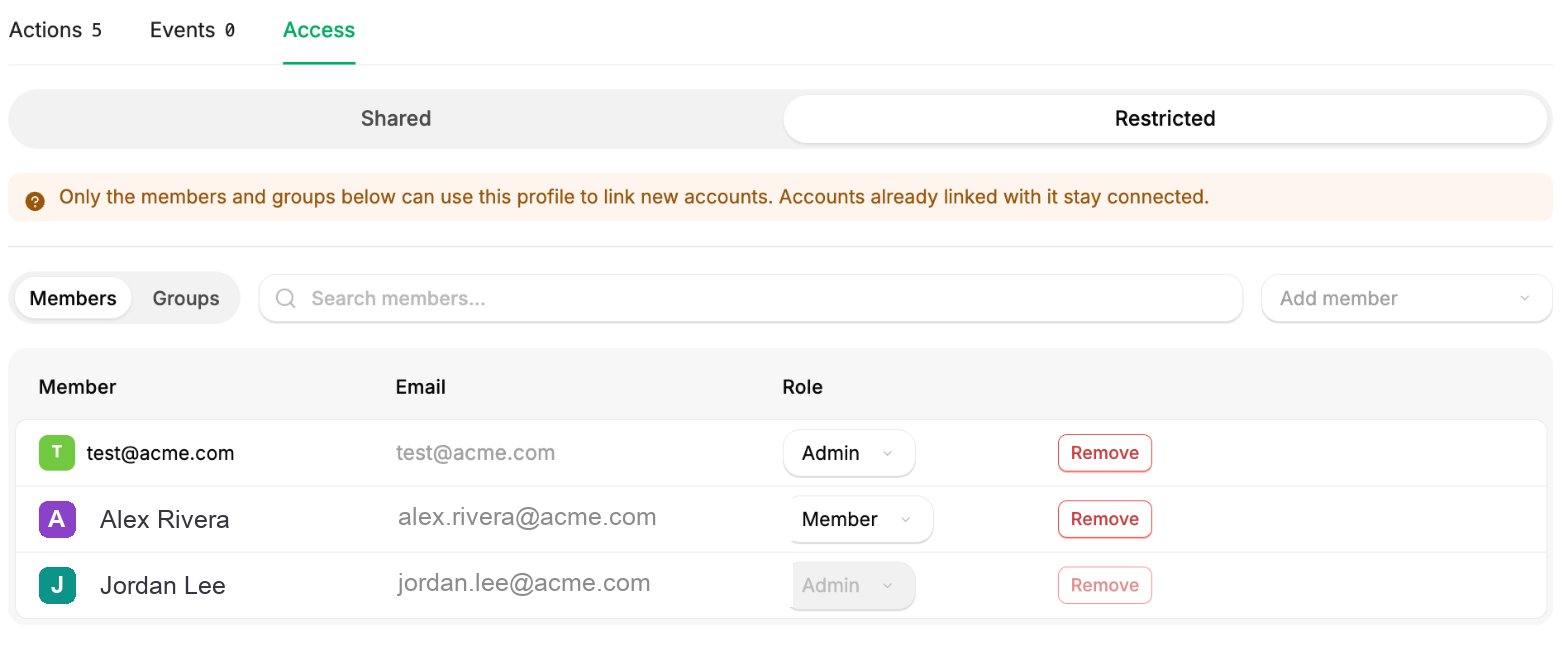
1. Go to [**Connector Profiles**](https://app.stackone.com/connector_profiles) and open the profile.
2. Select its **Access** tab.
Change the selector from **Shared** to **Restricted**. You become its **Connector Profile Admin** automatically, so you can't lock yourself out.
Accounts already linked through the profile stay linked, and can still be re-authenticated through it without a grant.
1. On the **Members** view, click **Add member** for each person.
2. On the **Groups** view, click **Add group** for each group.
3. Choose **Connector Profile Admin** or **Connector Profile Member** for each.
## Restrict a connector profile
Restricting a shared profile needs **Project Admin** or **Organization Admin**. Once it's restricted, only a **Connector Profile Admin** can change its access.
1. Go to [**Connector Profiles**](https://app.stackone.com/connector_profiles) and open the profile.
2. Select its **Access** tab.
Change the selector from **Shared** to **Restricted**. You become its **Connector Profile Admin** automatically, so you can't lock yourself out.
Accounts already linked through the profile stay linked, and can still be re-authenticated through it without a grant.
1. On the **Members** view, click **Add member** for each person.
2. On the **Groups** view, click **Add group** for each group.
3. Choose **Connector Profile Admin** or **Connector Profile Member** for each.
 A group's grant covers everyone in it, and follows the group as people join or leave. See [Groups](/secure/identity-and-access/roles-and-groups/groups).
To change access later, a **Connector Profile Admin** edits the same **Access** tab. A restricted profile must keep at least one **Connector Profile Admin**, so hand the role to someone else in the same save, or switch the profile back to **Shared**.
## The default for new connector profiles
Each **project** has a **Default Access** setting that decides whether connector profiles created from then on start **Shared** or **Restricted**. Only an **Organization Admin** can change the default:
1. Go to [**Project Settings > Connector Profiles**](https://app.stackone.com/settings/connector-profiles).
2. Under **Default Access**, choose **Shared** or **Restricted**.
3. Click **Save**.
## Related
Choose which of a profile's actions and events are exposed.
Grant many users the same access at once with reusable groups.
Connect the provider accounts your agents act on.
Add people to the organization, and remove their access when they leave.
This documentation is built and hosted on [Mintlify](https://mintlify.com), a developer documentation platform.
A group's grant covers everyone in it, and follows the group as people join or leave. See [Groups](/secure/identity-and-access/roles-and-groups/groups).
To change access later, a **Connector Profile Admin** edits the same **Access** tab. A restricted profile must keep at least one **Connector Profile Admin**, so hand the role to someone else in the same save, or switch the profile back to **Shared**.
## The default for new connector profiles
Each **project** has a **Default Access** setting that decides whether connector profiles created from then on start **Shared** or **Restricted**. Only an **Organization Admin** can change the default:
1. Go to [**Project Settings > Connector Profiles**](https://app.stackone.com/settings/connector-profiles).
2. Under **Default Access**, choose **Shared** or **Restricted**.
3. Click **Save**.
## Related
Choose which of a profile's actions and events are exposed.
Grant many users the same access at once with reusable groups.
Connect the provider accounts your agents act on.
Add people to the organization, and remove their access when they leave.
This documentation is built and hosted on [Mintlify](https://mintlify.com), a developer documentation platform.