> ## Documentation Index
> Fetch the complete documentation index at: https://docs.stackone.com/llms.txt
> Use this file to discover all available pages before exploring further.
# SCIM Provisioning
> Add, update and deactivate users automatically from your identity provider's directory.
export const idp_0 = "your IdP"
**SCIM Provisioning** creates and deactivates StackOne members automatically from your identity provider (IdP). It can also [sync the IdP's groups](/secure/identity-and-access/manage-team/scim/groups) into StackOne, where they can grant access to projects and linked accounts.
 ## Enable SCIM Provisioning
To set up SCIM Provisioning with Okta or Microsoft Entra, follow the [Okta](/secure/identity-and-access/manage-team/scim/okta) or [Microsoft Entra](/secure/identity-and-access/manage-team/scim/microsoft-entra) guide instead. Google Workspace doesn't support SCIM Provisioning.
Before setting up SCIM Provisioning, you need:
* A verified SSO connection between the organization and {idp_0}. See [Single Sign-On](/secure/identity-and-access/authentication/sso/overview).
* The **Organization Admin** role in StackOne.
* Admin access to the StackOne application in {idp_0}.
* (Optional) {idp_0} set up to send `admin` in the SCIM `roles` field for anyone who should join as an **Organization Admin**. Everyone else joins as an **Organization Member**. See [Organization Roles](/secure/identity-and-access/roles-and-groups/organization-roles).
The `roles` value only counts when a user first joins. After that, their role can only be changed in StackOne.
SCIM Provisioning only adds users whose email is on the organization's verified domain. Anyone else, including everyone assigned before the domain is verified, shows as an error in {idp_0}'s provisioning log.
1. In the StackOne dashboard, go to [**Organization > Security > SSO**](https://app.stackone.com/organization/security/sso).
2. Open the verified SSO connection.
3. Select the **Provisioning** tab.
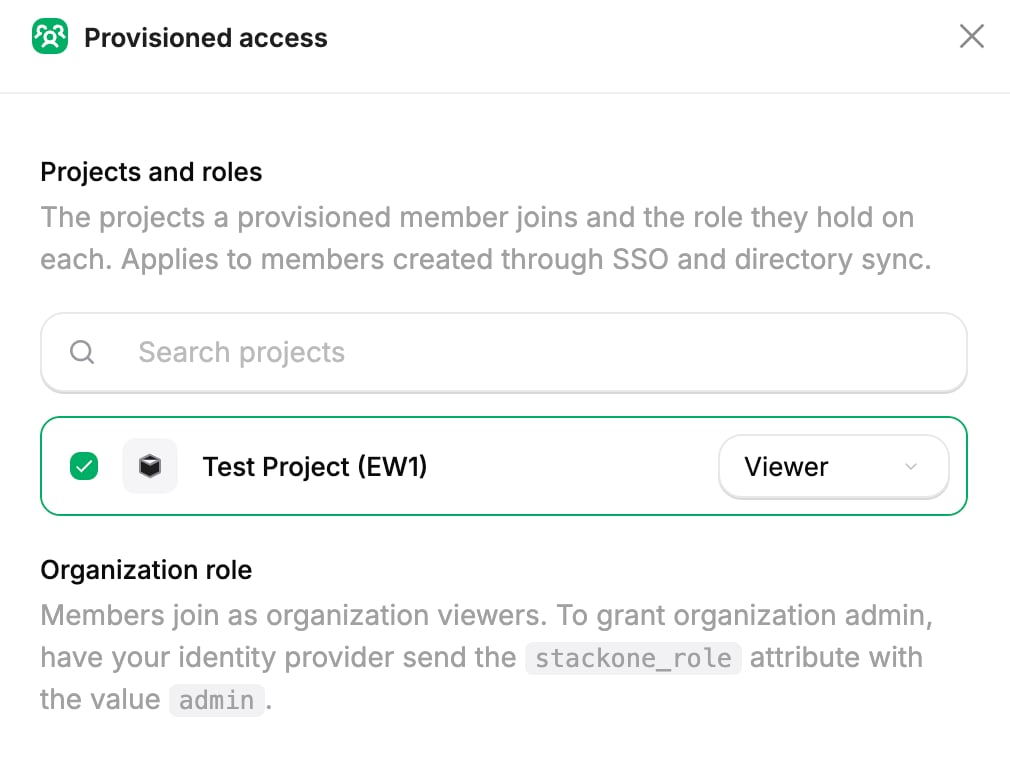
1. On the **Provisioned access** card, select **Manage access**.
2. Pick the projects new users should join.
3. Choose a role for each one. See [Project Roles](/secure/identity-and-access/roles-and-groups/project-roles).
4. Select **Save changes**.
Provisioned access applies to users added by both Just-in-Time Provisioning and SCIM Provisioning.
## Enable SCIM Provisioning
To set up SCIM Provisioning with Okta or Microsoft Entra, follow the [Okta](/secure/identity-and-access/manage-team/scim/okta) or [Microsoft Entra](/secure/identity-and-access/manage-team/scim/microsoft-entra) guide instead. Google Workspace doesn't support SCIM Provisioning.
Before setting up SCIM Provisioning, you need:
* A verified SSO connection between the organization and {idp_0}. See [Single Sign-On](/secure/identity-and-access/authentication/sso/overview).
* The **Organization Admin** role in StackOne.
* Admin access to the StackOne application in {idp_0}.
* (Optional) {idp_0} set up to send `admin` in the SCIM `roles` field for anyone who should join as an **Organization Admin**. Everyone else joins as an **Organization Member**. See [Organization Roles](/secure/identity-and-access/roles-and-groups/organization-roles).
The `roles` value only counts when a user first joins. After that, their role can only be changed in StackOne.
SCIM Provisioning only adds users whose email is on the organization's verified domain. Anyone else, including everyone assigned before the domain is verified, shows as an error in {idp_0}'s provisioning log.
1. In the StackOne dashboard, go to [**Organization > Security > SSO**](https://app.stackone.com/organization/security/sso).
2. Open the verified SSO connection.
3. Select the **Provisioning** tab.
1. On the **Provisioned access** card, select **Manage access**.
2. Pick the projects new users should join.
3. Choose a role for each one. See [Project Roles](/secure/identity-and-access/roles-and-groups/project-roles).
4. Select **Save changes**.
Provisioned access applies to users added by both Just-in-Time Provisioning and SCIM Provisioning.
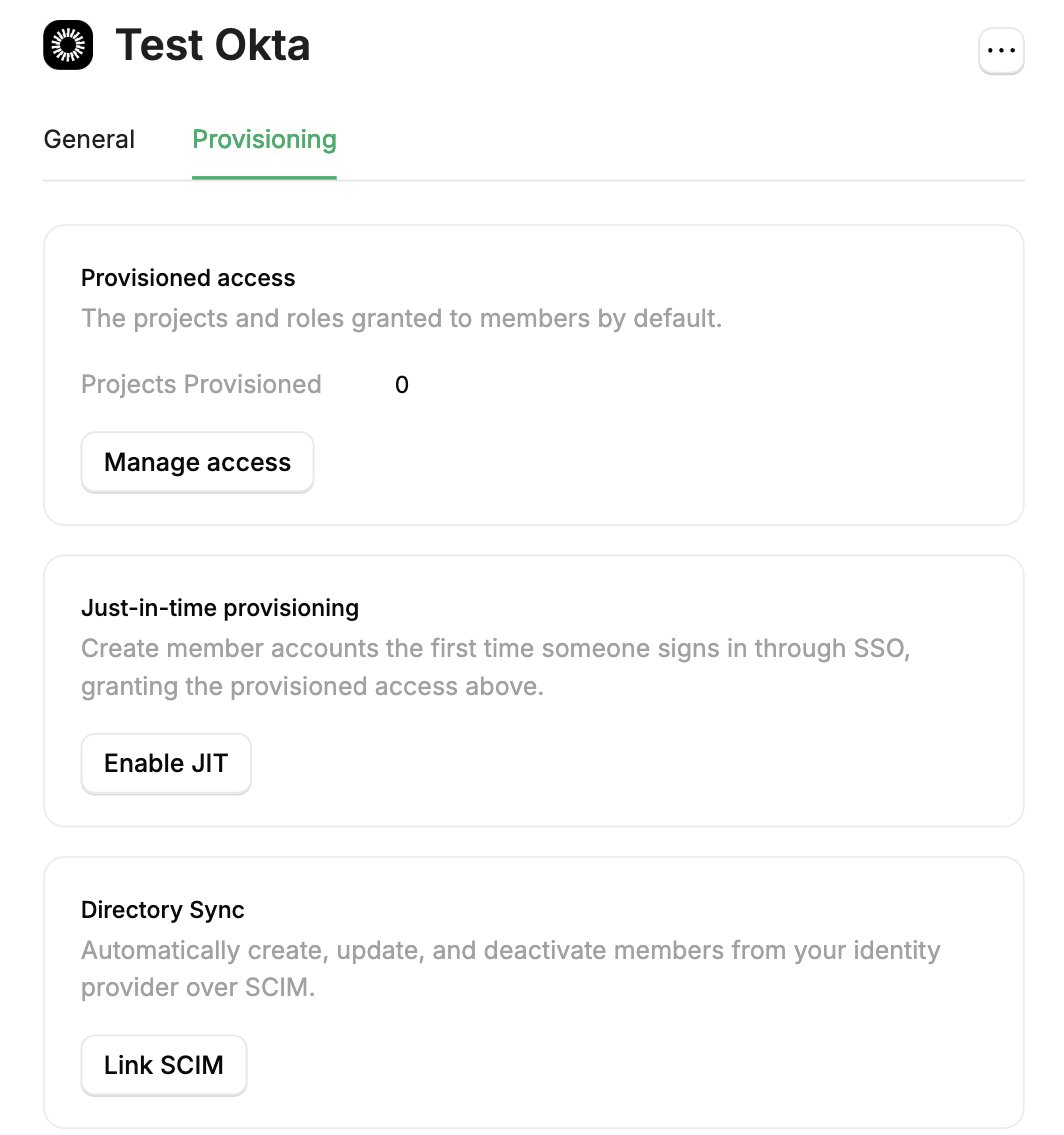
 1. On the **Directory Sync** card, select **Link SCIM**.
2. In the **SCIM Details** section, copy the **SCIM base URL** and the **Provisioning token**. You paste both into the IdP.
1. On the **Directory Sync** card, select **Link SCIM**.
2. In the **SCIM Details** section, copy the **SCIM base URL** and the **Provisioning token**. You paste both into the IdP.
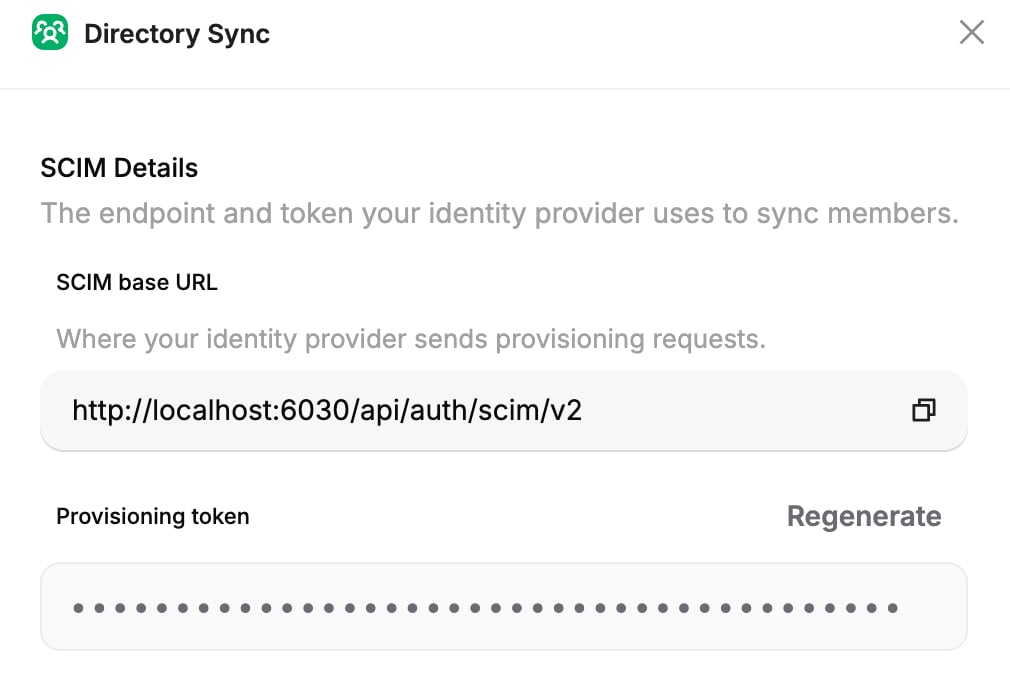 The token is only shown once. Store it somewhere safe before you close the panel. To replace a lost or leaked token, see [Rotate the token](/secure/identity-and-access/manage-team/scim/overview#rotate-the-token).
In the IdP, enable provisioning for the StackOne application, paste in the SCIM base URL and token, and assign the users who should sync.
## When a user is assigned
When you assign a user to the StackOne application in the IdP:
* The user is added to the organization.
* The user gets the connection's **provisioned access**. It's applied again on every update from the IdP, so a project you remove from the user in StackOne comes back.
* The user joins any [synced groups](/secure/identity-and-access/manage-team/scim/groups) the IdP pushes them into, and gets the access those groups grant.
## Deprovisioning
Deprovisioning affects every user the IdP manages through SCIM Provisioning, including people who first joined by invitation or Just-in-Time Provisioning. Users the IdP has never assigned are left untouched.
When you deactivate or remove a user in the IdP:
* The user's access to the organization is suspended.
* The user is removed from their synced groups.
* The user is signed out on any device where they're currently working in the organization.
Reactivating the user in the IdP lifts the suspension, unless an **Organization Admin** also disabled them in StackOne.
SCIM Provisioning never deactivates the organization's last active **Organization Admin**. To offboard them, first make someone else an **Organization Admin**. Until then, the IdP's provisioning log shows the deactivation as an error, and it retries on each sync.
**Deleting a user** in StackOne doesn't remove them while the IdP still assigns them. The next sync adds them back, so deactivate or remove them in the IdP instead.
## Manage or remove SCIM Provisioning
Manage SCIM Provisioning from the **Directory Sync** card on the SSO connection's **Provisioning** tab.
### Rotate the token
1. Select **Edit SCIM**.
2. Select **Regenerate**, then **Confirm rotate**.
3. Paste the new token into the IdP.
The old token stops working immediately, so SCIM Provisioning fails until the IdP has the new one.
### Change provisioned access
Select **Manage access** on the **Provisioned access** card. New users get the updated access. Users SCIM Provisioning already manages get any added projects on their next update from the IdP, but keep projects you removed and their role on projects they already had.
Synced groups grant access separately. When a user has a project through both, the strongest role applies. See [Which role applies](/secure/identity-and-access/roles-and-groups/overview#which-role-applies).
### Unlink SCIM Provisioning
Select **Unlink**. This stops all future provisioning and revokes the token. Users synced so far keep their access, and synced groups become normal groups that keep their members and assignments.
If you link again later, the SCIM base URL stays the same, so you only paste the new token into the IdP.
Deleting the SSO connection unlinks SCIM Provisioning in the same way. If you delete and recreate the connection, for example to replace a certificate, link SCIM again and paste the new token into the IdP.
## Next steps
Enable SCIM provisioning on an Okta SSO connection.
Enable SCIM provisioning on a Microsoft Entra SSO connection.
Set up the SSO connection that SCIM Provisioning builds on.
Push the IdP's groups into StackOne and grant access through them.
This documentation is built and hosted on [Mintlify](https://mintlify.com), a developer documentation platform.
The token is only shown once. Store it somewhere safe before you close the panel. To replace a lost or leaked token, see [Rotate the token](/secure/identity-and-access/manage-team/scim/overview#rotate-the-token).
In the IdP, enable provisioning for the StackOne application, paste in the SCIM base URL and token, and assign the users who should sync.
## When a user is assigned
When you assign a user to the StackOne application in the IdP:
* The user is added to the organization.
* The user gets the connection's **provisioned access**. It's applied again on every update from the IdP, so a project you remove from the user in StackOne comes back.
* The user joins any [synced groups](/secure/identity-and-access/manage-team/scim/groups) the IdP pushes them into, and gets the access those groups grant.
## Deprovisioning
Deprovisioning affects every user the IdP manages through SCIM Provisioning, including people who first joined by invitation or Just-in-Time Provisioning. Users the IdP has never assigned are left untouched.
When you deactivate or remove a user in the IdP:
* The user's access to the organization is suspended.
* The user is removed from their synced groups.
* The user is signed out on any device where they're currently working in the organization.
Reactivating the user in the IdP lifts the suspension, unless an **Organization Admin** also disabled them in StackOne.
SCIM Provisioning never deactivates the organization's last active **Organization Admin**. To offboard them, first make someone else an **Organization Admin**. Until then, the IdP's provisioning log shows the deactivation as an error, and it retries on each sync.
**Deleting a user** in StackOne doesn't remove them while the IdP still assigns them. The next sync adds them back, so deactivate or remove them in the IdP instead.
## Manage or remove SCIM Provisioning
Manage SCIM Provisioning from the **Directory Sync** card on the SSO connection's **Provisioning** tab.
### Rotate the token
1. Select **Edit SCIM**.
2. Select **Regenerate**, then **Confirm rotate**.
3. Paste the new token into the IdP.
The old token stops working immediately, so SCIM Provisioning fails until the IdP has the new one.
### Change provisioned access
Select **Manage access** on the **Provisioned access** card. New users get the updated access. Users SCIM Provisioning already manages get any added projects on their next update from the IdP, but keep projects you removed and their role on projects they already had.
Synced groups grant access separately. When a user has a project through both, the strongest role applies. See [Which role applies](/secure/identity-and-access/roles-and-groups/overview#which-role-applies).
### Unlink SCIM Provisioning
Select **Unlink**. This stops all future provisioning and revokes the token. Users synced so far keep their access, and synced groups become normal groups that keep their members and assignments.
If you link again later, the SCIM base URL stays the same, so you only paste the new token into the IdP.
Deleting the SSO connection unlinks SCIM Provisioning in the same way. If you delete and recreate the connection, for example to replace a certificate, link SCIM again and paste the new token into the IdP.
## Next steps
Enable SCIM provisioning on an Okta SSO connection.
Enable SCIM provisioning on a Microsoft Entra SSO connection.
Set up the SSO connection that SCIM Provisioning builds on.
Push the IdP's groups into StackOne and grant access through them.
This documentation is built and hosted on [Mintlify](https://mintlify.com), a developer documentation platform.