> ## Documentation Index
> Fetch the complete documentation index at: https://docs.stackone.com/llms.txt
> Use this file to discover all available pages before exploring further.
# Just-in-Time Provisioning
> Add users to the organization automatically the first time they sign in with SSO.
**Just-in-Time (JIT) Provisioning** adds users from your identity provider (IdP) to the organization the first time they sign in with SSO. There's no invitation to send and no directory to sync.
## Set up JIT
Before setting up JIT, you need:
* A verified SSO connection between the organization and your IdP. See [Single Sign-On](/secure/identity-and-access/authentication/sso/overview).
* The **Organization Admin** role in StackOne.
* (Optional) The IdP set up to send the `stackone_role` attribute with the value `admin` for anyone who should join as an **Organization Admin**. Everyone else joins as an **Organization Member**. See [Organization Roles](/secure/identity-and-access/roles-and-groups/organization-roles).
The IdP's value only counts when a user first joins. After that, their role can only be changed in StackOne.
1. In the StackOne dashboard, go to [**Organization > Security > SSO**](https://app.stackone.com/organization/security/sso).
2. Open the verified SSO connection.
3. Select the **Provisioning** tab.
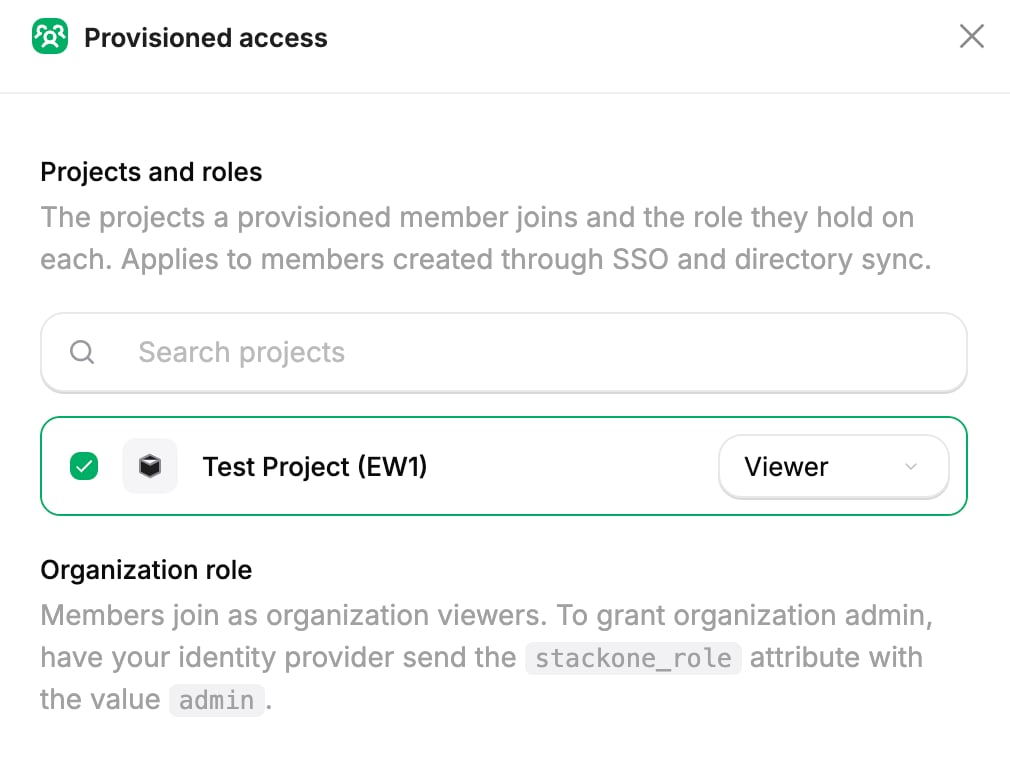
1. On the **Provisioned access** card, select **Manage access**.
2. Pick the projects new users should join.
3. Choose a role for each one. See [Project Roles](/secure/identity-and-access/roles-and-groups/project-roles).
4. Select **Save changes**.
Provisioned access applies to users added by both Just-in-Time Provisioning and SCIM Provisioning.
 On the **Just-in-time provisioning** card, select **Enable JIT**.
Assign the users to the StackOne application in the IdP. Each one joins the organization the first time they sign in with SSO, with the provisioned access you chose.
**Provisioned access** only applies when a user first joins, so JIT doesn't give back access you removed from an existing member.
## When a user isn't added
A user can sign in with SSO and still not be added to the organization if:
* Their email address isn't on the connection's verified domain. The match is exact, so `@eu.acme.com` doesn't count for `acme.com`.
* The organization has no seats left.
* The organization's required sign-in methods don't include SSO.
* They have a pending invitation. They join when they accept it instead. See [Using multiple provisioning methods](/secure/identity-and-access/manage-team/overview#using-multiple-provisioning-methods).
## Remove access to the organization
To stop a user accessing the organization:
1. Go to [**Organization > Manage Team**](https://app.stackone.com/organization/manage_team).
2. On the **Members** tab, find the user.
3. Select **Disable Member**.
Their membership still exists, so JIT can't create a new one when they sign in.
You can also unassign them from the StackOne application in the IdP, so they can't sign in with SSO at all.
**Deleting a user** in StackOne doesn't keep them out while they can still sign in through the IdP. They rejoin at their next sign-in, as if they were joining for the first time.
## Next steps
Grant many users the same project or linked account access at once.
Add and remove users from the directory instead of at sign-in.
This documentation is built and hosted on [Mintlify](https://mintlify.com), a developer documentation platform.
On the **Just-in-time provisioning** card, select **Enable JIT**.
Assign the users to the StackOne application in the IdP. Each one joins the organization the first time they sign in with SSO, with the provisioned access you chose.
**Provisioned access** only applies when a user first joins, so JIT doesn't give back access you removed from an existing member.
## When a user isn't added
A user can sign in with SSO and still not be added to the organization if:
* Their email address isn't on the connection's verified domain. The match is exact, so `@eu.acme.com` doesn't count for `acme.com`.
* The organization has no seats left.
* The organization's required sign-in methods don't include SSO.
* They have a pending invitation. They join when they accept it instead. See [Using multiple provisioning methods](/secure/identity-and-access/manage-team/overview#using-multiple-provisioning-methods).
## Remove access to the organization
To stop a user accessing the organization:
1. Go to [**Organization > Manage Team**](https://app.stackone.com/organization/manage_team).
2. On the **Members** tab, find the user.
3. Select **Disable Member**.
Their membership still exists, so JIT can't create a new one when they sign in.
You can also unassign them from the StackOne application in the IdP, so they can't sign in with SSO at all.
**Deleting a user** in StackOne doesn't keep them out while they can still sign in through the IdP. They rejoin at their next sign-in, as if they were joining for the first time.
## Next steps
Grant many users the same project or linked account access at once.
Add and remove users from the directory instead of at sign-in.
This documentation is built and hosted on [Mintlify](https://mintlify.com), a developer documentation platform.