> ## Documentation Index
> Fetch the complete documentation index at: https://docs.stackone.com/llms.txt
> Use this file to discover all available pages before exploring further.
# Groups
> Grant many users the same project or account access at once with reusable groups.
A group is a reusable set of users you grant access to as a unit. Create a `Finance` group once, add your finance team to it, then give that group access to a project or account in a single step.
Groups keep that access in one place. Add or remove a person and their access updates everywhere the group is assigned. Change the group's role on a project and it applies to everyone in the group at once.
Groups can also come from your identity provider. With SCIM Provisioning, a group pushed from Okta or Microsoft Entra appears here as a synced group whose members your identity provider manages, and you grant access with it the same way. See [SCIM Groups](/secure/identity-and-access/provisioning/scim/groups).
## How groups grant access
Membership and access are separate. A user's access comes from the **role** you choose when you assign the group to a project or account, not from the group itself.
Adding a user to a group grants them nothing on its own. Access starts when you assign the group to a project or account and choose a role there.
Because the role lives on the assignment, one group can carry different access in different places. The same `Finance` group can be **Admin** on one project and **Viewer** on another. Assign it to as many projects and accounts as you need, each with its own role. See [Assigning access](/secure/identity-and-access/groups/assign-access) for the roles available on projects and accounts.
## Prerequisites
* Organization **Admin** role in your StackOne organization. Groups are managed at the organization level, so members without the organization **Admin** role don't see the tab.
## Find your groups
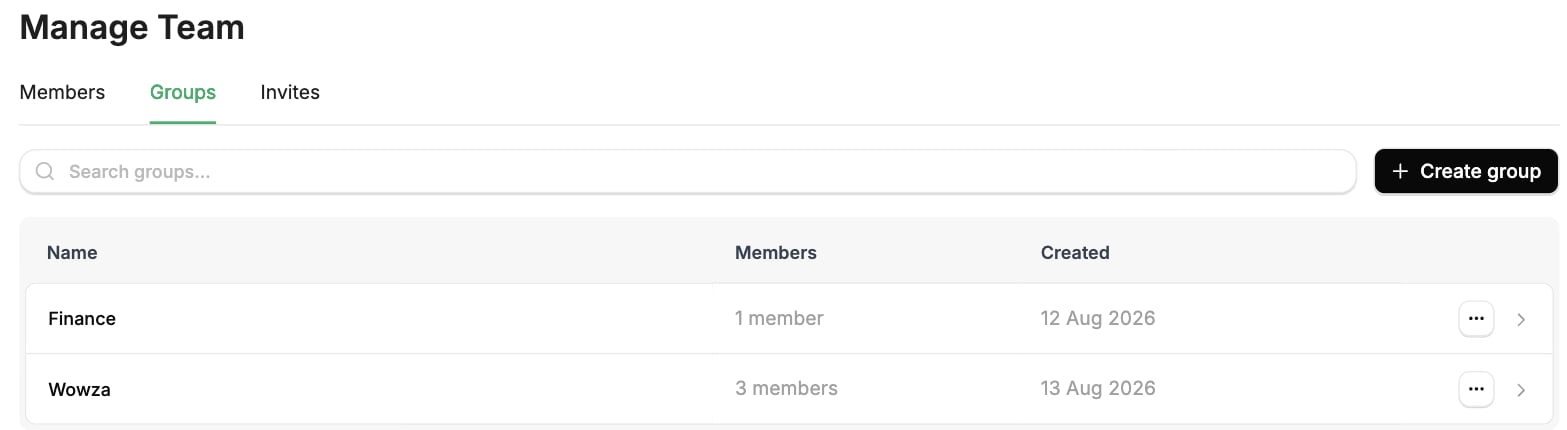
In the StackOne dashboard, go to **Organization > Manage Team**. This is where organization **Admins** manage members and groups for the organization.
Select the **Groups** tab. It lists every group in your organization with its current member count.
 ## Working with groups
Working with a group has two parts:
* **Manage membership.** Add or remove the group's members. They inherit whatever the group is assigned, everywhere it's assigned.
* **Assign access.** Give the group a role on a project or account. This is the step that grants access.
## Next steps
Create groups and manage who belongs to them.
Grant a group access to a project or account and set its role.
Let members sign in through your SAML identity provider.
Provision members and sync groups automatically from your IdP.
Push your identity provider's groups into StackOne and grant access through them.
## Working with groups
Working with a group has two parts:
* **Manage membership.** Add or remove the group's members. They inherit whatever the group is assigned, everywhere it's assigned.
* **Assign access.** Give the group a role on a project or account. This is the step that grants access.
## Next steps
Create groups and manage who belongs to them.
Grant a group access to a project or account and set its role.
Let members sign in through your SAML identity provider.
Provision members and sync groups automatically from your IdP.
Push your identity provider's groups into StackOne and grant access through them.