> ## Documentation Index
> Fetch the complete documentation index at: https://docs.stackone.com/llms.txt
> Use this file to discover all available pages before exploring further.
# Postman
> Connect StackOne MCP to Postman to test and interact with MCP tools using HTTP requests.
## Overview
[Postman](https://www.postman.com/) is a popular API development and testing tool that allows you to send HTTP requests and receive responses. You can use Postman to interact with StackOne's MCP server by making JSON-RPC 2.0 requests.
Postman is ideal for testing MCP endpoints, debugging requests, and exploring available tools before integrating into your application.
## Get the StackOne public Postman collection
The StackOne public Postman collection comes with a pre-configured MCP request:
Fork this collection to get started
The collection already includes:
* MCP requests in the **StackOne MCP** folder
* Basic Auth configured with `{{apiKey}}` as the username
* `x-account-id` header set to `{{accountID}}`
* URL pre-configured to `https://api.stackone.com/mcp`
## Setup
1. Open Postman
2. Click the **Environments** icon in the left sidebar
3. Click **+** to create a new environment
4. Name it "StackOne MCP" (or your preferred name)
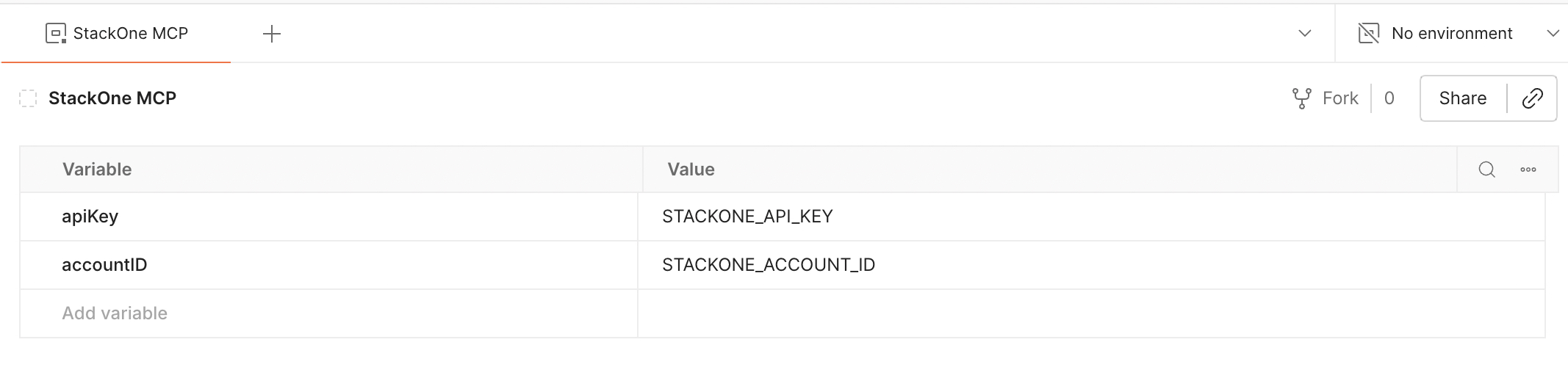
Add the following variables to your environment (these match the variable names used in the collection):
| Variable | Initial Value | Current Value |
| ----------- | ----------------- | ----------------- |
| `apiKey` | `your-api-key` | `your-api-key` |
| `accountID` | `your-account-id` | `your-account-id` |
You can generate a new API key in the [StackOne Dashboard](https://app.stackone.com/api_keys). You can find your account ID in the [StackOne Dashboard](https://app.stackone.com) under your linked accounts.
In the top-right corner of Postman, select your "StackOne MCP" environment from the dropdown to activate it.
 ## Using the MCP Request
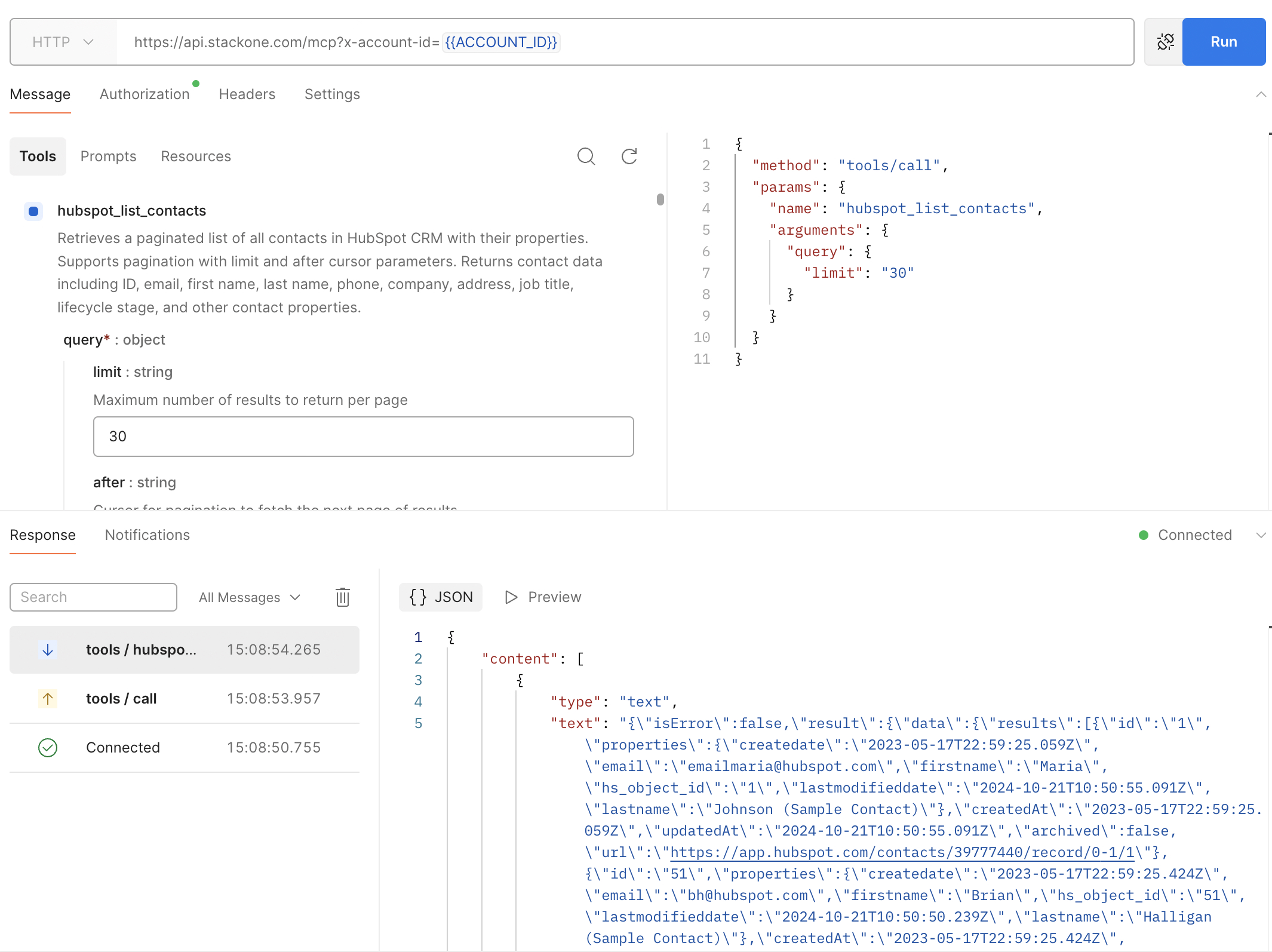
After forking the collection and setting up your environment variables, you'll find a pre-configured MCP request in the **StackOne MCP** folder. The MCP protocol uses JSON-RPC 2.0 format.
### Send Your First Request
1. Navigate to the **StackOne MCP** folder in your forked collection
2. Select the **Connect to StackOne MCP** request
3. Make sure your environment is selected in the top-right corner
4. Under the **Message** tab, click "Load Capabilities"
5. This will show all the available tools for the account you've connected to
6. Select the tool you want to use, fill in any required fields, and click "Run"
You should receive a JSON response from the API with the results of request.
The next time you load the collection, it should automatically load the capabilities for the account you've connected to.
## Using the MCP Request
After forking the collection and setting up your environment variables, you'll find a pre-configured MCP request in the **StackOne MCP** folder. The MCP protocol uses JSON-RPC 2.0 format.
### Send Your First Request
1. Navigate to the **StackOne MCP** folder in your forked collection
2. Select the **Connect to StackOne MCP** request
3. Make sure your environment is selected in the top-right corner
4. Under the **Message** tab, click "Load Capabilities"
5. This will show all the available tools for the account you've connected to
6. Select the tool you want to use, fill in any required fields, and click "Run"
You should receive a JSON response from the API with the results of request.
The next time you load the collection, it should automatically load the capabilities for the account you've connected to.
 ## Next Steps
Learn more about StackOne MCP
Configure authentication and security
Resolve common issues
Integrate MCP into your application
## Next Steps
Learn more about StackOne MCP
Configure authentication and security
Resolve common issues
Integrate MCP into your application