> ## Documentation Index
> Fetch the complete documentation index at: https://docs.stackone.com/llms.txt
> Use this file to discover all available pages before exploring further.
# HubSpot Webhook Configuration
> To successfully configure the webhook and send the event on action.
This guide assumes that you have administrative privileges for your HubSpot account.
## ✅ Prerequisites
Make sure you have the following before you start:
* A [HubSpot Developer Account](https://developers.hubspot.com)
## Get Credentials
Log in to your HubSpot Developer Account at [https://app.hubspot.com/login](https://app.hubspot.com/login)
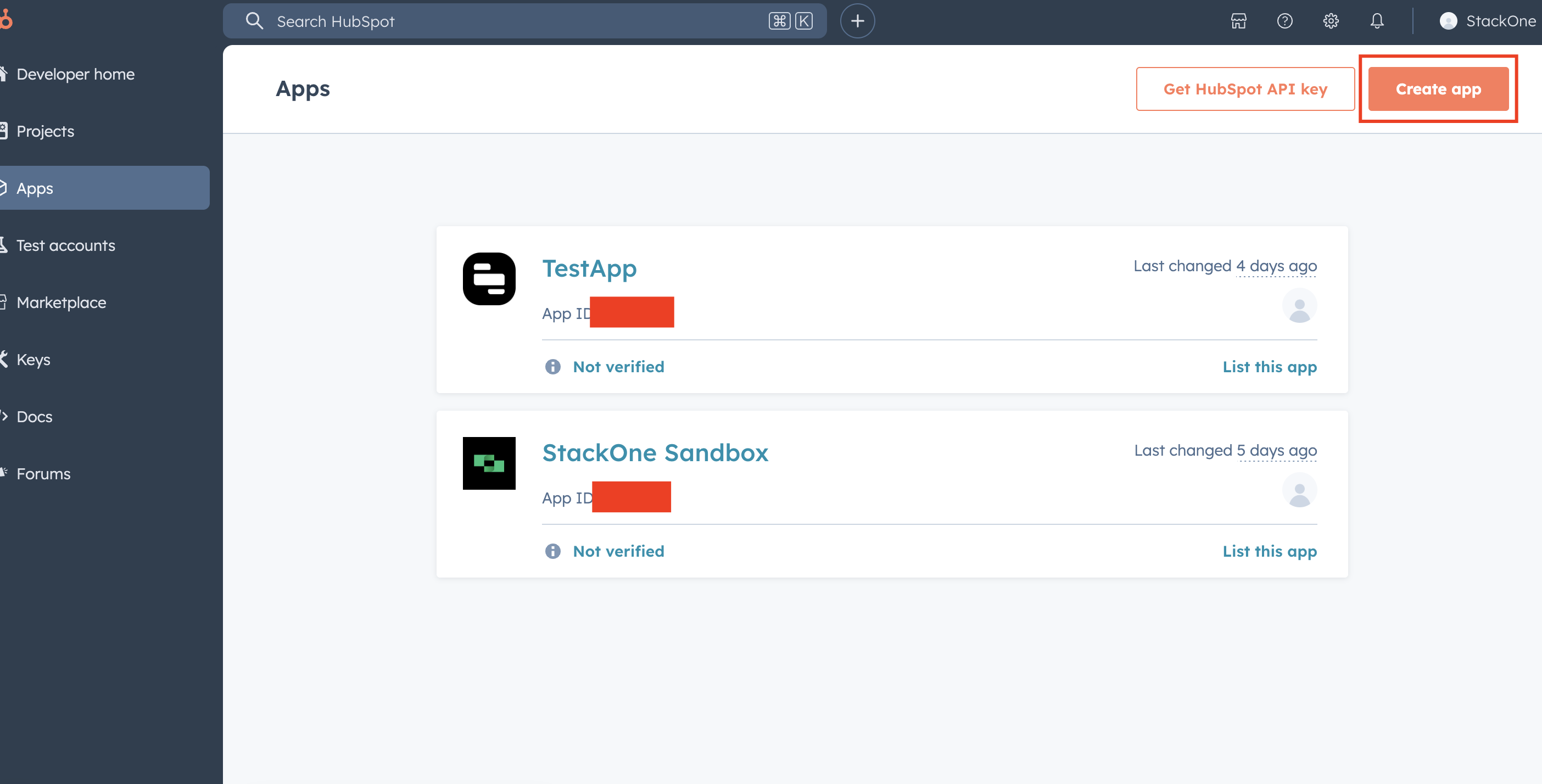
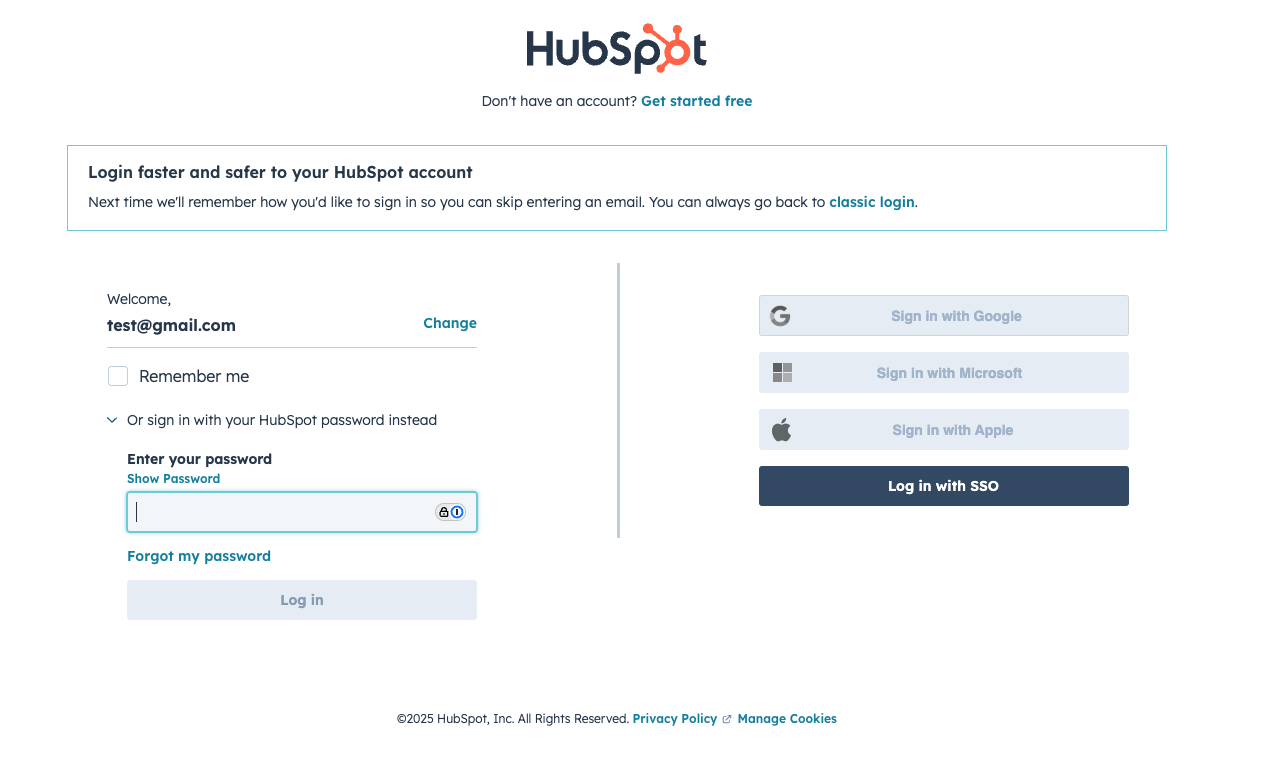 * Select **Apps** from the navigation panel.
* Click **Create App** to create a new app or select an existing app from the list.
* Select **Apps** from the navigation panel.
* Click **Create App** to create a new app or select an existing app from the list.
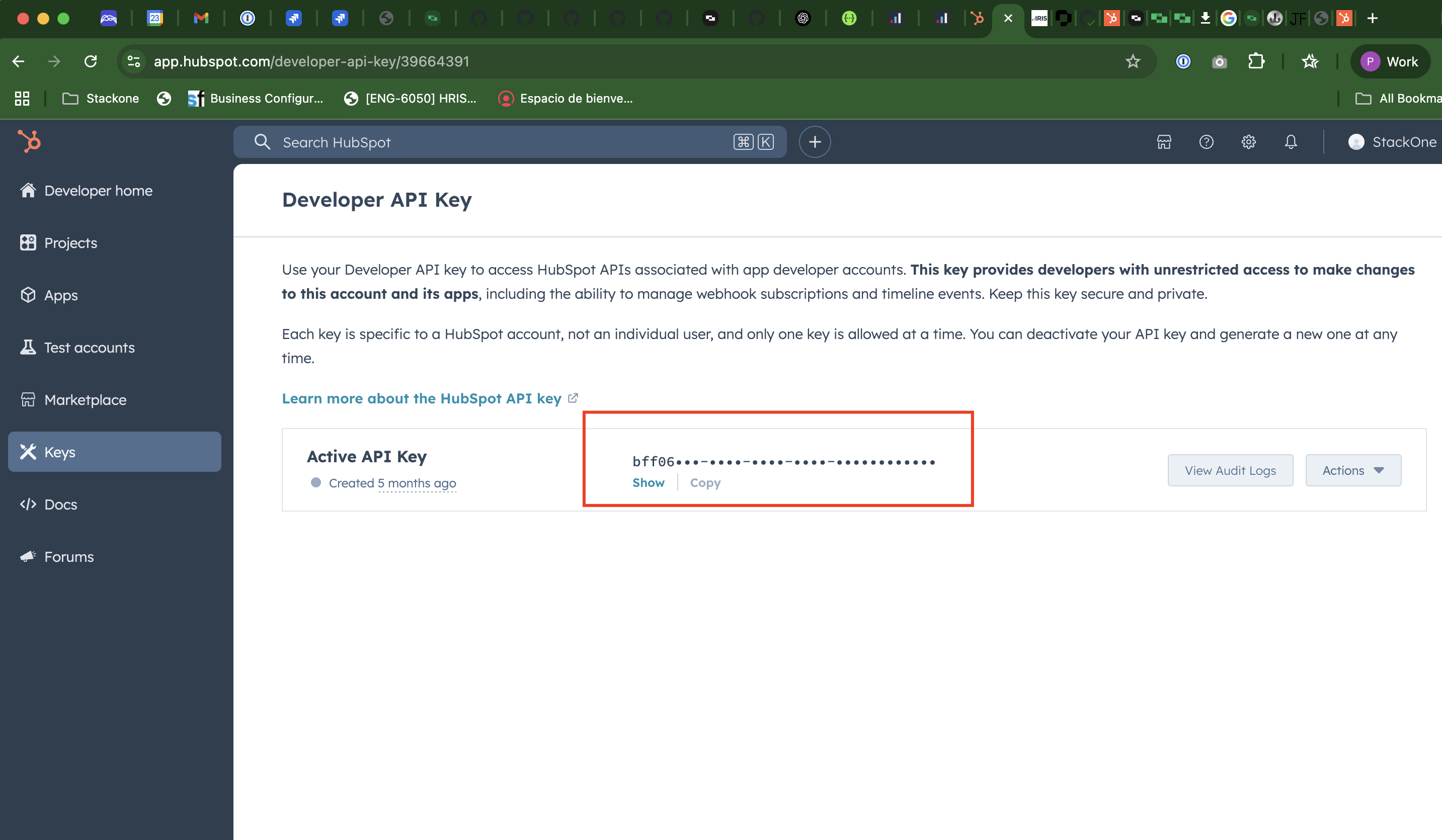
 * Select **Keys** from the left sidebar.
* Click **Show** to view your existing key or **Generate New Key** to create one.
* Copy the key and store it securely.
Developer API key is required to subscribe `create` and `delete` events for `Contacts` and `Accounts`
* Select **Keys** from the left sidebar.
* Click **Show** to view your existing key or **Generate New Key** to create one.
* Copy the key and store it securely.
Developer API key is required to subscribe `create` and `delete` events for `Contacts` and `Accounts`
 ## Configure Webhooks
In your app dashboard, navigate to **Apps>Webhooks**.
## Configure Webhooks
In your app dashboard, navigate to **Apps>Webhooks**.
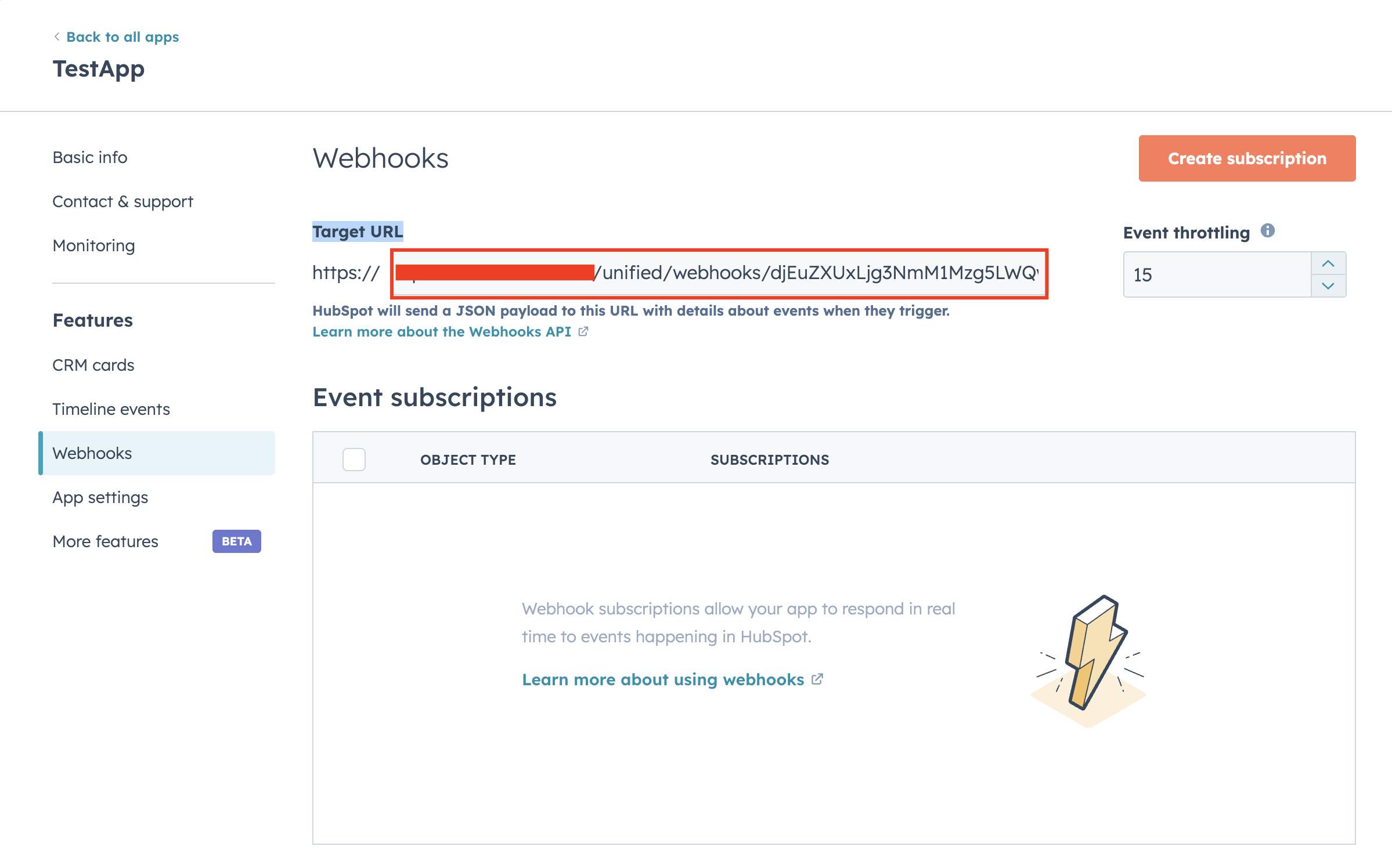
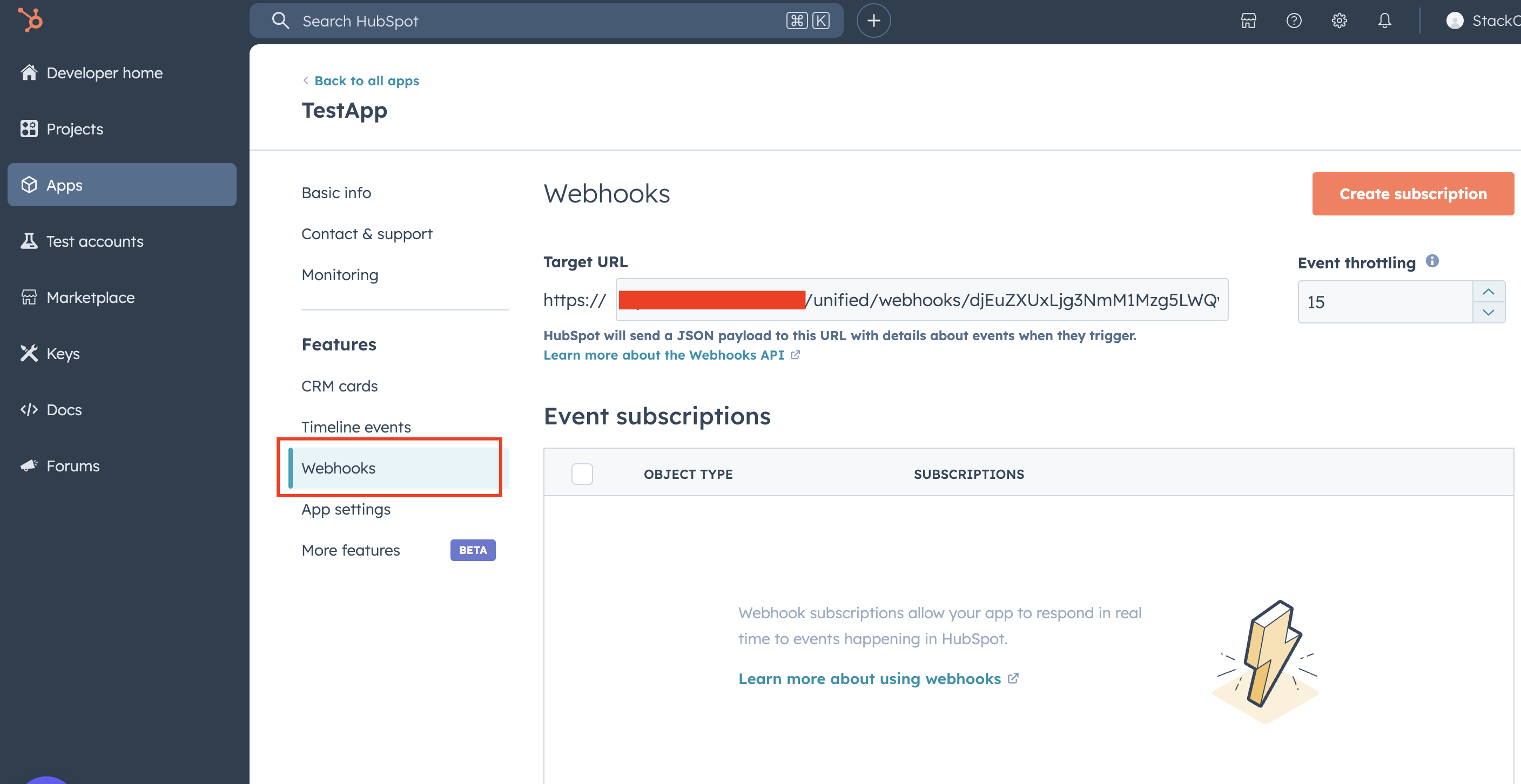 * Add your `External Trigger URL` in the Target URL field.
This step is only required when configuring update events for Contacts and Accounts.
For all other events (such as create and delete), webhook subscriptions are handled automatically via the Webhook Subscription API, and no manual configuration of the Target URL is needed.
* Add your `External Trigger URL` in the Target URL field.
This step is only required when configuring update events for Contacts and Accounts.
For all other events (such as create and delete), webhook subscriptions are handled automatically via the Webhook Subscription API, and no manual configuration of the Target URL is needed.
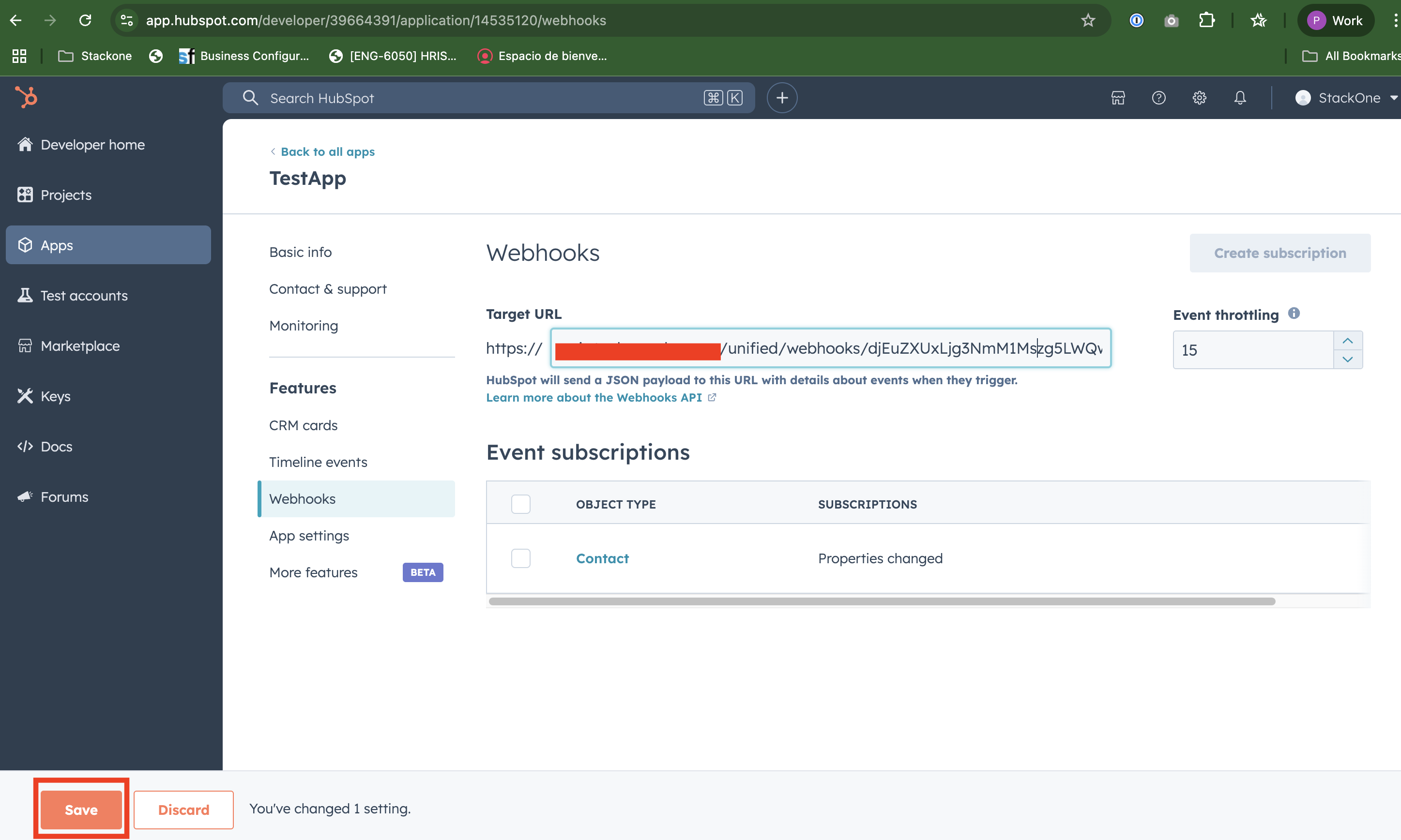
 * Click **Save** to save the changes.
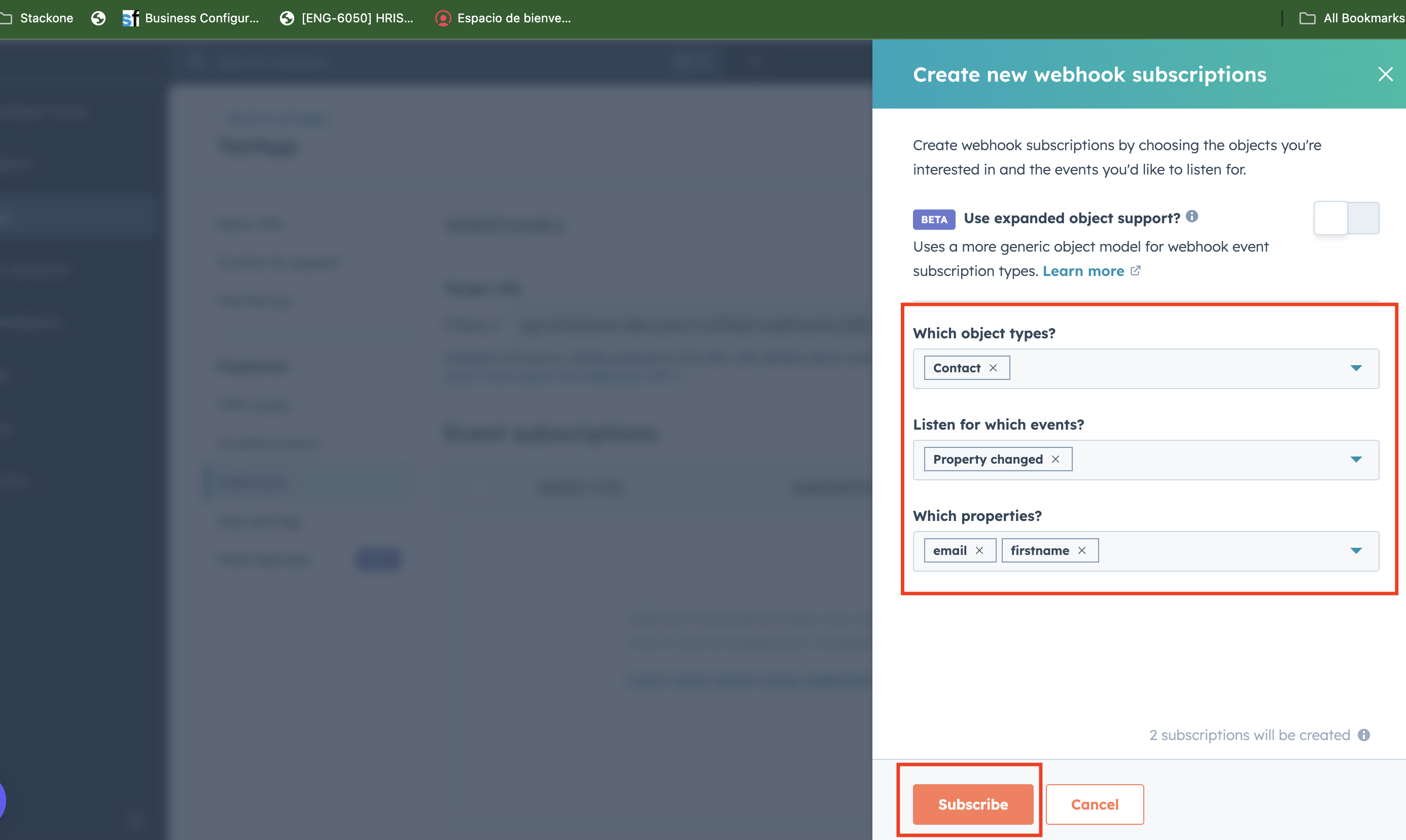
 * Click **Create Subscription**
* Select the object and event you want to subscribe to.
* `contact.propertyChange`
* `company.propertyChange`
* Select the field you want to trigger the `propertyChange` event on.
* Save subscription by clicking **Subscribe** button.
This step is only required when configuring *update* events for **contacts** and **accounts**.
* Click **Create Subscription**
* Select the object and event you want to subscribe to.
* `contact.propertyChange`
* `company.propertyChange`
* Select the field you want to trigger the `propertyChange` event on.
* Save subscription by clicking **Subscribe** button.
This step is only required when configuring *update* events for **contacts** and **accounts**.
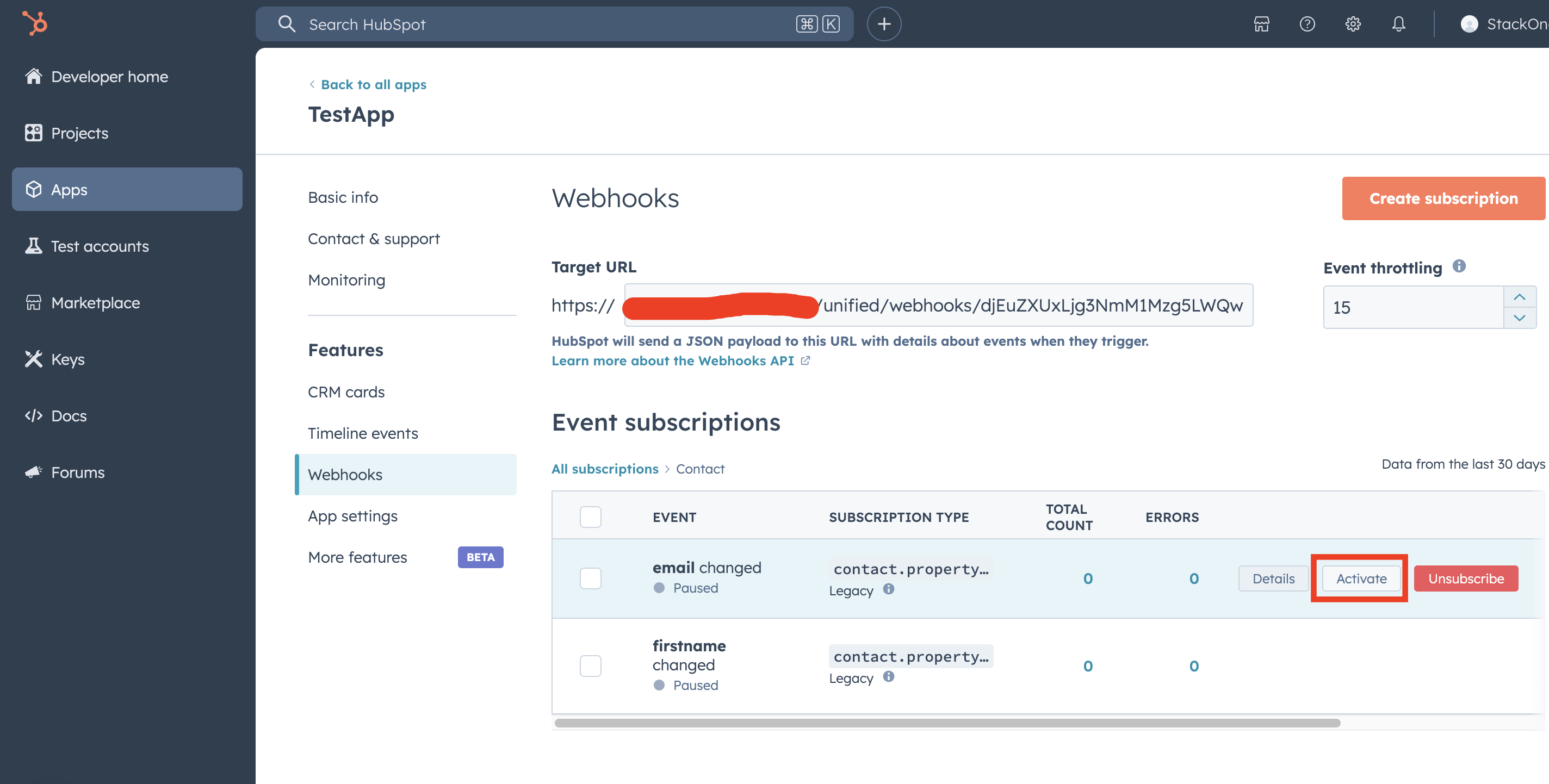
 * Activate the webhook by clicking the **Activate** button.
 ## StackOne Webhooks Configurations
Log in to your StackOne Dashboard at [https://app.stackone.com/login](https://app.stackone.com/login) and navigate to **Webhooks**
## StackOne Webhooks Configurations
Log in to your StackOne Dashboard at [https://app.stackone.com/login](https://app.stackone.com/login) and navigate to **Webhooks**
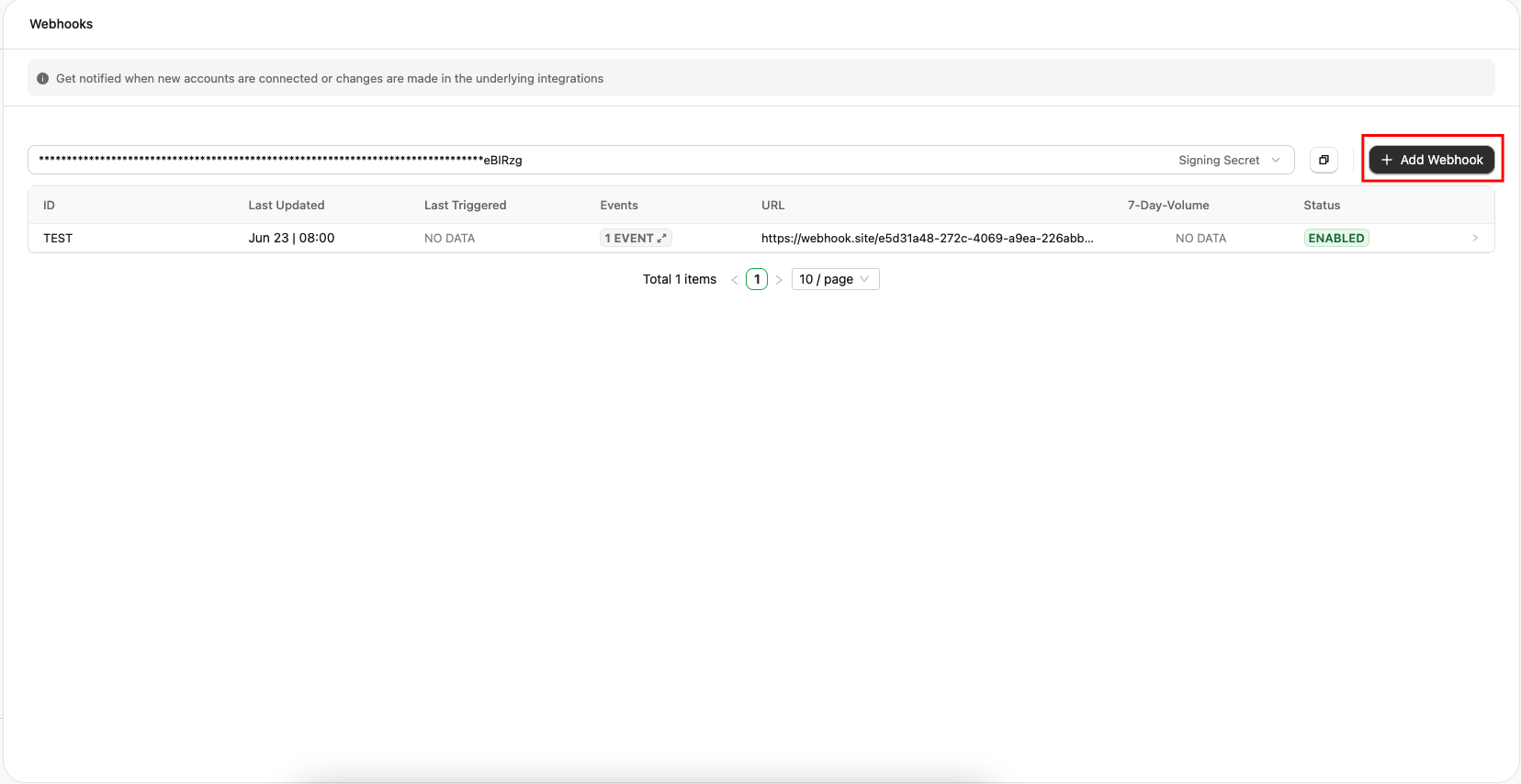
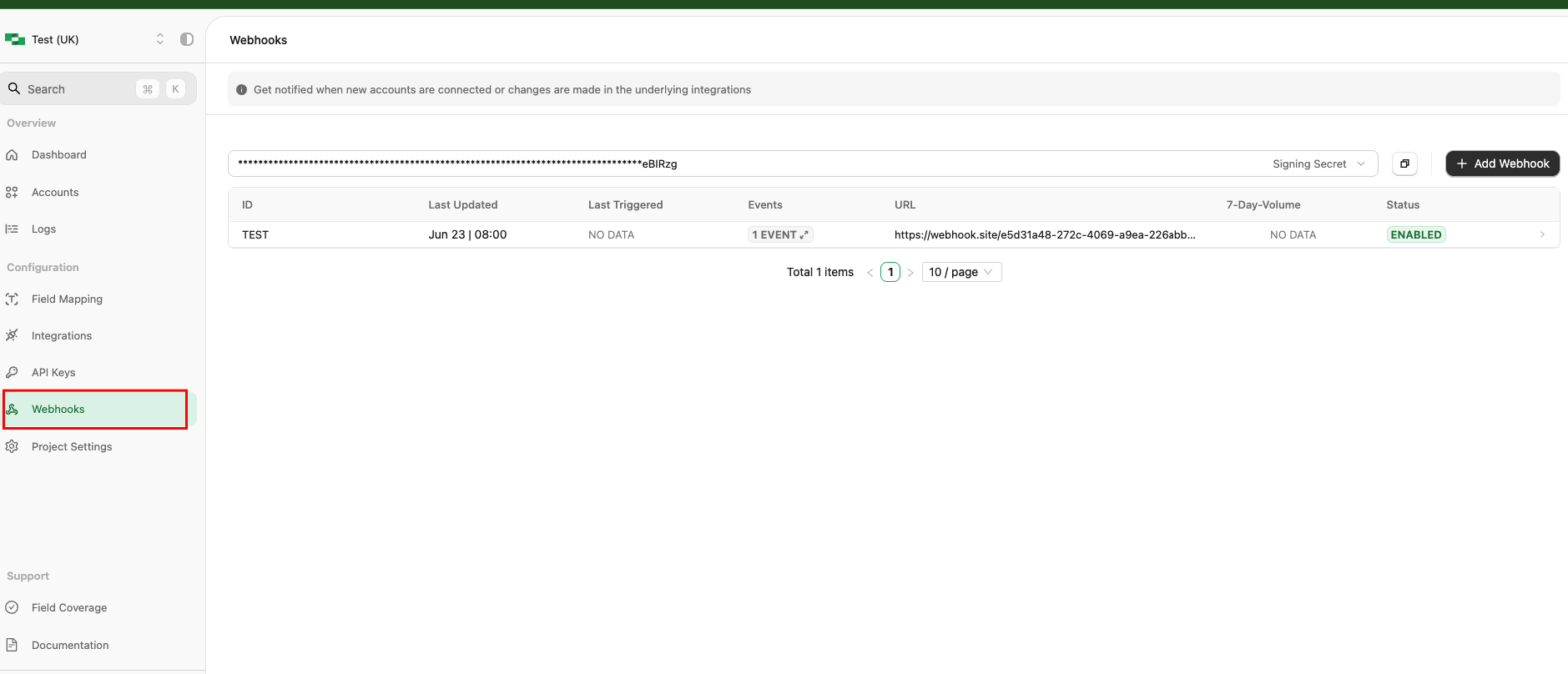 * To create new webhook click on **Add Webhook** button.
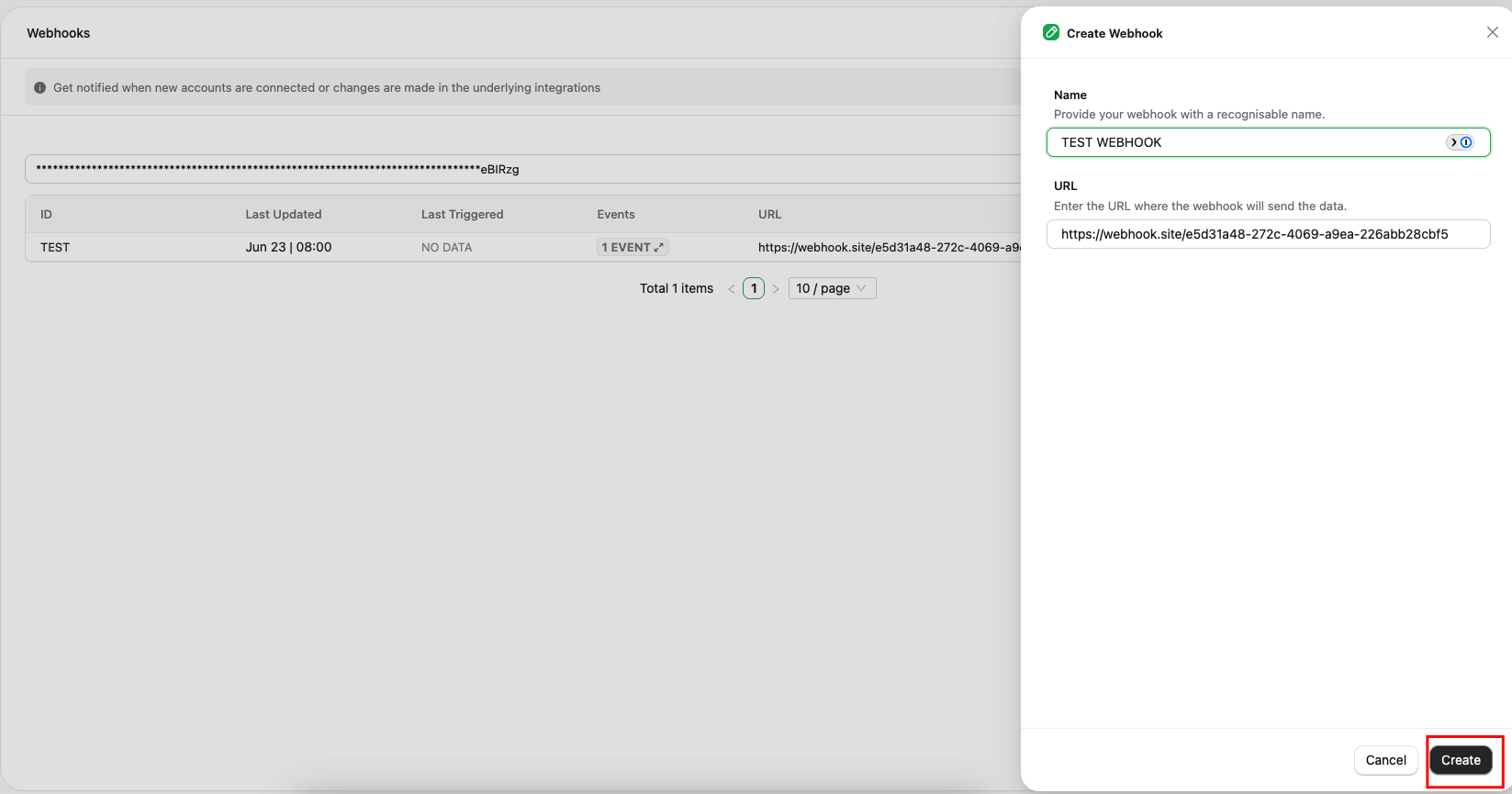
 * Enter Webhook **Name** and **URL** and click **Create**.
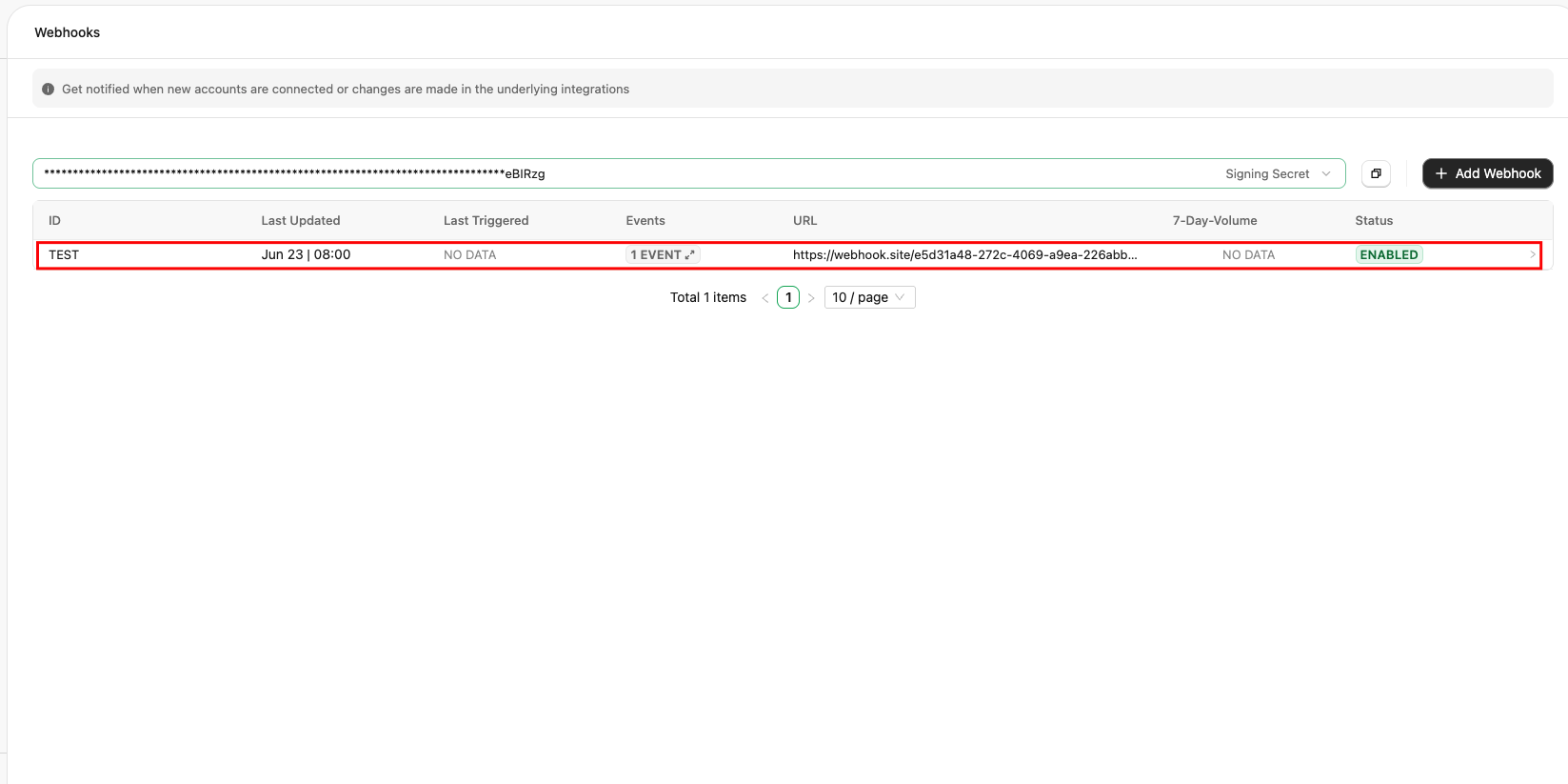
 * Click **Save** to save the changes.
* Select Webhook from the list.
* Click **Save** to save the changes.
* Select Webhook from the list.
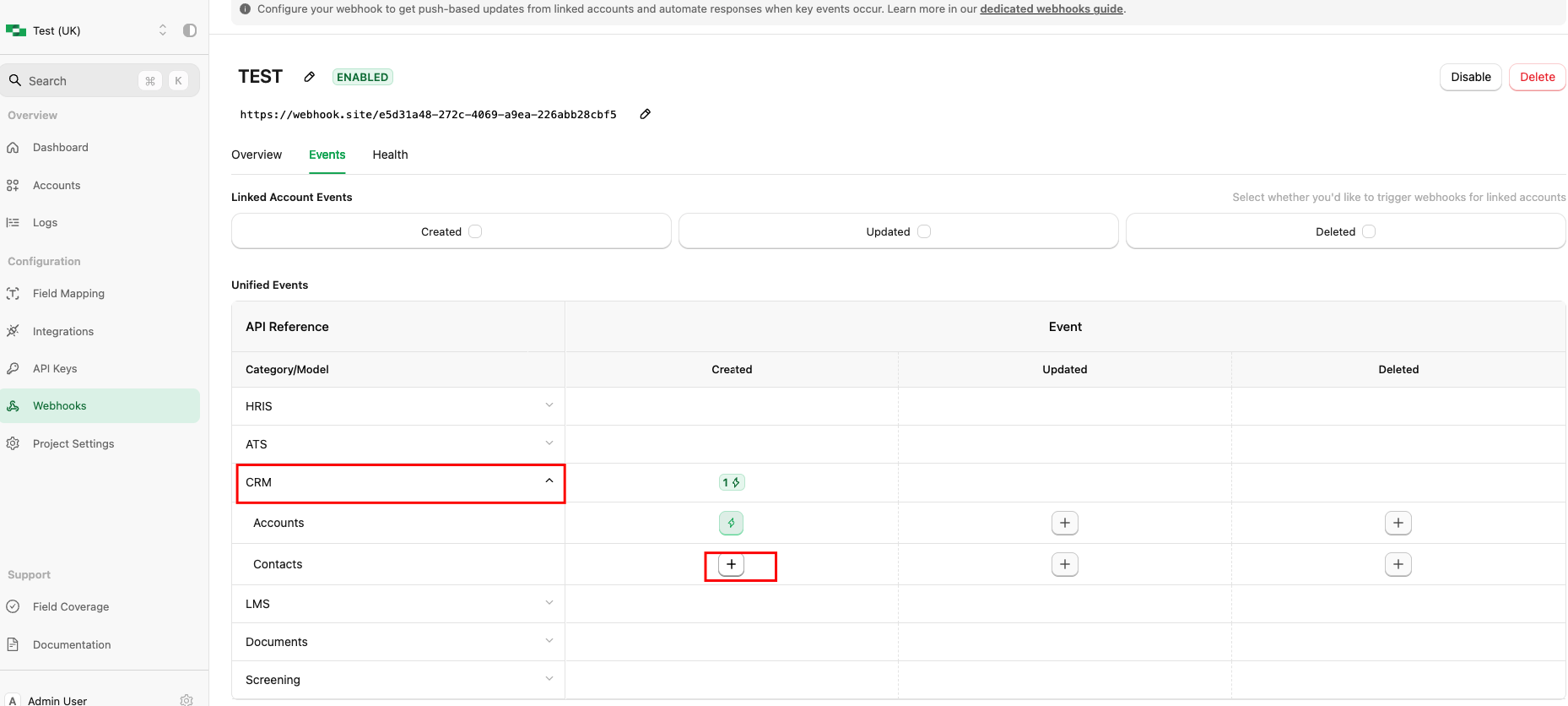
 * Go the **Events** tab.
* To add a new event (such as Create, Update, or Delete), click the plus icon under the CRM catgory.
* Go the **Events** tab.
* To add a new event (such as Create, Update, or Delete), click the plus icon under the CRM catgory.
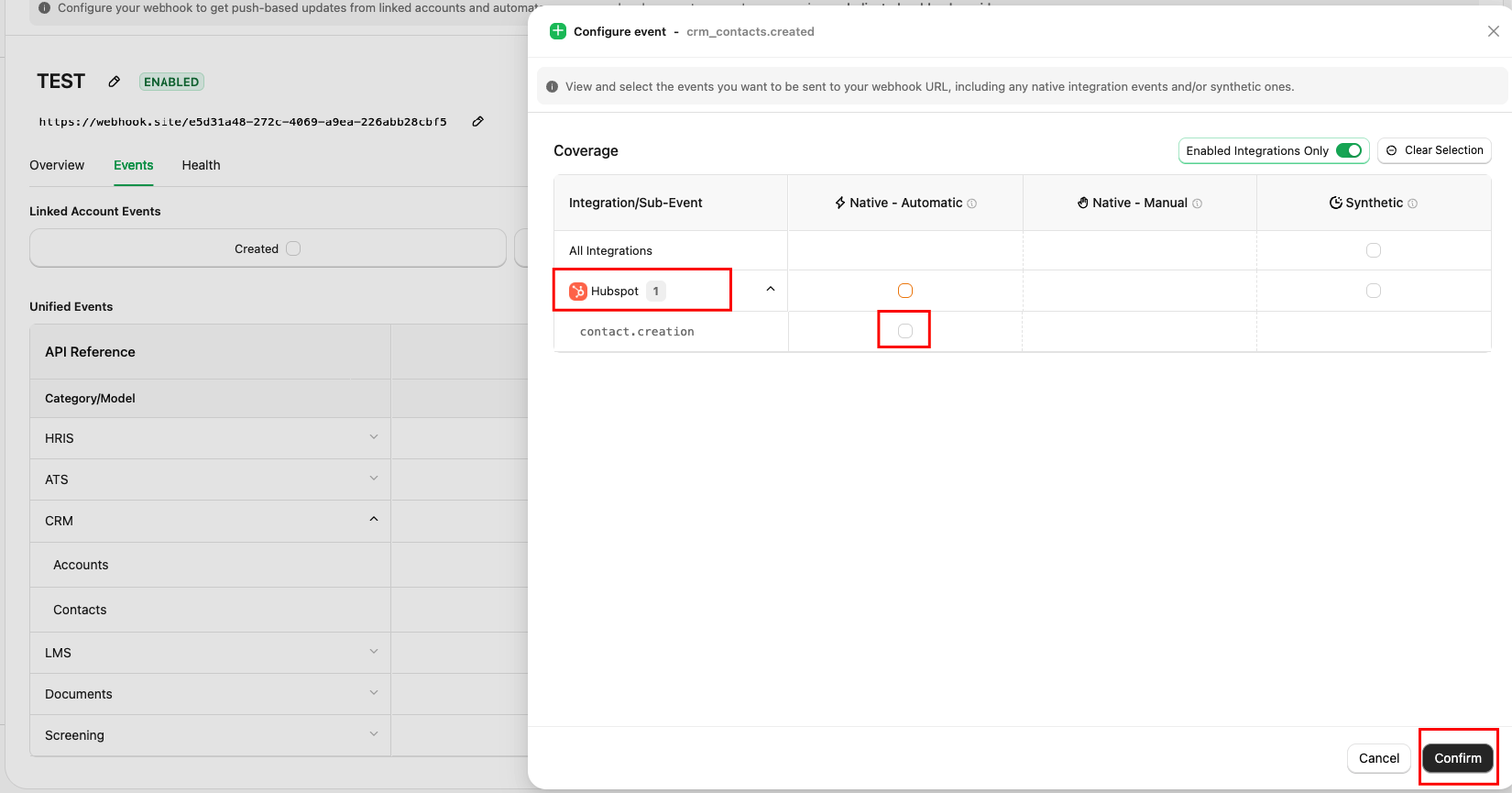
 * Select the event under the **HubSpot** integration and click on the *Confirm* button to save the details.
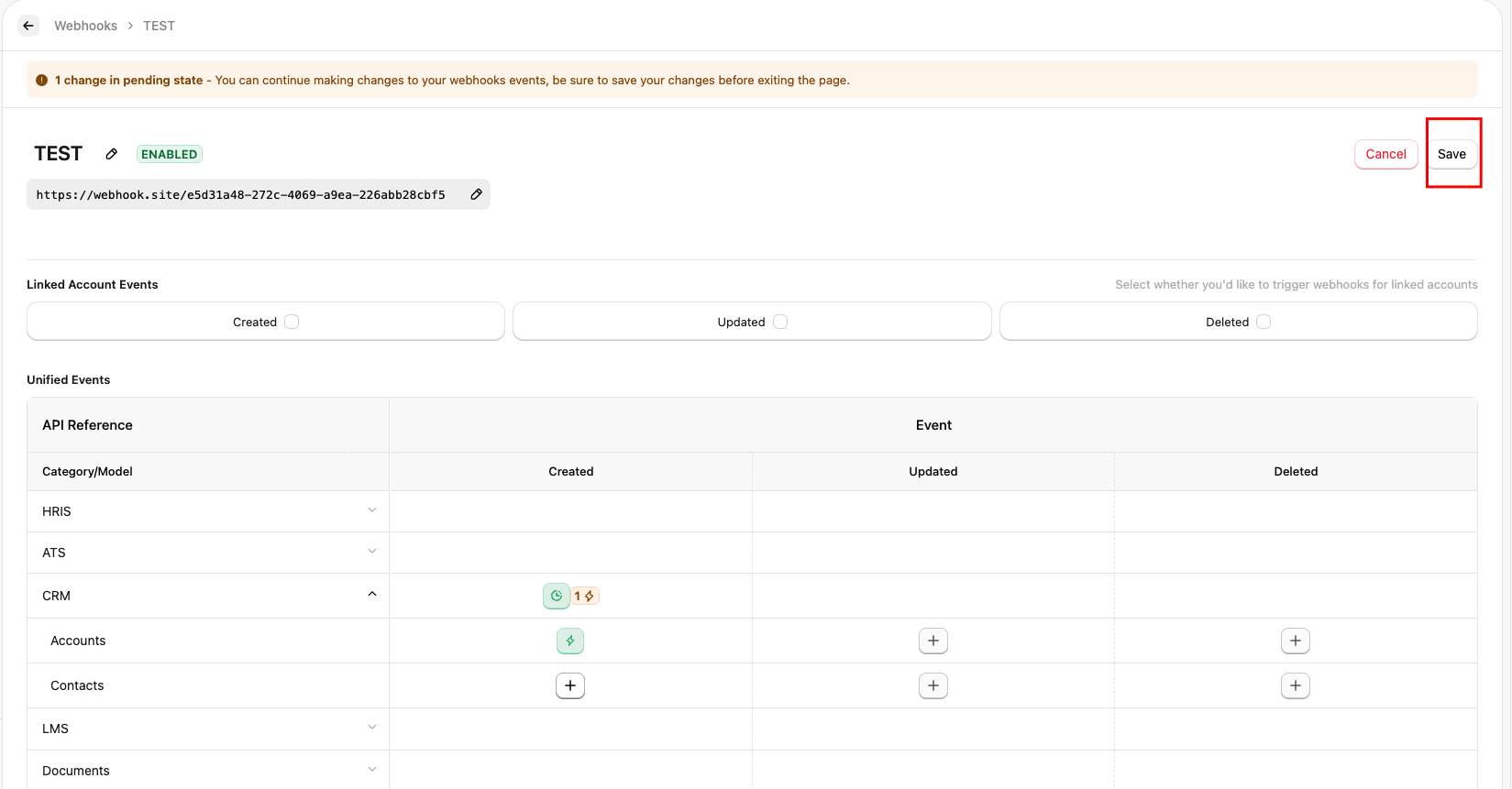
 * Save the webhook by clicking the **Save** button.
Congratulations, you're all set!
## Useful Links
[https://developers.hubspot.com/docs/guides/api/app-management/webhooks](https://developers.hubspot.com/docs/guides/api/app-management/webhooks)
[https://developers.hubspot.com](https://developers.hubspot.com)