> ## Documentation Index
> Fetch the complete documentation index at: https://docs.stackone.com/llms.txt
> Use this file to discover all available pages before exploring further.
# SmartRecruiters Assessment or Background Check Integration
> Learn how to set up and configure the SmartRecruiters integration for assessments and background checks
export const DifferenceBetweenListEndpointAndStaticIdOfPackage = ({providerName, dynamicPackageImageAtProviderUI, staticPackageImageAtProviderUI}) => {
return <>
The Package's List Endpoint URL allows StackOne to fetch a list of available packages from your system, while the Static Package ID is fixed and available for users to select on the provider's side.
When you have a Package's List Endpoint URL
A list of packages will be available to select in {providerName}.

When you have a Static Package ID
A static package ID will be available to select in {providerName}.
 At least one field is necessary for making packages available in the Provider's UI. Preference will be given to the Package's List Endpoint URL, even if both fields are configured.
;
};
## Purpose & Scope
StackOne allows you to integrate with SmartRecruiters for Assessment and Background Check to receive webhook notifications whenever a user sends the test to a candidate, update the test result, and see the result on the candidate profile in SmartRecruiters. This guide covers the Assessments and Background Checks unified use case. For the end-to-end flow, see the [Unified Use Case](https://docs.stackone.com/ats/use-cases/assessment-flow) Overview.
This guide covers how you can set up/configure integration at SmartRecruiters and integrate with StackOne.
## Partnership Requirements
### SmartRecruiters Marketplace Partnership
To integrate with SmartRecruiters for assessments and background checks, you must apply to become a partner through the SmartRecruiters Marketplace:
* **Partnership Required**: Yes, formal partnership application required
* **Marketplace Application**: [SmartRecruiters Marketplace](https://marketplace.smartrecruiters.com/)
* **Plan Requirements**: Partnership approval required regardless of SmartRecruiters plan tier
* **Support Contact**: Available through marketplace partner portal after approval
### Application Process
1. Visit the [SmartRecruiters Marketplace](https://marketplace.smartrecruiters.com/)
2. Click on `Get started` or `Join the Marketplace`
3. Complete the partnership application form with your company details
Upon approval, you'll receive:
* Access to SmartRecruiters Partner Portal
* API credentials and documentation
* Marketplace listing guidelines
* Technical support contact information
Partnership approval is mandatory before proceeding with the technical integration.
## Provider Side Setup
### SmartRecruiters Configuration
Once your application is listed on the SmartRecruiters Marketplace, no additional external setup is required on the provider side. End users will be able to and enable your integration directly from the marketplace and proceed with the configuration.
To allow end users to start the assessment flow, the assessment partner only needs to complete the StackOne Configuration. Once the StackOne configuration is completed, assessment users will be able to enable the integration from the marketplace and begin using it.
### SmartRecruiters API Documentation
For detailed API specifications, refer to:
* [SmartRecruiters Developer Documentation](https://developers.smartrecruiters.com/reference/apply-api)
* [SmartRecruiters API Reference](https://developers.smartrecruiters.com/reference)
## StackOne Configuration
The assessment partner must complete the StackOne configuration before proceeding with the assessment users or initiating the assessment integration process. Otherwise, the integration will not be activated from the marketplace.The assessment partner must complete the StackOne configuration before assessment users can enable the integration from the marketplace. Otherwise, the integration will not be activated from the marketplace.
### Enable SmartRecruiters in StackOne Dashboard
1. Log into your StackOne Dashboard
2. Navigate to the ATS category on the Integrations page
3. Find and enable SmartRecruiters
At least one field is necessary for making packages available in the Provider's UI. Preference will be given to the Package's List Endpoint URL, even if both fields are configured.
;
};
## Purpose & Scope
StackOne allows you to integrate with SmartRecruiters for Assessment and Background Check to receive webhook notifications whenever a user sends the test to a candidate, update the test result, and see the result on the candidate profile in SmartRecruiters. This guide covers the Assessments and Background Checks unified use case. For the end-to-end flow, see the [Unified Use Case](https://docs.stackone.com/ats/use-cases/assessment-flow) Overview.
This guide covers how you can set up/configure integration at SmartRecruiters and integrate with StackOne.
## Partnership Requirements
### SmartRecruiters Marketplace Partnership
To integrate with SmartRecruiters for assessments and background checks, you must apply to become a partner through the SmartRecruiters Marketplace:
* **Partnership Required**: Yes, formal partnership application required
* **Marketplace Application**: [SmartRecruiters Marketplace](https://marketplace.smartrecruiters.com/)
* **Plan Requirements**: Partnership approval required regardless of SmartRecruiters plan tier
* **Support Contact**: Available through marketplace partner portal after approval
### Application Process
1. Visit the [SmartRecruiters Marketplace](https://marketplace.smartrecruiters.com/)
2. Click on `Get started` or `Join the Marketplace`
3. Complete the partnership application form with your company details
Upon approval, you'll receive:
* Access to SmartRecruiters Partner Portal
* API credentials and documentation
* Marketplace listing guidelines
* Technical support contact information
Partnership approval is mandatory before proceeding with the technical integration.
## Provider Side Setup
### SmartRecruiters Configuration
Once your application is listed on the SmartRecruiters Marketplace, no additional external setup is required on the provider side. End users will be able to and enable your integration directly from the marketplace and proceed with the configuration.
To allow end users to start the assessment flow, the assessment partner only needs to complete the StackOne Configuration. Once the StackOne configuration is completed, assessment users will be able to enable the integration from the marketplace and begin using it.
### SmartRecruiters API Documentation
For detailed API specifications, refer to:
* [SmartRecruiters Developer Documentation](https://developers.smartrecruiters.com/reference/apply-api)
* [SmartRecruiters API Reference](https://developers.smartrecruiters.com/reference)
## StackOne Configuration
The assessment partner must complete the StackOne configuration before proceeding with the assessment users or initiating the assessment integration process. Otherwise, the integration will not be activated from the marketplace.The assessment partner must complete the StackOne configuration before assessment users can enable the integration from the marketplace. Otherwise, the integration will not be activated from the marketplace.
### Enable SmartRecruiters in StackOne Dashboard
1. Log into your StackOne Dashboard
2. Navigate to the ATS category on the Integrations page
3. Find and enable SmartRecruiters
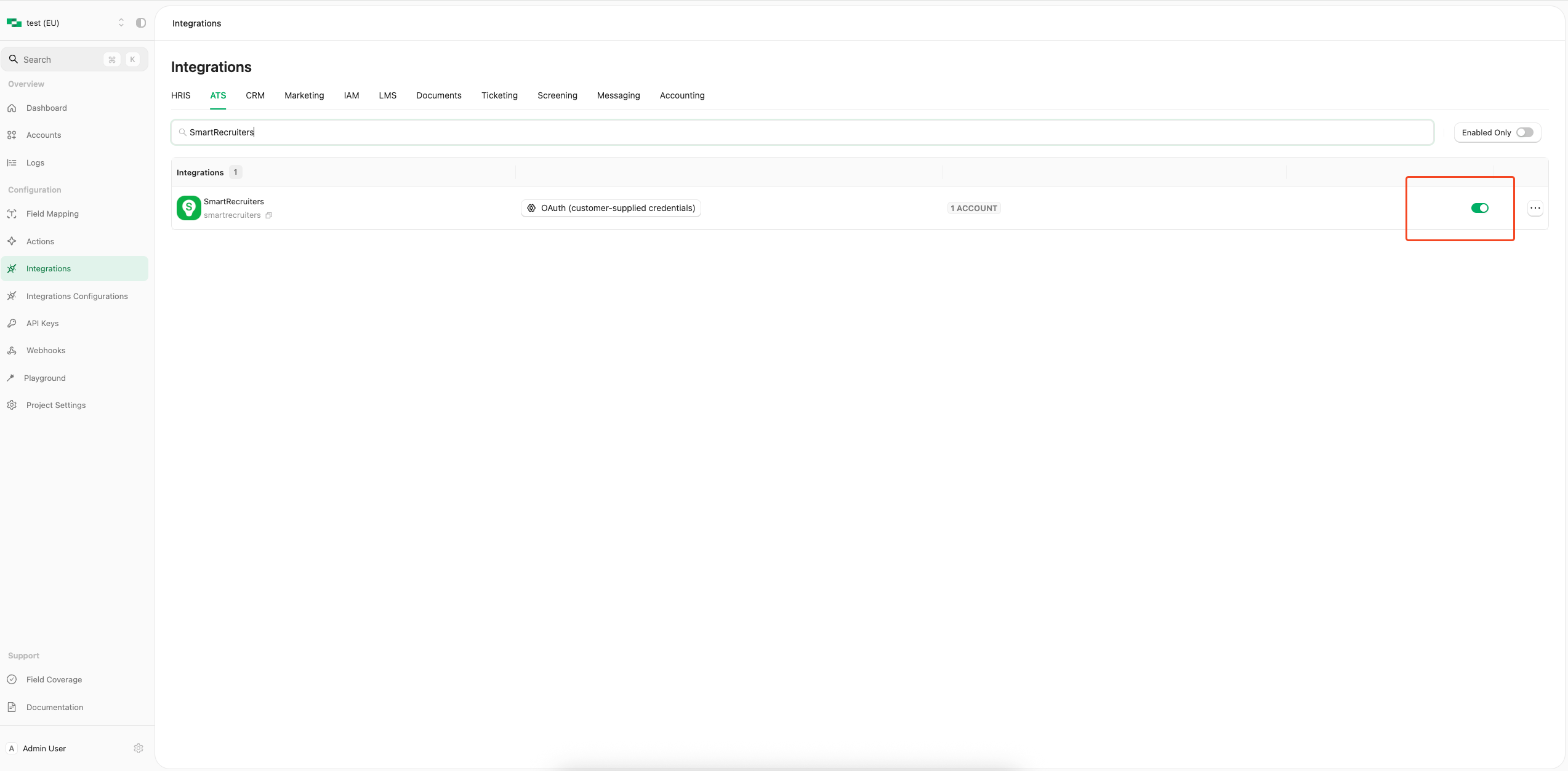 Fill in the SmartRecruiters Configuration form with the following details:
* **Authentication Type**: Select `OAuth2 - Assessments/Background checks` for standard integration
* **Partner Category**: Select `Assessment` or `Background Check` based on your integration type
* **Partner Client ID**: Enter your SmartRecruiters `Client ID` from Partner Portal
* **Partner Client Secret**: Enter your SmartRecruiters `Client Secret` from Partner Portal
* **Package's List Endpoint URL**: Implement and provide an endpoint to StackOne that StackOne will use to retrieve the list of packages when the recruiter wants to send a test to a candidate.
Implement the following POST endpoint:
```bash theme={null}
curl --location 'https://your-domain.com/' \
--header 'Content-Type: application/json' \
--header 'x-stackone-signature: string' \
--header 'Authorization: Basic ' \
--data '{
"job_id": "49201091",
"account_id": "456551489512493412",
"provider": "teamtailor"
}'
```
The expected response of the POST endpoint (list of packages). Refer to:
* [List Assessments Packages](https://docs.stackone.com/ats/api-reference/assessments/packages/list-assessments-packages)
* [List Background Check Packages](https://docs.stackone.com/ats/api-reference/background-checks/packages/list-background-check-packages)
Enter the endpoint into the designated field:
```plaintext theme={null}
https://your-domain.com/
```
* **Package ID**: If you do not have the Package List Endpoint URL, you can specify a particular package ID that will be visible to the recruiter when they wish to send the test to the candidate
* **SmartRecruiters Supported Assessment Types**: Please select one of the assessment types supported by SmartRecruiters
Fill in the SmartRecruiters Configuration form with the following details:
* **Authentication Type**: Select `OAuth2 - Assessments/Background checks` for standard integration
* **Partner Category**: Select `Assessment` or `Background Check` based on your integration type
* **Partner Client ID**: Enter your SmartRecruiters `Client ID` from Partner Portal
* **Partner Client Secret**: Enter your SmartRecruiters `Client Secret` from Partner Portal
* **Package's List Endpoint URL**: Implement and provide an endpoint to StackOne that StackOne will use to retrieve the list of packages when the recruiter wants to send a test to a candidate.
Implement the following POST endpoint:
```bash theme={null}
curl --location 'https://your-domain.com/' \
--header 'Content-Type: application/json' \
--header 'x-stackone-signature: string' \
--header 'Authorization: Basic ' \
--data '{
"job_id": "49201091",
"account_id": "456551489512493412",
"provider": "teamtailor"
}'
```
The expected response of the POST endpoint (list of packages). Refer to:
* [List Assessments Packages](https://docs.stackone.com/ats/api-reference/assessments/packages/list-assessments-packages)
* [List Background Check Packages](https://docs.stackone.com/ats/api-reference/background-checks/packages/list-background-check-packages)
Enter the endpoint into the designated field:
```plaintext theme={null}
https://your-domain.com/
```
* **Package ID**: If you do not have the Package List Endpoint URL, you can specify a particular package ID that will be visible to the recruiter when they wish to send the test to the candidate
* **SmartRecruiters Supported Assessment Types**: Please select one of the assessment types supported by SmartRecruiters
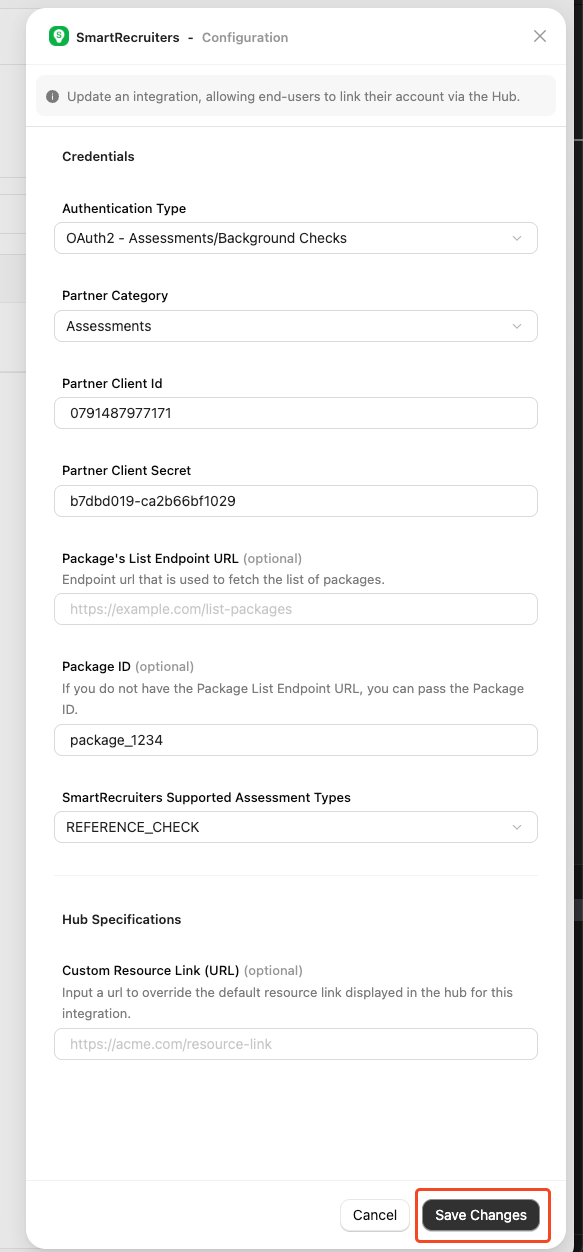 Click `Confirm` or `Save Changes` to enable your OAuth APIs and allow end-users to link their SmartRecruiters accounts via the StackOne Hub.
Configure webhook notifications for the following events based on your selected integration category:
* `assessment.created` - When a recruiter sends an assessment to a candidate
* `background_check.created` - When a recruiter initiates a background check
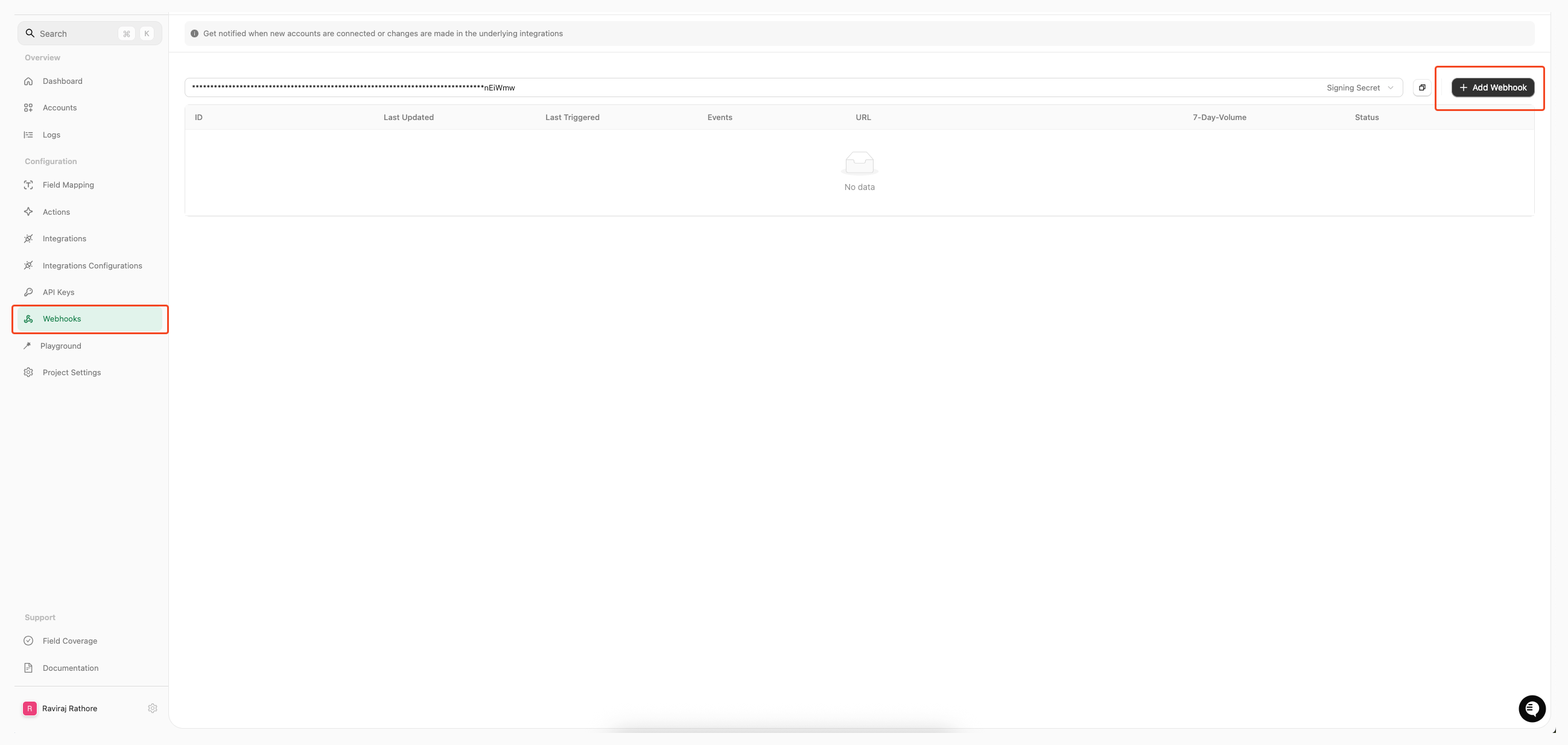
Navigate to the Webhooks page, click on `Add webhook`.
Click `Confirm` or `Save Changes` to enable your OAuth APIs and allow end-users to link their SmartRecruiters accounts via the StackOne Hub.
Configure webhook notifications for the following events based on your selected integration category:
* `assessment.created` - When a recruiter sends an assessment to a candidate
* `background_check.created` - When a recruiter initiates a background check
Navigate to the Webhooks page, click on `Add webhook`.
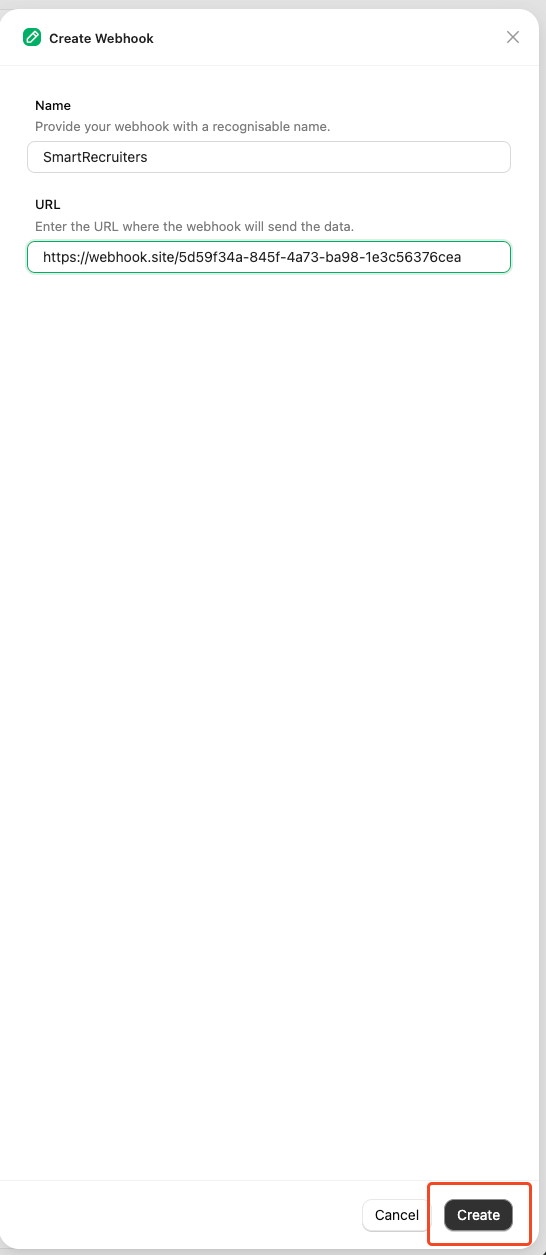
 Fill out the form:
* **Name**: Enter your webhook with a recognisable name
* **URL**: Enter the URL where the webhook will send the notification of the enabled events
Fill out the form:
* **Name**: Enter your webhook with a recognisable name
* **URL**: Enter the URL where the webhook will send the notification of the enabled events
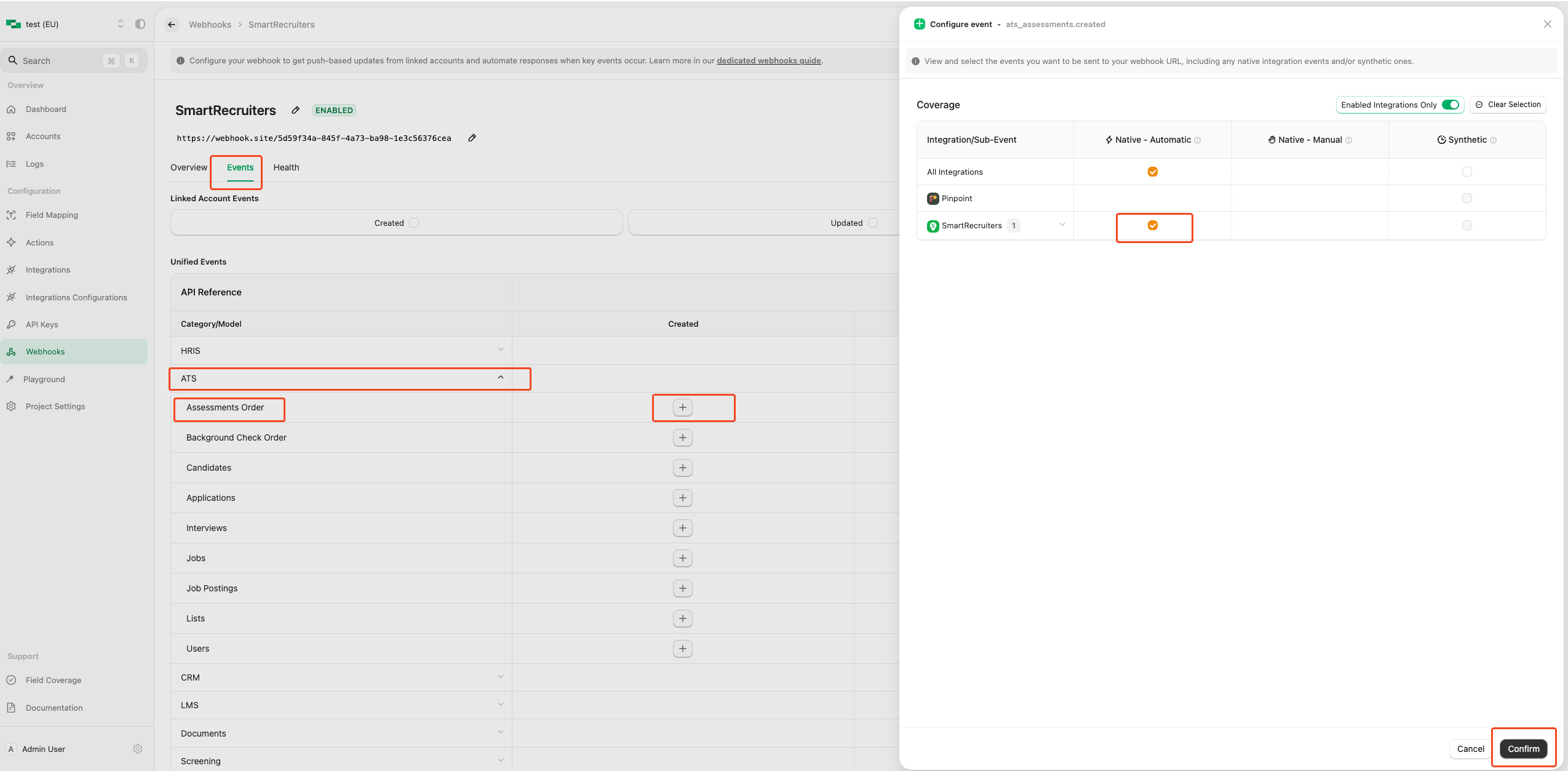
 Enable webhook events from the Events tab for Assessment & Background Check, such as Assessments Order & Background Check Order
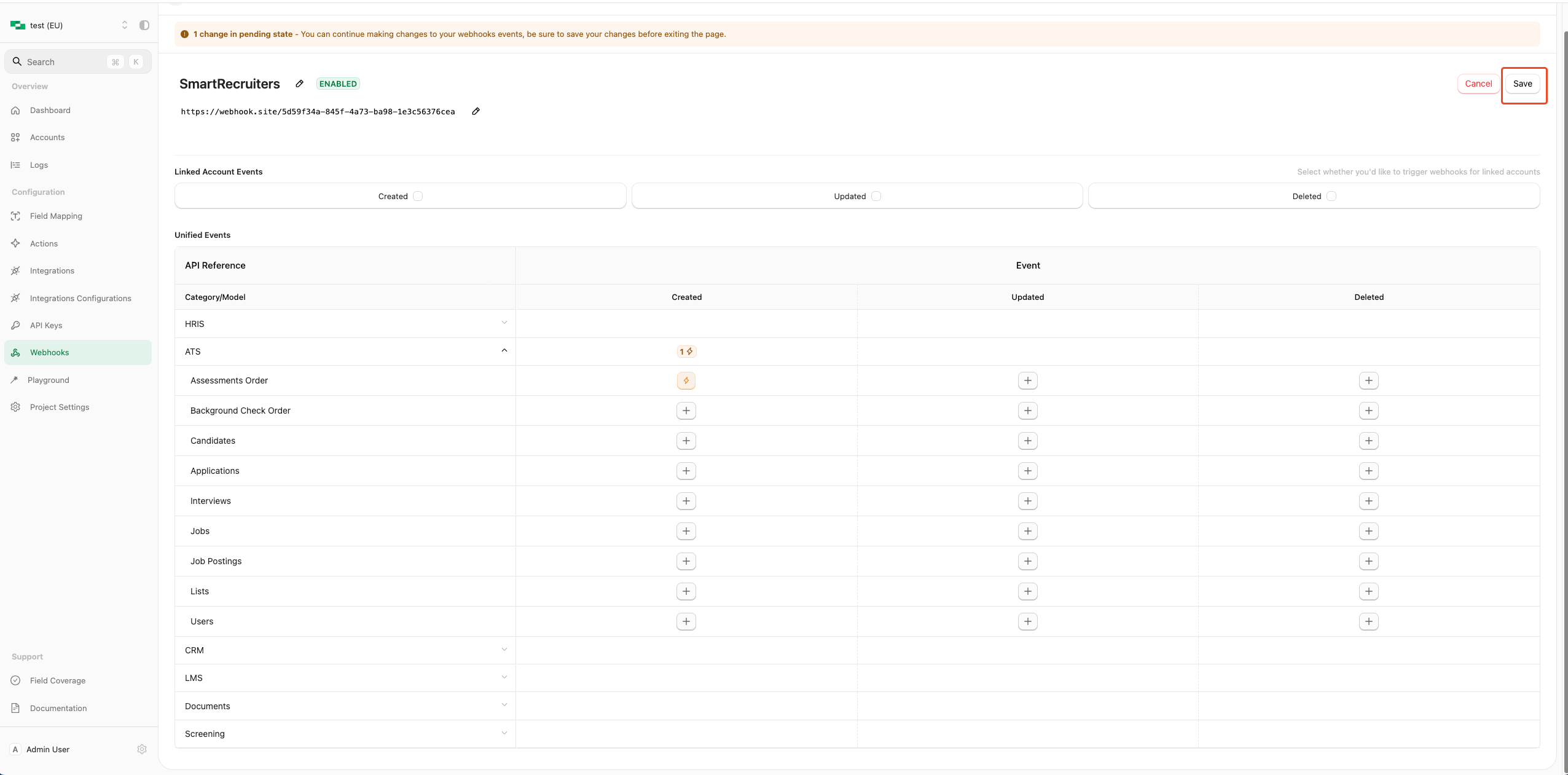
 Click `Save` button to save your webhook config.
 ## ATS User Enablement
### User Activation Flow
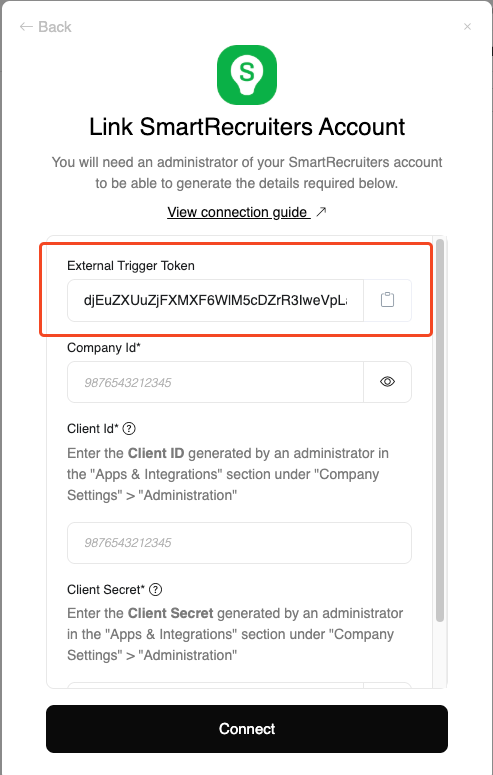
Users get the External Trigger Token from StackOne:
1. Navigate to the StackOne Hub
2. Copy the external trigger token
## ATS User Enablement
### User Activation Flow
Users get the External Trigger Token from StackOne:
1. Navigate to the StackOne Hub
2. Copy the external trigger token
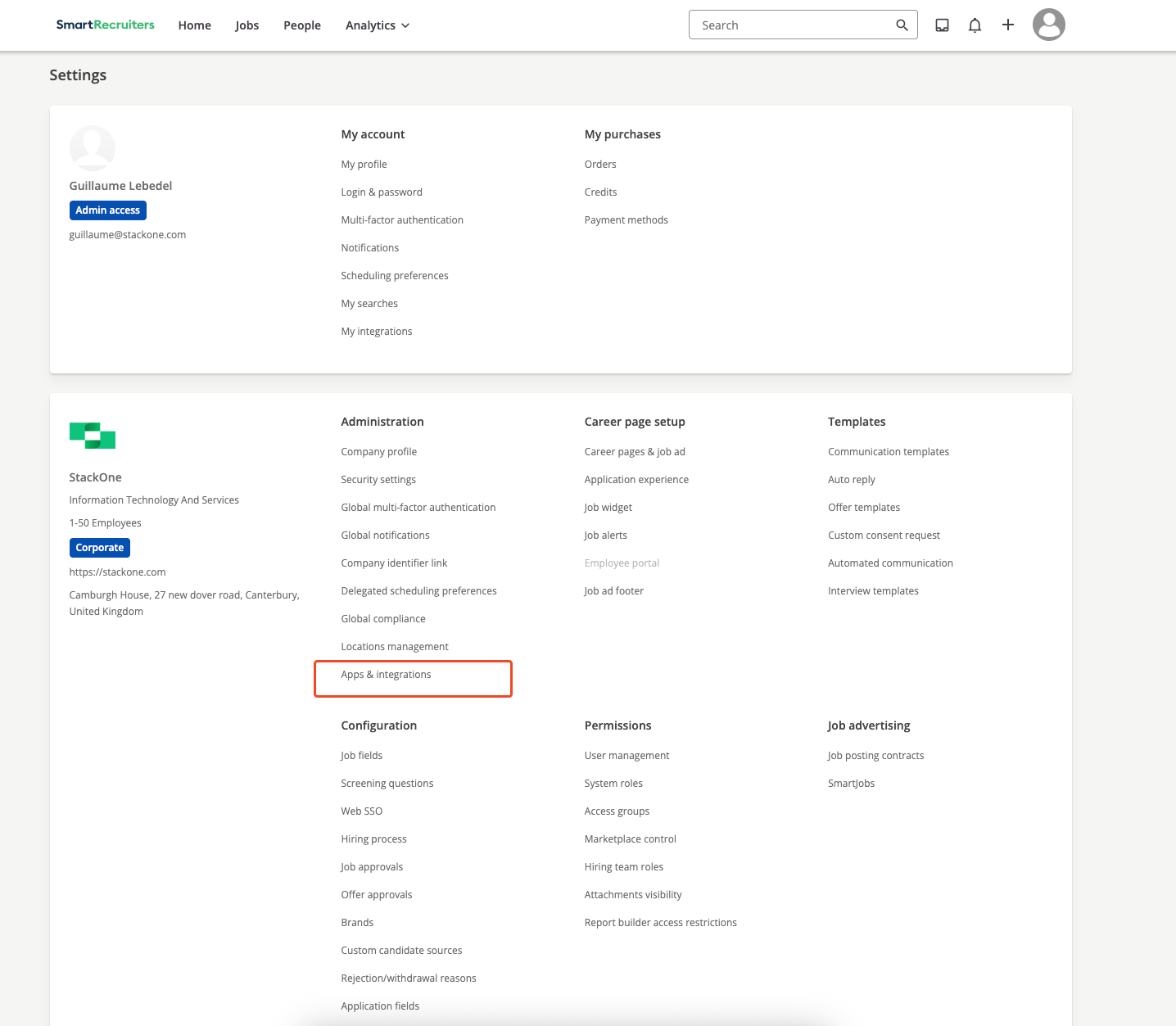
 Users access the SmartRecruiters Marketplace through:
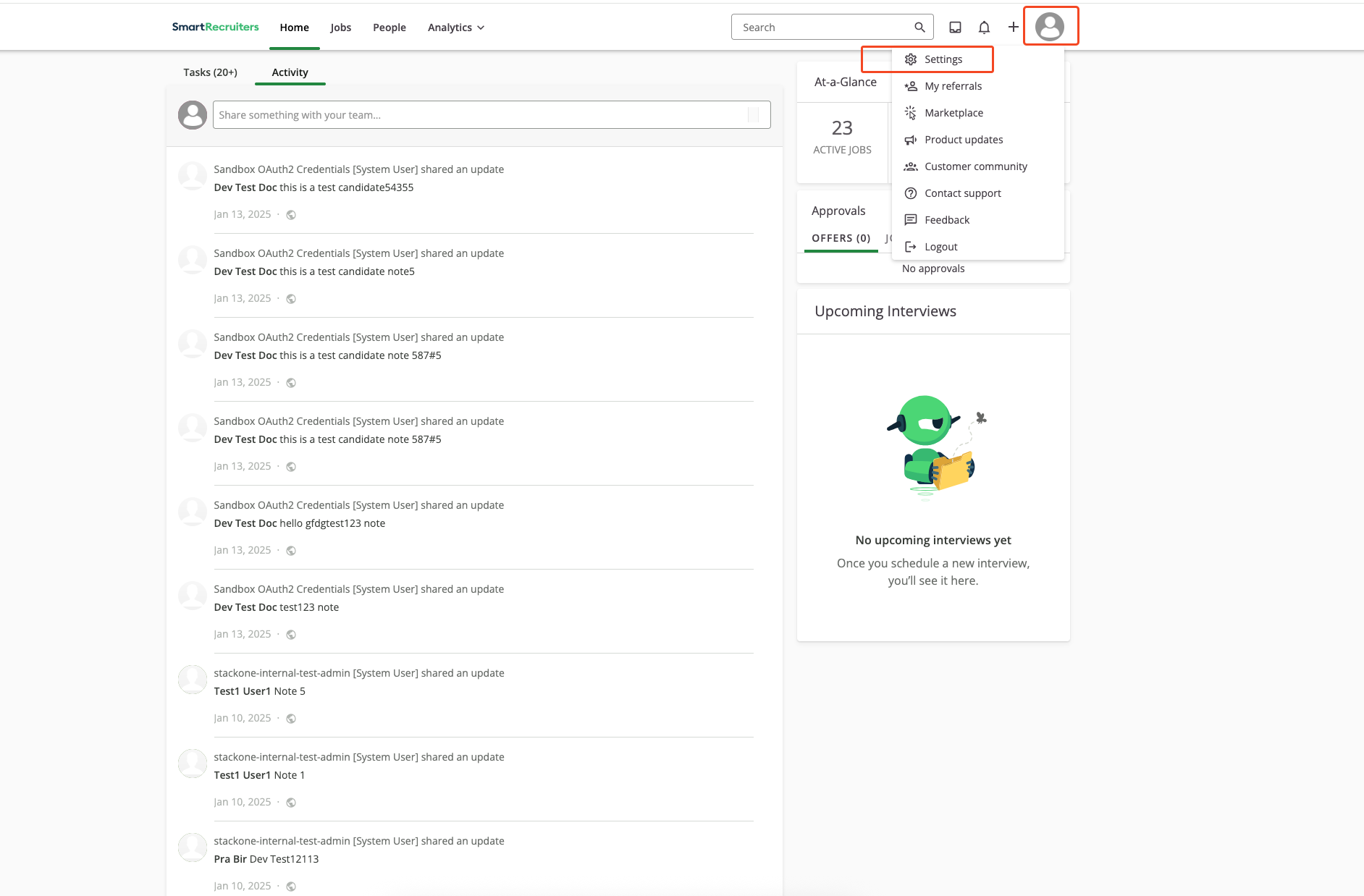
1. SmartRecruiters admin dashboard → `Settings` → `Apps and Integrations`
Users access the SmartRecruiters Marketplace through:
1. SmartRecruiters admin dashboard → `Settings` → `Apps and Integrations`
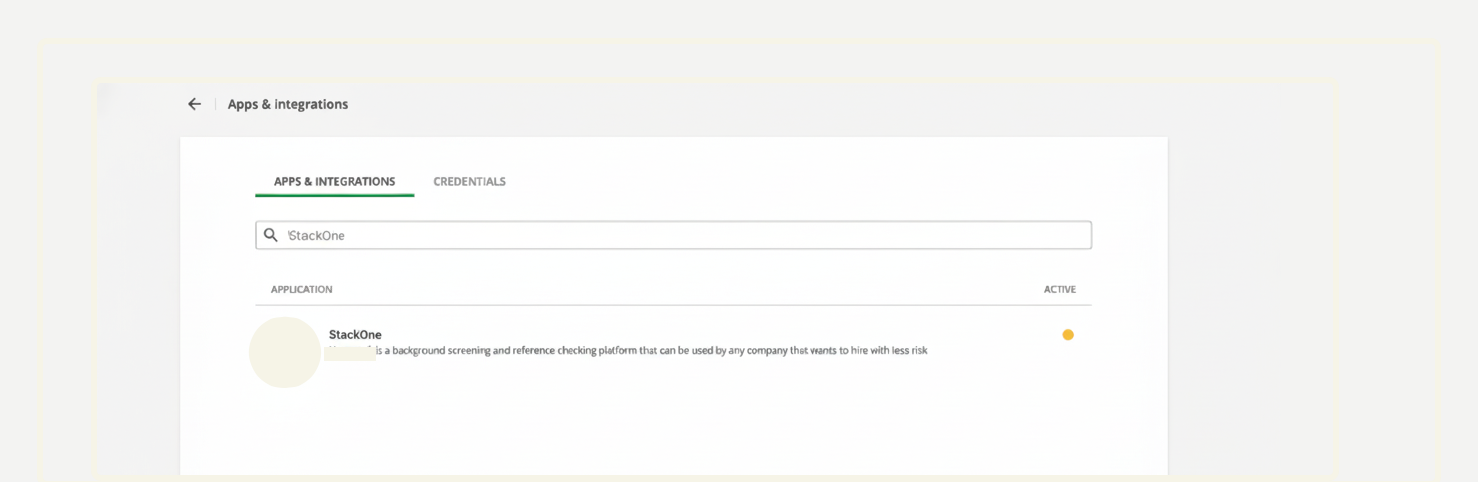
 Navigate to specific integration from the list of available integrations in SmartRecruiters account.
1. Search for your integration by name
2. Click on your integration tile to view details
Navigate to specific integration from the list of available integrations in SmartRecruiters account.
1. Search for your integration by name
2. Click on your integration tile to view details
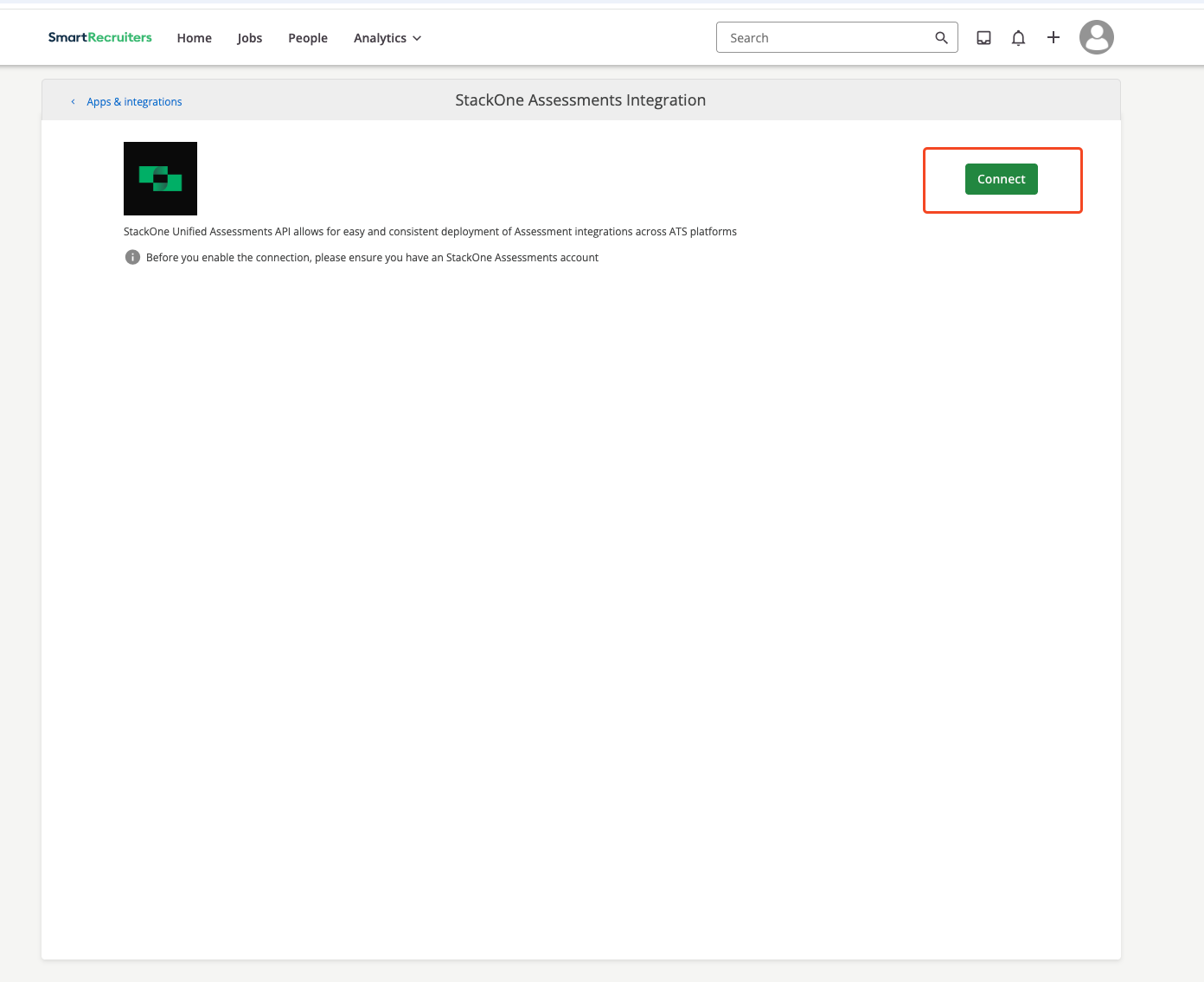
 Review the integration details and click on `Connect`.
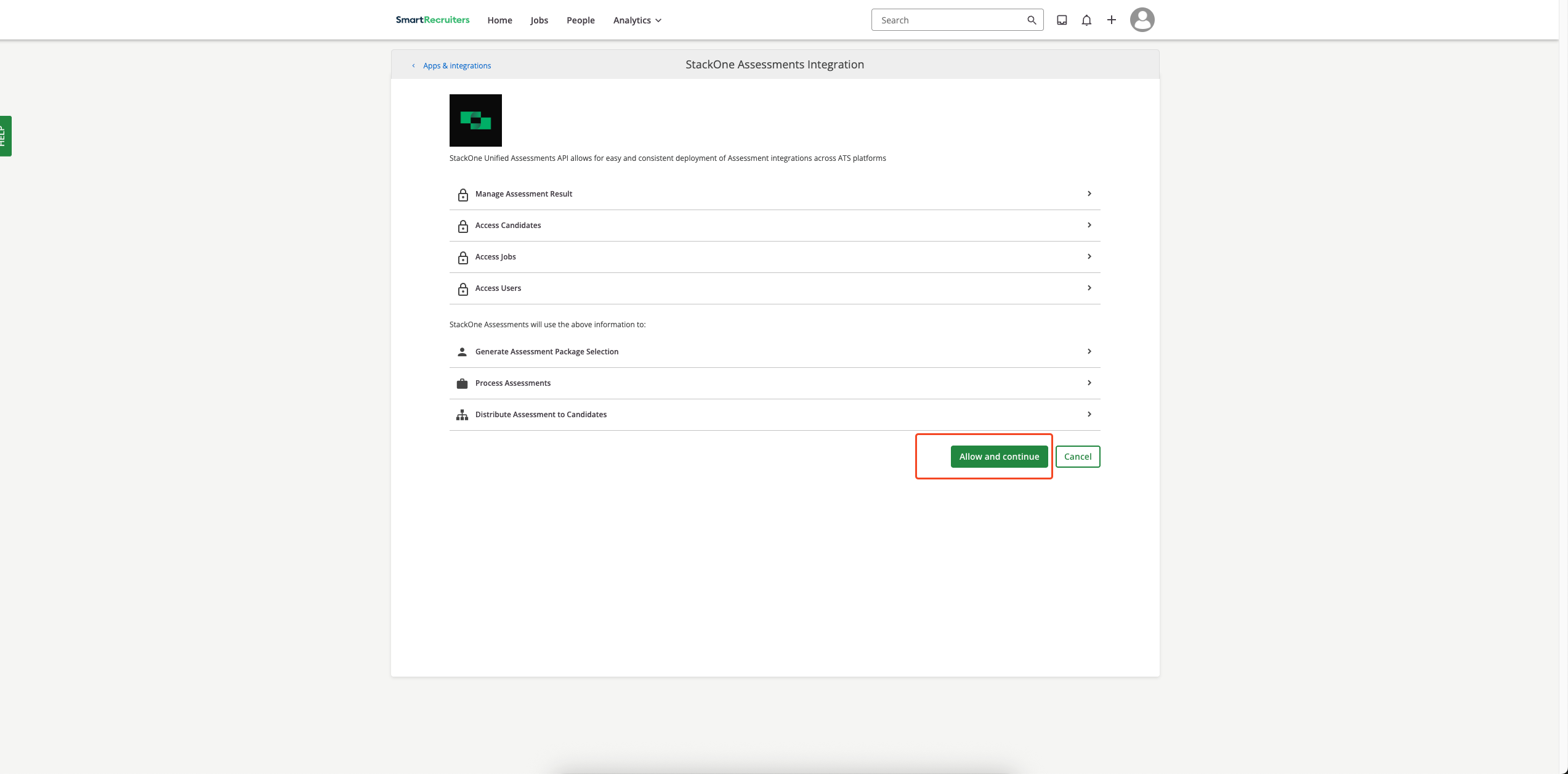
 1. Review permissions
2. Click `Allow and Continue` button
1. Review permissions
2. Click `Allow and Continue` button
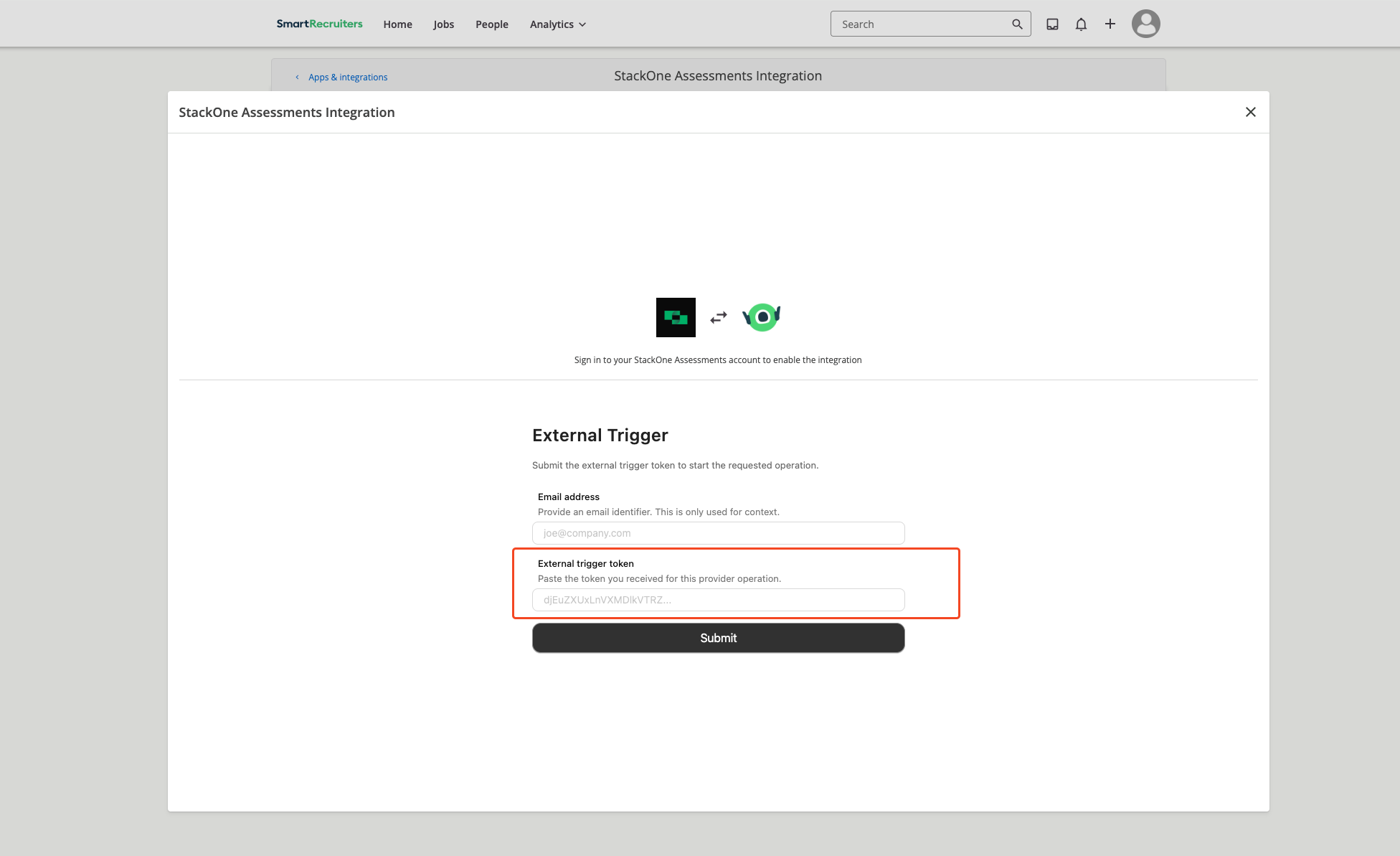
 Users will see a verification form where they need to enter their `External Trigger Token` received in the previous step along with their `Email Address`. After filling in the details, click the `Submit` button to verify and continue.
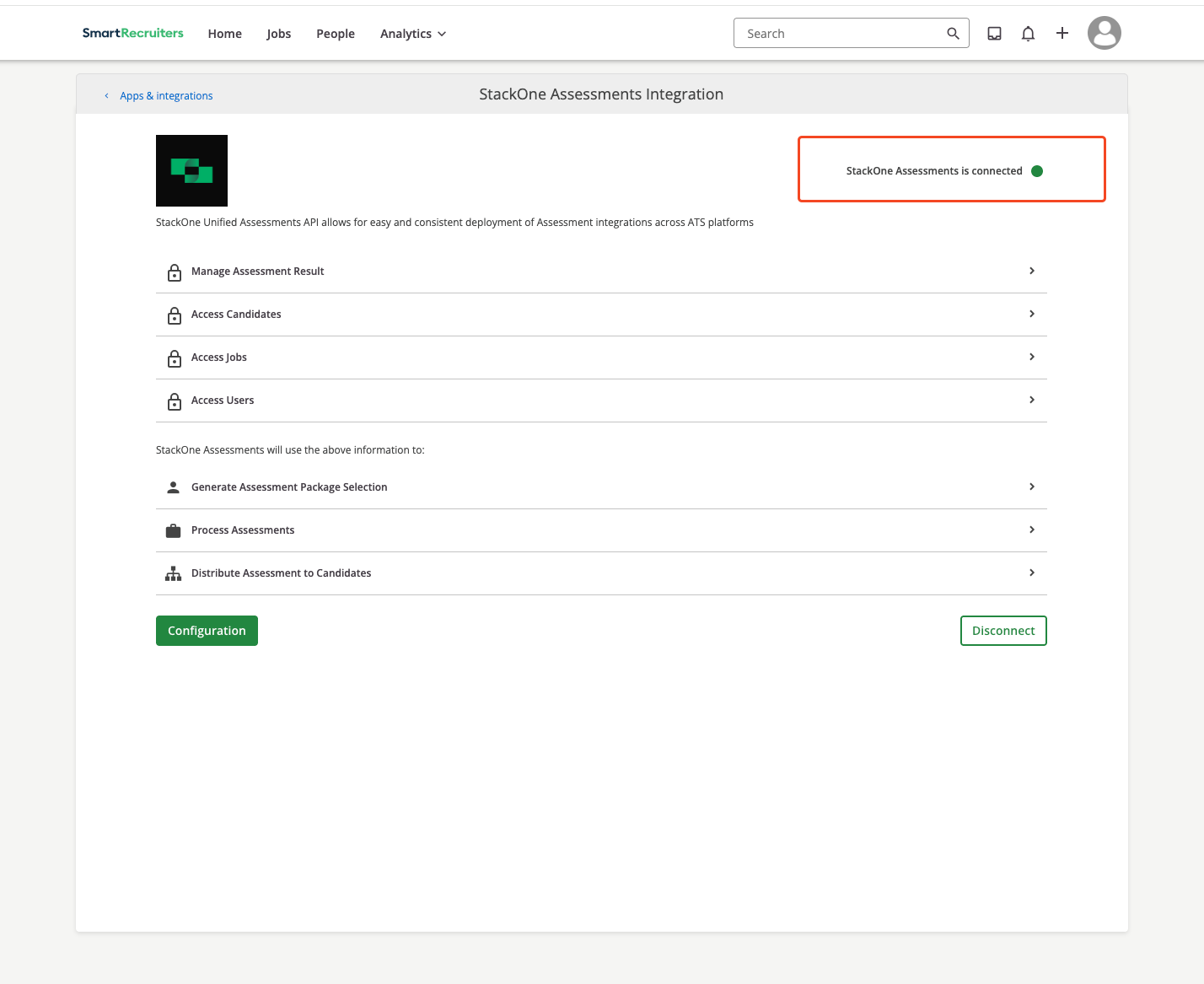
 Once submitted credentials are verified successfully, user will see a message on the top right corner of the screen that says: `StackOne Assessments is connected`.
 ## ATS User Experience
This section covers how recruiters use the integration to send assessments or background checks to candidates.
SmartRecruiters supports two assessment delivery modes: Ad-hoc (manual per candidate) and Auto Trigger (auto‑triggered by workflow configuration).
### Ad-hoc Assessments
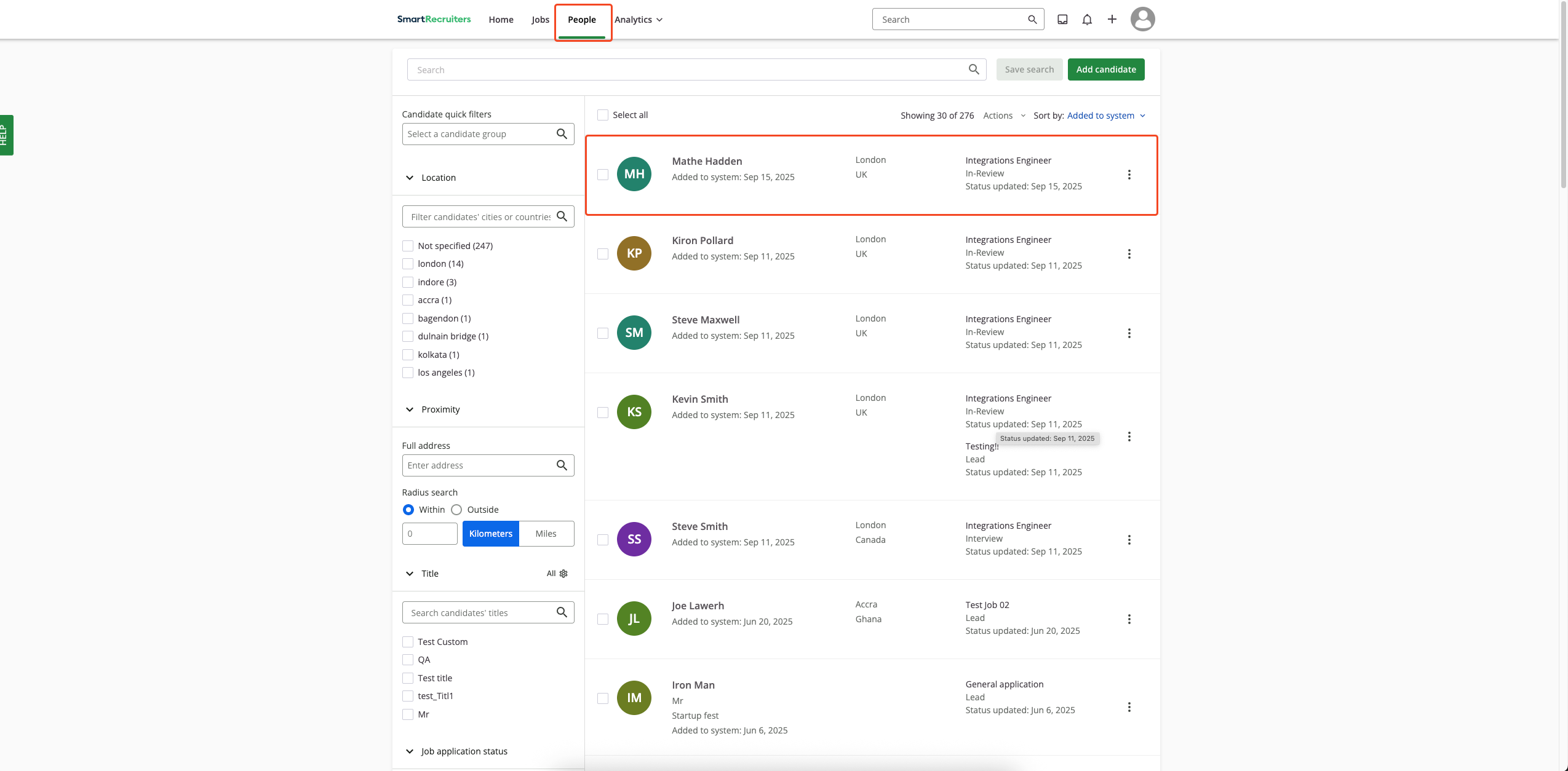
1. User logs into SmartRecruiters
2. Navigates to `People`
3. Selects a specific candidate profile
## ATS User Experience
This section covers how recruiters use the integration to send assessments or background checks to candidates.
SmartRecruiters supports two assessment delivery modes: Ad-hoc (manual per candidate) and Auto Trigger (auto‑triggered by workflow configuration).
### Ad-hoc Assessments
1. User logs into SmartRecruiters
2. Navigates to `People`
3. Selects a specific candidate profile
 From the candidate profile, look for the assessment section.
If a candidate has multiple jobs, the `Assessments` section won't appear directly on their profile. To access the assessments in this case, please follow these steps to navigate to the `Assessments` section for that candidate.
**Step 1: Navigate to Person profile**
Navigate the `Person profile` and click on `Job` for which you want to add the assessment.
From the candidate profile, look for the assessment section.
If a candidate has multiple jobs, the `Assessments` section won't appear directly on their profile. To access the assessments in this case, please follow these steps to navigate to the `Assessments` section for that candidate.
**Step 1: Navigate to Person profile**
Navigate the `Person profile` and click on `Job` for which you want to add the assessment.
 **Step 2: Find Assessments Section**
Once you open the `Job` for the candidate, you will find the `Assessments section` there, specific to that particular job application.
**Step 2: Find Assessments Section**
Once you open the `Job` for the candidate, you will find the `Assessments section` there, specific to that particular job application.
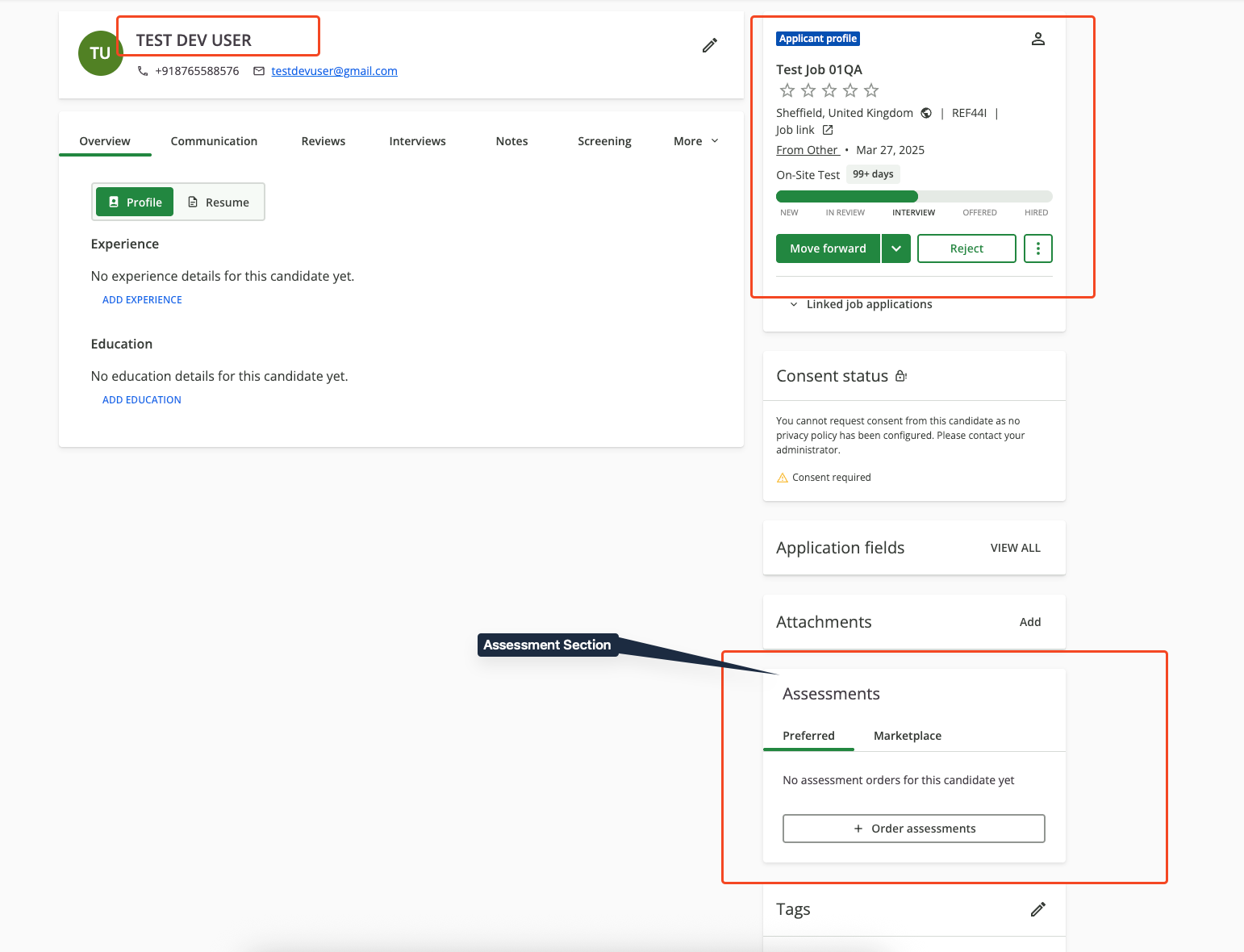 Click `Order Assessments` button.
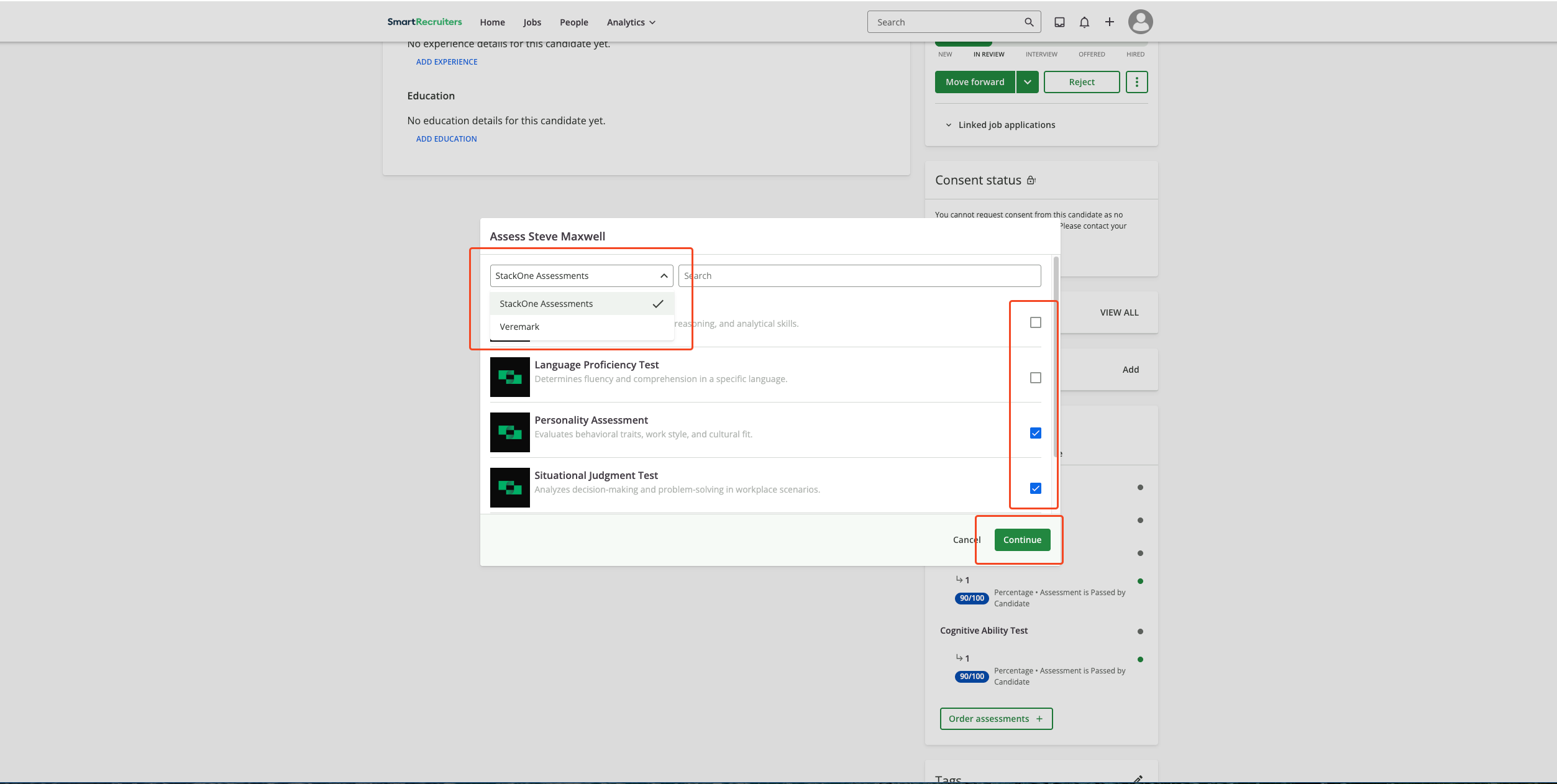
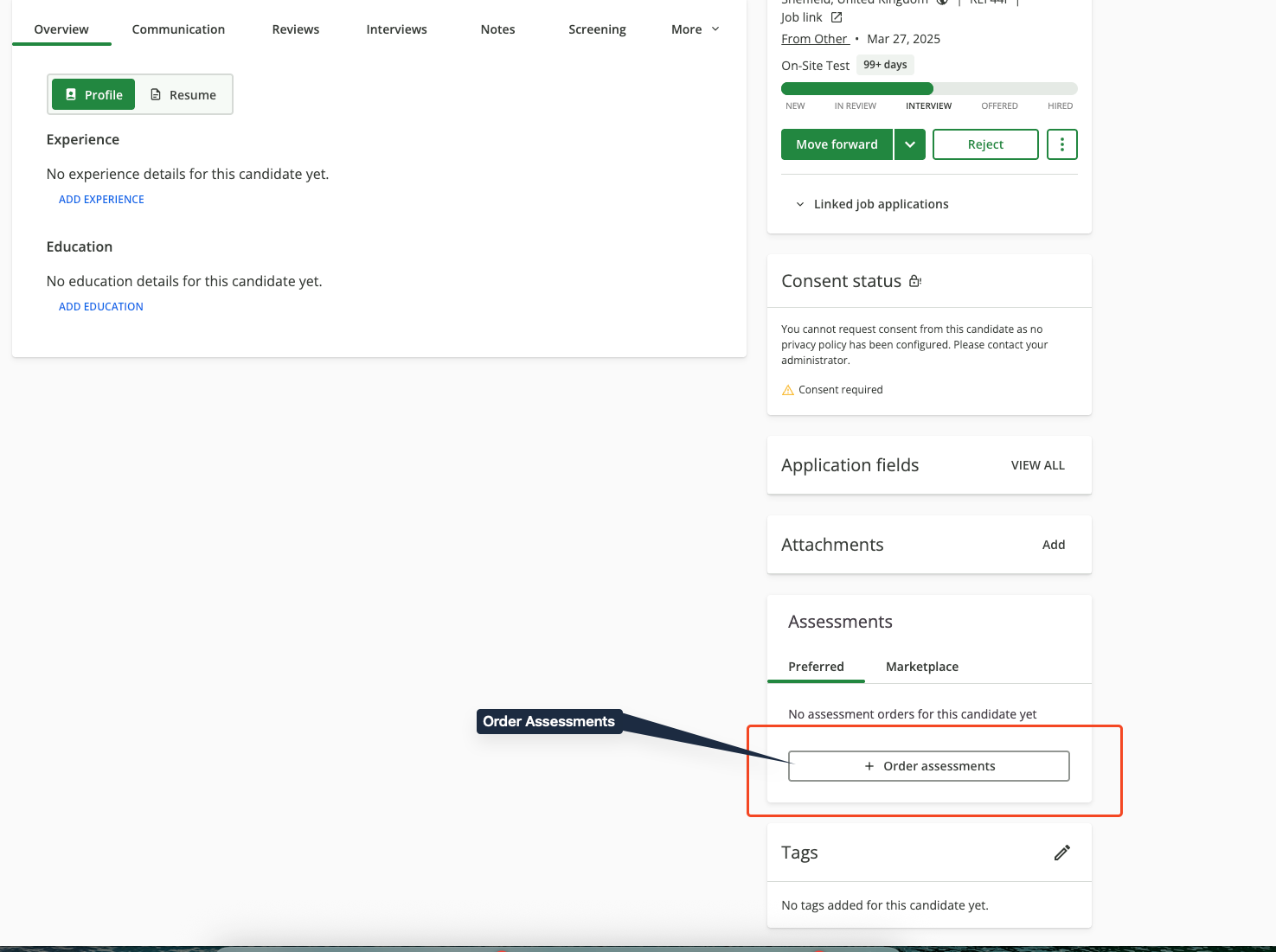 In the assessment form:
1. **Select Assessment Partner**: Select your assessment partner
2. **Select Package**: Choose from available test packages
3. **Click Continue**: Click on continue button
If a user selects multiple packages for a candidate, the assessment partner will receive multiple assessment orders.
In the assessment form:
1. **Select Assessment Partner**: Select your assessment partner
2. **Select Package**: Choose from available test packages
3. **Click Continue**: Click on continue button
If a user selects multiple packages for a candidate, the assessment partner will receive multiple assessment orders.
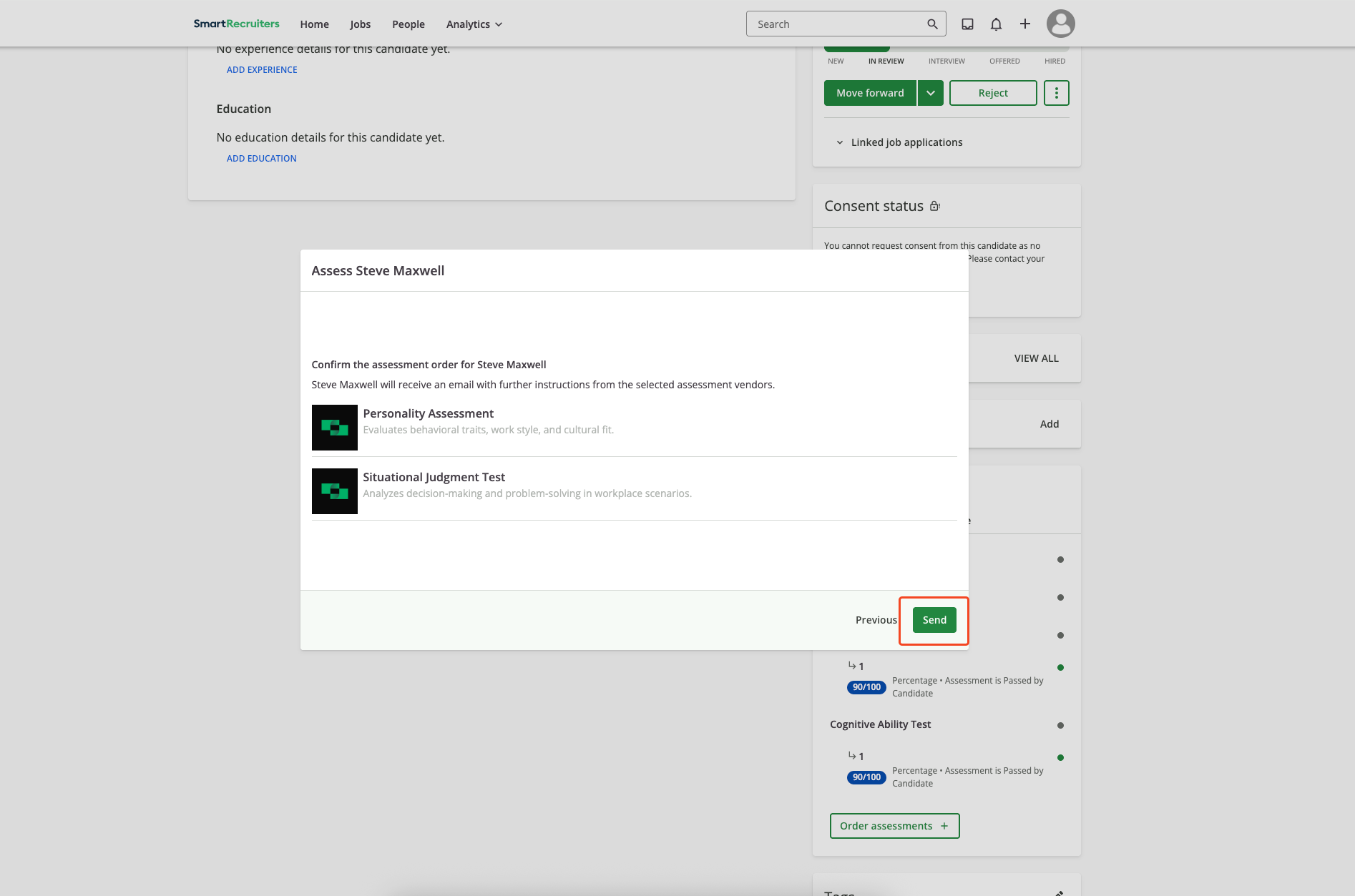
 1. Review the test details and candidate information
2. Click `Send` button
3. Candidate receives email notification with test link and instructions
1. Review the test details and candidate information
2. Click `Send` button
3. Candidate receives email notification with test link and instructions
 ### Auto Trigger Assessments
Configure an assessment that auto‑triggers when a candidate is added to a job or moved into the assessment stage:
User opens the profile menu and selects `Settings`.
### Auto Trigger Assessments
Configure an assessment that auto‑triggers when a candidate is added to a job or moved into the assessment stage:
User opens the profile menu and selects `Settings`.
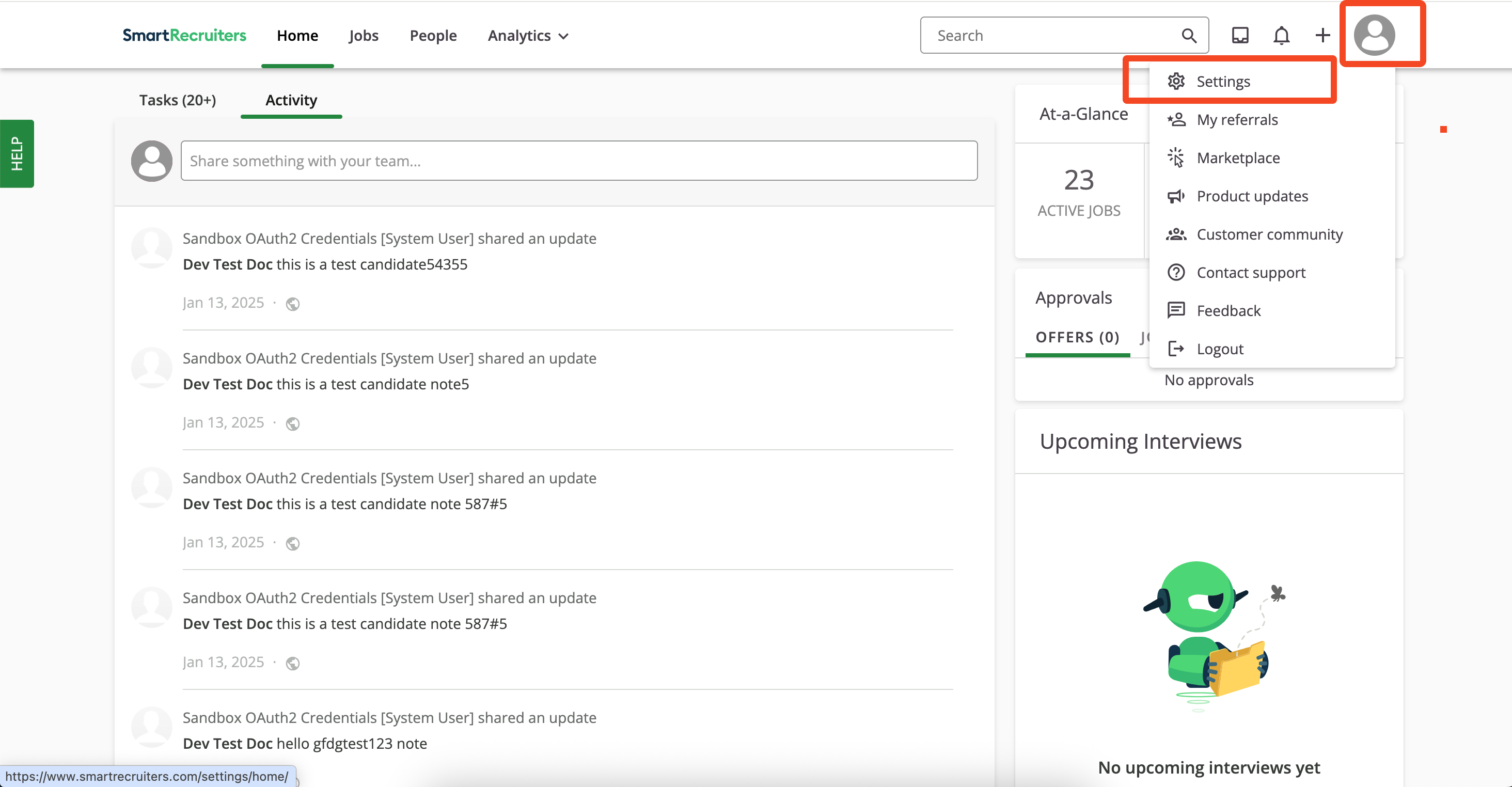 In `Settings`, user clicks `Hiring Process`.
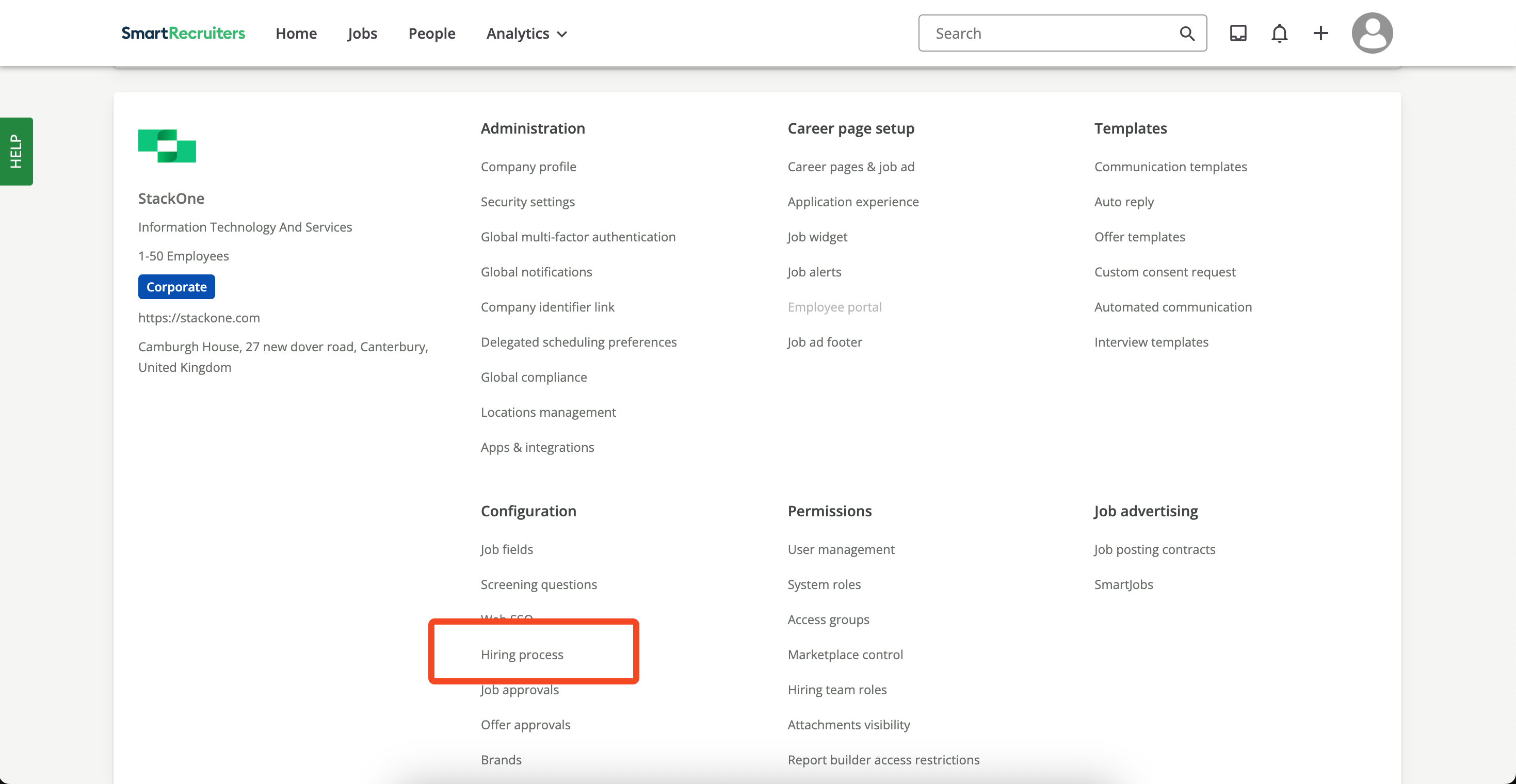 User creates a `New Hiring Process` or selects `Default`, then clicks the `Edit` icon to modify it.
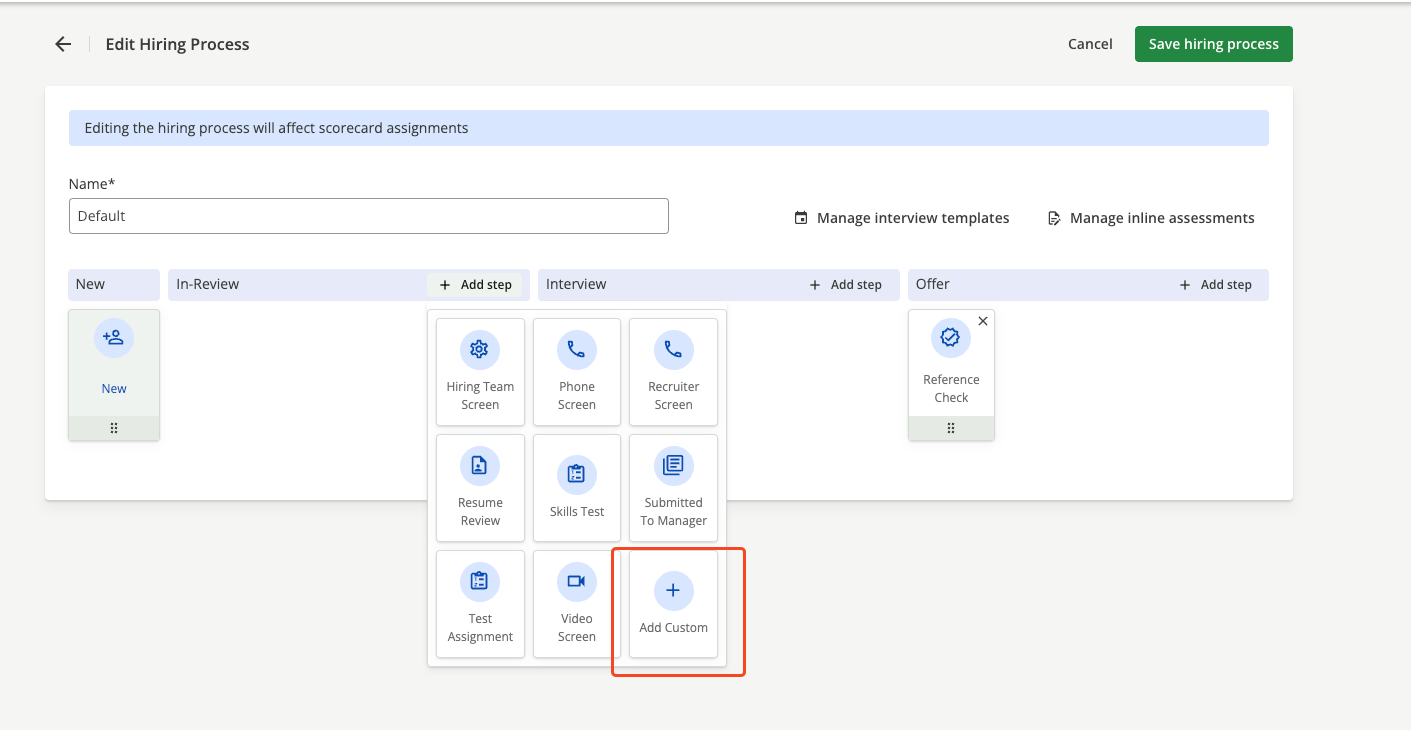
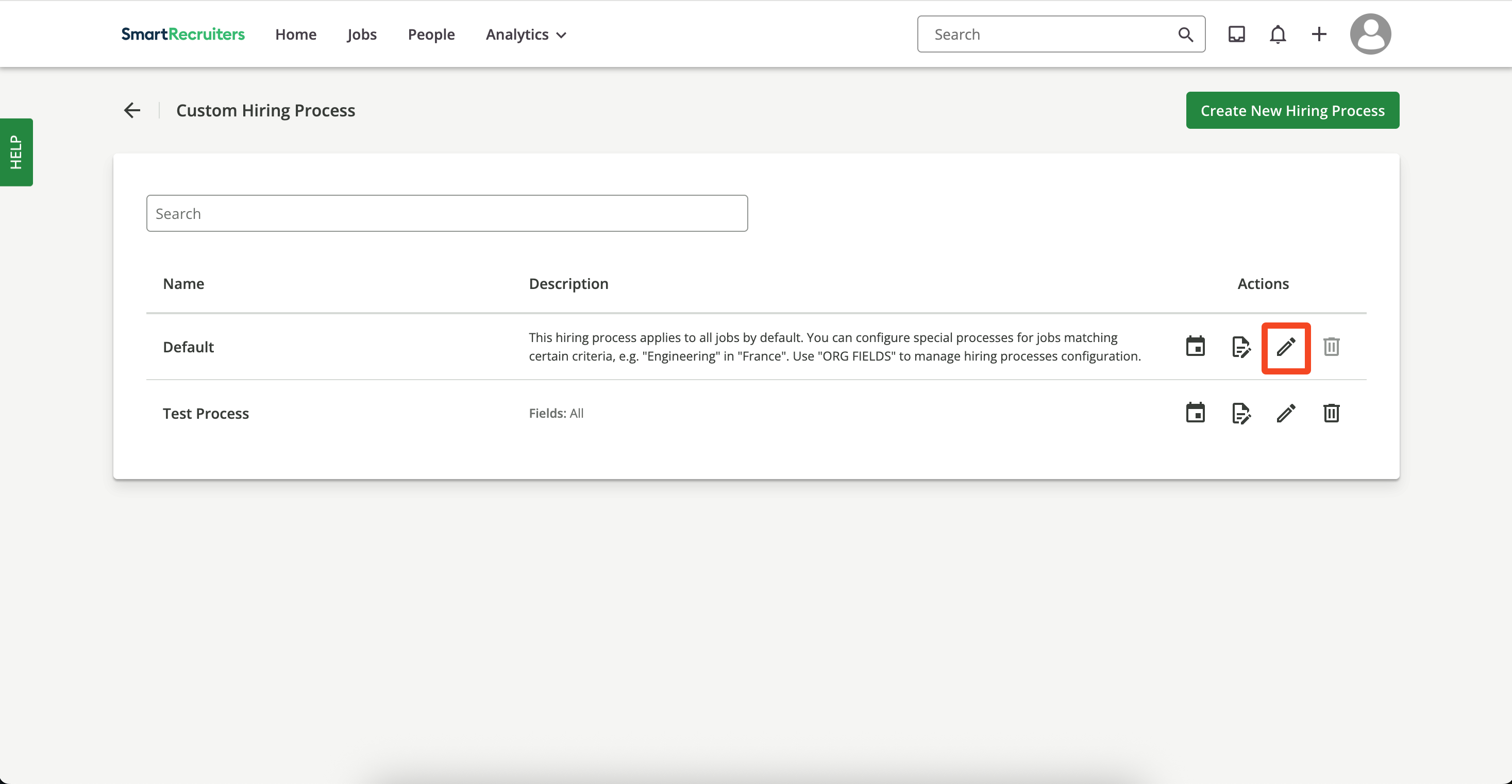 User clicks `Add Step` and chooses `Skills Test` or any other `Stage` on which you want to configure the `Assessments`.
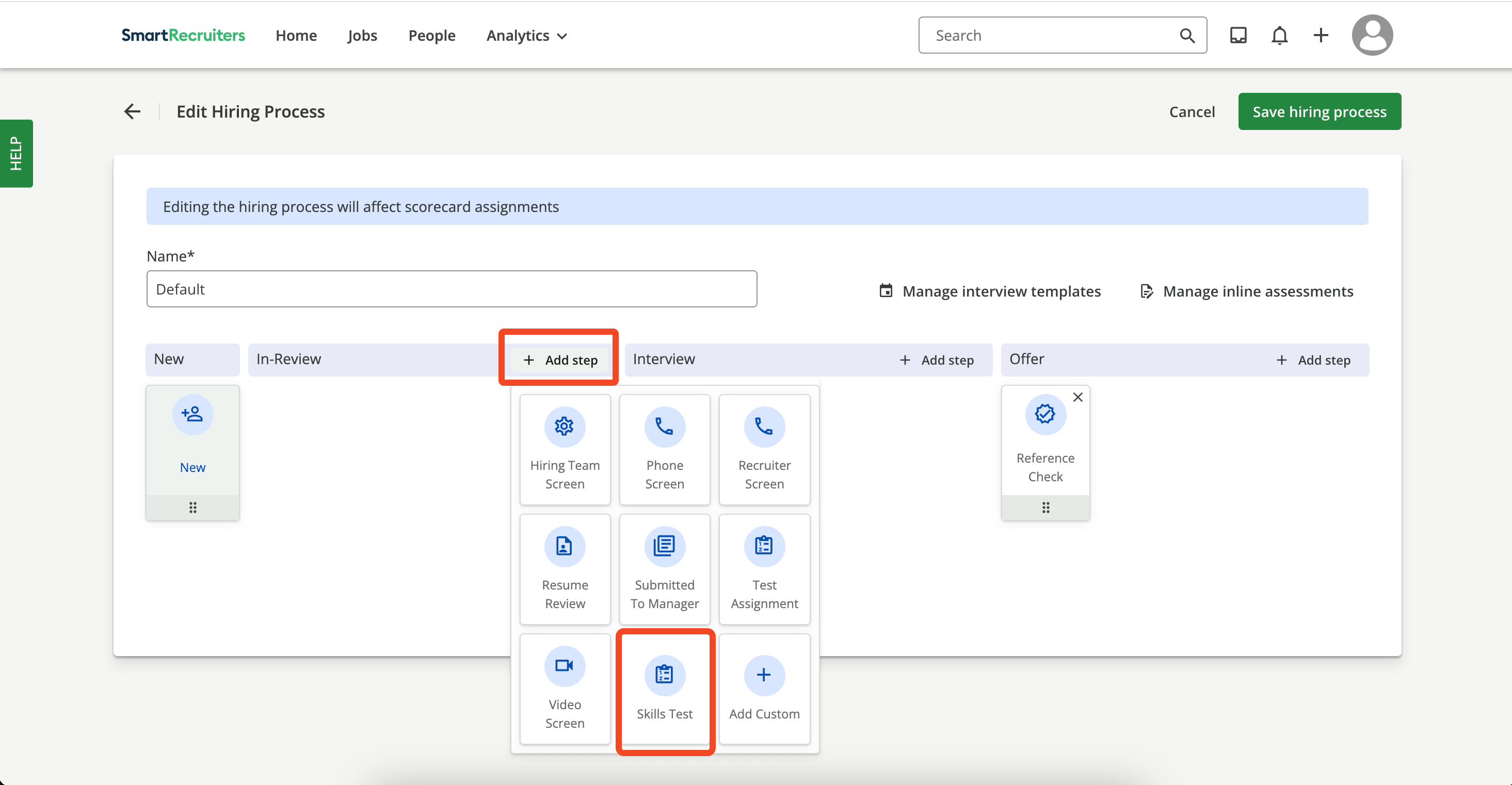 Once the user selects the step, it will be added to the hiring process.
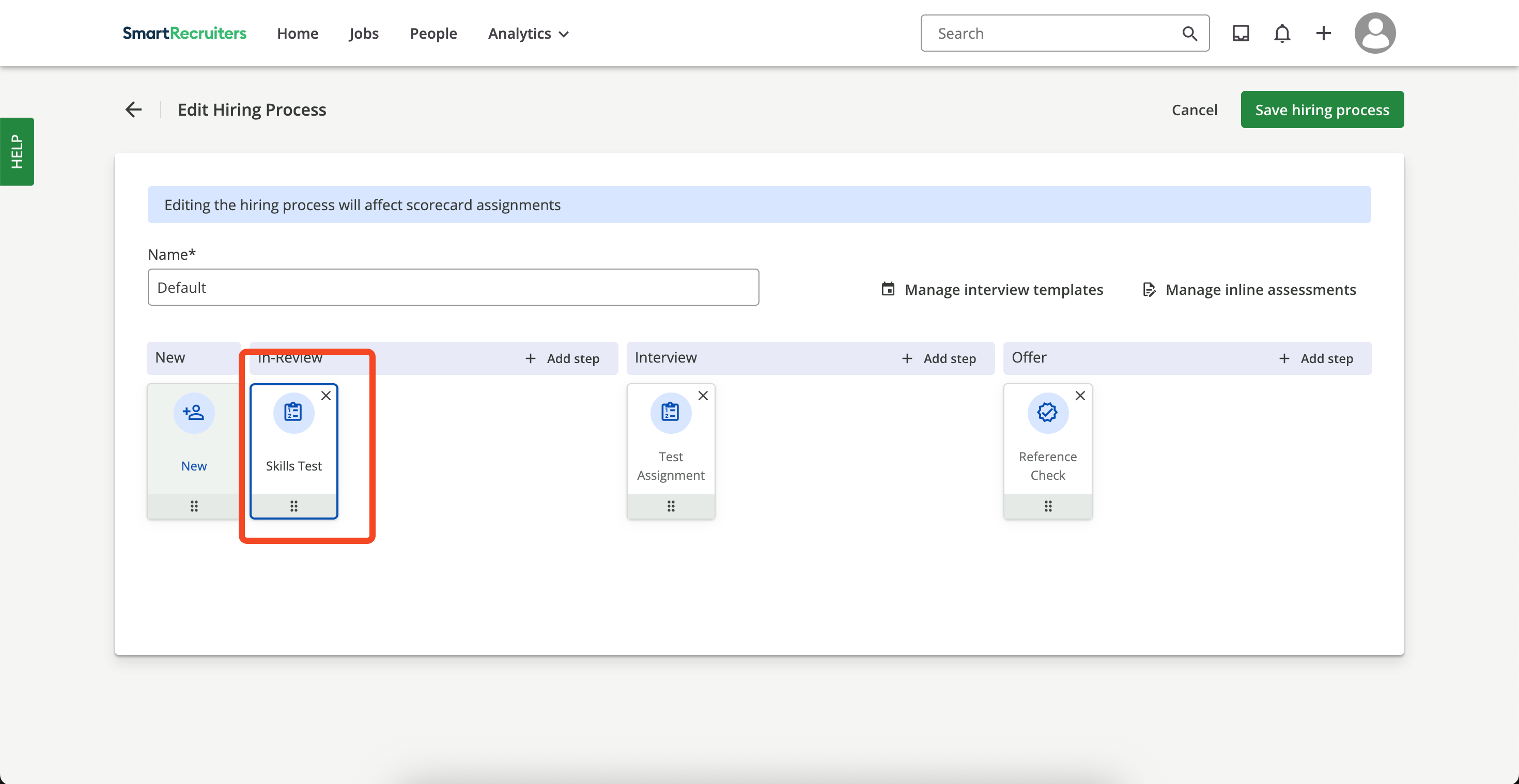 User can also add a `Custom Stage` by selecting the `Add Custom` button.
 Enter the name of the `Stage`.
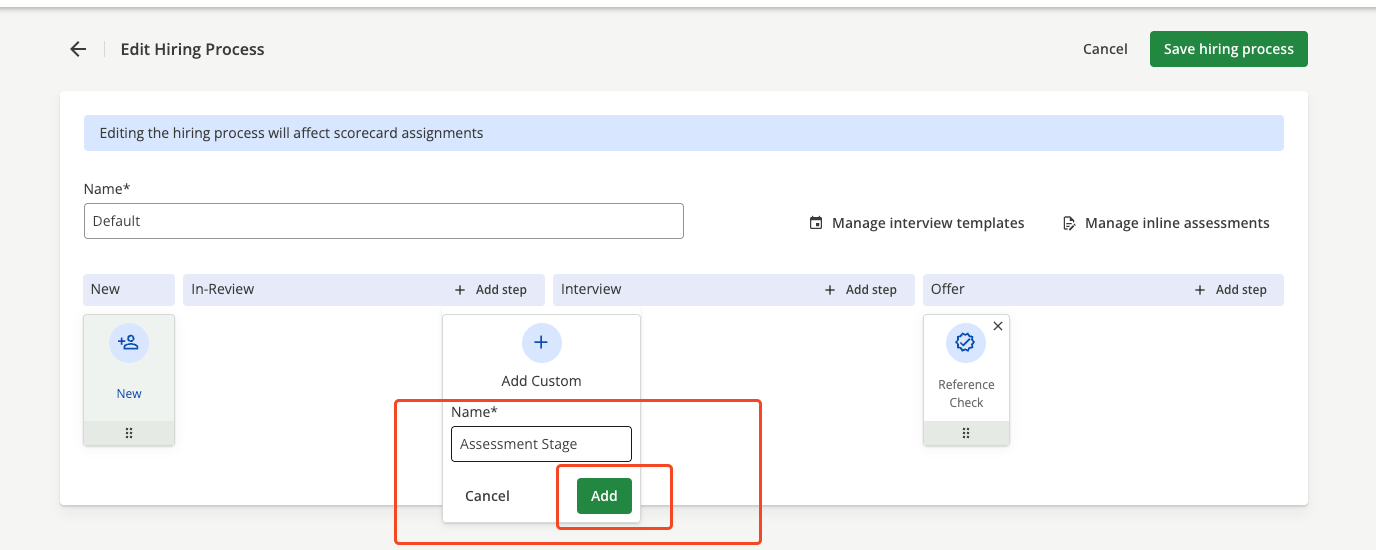 Once the user clicks the `Add` button, the step will be added to the hiring process.
 User clicks `Save Hiring Process` to persist changes.
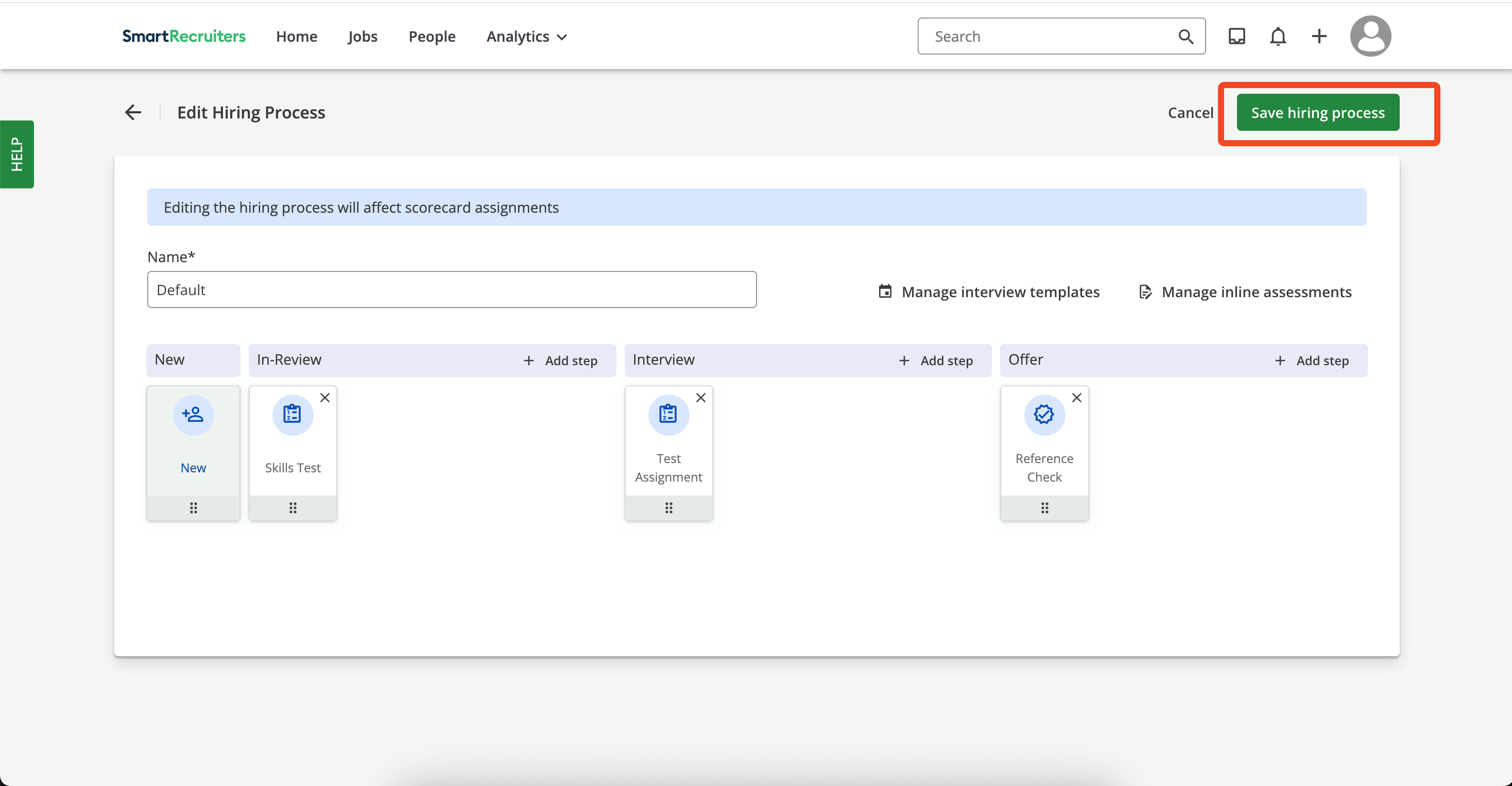 Inside the `Skills Test` step, user clicks the `Menu` icon and selects `Assessments`.
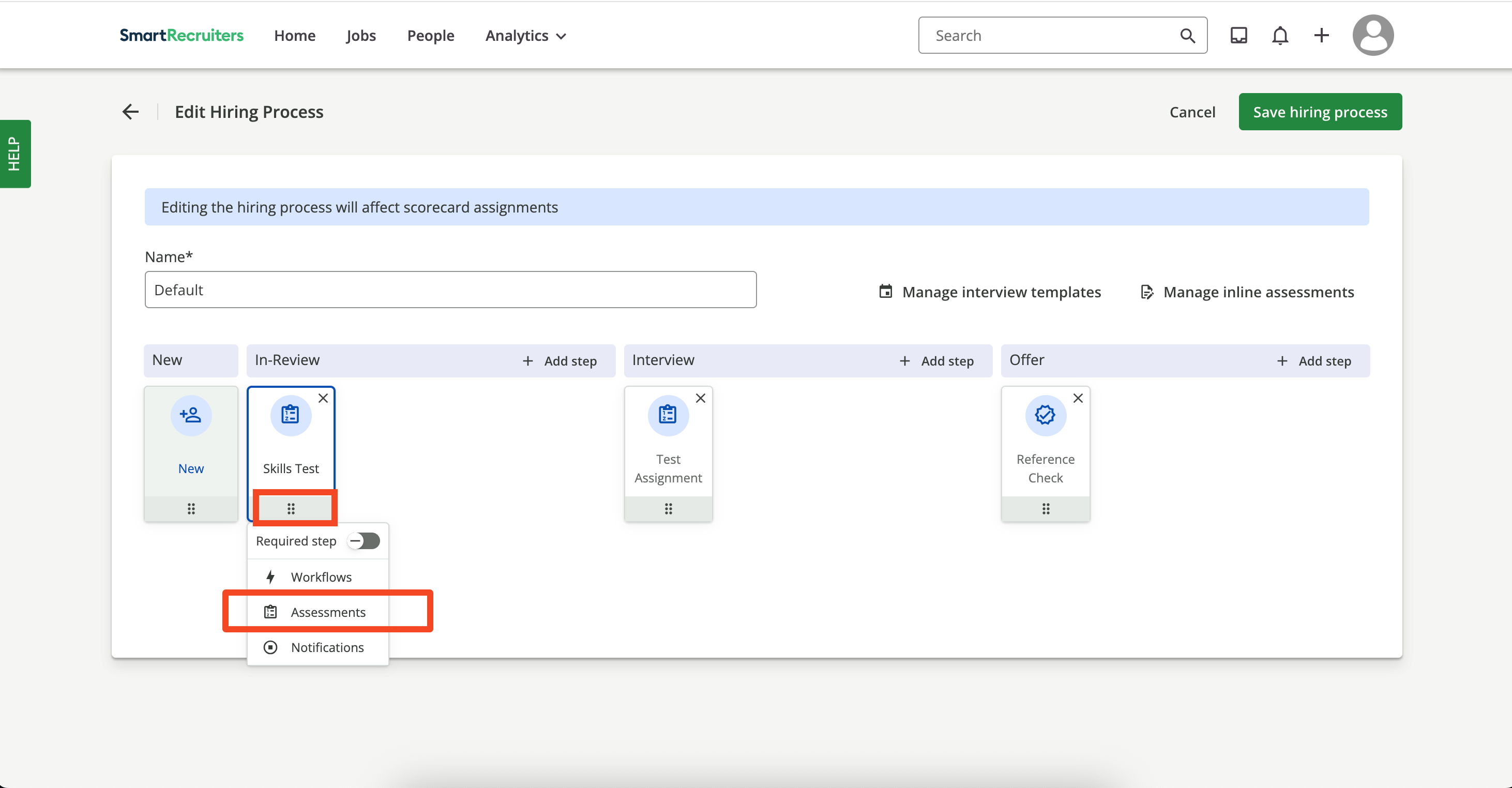 User clicks `Configure`.
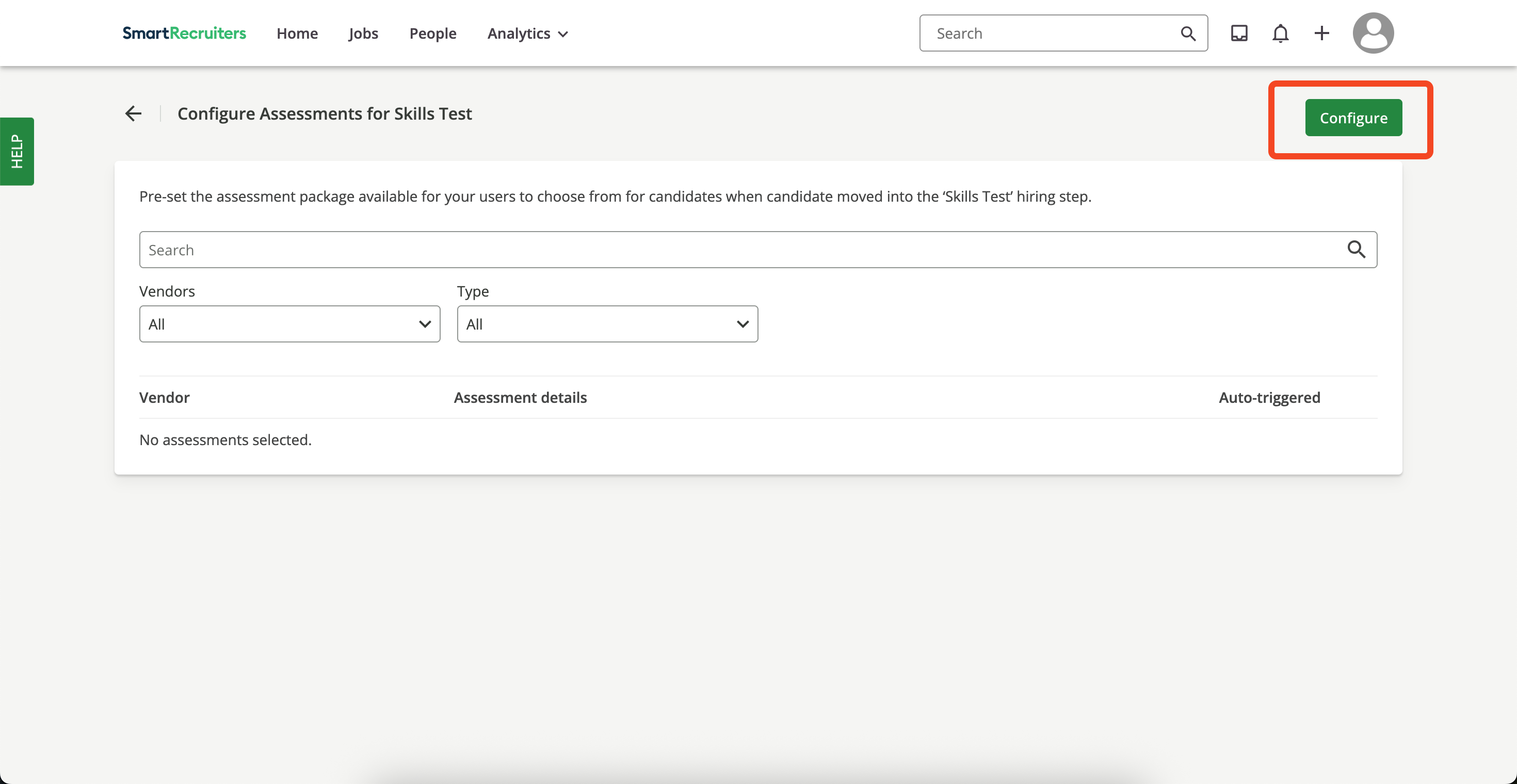 User selects the `Assessment Partner`, `Assessment Type`, and `Assessment Package`, then clicks `Save`.
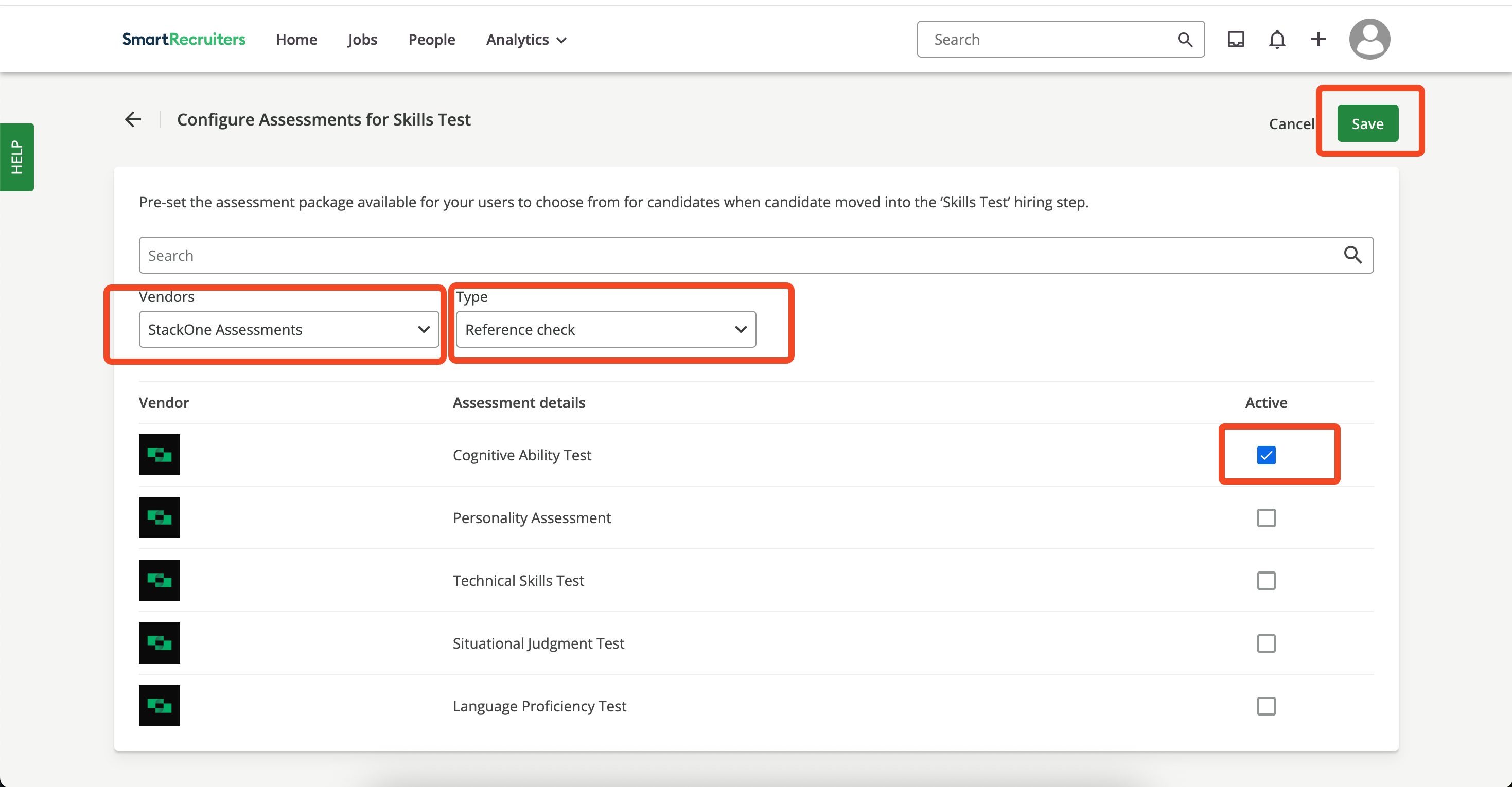 After saving, user returns to the `Config` page and enables the `Auto-triggered` toggle for the selected package.
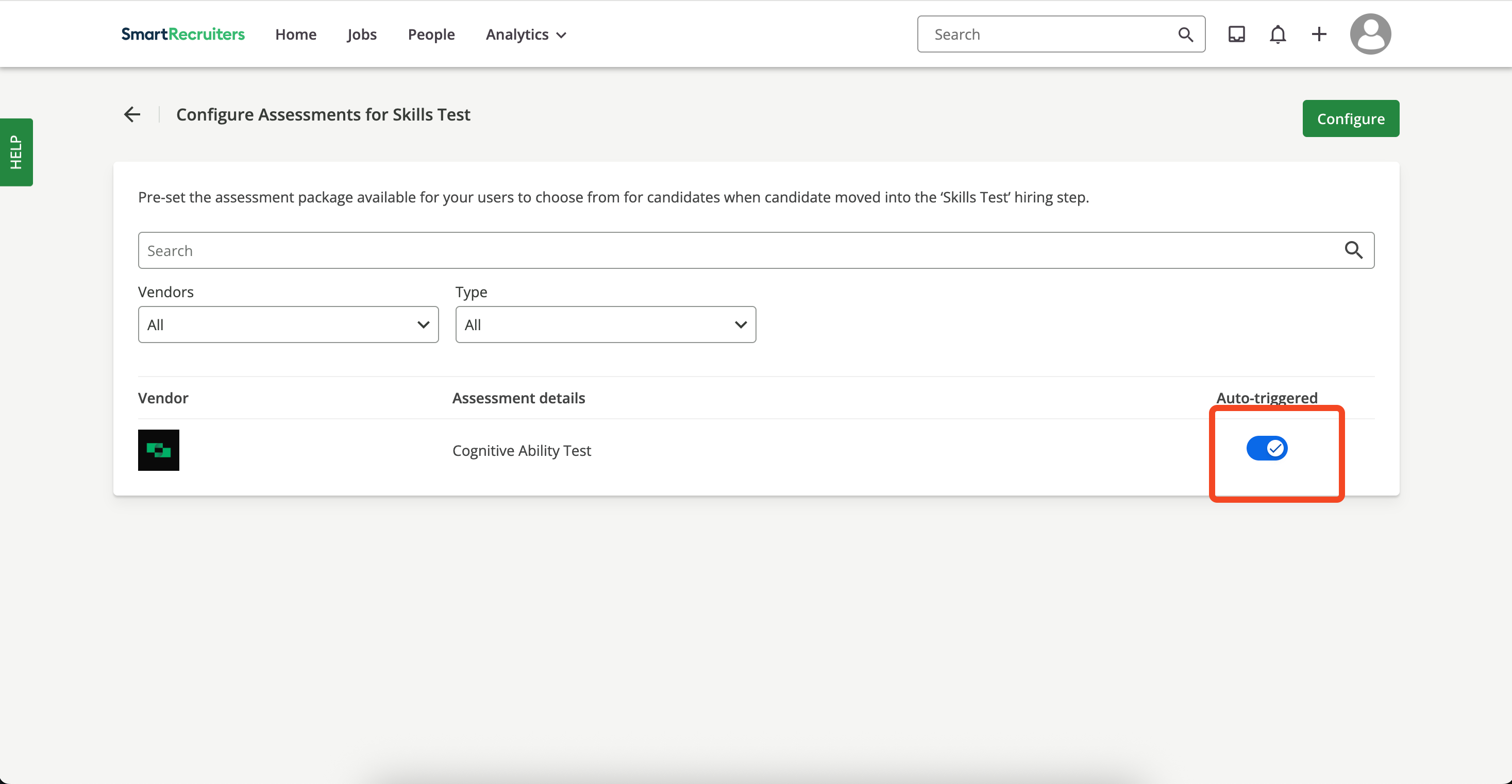 User clicks the `+` icon (top right) and selects `Add Candidate`.
 User may upload files/folders or add a candidate manually (example below):
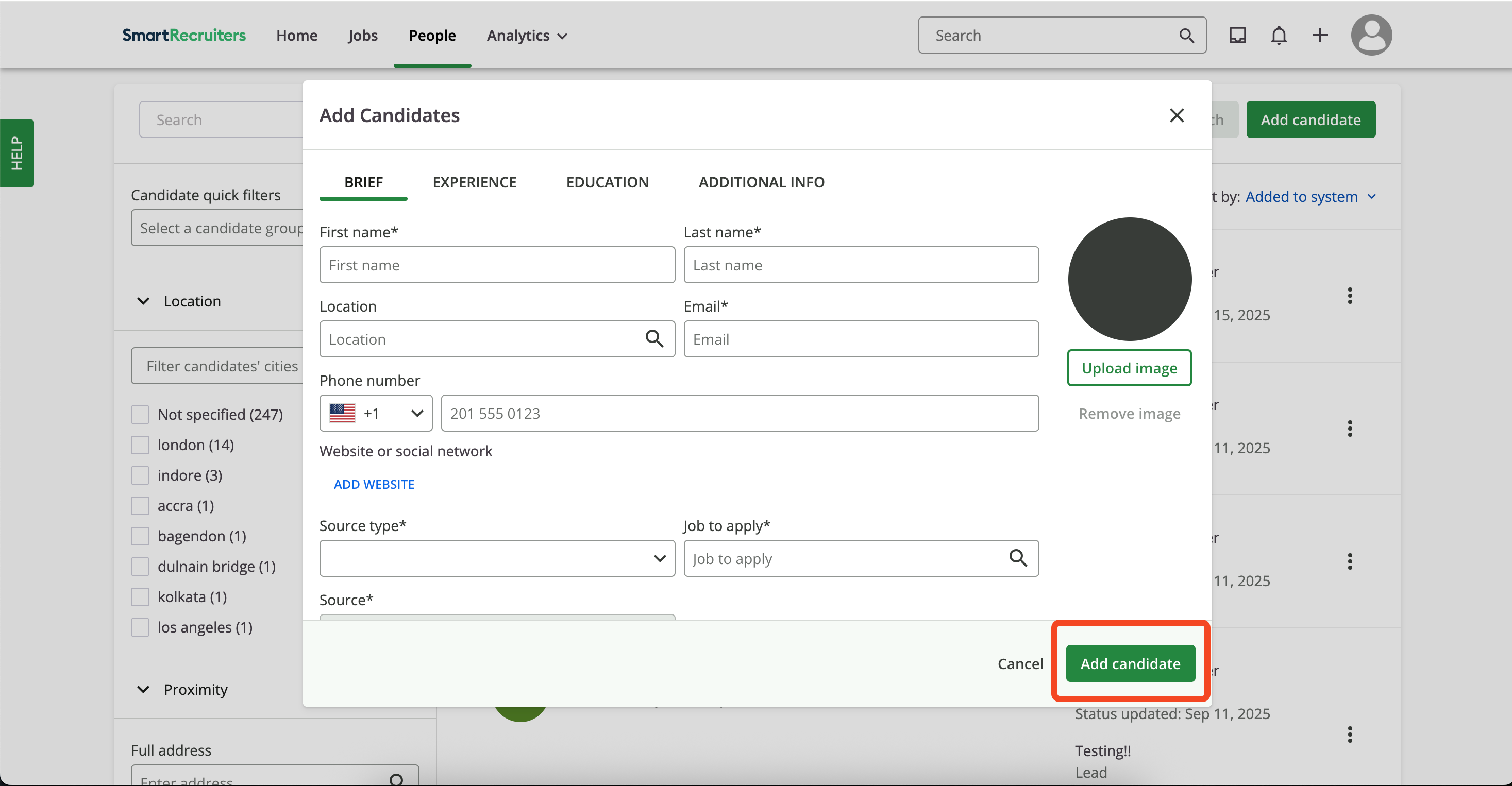
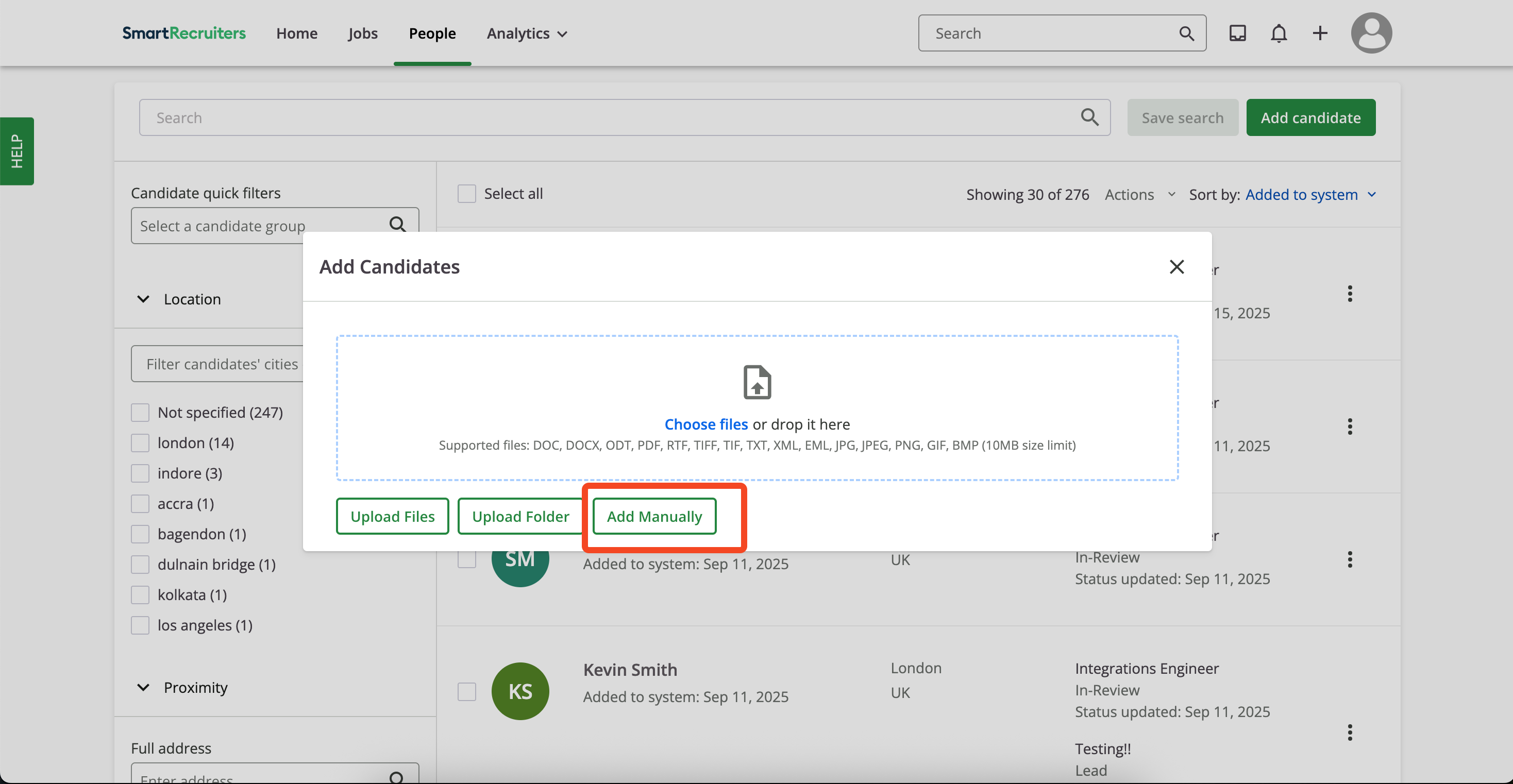 User completes the candidate form and clicks `Add Candidate`.
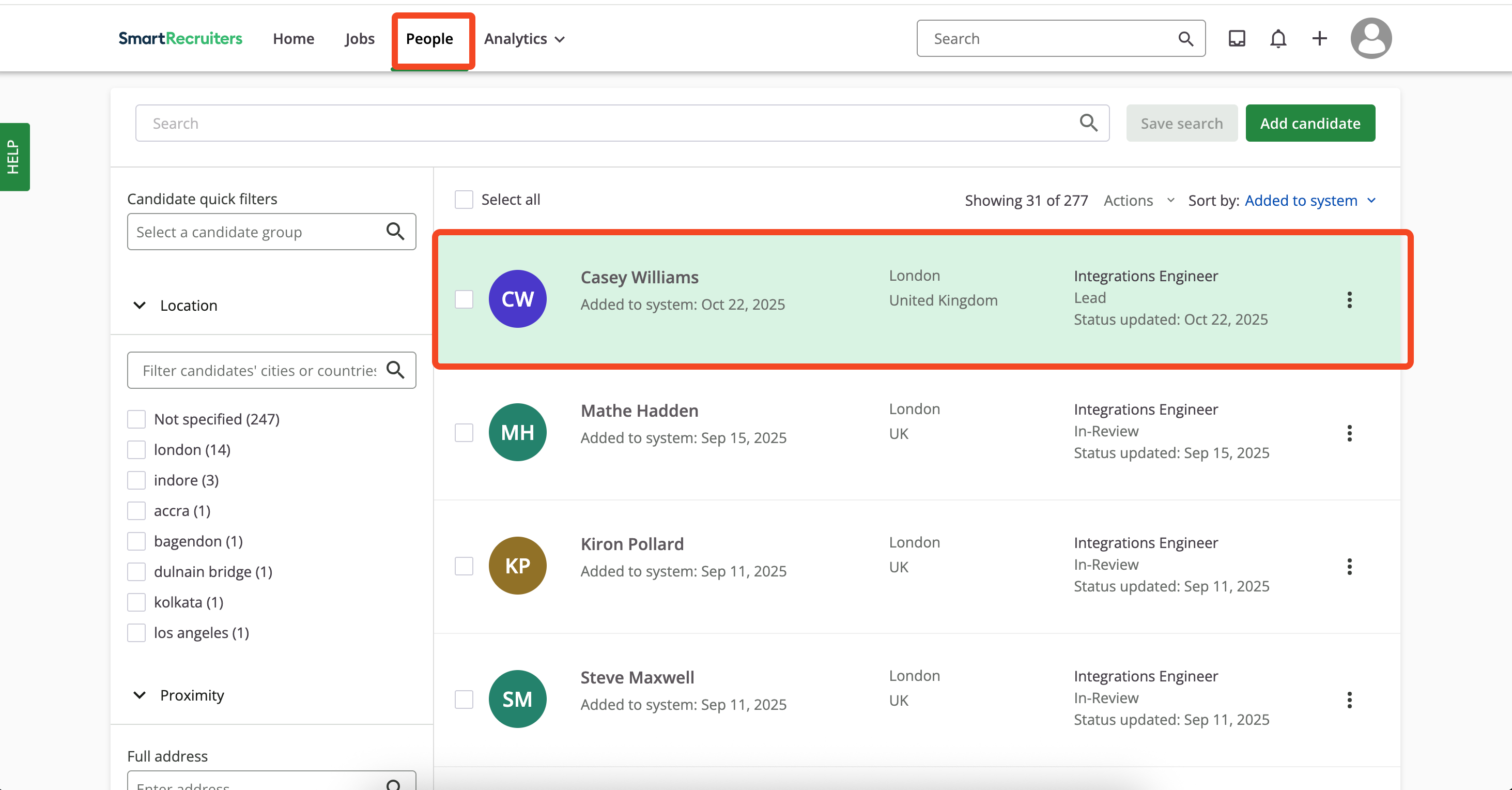
 User opens `People`, selects the candidate.
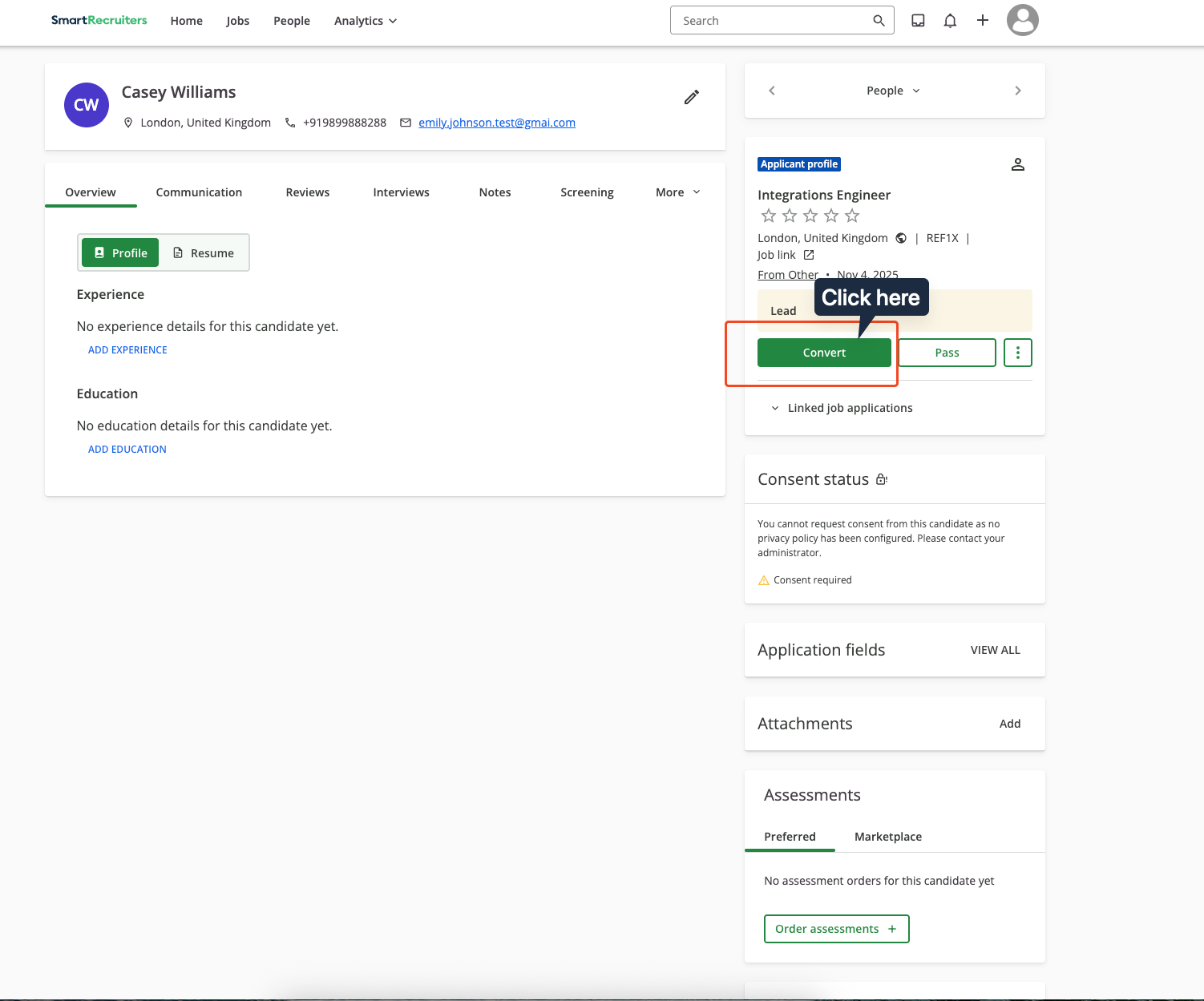
 Clicks `Convert` button under the `Applicant profile` section.
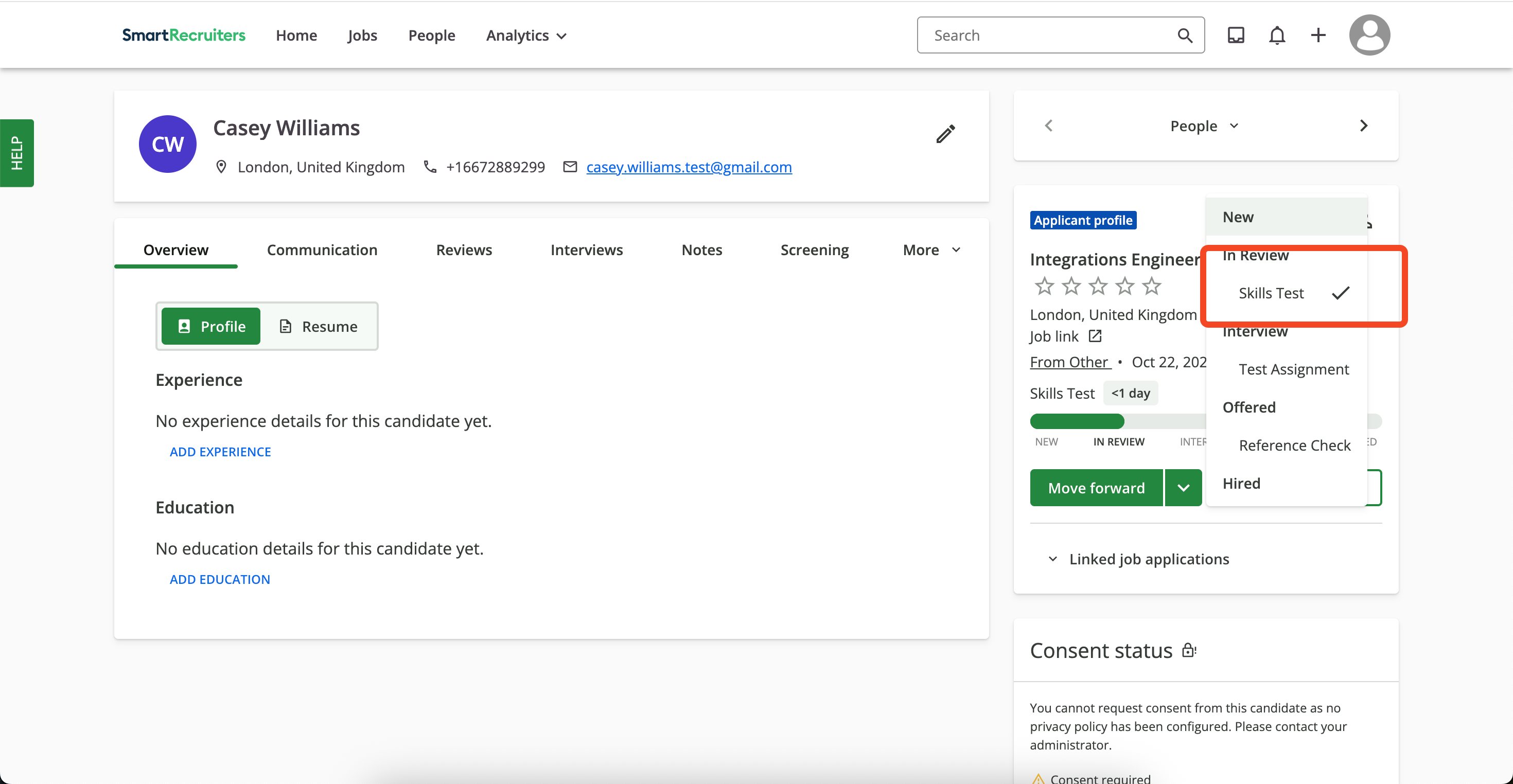
 Clicks `Move Forward`, and chooses `Skills Test` under the `In Review` stage
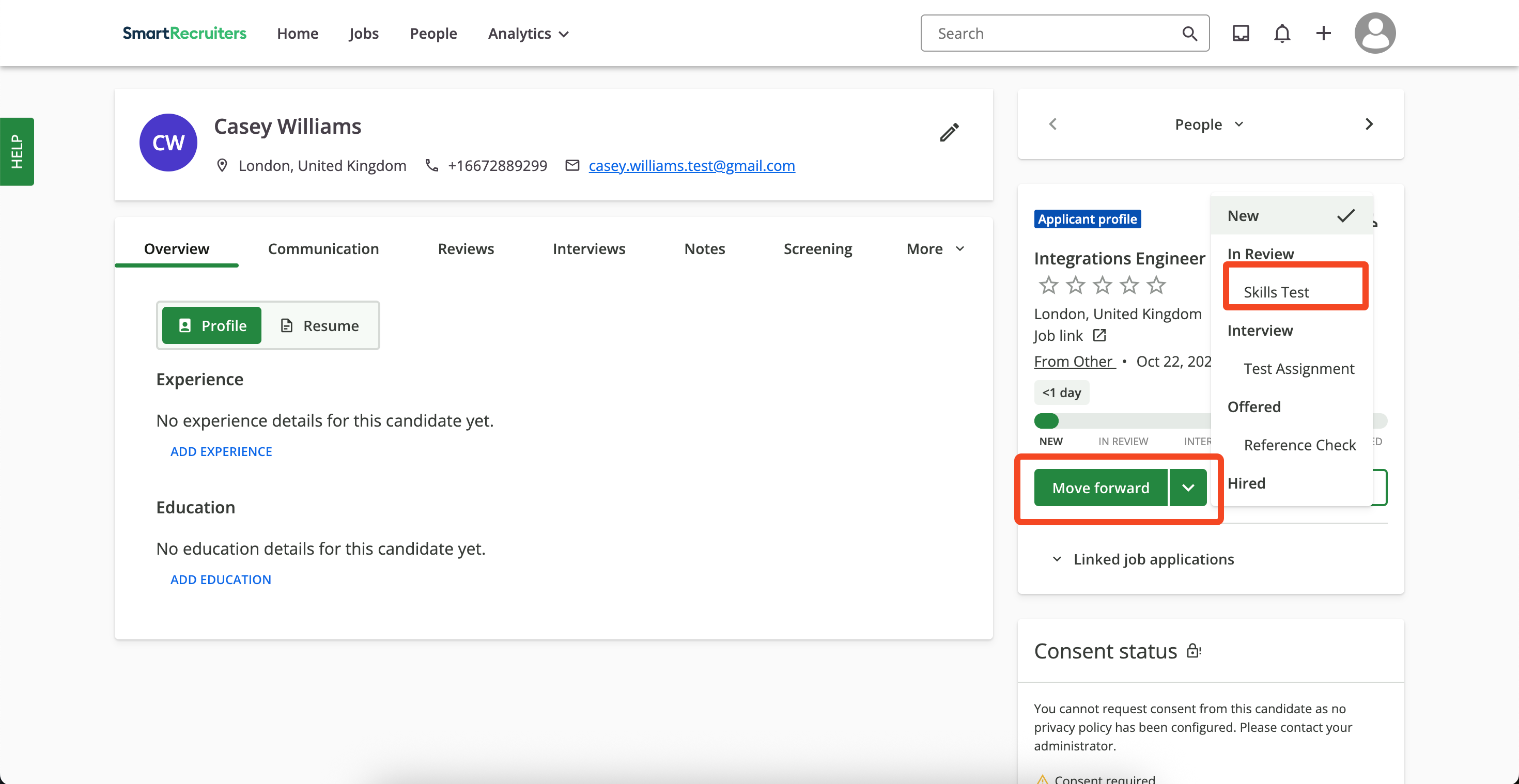 A checkmark appears on `Skills Test` once the assessment order is sent.
 ### User experience after test has been sent and results updated
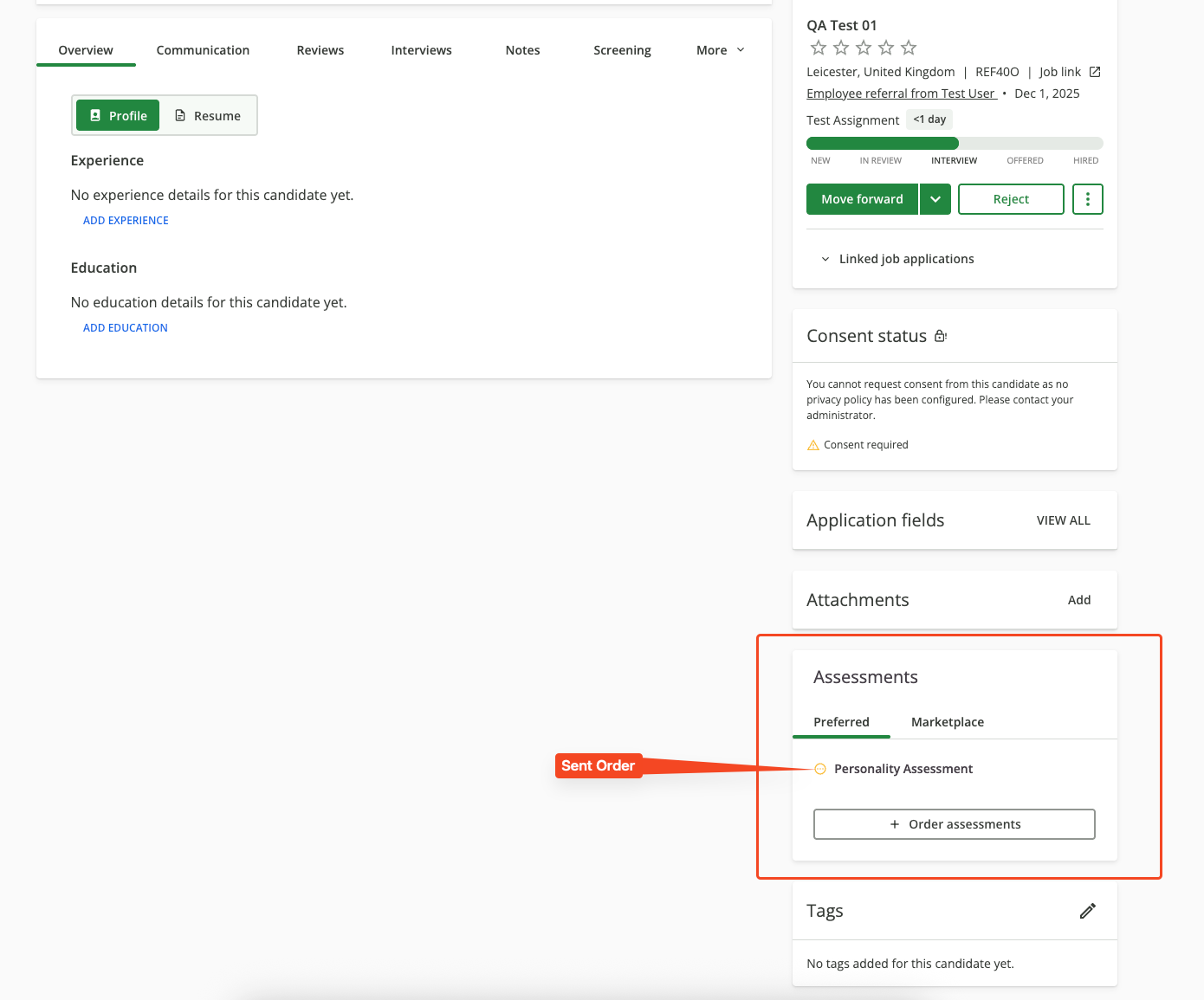
When an assessment is sent to the candidate, the user will see the assessment status in the candidate's application profile.
### User experience after test has been sent and results updated
When an assessment is sent to the candidate, the user will see the assessment status in the candidate's application profile.
 ## ATS User Experience Customisation
Utilise the following endpoints to update the results:
* [Assessment Update Result](https://docs.stackone.com/ats/api-reference/assessments/results/update-assessments-result)
* [Background Check Update Result](https://docs.stackone.com/ats/api-reference/background-checks/results/update-background-check-result)
Utilise the following endpoint to get metadata to update the result of the assessment or background check:
* [Connector Meta Information](https://docs.stackone.com/platform/api-reference/connectors/get-connector-meta-information) with the provider key `smartrecruiters` for model `assessments/results.update` or `background_checks/results.update`
### Payload to UI Mapping
The following shows how different payload fields and conditions affect what users see in the SmartRecruiters UI when updating test results:
**What users see in SmartRecruiters UI:** Grey icon, `Pending` status
**Notes:** Shows test has been pending
## ATS User Experience Customisation
Utilise the following endpoints to update the results:
* [Assessment Update Result](https://docs.stackone.com/ats/api-reference/assessments/results/update-assessments-result)
* [Background Check Update Result](https://docs.stackone.com/ats/api-reference/background-checks/results/update-background-check-result)
Utilise the following endpoint to get metadata to update the result of the assessment or background check:
* [Connector Meta Information](https://docs.stackone.com/platform/api-reference/connectors/get-connector-meta-information) with the provider key `smartrecruiters` for model `assessments/results.update` or `background_checks/results.update`
### Payload to UI Mapping
The following shows how different payload fields and conditions affect what users see in the SmartRecruiters UI when updating test results:
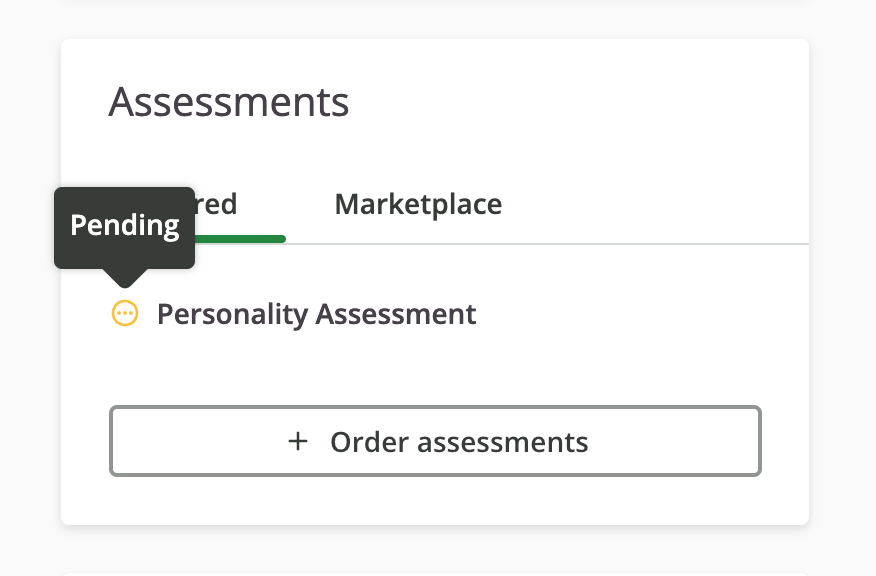
**What users see in SmartRecruiters UI:** Grey icon, `Pending` status
**Notes:** Shows test has been pending
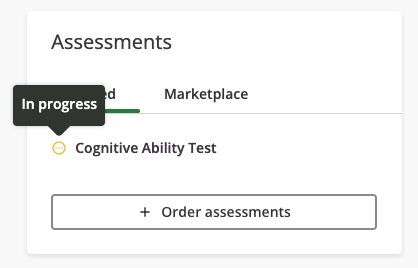
 **What users see in SmartRecruiters UI:** Yellow icon, `In Progress` status
**Notes:** Shows ongoing test status
**What users see in SmartRecruiters UI:** Yellow icon, `In Progress` status
**Notes:** Shows ongoing test status
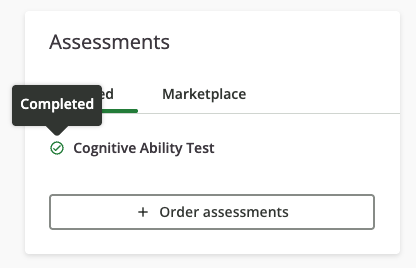
 **What users see in SmartRecruiters UI:** Green checkmark, `Completed` status
**Notes:** Shows successful completion status
**What users see in SmartRecruiters UI:** Green checkmark, `Completed` status
**Notes:** Shows successful completion status
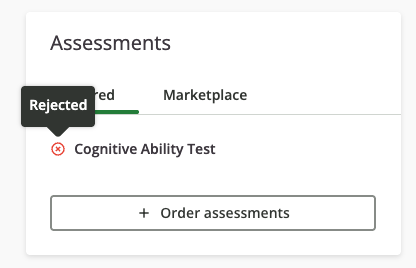
 **What users see in SmartRecruiters UI:** Red icon, `Rejected` status
**Notes:** Indicates test failure or rejection
**What users see in SmartRecruiters UI:** Red icon, `Rejected` status
**Notes:** Indicates test failure or rejection
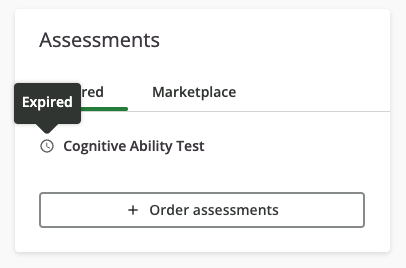
 **What users see in SmartRecruiters UI:** Yellow icon, `Expired` status
**Notes:** Shows test has expired without completion
**What users see in SmartRecruiters UI:** Yellow icon, `Expired` status
**Notes:** Shows test has expired without completion
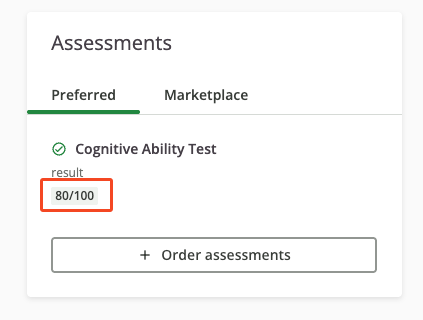
 **What users see in SmartRecruiters UI:** Numerical score displayed prominently
**Notes:** Value, min, and max are all required fields for score display.
**What users see in SmartRecruiters UI:** Numerical score displayed prominently
**Notes:** Value, min, and max are all required fields for score display.
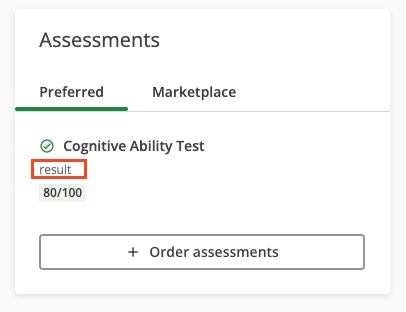
 **What users see in SmartRecruiters UI:** Custom score label or description
**Notes:** Optional descriptive label for the score
**What users see in SmartRecruiters UI:** Custom score label or description
**Notes:** Optional descriptive label for the score
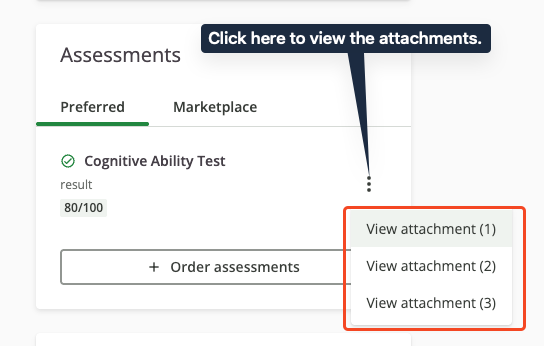
 **What users see in SmartRecruiters UI:** `Download Reports` section with file links
**Notes:** Both content\_type and url fields are required to attach report documents. For result\_url, you only need to provide the report link in the result\_url field. Both types of documents will be displayed in the same section.
**What users see in SmartRecruiters UI:** `Download Reports` section with file links
**Notes:** Both content\_type and url fields are required to attach report documents. For result\_url, you only need to provide the report link in the result\_url field. Both types of documents will be displayed in the same section.
 **What users see in SmartRecruiters UI:** Not currently visible in UI
**Notes:** ***Optional field*** - Summary of the results.
**What users see in SmartRecruiters UI:** Not currently visible in UI
**Notes:** ***Optional field*** - Assessment start timestamp (when the assessment was initiated)
**What users see in SmartRecruiters UI:** Not currently visible in UI
**Notes:** ***Optional field*** - Completion timestamp (when the assessment was submitted)
## Testing Checklist
✅ **Partnership & Provider Setup:**
* Partnership application approved by SmartRecruiters Marketplace.
* Integration is listed and discoverable in SmartRecruiters Marketplace.
✅ **StackOne Configuration:**
* SmartRecruiters integration enabled in StackOne Dashboard.
* Authentication Type `OAuth2 - Assessments/Background checks` is selected.
* Partner Category (Assessment or Background Check) is correctly configured.
* Valid Partner Client ID and Client Secret from SmartRecruiters Partner Portal are provided.
* Package's List Endpoint URL is implemented and returning valid response format, or Static Package ID is configured.
* SmartRecruiters Supported Assessment Types are selected.
✅ **Webhook Configuration:**
* Webhook is created with valid URL.
* Correct webhook events are enabled (`assessment.created` or `background_check.created`).
✅ **ATS User Enablement:**
* External Trigger Token is successfully obtained from StackOne Connector Hub.
* StackOne account is connected successfully.
* Integration can be found and selected in SmartRecruiters Marketplace.
* Integration connection is successfully established after providing External Trigger Token and Email Address.
* Success message `StackOne Assessments is connected` is displayed.
✅ **ATS User Experience - Ad-hoc & Auto Trigger Assessments:**
* **Ad-hoc Assessments:**
* `Order Assessment` button is visible on candidate profile.
* Package selection dropdown displays available packages (from endpoint or static package).
* Assessment order is successfully sent to candidate.
* Assessment status updates are visible in candidate profile (Pending, In Progress, Completed, etc.).
* **Auto Trigger Assessments:**
* Hiring Process is configured with Skills Test or Custom Stage.
* Assessment is configured within the stage with correct partner and package.
* Auto-triggered toggle is enabled for the assessment.
* Assessment order is automatically triggered when candidate is moved to configured stage.
* Assessment status updates are visible in candidate profile (Pending, In Progress, Completed, etc.).
✅ **Result Update:**
* Success response is received from the update result endpoint.
* Updated result status (pending, in\_progress, completed, failed, expired) is visible in SmartRecruiters UI.
* Score values (value, min, max) are displayed correctly when provided.
* Summary section displays rich text summary when provided.
* Result URL and attachments are accessible in the `Download Reports` section.
## Troubleshooting
**What users see in SmartRecruiters UI:** Not currently visible in UI
**Notes:** ***Optional field*** - Summary of the results.
**What users see in SmartRecruiters UI:** Not currently visible in UI
**Notes:** ***Optional field*** - Assessment start timestamp (when the assessment was initiated)
**What users see in SmartRecruiters UI:** Not currently visible in UI
**Notes:** ***Optional field*** - Completion timestamp (when the assessment was submitted)
## Testing Checklist
✅ **Partnership & Provider Setup:**
* Partnership application approved by SmartRecruiters Marketplace.
* Integration is listed and discoverable in SmartRecruiters Marketplace.
✅ **StackOne Configuration:**
* SmartRecruiters integration enabled in StackOne Dashboard.
* Authentication Type `OAuth2 - Assessments/Background checks` is selected.
* Partner Category (Assessment or Background Check) is correctly configured.
* Valid Partner Client ID and Client Secret from SmartRecruiters Partner Portal are provided.
* Package's List Endpoint URL is implemented and returning valid response format, or Static Package ID is configured.
* SmartRecruiters Supported Assessment Types are selected.
✅ **Webhook Configuration:**
* Webhook is created with valid URL.
* Correct webhook events are enabled (`assessment.created` or `background_check.created`).
✅ **ATS User Enablement:**
* External Trigger Token is successfully obtained from StackOne Connector Hub.
* StackOne account is connected successfully.
* Integration can be found and selected in SmartRecruiters Marketplace.
* Integration connection is successfully established after providing External Trigger Token and Email Address.
* Success message `StackOne Assessments is connected` is displayed.
✅ **ATS User Experience - Ad-hoc & Auto Trigger Assessments:**
* **Ad-hoc Assessments:**
* `Order Assessment` button is visible on candidate profile.
* Package selection dropdown displays available packages (from endpoint or static package).
* Assessment order is successfully sent to candidate.
* Assessment status updates are visible in candidate profile (Pending, In Progress, Completed, etc.).
* **Auto Trigger Assessments:**
* Hiring Process is configured with Skills Test or Custom Stage.
* Assessment is configured within the stage with correct partner and package.
* Auto-triggered toggle is enabled for the assessment.
* Assessment order is automatically triggered when candidate is moved to configured stage.
* Assessment status updates are visible in candidate profile (Pending, In Progress, Completed, etc.).
✅ **Result Update:**
* Success response is received from the update result endpoint.
* Updated result status (pending, in\_progress, completed, failed, expired) is visible in SmartRecruiters UI.
* Score values (value, min, max) are displayed correctly when provided.
* Summary section displays rich text summary when provided.
* Result URL and attachments are accessible in the `Download Reports` section.
## Troubleshooting
| Symptom | Likely Cause | Fix |
| ----------------------------------------------------------------------------------------------------------------------------------------------------------------------------------------------- | ---------------------------------------------------------------------------------------------------------------------------------------------------------------------------------------------------------------------- | ------------------------------------------------------------------------------------------------------------------------------------------------------------------------------------------------------------------------------------------------------------------------------------------------ |
| Integration not appearing in SmartRecruiters marketplace | Partnership not approved or marketplace listing incomplete | Verify partnership status in SmartRecruiters Partner Portal. Complete marketplace listing requirements. |
| `Order Assessment` button missing from candidate profile | Integration not properly activated or insufficient permissions | Check integration status in SmartRecruiters Active Apps. Verify user has recruiter permissions. |
| Getting `List displays incomplete data. An error occurred while fetching one or more packages from partner. Click 'Reload' button to try to fetch packages again` on `Order Assessments` pop-up | Package's List Endpoint URL or Static Package ID is missing from StackOne Configuration.
Invalid response getting from the Package's List Endpoint URL.
Invalid Package's List Endpoint URL. | Add Static Package ID if you don't have Package's List Endpoint URL.
Response format should be expected as mentioned in the [StackOne Configuration](#stackone-configuration).
Check Package's List Endpoint URL implementation at your end.
Verify CORS. |
| External Trigger Token field is not visible at StackOne Connector Hub | Selected Authentication Type is incorrect | Select Authentication Type `OAuth - Assessments/Background Checks` instead |
| Test notification is not received | Invalid webhook URL
Incorrect webhook events are enabled. | Verify webhook URL
Enable expected events as mentioned in the [StackOne Configuration](#stackone-configuration). |
| Unable to update result | Invalid payload format | Check [Connector Meta API](https://docs.stackone.com/platform/api-reference/connectors/get-connector-meta-information) endpoint for payload format. |
| Result URL or Attachment's URL showing error when opened. | Added result URL can be expired or is private. | Ensure to add public or signed URLs; verify CORS and expiry. |