> ## Documentation Index
> Fetch the complete documentation index at: https://docs.stackone.com/llms.txt
> Use this file to discover all available pages before exploring further.
# Recruitee Partner API Integration
> Learn how to set up and use the Recruitee Partner API integration with StackOne
export const DifferenceBetweenPublicAndPartnerAPI = ({showPublic = true, showPartner = true, showPublicPartner = true, title = "Difference between Public API & Partner API"}) => {
return <>
{showPublic && - Public API: Access to the StackOne Unified APIs, excluding the Assessments and Background Checks Unified API and its features.
}
{showPartner && - Partner API: Access to the Assessments and Background Checks Unified API and its features, but not other StackOne Unified APIs. This allows you to integrate your provider's partner app with StackOne.
}
{showPublicPartner && - Public + Partner API: Access to all StackOne Unified APIs, including the Assessments and Background Checks Unified API and its features.
}
;
};
## Overview
This guide provides step-by-step instructions for setting up and using the Recruitee Partner API integration with StackOne.
It covers how to request and activate the integration, configure settings within StackOne, connect your Recruitee integration,
and how users can access and utilise your integration’s features.
## Partner Requirements
A partnership with Recruitee is required to proceed with this documentation.
To become a Marketplace Technology Partner of Recruitee, navigate to [Marketplace integrations](https://support.recruitee.com/en/collections/2544984-marketplace-integrations).
Click on [Become a Marketplace Technology Partner](https://support.recruitee.com/en/articles/5907305-become-a-marketplace-technology-partner), then click on `Technology partnership request` to request a partnership with Recruitee.
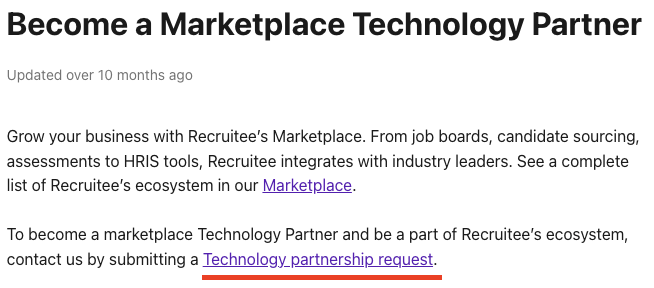 You will be redirected to the [Technology partner request form](https://tellent.com/technology-partner-application) page. Please complete the form and submit it to Recruitee for review.
Recruitee will review your Marketplace Technology Partner request, and their Technology Partnership Team will respond depending on the type of integration to progress the partnership.
Once you have obtained the Recruitee partnership, follow the steps below to connect your integration with StackOne for Assessment & Background Check.
## Provider Side Setup
You need to submit a request for Recruitee Integration Partner as mentioned in [Partner Requirements](#partnership-requirements).
Once approved, you can utilise the **External Trigger Token** to activate your integration app if you wish to test the app via the Recruitee Sandbox.
To obtain the **External Trigger Token**, please follow these steps:
* [StackOne Configuration](#stackone-configuration)
* [ATS User Enablement](#ats-user-enablement)
## StackOne Configuration
The deletion of a partner integration on **Recruitee** is currently not supported through **StackOne** configuration. To delete an integration, please contact the **StackOne support team**.
Go to the ATS category on the *Integrations* page and enable Recruitee.
You will be redirected to the [Technology partner request form](https://tellent.com/technology-partner-application) page. Please complete the form and submit it to Recruitee for review.
Recruitee will review your Marketplace Technology Partner request, and their Technology Partnership Team will respond depending on the type of integration to progress the partnership.
Once you have obtained the Recruitee partnership, follow the steps below to connect your integration with StackOne for Assessment & Background Check.
## Provider Side Setup
You need to submit a request for Recruitee Integration Partner as mentioned in [Partner Requirements](#partnership-requirements).
Once approved, you can utilise the **External Trigger Token** to activate your integration app if you wish to test the app via the Recruitee Sandbox.
To obtain the **External Trigger Token**, please follow these steps:
* [StackOne Configuration](#stackone-configuration)
* [ATS User Enablement](#ats-user-enablement)
## StackOne Configuration
The deletion of a partner integration on **Recruitee** is currently not supported through **StackOne** configuration. To delete an integration, please contact the **StackOne support team**.
Go to the ATS category on the *Integrations* page and enable Recruitee.
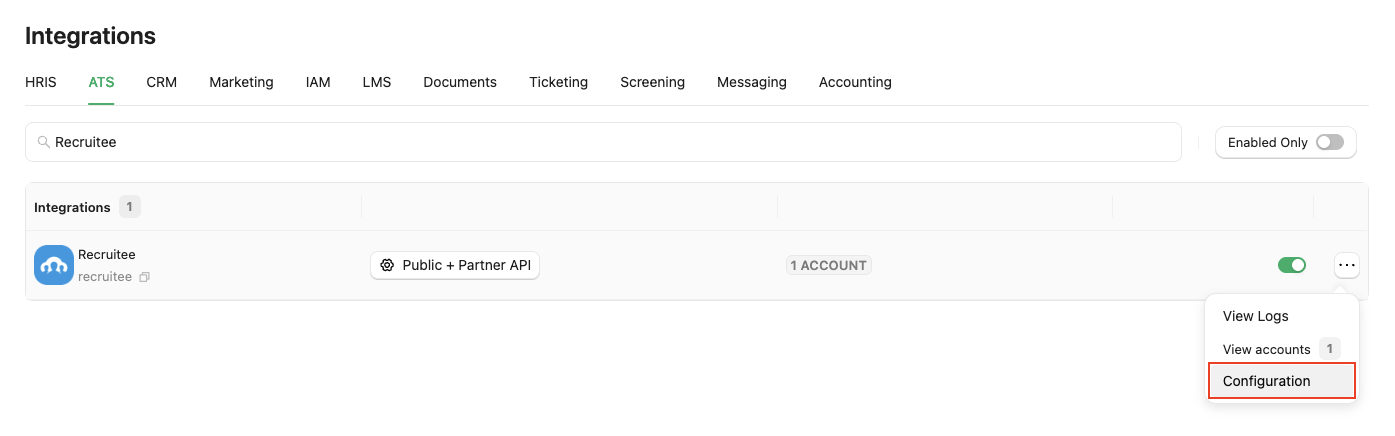 Complete the necessary fields in the **Recruitee - Configuration** modal:
* **Authentication Type:** Select `Public + Partner API` to integrate with Recruitee (for Assessment/Background Check integration).
* **Environment Type:** If you have a Release Candidate (RC) environment account on Recruitee, select **Staging** as the environment type; otherwise, select **Production**.
* **Partner Category:** Select the appropriate category based on your integration's classification as a partner for Recruitee, e.g. `Assessments` or `Background Checks`.
* **Package's List Endpoint URL:** Implement and provide an endpoint to StackOne that StackOne will use to retrieve the list of packages when the recruiter wants to send a test to a candidate.
Implement the following POST endpoint:
```bash theme={null}
curl --location 'https://your-domain.com/' \
--header 'Content-Type: application/json' \
--header 'x-stackone-signature: string' \
--header 'Authorization: Basic ' \
--data '{
"account_id": "456551489512493414",
"provider": "recruitee"
}'
```
The expected response of the POST endpoint (list of packages). Refer to:
* [List Assessments Packages](https://docs.stackone.com/ats/api-reference/assessments/packages/list-assessments-packages)
* [List Background Check Packages](https://docs.stackone.com/ats/api-reference/background-checks/packages/list-background-check-packages)
Enter the endpoint into the designated field:
```plaintext theme={null}
https://your-domain.com/
```
* **Package ID:** If you do not have the Package's List Endpoint URL, you can specify a particular package ID that will be visible to the recruiter when they wish to send the test to the candidate.
The Package's List Endpoint URL allows StackOne to fetch a list of available packages from your system, while the Static Package ID is fixed and available for users to select on the provider's side.
* When you have a Package's List Endpoint URL, a list of packages will be available to select in Recruitee.
Complete the necessary fields in the **Recruitee - Configuration** modal:
* **Authentication Type:** Select `Public + Partner API` to integrate with Recruitee (for Assessment/Background Check integration).
* **Environment Type:** If you have a Release Candidate (RC) environment account on Recruitee, select **Staging** as the environment type; otherwise, select **Production**.
* **Partner Category:** Select the appropriate category based on your integration's classification as a partner for Recruitee, e.g. `Assessments` or `Background Checks`.
* **Package's List Endpoint URL:** Implement and provide an endpoint to StackOne that StackOne will use to retrieve the list of packages when the recruiter wants to send a test to a candidate.
Implement the following POST endpoint:
```bash theme={null}
curl --location 'https://your-domain.com/' \
--header 'Content-Type: application/json' \
--header 'x-stackone-signature: string' \
--header 'Authorization: Basic ' \
--data '{
"account_id": "456551489512493414",
"provider": "recruitee"
}'
```
The expected response of the POST endpoint (list of packages). Refer to:
* [List Assessments Packages](https://docs.stackone.com/ats/api-reference/assessments/packages/list-assessments-packages)
* [List Background Check Packages](https://docs.stackone.com/ats/api-reference/background-checks/packages/list-background-check-packages)
Enter the endpoint into the designated field:
```plaintext theme={null}
https://your-domain.com/
```
* **Package ID:** If you do not have the Package's List Endpoint URL, you can specify a particular package ID that will be visible to the recruiter when they wish to send the test to the candidate.
The Package's List Endpoint URL allows StackOne to fetch a list of available packages from your system, while the Static Package ID is fixed and available for users to select on the provider's side.
* When you have a Package's List Endpoint URL, a list of packages will be available to select in Recruitee.
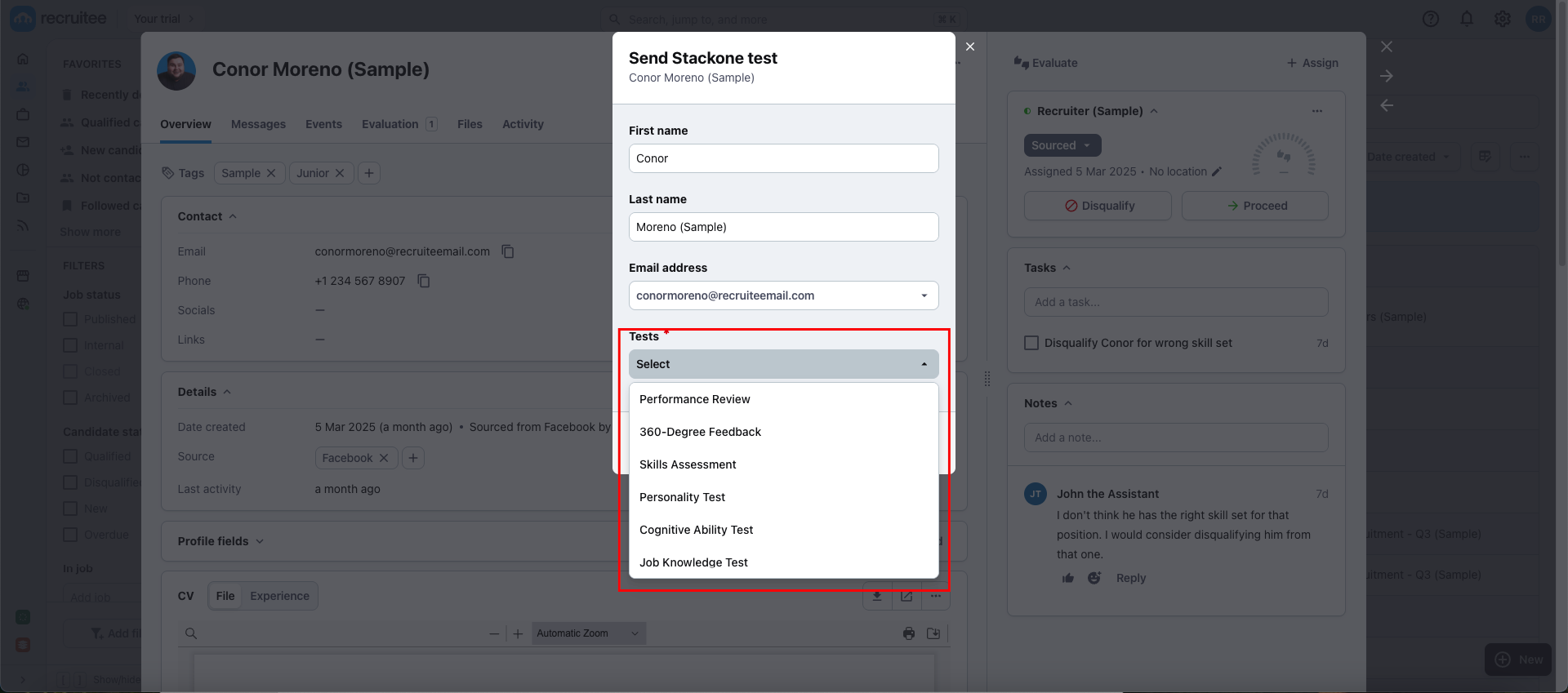 * When you have a Static Package ID, a static package ID will be available to select in Recruitee.
At least one field is necessary for making packages available in the provider's UI. Preference will be given to the Package's List Endpoint URL if both fields are configured.
* **Partner Codename:** A unique identifier for the partner, used to identify your integration on the Recruitee marketplace. It must consist of lowercase letters and dashes (-) and be globally unique.
* **Name:** The name of your integration that will be displayed on the Recruitee dashboard.
* **Description:** A brief overview of your integration that will be displayed on the Recruitee dashboard.
* **Logo:** The logo of your integration that will be displayed on Recruitee.
* When you have a Static Package ID, a static package ID will be available to select in Recruitee.
At least one field is necessary for making packages available in the provider's UI. Preference will be given to the Package's List Endpoint URL if both fields are configured.
* **Partner Codename:** A unique identifier for the partner, used to identify your integration on the Recruitee marketplace. It must consist of lowercase letters and dashes (-) and be globally unique.
* **Name:** The name of your integration that will be displayed on the Recruitee dashboard.
* **Description:** A brief overview of your integration that will be displayed on the Recruitee dashboard.
* **Logo:** The logo of your integration that will be displayed on Recruitee.
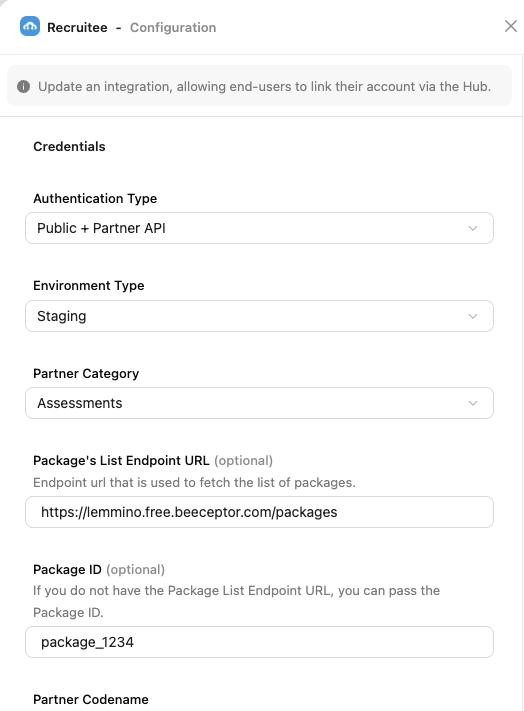
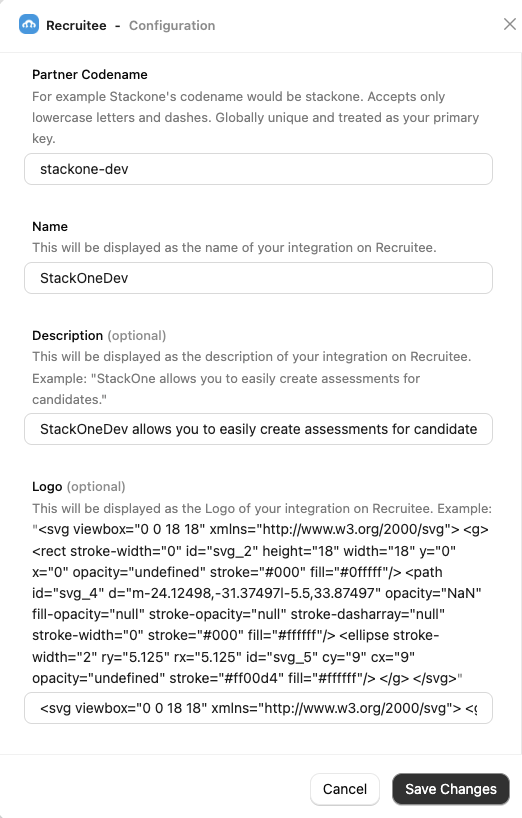 Click the `Confirm` or `Save Changes` button to enable Recruitee, which allows end-users to link their accounts via the StackOne Connector Hub.
Navigate to the *Webhooks* page, click on `Add webhook` and fill out the form:
* **Name:** Enter a recognisable name for your webhook.
* **URL:** Enter the URL where the webhook will send notifications for the enabled events.
Click the `Confirm` or `Save Changes` button to enable Recruitee, which allows end-users to link their accounts via the StackOne Connector Hub.
Navigate to the *Webhooks* page, click on `Add webhook` and fill out the form:
* **Name:** Enter a recognisable name for your webhook.
* **URL:** Enter the URL where the webhook will send notifications for the enabled events.
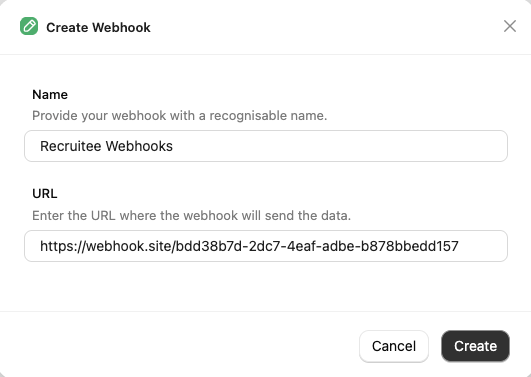 Enable webhook events from the `Events` tab for Assessment and Background Check, such as `Assessments Order` and `Background Check Order`.
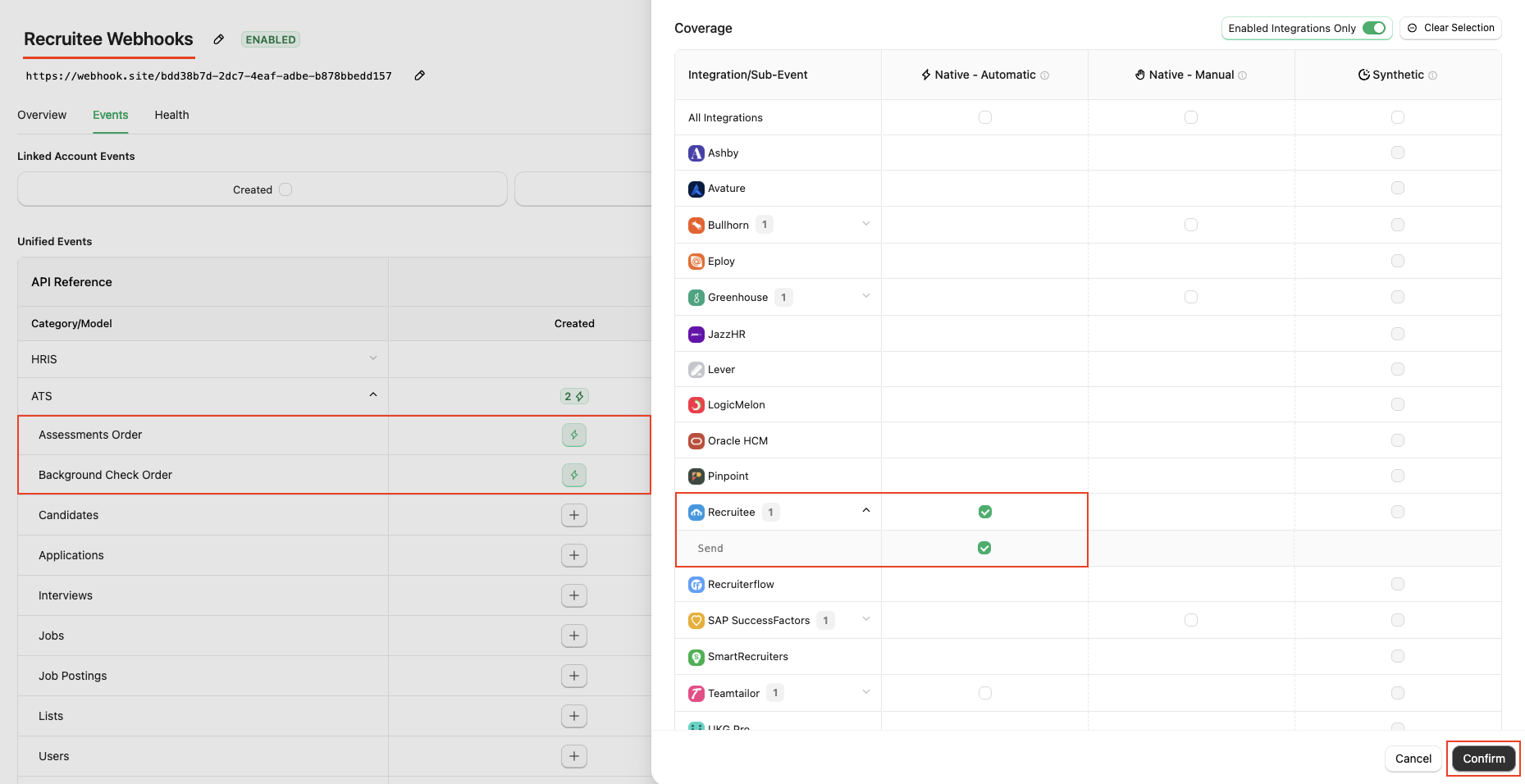 Click the `Confirm` and `Save` buttons to add the webhook.
## ATS User Enablement
Navigate to the *Accounts* page or the StackOne Connector Hub to link your Recruitee account with StackOne.
Click the `Confirm` and `Save` buttons to add the webhook.
## ATS User Enablement
Navigate to the *Accounts* page or the StackOne Connector Hub to link your Recruitee account with StackOne.
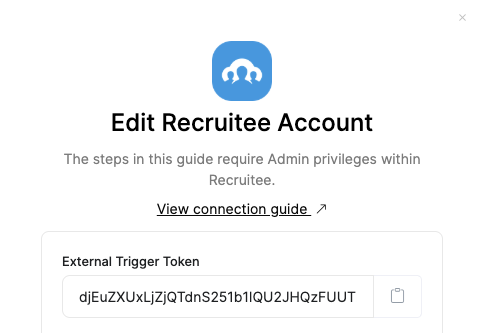
 Users will receive the **External Trigger Token** required to activate the integration from the Recruitee Marketplace.
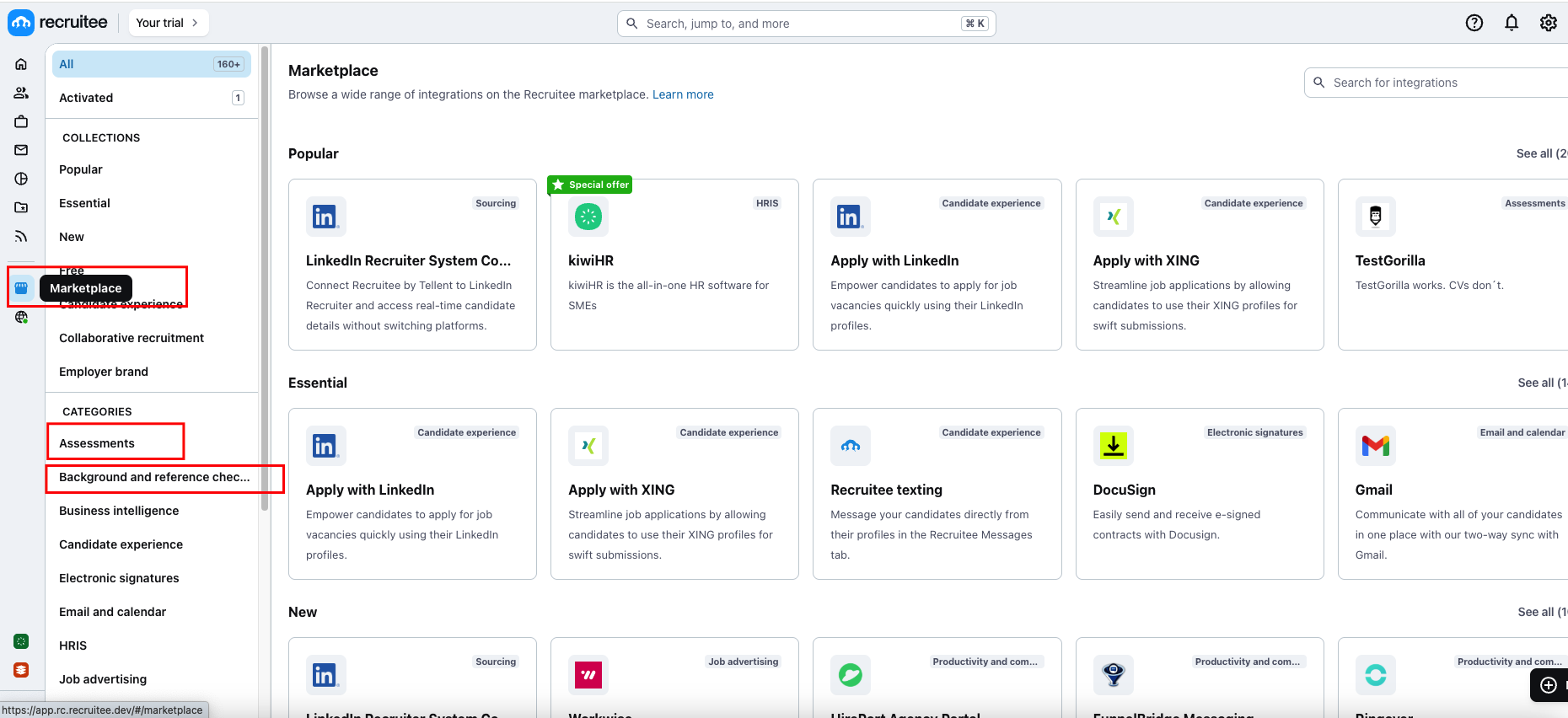
 Navigate to *Marketplace* page, select either `Assessments` or `Background Checks` from **Categories**.
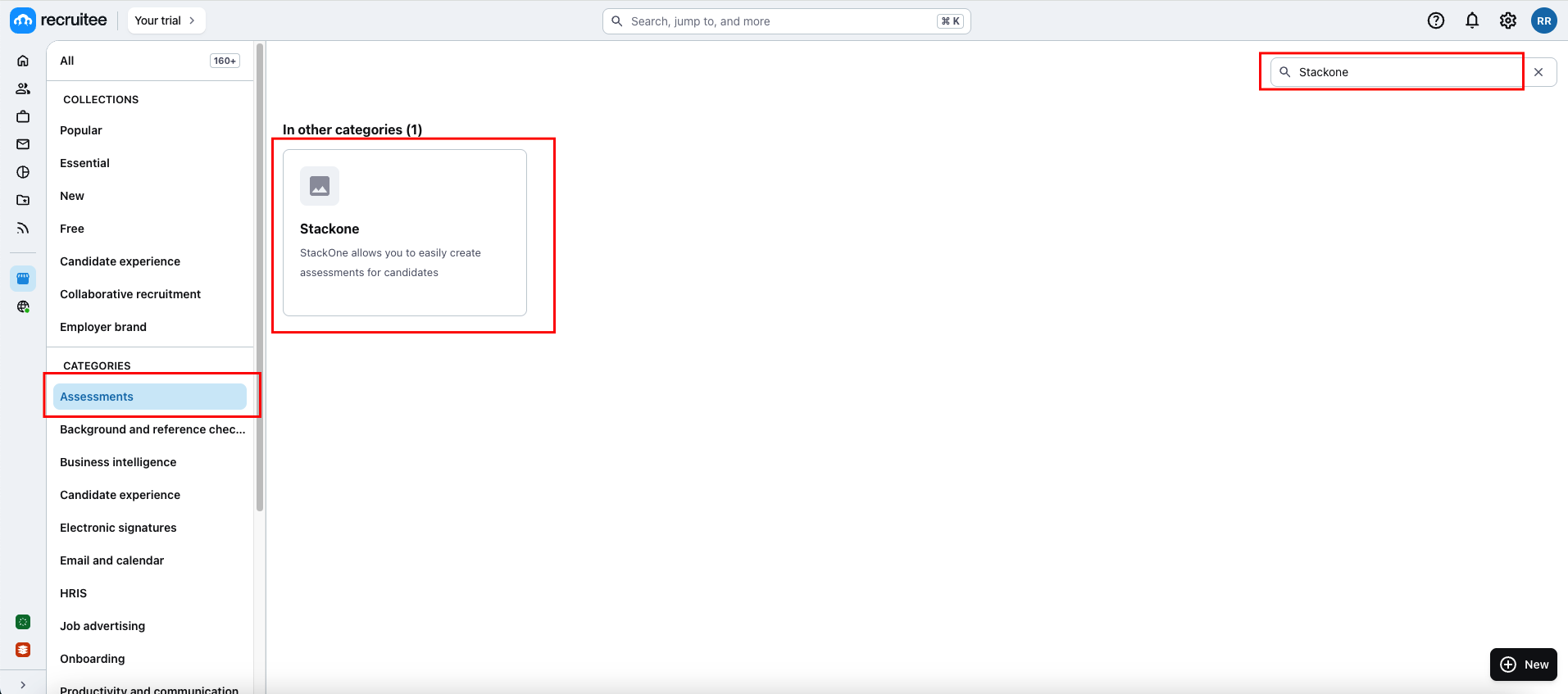
 Search for your integration partner's name in the search bar.
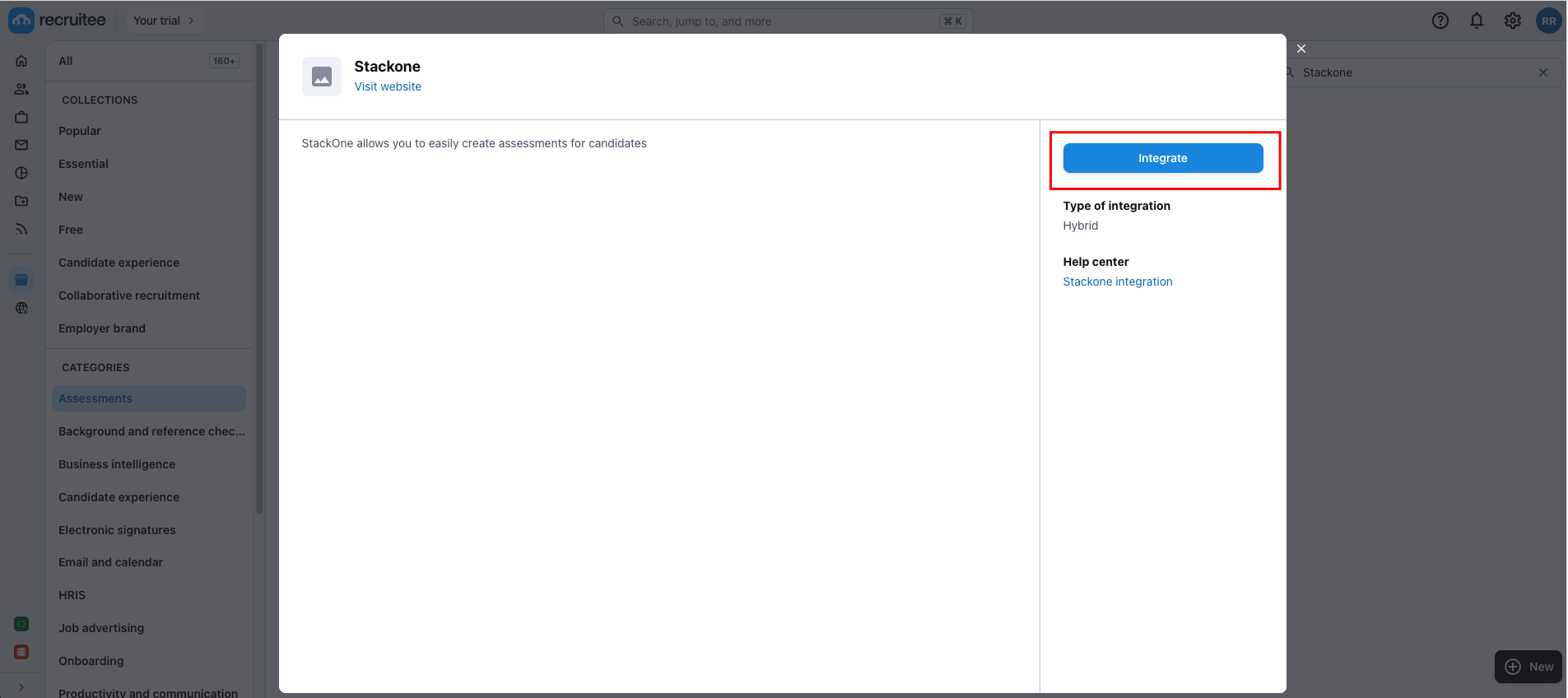
 Click on the integration app, then click `Integrate` button to proceed further,
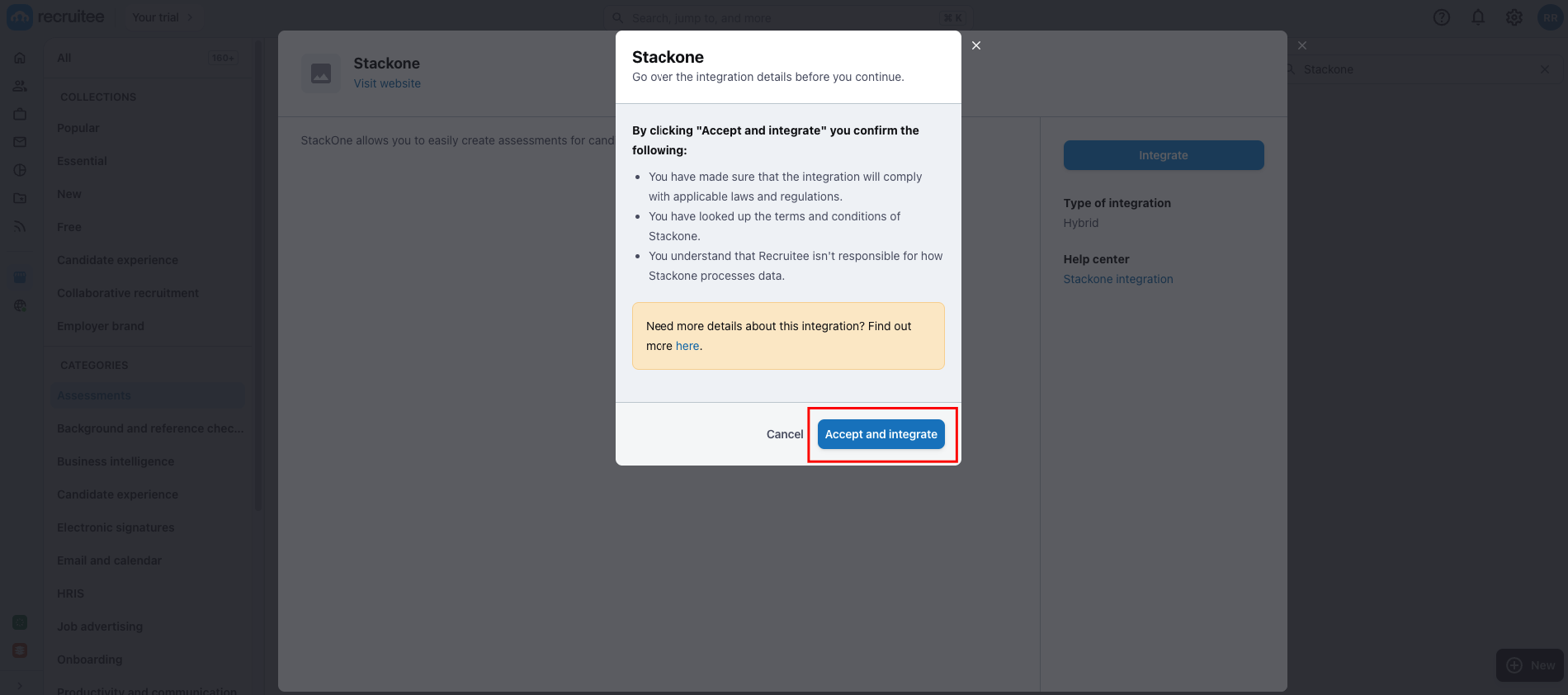
 A pop-up will appear displaying the details of the integration along with an `Accept and Integrate` button. Click on the button to proceed to the next step.
 **For Partners:** To test your integration using the Recruitee Sandbox, you need to input an **External Trigger Token** into the integration from the marketplace to integrate.
**For Users:** Each user needs to input an **External Trigger Token** to connect with your integration.
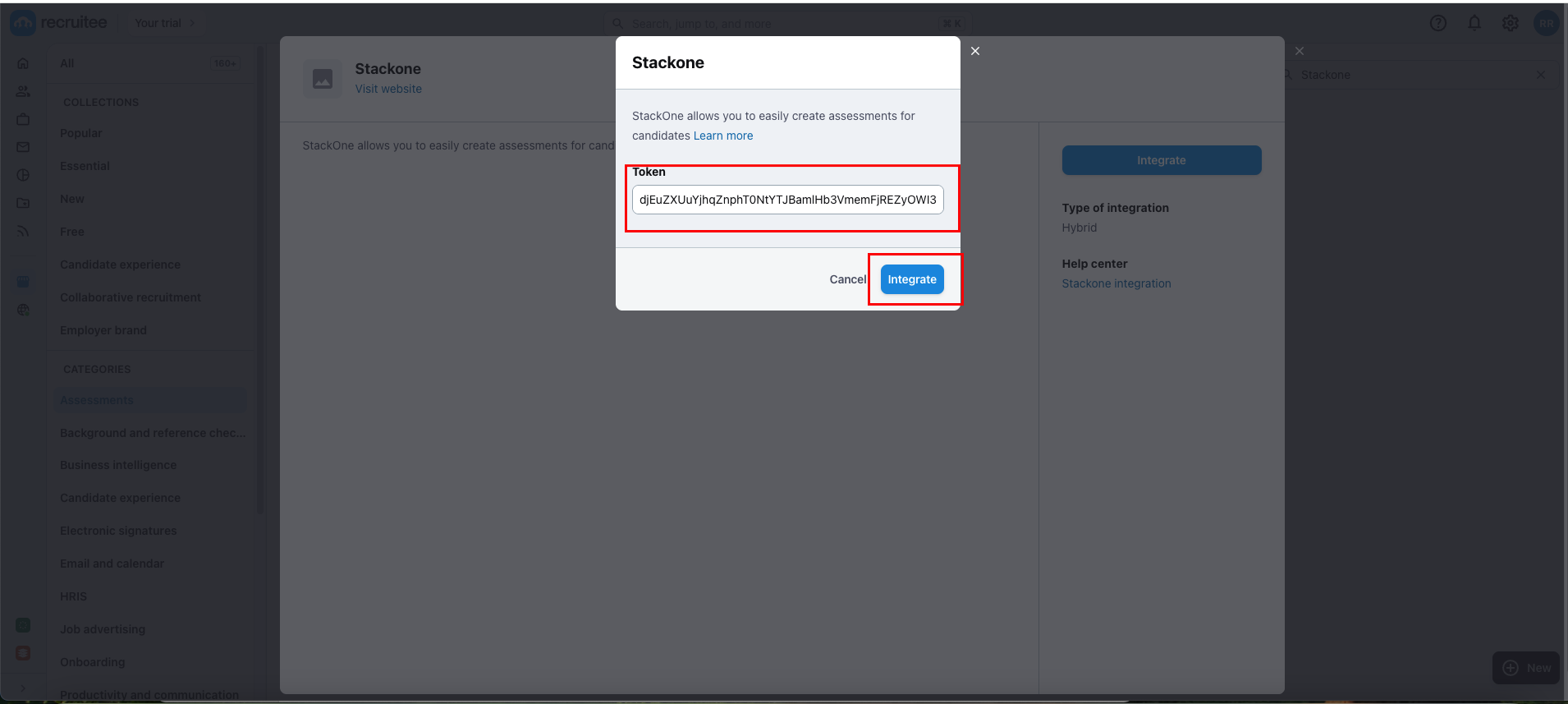
The user will enter the `External Trigger Token` retrieved from the StackOne Connector Hub as mentioned in the above steps, then click on `Integrate` to activate the integration app.
**For Partners:** To test your integration using the Recruitee Sandbox, you need to input an **External Trigger Token** into the integration from the marketplace to integrate.
**For Users:** Each user needs to input an **External Trigger Token** to connect with your integration.
The user will enter the `External Trigger Token` retrieved from the StackOne Connector Hub as mentioned in the above steps, then click on `Integrate` to activate the integration app.
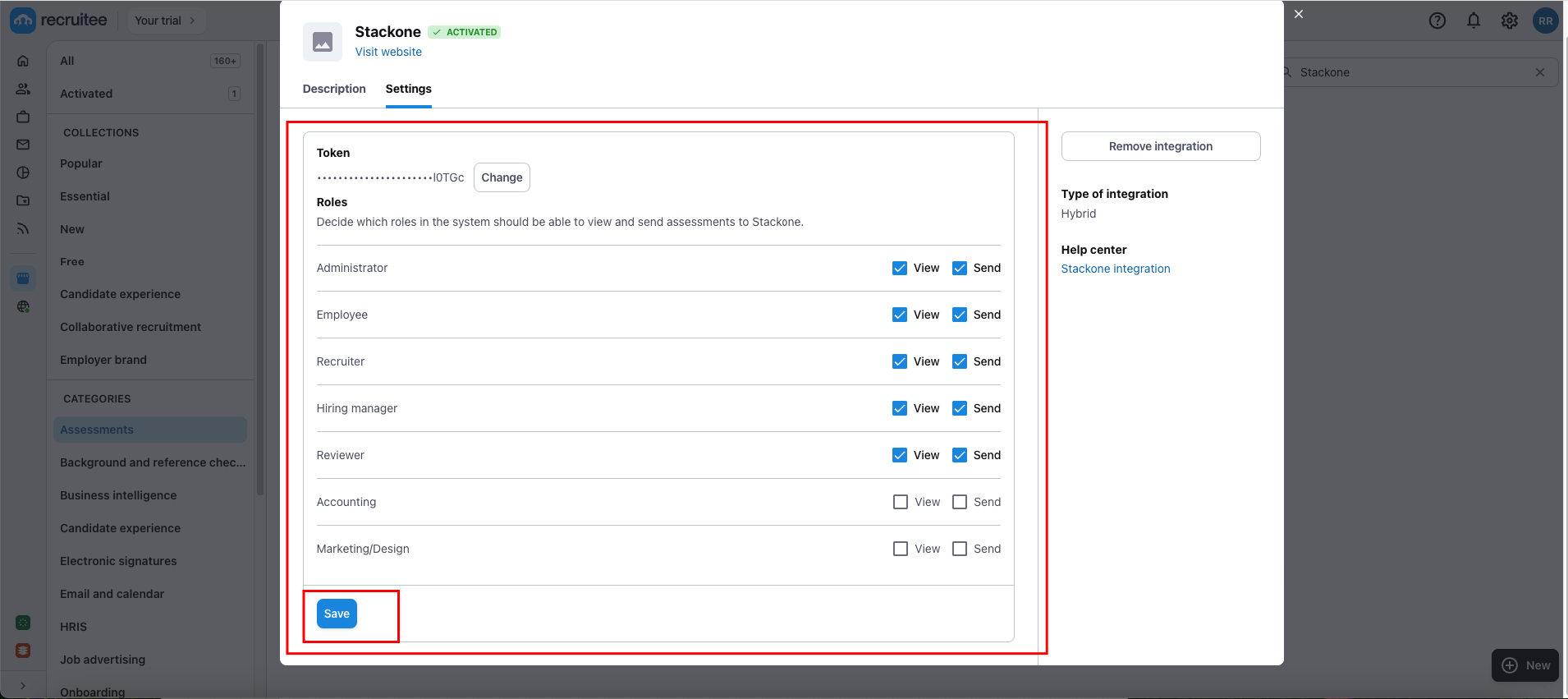
 The user can modify the permissions for different roles associated with this integration. Once done, click the `Save` button to apply the changes.
 The user can refer to the Recruitee Assessment or Background Check Guide for instructions on how to activate the Recruitee integration app from the Marketplace.
## ATS User Experience
Navigate to the Candidates page and select the candidate.
The user can refer to the Recruitee Assessment or Background Check Guide for instructions on how to activate the Recruitee integration app from the Marketplace.
## ATS User Experience
Navigate to the Candidates page and select the candidate.
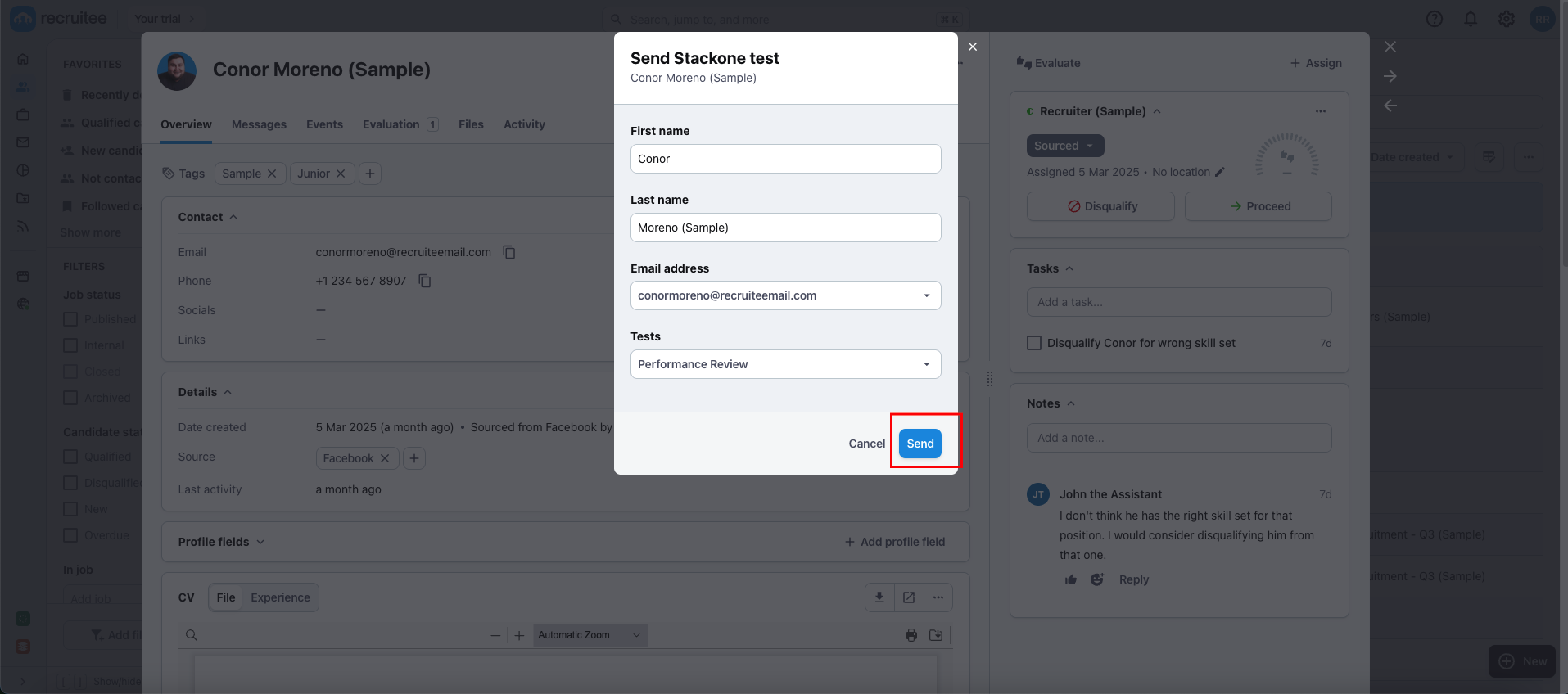
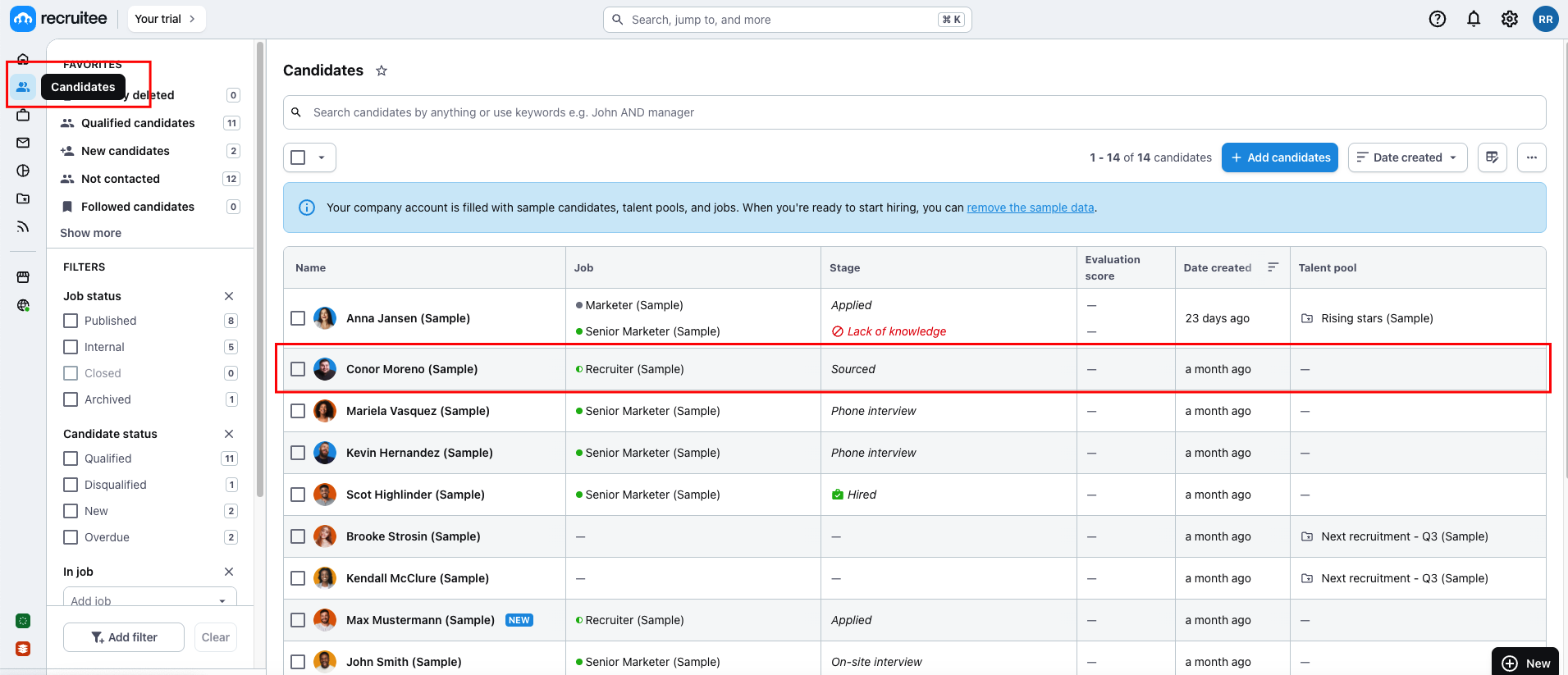 Click on the `menu` icon, then select integration app to proceed.
 A pop-up will appear, allowing users to select the assessments test.
Select the assessments test, wait a few seconds for the `Send` button to become enabled, and then click `Send` to dispatch the notification.
A pop-up will appear, allowing users to select the assessments test.
Select the assessments test, wait a few seconds for the `Send` button to become enabled, and then click `Send` to dispatch the notification.
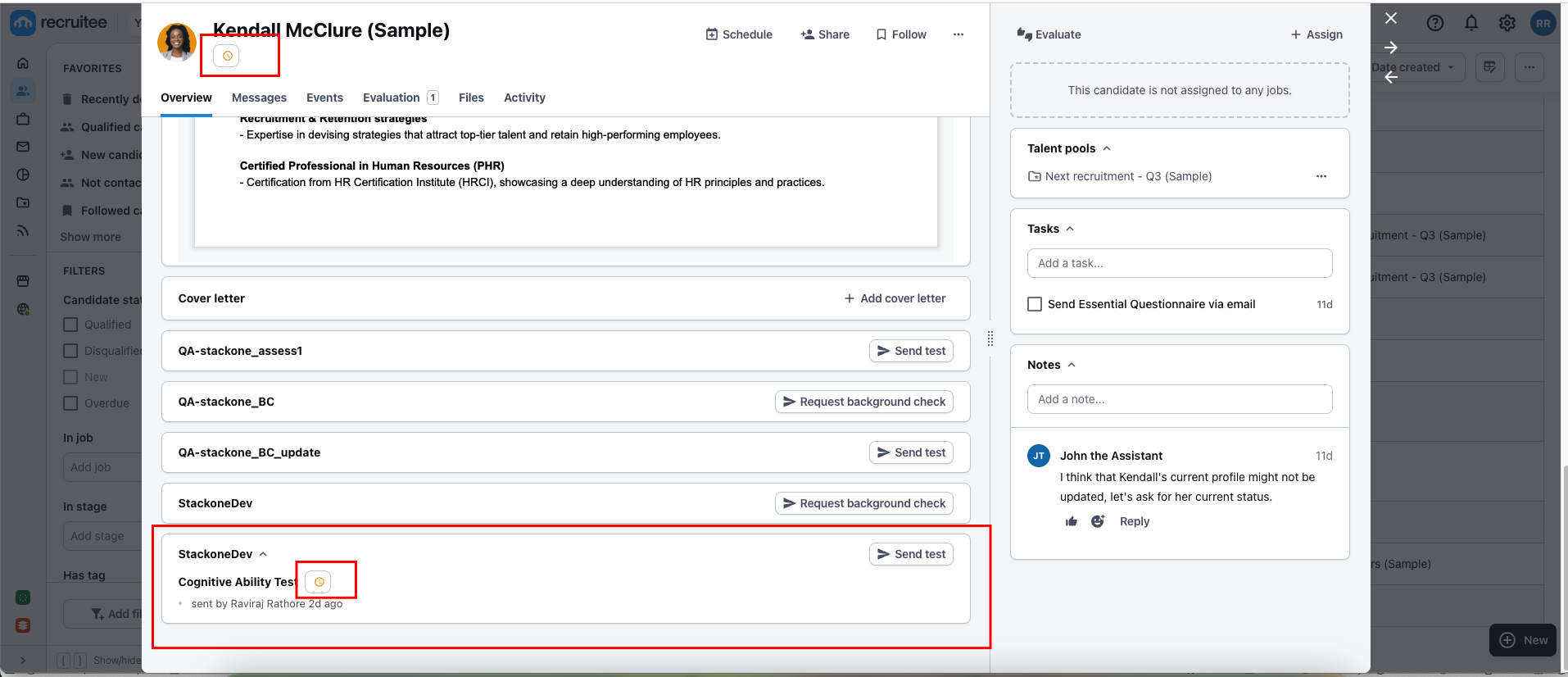
 Once the assessments test notification is successfully sent, users can view the test status on the candidate’s profile as shown below:
 ## ATS User Experience Customisation
Utilise the following endpoints to update the results:
* [Assessment Update Result](https://docs.stackone.com/ats/api-reference/assessments/results/update-assessments-result)
* [Background Check Update Result](https://docs.stackone.com/ats/api-reference/background-checks/results/update-background-check-result)
Utilise the following endpoint to get metadata to update the result of the assessment or background check:
* [Connector Meta Information](https://docs.stackone.com/platform/api-reference/connectors/get-connector-meta-information) with the provider key `recruitee` for model `assessments/results.update` or `background_checks/results.update`
## ATS User Experience Customisation
Utilise the following endpoints to update the results:
* [Assessment Update Result](https://docs.stackone.com/ats/api-reference/assessments/results/update-assessments-result)
* [Background Check Update Result](https://docs.stackone.com/ats/api-reference/background-checks/results/update-background-check-result)
Utilise the following endpoint to get metadata to update the result of the assessment or background check:
* [Connector Meta Information](https://docs.stackone.com/platform/api-reference/connectors/get-connector-meta-information) with the provider key `recruitee` for model `assessments/results.update` or `background_checks/results.update`
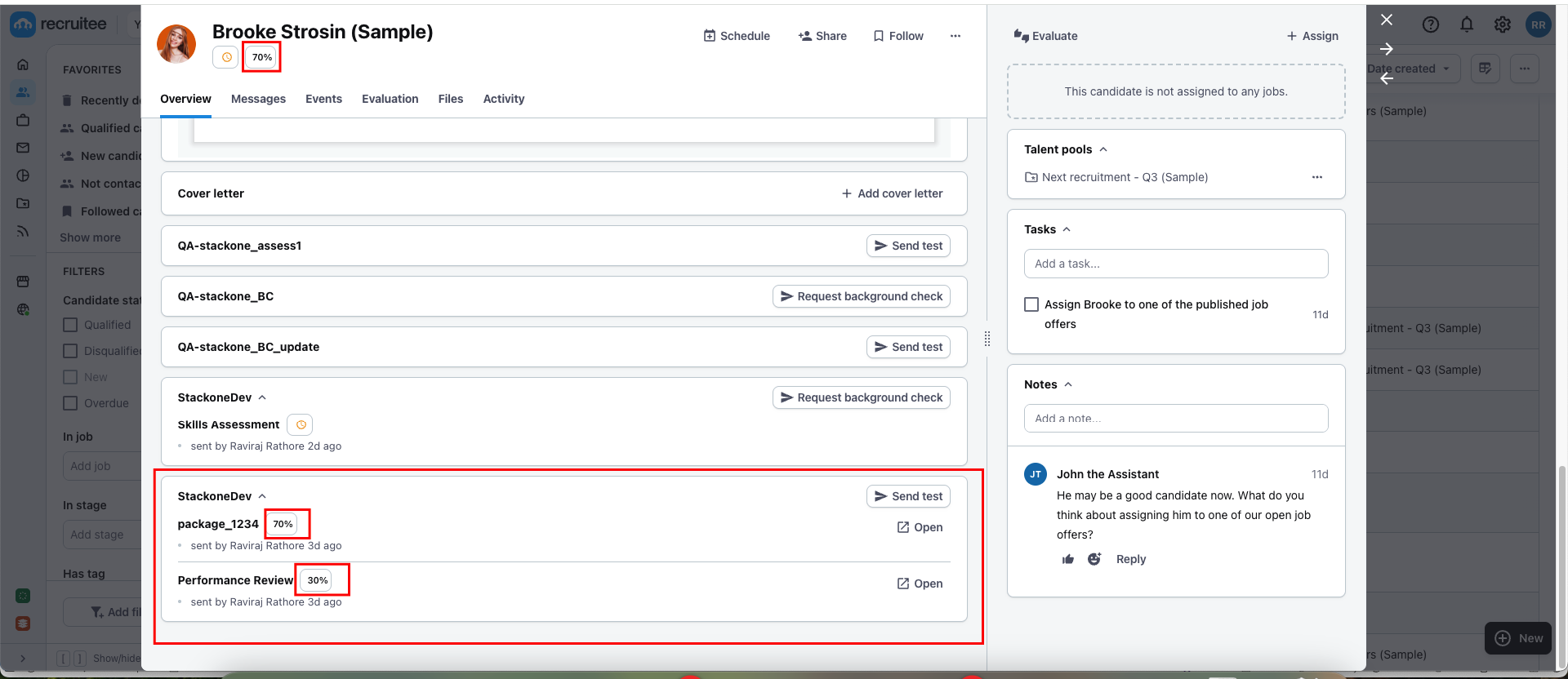
| Fields (when provided) | User sees in Recruitee |
| ---------------------- | -------------------------------------------------------------------- |
| Result URL | Visible as an **Open** link |
| Score's Value | Visible as a percentage alongside the package's name. |
| Result Status | Visible within the score's tooltip, if the user hovers on the score. |
Navigate to the candidate profile, where you will see the updated results along with the score from the previously sent test. This information will be available once the candidate has completed the assessment and background check.
 ## Testing Checklist
✅ **Provider Setup:**
* Once the integration is approved/published by Recruitee, it is visible in the [Recruitee Marketplace](https://marketplace.tellent.com) under Assessments or Background Checks categories.
✅ **StackOne Configuration:**
* Selected `Public + Partner API` as the Authentication Type.
* Package's List Endpoint URL is correct.
* Package's List Endpoint response is as expected according to the following endpoint's response:
* [List Assessments Packages](https://docs.stackone.com/ats/api-reference/assessments/packages/list-assessments-packages)
* [List Background Check Packages](https://docs.stackone.com/ats/api-reference/background-checks/packages/list-background-check-packages)
* Valid partner codename and other details, as mentioned here.
✅ **ATS User Enablement:**
* Valid `External Trigger Token` to activate the partner integration.
* Once activated, the integration will be available for selection under the candidate's profile.
✅ **Create a Webhook**
* Added a webhook for Recruitee and enabled it with the events such as: `Assessment Order` or `Background Check Order`.
* Valid webhook URL to receive assessment/background check notifications.
✅ **ATS User Experience:**
* Once activated, the integration will be available for selection under the candidate's profile.
* If you have configured the Package's List Endpoint URL, a list of packages is visible in the dropdown field when the user initiates sending the test to the candidate.
* If you have configured a Static Package ID, a single package is visible in the dropdown field when the user initiates sending the test to the candidate.
* Select a package, click `Send Test`, and send the webhook. A `Pending` icon as a status along with the assessment package name will appear if the notification has been sent.
✅ **Update Result**
* Success response from the update result endpoint.
* Updated result details to Recruitee’s UI.
## Troubleshooting
## Testing Checklist
✅ **Provider Setup:**
* Once the integration is approved/published by Recruitee, it is visible in the [Recruitee Marketplace](https://marketplace.tellent.com) under Assessments or Background Checks categories.
✅ **StackOne Configuration:**
* Selected `Public + Partner API` as the Authentication Type.
* Package's List Endpoint URL is correct.
* Package's List Endpoint response is as expected according to the following endpoint's response:
* [List Assessments Packages](https://docs.stackone.com/ats/api-reference/assessments/packages/list-assessments-packages)
* [List Background Check Packages](https://docs.stackone.com/ats/api-reference/background-checks/packages/list-background-check-packages)
* Valid partner codename and other details, as mentioned here.
✅ **ATS User Enablement:**
* Valid `External Trigger Token` to activate the partner integration.
* Once activated, the integration will be available for selection under the candidate's profile.
✅ **Create a Webhook**
* Added a webhook for Recruitee and enabled it with the events such as: `Assessment Order` or `Background Check Order`.
* Valid webhook URL to receive assessment/background check notifications.
✅ **ATS User Experience:**
* Once activated, the integration will be available for selection under the candidate's profile.
* If you have configured the Package's List Endpoint URL, a list of packages is visible in the dropdown field when the user initiates sending the test to the candidate.
* If you have configured a Static Package ID, a single package is visible in the dropdown field when the user initiates sending the test to the candidate.
* Select a package, click `Send Test`, and send the webhook. A `Pending` icon as a status along with the assessment package name will appear if the notification has been sent.
✅ **Update Result**
* Success response from the update result endpoint.
* Updated result details to Recruitee’s UI.
## Troubleshooting
| Symptom | Likely cause | Fix |
| ------------------------------------------------------------------------------------------------ | ---------------------------------------------------------------------------------------------------------------------------------------------------------------------------------------------------------------------------------------- | ------------------------------------------------------------------------------------------------------------------------------------------------------------------------------------------------------------------------------------------------------------------------------------------------------------------------ |
| Unable to find your Integration app in [Recruitee Marketplace](https://marketplace.tellent.com). | Recruitee Partner Integration is not published/approved. | Contact Recruitee support for partnership status. |
| Integration partner app not visible on candidate profile to select. | **•** Integration app is not activated.
**•** Invalid External Trigger Token. | **•** Activate your integration app from marketplace.
**•** Provide valid External Trigger Token. |
| Getting error message on pop-up when user selects the integration app to send the test. | **•** Package's List Endpoint URL or Static Package ID is missing from StackOne Configuration.
**•** Invalid response getting from the Package's List Endpoint URL.
**•** Invalid Package's List Endpoint URL. | **•** Add Static Package ID if you don't have Package's List Endpoint URL.
**•** Response format should be expected as mentioned in the [StackOne Configuration](#stackone-configuration).
**•** Check Package's List Endpoint URL implementation at your end.
**•** Verify CORS. |
| Test notification is not received. | **•** Invalid webhook URL.
**•** Incorrect webhook events are enabled. | **•** Verify webhook URL.
**•** Enable expected events as mentioned in the [StackOne Configuration](#stackone-configuration). |
| Unable to update result. | Invalid payload format. | Check Connector Meta API endpoint for payload format. |
For persistent issues, contact StackOne support with detailed error logs and configuration information.