> ## Documentation Index
> Fetch the complete documentation index at: https://docs.stackone.com/llms.txt
> Use this file to discover all available pages before exploring further.
# Greenhouse Partner Integration API
> To activate the Greenhouse Partner integration in StackOne for assessments and background checks., please follow the necessary steps.
export const DifferenceBetweenListEndpointAndStaticIdOfPackage = ({providerName, dynamicPackageImageAtProviderUI, staticPackageImageAtProviderUI}) => {
return <>
The Package's List Endpoint URL allows StackOne to fetch a list of available packages from your system, while the Static Package ID is fixed and available for users to select on the provider's side.
When you have a Package's List Endpoint URL
A list of packages will be available to select in {providerName}.

When you have a Static Package ID
A static package ID will be available to select in {providerName}.
 At least one field is necessary for making packages available in the Provider's UI. Preference will be given to the Package's List Endpoint URL, even if both fields are configured.
;
};
export const DifferenceBetweenPublicAndPartnerAPI = ({showPublic = true, showPartner = true, showPublicPartner = true, title = "Difference between Public API & Partner API"}) => {
return <>
At least one field is necessary for making packages available in the Provider's UI. Preference will be given to the Package's List Endpoint URL, even if both fields are configured.
;
};
export const DifferenceBetweenPublicAndPartnerAPI = ({showPublic = true, showPartner = true, showPublicPartner = true, title = "Difference between Public API & Partner API"}) => {
return <>
{showPublic && - Public API: Access to the StackOne Unified APIs, excluding the Assessments and Background Checks Unified API and its features.
}
{showPartner && - Partner API: Access to the Assessments and Background Checks Unified API and its features, but not other StackOne Unified APIs. This allows you to integrate your provider's partner app with StackOne.
}
{showPublicPartner && - Public + Partner API: Access to all StackOne Unified APIs, including the Assessments and Background Checks Unified API and its features.
}
;
};
## Overview
StackOne enables integration with Greenhouse for Assessment and Background Check, allowing you to receive webhook notifications whenever a recruiter sends a test to a candidate, updates the test result, and views the result on the candidate’s profile in Greenhouse.
This guide covers how to set up and use the Greenhouse Integration Partner with StackOne.
## Partnership Requirements
A partnership with Greenhouse Integration Partner is required to proceed with this documentation.
Visit the [Greenhouse Integration Partner application page](https://www.greenhouse.com/integration-partner#apply-now) and begin the partner application process.
On the application form, select Assessment API, Webhook, and Harvest API as your integration types.
When you select Assessment API, you will be prompted to provide specific API endpoint URLs (see the screenshot attached with the next step).
**list\_tests**
```plaintext theme={null}
https://api.stackone.com/external-trigger/greenhouse/list_tests?tenant-id=YOUR_GREENHOUSE_TENANT_ID
```
**send\_test**
```plaintext theme={null}
https://api.stackone.com/external-trigger/greenhouse/send_test?tenant-id=YOUR_GREENHOUSE_TENANT_ID
```
**test\_status**
```plaintext theme={null}
https://api.stackone.com/external-trigger/greenhouse/test_status?tenant-id=YOUR_GREENHOUSE_TENANT_ID
```
**response\_error**
```plaintext theme={null}
https://api.stackone.com/external-trigger/greenhouse/response_error?tenant-id=YOUR_GREENHOUSE_TENANT_ID
```
**About the Tenant ID**: The `tenant-id` parameter in these URLs should be replaced with a unique identifier of your choice.
This ID is **not provided by Greenhouse** and is **not generated by StackOne**. You can use any unique value (e.g., your company name such as `example-inc` or `acme-corp`).
This parameter is used by Greenhouse to create uniquely routed endpoints and distinguish between different integrations. Choose a value that makes sense
for your organisation and use it consistently across all endpoints.
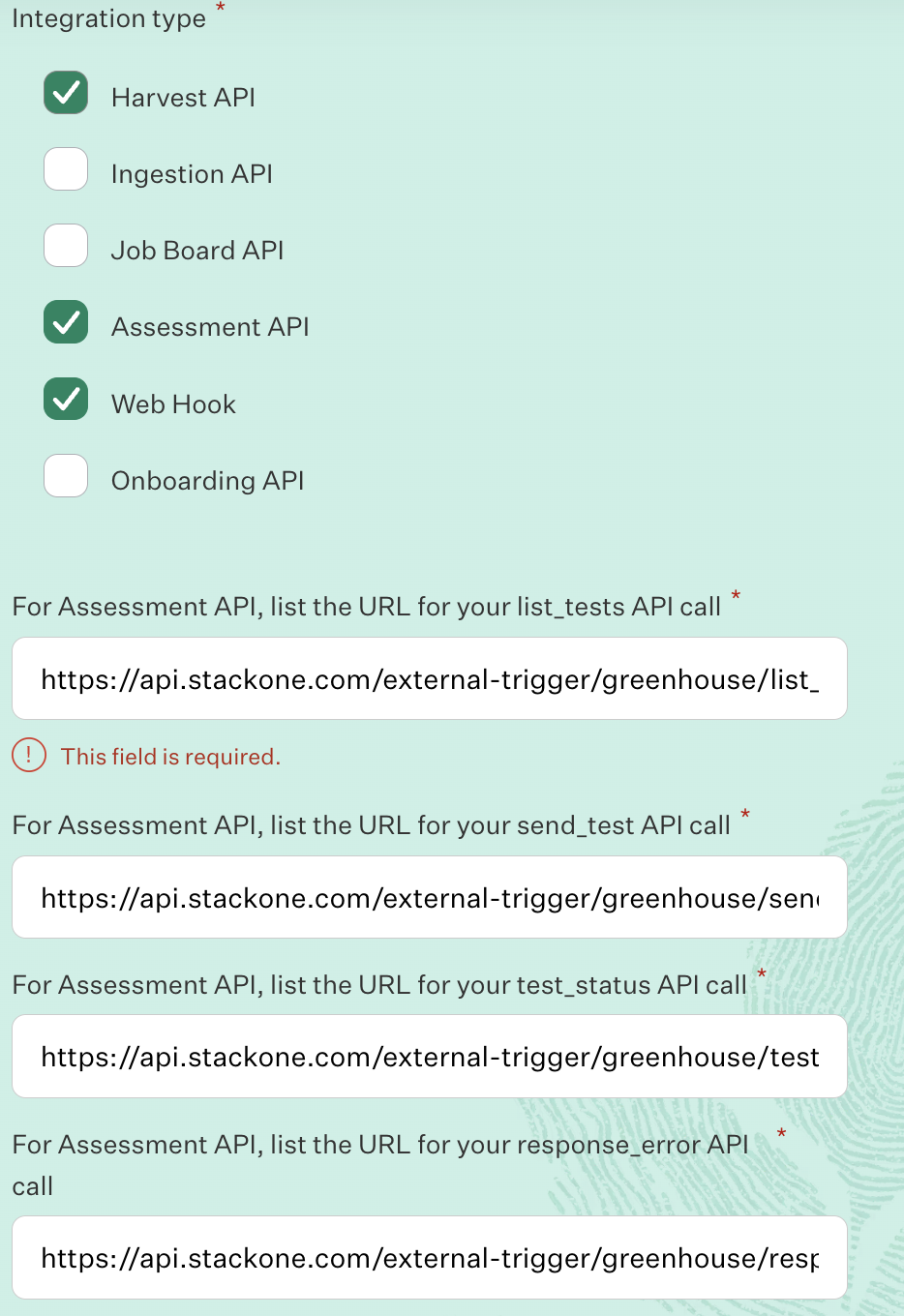 Greenhouse reviews applications on the first Monday of every month. A member of their Partnerships team will contact you with next steps.
Once approved, Greenhouse will provide you with:
* Partner Username
* Partner Password
* Any additional credentials needed
Use these credentials to complete the [StackOne Configuration](#stackone-configuration).
To test your integration app through your Greenhouse Sandbox, please contact Greenhouse Support and provide the **External Trigger Token** to enable the integration.
To obtain the **External Trigger Token**, please follow these steps:
* [StackOne Configuration](#stackone-configuration)
* [ATS User Enablement](#ats-user-enablement)
## Provider Side Setup
You need to submit a request for Greenhouse Integration Partner as mentioned in [Partnership Requirements](#partnership-requirements) to obtain the Greenhouse Integration Partnership,
and provide the **External Trigger Token** required to enable your integration if you want to test your integration app via the Greenhouse Sandbox.
To obtain the **External Trigger Token**, please follow these steps:
* [StackOne Configuration](#stackone-configuration)
* [ATS User Enablement](#ats-user-enablement)
Once your integration is enabled by Greenhouse, it will be available to add as a stage under *Jobs > Interview Plans*.
## StackOne Configuration
Go to the ATS category on the *Integrations* page and enable Greenhouse.
Greenhouse reviews applications on the first Monday of every month. A member of their Partnerships team will contact you with next steps.
Once approved, Greenhouse will provide you with:
* Partner Username
* Partner Password
* Any additional credentials needed
Use these credentials to complete the [StackOne Configuration](#stackone-configuration).
To test your integration app through your Greenhouse Sandbox, please contact Greenhouse Support and provide the **External Trigger Token** to enable the integration.
To obtain the **External Trigger Token**, please follow these steps:
* [StackOne Configuration](#stackone-configuration)
* [ATS User Enablement](#ats-user-enablement)
## Provider Side Setup
You need to submit a request for Greenhouse Integration Partner as mentioned in [Partnership Requirements](#partnership-requirements) to obtain the Greenhouse Integration Partnership,
and provide the **External Trigger Token** required to enable your integration if you want to test your integration app via the Greenhouse Sandbox.
To obtain the **External Trigger Token**, please follow these steps:
* [StackOne Configuration](#stackone-configuration)
* [ATS User Enablement](#ats-user-enablement)
Once your integration is enabled by Greenhouse, it will be available to add as a stage under *Jobs > Interview Plans*.
## StackOne Configuration
Go to the ATS category on the *Integrations* page and enable Greenhouse.
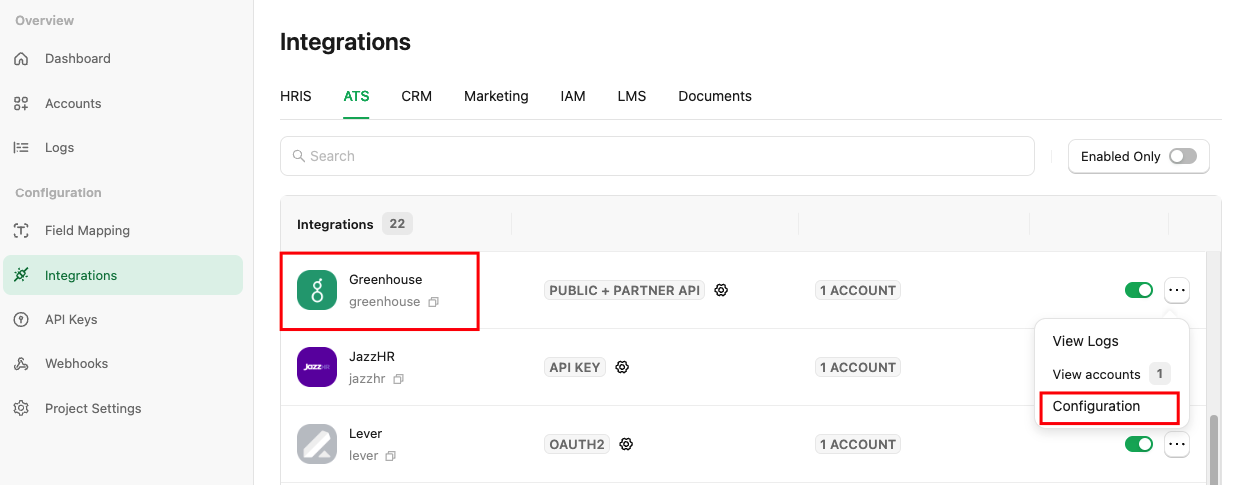 Fill out the necessary fields in the **Greenhouse - Configuration** modal:
* **Authentication Type** - Select `Public + Partner API` or `Partner API` to integrate with Greenhouse (for Assessment/Background Check integration).
* If you select `Public + Partner API`, the hiring team's data will be included in the webhook notification.
Fill out the necessary fields in the **Greenhouse - Configuration** modal:
* **Authentication Type** - Select `Public + Partner API` or `Partner API` to integrate with Greenhouse (for Assessment/Background Check integration).
* If you select `Public + Partner API`, the hiring team's data will be included in the webhook notification.
* If you select `Partner API`, the hiring team's data will not be included in the webhook notification.
* **Partner Category** - Select the appropriate category based on your integration's classification as a partner for Greenhouse. e.g.: `Assessments` or `Background Checks`
* **Package's List Endpoint URL** - Implement and provide an endpoint to StackOne that StackOne will use to retrieve the list of packages when the recruiter wants to send a test to a candidate.
Implement the following POST endpoint:
```bash theme={null}
curl --location 'https://your-domain.com/' \
--header 'Content-Type: application/json' \
--header 'x-stackone-signature: string' \
--header 'Authorization: Basic ' \
--data '{
"account_id": "456551489512493411",
"provider": "greenhouse"
}'
```
The expected response of the POST endpoint (list of packages). Refer to:
* [List Assessments Packages](https://docs.stackone.com/ats/api-reference/assessments/packages/list-assessments-packages)
* [List Background Check Packages](https://docs.stackone.com/ats/api-reference/background-checks/packages/list-background-check-packages)
Enter the endpoint into the designated field:
```plaintext theme={null}
https://your-domain.com/
```
* **Partner's Username** - You will receive the `username` from Greenhouse support as mentioned in the previous step.
* **Partner's Password** - The `password` will also be provided by Greenhouse support as mentioned in the previous step.
* **Package ID** - If you do not have the Package's List Endpoint URL, you can specify a particular package ID that will be visible to the recruiter when they wish to send the test to the candidate.
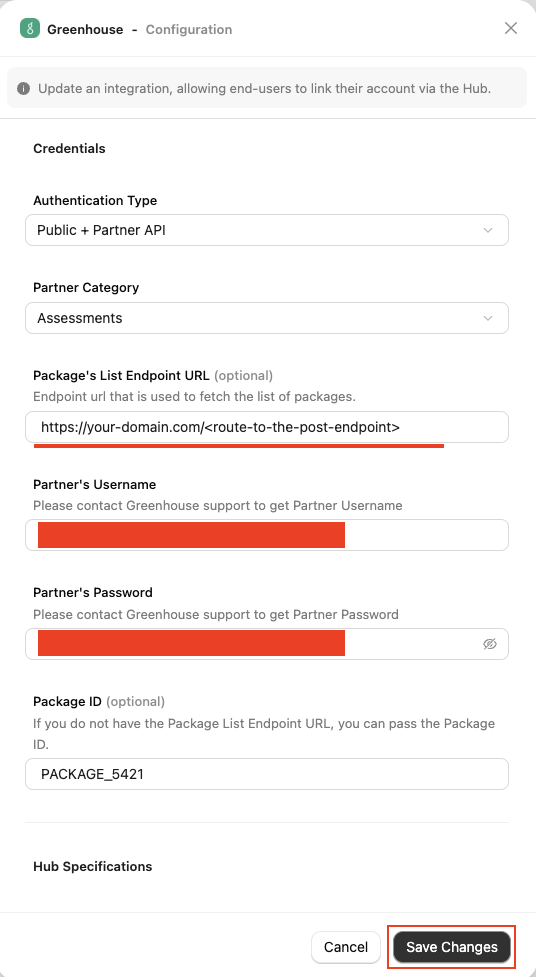 Click on the `Confirm` or `Save Changes` button to enable Greenhouse, which allows end-users to link their accounts via the StackOne Connector Hub.
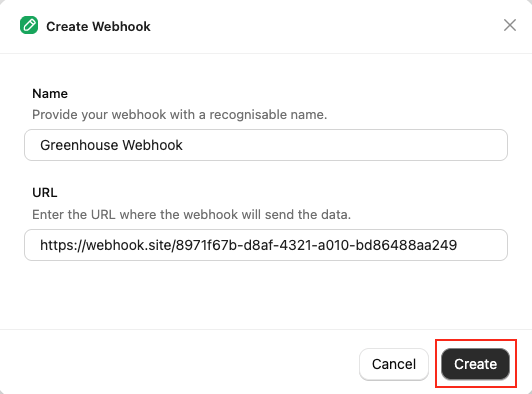
Navigate to the *Webhooks* page, click on `Add webhook` and fill out the form:
* **Name:** Enter your webhook with a recognisable name.
* **URL:** Enter the URL where the webhook will send the notification of the enabled events.
Click on the `Confirm` or `Save Changes` button to enable Greenhouse, which allows end-users to link their accounts via the StackOne Connector Hub.
Navigate to the *Webhooks* page, click on `Add webhook` and fill out the form:
* **Name:** Enter your webhook with a recognisable name.
* **URL:** Enter the URL where the webhook will send the notification of the enabled events.
 Enable webhook events from the `Events` tab for Assessment & Background Check, such as `Assessments Order` & `Background Check Order`.
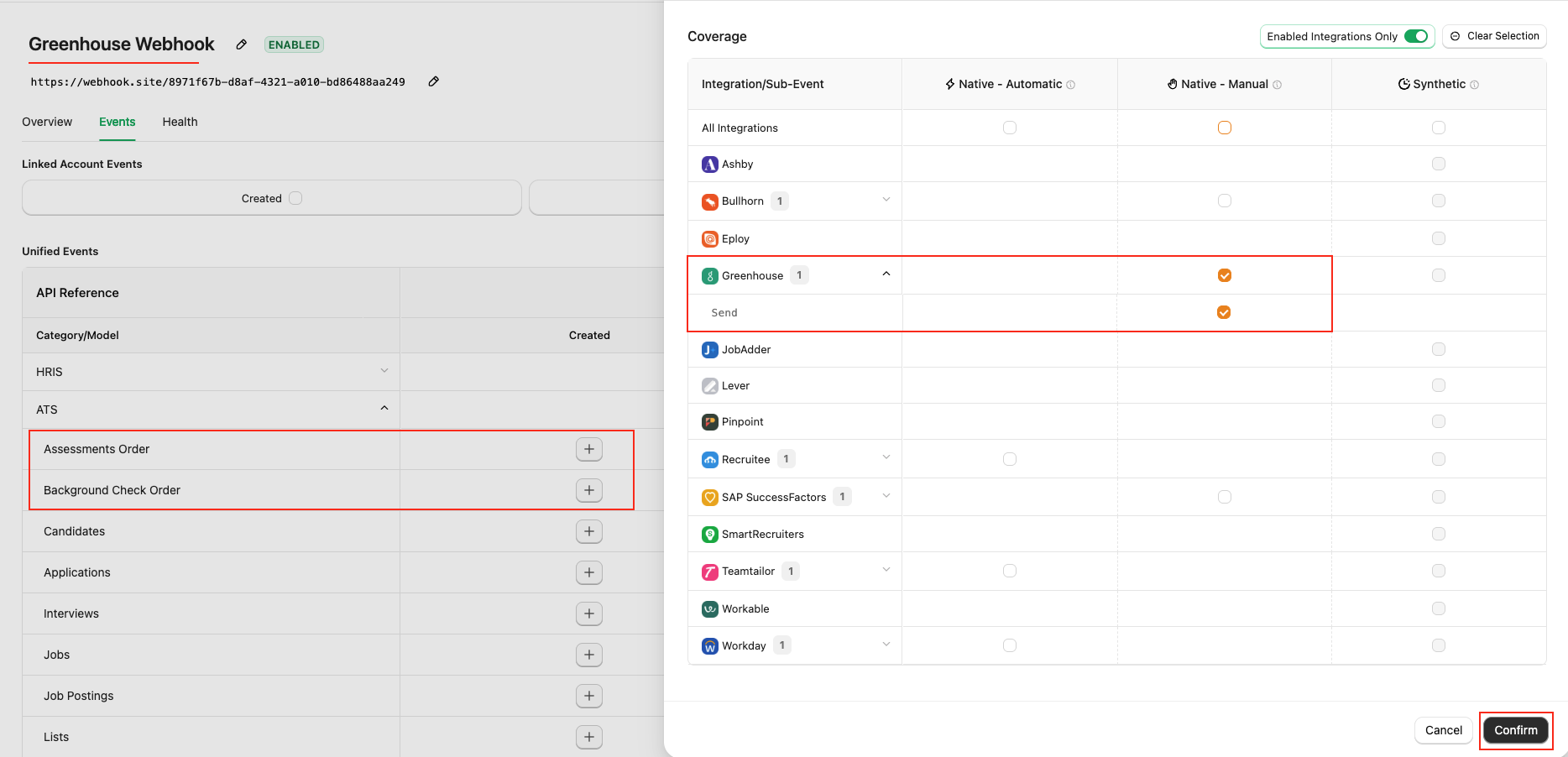 Click the `Confirm` and `Save` buttons to add the webhook.
## ATS User Enablement
Navigate to the *Accounts* page or the StackOne Connector Hub to link your Greenhouse account with StackOne.
Click the `Confirm` and `Save` buttons to add the webhook.
## ATS User Enablement
Navigate to the *Accounts* page or the StackOne Connector Hub to link your Greenhouse account with StackOne.
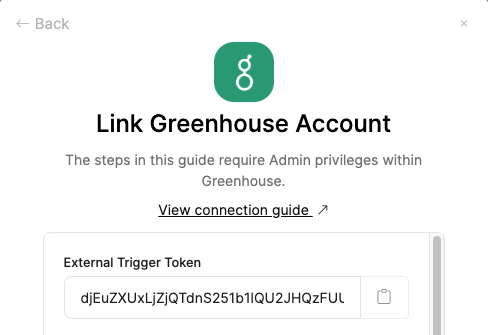
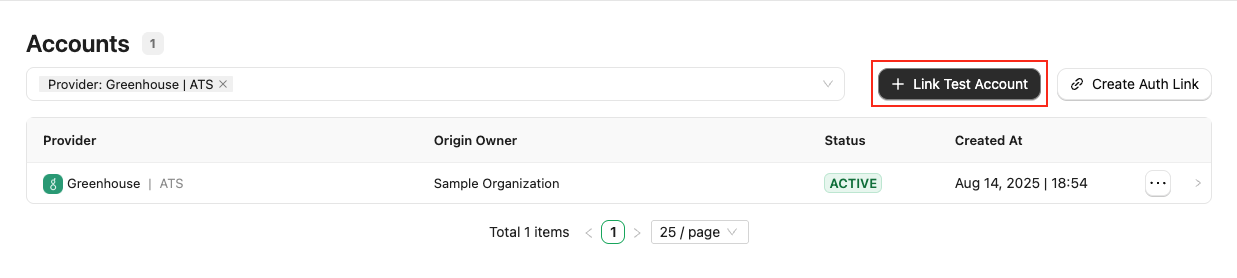 Once your Greenhouse Integration app is published in the [Greenhouse Marketplace/Partner Directory](https://integrations.greenhouse.com), the user will need to provide an **External Trigger Token** to Greenhouse Support. This token serves as an API key to enable the integration, which can be obtained from the StackOne Connector Hub during the connection process.
**For Partners:** To test your integration app using the Greenhouse Sandbox, you need to provide an **External Trigger Token** to Greenhouse support as an API key in order to connect your integration app.
**For Users:** Each user must provide an **External Trigger Token** to Greenhouse support in order to connect with your integration app.
Once your Greenhouse Integration app is published in the [Greenhouse Marketplace/Partner Directory](https://integrations.greenhouse.com), the user will need to provide an **External Trigger Token** to Greenhouse Support. This token serves as an API key to enable the integration, which can be obtained from the StackOne Connector Hub during the connection process.
**For Partners:** To test your integration app using the Greenhouse Sandbox, you need to provide an **External Trigger Token** to Greenhouse support as an API key in order to connect your integration app.
**For Users:** Each user must provide an **External Trigger Token** to Greenhouse support in order to connect with your integration app.
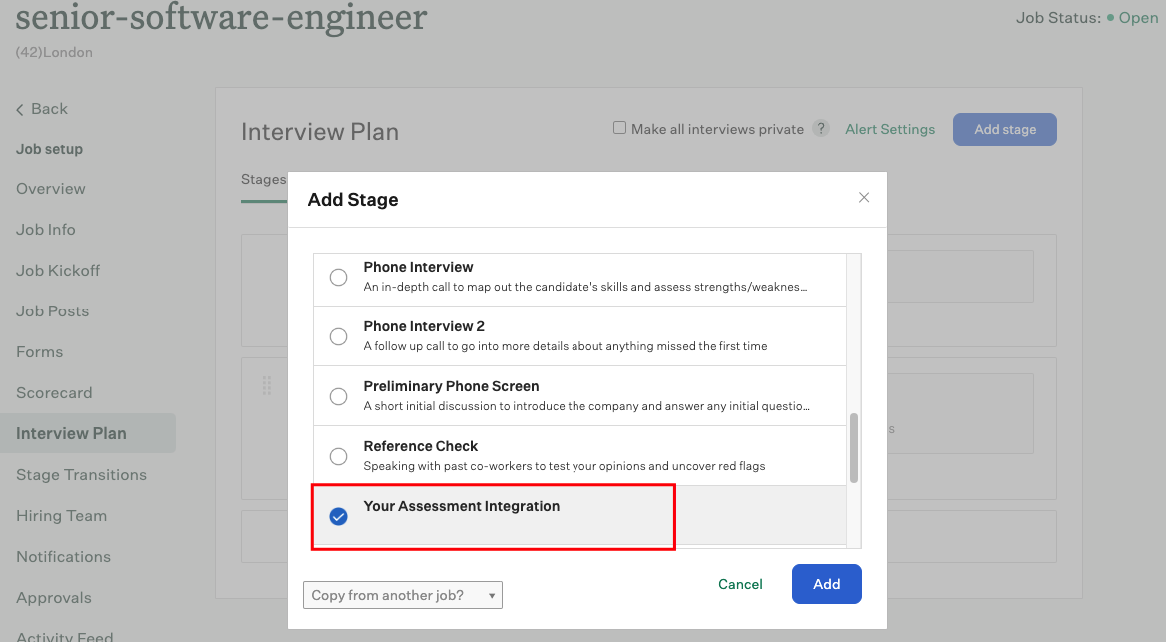
 When Greenhouse completes the configuration process, the user will see your integration as a stage in Jobs > Interview Plan and can use it to send assessments or background checks to the candidate.
 ## ATS User Experience
### Send the test to the candidate from Greenhouse
Follow the [Greenhouse Assessment or Background Check](https://hub.stackone.com/integration-configuration-concepts/ats/greenhouse-assessment-background-check) guide regarding how to send the test from Greenhouse.
### User will see after test has been sent
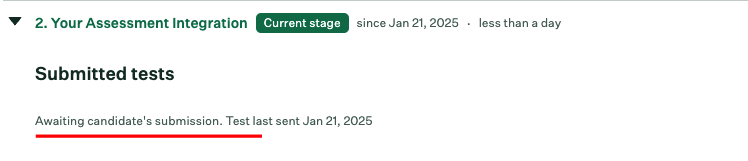
When a user sends an assessment or background check to a candidate, they will see an 'Awaiting candidate’s submission' message in the candidate application.
## ATS User Experience
### Send the test to the candidate from Greenhouse
Follow the [Greenhouse Assessment or Background Check](https://hub.stackone.com/integration-configuration-concepts/ats/greenhouse-assessment-background-check) guide regarding how to send the test from Greenhouse.
### User will see after test has been sent
When a user sends an assessment or background check to a candidate, they will see an 'Awaiting candidate’s submission' message in the candidate application.
 ## ATS User Experience Customisation
Utilise the following endpoints to update the results:
* [Assessment Update Result](https://docs.stackone.com/ats/api-reference/assessments/results/update-assessments-result)
* [Background Check Update Result](https://docs.stackone.com/ats/api-reference/background-checks/results/update-background-check-result)
Utilise the following endpoint to get metadata to update the result of the assessment or background check:
* [Connector Meta Information](https://docs.stackone.com/platform/api-reference/connectors/get-connector-meta-information) with the provider key `greenhouse` for model `assessments/results.update` or `background_checks/results.update`
## ATS User Experience Customisation
Utilise the following endpoints to update the results:
* [Assessment Update Result](https://docs.stackone.com/ats/api-reference/assessments/results/update-assessments-result)
* [Background Check Update Result](https://docs.stackone.com/ats/api-reference/background-checks/results/update-background-check-result)
Utilise the following endpoint to get metadata to update the result of the assessment or background check:
* [Connector Meta Information](https://docs.stackone.com/platform/api-reference/connectors/get-connector-meta-information) with the provider key `greenhouse` for model `assessments/results.update` or `background_checks/results.update`
| Fields (when provided) | User sees in Greenhouse |
| ---------------------- | ------------------------------------------------------------------------------------------------------------------- |
| Result URL | Shows a **View Report** link in the Grading Instructions tab (under `Go to Interview Kit`) and a `Go to Test` link. |
| Score value | Displays the **Score** in the Grading Instructions tab (under `Go to Interview Kit`). |
| Start Date | Displays the **Started At** value in the Grading Instructions tab (under `Go to Interview Kit`). |
| Submission Date | Displays the **Completed At** value in the Grading Instructions tab (under `Go to Interview Kit`). |
| Summary | Displays the **Notes** value in the Grading Instructions tab (under `Go to Interview Kit`). |
When a user opens a candidate's application, they will see the updated score along with its application stage.
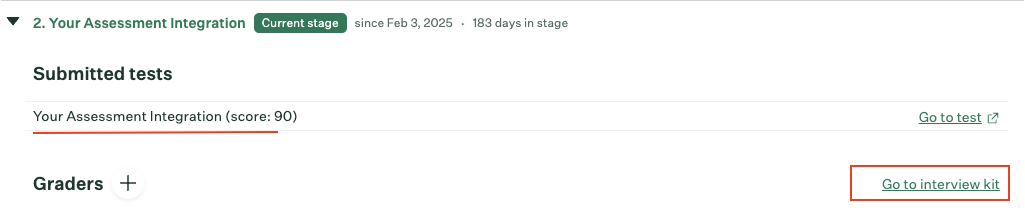 Click the `Go to Interview Kit` link to access more detailed test results.
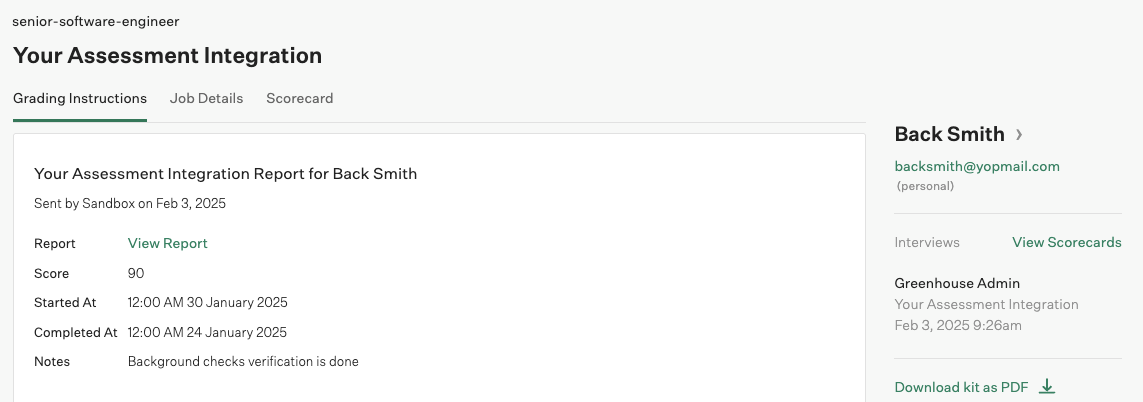 By default, the test result status will be sent as `complete`. Multiple updates are not allowed for a test.
## Testing Checklist
✅ **Provider Setup:**
* Once the integration is published by Greenhouse, it is visible in the [Greenhouse Marketplace/Partner Directory](https://integrations.greenhouse.com) under Assessments or Background Checks categories.
✅ **StackOne Configuration:**
* Selected `Public + Partner API` or `Partner API`
* Package's List Endpoint URL is correct.
* Valid Partner's Username and Password
* Package's List Endpoint response is expected according to the following endpoint's response:
* [List Assessments Packages](https://docs.stackone.com/ats/api-reference/assessments/packages/list-assessments-packages)
* [List Background Check Packages](https://docs.stackone.com/ats/api-reference/background-checks/packages/list-background-check-packages)
✅ **ATS User Enablement:**
* Shared the `External Trigger Token` to the Greenhouse support, and they have enabled the partner integration app for your Greenhouse account.
* Once the app is enabled by Greenhouse for the user, the integration is visible to add as a stage in Jobs > Interview Plan under the specific Job.
✅ **Create a Webhook**
* Added a webhook for Greenhouse and enable it with the events such as: `Assessment Order` or `Background Check Order`
* Valid webhook URL to receive assessment/background check notifications.
✅ **ATS User Experience:**
* Navigate to specific *Job > Interview Plan > Add Stage > Select enabled Integration* app as a stage that will be visible under the candidate application.
* If you've configured Package's List Endpoint URL, a list of packages is visible in the dropdown field when you click the `Send test to candidate` link.
* If you've configured Static Package ID, a single package is visible in the dropdown field when you click the `Send test to candidate` link.
* Select a package, click `Send Test`, and send the webhook. A message **Submitted tests** will appear if the notification has been sent.
✅ **Update Result**
* Success response from the update result endpoint.
* Updated result details to Greenhouse’s UI.
## Troubleshooting
By default, the test result status will be sent as `complete`. Multiple updates are not allowed for a test.
## Testing Checklist
✅ **Provider Setup:**
* Once the integration is published by Greenhouse, it is visible in the [Greenhouse Marketplace/Partner Directory](https://integrations.greenhouse.com) under Assessments or Background Checks categories.
✅ **StackOne Configuration:**
* Selected `Public + Partner API` or `Partner API`
* Package's List Endpoint URL is correct.
* Valid Partner's Username and Password
* Package's List Endpoint response is expected according to the following endpoint's response:
* [List Assessments Packages](https://docs.stackone.com/ats/api-reference/assessments/packages/list-assessments-packages)
* [List Background Check Packages](https://docs.stackone.com/ats/api-reference/background-checks/packages/list-background-check-packages)
✅ **ATS User Enablement:**
* Shared the `External Trigger Token` to the Greenhouse support, and they have enabled the partner integration app for your Greenhouse account.
* Once the app is enabled by Greenhouse for the user, the integration is visible to add as a stage in Jobs > Interview Plan under the specific Job.
✅ **Create a Webhook**
* Added a webhook for Greenhouse and enable it with the events such as: `Assessment Order` or `Background Check Order`
* Valid webhook URL to receive assessment/background check notifications.
✅ **ATS User Experience:**
* Navigate to specific *Job > Interview Plan > Add Stage > Select enabled Integration* app as a stage that will be visible under the candidate application.
* If you've configured Package's List Endpoint URL, a list of packages is visible in the dropdown field when you click the `Send test to candidate` link.
* If you've configured Static Package ID, a single package is visible in the dropdown field when you click the `Send test to candidate` link.
* Select a package, click `Send Test`, and send the webhook. A message **Submitted tests** will appear if the notification has been sent.
✅ **Update Result**
* Success response from the update result endpoint.
* Updated result details to Greenhouse’s UI.
## Troubleshooting
| Symptom | Likely cause | Fix |
| ----------------------------------------------------------------------------------------------------------------------- | ---------------------------------------------------------------------------------------------------------------------------------------------------------------------------------------------------------------------------------------- | ------------------------------------------------------------------------------------------------------------------------------------------------------------------------------------------------------------------------------------------------------------------------------------------------------------------------ |
| Unable to find your Integration app in [Greenhouse Marketplace/Partner Directory](https://integrations.greenhouse.com). | Greenhouse Partner Integration is not published/approved. | Contact Greenhouse support for partnership status. |
| Integration partner app not visible under *Jobs > Interview Plan* to add. | **•** Integration app is not active.
**•** Invalid External Trigger Token. | Contact Greenhouse support for partnership status & provide External Trigger Token. |
| Unable to open prompt to select package & Getting `Sorry, we encountered an error. Please try again.` message. | **•** Package's List Endpoint URL or Static Package ID is missing from StackOne Configuration.
**•** Invalid response getting from the Package's List Endpoint URL.
**•** Invalid Package's List Endpoint URL. | **•** Add Static Package ID if you don't have Package's List Endpoint URL.
**•** Response format should be expected as mentioned in the [StackOne Configuration](#stackone-configuration).
**•** Check Package's List Endpoint URL implementation at your end.
**•** Verify CORS. |
| Test notification is not received. | **•** Invalid webhook URL.
**•** Incorrect webhook events are enabled. | **•** Verify webhook URL.
**•** Enable expected events as mentioned in the [StackOne Configuration](#stackone-configuration). |
| The job's hiring team data is not be included in test notification. | `Partner API` authentication type selected instead of `Public + Partner API`. | Select authentication type `Public + Partner API` instead. |
| Unable to update result. | Invalid payload format. | Check Connector Meta API endpoint for payload format. |
| Unable to update result details again. | Attempting multiple result updates for the same test which has already been updated. | Update only final results in Greenhouse for the tests.
By default, the test result status will be sent as `complete`. Multiple updates are not allowed for a test. |
For persistent issues, contact StackOne support with detailed error logs and configuration information.