> ## Documentation Index
> Fetch the complete documentation index at: https://docs.stackone.com/llms.txt
> Use this file to discover all available pages before exploring further.
# StackOne 101
> Connect your AI agents to 10,000+ actions across hundreds of SaaS integrations.
 StackOne is the **AI Integration Gateway**. Connect your AI agents to any SaaS system, yours or your users', with any AI framework or protocol. One gateway. Hundreds of systems. Thousands of actions.
***
## Get Started
Get your first integration running with step-by-step instructions
Explore 200+ supported providers: Salesforce, Workday, Slack, and more
## Key Concepts
Before diving in, here are the core building blocks you'll work with:
### Actions
An **Action** is an operation your agent can perform. It's the core unit of work in StackOne.
| Type | Description | Example |
| -------------------- | ----------------------------------------------------------------- | ----------------------------------------------- |
| **Standard Actions** | Provider-specific operations mapping directly to a provider's API | `salesforce_get_contact`, `gmail_list_messages` |
| **Unified Actions** | Normalized operations with consistent schemas across providers | `iam_list_users`, `documents_list_files` |
StackOne provides **10,000+ actions** across all integrations, plus webhooks to receive events from connected systems.
Browse and test all available connector actions in the dashboard
### Linked Accounts
A **Linked Account** represents one end-user's authenticated connection to one provider. When your customer connects their Salesforce, Slack, or any other system through the [Integration Hub](/guides/embedding-stackone-hub), StackOne creates a linked account.
| Field | Description | Example |
| ----------------- | ------------------------------- | -------------------- |
| `account_id` | Unique identifier for API calls | `acme-corp-bamboohr` |
| `origin_owner_id` | End-user's ID in your system | `cust_12345` |
| `provider` | The connected SaaS system | `bamboohr` |
Learn about tools for connecting end-user accounts
### Unified Authentication
One API key authenticates your app. One header routes to the right end-user:
```bash theme={null}
Authorization: Basic {base64_encoded_api_key}
x-account-id: {customer_account_id}
```
No OAuth token refresh logic. No per-provider credential management. Consistent auth across 200+ providers.
***
## The Request Flow
When your agent calls an action, here's what happens behind the scenes:
StackOne is the **AI Integration Gateway**. Connect your AI agents to any SaaS system, yours or your users', with any AI framework or protocol. One gateway. Hundreds of systems. Thousands of actions.
***
## Get Started
Get your first integration running with step-by-step instructions
Explore 200+ supported providers: Salesforce, Workday, Slack, and more
## Key Concepts
Before diving in, here are the core building blocks you'll work with:
### Actions
An **Action** is an operation your agent can perform. It's the core unit of work in StackOne.
| Type | Description | Example |
| -------------------- | ----------------------------------------------------------------- | ----------------------------------------------- |
| **Standard Actions** | Provider-specific operations mapping directly to a provider's API | `salesforce_get_contact`, `gmail_list_messages` |
| **Unified Actions** | Normalized operations with consistent schemas across providers | `iam_list_users`, `documents_list_files` |
StackOne provides **10,000+ actions** across all integrations, plus webhooks to receive events from connected systems.
Browse and test all available connector actions in the dashboard
### Linked Accounts
A **Linked Account** represents one end-user's authenticated connection to one provider. When your customer connects their Salesforce, Slack, or any other system through the [Integration Hub](/guides/embedding-stackone-hub), StackOne creates a linked account.
| Field | Description | Example |
| ----------------- | ------------------------------- | -------------------- |
| `account_id` | Unique identifier for API calls | `acme-corp-bamboohr` |
| `origin_owner_id` | End-user's ID in your system | `cust_12345` |
| `provider` | The connected SaaS system | `bamboohr` |
Learn about tools for connecting end-user accounts
### Unified Authentication
One API key authenticates your app. One header routes to the right end-user:
```bash theme={null}
Authorization: Basic {base64_encoded_api_key}
x-account-id: {customer_account_id}
```
No OAuth token refresh logic. No per-provider credential management. Consistent auth across 200+ providers.
***
## The Request Flow
When your agent calls an action, here's what happens behind the scenes:
 1. **Your agent calls an action** with `account_id`, scoping all operations to that end-user's connection
2. **StackOne authenticates** with the provider using stored credentials
3. **StackOne transforms** the request to the provider's API format
4. **Provider returns** raw, provider-specific data
5. **StackOne normalizes** the response for the protocol/SDK being used
6. **Your agent receives** well-scoped data optimized for the use-case at hand
**What StackOne handles:** OAuth token refresh, rate limiting, retry logic, schema normalization, error handling, and audit logging.
***
## Connect Your Agent
1. **Your agent calls an action** with `account_id`, scoping all operations to that end-user's connection
2. **StackOne authenticates** with the provider using stored credentials
3. **StackOne transforms** the request to the provider's API format
4. **Provider returns** raw, provider-specific data
5. **StackOne normalizes** the response for the protocol/SDK being used
6. **Your agent receives** well-scoped data optimized for the use-case at hand
**What StackOne handles:** OAuth token refresh, rate limiting, retry logic, schema normalization, error handling, and audit logging.
***
## Connect Your Agent
 Native tool calling via Model Context Protocol for Claude, Cursor, n8n, and any MCP-compatible client.
 Agent-to-Agent communication for orchestrating complex multi-agent workflows.
 Python and TypeScript libraries with built-in tool definitions for LangChain, CrewAI, Vercel AI.
Not sure which to choose? See detailed comparison with code examples.
## Build with APIs
Python and TypeScript libraries with built-in tool definitions for LangChain, CrewAI, Vercel AI.
Not sure which to choose? See detailed comparison with code examples.
## Build with APIs
 **Execute any of 10,000+ actions** via `POST /actions/rpc`. The same layer that powers MCP and AI Toolset.
 Manage linked accounts, sessions, and connectors
Unified APIs provide consistent REST endpoints when you need the same operation across multiple providers. Useful for building provider-agnostic backends.
`GET /documents/files` works the same for Google Drive, SharePoint, Dropbox, Box
`GET /iam/users` returns consistent user data from Okta, Azure AD, Google Workspace
**Legacy Unified APIs:** HRIS and ATS unified endpoints are still available for existing integrations. See the [HRIS API Reference](/hris/api-reference/employees/list-employees) and [ATS API Reference](/ats/api-reference/jobs/list-jobs) for documentation. For new implementations, we recommend using the [Actions API](/api/execute-actions) for greater flexibility.
**Actions API vs Unified API:** Use Actions API when you need provider-specific features or want dynamic tool discovery. Use Unified APIs when building traditional REST integrations that must work identically across providers.
***
## Organization & Projects
**Organization** is your company's StackOne account. It contains:
* All team members and their roles
* Billing and subscription details
* All projects within your company
**Project** is an isolated workspace within your organization. Each project has:
* Its own [API keys](/guides/api-keys) (credentials don't cross projects)
* Its own integrations and configurations
* Its own linked accounts (end-user connections)
* Regional data residency settings (US, EU)
Manage linked accounts, sessions, and connectors
Unified APIs provide consistent REST endpoints when you need the same operation across multiple providers. Useful for building provider-agnostic backends.
`GET /documents/files` works the same for Google Drive, SharePoint, Dropbox, Box
`GET /iam/users` returns consistent user data from Okta, Azure AD, Google Workspace
**Legacy Unified APIs:** HRIS and ATS unified endpoints are still available for existing integrations. See the [HRIS API Reference](/hris/api-reference/employees/list-employees) and [ATS API Reference](/ats/api-reference/jobs/list-jobs) for documentation. For new implementations, we recommend using the [Actions API](/api/execute-actions) for greater flexibility.
**Actions API vs Unified API:** Use Actions API when you need provider-specific features or want dynamic tool discovery. Use Unified APIs when building traditional REST integrations that must work identically across providers.
***
## Organization & Projects
**Organization** is your company's StackOne account. It contains:
* All team members and their roles
* Billing and subscription details
* All projects within your company
**Project** is an isolated workspace within your organization. Each project has:
* Its own [API keys](/guides/api-keys) (credentials don't cross projects)
* Its own integrations and configurations
* Its own linked accounts (end-user connections)
* Regional data residency settings (US, EU)
 **Common project strategies:**
| Strategy | Example | Use Case |
| ----------------------- | ------------------------------ | -------------------------------------- |
| Environment isolation | `dev`, `staging`, `production` | Separate test data from real end-users |
| Regional data isolation | `us-prod`, `eu-prod` | GDPR compliance, data residency |
| Team separation | `team-a-sandbox` | Temporary projects for experimentation |
Start with a single project for evaluation. You can then create additional projects if needed for production with appropriate regional settings.
## Dashboard & Setup
**Common project strategies:**
| Strategy | Example | Use Case |
| ----------------------- | ------------------------------ | -------------------------------------- |
| Environment isolation | `dev`, `staging`, `production` | Separate test data from real end-users |
| Regional data isolation | `us-prod`, `eu-prod` | GDPR compliance, data residency |
| Team separation | `team-a-sandbox` | Temporary projects for experimentation |
Start with a single project for evaluation. You can then create additional projects if needed for production with appropriate regional settings.
## Dashboard & Setup
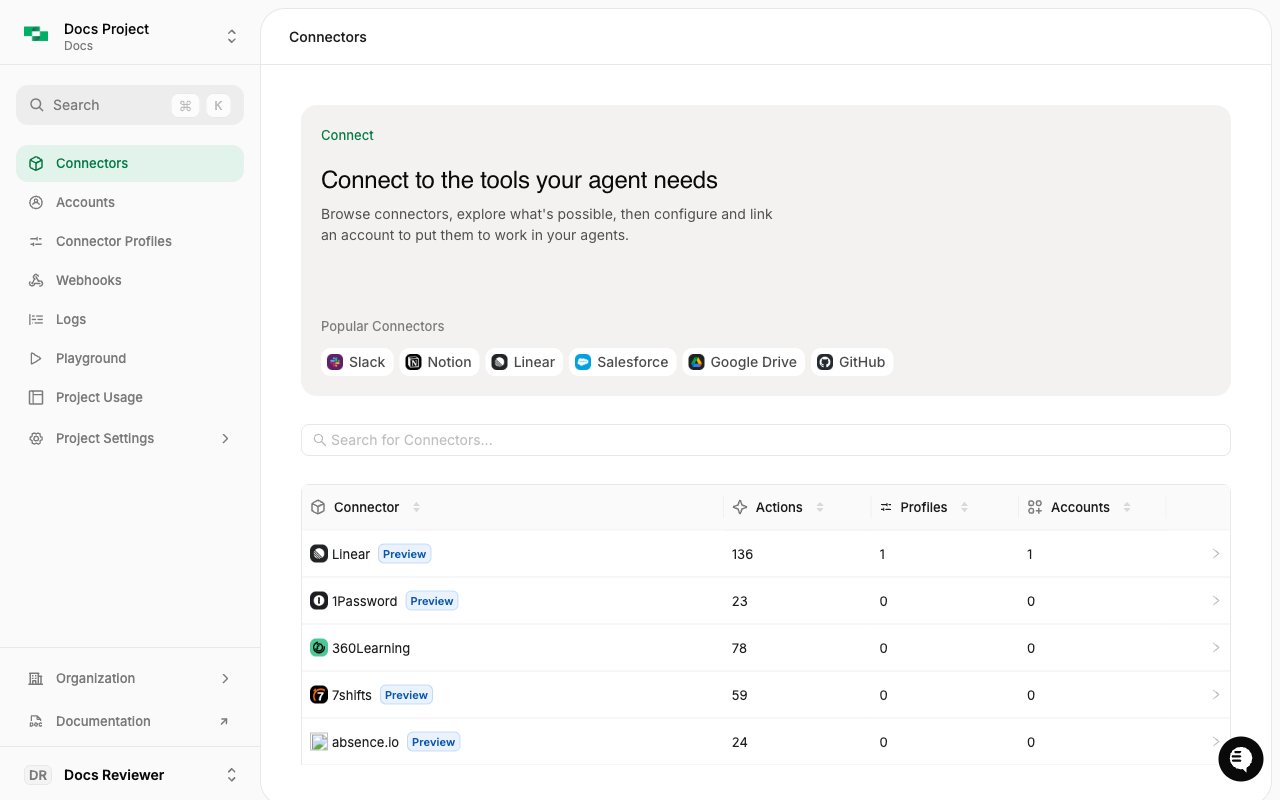 Browse 10,000+ actions across all providers
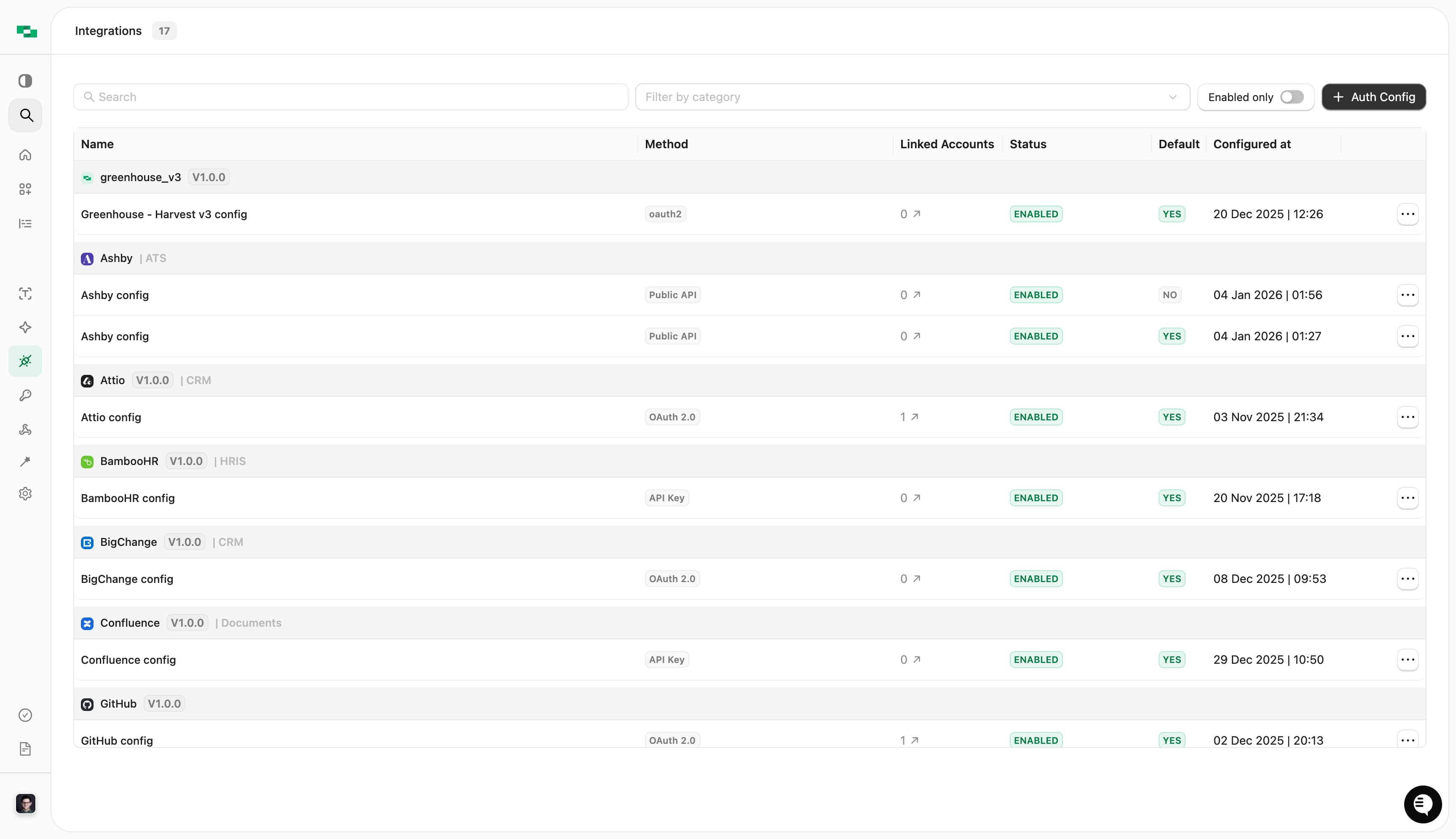 Enable Connectors by selecting and configuring authentication options
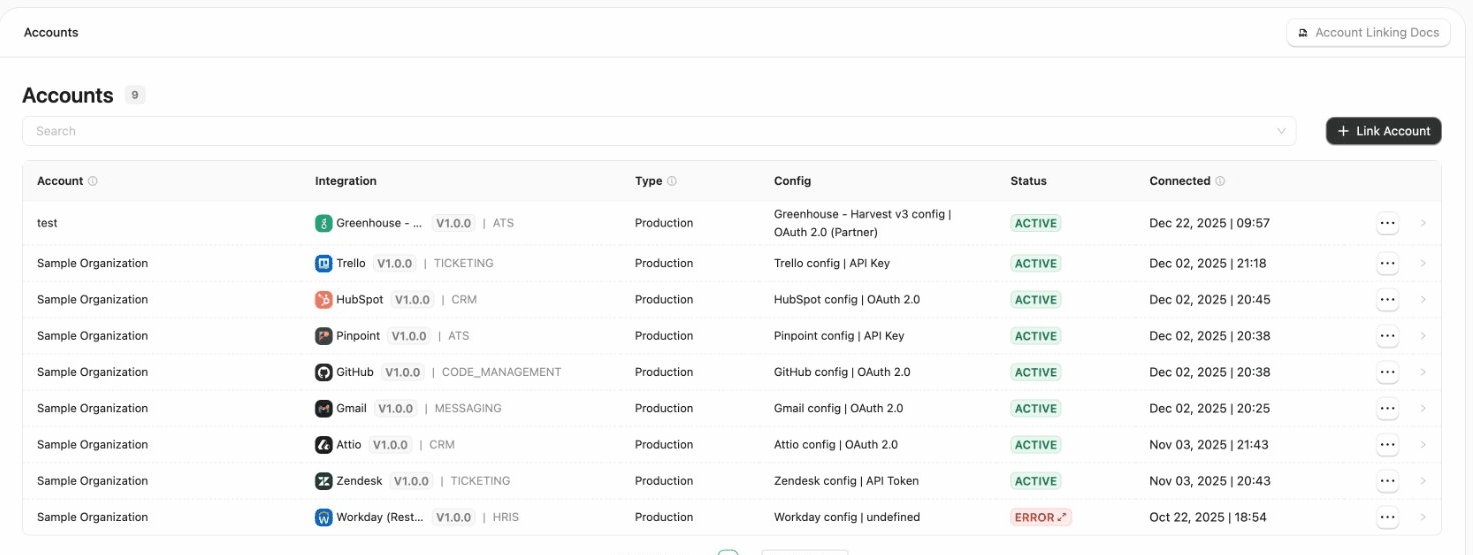 Embed the connection flow for end-user onboarding
 Test actions with natural language and see real responses
## Build Custom Connectors
Build and deploy custom connectors with the StackOne CLI
AI-assisted connector development
Test actions with natural language and see real responses
## Build Custom Connectors
Build and deploy custom connectors with the StackOne CLI
AI-assisted connector development