> ## Documentation Index
> Fetch the complete documentation index at: https://docs.stackone.com/llms.txt
> Use this file to discover all available pages before exploring further.
# Generic SAML SSO
> Set up SAML Single Sign-On with any SAML 2.0 identity provider.
Configure Single Sign-On (SSO) with any identity provider (IdP) that supports SAML 2.0, so your members sign in to StackOne through your own IdP. Setup runs as a guided wizard: you register StackOne's service provider endpoints in your IdP, paste your IdP's three SAML values back into StackOne, then verify your domain. Once the connection is registered and your domain is verified, members with an email on that domain are sent to your IdP to sign in.
If your IdP is Okta or Microsoft Entra ID, follow the [Okta](/identity/sso/okta) or [Microsoft Entra](/identity/sso/microsoft-entra) guide instead. They cover the same flow with provider-specific field names and screenshots.
## Prerequisites
* The **Org Admin** role in your StackOne organization, since only Org Admins manage SSO.
* Admin access to your identity provider, to create and configure a SAML application.
* Access to your domain's DNS records, to add the verification record.
An organization has one SSO connection. If one already exists, edit it from its overview rather than adding a second.
## Start the setup wizard
The **SSO** tab and this setup wizard are enabled per organization. If you don't see **SSO** under **Organization > Security**, even as an Org Admin, contact StackOne support to turn it on.
In the StackOne dashboard, go to **Organization > Security > SSO**, then click **Get started** to open the **Set up SSO** wizard.
On the first step, select **Other SAML 2.0 provider**, then click **Continue**. The wizard also lists **Okta** and **Microsoft Entra ID** if one of those matches your IdP.
On the **Connection details** step, set:
* **Connection name**, a label for this connection. StackOne generates the connection's unique provider ID from it automatically.
* **Domain**, the email domain your members sign in with, for example `acme.com`. Members with an address on this domain are sent to your IdP.
Click **Continue**.
## Configure your identity provider
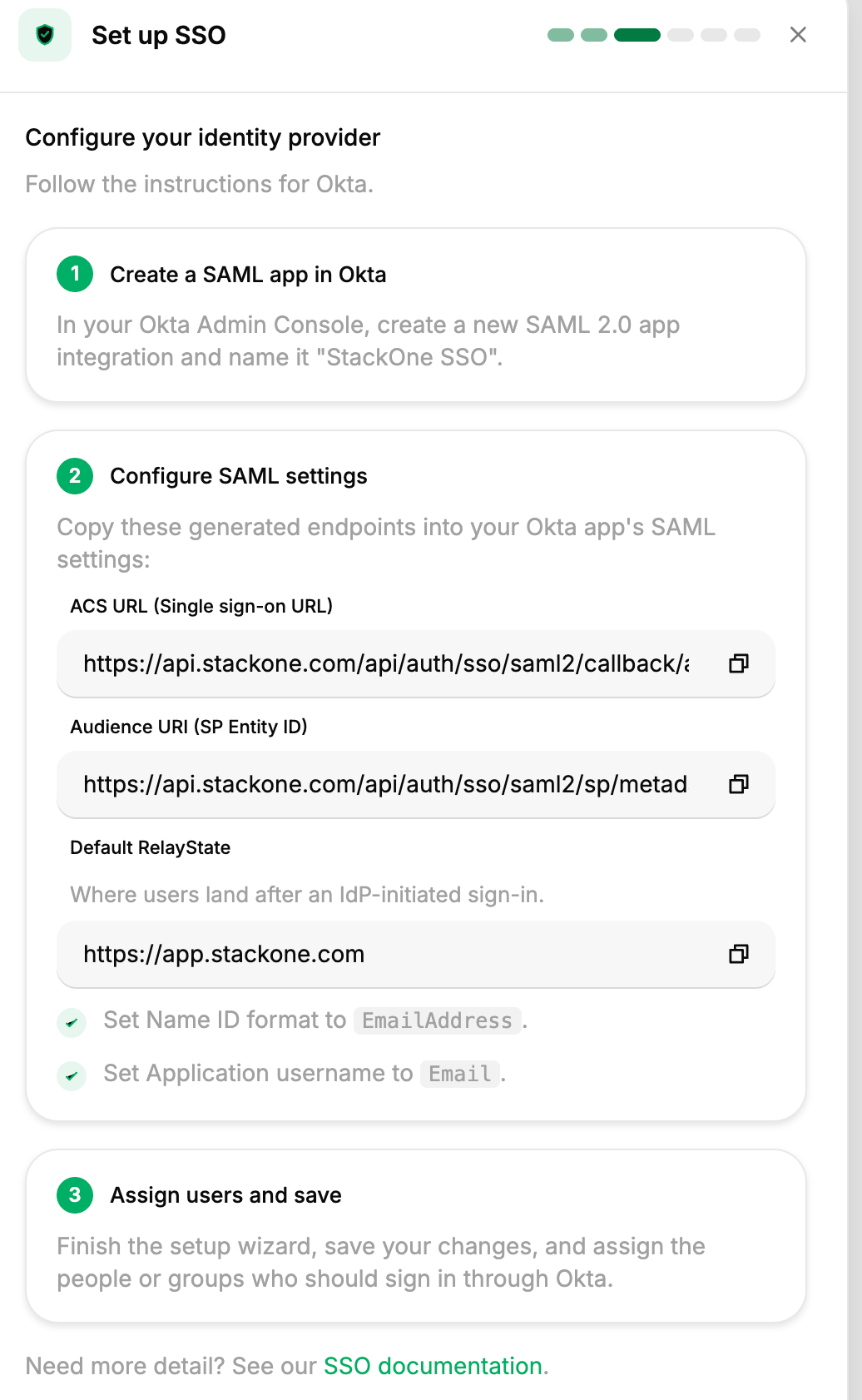
StackOne is the service provider (SP) in this exchange. The wizard's **Configure your identity provider** step shows StackOne's SP endpoints. Create a SAML 2.0 application in your IdP and register these values in it.
Copy these generated values from the **Configure your identity provider** step:
* **ACS URL (Single sign-on URL)** is the endpoint where your IdP posts the SAML assertion after a user signs in.
* **SP Entity ID (Audience)** is the identifier your IdP uses to address StackOne as the audience of the assertion.
* **Default RelayState** is where users land after an IdP-initiated sign-in. Set it only if your IdP supports IdP-initiated SSO.
 Field names vary by IdP, so match by role:
| StackOne value | Where it goes in your IdP |
| -------------------------------- | ---------------------------------------------------------------- |
| **ACS URL (Single sign-on URL)** | Single sign-on URL, Assertion Consumer Service URL, or Reply URL |
| **SP Entity ID (Audience)** | Audience URI, Entity ID, or Identifier |
| **Default RelayState** | Default RelayState or Relay State (optional) |
In your IdP's admin console, create a new SAML 2.0 application for StackOne, then paste the **ACS URL** and **SP Entity ID** into the matching fields.
StackOne uses the Name ID as both the account identifier and the email address, so its **value** must be the user's work email, not a username, UPN, or object ID.
* Set the Name ID value to the user's work email, in the format `urn:oasis:names:tc:SAML:1.1:nameid-format:emailAddress`.
* Optionally, also send the email as an attribute named exactly `email`. When present, StackOne uses it; otherwise it falls back to the Name ID.
StackOne sets a member's display name from the assertion when it creates their account on first sign-in. Without name attributes, new members show their email address as their name.
* Send the first and last name as attributes named exactly `givenName` and `surname`.
* Alternatively, send a full display name as an attribute named exactly `displayName`, which StackOne uses when `givenName` / `surname` are absent.
StackOne requires a signed assertion and validates the signature against the certificate you register in StackOne, so enable assertion signing and note the active X.509 signing certificate.
Register the exact certificate your IdP signs with. A mismatch makes every sign-in fail with a certificate error, even when every other value is correct.
Assign the users or groups who should sign in to StackOne through this application, then save.
From your IdP's SAML metadata or setup summary, note these three values for the next step:
* **Issuer (Entity ID)**, the IdP's unique identifier.
* **Single Sign-On URL**, the IdP's login endpoint.
* **X.509 signing certificate**, in PEM format.
Back in the wizard, click **Continue** to move to the **Register your SSO provider** step.
## Register your SSO provider
On the **Register your SSO provider** step, provide the values from your IdP's SAML settings. Either import them from your IdP's metadata file, or enter them manually.
Click **Upload SAML metadata file** to import the values from your IdP's metadata XML, or enter them manually into these fields:
| IdP value | Where it goes in StackOne |
| ----------------------------- | ------------------------- |
| **Issuer (Entity ID)** | **Entity ID (Issuer)** |
| **Single Sign-On URL** | **SSO URL (Entry Point)** |
| **X.509 signing certificate** | **X.509 Certificate** |
Field names vary by IdP, so match by role:
| StackOne value | Where it goes in your IdP |
| -------------------------------- | ---------------------------------------------------------------- |
| **ACS URL (Single sign-on URL)** | Single sign-on URL, Assertion Consumer Service URL, or Reply URL |
| **SP Entity ID (Audience)** | Audience URI, Entity ID, or Identifier |
| **Default RelayState** | Default RelayState or Relay State (optional) |
In your IdP's admin console, create a new SAML 2.0 application for StackOne, then paste the **ACS URL** and **SP Entity ID** into the matching fields.
StackOne uses the Name ID as both the account identifier and the email address, so its **value** must be the user's work email, not a username, UPN, or object ID.
* Set the Name ID value to the user's work email, in the format `urn:oasis:names:tc:SAML:1.1:nameid-format:emailAddress`.
* Optionally, also send the email as an attribute named exactly `email`. When present, StackOne uses it; otherwise it falls back to the Name ID.
StackOne sets a member's display name from the assertion when it creates their account on first sign-in. Without name attributes, new members show their email address as their name.
* Send the first and last name as attributes named exactly `givenName` and `surname`.
* Alternatively, send a full display name as an attribute named exactly `displayName`, which StackOne uses when `givenName` / `surname` are absent.
StackOne requires a signed assertion and validates the signature against the certificate you register in StackOne, so enable assertion signing and note the active X.509 signing certificate.
Register the exact certificate your IdP signs with. A mismatch makes every sign-in fail with a certificate error, even when every other value is correct.
Assign the users or groups who should sign in to StackOne through this application, then save.
From your IdP's SAML metadata or setup summary, note these three values for the next step:
* **Issuer (Entity ID)**, the IdP's unique identifier.
* **Single Sign-On URL**, the IdP's login endpoint.
* **X.509 signing certificate**, in PEM format.
Back in the wizard, click **Continue** to move to the **Register your SSO provider** step.
## Register your SSO provider
On the **Register your SSO provider** step, provide the values from your IdP's SAML settings. Either import them from your IdP's metadata file, or enter them manually.
Click **Upload SAML metadata file** to import the values from your IdP's metadata XML, or enter them manually into these fields:
| IdP value | Where it goes in StackOne |
| ----------------------------- | ------------------------- |
| **Issuer (Entity ID)** | **Entity ID (Issuer)** |
| **Single Sign-On URL** | **SSO URL (Entry Point)** |
| **X.509 signing certificate** | **X.509 Certificate** |
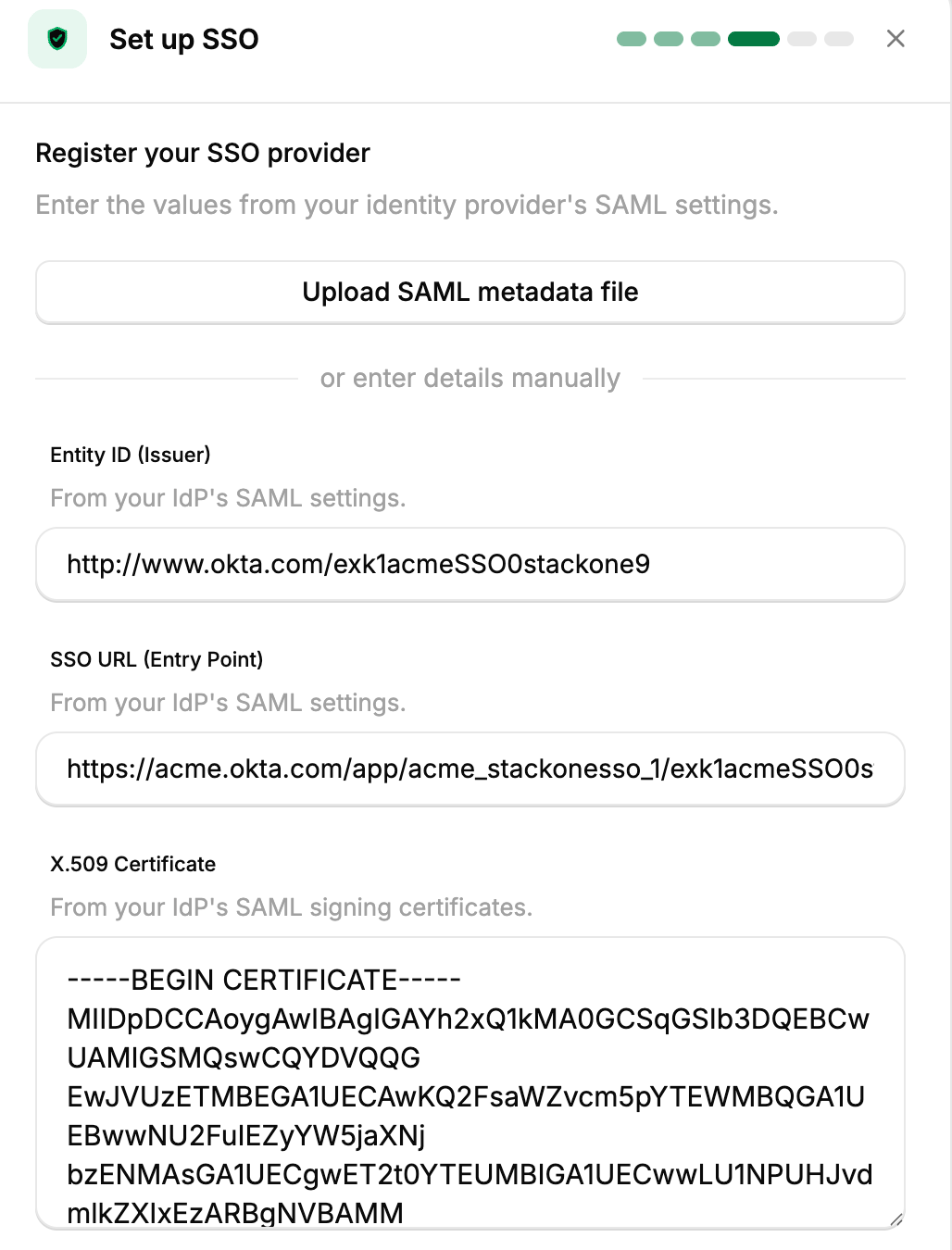 Click **Continue**. StackOne registers the connection and advances to the **Verify your domain** step.
## Verify your domain
Verifying the domain proves your organization owns the email domain and activates SSO. It is also what lets a SAML sign-in link to an existing StackOne user with the same email.
The **Verify your domain** step shows a TXT record to add to your DNS:
* **Name** is your domain. Some DNS providers expect `@` for a root domain, or just the subdomain label.
* **Value** is the verification record, in this format:
```
_stackone-sso-verification-token-{providerId}={verificationToken}
```
Click **Continue**. StackOne registers the connection and advances to the **Verify your domain** step.
## Verify your domain
Verifying the domain proves your organization owns the email domain and activates SSO. It is also what lets a SAML sign-in link to an existing StackOne user with the same email.
The **Verify your domain** step shows a TXT record to add to your DNS:
* **Name** is your domain. Some DNS providers expect `@` for a root domain, or just the subdomain label.
* **Value** is the verification record, in this format:
```
_stackone-sso-verification-token-{providerId}={verificationToken}
```
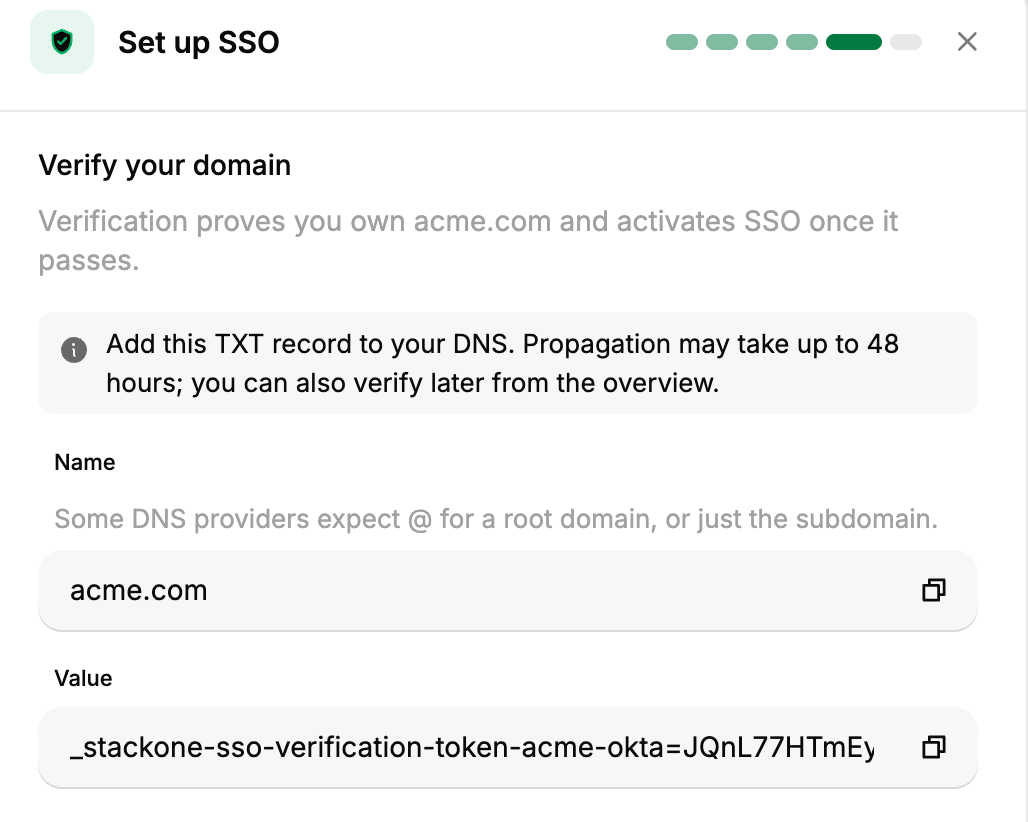 In your domain's DNS panel, add a TXT record with the **Name** and **Value** shown.
How you add the value depends on your DNS provider. Cloudflare lets you add a separate TXT record at the same name. AWS Route 53 and Google Cloud DNS keep one TXT record set per name, so add the token as a new value on its own line rather than appending it to an existing string such as your SPF record.
DNS changes can take up to 48 hours to propagate, though they often complete within minutes. Check what's publicly visible with [Google Admin Toolbox Dig](https://toolbox.googleapps.com/apps/dig/#TXT/).
Click **Verify**. Once the record is visible, StackOne marks the domain verified and SSO becomes active. If the check fails, wait for propagation and try again.
To finish setup before the record propagates, click **Verify Later**. You can verify afterward from the connection's **General** tab, under the **Trusted Domain** card, by clicking **Verify**.
On the final step, click **Finish** to close the wizard.
After SSO is active, require members to sign in through it by adding the SAML method to the **Enforcement Policy** on the **Authentication** tab.
## Troubleshooting
| Symptom | Likely cause | Fix |
| ------------------------------------------------------- | ----------------------------------------------------------------------------------------------------------------------------------- | -------------------------------------------------------------------------------------------------------------------------------------------------------------------------------- |
| SSO option not visible | SSO isn't enabled for your organization. | Contact StackOne support to enable it. |
| `403 Forbidden` when opening SSO | You lack the **Org Admin** role. | Ask an Org Admin to make the change or to grant you the role. |
| `ERROR_UNMATCH_CERTIFICATE_DECLARATION_IN_METADATA` | The registered certificate doesn't match the one your IdP signs with. | Re-copy the active **X.509 signing certificate** from your IdP and update it on the connection's **General** tab via **Edit SAML**. |
| `ERR_UNMATCH_ISSUER` | The **Entity ID (Issuer)** doesn't match the issuer your IdP sends. | Copy the issuer from your IdP's SAML metadata and update it via **Edit SAML**. |
| Sign-in fails or signs in the wrong user | The Name ID value isn't the user's email, the format is set to email address, but the value is still a username, UPN, or object ID. | Set the Name ID value to the user's work email (see [Configure your identity provider](#configure-your-identity-provider)). |
| "Provider domain has not been verified" | Domain verification hasn't completed. | Finish [Verify your domain](#verify-your-domain). |
| Domain verification keeps failing | The TXT record is on the wrong name, was appended to an existing value, or DNS hasn't propagated. | Use `@` for a root domain or the subdomain label otherwise, add the token as its own TXT value, and check propagation with [Dig](https://toolbox.googleapps.com/apps/dig/#TXT/). |
| "Another organization has already verified this domain" | A domain can be verified by one organization at a time. | The organization holding it must delete its SSO connection to release the domain. Contact StackOne support if you don't know which one holds it. |
| Members not redirected to your IdP | The domain isn't verified, or the user isn't assigned to the SAML application. | Verify the domain, and confirm the user is assigned in your IdP. |
## Next steps
How SSO, directory sync, and domain verification fit together.
The same setup with Okta's field names and screenshots.
The same setup with Microsoft Entra ID.
In your domain's DNS panel, add a TXT record with the **Name** and **Value** shown.
How you add the value depends on your DNS provider. Cloudflare lets you add a separate TXT record at the same name. AWS Route 53 and Google Cloud DNS keep one TXT record set per name, so add the token as a new value on its own line rather than appending it to an existing string such as your SPF record.
DNS changes can take up to 48 hours to propagate, though they often complete within minutes. Check what's publicly visible with [Google Admin Toolbox Dig](https://toolbox.googleapps.com/apps/dig/#TXT/).
Click **Verify**. Once the record is visible, StackOne marks the domain verified and SSO becomes active. If the check fails, wait for propagation and try again.
To finish setup before the record propagates, click **Verify Later**. You can verify afterward from the connection's **General** tab, under the **Trusted Domain** card, by clicking **Verify**.
On the final step, click **Finish** to close the wizard.
After SSO is active, require members to sign in through it by adding the SAML method to the **Enforcement Policy** on the **Authentication** tab.
## Troubleshooting
| Symptom | Likely cause | Fix |
| ------------------------------------------------------- | ----------------------------------------------------------------------------------------------------------------------------------- | -------------------------------------------------------------------------------------------------------------------------------------------------------------------------------- |
| SSO option not visible | SSO isn't enabled for your organization. | Contact StackOne support to enable it. |
| `403 Forbidden` when opening SSO | You lack the **Org Admin** role. | Ask an Org Admin to make the change or to grant you the role. |
| `ERROR_UNMATCH_CERTIFICATE_DECLARATION_IN_METADATA` | The registered certificate doesn't match the one your IdP signs with. | Re-copy the active **X.509 signing certificate** from your IdP and update it on the connection's **General** tab via **Edit SAML**. |
| `ERR_UNMATCH_ISSUER` | The **Entity ID (Issuer)** doesn't match the issuer your IdP sends. | Copy the issuer from your IdP's SAML metadata and update it via **Edit SAML**. |
| Sign-in fails or signs in the wrong user | The Name ID value isn't the user's email, the format is set to email address, but the value is still a username, UPN, or object ID. | Set the Name ID value to the user's work email (see [Configure your identity provider](#configure-your-identity-provider)). |
| "Provider domain has not been verified" | Domain verification hasn't completed. | Finish [Verify your domain](#verify-your-domain). |
| Domain verification keeps failing | The TXT record is on the wrong name, was appended to an existing value, or DNS hasn't propagated. | Use `@` for a root domain or the subdomain label otherwise, add the token as its own TXT value, and check propagation with [Dig](https://toolbox.googleapps.com/apps/dig/#TXT/). |
| "Another organization has already verified this domain" | A domain can be verified by one organization at a time. | The organization holding it must delete its SSO connection to release the domain. Contact StackOne support if you don't know which one holds it. |
| Members not redirected to your IdP | The domain isn't verified, or the user isn't assigned to the SAML application. | Verify the domain, and confirm the user is assigned in your IdP. |
## Next steps
How SSO, directory sync, and domain verification fit together.
The same setup with Okta's field names and screenshots.
The same setup with Microsoft Entra ID.