> ## Documentation Index
> Fetch the complete documentation index at: https://docs.stackone.com/llms.txt
> Use this file to discover all available pages before exploring further.
# Microsoft Entra SSO
> Set up SAML Single Sign-On between Microsoft Entra ID and StackOne.
Connect Microsoft Entra ID (formerly Azure AD) to StackOne so members with an `@acme.com` address sign in through Entra with SAML 2.0. Each organization has one SSO connection, and StackOne activates it only after you verify the email domain by DNS.
## Prerequisites
* The **Org Admin** role in your StackOne organization.
* Access to the **Microsoft Entra admin center** with permission to create enterprise applications, such as the **Application Administrator** or **Cloud Application Administrator** role.
* The ability to add a DNS TXT record for your email domain (`acme.com`).
The **SSO** tab and this setup wizard are enabled per organization. If you don't see **Organization > Security > SSO**, or the **Get started** wizard, even as an Org Admin, contact StackOne support to turn it on.
## Configure SSO in StackOne
Open **Organization > Security > SSO** and select **Get started** to open the **Set up SSO** wizard. On the **Which identity provider are you using?** step, select **Microsoft Entra ID**.
On the **Connection details** step, enter a name and the email domain your members sign in with. StackOne generates the connection's unique ID from the name automatically.
* **Connection name**: `Acme Entra`.
* **Domain**: `acme.com`.
Select **Continue**.
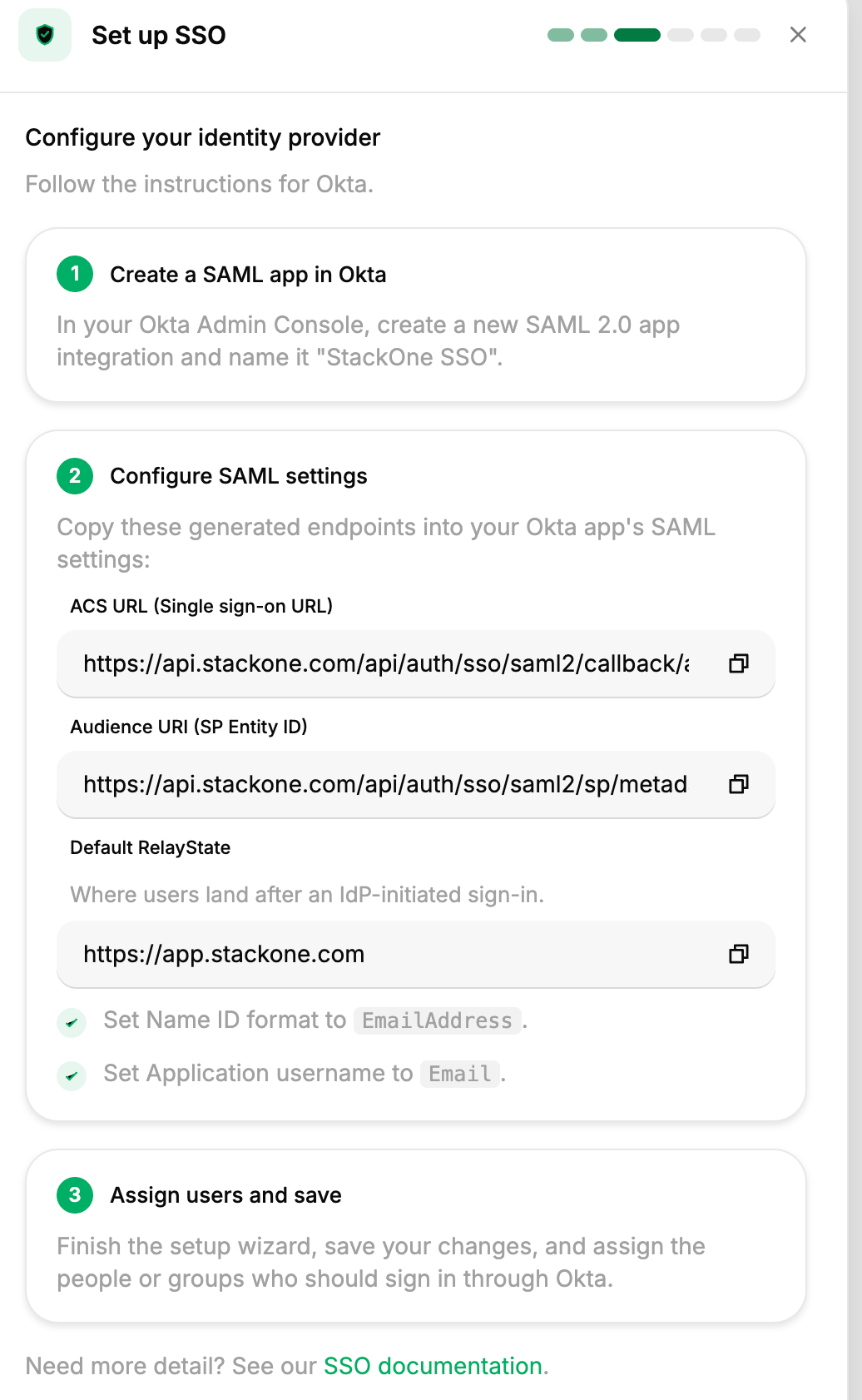
On the **Configure your identity provider** step, StackOne shows the values that identify it to Entra under **Configure SAML settings**, each labeled with its Entra name so you know where it belongs:
* **Reply URL (ACS URL)**: the endpoint Entra posts the SAML assertion to.
* **Identifier (Entity ID)**: the URL that identifies StackOne as the service provider.
Also copy the **Default RelayState** value StackOne shows (your StackOne dashboard URL), which is where an Entra-initiated sign-in lands. Keep these open in one tab, because you paste them into Entra next.
 ## Set up a SAML application in Microsoft Entra
Create an enterprise application in Entra and point it at StackOne. Values move in both directions during setup, and Entra labels the fields differently from Okta, the **In Okta** columns map the equivalents if you configured the [Okta connection](/identity/sso/okta) first.
First, copy these StackOne service provider values into Entra's **Basic SAML Configuration**:
| StackOne value | In Okta | In Microsoft Entra |
| -------------- | ------------------------------- | -------------------------- |
| ACS URL | **Single sign-on URL** | **Reply URL (ACS URL)** |
| SP Entity ID | **Audience URI (SP Entity ID)** | **Identifier (Entity ID)** |
Then, after you create the app, copy these Entra identity provider values back into StackOne's **Register your SSO provider** step:
| Entra value | In Okta | In StackOne |
| ------------------------------ | ---------------------------------------- | ------------------------- |
| **Login URL** | **Identity Provider Single Sign-On URL** | **SSO URL (Entry Point)** |
| **Microsoft Entra Identifier** | **Identity Provider Issuer** | **Entity ID (Issuer)** |
| **Certificate (Base64)** | **X.509 Certificate** | **X.509 Certificate** |
The Name ID is an attribute mapping rather than a copied value. You set it in the **Set the Name ID to the user's email** step below.
In the **Microsoft Entra admin center**, go to **Identity > Applications > Enterprise applications** and select **New application > Create your own application**. Name it `Acme Entra`, choose **Integrate any other application you don't find in the gallery (Non-gallery)**, and create it.
Open the new application, go to **Single sign-on**, and select **SAML**. Entra shows the SAML setup laid out in numbered sections.
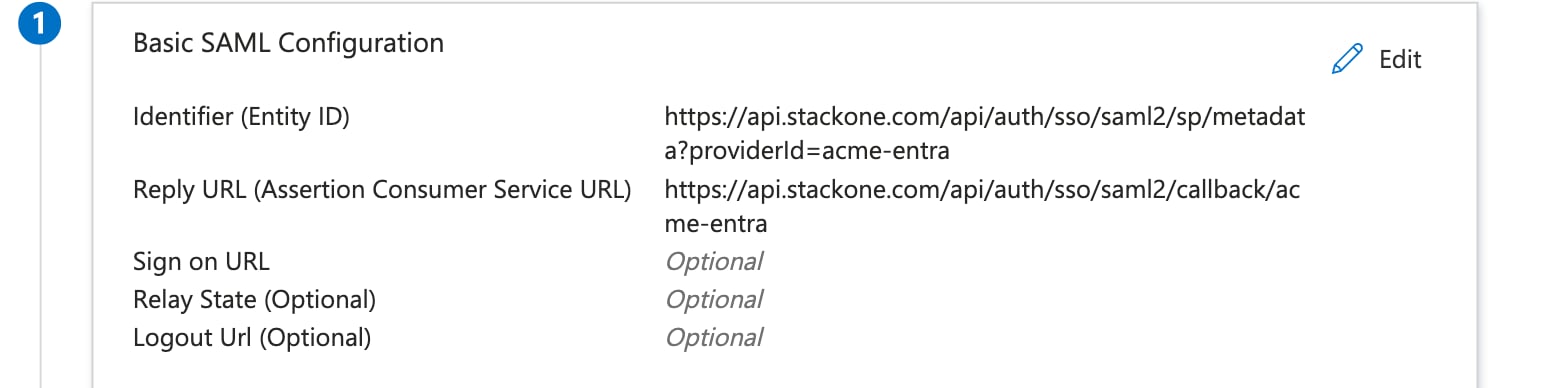
In **Basic SAML Configuration**, select **Edit** and paste the values you copied from StackOne:
* **Identifier (Entity ID)**: the StackOne SP Entity ID.
* **Reply URL (Assertion Consumer Service URL)**: the StackOne ACS URL.
* **Relay State (Optional)**: the **Default RelayState** value you copied from StackOne.
Select **Save**.
## Set up a SAML application in Microsoft Entra
Create an enterprise application in Entra and point it at StackOne. Values move in both directions during setup, and Entra labels the fields differently from Okta, the **In Okta** columns map the equivalents if you configured the [Okta connection](/identity/sso/okta) first.
First, copy these StackOne service provider values into Entra's **Basic SAML Configuration**:
| StackOne value | In Okta | In Microsoft Entra |
| -------------- | ------------------------------- | -------------------------- |
| ACS URL | **Single sign-on URL** | **Reply URL (ACS URL)** |
| SP Entity ID | **Audience URI (SP Entity ID)** | **Identifier (Entity ID)** |
Then, after you create the app, copy these Entra identity provider values back into StackOne's **Register your SSO provider** step:
| Entra value | In Okta | In StackOne |
| ------------------------------ | ---------------------------------------- | ------------------------- |
| **Login URL** | **Identity Provider Single Sign-On URL** | **SSO URL (Entry Point)** |
| **Microsoft Entra Identifier** | **Identity Provider Issuer** | **Entity ID (Issuer)** |
| **Certificate (Base64)** | **X.509 Certificate** | **X.509 Certificate** |
The Name ID is an attribute mapping rather than a copied value. You set it in the **Set the Name ID to the user's email** step below.
In the **Microsoft Entra admin center**, go to **Identity > Applications > Enterprise applications** and select **New application > Create your own application**. Name it `Acme Entra`, choose **Integrate any other application you don't find in the gallery (Non-gallery)**, and create it.
Open the new application, go to **Single sign-on**, and select **SAML**. Entra shows the SAML setup laid out in numbered sections.
In **Basic SAML Configuration**, select **Edit** and paste the values you copied from StackOne:
* **Identifier (Entity ID)**: the StackOne SP Entity ID.
* **Reply URL (Assertion Consumer Service URL)**: the StackOne ACS URL.
* **Relay State (Optional)**: the **Default RelayState** value you copied from StackOne.
Select **Save**.
 StackOne matches each member to their account by email, so the assertion must carry the email as its Name ID. In **Attributes & Claims**, select **Edit**, open **Unique User Identifier (Name ID)**, and set the source attribute to `user.mail` with the **Email address** name identifier format. Save the claim.
Because the assertion identifies members by their Name ID, a member's name can initially appear as their email address in StackOne until their profile name is set.
StackOne matches each member to their account by email, so the assertion must carry the email as its Name ID. In **Attributes & Claims**, select **Edit**, open **Unique User Identifier (Name ID)**, and set the source attribute to `user.mail` with the **Email address** name identifier format. Save the claim.
Because the assertion identifies members by their Name ID, a member's name can initially appear as their email address in StackOne until their profile name is set.
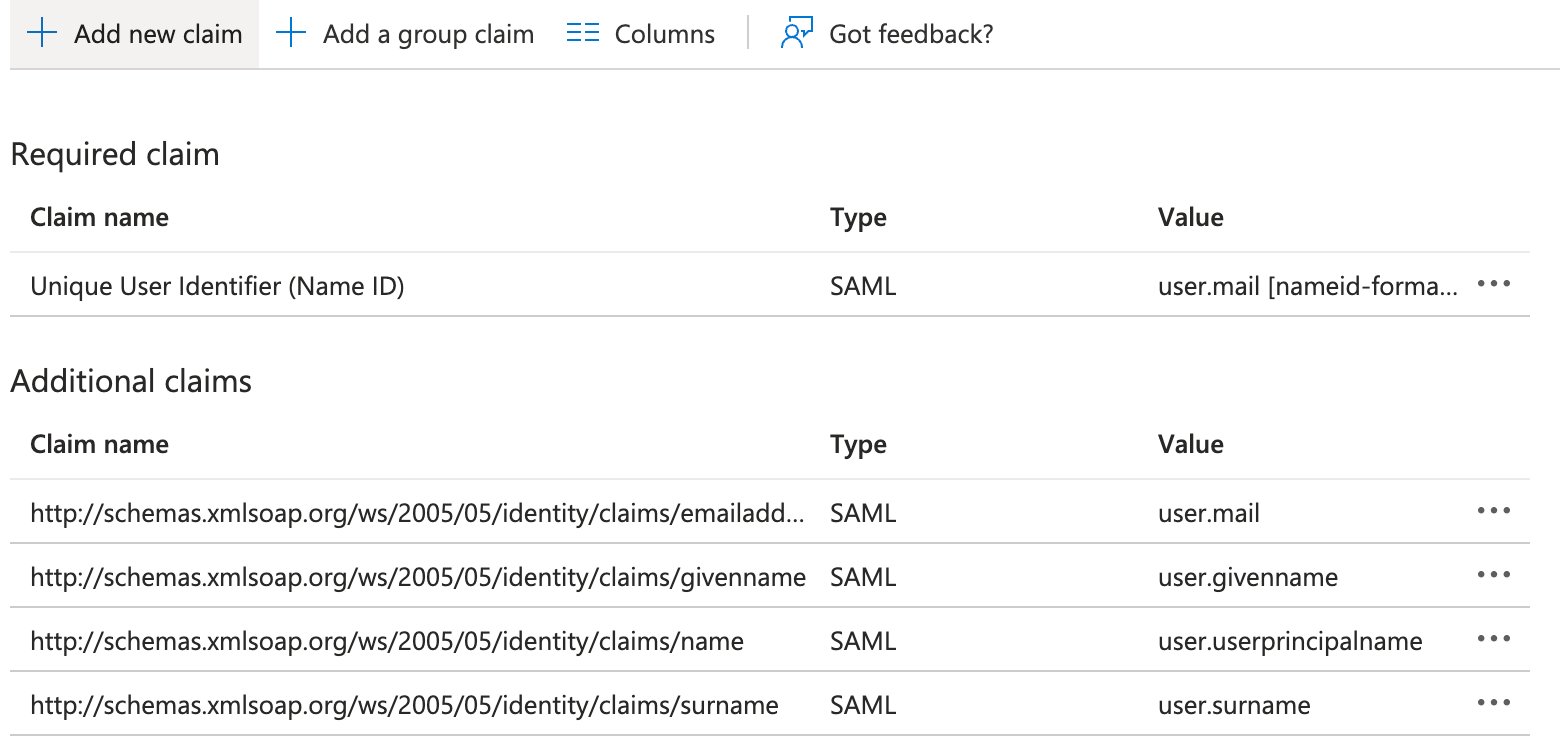 `user.mail` must be populated for everyone who will sign in. It is often empty for cloud-only accounts without an Exchange Online mailbox, or for users synced from on-premises Active Directory without a `mail` attribute. When it's empty, Entra sends an empty Name ID and sign-in fails with **"Unable to extract user ID or email from SAML response,"** because StackOne derives the member's email from the Name ID.
If your users' UPN matches their email address, set the source attribute to `user.userprincipalname` instead. Otherwise, populate `mail` for each user before they sign in.
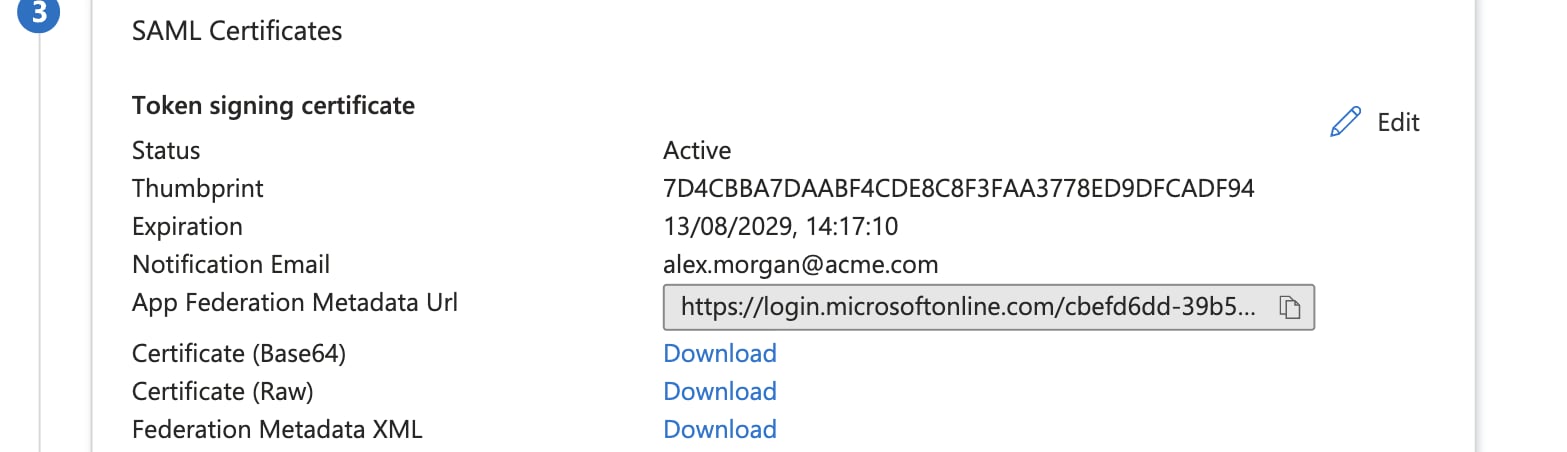
StackOne needs Entra's issuer, login URL, and signing certificate. Choose one of two paths:
* In **SAML Certificates**, download the **Federation Metadata XML**. This single file carries all three values, and StackOne reads them for you.
* Or copy them individually: from **Set up \[App name]**, take the **Login URL** and the **Microsoft Entra Identifier**, then download the **Certificate (Base64)** from **SAML Certificates**.
`user.mail` must be populated for everyone who will sign in. It is often empty for cloud-only accounts without an Exchange Online mailbox, or for users synced from on-premises Active Directory without a `mail` attribute. When it's empty, Entra sends an empty Name ID and sign-in fails with **"Unable to extract user ID or email from SAML response,"** because StackOne derives the member's email from the Name ID.
If your users' UPN matches their email address, set the source attribute to `user.userprincipalname` instead. Otherwise, populate `mail` for each user before they sign in.
StackOne needs Entra's issuer, login URL, and signing certificate. Choose one of two paths:
* In **SAML Certificates**, download the **Federation Metadata XML**. This single file carries all three values, and StackOne reads them for you.
* Or copy them individually: from **Set up \[App name]**, take the **Login URL** and the **Microsoft Entra Identifier**, then download the **Certificate (Base64)** from **SAML Certificates**.
 Go to **Users and groups**, select **Add user/group**, and assign the people or groups who should sign in to StackOne through Entra. Only assigned users can complete SSO.
## Complete the SSO registration in StackOne
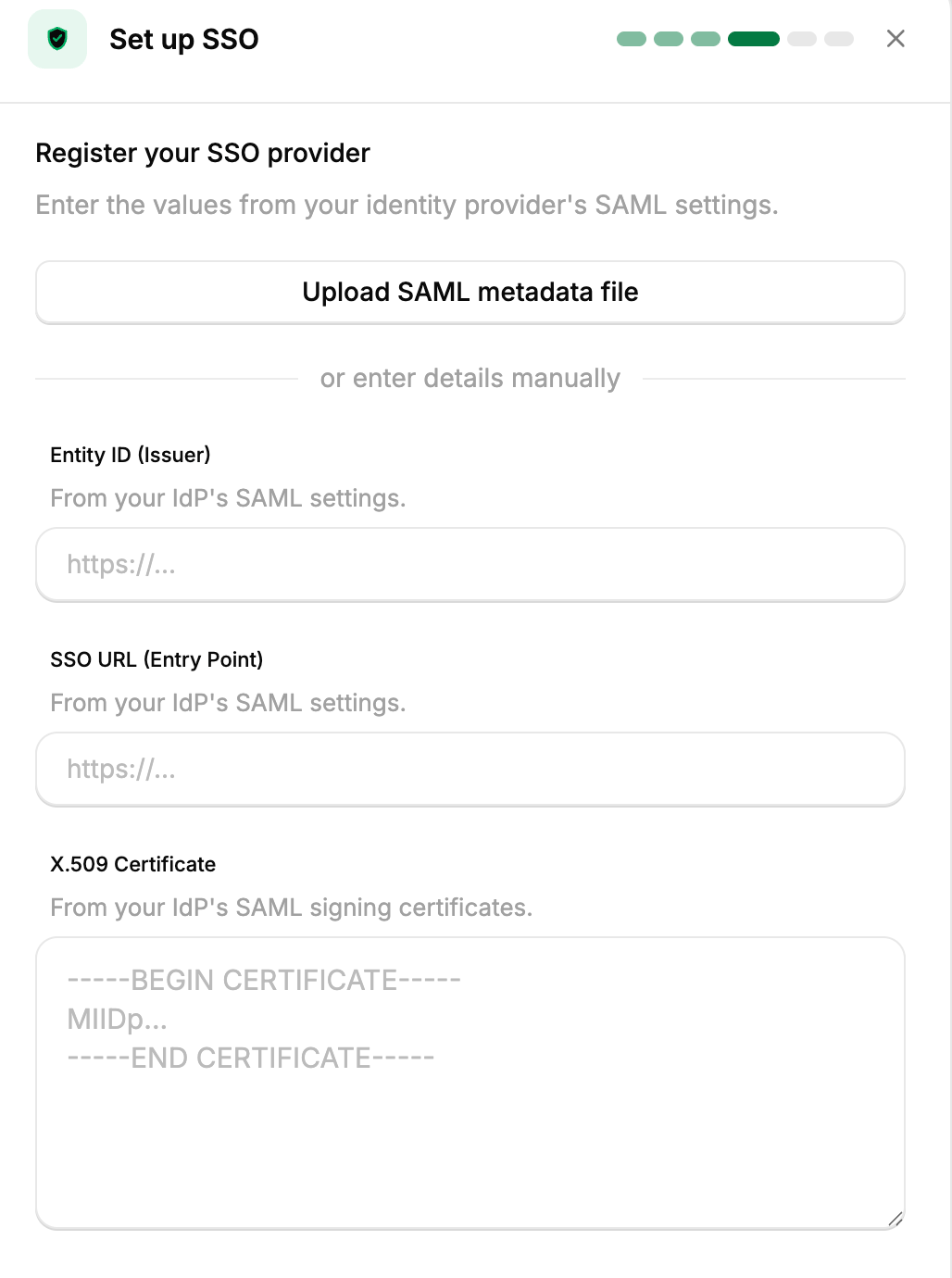
Return to the StackOne wizard's **Register your SSO provider** step and provide what you collected from Entra.
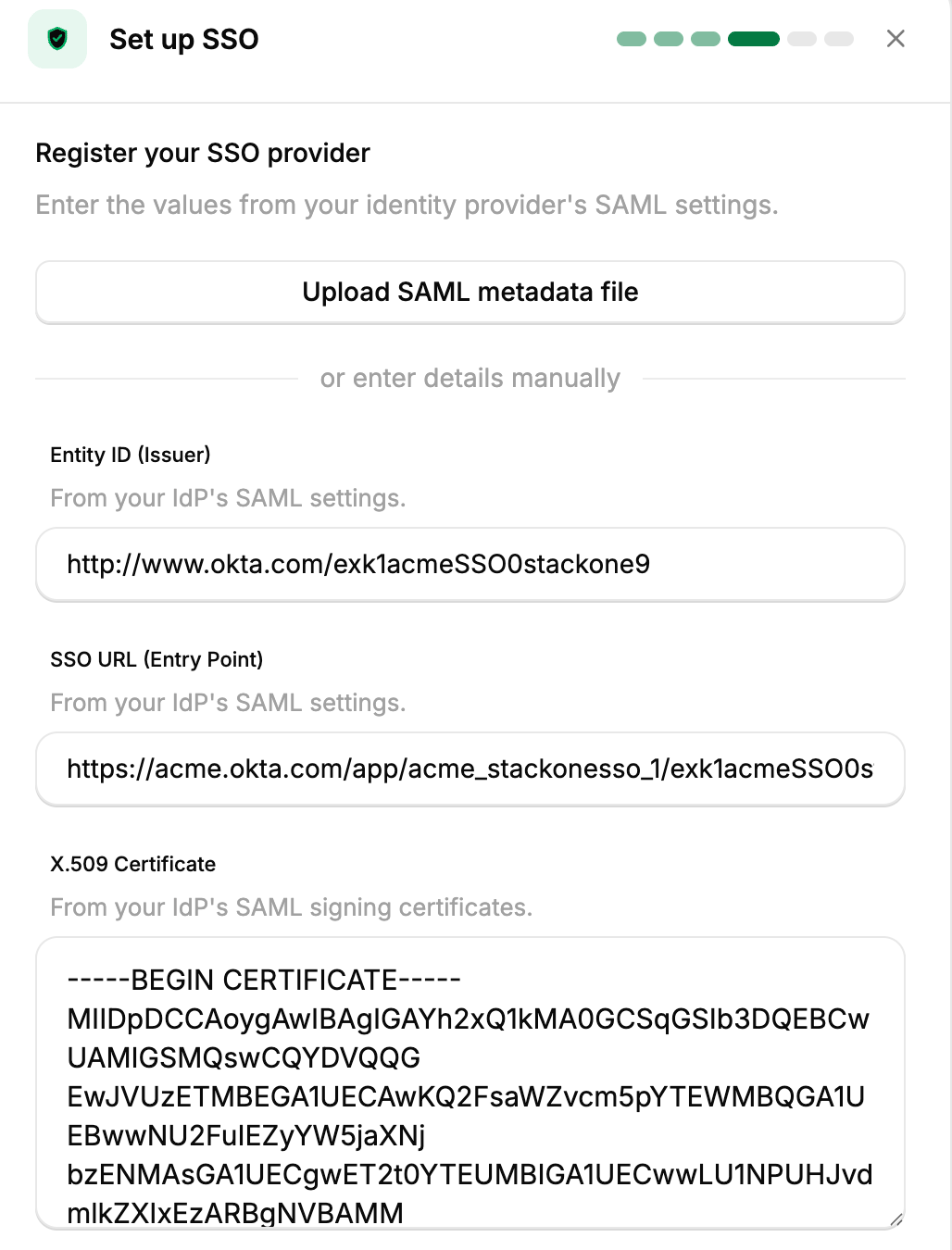
Select **Upload SAML metadata file** and choose the **Federation Metadata XML** you downloaded. StackOne reads the issuer, entry point, and certificate from it. To enter them by hand instead, fill each field:
* **Entity ID (Issuer)**: the **Microsoft Entra Identifier**.
* **SSO URL (Entry Point)**: the **Login URL**.
* **X.509 Certificate**: the **Certificate (Base64)** contents.
Go to **Users and groups**, select **Add user/group**, and assign the people or groups who should sign in to StackOne through Entra. Only assigned users can complete SSO.
## Complete the SSO registration in StackOne
Return to the StackOne wizard's **Register your SSO provider** step and provide what you collected from Entra.
Select **Upload SAML metadata file** and choose the **Federation Metadata XML** you downloaded. StackOne reads the issuer, entry point, and certificate from it. To enter them by hand instead, fill each field:
* **Entity ID (Issuer)**: the **Microsoft Entra Identifier**.
* **SSO URL (Entry Point)**: the **Login URL**.
* **X.509 Certificate**: the **Certificate (Base64)** contents.
 Review the values and select **Continue**. StackOne saves the connection and moves to the **Verify your domain** step with the domain verification record.
 ## Verify your domain
StackOne activates the connection only after you prove you own `acme.com`. Verification also lets StackOne link Entra sign-ins to existing members by email.
On the **Verify your domain** step, StackOne shows the record as two copyable fields, **Name** and **Value**. The **Value** has this form, with your connection's ID and token filled in:
```
_stackone-sso-verification-token-{providerId}={token}
```
## Verify your domain
StackOne activates the connection only after you prove you own `acme.com`. Verification also lets StackOne link Entra sign-ins to existing members by email.
On the **Verify your domain** step, StackOne shows the record as two copyable fields, **Name** and **Value**. The **Value** has this form, with your connection's ID and token filled in:
```
_stackone-sso-verification-token-{providerId}={token}
```
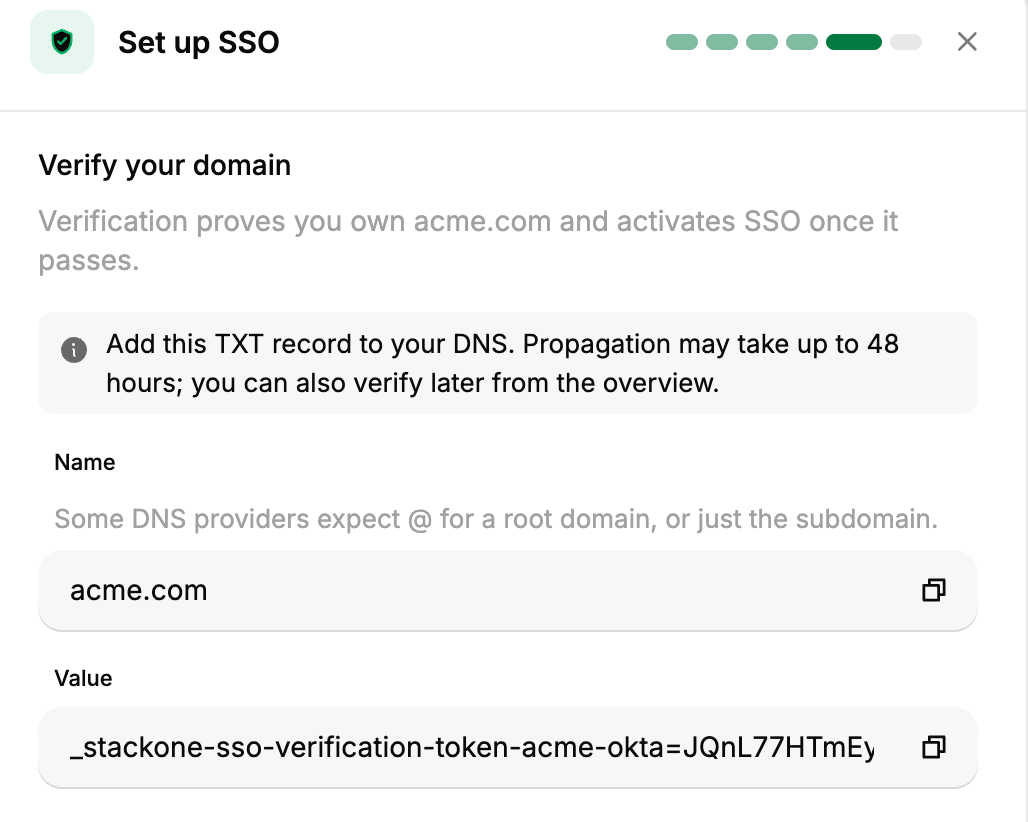 In your domain's DNS panel, add a TXT record:
* **Name/Host**: your registered domain, which is `@` for the root of `acme.com`, or the subdomain label if the email domain is a subdomain. This matches the **Name** field StackOne shows.
* **Value**: the full **Value** record from the previous step.
How you add the value depends on your DNS provider. Cloudflare lets you add a separate TXT record at the same name. AWS Route 53 and Google Cloud DNS keep one TXT record set per name, so add the token as a new value on its own line rather than appending it to an existing string such as your SPF record.
DNS propagation can take up to 48 hours, though it often completes within minutes. Check what is publicly visible with [Google Admin Toolbox Dig](https://toolbox.googleapps.com/apps/dig/#TXT/).
Back in StackOne, select **Verify**. Once the record resolves, the connection is active and members with `@acme.com` addresses are redirected to Entra at sign-in. If you would rather finish later, select **Verify Later** and run verification from the connection overview once DNS has propagated.
## Manage the connection
The connection is listed on the **SSO** tab under **Organization > Security > SSO**. Open it to see the connection overview.
The **General** tab is where you maintain the connection after setup:
* Select **Edit SAML** to update the identity provider values, either by re-uploading the **Federation Metadata XML** or by editing the **Entity ID (Issuer)**, **SSO URL (Entry Point)**, and **X.509 Certificate** directly.
* Select **Edit Domain** to change the trusted domain. Changing it resets verification, so members stop being redirected until you re-verify, and you can't change it while SSO is enforced (turn off enforcement on the **Authentication** tab first). Select **Verify** while the domain is still unverified.
From the connection's page header:
* **Settings** edits the **Connection name**. The **Provider ID** is generated at setup and can't be changed.
* **Delete** removes the SSO connection. It's disabled while SSO is enforced, so turn off enforcement on the **Authentication** tab first. Deleting also removes any Directory Sync (SCIM) linked to this connection.
To require SSO, open the **Authentication** tab and, in the **Enforcement Policy** card, add this connection's SAML method under **Enforced methods**, then save. Members can then sign in only with the selected methods, which turns off email and password sign-in.
Deleting the connection sends members on `acme.com` back to email and password sign-in. Make sure they have another way in before you remove it.
After the domain is verified, add Directory Sync (SCIM) from the **Provisioning** tab to create, update, and deactivate members from Entra automatically. Directory Sync provisions members (users) only. It does not sync your Entra groups into StackOne. See the [Directory Sync overview](/identity/scim/overview).
## Troubleshooting
| Symptom | Likely cause | Fix |
| ------------------------------------------------------- | ------------------------------------------------------------------------------------------------------------- | ------------------------------------------------------------------------------------------------------------------------------------------------------------------------------------------------------------------ |
| SSO option not visible | SSO isn't enabled for your organization. | Contact StackOne support to enable it. |
| Sign-in fails with "Unable to extract user ID or email" | The Name ID is empty because `user.mail` isn't set for that user. | Populate `user.mail`, or set the Name ID source to `user.userprincipalname` if it matches the user's email. |
| `ERROR_UNMATCH_CERTIFICATE_DECLARATION_IN_METADATA` | The registered certificate doesn't match the one Entra signs with, usually after Entra rotated or renewed it. | Download a fresh **Federation Metadata XML** (or **Certificate (Base64)**) from **SAML Certificates** and update it via **Edit SAML**. Entra signing certificates expire on a schedule, roughly every three years. |
| `ERR_UNMATCH_ISSUER` | The **Entity ID (Issuer)** doesn't match the issuer Entra sends. | Copy the **Microsoft Entra Identifier** and update it via **Edit SAML**. |
| "Provider domain has not been verified" | Domain verification hasn't completed. | Finish [Verify your domain](#verify-your-domain). |
| "Another organization has already verified this domain" | A domain can be verified by one organization at a time. | The organization holding it deletes its SSO connection to release the domain. Contact StackOne support if you don't know which one holds it. |
| Verification keeps failing | The TXT record is on the wrong name, not its own value, or DNS hasn't propagated. | Use `@` for a root domain or the subdomain label otherwise, add the token as its own TXT value, and check propagation with [Dig](https://toolbox.googleapps.com/apps/dig/#TXT/). |
| Members not redirected to Entra | The domain isn't verified, or the user isn't assigned in Entra. | Verify the domain, and confirm the user is under **Users and groups** on the enterprise application. |
| `403 Forbidden` when opening SSO | You lack the **Org Admin** role. | Ask an Org Admin to make the change or to grant you the role. |
## Next steps
See how SSO, domain verification, and Directory Sync fit together.
Set up the same SAML connection with Okta instead of Entra.
Connect any other identity provider that supports SAML 2.0.
In your domain's DNS panel, add a TXT record:
* **Name/Host**: your registered domain, which is `@` for the root of `acme.com`, or the subdomain label if the email domain is a subdomain. This matches the **Name** field StackOne shows.
* **Value**: the full **Value** record from the previous step.
How you add the value depends on your DNS provider. Cloudflare lets you add a separate TXT record at the same name. AWS Route 53 and Google Cloud DNS keep one TXT record set per name, so add the token as a new value on its own line rather than appending it to an existing string such as your SPF record.
DNS propagation can take up to 48 hours, though it often completes within minutes. Check what is publicly visible with [Google Admin Toolbox Dig](https://toolbox.googleapps.com/apps/dig/#TXT/).
Back in StackOne, select **Verify**. Once the record resolves, the connection is active and members with `@acme.com` addresses are redirected to Entra at sign-in. If you would rather finish later, select **Verify Later** and run verification from the connection overview once DNS has propagated.
## Manage the connection
The connection is listed on the **SSO** tab under **Organization > Security > SSO**. Open it to see the connection overview.
The **General** tab is where you maintain the connection after setup:
* Select **Edit SAML** to update the identity provider values, either by re-uploading the **Federation Metadata XML** or by editing the **Entity ID (Issuer)**, **SSO URL (Entry Point)**, and **X.509 Certificate** directly.
* Select **Edit Domain** to change the trusted domain. Changing it resets verification, so members stop being redirected until you re-verify, and you can't change it while SSO is enforced (turn off enforcement on the **Authentication** tab first). Select **Verify** while the domain is still unverified.
From the connection's page header:
* **Settings** edits the **Connection name**. The **Provider ID** is generated at setup and can't be changed.
* **Delete** removes the SSO connection. It's disabled while SSO is enforced, so turn off enforcement on the **Authentication** tab first. Deleting also removes any Directory Sync (SCIM) linked to this connection.
To require SSO, open the **Authentication** tab and, in the **Enforcement Policy** card, add this connection's SAML method under **Enforced methods**, then save. Members can then sign in only with the selected methods, which turns off email and password sign-in.
Deleting the connection sends members on `acme.com` back to email and password sign-in. Make sure they have another way in before you remove it.
After the domain is verified, add Directory Sync (SCIM) from the **Provisioning** tab to create, update, and deactivate members from Entra automatically. Directory Sync provisions members (users) only. It does not sync your Entra groups into StackOne. See the [Directory Sync overview](/identity/scim/overview).
## Troubleshooting
| Symptom | Likely cause | Fix |
| ------------------------------------------------------- | ------------------------------------------------------------------------------------------------------------- | ------------------------------------------------------------------------------------------------------------------------------------------------------------------------------------------------------------------ |
| SSO option not visible | SSO isn't enabled for your organization. | Contact StackOne support to enable it. |
| Sign-in fails with "Unable to extract user ID or email" | The Name ID is empty because `user.mail` isn't set for that user. | Populate `user.mail`, or set the Name ID source to `user.userprincipalname` if it matches the user's email. |
| `ERROR_UNMATCH_CERTIFICATE_DECLARATION_IN_METADATA` | The registered certificate doesn't match the one Entra signs with, usually after Entra rotated or renewed it. | Download a fresh **Federation Metadata XML** (or **Certificate (Base64)**) from **SAML Certificates** and update it via **Edit SAML**. Entra signing certificates expire on a schedule, roughly every three years. |
| `ERR_UNMATCH_ISSUER` | The **Entity ID (Issuer)** doesn't match the issuer Entra sends. | Copy the **Microsoft Entra Identifier** and update it via **Edit SAML**. |
| "Provider domain has not been verified" | Domain verification hasn't completed. | Finish [Verify your domain](#verify-your-domain). |
| "Another organization has already verified this domain" | A domain can be verified by one organization at a time. | The organization holding it deletes its SSO connection to release the domain. Contact StackOne support if you don't know which one holds it. |
| Verification keeps failing | The TXT record is on the wrong name, not its own value, or DNS hasn't propagated. | Use `@` for a root domain or the subdomain label otherwise, add the token as its own TXT value, and check propagation with [Dig](https://toolbox.googleapps.com/apps/dig/#TXT/). |
| Members not redirected to Entra | The domain isn't verified, or the user isn't assigned in Entra. | Verify the domain, and confirm the user is under **Users and groups** on the enterprise application. |
| `403 Forbidden` when opening SSO | You lack the **Org Admin** role. | Ask an Org Admin to make the change or to grant you the role. |
## Next steps
See how SSO, domain verification, and Directory Sync fit together.
Set up the same SAML connection with Okta instead of Entra.
Connect any other identity provider that supports SAML 2.0.