> ## Documentation Index
> Fetch the complete documentation index at: https://docs.stackone.com/llms.txt
> Use this file to discover all available pages before exploring further.
# Groups
> Grant many users the same project or account access at once with reusable groups.
A group is a reusable set of users you grant access to as a unit. Create a `Finance` group once, add your finance team to it, then give that group access to a project or account in a single step.
Groups keep that access in one place. Add or remove a person and their access updates everywhere the group is assigned. Change the group's role on a project and it applies to everyone in the group at once.
## How groups grant access
Membership and access are separate. A user's access comes from the **role** you choose when you assign the group to a project or account, not from the group itself.
Adding a user to a group grants them nothing on its own. Access starts when you assign the group to a project or account and choose a role there.
Because the role lives on the assignment, one group can carry different access in different places. The same `Finance` group can be **Project Admin** on one project and **Project Viewer** on another. Assign it to as many projects and accounts as you need, each with its own role. See [Assigning access](/identity/groups/assigning-access) for the roles available on projects and accounts.
## Prerequisites
* **Org Admin** role in your StackOne organization. Groups are managed at the organization level, so members without the **Org Admin** role don't see the tab.
* **Groups enabled for your organization.** Groups is turned on per organization, separately from your role. The **Org Admin** role alone isn't enough.
Groups is enabled per organization. If you're an **Org Admin** and still don't see the **Groups** tab in **Organization > Manage Team**, or the **Members / Groups** switch on a project's **Access** page, contact StackOne support to turn it on for your organization.
## Find your groups
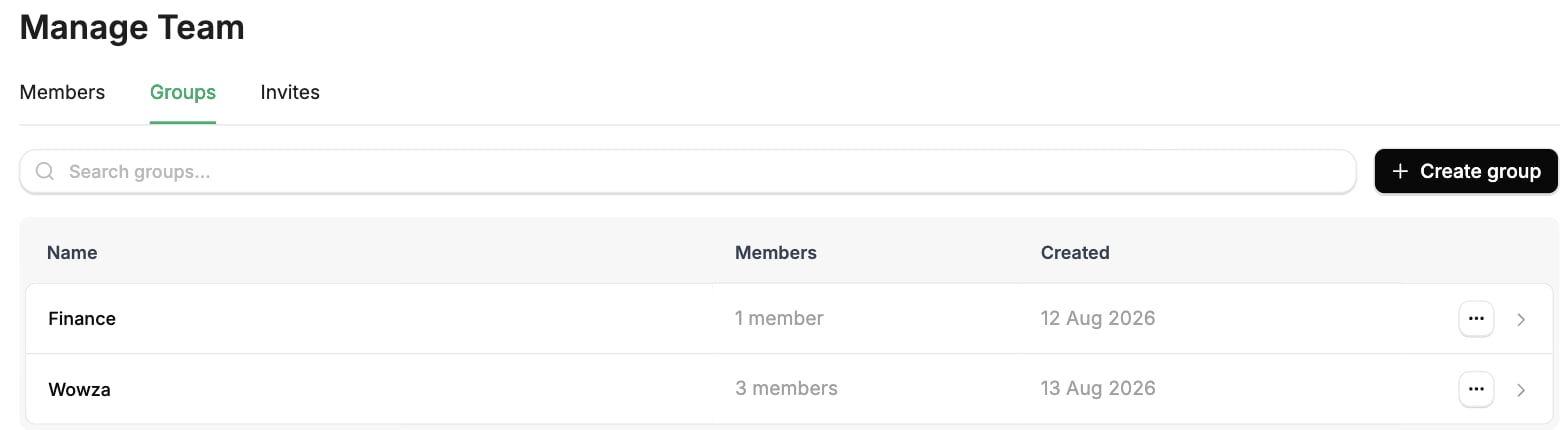
In the StackOne dashboard, go to **Organization > Manage Team**. This is where **Org Admins** manage members and groups for the organization.
Select the **Groups** tab. It lists every group in your organization with its current member count.
 ## Working with groups
Working with a group has two parts:
* **Manage membership.** Add or remove the group's members. They inherit whatever the group is assigned, everywhere it's assigned.
* **Assign access.** Give the group a role on a project or account. This is the step that grants access.
## Next steps
Create groups and manage who belongs to them.
Grant a group access to a project or account and set its role.
Let members sign in through your SAML identity provider.
Provision and deactivate members automatically from your IdP.
## Working with groups
Working with a group has two parts:
* **Manage membership.** Add or remove the group's members. They inherit whatever the group is assigned, everywhere it's assigned.
* **Assign access.** Give the group a role on a project or account. This is the step that grants access.
## Next steps
Create groups and manage who belongs to them.
Grant a group access to a project or account and set its role.
Let members sign in through your SAML identity provider.
Provision and deactivate members automatically from your IdP.