> ## Documentation Index
> Fetch the complete documentation index at: https://docs.stackone.com/llms.txt
> Use this file to discover all available pages before exploring further.
# Assign Group Access
> Assign a group to a project or account with a role to grant its members access.
A group grants access when you assign it to a project or an account and give the assignment a role. Every member of the group inherits that role on the resource, and the grant tracks the group's membership as people join or leave.
The role lives on the assignment, not the group, so the same group can be a **Project Admin** on one project and a **Project Viewer** on another. Assign a group to a project first. Assigning it to a specific account is optional, and only possible once the group is on that account's parent project.
## Prerequisites
* A group in your organization. Create and populate one on the **Groups** tab of **Organization > Manage Team**, covered in [Manage Groups](/identity/groups/managing-groups).
* **Org Admin**, or **Project Admin** on the project, to assign a group to a project.
* Account **Admin** on the account to assign a group to it. Organization and project admins have this by default, so they can assign account groups without an extra grant. If your organization uses **explicit account access**, org and project admins instead need an explicit account **Admin** grant on the account (see [How access resolves](#how-access-resolves)).
Groups is enabled per organization, separately from your role. If you're an **Org Admin** and don't see the **Members / Groups** switch on a project's **Access** page or an account's **Access** tab, or the **Groups** tab in **Organization > Manage Team**, contact StackOne support to turn it on for your organization.
## Assign a group to a project
Go to **Project Settings > Access** and switch the view from **Members** to **Groups**. The **Groups** view lists every group that already grants access to this project.
 Click **Add Groups**, select one or more groups, then choose a **Role**. The picker offers only groups not already on the project.
| Role | Grants |
| ------------------ | ------------------------------------------------------------- |
| **Project Admin** | Full control of the project, its connections and its members. |
| **Project Member** | Can use the project and manage their own connected accounts. |
| **Project Viewer** | Read-only access to the project. |
The role defaults to **Project Member**.
Click **Add Groups**, select one or more groups, then choose a **Role**. The picker offers only groups not already on the project.
| Role | Grants |
| ------------------ | ------------------------------------------------------------- |
| **Project Admin** | Full control of the project, its connections and its members. |
| **Project Member** | Can use the project and manage their own connected accounts. |
| **Project Viewer** | Read-only access to the project. |
The role defaults to **Project Member**.
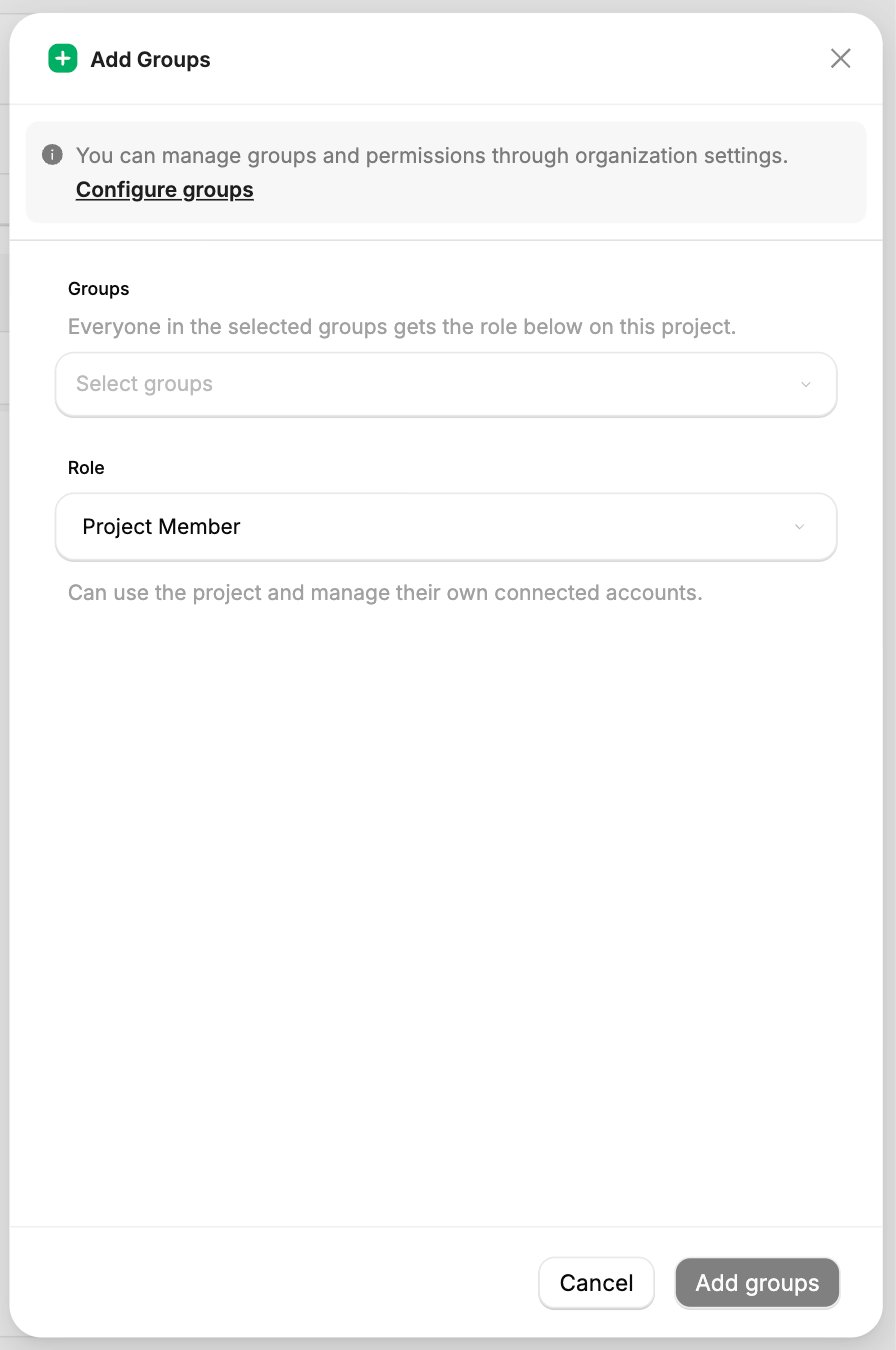 Click **Add groups** to confirm. Every member of each selected group gains the chosen role on the project.
## Assign a group to an account
Account access is a subset of project access, so you can assign a group to an account only after it is assigned to that account's parent project. If a group is missing from the account picker, assign it to the project first.
Open the account and go to its **Access** tab, then switch to **Groups**. The **Groups** view lists every group assigned directly to this account.
This view lists only groups assigned **directly** to the account. Groups assigned to the parent project also grant access here, see [How access resolves](#how-access-resolves), but they're shown and managed on the project's **Access** view, not here.
Click **Add Groups**, select one or more groups, then choose a **Role**. The picker offers only groups already assigned to the account's parent project.
| Role | Grants |
| ---------- | ---------------------------------------------------------- |
| **Admin** | Full control of the account, its settings and its members. |
| **Member** | Can use the account and execute actions. |
| **Viewer** | Read-only access to the account. |
The role defaults to **Member**.
Click **Add groups** to confirm. Every member of each selected group gains the chosen role on the account.
## How access resolves
A user's effective role on a resource is the **strongest** role they hold there. A group grant can only raise a user's access, never lower it: a **Project Viewer** who also belongs to a group assigned as **Project Admin** has **Project Admin** on that project, while a group assigned a weaker role than someone's direct membership leaves that person unchanged. This lets you add a group broadly without demoting anyone.
Click **Add groups** to confirm. Every member of each selected group gains the chosen role on the project.
## Assign a group to an account
Account access is a subset of project access, so you can assign a group to an account only after it is assigned to that account's parent project. If a group is missing from the account picker, assign it to the project first.
Open the account and go to its **Access** tab, then switch to **Groups**. The **Groups** view lists every group assigned directly to this account.
This view lists only groups assigned **directly** to the account. Groups assigned to the parent project also grant access here, see [How access resolves](#how-access-resolves), but they're shown and managed on the project's **Access** view, not here.
Click **Add Groups**, select one or more groups, then choose a **Role**. The picker offers only groups already assigned to the account's parent project.
| Role | Grants |
| ---------- | ---------------------------------------------------------- |
| **Admin** | Full control of the account, its settings and its members. |
| **Member** | Can use the account and execute actions. |
| **Viewer** | Read-only access to the account. |
The role defaults to **Member**.
Click **Add groups** to confirm. Every member of each selected group gains the chosen role on the account.
## How access resolves
A user's effective role on a resource is the **strongest** role they hold there. A group grant can only raise a user's access, never lower it: a **Project Viewer** who also belongs to a group assigned as **Project Admin** has **Project Admin** on that project, while a group assigned a weaker role than someone's direct membership leaves that person unchanged. This lets you add a group broadly without demoting anyone.
 On a **project**, the effective role is the strongest of a user's direct project membership and every group they belong to that is assigned to the project.
On an **account**, the effective role is the strongest of those same two sources **and** the access inherited from the account's parent project. This inheritance is easy to miss in an access review: an account with no direct members is rarely as restricted as its **Members** list suggests.
| Their standing | Inherited account role |
| --------------------------------------------------------------- | ---------------------------------------------- |
| Organization Admin | **Admin** on every account in the organization |
| **Project Admin** on the project (directly or through a group) | **Admin** on every account under that project |
| **Project Viewer** on the project (directly or through a group) | **Viewer** on every account under that project |
| **Project Member** on the project | No inherited account access |
A direct account grant or an account-level group can raise this, never lower it.
If your organization uses **explicit account access**, organization and project admins get read-only account access by default instead of **Admin**. Executing actions then needs an explicit account **Member** grant, and reconnecting, editing, deleting, or managing access needs an explicit account **Admin** grant. Everything else on this page works the same.
Only active organization members inherit a group's role. A user who is banned or removed from the organization stops inheriting group access until they are restored, even though the group assignment stays in place.
## Change or remove a group's access
To change a group's role, open the **Groups** view on the project or account and pick a new role on the group's row. To revoke the access, click **Revoke** on the group's row and confirm.
Removing a group from a project also removes it from every account under that project, because account access is a subset of project access. Removing a group from a single account leaves its project assignment intact.
If a group is the only thing granting you access to a project, you can't revoke it yourself, StackOne blocks the removal so you don't lock yourself out. Ask an organization admin to make the change.
## Next steps
What groups are and how they grant access.
Create groups and manage who belongs to them.
On a **project**, the effective role is the strongest of a user's direct project membership and every group they belong to that is assigned to the project.
On an **account**, the effective role is the strongest of those same two sources **and** the access inherited from the account's parent project. This inheritance is easy to miss in an access review: an account with no direct members is rarely as restricted as its **Members** list suggests.
| Their standing | Inherited account role |
| --------------------------------------------------------------- | ---------------------------------------------- |
| Organization Admin | **Admin** on every account in the organization |
| **Project Admin** on the project (directly or through a group) | **Admin** on every account under that project |
| **Project Viewer** on the project (directly or through a group) | **Viewer** on every account under that project |
| **Project Member** on the project | No inherited account access |
A direct account grant or an account-level group can raise this, never lower it.
If your organization uses **explicit account access**, organization and project admins get read-only account access by default instead of **Admin**. Executing actions then needs an explicit account **Member** grant, and reconnecting, editing, deleting, or managing access needs an explicit account **Admin** grant. Everything else on this page works the same.
Only active organization members inherit a group's role. A user who is banned or removed from the organization stops inheriting group access until they are restored, even though the group assignment stays in place.
## Change or remove a group's access
To change a group's role, open the **Groups** view on the project or account and pick a new role on the group's row. To revoke the access, click **Revoke** on the group's row and confirm.
Removing a group from a project also removes it from every account under that project, because account access is a subset of project access. Removing a group from a single account leaves its project assignment intact.
If a group is the only thing granting you access to a project, you can't revoke it yourself, StackOne blocks the removal so you don't lock yourself out. Ask an organization admin to make the change.
## Next steps
What groups are and how they grant access.
Create groups and manage who belongs to them.