> ## Documentation Index
> Fetch the complete documentation index at: https://docs.stackone.com/llms.txt
> Use this file to discover all available pages before exploring further.
# User Settings
> Manage your profile, change your password, and configure multi-factor authentication
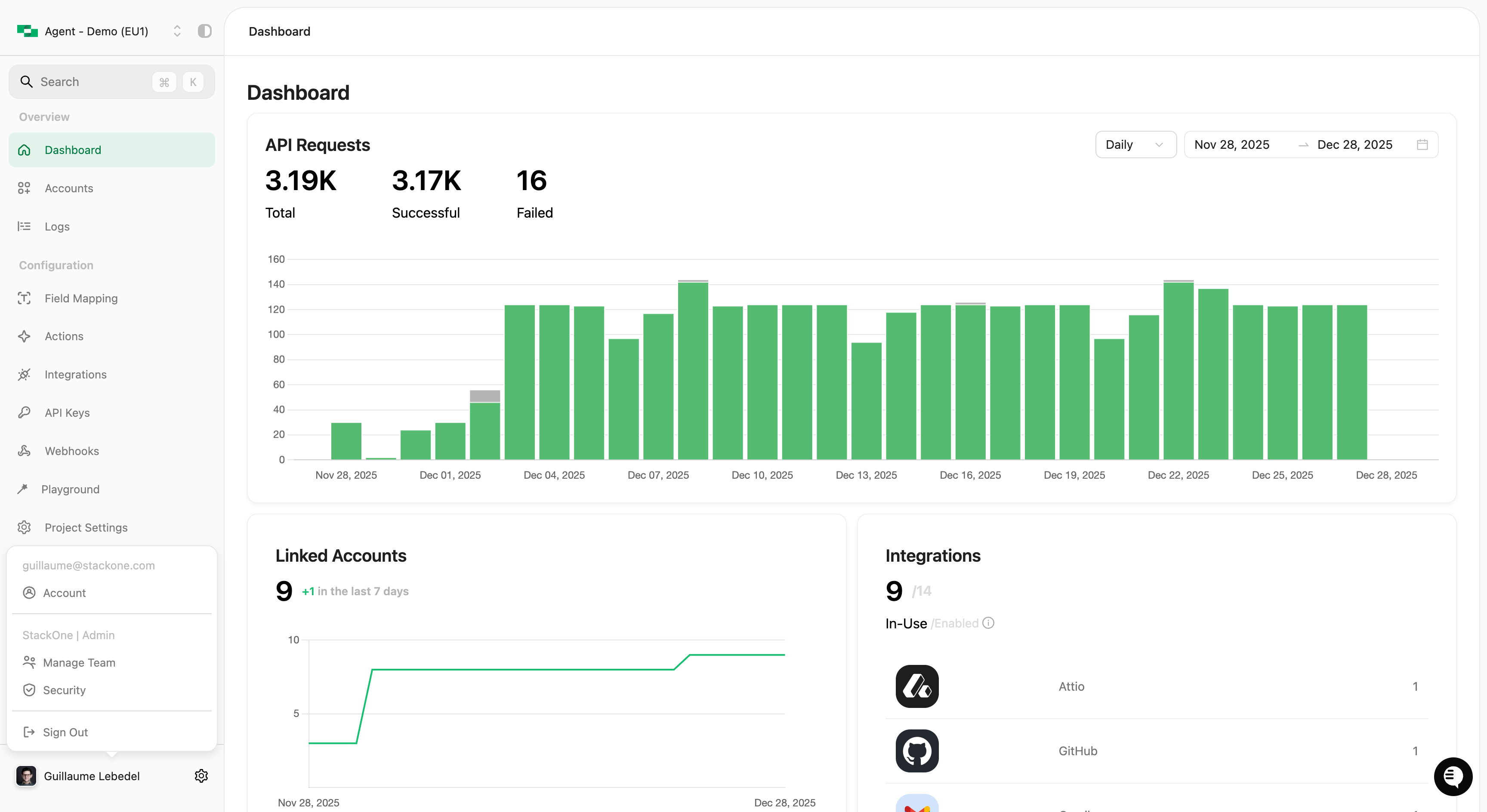
Access your personal settings by clicking your name in the bottom-left corner of the dashboard.
 ## Your Profile
The **Account** settings page displays your profile information:
| Field | Description |
| ----------------- | ----------------------------- |
| **Name** | Your display name (read-only) |
| **Email Address** | Your login email (read-only) |
| **Joined** | When you created your account |
To change your name or email, contact your organization administrator or StackOne support.
## Change Password
1. Click **Change Password** in your account settings
2. Enter your current password
3. Enter and confirm your new password
4. Click **Save**
Use a strong, unique password. Consider using a password manager like 1Password or Bitwarden.
## Multi-Factor Authentication
Add an extra layer of security to your account with MFA:
1. Click **Enable Multi-Factor Authentication**
2. Scan the QR code with your authenticator app (Google Authenticator, Microsoft Authenticator, 1Password, etc.)
3. Enter the 6-digit code from your authenticator
4. Click **Confirm**
If your organization has enforced MFA, you'll be required to set it up on your next login.
## Sign Out
Click **Sign Out** from the user menu to end your session. You'll be redirected to the login page.
***
## Related
Team management and organization security (Org Admins only)
Create and manage API keys for your projects
## Your Profile
The **Account** settings page displays your profile information:
| Field | Description |
| ----------------- | ----------------------------- |
| **Name** | Your display name (read-only) |
| **Email Address** | Your login email (read-only) |
| **Joined** | When you created your account |
To change your name or email, contact your organization administrator or StackOne support.
## Change Password
1. Click **Change Password** in your account settings
2. Enter your current password
3. Enter and confirm your new password
4. Click **Save**
Use a strong, unique password. Consider using a password manager like 1Password or Bitwarden.
## Multi-Factor Authentication
Add an extra layer of security to your account with MFA:
1. Click **Enable Multi-Factor Authentication**
2. Scan the QR code with your authenticator app (Google Authenticator, Microsoft Authenticator, 1Password, etc.)
3. Enter the 6-digit code from your authenticator
4. Click **Confirm**
If your organization has enforced MFA, you'll be required to set it up on your next login.
## Sign Out
Click **Sign Out** from the user menu to end your session. You'll be redirected to the login page.
***
## Related
Team management and organization security (Org Admins only)
Create and manage API keys for your projects