> ## Documentation Index
> Fetch the complete documentation index at: https://docs.stackone.com/llms.txt
> Use this file to discover all available pages before exploring further.
# Request Logs
> Monitor and troubleshoot API requests with StackOne's request logs. View detailed information about API calls, filter by various parameters, and analyze both unified API requests and underlying provider interactions.
StackOne registers relevant information of requests made to the connected provider to fulfill any Unified API requests it receives. This can be useful for:
* Debugging issues with a particular account or integration
* Auditing the operations StackOne performs on your behalf
The [Request Logs](https://app.stackone.com/request_logs) page offers efficient find, filter, and analysis of API requests and HTTP status codes.
> ⏳ logs are only persisted up to 90 days after the original request occurred.
## Troubleshooting via Request Logs
When you execute an API query and want to investigate an API response, that's when the realization comes – logs review is inevitable.
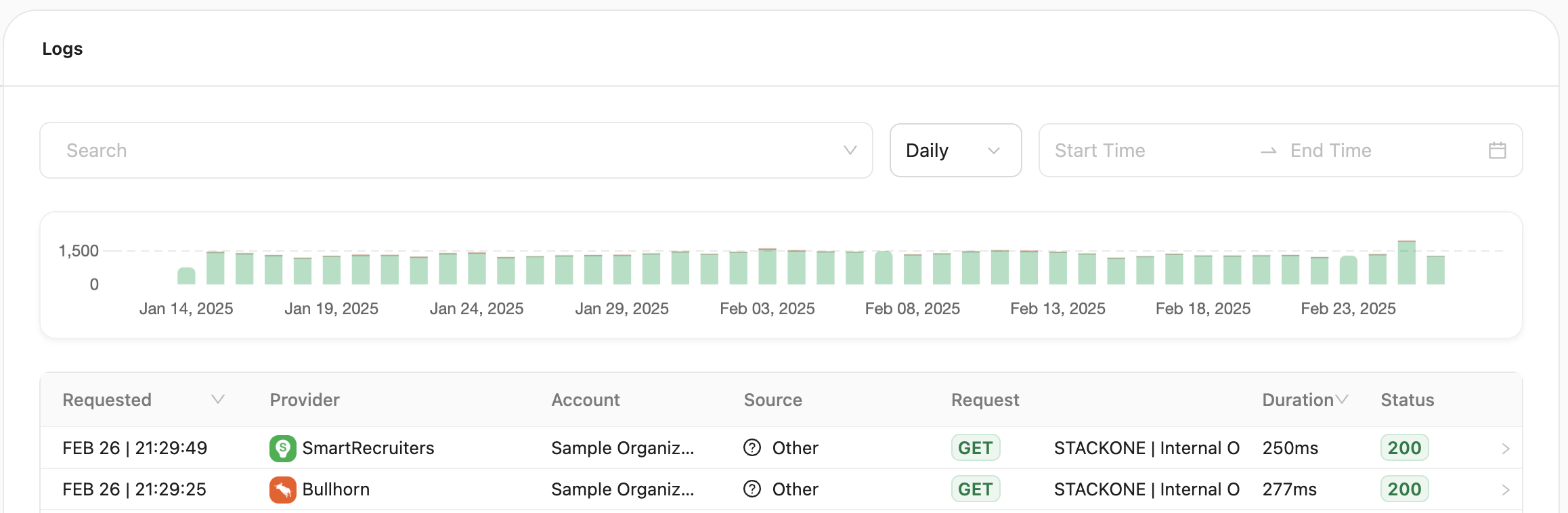
The page shows all requests made to the StackOne Unified API and also allows you to see all requests that StackOne made to the [underlying providers](https://www.stackone.com/integrations) to fulfill the unified request. By default, it shows the logs in descending order per when the request occurred.
**AI-Powered Error Analysis**: When you encounter errors in request logs, use the [Error Explainer](/guides/ai-features#error-explainer) to get AI-generated resolution steps. The Error Explainer analyzes error logs and provides actionable troubleshooting steps based on StackOne and provider documentation.
The possible filtering options are:
| Filter | Description | Example values |
| :------------------ | :--------------------------------------------------------------------------------------------------------------------------------------------------------------------------------------------------------------------------------------------------------- | :--------------------------------------------------------------- |
| Account | The linked accounts' `origin_owner_name` for the current project. You can also see & search within that filter for a specific provider in case multiple accounts have been linked for the same `origin_owner_name` | `Acme Inc.` `Sample Organization` |
| Provider | The specific integration (aka [Provider](https://app.stackone.com/field_coverage)) associated with the request | `Workday``Ashby``Salesforce` |
| Resource | The type of resource (and optionally sub resource requested and the action done on the resource. | `List Employees``Create Candidates Note``Get Applications Offer` |
| Source | The source that originated the request - specifically the type of source allowing you to filter for requests made via the StackOne U.I. or an API key | `API Request` `Dashboard UI` `Webhook` |
| Status | The response's [HTTP status code](https://developer.mozilla.org/en-US/docs/Web/HTTP/Status) - refer to additional documentation here regarding the meaning behind the [Unified API Error Codes](/guides/unified-api-error-codes-and-troubleshooting-guide) | `200` `201` `400` `404` `502` |
| Method | The HTTP method used to make the request | `post``get``patch` |
| Start/End date time | A date and time window | `Jan 01, 2023 01:01` |
New Features:
1. You can now investigate each successful request in detail by clicking ➡️ for the respective request. This request is coming from StackOne directly to Provider's API.
2. It's now possible to view the source of the request – Dashboard, Test Connection, or Other (Postman, API docs, etc).
3. Since all filters are now grouped inside 1 search bar, you can easily remove multiple filters by clicking ❌ on the search bar's hover-over.
## Accessing the request logs page
After configuring Account integration and testing its connection, you can also access its specific request logs directly by clicking the `View Logs` option in the ellipsis menu.
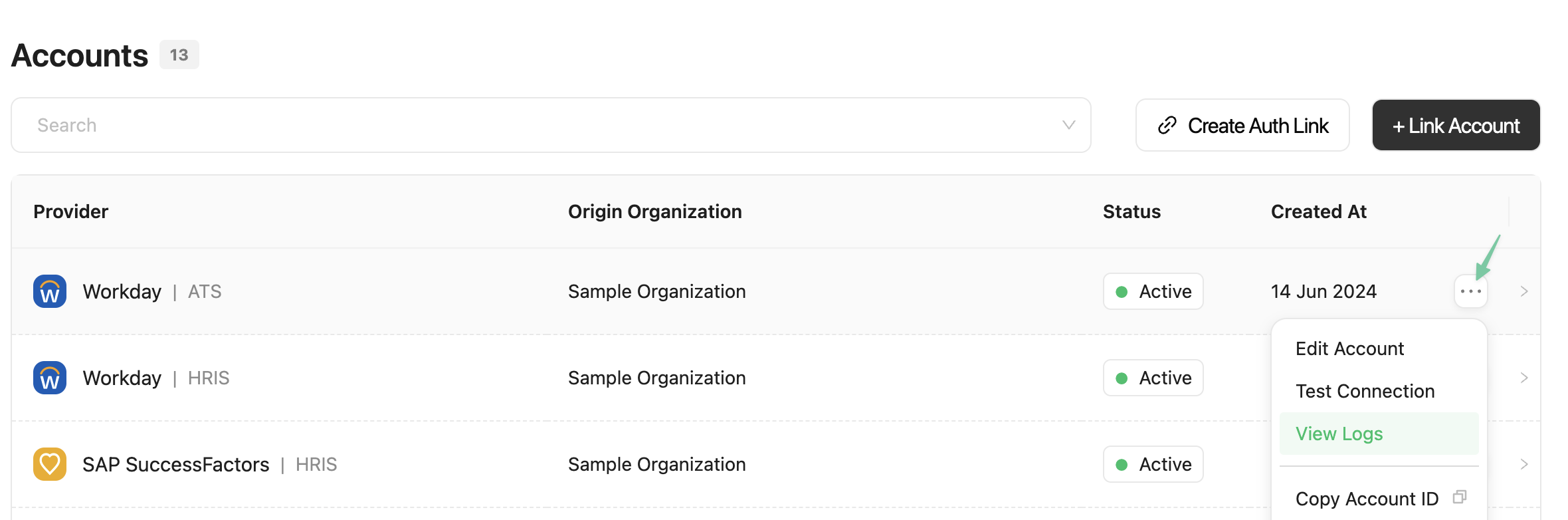
You will be redirected to the logs page with a filter pre-applied in the search bar
 ## Viewing Log Details
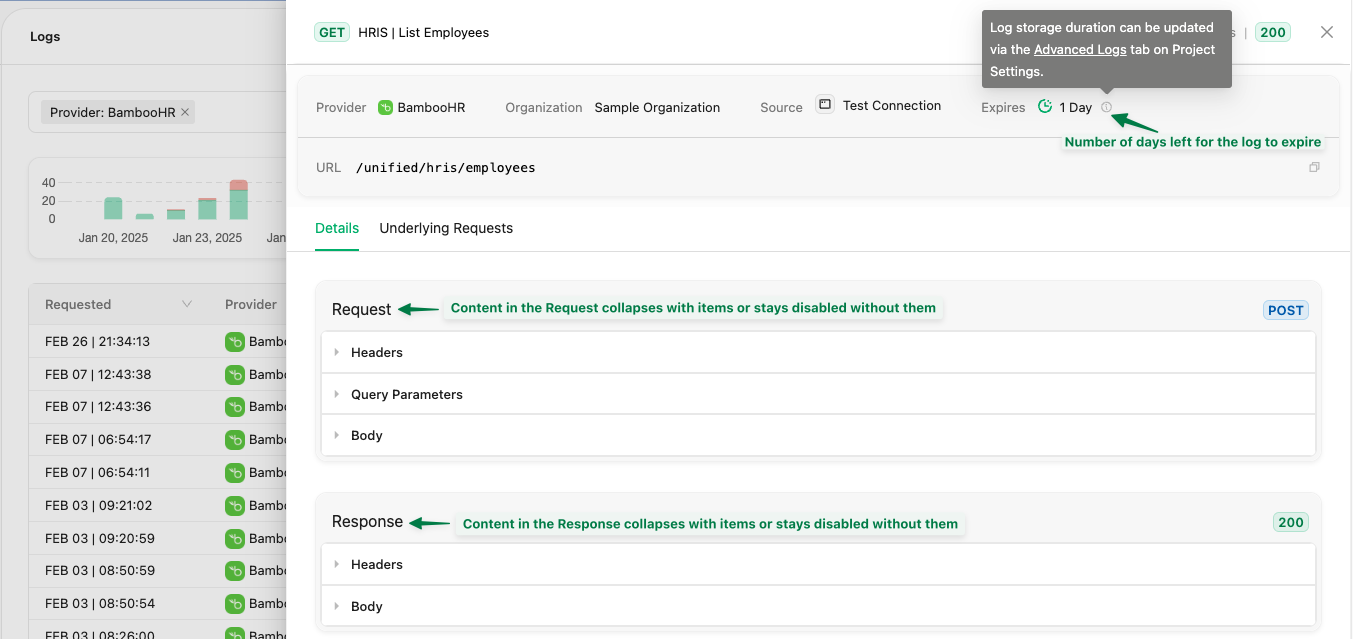
When you click on a log entry, a detailed view opens up with two tabs:
1. **Details**: Shows the details of the unified API request made to StackOne, including request/response headers, body, query parameters, and status.
> Note: Log storage duration can be configured in the [Advanced Logs](/guides/project-settings#advanced-logs) section of your Project Settings.
## Viewing Log Details
When you click on a log entry, a detailed view opens up with two tabs:
1. **Details**: Shows the details of the unified API request made to StackOne, including request/response headers, body, query parameters, and status.
> Note: Log storage duration can be configured in the [Advanced Logs](/guides/project-settings#advanced-logs) section of your Project Settings.
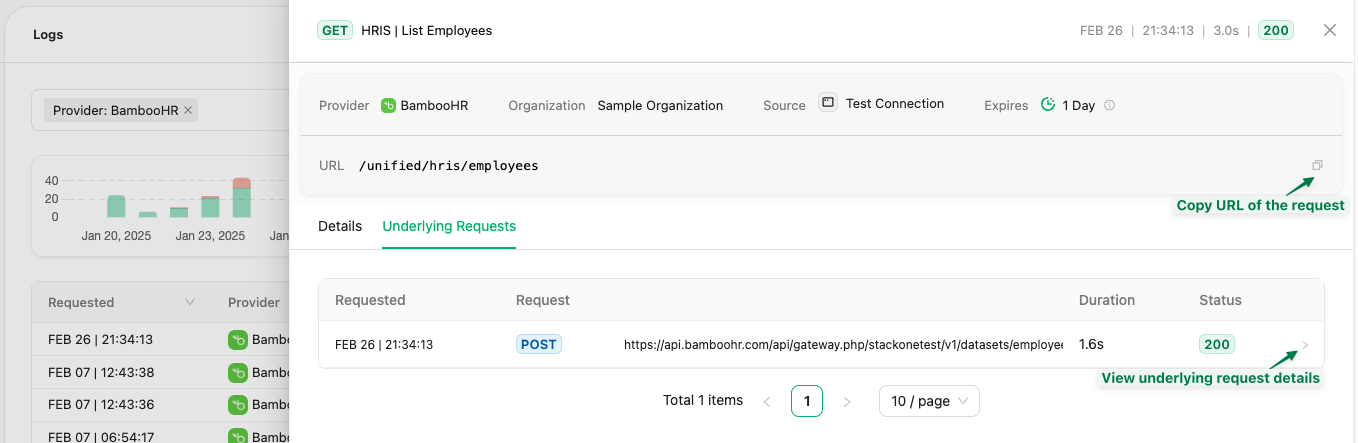
 2. **Underlying Requests**: Displays all API calls made to the provider's API to fulfill your unified request to enable better debugging.
 ***
## Programmatic Access via API
You can also access request logs programmatically using the Logs API endpoints. For debugging failed calls, see [Request Log Debugging](/api/request-logs-debugging). To build log dashboards, see [Request Log Dashboards](/api/request-log-dashboards).
**`POST /logs`**: List request logs with filters for accounts, connectors, and time range
**`GET /logs/actions/{actionRunId}`**: Get detail for a single request log
**`GET /logs/actions/{actionRunId}/steps`**: List connector execution steps for a request
**`GET /logs/actions/{actionRunId}/advanced`**: Get full request and response bodies
These APIs allow you to integrate log data into your monitoring, alerting, or analytics systems.
***
## Programmatic Access via API
You can also access request logs programmatically using the Logs API endpoints. For debugging failed calls, see [Request Log Debugging](/api/request-logs-debugging). To build log dashboards, see [Request Log Dashboards](/api/request-log-dashboards).
**`POST /logs`**: List request logs with filters for accounts, connectors, and time range
**`GET /logs/actions/{actionRunId}`**: Get detail for a single request log
**`GET /logs/actions/{actionRunId}/steps`**: List connector execution steps for a request
**`GET /logs/actions/{actionRunId}/advanced`**: Get full request and response bodies
These APIs allow you to integrate log data into your monitoring, alerting, or analytics systems.