> ## Documentation Index
> Fetch the complete documentation index at: https://docs.stackone.com/llms.txt
> Use this file to discover all available pages before exploring further.
# AI Playground
> Test StackOne actions with natural language. No code required. Inspect Defender risk signals on tool calls.
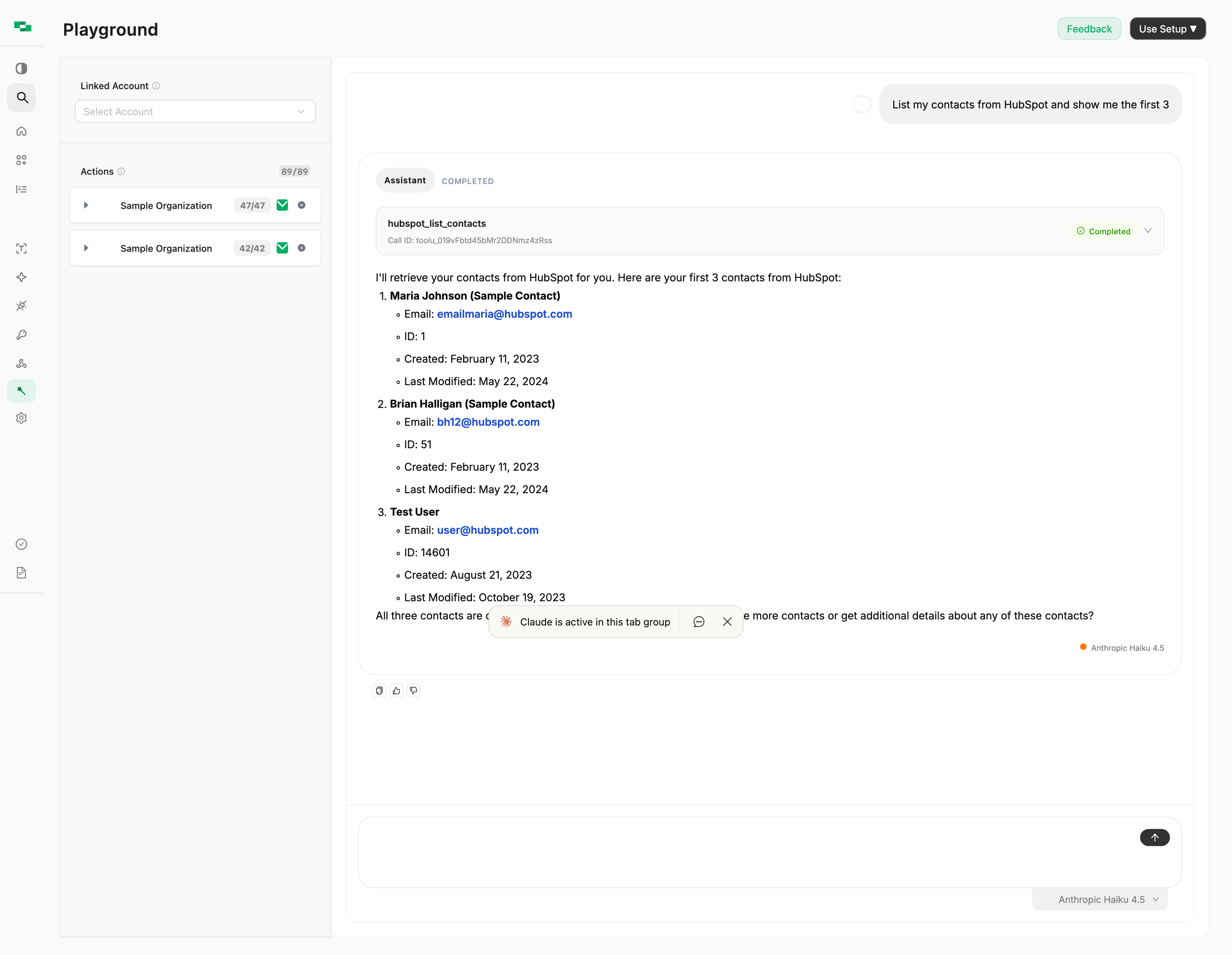
The [AI Playground](https://app.stackone.com/playground) lets you test any action from your linked accounts using natural language.
 **Testing tool, not a production agent.** The Playground is designed for quickly testing actions and exploring capabilities. For production use cases, build your own agent using our [MCP Server](/mcp/quickstart), [AI Toolset](/agents/typescript/introduction), or [A2A Protocol](/a2a/quickstart). See [Agent Protocols Comparison](/guides/calling-stackone-actions) for guidance.
**Access Required**: Contact StackOne support if you don't see the Playground in your dashboard.
## Getting Started
Click **Manage Action Sources** and select one or more linked accounts.
Expand the **Actions** section to enable/disable specific actions before chatting.
Ask questions like *"List 5 employees"* or *"What tools can I use?"*
You can change action selection mid-conversation — updates take effect on the next message.
## Example Queries
The queries you can run depend on which accounts you've connected and what actions are available. Tailor your prompts to your agent's use case:
| Use Case | Example Query |
| ------------------------ | ---------------------------------------------------------------------- |
| **Explore capabilities** | "What tools can I use with these accounts?" |
| **List data** | "Show me the first 10 employees" |
| **Get specific records** | "Find employee with email [john@company.com](mailto:john@company.com)" |
| **Create records** | "Create a new contact with name Jane Doe" |
Start with "What tools can I use?" to see available actions for your selected accounts.
## Model Selection
Click the model selector at the bottom right to switch between models:
| Model | Recommendation |
| --------------------- | -------------------------------------------------------------------------------------- |
| **Claude Haiku 4.5** | **Recommended.** Best balance of speed and tool calling accuracy. Selected by default. |
| **Claude Sonnet 4.6** | Use for complex multi-step reasoning tasks. |
| **GPT-5.5** | OpenAI alternative for comparison testing. |
| **GPT-5.4 Mini** | Lighter, faster OpenAI model. |
| **GPT-5.4 Nano** | Smallest OpenAI model for low-cost runs. |
**StackOne Tool Calling Model (Beta)**
StackOne is fine-tuning a specialized model optimized for SaaS tool calling, at lower cost than leading models.
Contact [ai@stackone.com](mailto:ai@stackone.com) to join the beta.
## Defender
The Playground includes a **StackOne Defender** toggle in the configuration sidebar that scans tool call responses for prompt injection attempts before the model sees them.
**Per-request override.** The Playground toggle is a per-request override — it controls Defender for the Playground session only, regardless of what the project-level setting is. Use it to test how your agent behaves with Defender on or off without changing your project configuration. The toggle defaults to **on** in the Playground.
**Risk indicators on tool calls.** When Defender is enabled, every tool call in the chat log displays a colored icon next to its status badge:
| Icon | Meaning |
| ----------------------------------------------------------------------------------------------------------------------------------------------------------------------------------------------------------------------------------------------------------------------------------------------------------------------------------------------------------------------------------------------------------------------------------------------------------------------------------------------------------------------------------------------------------------------------------------------------------------------------------------------------------------------------------------------------------------------------------------------------------------------------------------------------------------------------------------------------------------------------------------------------------------------------------------------------------------------------------------------------------------------------------------------------------------------------------------------------------------------------------------------------------------------------------------------------------------------------------------------------------------------------------------------------------------------------------------------------------------------------------------------------------------------------------------------------------------------------------------------------------------------------------------------------- | ----------------------------------------------------------------------------------------------------------------------------------------------------------------- |
|
**Testing tool, not a production agent.** The Playground is designed for quickly testing actions and exploring capabilities. For production use cases, build your own agent using our [MCP Server](/mcp/quickstart), [AI Toolset](/agents/typescript/introduction), or [A2A Protocol](/a2a/quickstart). See [Agent Protocols Comparison](/guides/calling-stackone-actions) for guidance.
**Access Required**: Contact StackOne support if you don't see the Playground in your dashboard.
## Getting Started
Click **Manage Action Sources** and select one or more linked accounts.
Expand the **Actions** section to enable/disable specific actions before chatting.
Ask questions like *"List 5 employees"* or *"What tools can I use?"*
You can change action selection mid-conversation — updates take effect on the next message.
## Example Queries
The queries you can run depend on which accounts you've connected and what actions are available. Tailor your prompts to your agent's use case:
| Use Case | Example Query |
| ------------------------ | ---------------------------------------------------------------------- |
| **Explore capabilities** | "What tools can I use with these accounts?" |
| **List data** | "Show me the first 10 employees" |
| **Get specific records** | "Find employee with email [john@company.com](mailto:john@company.com)" |
| **Create records** | "Create a new contact with name Jane Doe" |
Start with "What tools can I use?" to see available actions for your selected accounts.
## Model Selection
Click the model selector at the bottom right to switch between models:
| Model | Recommendation |
| --------------------- | -------------------------------------------------------------------------------------- |
| **Claude Haiku 4.5** | **Recommended.** Best balance of speed and tool calling accuracy. Selected by default. |
| **Claude Sonnet 4.6** | Use for complex multi-step reasoning tasks. |
| **GPT-5.5** | OpenAI alternative for comparison testing. |
| **GPT-5.4 Mini** | Lighter, faster OpenAI model. |
| **GPT-5.4 Nano** | Smallest OpenAI model for low-cost runs. |
**StackOne Tool Calling Model (Beta)**
StackOne is fine-tuning a specialized model optimized for SaaS tool calling, at lower cost than leading models.
Contact [ai@stackone.com](mailto:ai@stackone.com) to join the beta.
## Defender
The Playground includes a **StackOne Defender** toggle in the configuration sidebar that scans tool call responses for prompt injection attempts before the model sees them.
**Per-request override.** The Playground toggle is a per-request override — it controls Defender for the Playground session only, regardless of what the project-level setting is. Use it to test how your agent behaves with Defender on or off without changing your project configuration. The toggle defaults to **on** in the Playground.
**Risk indicators on tool calls.** When Defender is enabled, every tool call in the chat log displays a colored icon next to its status badge:
| Icon | Meaning |
| ----------------------------------------------------------------------------------------------------------------------------------------------------------------------------------------------------------------------------------------------------------------------------------------------------------------------------------------------------------------------------------------------------------------------------------------------------------------------------------------------------------------------------------------------------------------------------------------------------------------------------------------------------------------------------------------------------------------------------------------------------------------------------------------------------------------------------------------------------------------------------------------------------------------------------------------------------------------------------------------------------------------------------------------------------------------------------------------------------------------------------------------------------------------------------------------------------------------------------------------------------------------------------------------------------------------------------------------------------------------------------------------------------------------------------------------------------------------------------------------------------------------------------------------------------- | ----------------------------------------------------------------------------------------------------------------------------------------------------------------- |
|  | Low risk — response passed Defender's checks |
|
| Low risk — response passed Defender's checks |
|  | Medium risk — flagged but not blocked |
|
| Medium risk — flagged but not blocked |
|  | High or critical risk — when **Block High Risk Content** is on in your [project settings](/guides/project-settings), this call is blocked from reaching the model |
| *no icon* | Defender did not scan this response (toggle off, size limit exceeded, or no defender metadata) |
Hover any icon for the precise risk level reported by Defender.
**Behaviour when blocked.** With **Block High Risk Content** enabled at the project level, a high/critical tool call surfaces as a `Blocked` status in the chat log and the model receives an error in place of the tool response. The agent can react like any other tool error — retry, skip, or surface to the user.
For the full Defender configuration reference — detection modes, thresholds, large-response behaviour, SFE, and SDK overrides — see the [Defender guide](/guides/defender).
## Use Setup
The **"Use Setup"** button shows configuration for connecting StackOne's MCP server to your own applications:
| High or critical risk — when **Block High Risk Content** is on in your [project settings](/guides/project-settings), this call is blocked from reaching the model |
| *no icon* | Defender did not scan this response (toggle off, size limit exceeded, or no defender metadata) |
Hover any icon for the precise risk level reported by Defender.
**Behaviour when blocked.** With **Block High Risk Content** enabled at the project level, a high/critical tool call surfaces as a `Blocked` status in the chat log and the model receives an error in place of the tool response. The agent can react like any other tool error — retry, skip, or surface to the user.
For the full Defender configuration reference — detection modes, thresholds, large-response behaviour, SFE, and SDK overrides — see the [Defender guide](/guides/defender).
## Use Setup
The **"Use Setup"** button shows configuration for connecting StackOne's MCP server to your own applications:
 * **URL**: `https://api.stackone.com/mcp`
* **Auth**: `Basic `
* **Header**: `x-account-id: `
For full setup instructions, see the [MCP Quickstart](/mcp/quickstart). To understand which protocol is right for your use case, see [Agent Protocols Comparison](/guides/calling-stackone-actions).
## Troubleshooting
Ensure accounts are linked in the [Accounts section](/guides/accounts-section) and actions are enabled in your [connector configuration](/guides/managing-integrations).
Switch to Haiku (fastest) or reduce the number of selected accounts.
Verify the action is enabled in your integration configuration. Check [Request Logs](/guides/request-logs) for details.
## Related
Prompt-injection defense for tool call responses
Choose the right protocol for production
Connect MCP clients
* **URL**: `https://api.stackone.com/mcp`
* **Auth**: `Basic `
* **Header**: `x-account-id: `
For full setup instructions, see the [MCP Quickstart](/mcp/quickstart). To understand which protocol is right for your use case, see [Agent Protocols Comparison](/guides/calling-stackone-actions).
## Troubleshooting
Ensure accounts are linked in the [Accounts section](/guides/accounts-section) and actions are enabled in your [connector configuration](/guides/managing-integrations).
Switch to Haiku (fastest) or reduce the number of selected accounts.
Verify the action is enabled in your integration configuration. Check [Request Logs](/guides/request-logs) for details.
## Related
Prompt-injection defense for tool call responses
Choose the right protocol for production
Connect MCP clients