> ## Documentation Index
> Fetch the complete documentation index at: https://docs.stackone.com/llms.txt
> Use this file to discover all available pages before exploring further.
# Managing your Organization
> Learn how to manage your StackOne organization, including team member roles, security settings, MFA configuration, and access control across projects. Ideal for organization administrators managing users and security.
## Overview
StackOne allows adding multiple members inside your organization. You can invite all necessary users by specifying their email addresses and selecting the access role.
**Table of contents**:
1. [Manage team](#manage-team-members)
2. [Authentication & Security logs](#authentication--security-logs)
3. [Connection with Project Settings & Accounts](#connection-with-project-settings--accounts)
## Manage Team Members
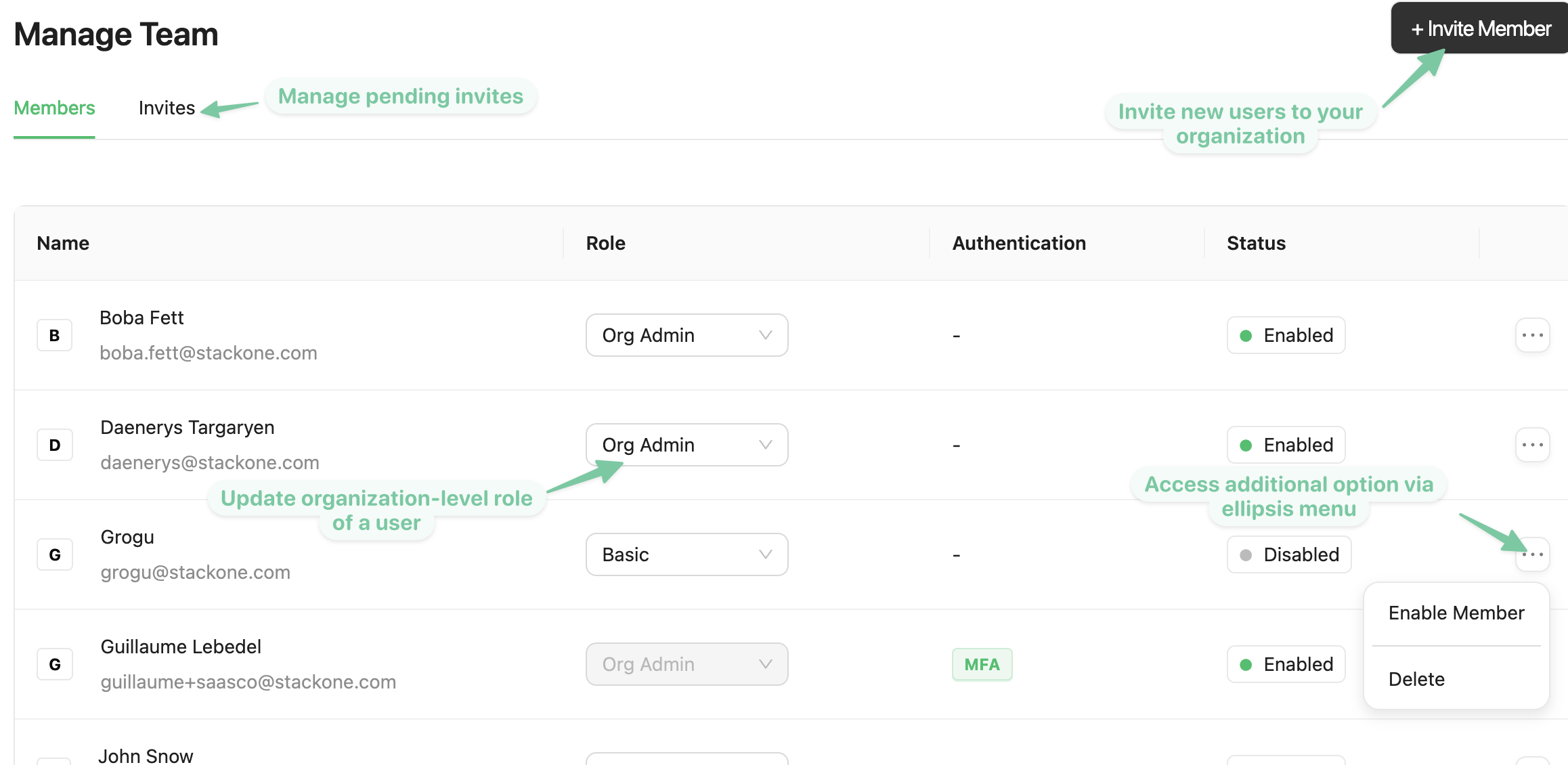
If you have been assigned the "Org Admin" role, you will be able to manage the organization's team members. For role "Basic", the Team Members section is hidden.
With "Org Admin" role, you can:
* Add a new member, as well as resend or cancel a previously sent invitation (via the `invites` tab)
* Change a user's role
* Disable/Enable or Delete any other organization user
* Unlock locked user accounts (eg. if the account has been locked for failed login attempts)
* Reset another user's multi factor authentication
* Create and access any project
* View and update additional organization security settings
 ## Authentication & Security Logs
As an admin user, you can access organization wide security settings by clicking on `security` upon clicking on your user.
The **Security** page allows you to enable OTP (One Time Password) MFA (Multi Factor Authentication) for all users currently inside the Organization and for any future users that will be added.
### Setting Up MFA
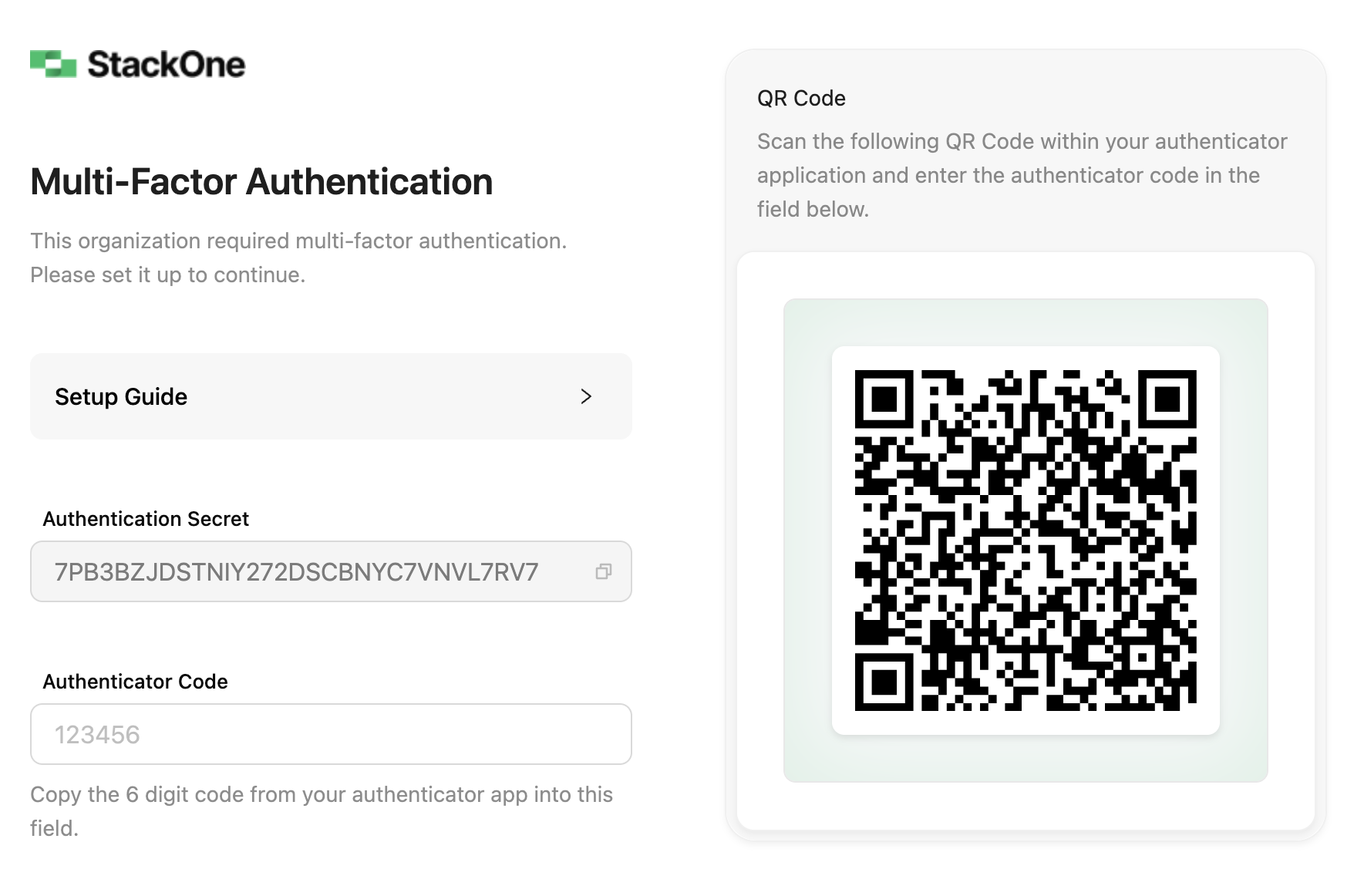
Once enabled, if you yourself haven't enabled MFA, you will be prompted to configure MFA for your own account. You can scan the QR code or enter the Authentication Secret manually using any authenticator app supporting Time-based One-Time Password (eg. Google Authenticator or Microsoft Authenticator, or password managers such as 1Password or Bitwarden).\
After successfully adding it your authenticator of choice, enter the Authenticator Code from the Auth app and click Confirm.
## Authentication & Security Logs
As an admin user, you can access organization wide security settings by clicking on `security` upon clicking on your user.
The **Security** page allows you to enable OTP (One Time Password) MFA (Multi Factor Authentication) for all users currently inside the Organization and for any future users that will be added.
### Setting Up MFA
Once enabled, if you yourself haven't enabled MFA, you will be prompted to configure MFA for your own account. You can scan the QR code or enter the Authentication Secret manually using any authenticator app supporting Time-based One-Time Password (eg. Google Authenticator or Microsoft Authenticator, or password managers such as 1Password or Bitwarden).\
After successfully adding it your authenticator of choice, enter the Authenticator Code from the Auth app and click Confirm.
 Important:
All organization members that have not yet already enabled multi factor authentication will be required to do so the next time they log in the platform.
### Security Logs
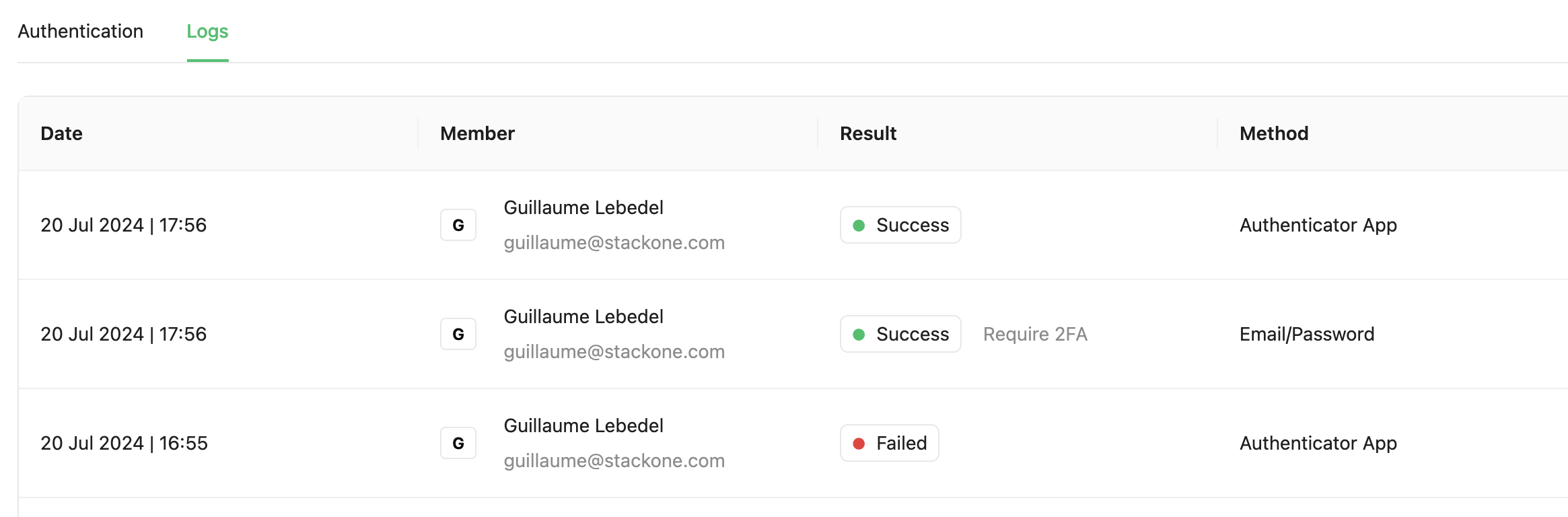
The **[Security Logs](https://app.stackone.com/organization/security_logs)** tab shows a log of every log-in attempts (success or failures). This allows you to monitor users' login activity to identify potential authentication issues and help meet your compliance & audit requirements.
Important:
All organization members that have not yet already enabled multi factor authentication will be required to do so the next time they log in the platform.
### Security Logs
The **[Security Logs](https://app.stackone.com/organization/security_logs)** tab shows a log of every log-in attempts (success or failures). This allows you to monitor users' login activity to identify potential authentication issues and help meet your compliance & audit requirements.
 ## Connection with Project Settings & Accounts
Organization admins can also [Create Projects](/guides/managing-projects). For each project created, project admins can decide who from their organization can access that project.
For example, one user can have a `basic` organization role but be made `Project Admin` on any project within the organization, this means that the user will have admin level access to the project and will be able to manage the project's settings, accounts, and connectors.
## Connection with Project Settings & Accounts
Organization admins can also [Create Projects](/guides/managing-projects). For each project created, project admins can decide who from their organization can access that project.
For example, one user can have a `basic` organization role but be made `Project Admin` on any project within the organization, this means that the user will have admin level access to the project and will be able to manage the project's settings, accounts, and connectors.