> ## Documentation Index
> Fetch the complete documentation index at: https://docs.stackone.com/llms.txt
> Use this file to discover all available pages before exploring further.
# Connectors
> Browse and discover all available StackOne connectors and their actions
## Overview
The **Connectors** page ([app.stackone.com/connectors](https://app.stackone.com/connectors)) shows all available connectors and their actions. Use it to find actions, check parameters, and test them in the Playground.
View the complete catalog of actions across all connectors
Find specific actions by category, provider, or keyword
See action parameters, inputs, outputs, and descriptions
Jump to the AI Playground to test any action with real data
## Accessing the Connectors Page
1. Navigate to [app.stackone.com/connectors](https://app.stackone.com/connectors)
2. Sign in to your StackOne account
3. Browse connectors and click on any to view its available actions
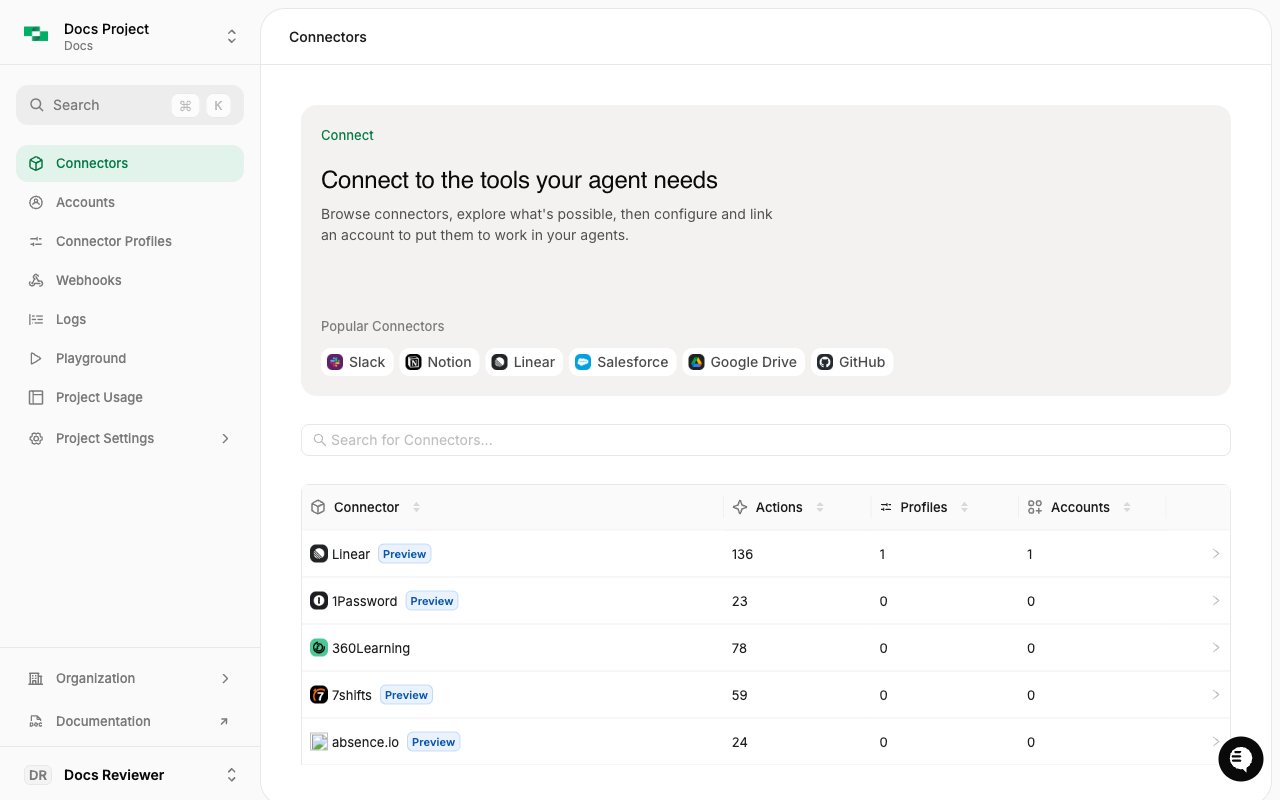 **Quick access:** You can also access the Connectors page from the sidebar navigation in the StackOne dashboard.
## Understanding Actions
Actions are the building blocks of StackOne connectors. Each action represents a specific operation you can perform with a provider, such as:
* **List operations** - Retrieve collections of records (e.g., list employees, list contacts)
* **Get operations** - Fetch a single record by ID
* **Create operations** - Add new records to a system
* **Update operations** - Modify existing records
* **Delete operations** - Remove records
### Action Types
Direct access to provider APIs. These actions expose the full capabilities of each integration.
**Examples:**
* `gong_crm_search_calls` - Search CRM calls in Gong
* `ashby_list_applications` - List applications from Ashby ATS
* `workday_list_employees` - List employees from Workday HRIS
* `salesforce_list_accounts` - List accounts from Salesforce CRM
Standardized actions that work consistently across all providers in a category. Use these when you want your agent or application to work with any provider without provider-specific code.
**Examples:**
* `iam_list_users` - List users from Okta, Azure AD, Google Workspace, or any IAM provider
* `iam_list_groups` - List groups across identity providers
* `documents_list_files` - List files from Google Drive, SharePoint, Dropbox, or any document provider
* `documents_download_file` - Download files with a consistent interface
Unified actions normalize data schemas across providers, so your code works identically regardless of which system your user connects.
Want to build unified actions for your own connectors? See the [Connector Engine](/guides/connector-engine/introduction) to create custom connectors with unified schemas.
## Using the Actions Explorer
### Browsing Connectors
The main page lists all available connectors in a sortable table. Each row shows:
| Column | Description |
| ------------- | --------------------------------------------------------------------------- |
| **Connector** | Connector name and icon, with a **Preview** badge for connectors in preview |
| **Actions** | Number of actions the connector supports |
| **Profiles** | Number of [connector profiles](/guides/connector-profiles) configured |
| **Accounts** | Number of linked accounts |
Search by name, or pick from **Popular Connectors** at the top. Click any row to open the connector's detail page.
### Exploring Connector Actions
Selecting a connector opens its detail page, with **Actions**, **Profiles**, **Accounts**, and **Logs** tabs. The header has three actions:
* **Profile** - Configure a [connector profile](/guides/connector-profiles)
* **Link Account** - Connect an account for this connector
* **Use in Agent** - Open setup for MCP clients and the Playground (see below)
The **Actions** tab lists every operation in a table with **Action**, **Description**, and **Tags** columns. Narrow the list with the search bar, the **Tags** filter, or the version selector.
Click **Use in Agent** to set up access for MCP clients (Claude, Cursor, VS Code, and others) or to open the connector in the Playground.
## From Explorer to Execution
Once you've found an action you want to use, you have several options:
Test the action interactively with natural language using LLMs
} href="/mcp/quickstart">
Access the action through StackOne's MCP server
Use the AI Toolset SDKs to call the action programmatically
Execute the action directly via the Actions RPC API
### Example: Using an Action
After finding an action like `workday_list_employees`, here's how you'd use it:
1. Go to [app.stackone.com/playground](https://app.stackone.com/playground)
2. Select your Workday account
3. Ask: "List all employees from Workday"
4. The AI will automatically use the `workday_list_employees` action
```json theme={null}
// The action is automatically available as a tool
// in any MCP-compatible client
{
"tool": "workday_list_employees",
"arguments": {
"limit": 100
}
}
```
```typescript theme={null}
import { StackOneToolSet } from "@stackone/stackone-client-ts";
const toolset = new StackOneToolSet();
const tools = await toolset.fetchTools({
accountIds: ["workday-account-id"],
actions: ["workday_list_employees"]
});
// Use with your AI framework
const result = await tools[0].execute({ limit: 100 });
```
```bash theme={null}
curl -X POST "https://api.stackone.com/actions/rpc" \
-u "$STACKONE_API_KEY:" \
-H "x-account-id: YOUR_ACCOUNT_ID" \
-H "Content-Type: application/json" \
-d '{
"action": "workday_list_employees",
"query": { "page_size": 100 }
}'
```
## Best Practices
Before integrating actions into your application, test them in the [AI Playground](/guides/playground) to understand their behavior and outputs.
Review the required and optional parameters for each action. Some actions require specific inputs to function correctly.
Use [Request Logs](/guides/request-logs) to monitor action executions and troubleshoot issues.
## Related Resources
Test actions interactively with LLMs
} href="/mcp/quickstart">
Connect via MCP protocol
Direct RPC execution guide
**Quick access:** You can also access the Connectors page from the sidebar navigation in the StackOne dashboard.
## Understanding Actions
Actions are the building blocks of StackOne connectors. Each action represents a specific operation you can perform with a provider, such as:
* **List operations** - Retrieve collections of records (e.g., list employees, list contacts)
* **Get operations** - Fetch a single record by ID
* **Create operations** - Add new records to a system
* **Update operations** - Modify existing records
* **Delete operations** - Remove records
### Action Types
Direct access to provider APIs. These actions expose the full capabilities of each integration.
**Examples:**
* `gong_crm_search_calls` - Search CRM calls in Gong
* `ashby_list_applications` - List applications from Ashby ATS
* `workday_list_employees` - List employees from Workday HRIS
* `salesforce_list_accounts` - List accounts from Salesforce CRM
Standardized actions that work consistently across all providers in a category. Use these when you want your agent or application to work with any provider without provider-specific code.
**Examples:**
* `iam_list_users` - List users from Okta, Azure AD, Google Workspace, or any IAM provider
* `iam_list_groups` - List groups across identity providers
* `documents_list_files` - List files from Google Drive, SharePoint, Dropbox, or any document provider
* `documents_download_file` - Download files with a consistent interface
Unified actions normalize data schemas across providers, so your code works identically regardless of which system your user connects.
Want to build unified actions for your own connectors? See the [Connector Engine](/guides/connector-engine/introduction) to create custom connectors with unified schemas.
## Using the Actions Explorer
### Browsing Connectors
The main page lists all available connectors in a sortable table. Each row shows:
| Column | Description |
| ------------- | --------------------------------------------------------------------------- |
| **Connector** | Connector name and icon, with a **Preview** badge for connectors in preview |
| **Actions** | Number of actions the connector supports |
| **Profiles** | Number of [connector profiles](/guides/connector-profiles) configured |
| **Accounts** | Number of linked accounts |
Search by name, or pick from **Popular Connectors** at the top. Click any row to open the connector's detail page.
### Exploring Connector Actions
Selecting a connector opens its detail page, with **Actions**, **Profiles**, **Accounts**, and **Logs** tabs. The header has three actions:
* **Profile** - Configure a [connector profile](/guides/connector-profiles)
* **Link Account** - Connect an account for this connector
* **Use in Agent** - Open setup for MCP clients and the Playground (see below)
The **Actions** tab lists every operation in a table with **Action**, **Description**, and **Tags** columns. Narrow the list with the search bar, the **Tags** filter, or the version selector.
Click **Use in Agent** to set up access for MCP clients (Claude, Cursor, VS Code, and others) or to open the connector in the Playground.
## From Explorer to Execution
Once you've found an action you want to use, you have several options:
Test the action interactively with natural language using LLMs
} href="/mcp/quickstart">
Access the action through StackOne's MCP server
Use the AI Toolset SDKs to call the action programmatically
Execute the action directly via the Actions RPC API
### Example: Using an Action
After finding an action like `workday_list_employees`, here's how you'd use it:
1. Go to [app.stackone.com/playground](https://app.stackone.com/playground)
2. Select your Workday account
3. Ask: "List all employees from Workday"
4. The AI will automatically use the `workday_list_employees` action
```json theme={null}
// The action is automatically available as a tool
// in any MCP-compatible client
{
"tool": "workday_list_employees",
"arguments": {
"limit": 100
}
}
```
```typescript theme={null}
import { StackOneToolSet } from "@stackone/stackone-client-ts";
const toolset = new StackOneToolSet();
const tools = await toolset.fetchTools({
accountIds: ["workday-account-id"],
actions: ["workday_list_employees"]
});
// Use with your AI framework
const result = await tools[0].execute({ limit: 100 });
```
```bash theme={null}
curl -X POST "https://api.stackone.com/actions/rpc" \
-u "$STACKONE_API_KEY:" \
-H "x-account-id: YOUR_ACCOUNT_ID" \
-H "Content-Type: application/json" \
-d '{
"action": "workday_list_employees",
"query": { "page_size": 100 }
}'
```
## Best Practices
Before integrating actions into your application, test them in the [AI Playground](/guides/playground) to understand their behavior and outputs.
Review the required and optional parameters for each action. Some actions require specific inputs to function correctly.
Use [Request Logs](/guides/request-logs) to monitor action executions and troubleshoot issues.
## Related Resources
Test actions interactively with LLMs
} href="/mcp/quickstart">
Connect via MCP protocol
Direct RPC execution guide