> ## Documentation Index
> Fetch the complete documentation index at: https://docs.stackone.com/llms.txt
> Use this file to discover all available pages before exploring further.
# Dashboard Navigation
> Navigate the StackOne dashboard. Understand the sidebar, project switcher, user settings, and quick search.
This guide explains how to navigate the StackOne dashboard efficiently.
## Dashboard Overview
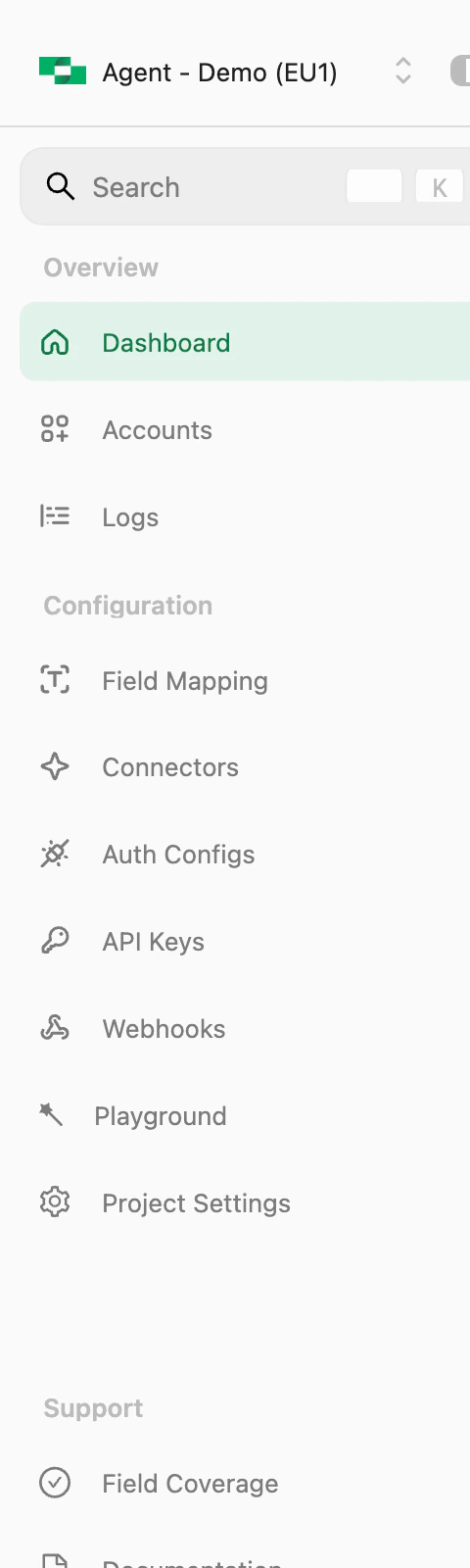
When you log into StackOne, you'll see the main dashboard with three key areas:
 ***
## Sidebar Navigation
The left sidebar is organized into sections:
### Overview
| Menu Item | Description |
| ------------- | -------------------------------------------------------------------- |
| **Dashboard** | API request metrics, linked accounts overview, and integration stats |
| **Accounts** | Manage all linked customer accounts and their connection status |
| **Logs** | View request logs for debugging and monitoring API calls |
### Configuration
| Menu Item | Description |
| ---------------------- | ------------------------------------------------------------------ |
| **Field Mapping** | Customize how data fields map between StackOne and providers |
| **Connectors** | Browse and configure available actions for each connector |
| **Connector Profiles** | Set up authentication configurations (OAuth credentials, settings) |
| **API Keys** | Create and manage API keys for your project |
| **Webhooks** | Configure webhook endpoints for real-time event notifications |
| **Playground** | Test actions using natural language with AI |
| **Project Settings** | Configure project-level settings and preferences |
### Support
| Menu Item | Description |
| ------------------ | -------------------------------------------------- |
| **Field Coverage** | Check which fields are supported for each provider |
| **Documentation** | Quick link to these docs |
***
## Project Switcher
At the top of the sidebar, click on your project name to:
* **Switch projects**: Select a different project from your organization
* **View project details**: See the current project's region (EU1, US1, etc.)
Use separate projects for development, staging, and production environments.
***
## User Profile & Organization
Click on your name at the bottom of the sidebar to access:
***
## Sidebar Navigation
The left sidebar is organized into sections:
### Overview
| Menu Item | Description |
| ------------- | -------------------------------------------------------------------- |
| **Dashboard** | API request metrics, linked accounts overview, and integration stats |
| **Accounts** | Manage all linked customer accounts and their connection status |
| **Logs** | View request logs for debugging and monitoring API calls |
### Configuration
| Menu Item | Description |
| ---------------------- | ------------------------------------------------------------------ |
| **Field Mapping** | Customize how data fields map between StackOne and providers |
| **Connectors** | Browse and configure available actions for each connector |
| **Connector Profiles** | Set up authentication configurations (OAuth credentials, settings) |
| **API Keys** | Create and manage API keys for your project |
| **Webhooks** | Configure webhook endpoints for real-time event notifications |
| **Playground** | Test actions using natural language with AI |
| **Project Settings** | Configure project-level settings and preferences |
### Support
| Menu Item | Description |
| ------------------ | -------------------------------------------------- |
| **Field Coverage** | Check which fields are supported for each provider |
| **Documentation** | Quick link to these docs |
***
## Project Switcher
At the top of the sidebar, click on your project name to:
* **Switch projects**: Select a different project from your organization
* **View project details**: See the current project's region (EU1, US1, etc.)
Use separate projects for development, staging, and production environments.
***
## User Profile & Organization
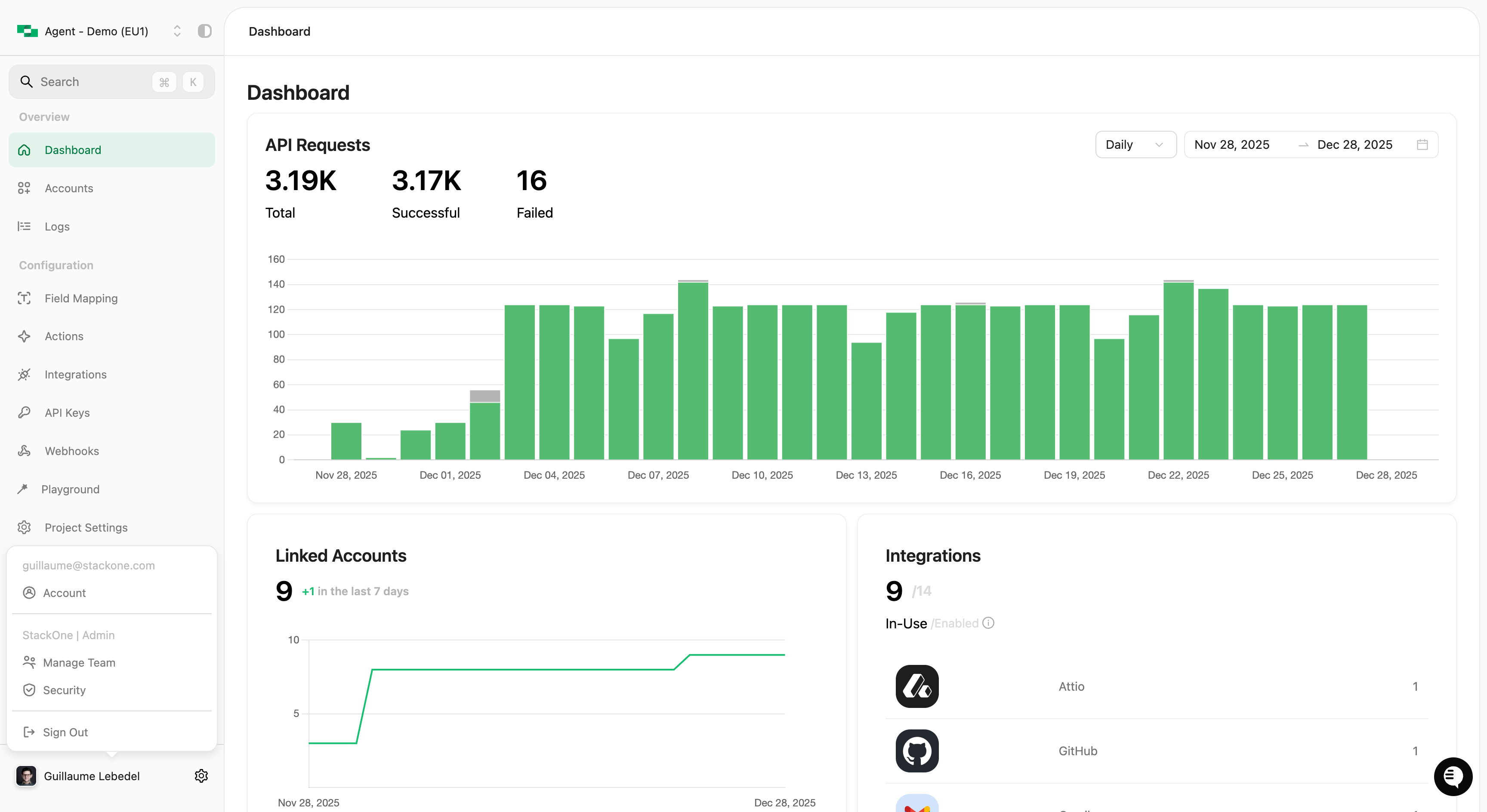
Click on your name at the bottom of the sidebar to access:
 ### Account Settings
| Option | Description |
| --------------- | -------------------------------------------------- |
| **Account** | Manage your personal account settings and security |
| **Manage Team** | Invite team members and manage roles (Admin only) |
| **Security** | Configure organization security settings like SSO |
| **Sign Out** | Log out of your StackOne session |
***
## Quick Search (CMD+K)
Press `Cmd+K` (Mac) or `Ctrl+K` (Windows/Linux) to open the command palette for quick navigation.
### What You Can Do
* **Search pages**: Type to filter and jump to any dashboard section
* **Switch projects**: Quickly change between projects
* **Access quick links**: Jump to frequently used pages
### Account Settings
| Option | Description |
| --------------- | -------------------------------------------------- |
| **Account** | Manage your personal account settings and security |
| **Manage Team** | Invite team members and manage roles (Admin only) |
| **Security** | Configure organization security settings like SSO |
| **Sign Out** | Log out of your StackOne session |
***
## Quick Search (CMD+K)
Press `Cmd+K` (Mac) or `Ctrl+K` (Windows/Linux) to open the command palette for quick navigation.
### What You Can Do
* **Search pages**: Type to filter and jump to any dashboard section
* **Switch projects**: Quickly change between projects
* **Access quick links**: Jump to frequently used pages
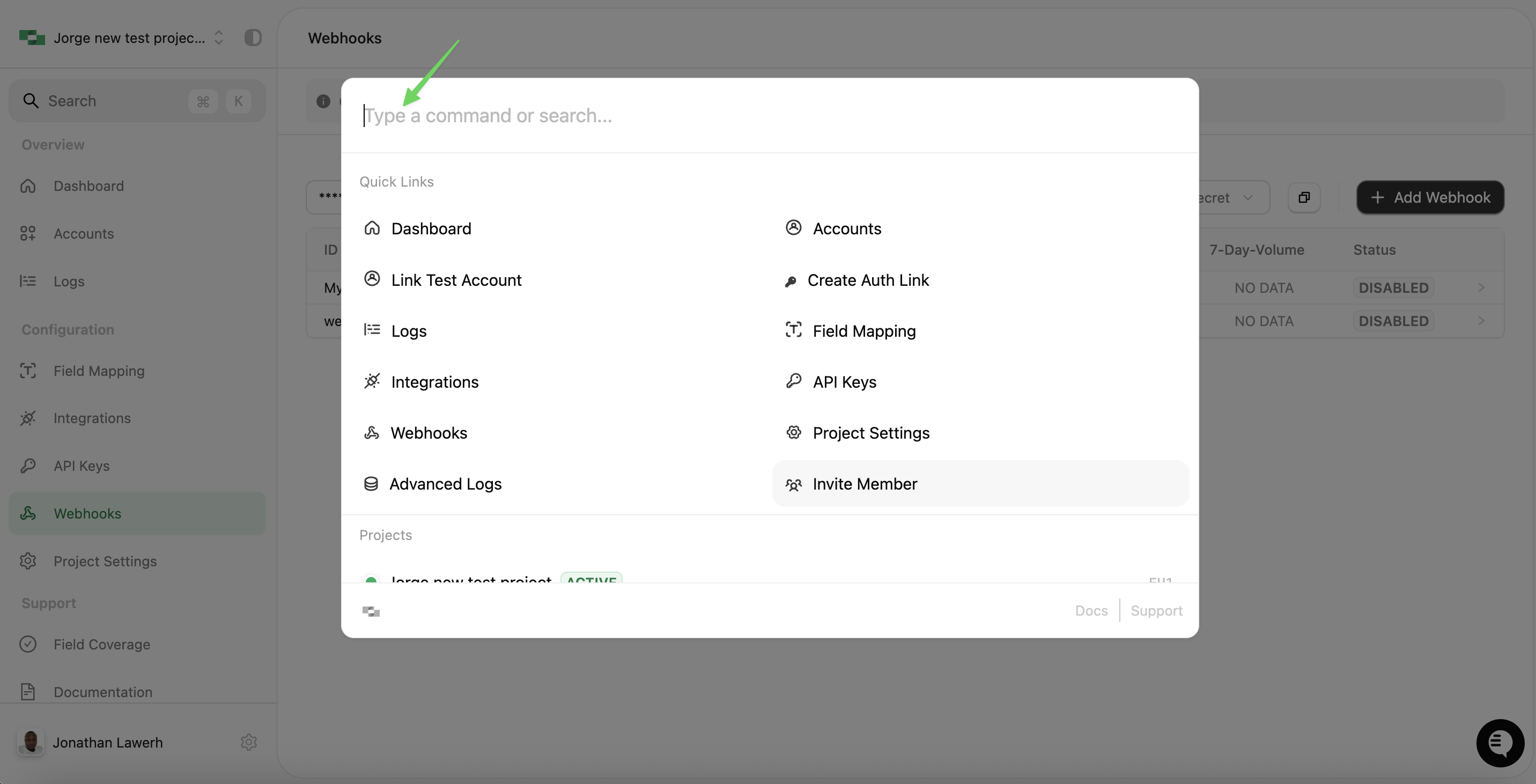 The command palette is the fastest way to navigate if you know where you want to go. Just start typing!
***
## Next Steps
Connect a provider to start testing
Try actions with natural language
The command palette is the fastest way to navigate if you know where you want to go. Just start typing!
***
## Next Steps
Connect a provider to start testing
Try actions with natural language