> ## Documentation Index
> Fetch the complete documentation index at: https://docs.stackone.com/llms.txt
> Use this file to discover all available pages before exploring further.
# Auth Link
> Get end-users to connect their tools with only a link!
## Overview
Auth Links let you deliver a secure URL to your end users for a secure, in-browser connection experience without embedding the StackOne Hub in your web app.
## How to generate a link
An Auth Link can be generated directly from the StackOne dashboard. Here's how:
Log in to the [StackOne dashboard](https://app.stackone.com/) and select [Accounts](https://app.stackone.com/accounts) from the left menu.
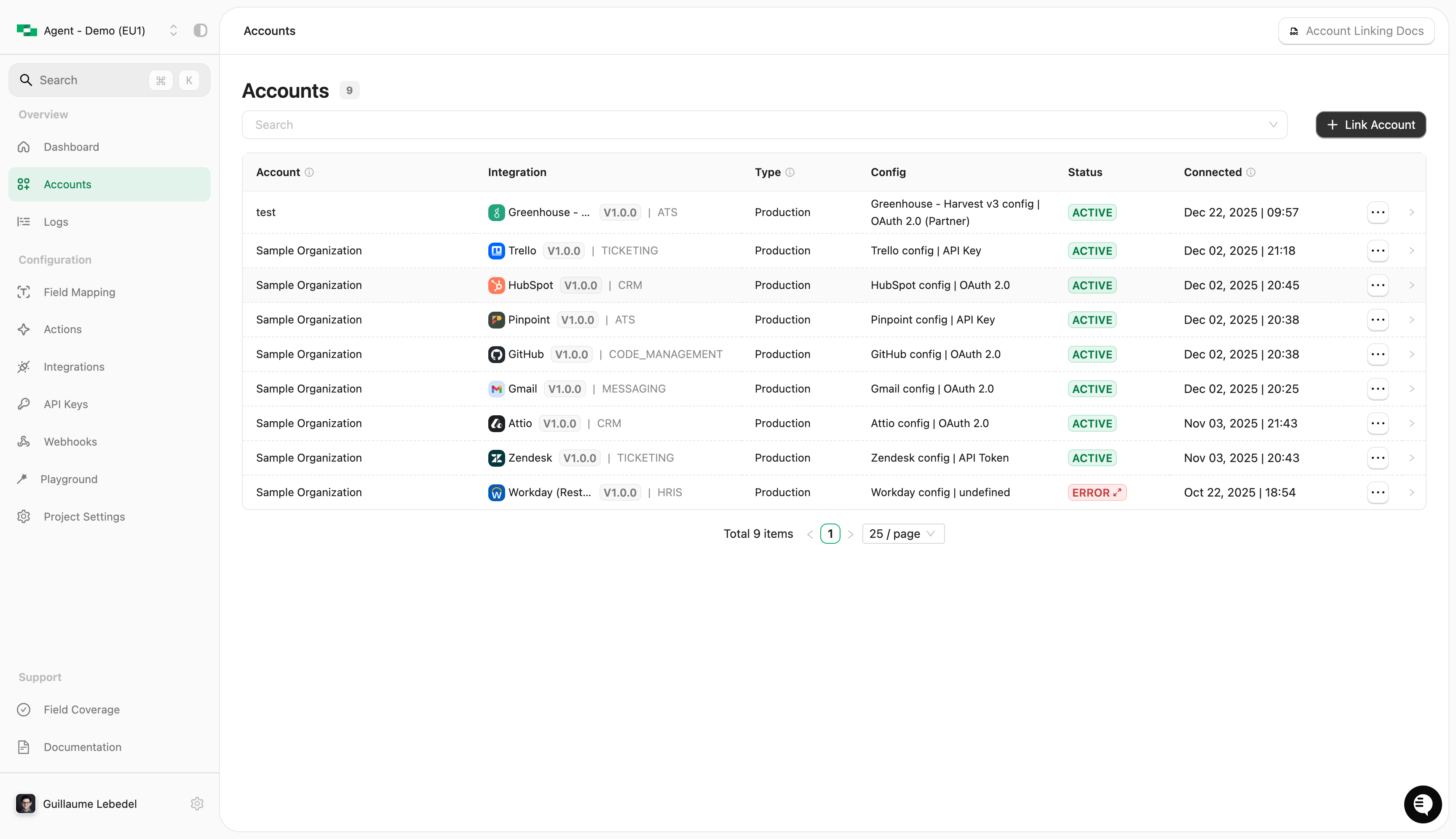 * **Origin owner ID** - This should be the end-user identifier you use in your own system(s) (most likely, a UUID or integer)
* **Origin owner name** - This is the end-user name in your own system(s)
* **Origin username** (optional) - The end-user's username (eg: an email address) that will connect or be responsible for the connection
* **Category** (optional) - If you have enabled connectors across multiple categories, you can filter the list of connectors displayed. Make sure that the information you enter matches your system precisely.
Then click **Next** and **Generate**.
* **Origin owner ID** - This should be the end-user identifier you use in your own system(s) (most likely, a UUID or integer)
* **Origin owner name** - This is the end-user name in your own system(s)
* **Origin username** (optional) - The end-user's username (eg: an email address) that will connect or be responsible for the connection
* **Category** (optional) - If you have enabled connectors across multiple categories, you can filter the list of connectors displayed. Make sure that the information you enter matches your system precisely.
Then click **Next** and **Generate**.
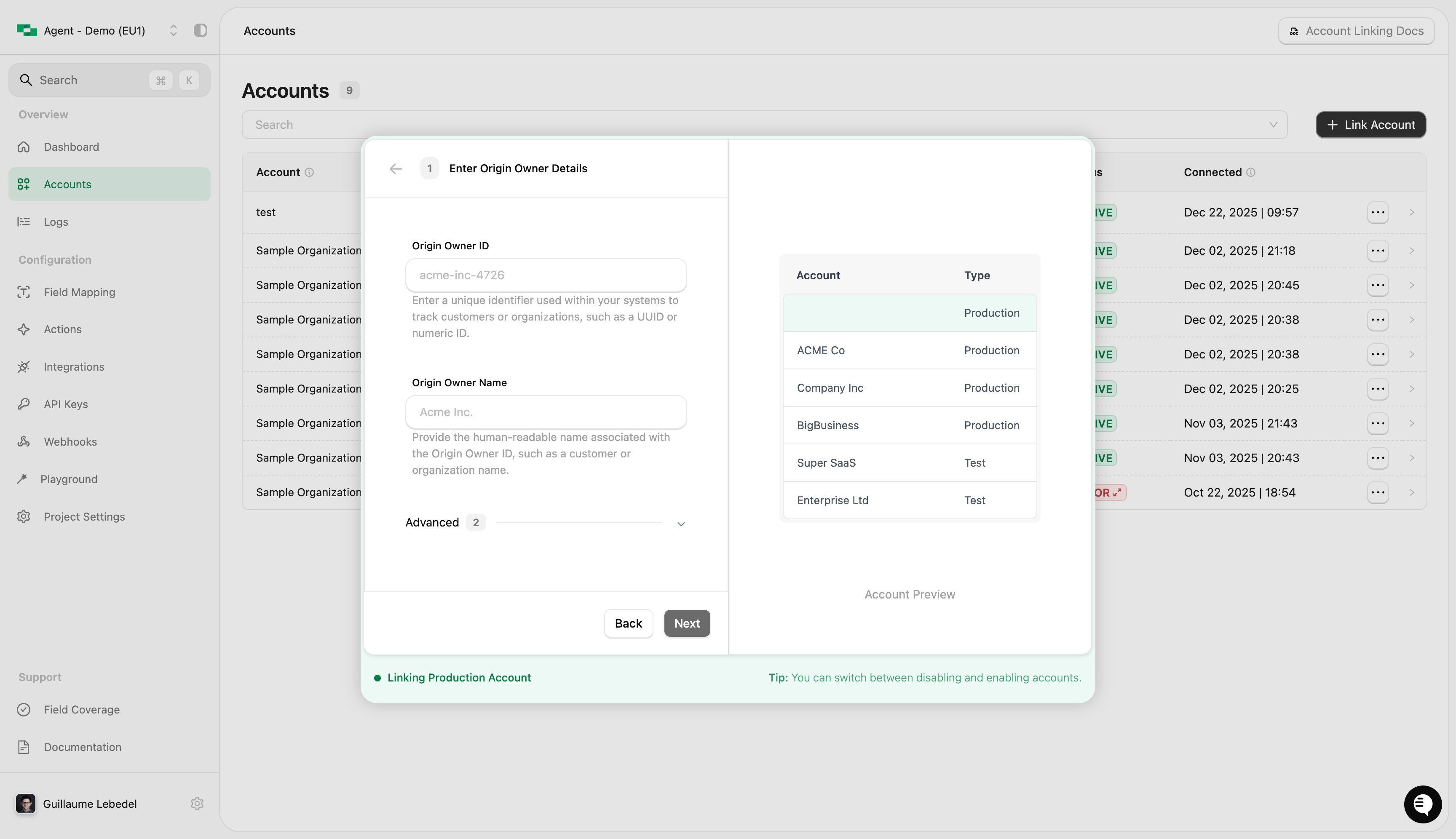
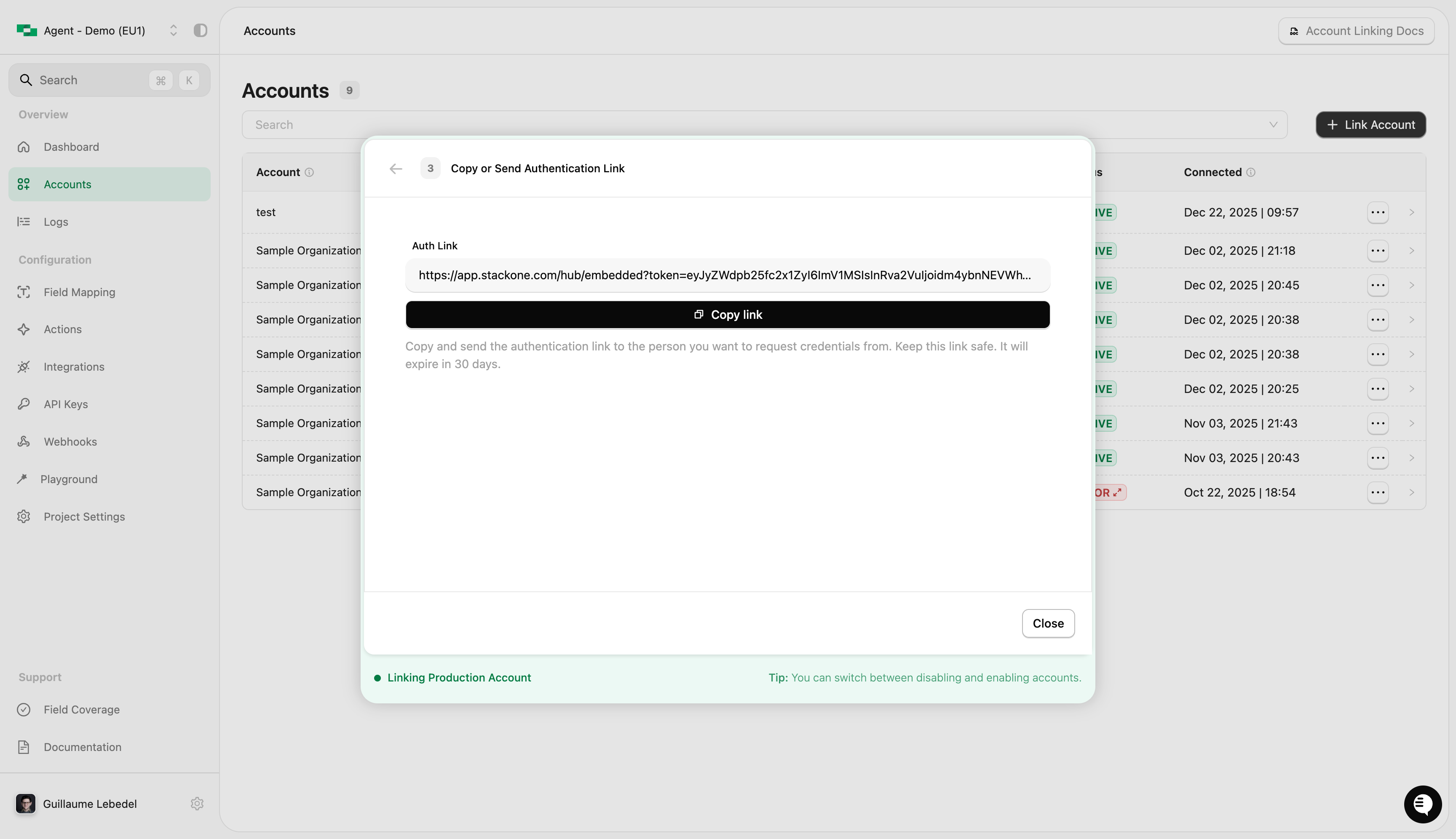 Note: This link expires after 30 days.
The end-user will now be able to connect their accounts using the link.
### Generating the link programmatically
To support a more scalable solution, you can programmatically generate links for end-users.
Call the [Create Connect Session Endpoint](/platform/api-reference/connect-sessions/create-connect-session) and the `auth_link_url` property in the response contains the link for the end-user.
Set `expires_in` (in seconds) to give end-users enough time to complete the connection.
(eg. 5 days is 432000, 7 days is 604800)
## What the end-user sees
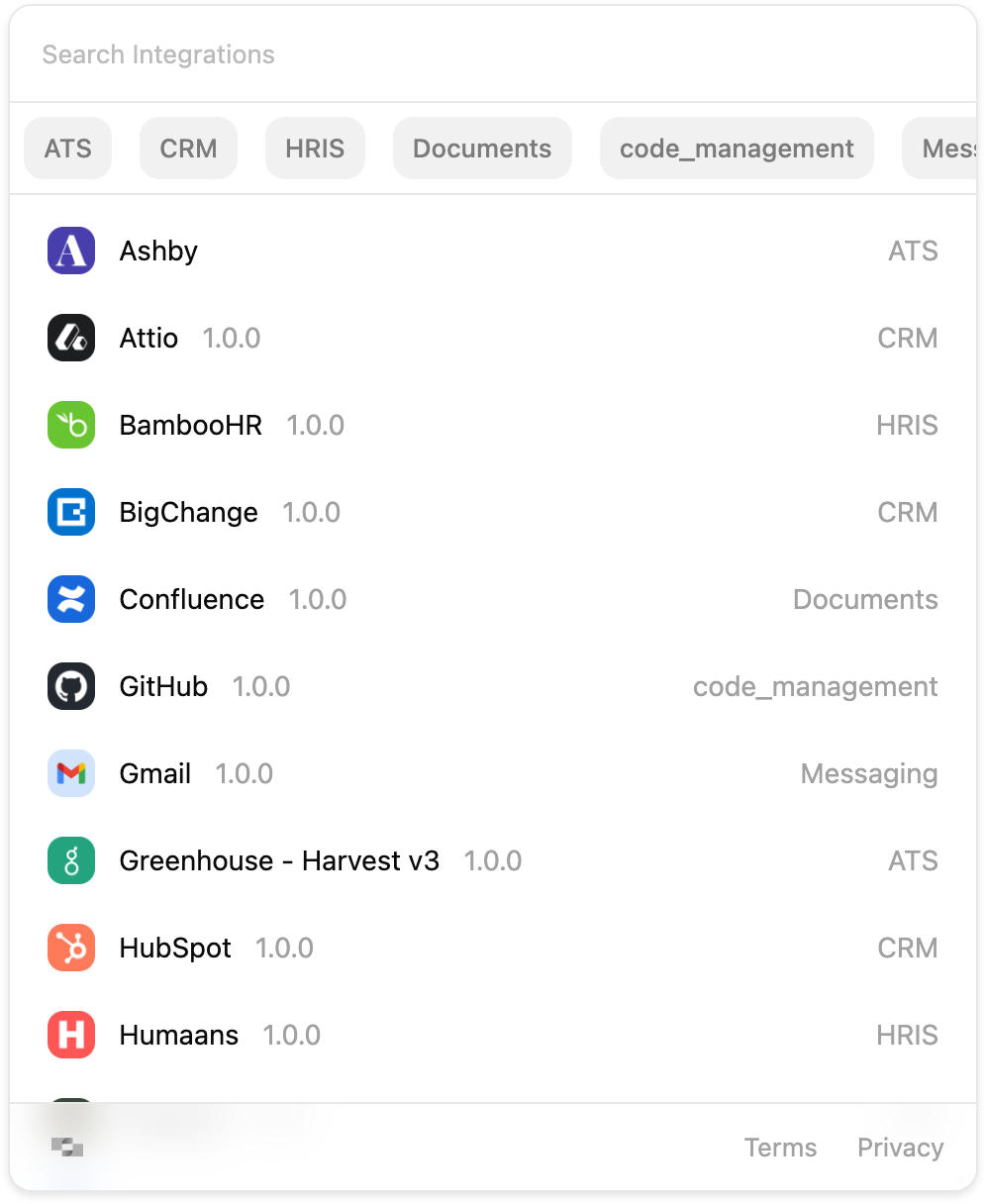
When the user navigates to the **Auth Link**, they will see the **StackOne Hub** with a list of all connectors enabled on your project. The user can then select and connect to the provider they need.
Note: This link expires after 30 days.
The end-user will now be able to connect their accounts using the link.
### Generating the link programmatically
To support a more scalable solution, you can programmatically generate links for end-users.
Call the [Create Connect Session Endpoint](/platform/api-reference/connect-sessions/create-connect-session) and the `auth_link_url` property in the response contains the link for the end-user.
Set `expires_in` (in seconds) to give end-users enough time to complete the connection.
(eg. 5 days is 432000, 7 days is 604800)
## What the end-user sees
When the user navigates to the **Auth Link**, they will see the **StackOne Hub** with a list of all connectors enabled on your project. The user can then select and connect to the provider they need.
 ## Verifying the connection
After the user has connected an integration successfully, StackOne will fire a `account.created` [webhook event](/guides/webhooks) containing the Account ID (which is required to make a [unified API request](/guides/making-your-first-api-request)). The linked account will also be displayed in the [Accounts](https://app.stackone.com/accounts) page and it will also be visible via the [Accounts API endpoint](/platform/api-reference/accounts/list-accounts).
## Verifying the connection
After the user has connected an integration successfully, StackOne will fire a `account.created` [webhook event](/guides/webhooks) containing the Account ID (which is required to make a [unified API request](/guides/making-your-first-api-request)). The linked account will also be displayed in the [Accounts](https://app.stackone.com/accounts) page and it will also be visible via the [Accounts API endpoint](/platform/api-reference/accounts/list-accounts).