> ## Documentation Index
> Fetch the complete documentation index at: https://docs.stackone.com/llms.txt
> Use this file to discover all available pages before exploring further.
# File Picker
> Embed a unified file-selection UI for SharePoint, Google Drive, OneDrive, Confluence, and Notion.
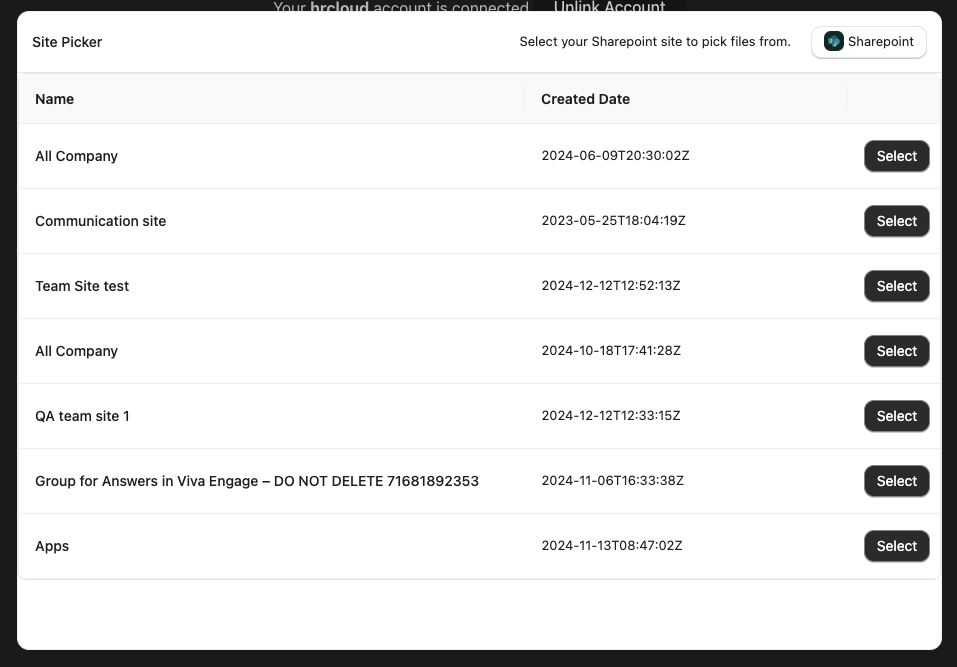
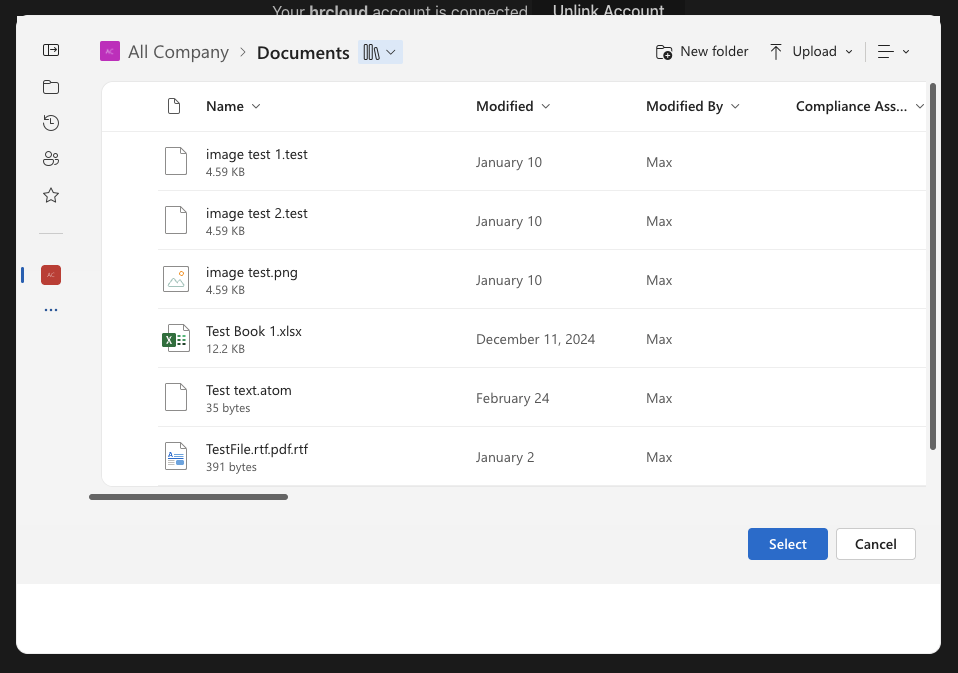
The **StackOne File Picker** provides a unified interface for browsing and selecting documents from third-party platforms. It abstracts provider-specific differences behind a consistent user experience and developer interface, whether the source is a **file storage system** (like SharePoint, OneDrive, Google Drive) or a **knowledge base** (like Confluence or Notion).
***
## How it works
The File Picker allows users to:
* Navigate a hierarchical file tree (folders, pages, blocks)
* Select one or more files or documents
* Return a list of **StackOne file objects**, which can be used with unified operations such as `GET /unified/documents/files/{id}` or `POST /unified/documents/files/{id}/download`
***
## Picker types
| Provider | Picker Type | Navigation Model | Notes |
| ---------------- | ----------- | -------------------------------- | ----------------------------------------------------------------- |
| **SharePoint** | Native | Site → Drive → Folder → File | Microsoft-native picker with StackOne-built **site selection UI** |
| **OneDrive** | Native | Drive → Folder → File | Standard OneDrive picker scoped to user’s personal/business drive |
| **Google Drive** | Native | Drive → Folder → File | Uses Google Picker SDK |
| **Confluence** | Custom | Space → Page | Pages act as both **folders and files** based on content/children |
| **Notion** | Custom | Workspace → Search → Page/Folder | Search-based navigation from the General Workspace level |
***
## Output Format
When a user completes selection, the picker returns:
```json theme={null}
{
"files": [
{
"id": "c28xIQaWQ6ODA5MzcyMg",
"name": "QA text 1",
"path": "https://exploreconfluence.atlassian.net/wiki/spaces/QS/pages/8093722/QA+text+1",
"driveId": "7733268"
}
]
}
```
Each `fileId` corresponds to a StackOne-normalized file object that can be accessed via API:
* `GET /unified/documents/files/{id}` – fetch file metadata
* `POST /unified/documents/files/{id}/download` – retrieve file contents (if supported)
## File Object Structure (for Fetch)
When queried individually, a file returns the following structure:
```json theme={null}
{
"id": "file_123",
"name": "Report Q1.pdf",
"path": "/Marketing/Reports/Q1",
"mimeType": "application/pdf",
"size": 204800,
"lastModified": "2024-12-01T10:00:00Z",
"provider": "sharepoint",
"downloadUrl": "https://..."
}
```
* For **knowledge bases** like Confluence and Notion:
* Files may represent **pages or blocks**
* Additional metadata like `hasContent`, `hasChildren` is provided
## Developer Integration Example
1. **Trigger the Picker**
Use the StackOne SDK, embed directly via the UI component or trigger via the StackOne Dashboard.
2. **Receive Selection**
The picker will return:
```json theme={null}
{
"files": [
{
"id": "c28xIQaWQ6ODA5MzcyMg",
"name": "QA text 1",
"path": "https://exploreconfluence.atlassian.net/wiki/spaces/QS/pages/8093722/QA+text+1",
"driveId": "7733268"
}
]
}
```
3. **Perform Unified Actions**
* Fetch metadata: `GET /unified/documents/files/{id}`
* Download file: `POST /unified/documents/files/{id}/download`
***
## Provider feature table
| Feature / Capability | SharePoint | OneDrive | Google Drive | Confluence | Notion |
| ------------------------ | -------------------- | -------------------- | -------------------- | -------------------- | -------------------- |
| Picker Type | Native | Native | Native | Custom | Custom |
| Tree Navigation | ✅ | ✅ | ✅ | ✅ | ✅ |
| Multi-file Selection | ✅ | ✅ | ✅ | ✅ | ✅ |
| Selectable File Types | Any document | Any document | Any document | Pages | Pages |
| Folder Navigation | ✅ | ✅ | ✅ | ✅ | ✅ |
| Dual-role Items | N/A | N/A | N/A | ✅ (pages) | ✅ (pages/blocks) |
| Output (on select) | List of File objects | List of File objects | List of File objects | List of File objects | List of File objects |
| Unified Fetch / Download | ✅ | ✅ | ✅ | ✅ | ✅ |
***
## Developer integration
1. **Trigger the Picker**
Use the StackOne SDK, embed directly via the UI component or trigger via the StackOne Dashboard.
2. **Receive Selection**
The picker will return:
```json theme={null}
{
"files": [
{
"id": "c28xIQaWQ6ODA5MzcyMg",
"name": "QA text 1",
"path": "https://exploreconfluence.atlassian.net/wiki/spaces/QS/pages/8093722/QA+text+1",
"driveId": "7733268"
}
]
}
```
3. **Perform Unified Actions**
* Fetch metadata: `GET /unified/documents/files/{id}`
* Download file: `POST /unified/documents/files/{id}/download`
***
## Auth & permissions
* Each provider uses OAuth2 authentication via StackOne's integration flow
* File access scopes are handled per provider during authentication
* **SharePoint**: `Files.Read.All`, `Sites.Read.All`
* **Google Drive**: `https://www.googleapis.com/auth/drive.readonly`
* **Confluence/Notion**: Read access to spaces/pages/blocks
***
# StackOne File Picker SDK Documentation
The StackOne File Picker SDK enables you to integrate file selection from connected accounts into your application.
Below are the installation steps, usage examples, and API details.
## Installation
Install the SDK using one of the following package managers:
```bash theme={null}
# Using NPM
npm install --save @stackone/file-picker
# Using Yarn
yarn add @stackone/file-picker
```
## Connect Session Token
The File Picker requires creating a separate connect session token with the **Account ID** and **Provider Key** of a connected account.
# Usage
Below you can find the basic usage of the StackOne File Picker SDK using React:
```jsx theme={null}
import React, { useState, useEffect, useCallback } from 'react';
import { FilePicker } from '@stackone/file-picker';
import { StackOne } from "@stackone/stackone-client-ts";
const _stackOne = new StackOne({
security: {
password: "",
username: "",
},
});
export const FilePickerButton = () => {
const [filePicker, setFilePicker] = useState(null);
useEffect(() => {
const initializePicker = async () => {
const { sessionToken } = await _stackOne.connectSessions.createConnectSession({
categories: [ConnectSessionCreateCategories.Documents],
accountId: '{{Connected Account ID}}',
provider: '{{Provider Key}}',
...
});
setFilePicker(new FilePicker({ sessionToken }));
};
initializePicker();
}, []);
const handleClick = useCallback(() => {
filePicker?.open();
}, [filePicker]);
return (
);
};
```
# API Reference
#### File Picker Configuration Options
```javascript theme={null}
const filePicker = new FilePicker({
sessionToken: 'your-session-token', // Required
containerId: 'file-picker-container', // Optional: DOM container ID
baseUrl: 'https://app.stackone.com', // Optional: API instance
fields: ['name', 'path', 'driveId'], // Optional: which file fields to return
showBranding: false, // Optional: show StackOne footer (default: true)
folderSelectionEnabled: true, // Optional: allow folder selection (default: false)
driveSelectionEnabled: true, // Optional: allow drive selection (default: false)
// Callback Events
onFilesPicked: (files) => {
console.log('Selected files:', files);
// Process selected files for indexing
},
onOpen: () => {
console.log('File picker opened');
},
onClose: () => {
console.log('File picker closed');
},
onCancel: () => {
console.log('File selection canceled');
},
onError: (error) => {
console.log('File picker error:', error);
}
});
```
#### File Selection Response Format
When users complete their selection, the `onFilesPicked` callback receives different response formats depending on what was selected:
```javascript theme={null}
// Example response when only files are selected
{
"files": [
{
"id": "c28xIQaWQ6ODA5MzcyMg", // Unified file ID
"name": "Project Proposal.pdf", // File name
"path": "/Projects/2024/Project Proposal.pdf", // File path
"driveId": "7733268" // Drive identifier
},
{
"id": "d39yJRbXR7PEB6NzY3Ng",
"name": "Budget Analysis.xlsx",
"path": "/Projects/2024/Budget Analysis.xlsx",
"driveId": "7733268"
}
]
}
```
```javascript theme={null}
// Example response when both files and folders are selected
{
"files": [
{
"id": "c28xIQaWQ6ODA5MzcyMg", // Individual file
"name": "Project Proposal.pdf",
"path": "/Projects/2024/Project Proposal.pdf",
"driveId": "7733268"
}
],
"folders": [
{
"id": "f84mKLpQS8QFB7NzY4Mg", // Folder ID
"name": "Marketing Materials",
"path": "/Projects/2024/Marketing Materials",
"driveId": "7733268"
},
{
"id": "g95nLMqRT9RGC8NzY5Ng",
"name": "Legal Documents",
"path": "/Projects/2024/Legal Documents",
"driveId": "7733268"
}
]
}
```
**Folder Selection Handling**: When `folderSelectionEnabled: true` is set, users can select entire folders. The response will include folder IDs in the selection. To retrieve all files within selected folders (including nested subfolders), use the [List Files API](/documents/api-reference/files/list-files) with the `folder_id` parameter and `nested_files: true` option to automatically fetch all nested content.
**Note**: Only `onFilesPicked` is typically required for document management use cases. Other callbacks (`onOpen`, `onClose`, `onCancel`, `onError`) are optional and depend on specific user actions or error conditions.
#### Picker Output Format
When users complete their selection, the picker returns different formats based on what was selected and configured:
```json theme={null}
{
"files": [
{
"id": "c28xIQaWQ6ODA5MzcyMg",
"name": "Project Proposal.pdf",
"path": "/Projects/2024/Project Proposal.pdf",
"driveId": "7733268",
"mimeType": "application/pdf",
"size": 2048000,
"lastModified": "2024-01-15T10:30:00Z"
}
]
}
```
```json theme={null}
{
"files": [
{
"id": "c28xIQaWQ6ODA5MzcyMg",
"name": "Project Proposal.pdf",
"path": "/Projects/2024/Project Proposal.pdf",
"driveId": "7733268",
"mimeType": "application/pdf",
"size": 2048000,
"lastModified": "2024-01-15T10:30:00Z"
},
{
"id": "d39yJRbXR7PEB6NzY3Ng",
"name": "Budget Analysis.xlsx",
"path": "/Projects/2024/Budget Analysis.xlsx",
"driveId": "7733268",
"mimeType": "application/vnd.openxmlformats-officedocument.spreadsheetml.sheet",
"size": 1024000,
"lastModified": "2024-01-10T14:22:00Z"
},
{
"id": "e40zKScYS8RFC7NzY4Og",
"name": "Meeting Notes.docx",
"path": "/Projects/2024/Meeting Notes.docx",
"driveId": "7733268",
"mimeType": "application/vnd.openxmlformats-officedocument.wordprocessingml.document",
"size": 512000,
"lastModified": "2024-01-12T09:15:00Z"
}
]
}
```
```json theme={null}
{
"files": [
{
"id": "c28xIQaWQ6ODA5MzcyMg",
"name": "Project Proposal.pdf",
"driveId": "7733268"
},
{
"id": "d39yJRbXR7PEB6NzY3Ng",
"name": "Budget Analysis.xlsx",
"driveId": "7733268"
}
]
}
```
```json theme={null}
{
"files": [
{
"id": "c28xIQaWQ6ODA5MzcyMg",
"name": "Project Proposal.pdf",
"path": "/Projects/2024/Project Proposal.pdf",
"driveId": "7733268"
}
],
"folders": [
{
"id": "f84mKLpQS8QFB7NzY4Mg",
"name": "Marketing Materials",
"path": "/Projects/2024/Marketing Materials",
"driveId": "7733268"
},
{
"id": "g95nLMqRT9RGC8NzY5Ng",
"name": "Legal Documents",
"path": "/Projects/2024/Legal Documents",
"driveId": "7733268"
}
]
}
```
```json theme={null}
{
"drives": [
{
"id": "7733268",
"name": "Company SharePoint",
"path": "/",
"type": "sharepoint"
},
{
"id": "8844379",
"name": "Marketing Drive",
"path": "/",
"type": "googledrive"
}
]
}
```
## FilePicker Methods
Opens the file picker interface.
Closes the file picker interface.
## Notion File Picker
StackOne's custom picker for Notion provides a unified interface for browsing and selecting Notion content.
### User flow
1. **Land on Workspaces page** — The picker opens to a list of workspaces. The **General Workspace** represents the top-most level of the user's Notion workspace.
2. **Search for content** — Once inside the General Workspace, users search for a file or folder by name.
3. **Navigate and select** — Users can navigate into folders to select sub-files/folders, or pick the folder/file directly from search results.
### Characteristics
* **Files and Folders**: Only databases and pages are returned as files and folders
* **Dual-Role Pages**: A page can be both a file and folder depending on whether it has content or child pages/databases
* **Column List Traversal**: If a page has blocks which are column lists, we traverse these blocks to find child pages and databases and return these as direct children
* **Actual Location**: A file/folder will show in the actual location it resides in, not where it is linked in other files
* **Access Control**: The customer must grant access to each page/database they want to appear in the file picker by going to **Settings → Connections → Share with integration**
***
## Testing
You can test the File Picker directly in the StackOne dashboard to verify it's working correctly with your connected accounts.
### Accessing the File Picker test
1. Navigate to [Accounts](https://app.stackone.com/accounts) in the StackOne dashboard
2. Find the linked account you want to test
3. Click the ellipsis menu (⋯) on the account row
4. Select **Test File Picker** (or similar option)
This opens the File Picker interface for that account, allowing you to:
* Verify the picker loads correctly
* Test navigation through folders/drives
* Confirm file selection works
* Check that selected files return the expected format
### Testing checklist
* [ ] File Picker opens successfully
* [ ] Navigation works (folders/drives expand and collapse)
* [ ] Files are visible and selectable
* [ ] Multi-file selection works (if enabled)
* [ ] Selected files return correct StackOne unified IDs
* [ ] Selected file IDs work with `GET /unified/documents/files/{id}`
* [ ] Error handling works (test with invalid account or expired token)
***
## Common issues
**Possible causes:**
* Invalid or expired session token
* Missing or incorrect account ID
* Provider not properly connected
* OAuth redirect URI misconfiguration
**Solutions:**
1. Verify the account is connected and shows a healthy status
2. Check that the connect session token was created with the correct `accountId` and `provider` parameters
3. Ensure OAuth redirect URIs are properly configured (see [OAuth Proxy Redirect](/documents/connector-guides/oauth-proxy-redirect))
4. Check browser console for error messages
**Possible causes:**
* Insufficient permissions/scopes
* Account authentication expired
* Provider-specific access restrictions
**Solutions:**
1. Verify OAuth scopes are correctly configured:
* **SharePoint**: `Files.Read.All`, `Sites.Read.All`
* **Google Drive**: `https://www.googleapis.com/auth/drive.readonly`
* **Confluence/Notion**: Read access to spaces/pages/blocks
2. Re-authenticate the account if tokens have expired
3. For Notion: Ensure pages/databases are shared with the integration (Settings → Connections → Share with integration)
4. Check account status in the dashboard
**Possible causes:**
* Provider-specific navigation differences
* Custom picker behavior for knowledge bases (Confluence/Notion)
**Solutions:**
1. Review provider-specific picker behavior:
* **Confluence/Notion**: Pages can act as both files and folders
* **SharePoint**: Requires site selection before drive/folder navigation
2. Review the [Picker Types](#picker-types) and provider notes above
3. Verify you're testing with the correct provider type
**Possible causes:**
* Using provider-specific IDs instead of StackOne unified IDs
* Incorrect field selection in configuration
**Solutions:**
1. Ensure you're using the `id` field from the picker response (this is the StackOne unified ID)
2. Use the unified ID with StackOne API endpoints: `GET /unified/documents/files/{id}`
3. Don't use provider-specific IDs directly with StackOne APIs
4. See the [Developer Integration](#developer-integration) output format above
**Possible causes:**
* Redirect URI not configured in provider OAuth app
* Redirect URI mismatch between configuration and actual URL
* Missing redirect URI for File Picker (required for Google Drive, SharePoint, OneDrive)
**Solutions:**
1. For Google Drive: Add File Picker redirect URI to your OAuth app configuration
2. For SharePoint/OneDrive: Ensure redirect URI includes File Picker support
3. See [OAuth Proxy Redirect](/documents/connector-guides/oauth-proxy-redirect) for detailed setup
4. Verify redirect URIs match exactly (including protocol, domain, and path)
## Related
Configure the redirect URIs the picker needs.
The endpoints behind the files you select.
Documents error codes and troubleshooting.
Provider setup for SharePoint, Google Drive, OneDrive, and Confluence.
 ## Installation
Install the SDK using one of the following package managers:
```bash theme={null}
# Using NPM
npm install --save @stackone/file-picker
# Using Yarn
yarn add @stackone/file-picker
```
## Connect Session Token
The File Picker requires creating a separate connect session token with the **Account ID** and **Provider Key** of a connected account.
# Usage
Below you can find the basic usage of the StackOne File Picker SDK using React:
```jsx theme={null}
import React, { useState, useEffect, useCallback } from 'react';
import { FilePicker } from '@stackone/file-picker';
import { StackOne } from "@stackone/stackone-client-ts";
const _stackOne = new StackOne({
security: {
password: "",
username: "",
},
});
export const FilePickerButton = () => {
const [filePicker, setFilePicker] = useState(null);
useEffect(() => {
const initializePicker = async () => {
const { sessionToken } = await _stackOne.connectSessions.createConnectSession({
categories: [ConnectSessionCreateCategories.Documents],
accountId: '{{Connected Account ID}}',
provider: '{{Provider Key}}',
...
});
setFilePicker(new FilePicker({ sessionToken }));
};
initializePicker();
}, []);
const handleClick = useCallback(() => {
filePicker?.open();
}, [filePicker]);
return (
);
};
```
# API Reference
#### File Picker Configuration Options
```javascript theme={null}
const filePicker = new FilePicker({
sessionToken: 'your-session-token', // Required
containerId: 'file-picker-container', // Optional: DOM container ID
baseUrl: 'https://app.stackone.com', // Optional: API instance
fields: ['name', 'path', 'driveId'], // Optional: which file fields to return
showBranding: false, // Optional: show StackOne footer (default: true)
folderSelectionEnabled: true, // Optional: allow folder selection (default: false)
driveSelectionEnabled: true, // Optional: allow drive selection (default: false)
// Callback Events
onFilesPicked: (files) => {
console.log('Selected files:', files);
// Process selected files for indexing
},
onOpen: () => {
console.log('File picker opened');
},
onClose: () => {
console.log('File picker closed');
},
onCancel: () => {
console.log('File selection canceled');
},
onError: (error) => {
console.log('File picker error:', error);
}
});
```
#### File Selection Response Format
When users complete their selection, the `onFilesPicked` callback receives different response formats depending on what was selected:
## Installation
Install the SDK using one of the following package managers:
```bash theme={null}
# Using NPM
npm install --save @stackone/file-picker
# Using Yarn
yarn add @stackone/file-picker
```
## Connect Session Token
The File Picker requires creating a separate connect session token with the **Account ID** and **Provider Key** of a connected account.
# Usage
Below you can find the basic usage of the StackOne File Picker SDK using React:
```jsx theme={null}
import React, { useState, useEffect, useCallback } from 'react';
import { FilePicker } from '@stackone/file-picker';
import { StackOne } from "@stackone/stackone-client-ts";
const _stackOne = new StackOne({
security: {
password: "",
username: "",
},
});
export const FilePickerButton = () => {
const [filePicker, setFilePicker] = useState(null);
useEffect(() => {
const initializePicker = async () => {
const { sessionToken } = await _stackOne.connectSessions.createConnectSession({
categories: [ConnectSessionCreateCategories.Documents],
accountId: '{{Connected Account ID}}',
provider: '{{Provider Key}}',
...
});
setFilePicker(new FilePicker({ sessionToken }));
};
initializePicker();
}, []);
const handleClick = useCallback(() => {
filePicker?.open();
}, [filePicker]);
return (
);
};
```
# API Reference
#### File Picker Configuration Options
```javascript theme={null}
const filePicker = new FilePicker({
sessionToken: 'your-session-token', // Required
containerId: 'file-picker-container', // Optional: DOM container ID
baseUrl: 'https://app.stackone.com', // Optional: API instance
fields: ['name', 'path', 'driveId'], // Optional: which file fields to return
showBranding: false, // Optional: show StackOne footer (default: true)
folderSelectionEnabled: true, // Optional: allow folder selection (default: false)
driveSelectionEnabled: true, // Optional: allow drive selection (default: false)
// Callback Events
onFilesPicked: (files) => {
console.log('Selected files:', files);
// Process selected files for indexing
},
onOpen: () => {
console.log('File picker opened');
},
onClose: () => {
console.log('File picker closed');
},
onCancel: () => {
console.log('File selection canceled');
},
onError: (error) => {
console.log('File picker error:', error);
}
});
```
#### File Selection Response Format
When users complete their selection, the `onFilesPicked` callback receives different response formats depending on what was selected: