> ## Documentation Index
> Fetch the complete documentation index at: https://docs.stackone.com/llms.txt
> Use this file to discover all available pages before exploring further.
> How to use the StackOne Documents API and File Picker to create a Document-Aware AI Assistant with access to files and folders from users' documents (picked from cloud storages or knowledge bases).
# Context-aware Agent
 ## Overview
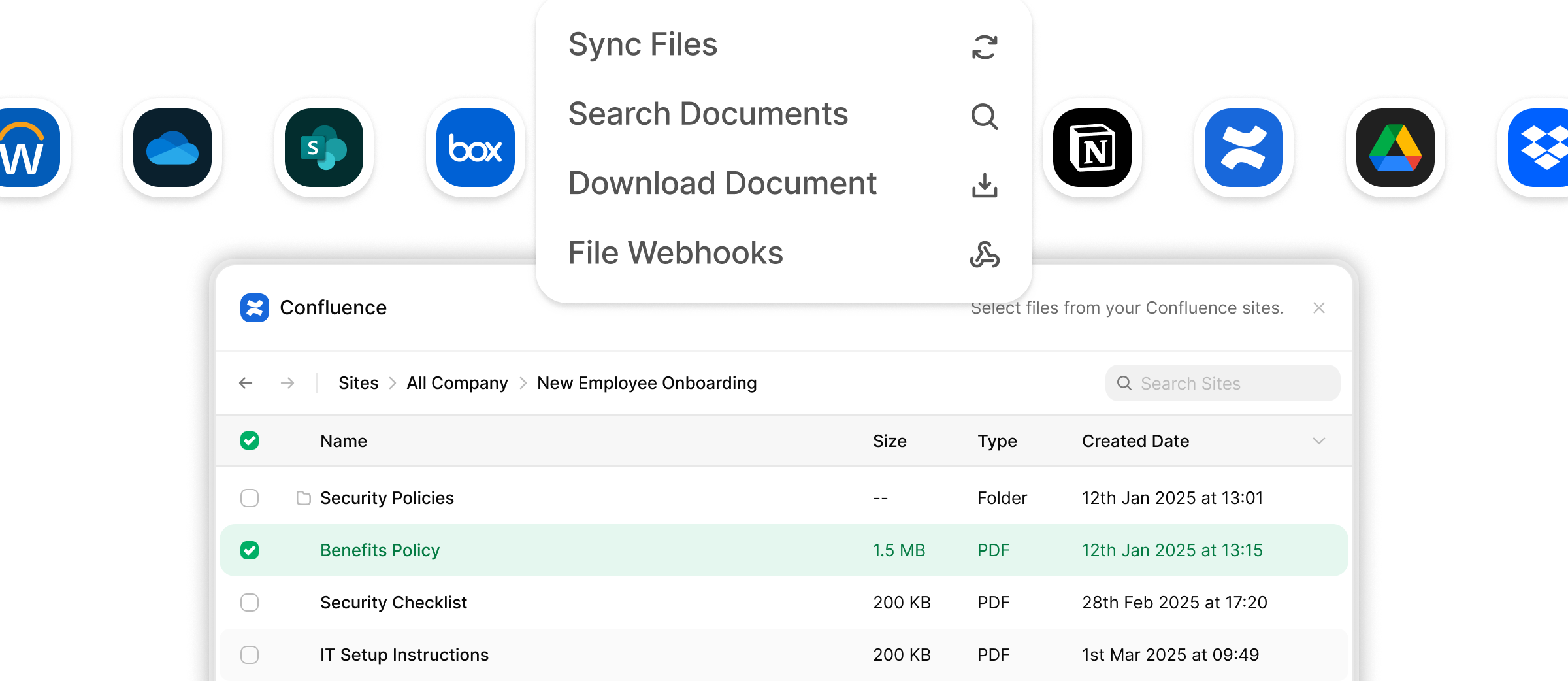
**AI agents** are more effective when they can access each user's **specific documents and knowledge bases**. Keeping these documents updated is challenging, but the **StackOne Documents API** makes it easy to access and sync user files for your agent.
**API Reference**: See available operations in the [`documents/api-reference/`](/documents/api-reference).
Every API endpoint can be provided as a tool within an agent through StackOne's **AI Library** ([nodejs](https://github.com/StackOneHQ/stackone-ai-node), [python](https://github.com/StackOneHQ/stackone-ai-python))
This use case demonstrates how to:
* Enable users to select relevant documents from their connected storage (**SharePoint, Google Drive, Notion**, etc.)
* **Index and process** selected documents for AI agent context
* Implement **real-time document synchronization** with webhooks
* Build **low-latency search and retrieval** for agent responses
* Combine **RAG'd document data** with **real-time tool calling**
## Step-by-Step Guide
### Prerequisites
Before implementing this use case, ensure you have:
* **Enabled document integrations** in your StackOne project for the providers you want to support (SharePoint, Google Drive, Confluence, etc.)
* Reviewed the [integration setup guides](/integration-guides/documents/overview) for provider-specific configuration requirements
Some document providers require additional OAuth application setup beyond the standard StackOne integration configuration. This may include creating custom OAuth apps with specific providers to enable full functionality and avoid rate limits. See the [integration guides overview](/integration-guides/documents/overview) for detailed provider-specific requirements.
***
1. **Set Up Webhook Endpoints**
Configure webhooks in your StackOne dashboard to receive `account.created` and `documents_files.updated` events.
API Reference: [Webhooks Guide](/guides/webhooks)
### Webhook Integration
StackOne provides webhook events to keep your AI agent's knowledge base synchronized with changes in connected providers:
#### Key Webhook Events
* **`account.created`** - Triggered when users successfully authenticate new document accounts
* **`documents_files.updated`** - Fired when files are modified, moved, or have metadata changes
* **`documents_files.deleted`** - Notifies when files are removed or access is revoked
#### Setting Up Webhooks
Configure webhooks in your StackOne dashboard to receive real-time notifications about document changes. See the [Webhooks Guide](/guides/webhooks) for detailed setup instructions.
### Content Refresh Strategies
| **Strategy** | **When to Use** | **Implementation** |
| ------------------ | ----------------------------------------- | --------------------------------------------------------- |
| **Scheduled Sync** | Batch processing, tolerance for delays | Cron jobs that re-index files periodically (hourly/daily) |
| **Webhook-Driven** | Real-time requirements, immediate updates | React to `documents_files.updated` events |
| **Manual Sync** | User-controlled updates, debugging | Admin dashboard triggers for specific accounts/files |
2. **Generate Connect Session Token**
Use the [Create Connect Session](/platform/api-reference/connect-sessions/create-connect-session) API with `multiple: true` for per-user account linking.
Additional API: [List Accounts](/platform/api-reference/accounts/list-accounts) to retrieve connected document provider accounts
3. **Embed Integration Hub**
Install and configure StackOne React Hub for OAuth flows.
API Reference: [Embedding StackOne Hub](/guides/embedding-stackone-hub)
4. **Implement File Picker**
Deploy StackOne File Picker for folder/file selection.
API Reference: [File Picker Guide](/documents/file-Picker)
### File Picker Integration
The StackOne File Picker provides a unified interface for document selection across providers. Based on the [StackOne File Picker repository](https://github.com/StackOneHQ/file-picker), here are the available callback events and configuration options:
#### File Picker Configuration Options
```javascript theme={null}
const filePicker = new FilePicker({
sessionToken: 'your-session-token', // Required
containerId: 'file-picker-container', // Optional: DOM container ID
baseUrl: 'https://app.stackone.com', // Optional: API instance
fields: ['name', 'path', 'driveId'], // Optional: which file fields to return
showBranding: false, // Optional: show StackOne footer (default: true)
folderSelectionEnabled: true, // Optional: allow folder selection (default: false)
driveSelectionEnabled: true, // Optional: allow drive selection (default: false)
// Callback Events
onFilesPicked: (files) => {
console.log('Selected files:', files);
// Process selected files for indexing
},
onOpen: () => {
console.log('File picker opened');
},
onClose: () => {
console.log('File picker closed');
},
onCancel: () => {
console.log('File selection canceled');
},
onError: (error) => {
console.log('File picker error:', error);
}
});
```
#### File Selection Response Format
When users complete their selection, the `onFilesPicked` callback receives different response formats depending on what was selected:
```javascript theme={null}
// Example response when only files are selected
{
"files": [
{
"id": "c28xIQaWQ6ODA5MzcyMg", // Unified file ID
"name": "Project Proposal.pdf", // File name
"path": "/Projects/2024/Project Proposal.pdf", // File path
"driveId": "7733268" // Drive identifier
},
{
"id": "d39yJRbXR7PEB6NzY3Ng",
"name": "Budget Analysis.xlsx",
"path": "/Projects/2024/Budget Analysis.xlsx",
"driveId": "7733268"
}
]
}
```
```javascript theme={null}
// Example response when both files and folders are selected
{
"files": [
{
"id": "c28xIQaWQ6ODA5MzcyMg", // Individual file
"name": "Project Proposal.pdf",
"path": "/Projects/2024/Project Proposal.pdf",
"driveId": "7733268"
}
],
"folders": [
{
"id": "f84mKLpQS8QFB7NzY4Mg", // Folder ID
"name": "Marketing Materials",
"path": "/Projects/2024/Marketing Materials",
"driveId": "7733268"
},
{
"id": "g95nLMqRT9RGC8NzY5Ng",
"name": "Legal Documents",
"path": "/Projects/2024/Legal Documents",
"driveId": "7733268"
}
]
}
```
**Folder Selection Handling**: When `folderSelectionEnabled: true` is set, users can select entire folders. The response will include folder IDs in the selection. To retrieve all files within selected folders (including nested subfolders), use the [List Files API](/documents/api-reference/files/list-files) with the `folder_id` parameter and `nested_files: true` option to automatically fetch all nested content.
**Note**: Only `onFilesPicked` is typically required for document management use cases. Other callbacks (`onOpen`, `onClose`, `onCancel`, `onError`) are optional and depend on specific user actions or error conditions.
#### Key Providers Supported
**OAuth Application Setup Required**: Some providers may require creating OAuth applications and configuring credentials. See the [Documents Integration Guides](/integration-guides/documents/overview) for provider-specific setup instructions, including [Google Drive](/integration-guides/documents/googledrive-partner-oauth), [SharePoint](/integration-guides/documents/sharepoint-oauth), and [OneDrive](/integration-guides/documents/onedrive-oauth) OAuth configurations.
| Provider | Picker Type | Navigation | Multi-Select | File Types |
| ---------------- | ----------- | ---------------------------- | ------------ | --------------- |
| **SharePoint** | Native | Site → Drive → Folder → File | ✅ | All documents |
| **OneDrive** | Native | Drive → Folder → File | ✅ | All documents |
| **Google Drive** | Native | Drive → Folder → File | ✅ | All documents |
| **Confluence** | Custom | Space → Page | ✅ | Pages/Documents |
| **Notion** | Custom | Workspace → Page | ✅ | Pages/Blocks |
For other providers, you can check support in the [StackOne's integration page](https://www.stackone.com/integrations) or your Dashboard's [field coverage page](https://app.stackone.com/field_coverage) or request a new integration via our in-app, slack or email support.
#### Picker Output Format
When users complete their selection, the picker returns different formats based on what was selected and configured:
```json theme={null}
{
"files": [
{
"id": "c28xIQaWQ6ODA5MzcyMg",
"name": "Project Proposal.pdf",
"path": "/Projects/2024/Project Proposal.pdf",
"driveId": "7733268",
"mimeType": "application/pdf",
"size": 2048000,
"lastModified": "2024-01-15T10:30:00Z"
}
]
}
```
```json theme={null}
{
"files": [
{
"id": "c28xIQaWQ6ODA5MzcyMg",
"name": "Project Proposal.pdf",
"path": "/Projects/2024/Project Proposal.pdf",
"driveId": "7733268",
"mimeType": "application/pdf",
"size": 2048000,
"lastModified": "2024-01-15T10:30:00Z"
},
{
"id": "d39yJRbXR7PEB6NzY3Ng",
"name": "Budget Analysis.xlsx",
"path": "/Projects/2024/Budget Analysis.xlsx",
"driveId": "7733268",
"mimeType": "application/vnd.openxmlformats-officedocument.spreadsheetml.sheet",
"size": 1024000,
"lastModified": "2024-01-10T14:22:00Z"
},
{
"id": "e40zKScYS8RFC7NzY4Og",
"name": "Meeting Notes.docx",
"path": "/Projects/2024/Meeting Notes.docx",
"driveId": "7733268",
"mimeType": "application/vnd.openxmlformats-officedocument.wordprocessingml.document",
"size": 512000,
"lastModified": "2024-01-12T09:15:00Z"
}
]
}
```
```json theme={null}
{
"files": [
{
"id": "c28xIQaWQ6ODA5MzcyMg",
"name": "Project Proposal.pdf",
"driveId": "7733268"
},
{
"id": "d39yJRbXR7PEB6NzY3Ng",
"name": "Budget Analysis.xlsx",
"driveId": "7733268"
}
]
}
```
```json theme={null}
{
"files": [
{
"id": "c28xIQaWQ6ODA5MzcyMg",
"name": "Project Proposal.pdf",
"path": "/Projects/2024/Project Proposal.pdf",
"driveId": "7733268"
}
],
"folders": [
{
"id": "f84mKLpQS8QFB7NzY4Mg",
"name": "Marketing Materials",
"path": "/Projects/2024/Marketing Materials",
"driveId": "7733268"
},
{
"id": "g95nLMqRT9RGC8NzY5Ng",
"name": "Legal Documents",
"path": "/Projects/2024/Legal Documents",
"driveId": "7733268"
}
]
}
```
```json theme={null}
{
"drives": [
{
"id": "7733268",
"name": "Company SharePoint",
"path": "/",
"type": "sharepoint"
},
{
"id": "8844379",
"name": "Marketing Drive",
"path": "/",
"type": "googledrive"
}
]
}
```
5. **Index Selected Content**
Use [Download File](/documents/api-reference/files/download-file) and [Get File](/documents/api-reference/files/get-file) to retrieve file content and metadata. Store content in your data store (vector database, search index, etc.).
Additional APIs: [List Files](/documents/api-reference/files/list-files), [List Folders](/documents/api-reference/folders/list-folders), [List Drives](/documents/api-reference/drives/list-drives)
6. **Maintain Content Freshness**
Implement one or more strategies to keep your agent's knowledge base current. These approaches are not mutually exclusive and can be combined:
| **Strategy** | **When to Use** | **Implementation** |
| ------------------ | ----------------------------------------- | ----------------------------------------------------------------------- |
| **Scheduled Sync** | Batch processing, tolerance for delays | Cron jobs that re-index files periodically using stored file/folder IDs |
| **Webhook-Driven** | Real-time requirements, immediate updates | React to `documents_files.updated` events for instant synchronization |
| **Manual Sync** | User-controlled updates, debugging | Admin dashboard triggers for specific accounts/files |
API Endpoints: Use [Get File](/documents/api-reference/files/get-file) and [Download File](/documents/api-reference/files/download-file) when `documents_files.updated` webhooks are received
Optional: [Upload File](/documents/api-reference/files/upload-file) for agent-generated content
***
## API Operations & Dataflow
```mermaid theme={null}
sequenceDiagram
participant User
participant WebApp as Your Web App
participant Hub as StackOne Hub&Picker
participant Backend as Your Backend
participant StackOneAPI as StackOne API
%% ========== SECTION 1: SESSION INITIALIZATION ==========
rect rgb(230, 245, 255)
note over WebApp, StackOneAPI: 1. Initialize Session
WebApp->>Backend: Create session
Backend->>StackOneAPI: POST /connect_sessions
StackOneAPI-->>Backend: { token }
Backend-->>WebApp: { token }
end
%% ========== SECTION 2: ACCOUNT LINKING ==========
rect rgb(230, 255, 236)
note over User, StackOneAPI: 2. Account Linking
WebApp->>Hub: startConnect(token)
User->>Hub: Auth provider
Hub-->>StackOneAPI: Store creds
StackOneAPI-->>Backend: account.created webhook
Backend-->>Backend: persist account_id
Hub-->>WebApp: onSuccess callback
end
%% ========== SECTION 3: FILE SELECTION ==========
rect rgb(255, 245, 230)
note over User, Hub: 3. File Selection
User->>WebApp: Pick files
WebApp->>Hub: open(token, account_id)
User->>Hub: Select files/folders
Hub-->>WebApp: Selection callback
WebApp->>Backend: Store selected IDs
end
%% ========== SECTION 4: Initial indexing ==========
rect rgb(240, 230, 255)
note over Backend, StackOneAPI: 4. Index Content
Backend->>Backend: Get picked files
loop For each file
Backend->>StackOneAPI: GET /files/{id}
Backend->>StackOneAPI: Download content
Backend->>Backend: Index file
end
end
%% ========== SECTION 5: Content Refresh ==========
rect rgb(230, 255, 236)
note over Backend, StackOneAPI: 5. Sync Updates
alt Scheduled sync
loop Periodic
Backend->>Backend: Get file IDs
loop For each file
Backend->>StackOneAPI: GET /files/{id}
Backend->>StackOneAPI: Download updates
Backend->>Backend: Re-index
end
end
else Webhook updates
StackOneAPI->>Backend: files.updated webhook
Backend->>Backend: Check if tracked
Backend->>StackOneAPI: GET /files/{id}
Backend->>StackOneAPI: Download content
Backend->>Backend: Re-index
end
end
%% ========== SECTION 6: Agent Use ==========
rect rgb(255, 245, 230)
note over User, Backend: 6. AI Response
User->>Backend: Query agent
Backend->>Backend: Search indexed data
Backend->>StackOneAPI: Real-time API calls
Backend->>User: Context-aware response
end
```
***
## Additional Use Cases You Can Build with this API
* **Just-in-time file attachment to an AI chatbot**: Add the ability for your users to attach files from SharePoint, Google Drive and more to a conversation, ChatGPT style
* **One-click attachments** to CRM/tickets/training
* **Policy/compliance sync** across approved sources
* **Unified knowledge base** across SharePoint, Confluence, Notion, etc.
***
## Troubleshooting
### Common Issues
| Issue | Symptoms | Solution |
| ------------------------- | ----------------------------------------- | ---------------------------------------------------------------- |
| **Authentication Errors** | 401 Unauthorized responses | Refresh OAuth tokens through StackOne Connect |
| **File Access Denied** | 403 Forbidden when accessing files | Verify user permissions in source provider |
| **Slow File Listings** | Timeout errors when listing large folders | Implement pagination and chunked requests |
| **Upload Failures** | Files not appearing after upload | Check provider-specific upload limits and file type restrictions |
### Support Resources
For persistent issues or advanced integration support:
* Review the [StackOne Error Codes Guide](/guides/unified-api-error-codes-and-troubleshooting-guide)
* Contact StackOne support through the dashboard
* Consult provider-specific documentation for detailed error codes
## Overview
**AI agents** are more effective when they can access each user's **specific documents and knowledge bases**. Keeping these documents updated is challenging, but the **StackOne Documents API** makes it easy to access and sync user files for your agent.
**API Reference**: See available operations in the [`documents/api-reference/`](/documents/api-reference).
Every API endpoint can be provided as a tool within an agent through StackOne's **AI Library** ([nodejs](https://github.com/StackOneHQ/stackone-ai-node), [python](https://github.com/StackOneHQ/stackone-ai-python))
This use case demonstrates how to:
* Enable users to select relevant documents from their connected storage (**SharePoint, Google Drive, Notion**, etc.)
* **Index and process** selected documents for AI agent context
* Implement **real-time document synchronization** with webhooks
* Build **low-latency search and retrieval** for agent responses
* Combine **RAG'd document data** with **real-time tool calling**
## Step-by-Step Guide
### Prerequisites
Before implementing this use case, ensure you have:
* **Enabled document integrations** in your StackOne project for the providers you want to support (SharePoint, Google Drive, Confluence, etc.)
* Reviewed the [integration setup guides](/integration-guides/documents/overview) for provider-specific configuration requirements
Some document providers require additional OAuth application setup beyond the standard StackOne integration configuration. This may include creating custom OAuth apps with specific providers to enable full functionality and avoid rate limits. See the [integration guides overview](/integration-guides/documents/overview) for detailed provider-specific requirements.
***
1. **Set Up Webhook Endpoints**
Configure webhooks in your StackOne dashboard to receive `account.created` and `documents_files.updated` events.
API Reference: [Webhooks Guide](/guides/webhooks)
### Webhook Integration
StackOne provides webhook events to keep your AI agent's knowledge base synchronized with changes in connected providers:
#### Key Webhook Events
* **`account.created`** - Triggered when users successfully authenticate new document accounts
* **`documents_files.updated`** - Fired when files are modified, moved, or have metadata changes
* **`documents_files.deleted`** - Notifies when files are removed or access is revoked
#### Setting Up Webhooks
Configure webhooks in your StackOne dashboard to receive real-time notifications about document changes. See the [Webhooks Guide](/guides/webhooks) for detailed setup instructions.
### Content Refresh Strategies
| **Strategy** | **When to Use** | **Implementation** |
| ------------------ | ----------------------------------------- | --------------------------------------------------------- |
| **Scheduled Sync** | Batch processing, tolerance for delays | Cron jobs that re-index files periodically (hourly/daily) |
| **Webhook-Driven** | Real-time requirements, immediate updates | React to `documents_files.updated` events |
| **Manual Sync** | User-controlled updates, debugging | Admin dashboard triggers for specific accounts/files |
2. **Generate Connect Session Token**
Use the [Create Connect Session](/platform/api-reference/connect-sessions/create-connect-session) API with `multiple: true` for per-user account linking.
Additional API: [List Accounts](/platform/api-reference/accounts/list-accounts) to retrieve connected document provider accounts
3. **Embed Integration Hub**
Install and configure StackOne React Hub for OAuth flows.
API Reference: [Embedding StackOne Hub](/guides/embedding-stackone-hub)
4. **Implement File Picker**
Deploy StackOne File Picker for folder/file selection.
API Reference: [File Picker Guide](/documents/file-Picker)
### File Picker Integration
The StackOne File Picker provides a unified interface for document selection across providers. Based on the [StackOne File Picker repository](https://github.com/StackOneHQ/file-picker), here are the available callback events and configuration options:
#### File Picker Configuration Options
```javascript theme={null}
const filePicker = new FilePicker({
sessionToken: 'your-session-token', // Required
containerId: 'file-picker-container', // Optional: DOM container ID
baseUrl: 'https://app.stackone.com', // Optional: API instance
fields: ['name', 'path', 'driveId'], // Optional: which file fields to return
showBranding: false, // Optional: show StackOne footer (default: true)
folderSelectionEnabled: true, // Optional: allow folder selection (default: false)
driveSelectionEnabled: true, // Optional: allow drive selection (default: false)
// Callback Events
onFilesPicked: (files) => {
console.log('Selected files:', files);
// Process selected files for indexing
},
onOpen: () => {
console.log('File picker opened');
},
onClose: () => {
console.log('File picker closed');
},
onCancel: () => {
console.log('File selection canceled');
},
onError: (error) => {
console.log('File picker error:', error);
}
});
```
#### File Selection Response Format
When users complete their selection, the `onFilesPicked` callback receives different response formats depending on what was selected:
```javascript theme={null}
// Example response when only files are selected
{
"files": [
{
"id": "c28xIQaWQ6ODA5MzcyMg", // Unified file ID
"name": "Project Proposal.pdf", // File name
"path": "/Projects/2024/Project Proposal.pdf", // File path
"driveId": "7733268" // Drive identifier
},
{
"id": "d39yJRbXR7PEB6NzY3Ng",
"name": "Budget Analysis.xlsx",
"path": "/Projects/2024/Budget Analysis.xlsx",
"driveId": "7733268"
}
]
}
```
```javascript theme={null}
// Example response when both files and folders are selected
{
"files": [
{
"id": "c28xIQaWQ6ODA5MzcyMg", // Individual file
"name": "Project Proposal.pdf",
"path": "/Projects/2024/Project Proposal.pdf",
"driveId": "7733268"
}
],
"folders": [
{
"id": "f84mKLpQS8QFB7NzY4Mg", // Folder ID
"name": "Marketing Materials",
"path": "/Projects/2024/Marketing Materials",
"driveId": "7733268"
},
{
"id": "g95nLMqRT9RGC8NzY5Ng",
"name": "Legal Documents",
"path": "/Projects/2024/Legal Documents",
"driveId": "7733268"
}
]
}
```
**Folder Selection Handling**: When `folderSelectionEnabled: true` is set, users can select entire folders. The response will include folder IDs in the selection. To retrieve all files within selected folders (including nested subfolders), use the [List Files API](/documents/api-reference/files/list-files) with the `folder_id` parameter and `nested_files: true` option to automatically fetch all nested content.
**Note**: Only `onFilesPicked` is typically required for document management use cases. Other callbacks (`onOpen`, `onClose`, `onCancel`, `onError`) are optional and depend on specific user actions or error conditions.
#### Key Providers Supported
**OAuth Application Setup Required**: Some providers may require creating OAuth applications and configuring credentials. See the [Documents Integration Guides](/integration-guides/documents/overview) for provider-specific setup instructions, including [Google Drive](/integration-guides/documents/googledrive-partner-oauth), [SharePoint](/integration-guides/documents/sharepoint-oauth), and [OneDrive](/integration-guides/documents/onedrive-oauth) OAuth configurations.
| Provider | Picker Type | Navigation | Multi-Select | File Types |
| ---------------- | ----------- | ---------------------------- | ------------ | --------------- |
| **SharePoint** | Native | Site → Drive → Folder → File | ✅ | All documents |
| **OneDrive** | Native | Drive → Folder → File | ✅ | All documents |
| **Google Drive** | Native | Drive → Folder → File | ✅ | All documents |
| **Confluence** | Custom | Space → Page | ✅ | Pages/Documents |
| **Notion** | Custom | Workspace → Page | ✅ | Pages/Blocks |
For other providers, you can check support in the [StackOne's integration page](https://www.stackone.com/integrations) or your Dashboard's [field coverage page](https://app.stackone.com/field_coverage) or request a new integration via our in-app, slack or email support.
#### Picker Output Format
When users complete their selection, the picker returns different formats based on what was selected and configured:
```json theme={null}
{
"files": [
{
"id": "c28xIQaWQ6ODA5MzcyMg",
"name": "Project Proposal.pdf",
"path": "/Projects/2024/Project Proposal.pdf",
"driveId": "7733268",
"mimeType": "application/pdf",
"size": 2048000,
"lastModified": "2024-01-15T10:30:00Z"
}
]
}
```
```json theme={null}
{
"files": [
{
"id": "c28xIQaWQ6ODA5MzcyMg",
"name": "Project Proposal.pdf",
"path": "/Projects/2024/Project Proposal.pdf",
"driveId": "7733268",
"mimeType": "application/pdf",
"size": 2048000,
"lastModified": "2024-01-15T10:30:00Z"
},
{
"id": "d39yJRbXR7PEB6NzY3Ng",
"name": "Budget Analysis.xlsx",
"path": "/Projects/2024/Budget Analysis.xlsx",
"driveId": "7733268",
"mimeType": "application/vnd.openxmlformats-officedocument.spreadsheetml.sheet",
"size": 1024000,
"lastModified": "2024-01-10T14:22:00Z"
},
{
"id": "e40zKScYS8RFC7NzY4Og",
"name": "Meeting Notes.docx",
"path": "/Projects/2024/Meeting Notes.docx",
"driveId": "7733268",
"mimeType": "application/vnd.openxmlformats-officedocument.wordprocessingml.document",
"size": 512000,
"lastModified": "2024-01-12T09:15:00Z"
}
]
}
```
```json theme={null}
{
"files": [
{
"id": "c28xIQaWQ6ODA5MzcyMg",
"name": "Project Proposal.pdf",
"driveId": "7733268"
},
{
"id": "d39yJRbXR7PEB6NzY3Ng",
"name": "Budget Analysis.xlsx",
"driveId": "7733268"
}
]
}
```
```json theme={null}
{
"files": [
{
"id": "c28xIQaWQ6ODA5MzcyMg",
"name": "Project Proposal.pdf",
"path": "/Projects/2024/Project Proposal.pdf",
"driveId": "7733268"
}
],
"folders": [
{
"id": "f84mKLpQS8QFB7NzY4Mg",
"name": "Marketing Materials",
"path": "/Projects/2024/Marketing Materials",
"driveId": "7733268"
},
{
"id": "g95nLMqRT9RGC8NzY5Ng",
"name": "Legal Documents",
"path": "/Projects/2024/Legal Documents",
"driveId": "7733268"
}
]
}
```
```json theme={null}
{
"drives": [
{
"id": "7733268",
"name": "Company SharePoint",
"path": "/",
"type": "sharepoint"
},
{
"id": "8844379",
"name": "Marketing Drive",
"path": "/",
"type": "googledrive"
}
]
}
```
5. **Index Selected Content**
Use [Download File](/documents/api-reference/files/download-file) and [Get File](/documents/api-reference/files/get-file) to retrieve file content and metadata. Store content in your data store (vector database, search index, etc.).
Additional APIs: [List Files](/documents/api-reference/files/list-files), [List Folders](/documents/api-reference/folders/list-folders), [List Drives](/documents/api-reference/drives/list-drives)
6. **Maintain Content Freshness**
Implement one or more strategies to keep your agent's knowledge base current. These approaches are not mutually exclusive and can be combined:
| **Strategy** | **When to Use** | **Implementation** |
| ------------------ | ----------------------------------------- | ----------------------------------------------------------------------- |
| **Scheduled Sync** | Batch processing, tolerance for delays | Cron jobs that re-index files periodically using stored file/folder IDs |
| **Webhook-Driven** | Real-time requirements, immediate updates | React to `documents_files.updated` events for instant synchronization |
| **Manual Sync** | User-controlled updates, debugging | Admin dashboard triggers for specific accounts/files |
API Endpoints: Use [Get File](/documents/api-reference/files/get-file) and [Download File](/documents/api-reference/files/download-file) when `documents_files.updated` webhooks are received
Optional: [Upload File](/documents/api-reference/files/upload-file) for agent-generated content
***
## API Operations & Dataflow
```mermaid theme={null}
sequenceDiagram
participant User
participant WebApp as Your Web App
participant Hub as StackOne Hub&Picker
participant Backend as Your Backend
participant StackOneAPI as StackOne API
%% ========== SECTION 1: SESSION INITIALIZATION ==========
rect rgb(230, 245, 255)
note over WebApp, StackOneAPI: 1. Initialize Session
WebApp->>Backend: Create session
Backend->>StackOneAPI: POST /connect_sessions
StackOneAPI-->>Backend: { token }
Backend-->>WebApp: { token }
end
%% ========== SECTION 2: ACCOUNT LINKING ==========
rect rgb(230, 255, 236)
note over User, StackOneAPI: 2. Account Linking
WebApp->>Hub: startConnect(token)
User->>Hub: Auth provider
Hub-->>StackOneAPI: Store creds
StackOneAPI-->>Backend: account.created webhook
Backend-->>Backend: persist account_id
Hub-->>WebApp: onSuccess callback
end
%% ========== SECTION 3: FILE SELECTION ==========
rect rgb(255, 245, 230)
note over User, Hub: 3. File Selection
User->>WebApp: Pick files
WebApp->>Hub: open(token, account_id)
User->>Hub: Select files/folders
Hub-->>WebApp: Selection callback
WebApp->>Backend: Store selected IDs
end
%% ========== SECTION 4: Initial indexing ==========
rect rgb(240, 230, 255)
note over Backend, StackOneAPI: 4. Index Content
Backend->>Backend: Get picked files
loop For each file
Backend->>StackOneAPI: GET /files/{id}
Backend->>StackOneAPI: Download content
Backend->>Backend: Index file
end
end
%% ========== SECTION 5: Content Refresh ==========
rect rgb(230, 255, 236)
note over Backend, StackOneAPI: 5. Sync Updates
alt Scheduled sync
loop Periodic
Backend->>Backend: Get file IDs
loop For each file
Backend->>StackOneAPI: GET /files/{id}
Backend->>StackOneAPI: Download updates
Backend->>Backend: Re-index
end
end
else Webhook updates
StackOneAPI->>Backend: files.updated webhook
Backend->>Backend: Check if tracked
Backend->>StackOneAPI: GET /files/{id}
Backend->>StackOneAPI: Download content
Backend->>Backend: Re-index
end
end
%% ========== SECTION 6: Agent Use ==========
rect rgb(255, 245, 230)
note over User, Backend: 6. AI Response
User->>Backend: Query agent
Backend->>Backend: Search indexed data
Backend->>StackOneAPI: Real-time API calls
Backend->>User: Context-aware response
end
```
***
## Additional Use Cases You Can Build with this API
* **Just-in-time file attachment to an AI chatbot**: Add the ability for your users to attach files from SharePoint, Google Drive and more to a conversation, ChatGPT style
* **One-click attachments** to CRM/tickets/training
* **Policy/compliance sync** across approved sources
* **Unified knowledge base** across SharePoint, Confluence, Notion, etc.
***
## Troubleshooting
### Common Issues
| Issue | Symptoms | Solution |
| ------------------------- | ----------------------------------------- | ---------------------------------------------------------------- |
| **Authentication Errors** | 401 Unauthorized responses | Refresh OAuth tokens through StackOne Connect |
| **File Access Denied** | 403 Forbidden when accessing files | Verify user permissions in source provider |
| **Slow File Listings** | Timeout errors when listing large folders | Implement pagination and chunked requests |
| **Upload Failures** | Files not appearing after upload | Check provider-specific upload limits and file type restrictions |
### Support Resources
For persistent issues or advanced integration support:
* Review the [StackOne Error Codes Guide](/guides/unified-api-error-codes-and-troubleshooting-guide)
* Contact StackOne support through the dashboard
* Consult provider-specific documentation for detailed error codes