> ## Documentation Index
> Fetch the complete documentation index at: https://docs.stackone.com/llms.txt
> Use this file to discover all available pages before exploring further.

# Zoho BugTracker Webhook Setup Guide

> Configure Zoho BugTracker to deliver events to StackOne.

## Prerequisites

The connector should already be set up, with a Connector Profile and a Linked Account. See [Getting Started](/connectors/zohobugtracker#getting-started) on the Zoho BugTracker connector page.

<section data-guide-section data-guide-scopes="">
  <h2>Retrieve the StackOne Native Webhook URL</h2>

  <p>The <strong>Native Webhook URL</strong> is generated once a Zoho BugTracker account has been linked. Every webhook below uses this URL.</p>

  <ul>
    <li>Open the linked account in StackOne.</li>
    <li>Copy the value from <strong>Native Webhook URL</strong>.</li>
    <li>Paste the URL exactly as copied, including its `token` query parameter. Zoho sends the webhook parameters in the request body, so nothing is appended to the URL.</li>
  </ul>
</section>

<section data-guide-section data-guide-scopes="">
  <h2>Send issue events from a project</h2>

  <p>Zoho BugTracker only calls a webhook from a business rule. Create one webhook and one business rule per issue event, in each project. The webhook's parameters define the payload, so use the parameter names below exactly.</p>

  <Steps>
    <Step title="Sign in to Zoho BugTracker">
      <div data-guide-step data-guide-scopes="" data-guide-display-scopes-list="">
        <p>Sign in to your <a href="https://bugtracker.zoho.com" target="_blank" rel="noopener noreferrer">Zoho BugTracker account</a> as a portal Owner, Admin or Manager.</p>

        <ul>
          <li>Use your data center's domain if it isn't `zoho.com`, for example `https://bugtracker.zoho.in` or `https://bugtracker.zoho.eu`.</li>
          <li>Click the gear icon to open <strong>Setup</strong>.</li>
        </ul>
      </div>
    </Step>

    <Step title="Open the project's webhooks">
      <div data-guide-step data-guide-scopes="" data-guide-display-scopes-list="">
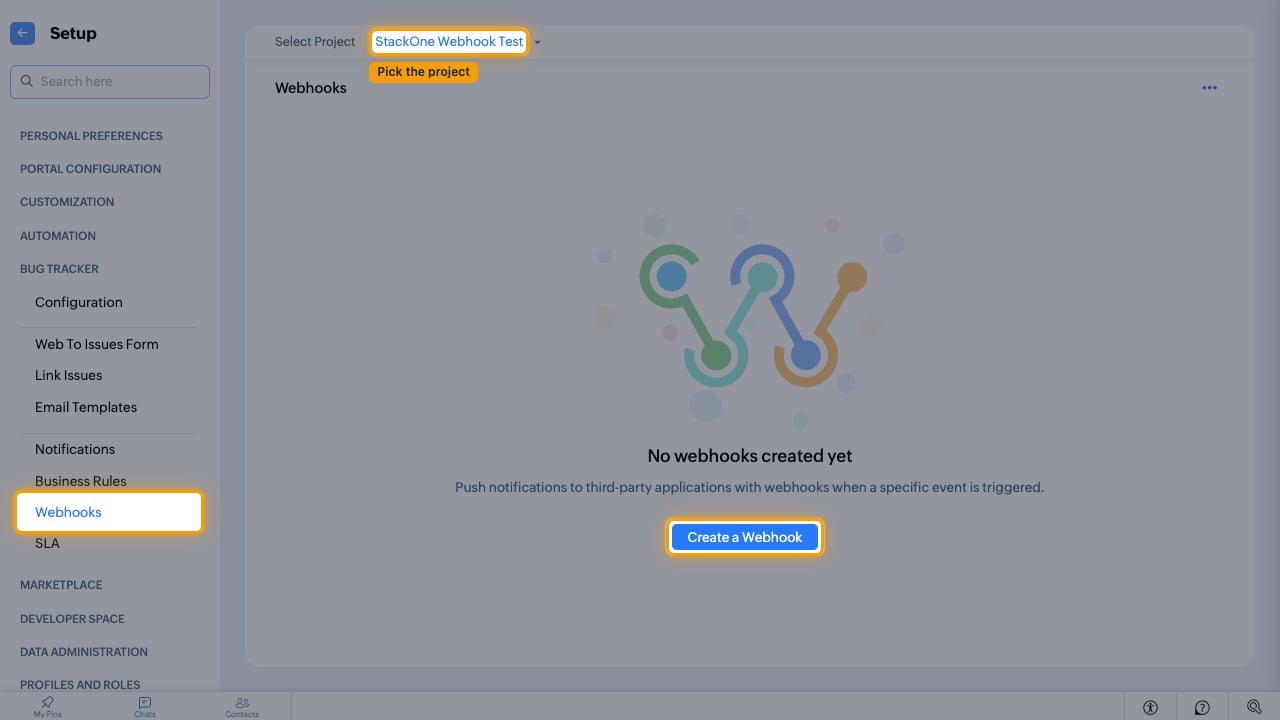
        <p>In <strong>Setup</strong>, go to <strong>BUG TRACKER</strong> > <strong>Webhooks</strong>.</p>

        <ul>
          <li>Choose the project in <strong>Select Project</strong>.</li>
          <li>Click <strong>Create a Webhook</strong>.</li>
          <li>The <strong>BUG TRACKER</strong> section only appears once the portal has at least one project.</li>
        </ul>

        <img src="https://mintcdn.com/stackone-60/m0SJt4vT7dJMzdCI/connectors/zohobugtracker/images/events-issue-webhooks.png?fit=max&auto=format&n=m0SJt4vT7dJMzdCI&q=85&s=66d3db5ed3e6f4f350549088d0253ec1" alt="The Bug Tracker Webhooks page with the project selector and Create a Webhook button highlighted" width="1280" height="720" data-path="connectors/zohobugtracker/images/events-issue-webhooks.png" />
      </div>
    </Step>

    <Step title="Name the webhook and paste the URL">
      <div data-guide-step data-guide-scopes="" data-guide-display-scopes-list="">
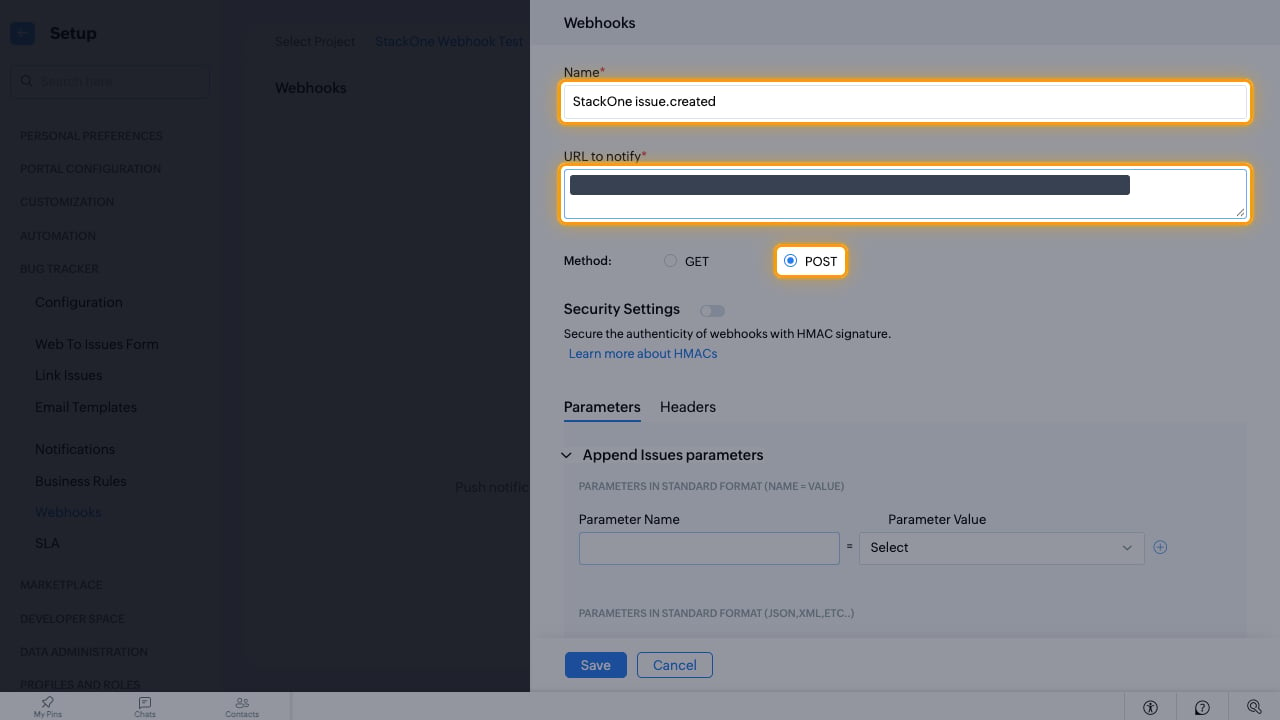
        <p>Fill in the webhook details.</p>

        <ul>
          <li><strong>Name</strong>: `StackOne issue.created` (one webhook per event, named after its event code)</li>
          <li>Paste the Native Webhook URL into <strong>URL to notify</strong>.</li>
          <li>Leave <strong>Method</strong> set to <strong>POST</strong>.</li>
          <li>Leave <strong>Security Settings</strong> off.</li>
        </ul>

        <img src="https://mintcdn.com/stackone-60/m0SJt4vT7dJMzdCI/connectors/zohobugtracker/images/events-issue-webhook-details.png?fit=max&auto=format&n=m0SJt4vT7dJMzdCI&q=85&s=4305051a331909a85e6c55c1546faa30" alt="The webhook form with Name, URL to notify and the POST method highlighted" width="1280" height="720" data-path="connectors/zohobugtracker/images/events-issue-webhook-details.png" />
      </div>
    </Step>

    <Step title="Add the issue parameters">
      <div data-guide-step data-guide-scopes="" data-guide-display-scopes-list="">
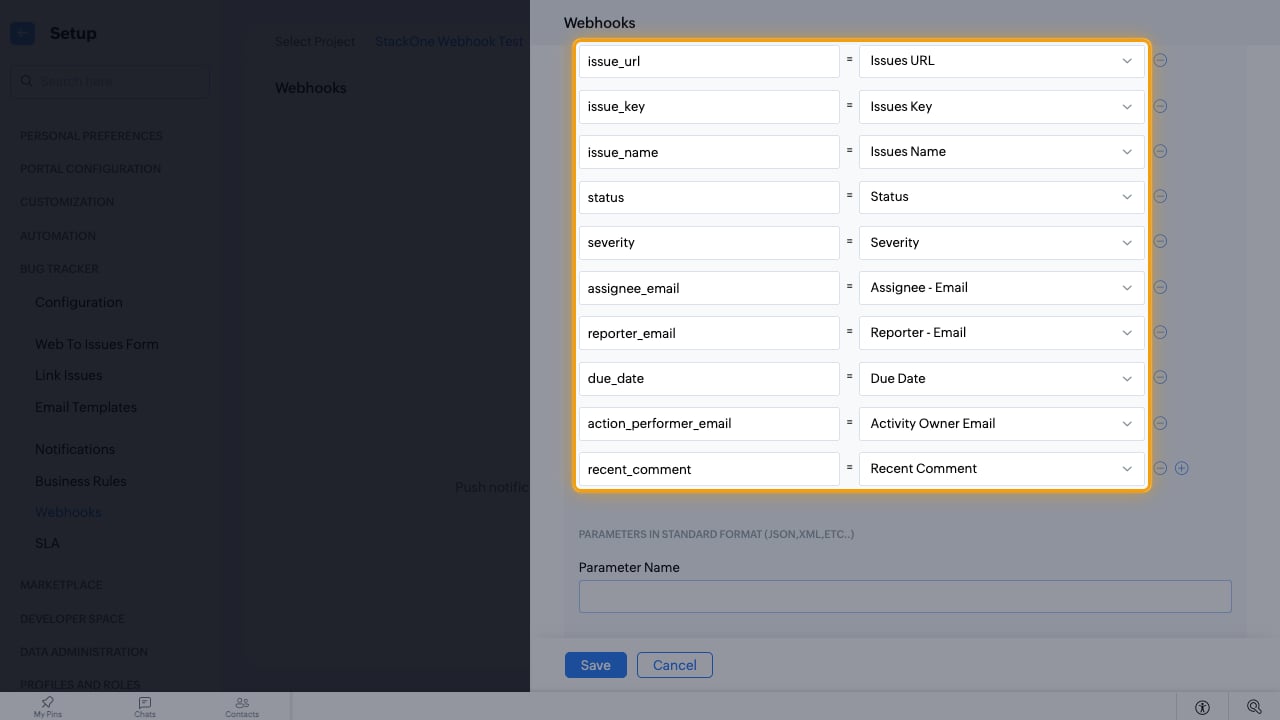
        <p>Under <strong>Append Issues parameters</strong> > <strong>Parameters in standard format (Name = Value)</strong>, add these ten rows. Type the <strong>Parameter Name</strong> and pick the <strong>Parameter Value</strong>; click the plus icon to add each new row.</p>

        <ul>
          <li>`issue_url` = <strong>Issues URL</strong></li>
          <li>`issue_key` = <strong>Issues Key</strong></li>
          <li>`issue_name` = <strong>Issues Name</strong></li>
          <li>`status` = <strong>Status</strong></li>
          <li>`severity` = <strong>Severity</strong></li>
          <li>`assignee_email` = <strong>Assignee - Email</strong></li>
          <li>`reporter_email` = <strong>Reporter - Email</strong></li>
          <li>`due_date` = <strong>Due Date</strong></li>
          <li>`action_performer_email` = <strong>Activity Owner Email</strong></li>
          <li>`recent_comment` = <strong>Recent Comment</strong></li>
          <li>StackOne reads the issue ID from `issue_url`, so that row is required.</li>
        </ul>

        <img src="https://mintcdn.com/stackone-60/ddNqpQgQz0mnDP-R/connectors/zohobugtracker/images/events-issue-parameters.png?fit=max&auto=format&n=ddNqpQgQz0mnDP-R&q=85&s=38ec9107030a1cf46de9366b89626f58" alt="The ten standard issue parameters mapped to their Zoho fields" width="1280" height="720" data-path="connectors/zohobugtracker/images/events-issue-parameters.png" />
      </div>
    </Step>

    <Step title="Add the event code and save">
      <div data-guide-step data-guide-scopes="" data-guide-display-scopes-list="">
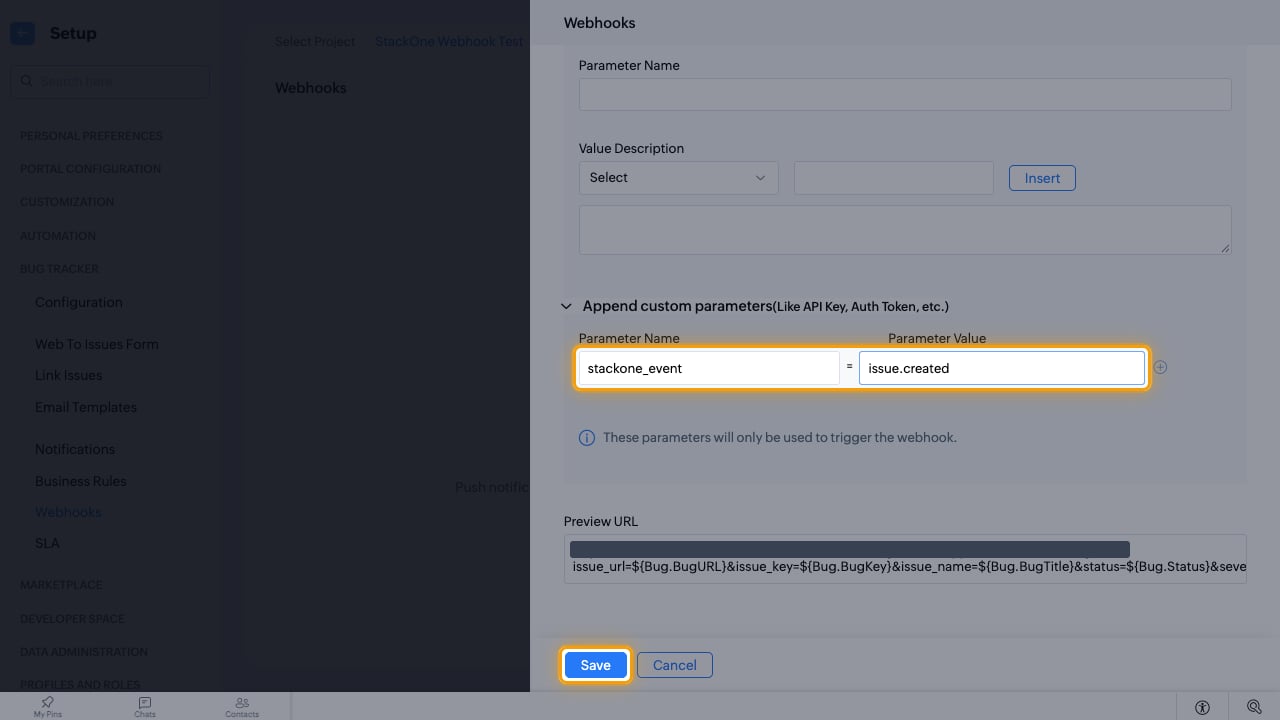
        <p>Under <strong>Append custom parameters(Like API Key, Auth Token, etc.)</strong>, add one row that tells StackOne which event this webhook carries.</p>

        <ul>
          <li><strong>Parameter Name</strong>: `stackone_event`</li>
          <li><strong>Parameter Value</strong>: the event code, for example `issue.created` (see <strong>Available webhook events</strong>)</li>
          <li>Click <strong>Save</strong>.</li>
        </ul>

        <img src="https://mintcdn.com/stackone-60/ddNqpQgQz0mnDP-R/connectors/zohobugtracker/images/events-issue-event-code.png?fit=max&auto=format&n=ddNqpQgQz0mnDP-R&q=85&s=139d60953922953433928a56d2facfc9" alt="The stackone_event custom parameter and the Save button highlighted" width="1280" height="720" data-path="connectors/zohobugtracker/images/events-issue-event-code.png" />
      </div>
    </Step>

    <Step title="Create a business rule">
      <div data-guide-step data-guide-scopes="" data-guide-display-scopes-list="">
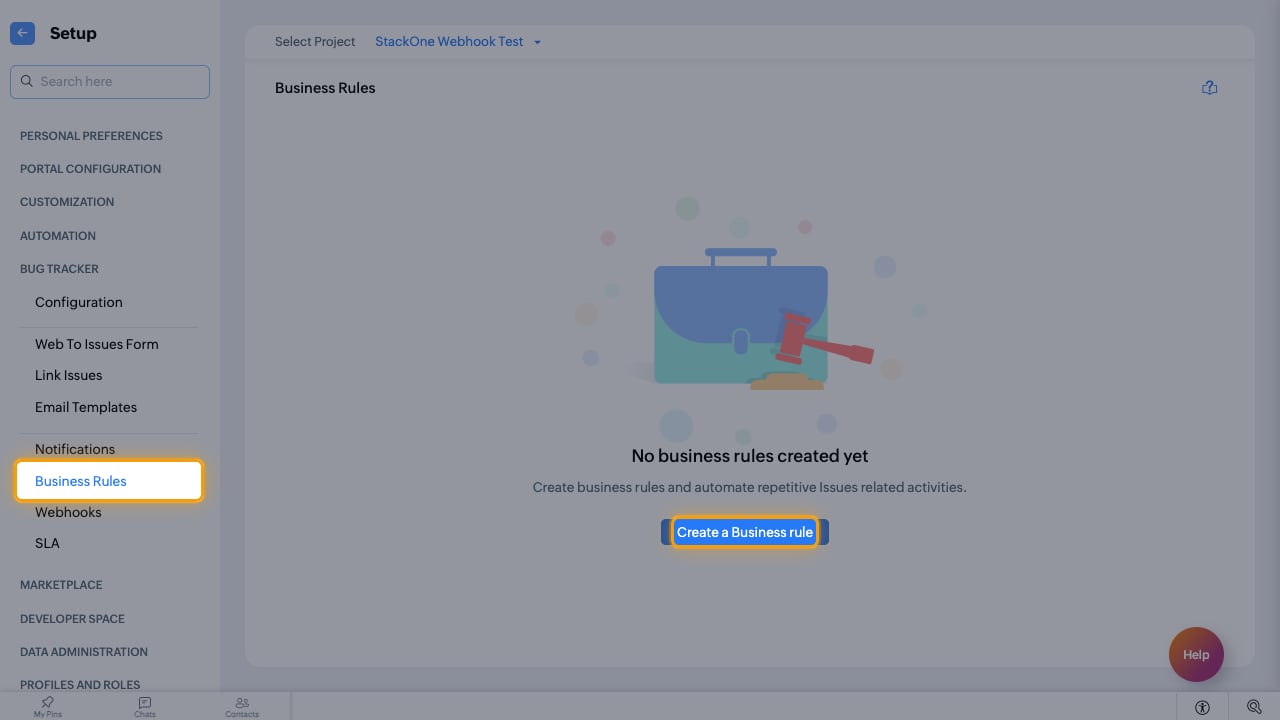
        <p>Go to <strong>BUG TRACKER</strong> > <strong>Business Rules</strong> for the same project and click <strong>Create a Business rule</strong>.</p>

        <img src="https://mintcdn.com/stackone-60/ddNqpQgQz0mnDP-R/connectors/zohobugtracker/images/events-issue-business-rules.png?fit=max&auto=format&n=ddNqpQgQz0mnDP-R&q=85&s=7be69f6eee8a4207f036e77c6de7a181" alt="The Business Rules page with the Create a Business rule button highlighted" width="1280" height="720" data-path="connectors/zohobugtracker/images/events-issue-business-rules.png" />
      </div>
    </Step>

    <Step title="Choose when the rule runs">
      <div data-guide-step data-guide-scopes="" data-guide-display-scopes-list="">
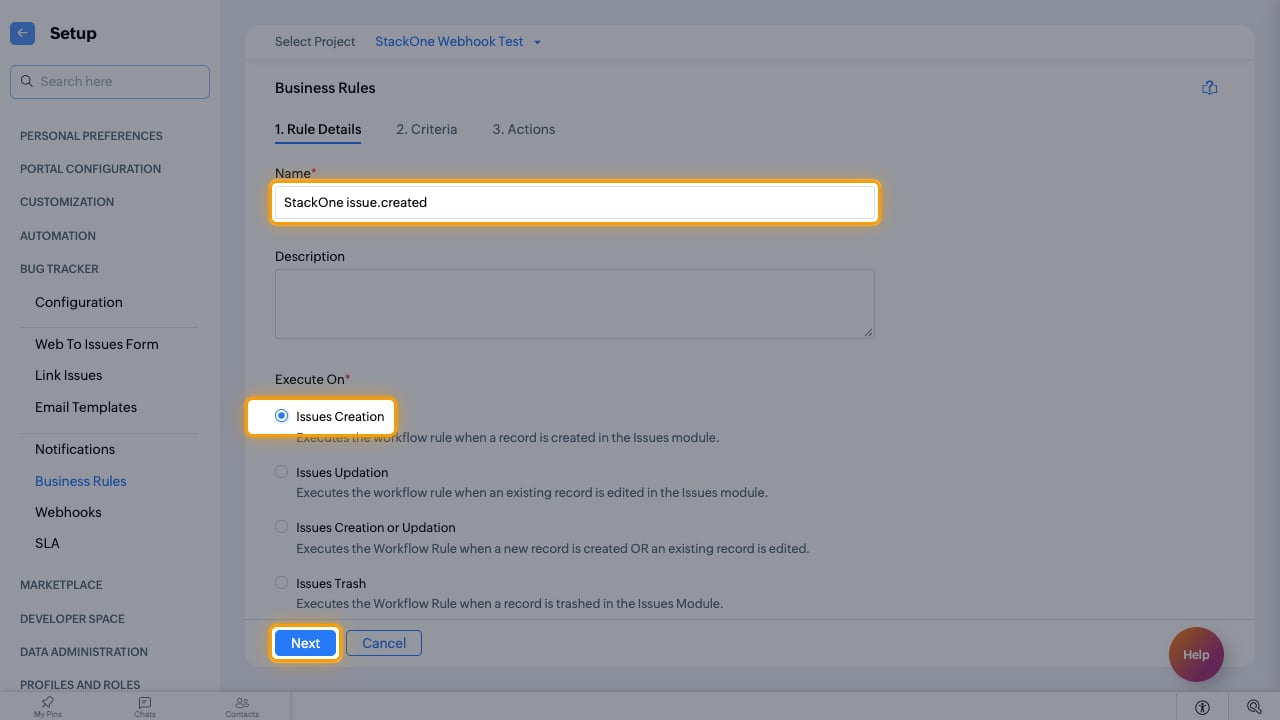
        <p>On <strong>1. Rule Details</strong>, enter a <strong>Name</strong> (for example `StackOne issue.created`) and pick the <strong>Execute On</strong> option for the event.</p>

        <ul>
          <li>`issue.created`: <strong>Issues Creation</strong></li>
          <li>`issue.updated`: <strong>Issues Updation</strong></li>
          <li>`issue.trashed`: <strong>Issues Trash</strong></li>
          <li>`issue.comment_added`: <strong>New Comment</strong></li>
          <li>Click <strong>Next</strong>.</li>
        </ul>

        <img src="https://mintcdn.com/stackone-60/ddNqpQgQz0mnDP-R/connectors/zohobugtracker/images/events-issue-execute-on.png?fit=max&auto=format&n=ddNqpQgQz0mnDP-R&q=85&s=a7c970b832b2a7aacb89a84e7adc954e" alt="The rule name and the Issues Creation option highlighted" width="1280" height="720" data-path="connectors/zohobugtracker/images/events-issue-execute-on.png" />
      </div>
    </Step>

    <Step title="Pick the field for field-change events">
      <div data-guide-step data-guide-scopes="" data-guide-display-scopes-list="">
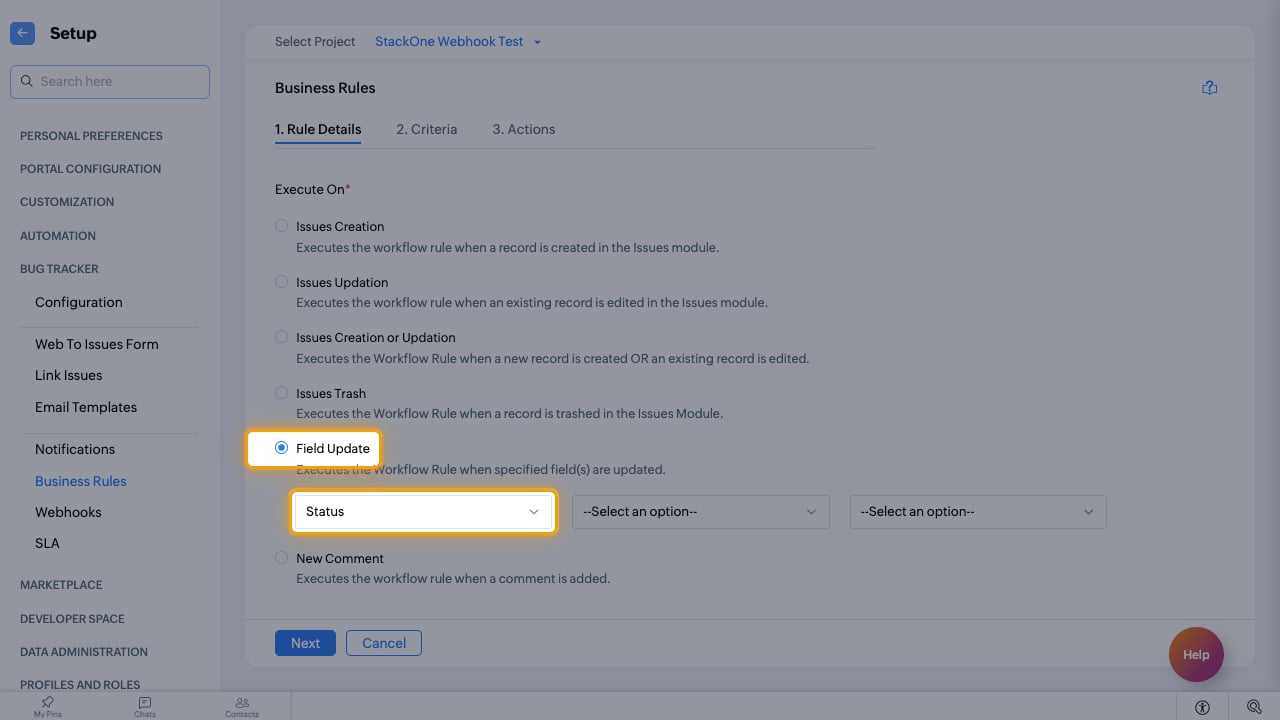
        <p>For the four field-change events, choose <strong>Field Update</strong> and select the field in the first dropdown.</p>

        <ul>
          <li>`issue.status_changed`: <strong>Status</strong></li>
          <li>`issue.assignee_changed`: <strong>Assignee</strong></li>
          <li>`issue.severity_changed`: <strong>Severity</strong></li>
          <li>`issue.due_date_changed`: <strong>Due Date</strong></li>
        </ul>

        <img src="https://mintcdn.com/stackone-60/ddNqpQgQz0mnDP-R/connectors/zohobugtracker/images/events-issue-field-update.png?fit=max&auto=format&n=ddNqpQgQz0mnDP-R&q=85&s=f94911c45ba05b8c81fe58a2f90f647a" alt="The Field Update option with Status selected as the field" width="1280" height="720" data-path="connectors/zohobugtracker/images/events-issue-field-update.png" />
      </div>
    </Step>

    <Step title="Add a criteria row">
      <div data-guide-step data-guide-scopes="" data-guide-display-scopes-list="">
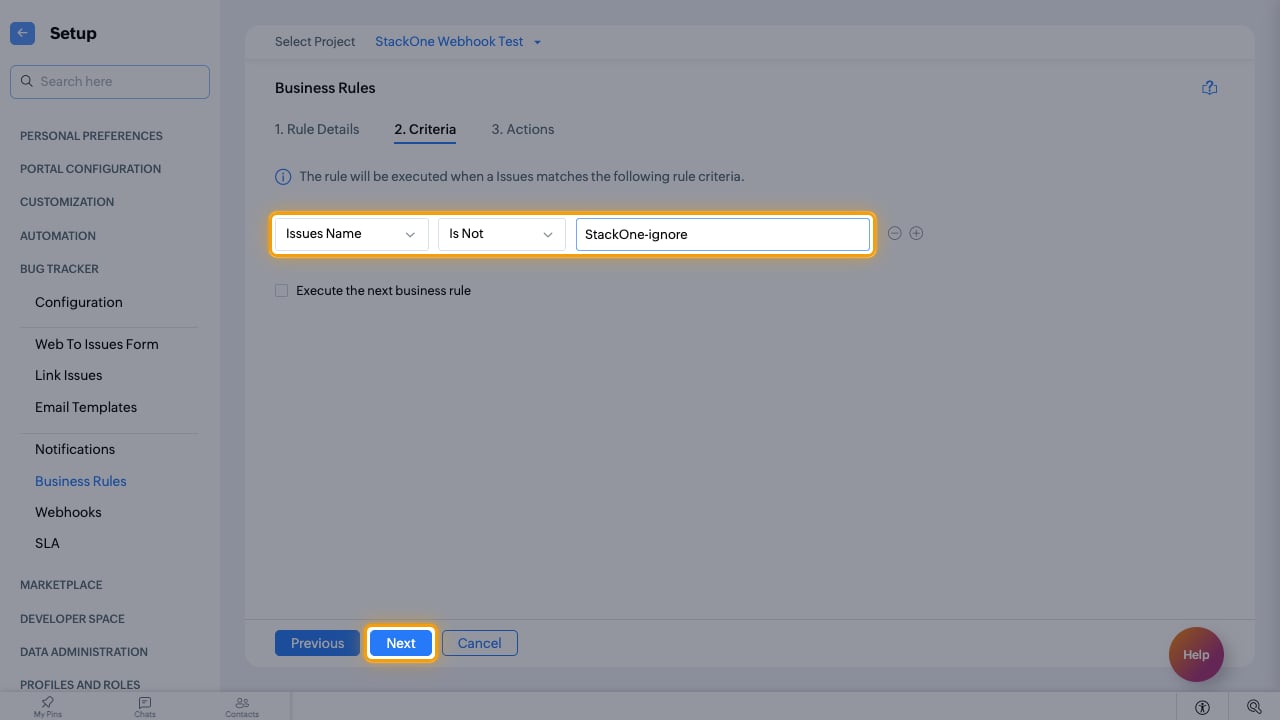
        <p>On <strong>2. Criteria</strong>, a rule needs at least one condition. Add one that every issue matches, for example <strong>Issues Name</strong> <strong>Is Not</strong> `StackOne-ignore`, then click <strong>Next</strong>.</p>

        <img src="https://mintcdn.com/stackone-60/ddNqpQgQz0mnDP-R/connectors/zohobugtracker/images/events-issue-criteria.png?fit=max&auto=format&n=ddNqpQgQz0mnDP-R&q=85&s=55ea1cf42be4e3a56a4b843463dae6f8" alt="A criteria row of Issues Name Is Not StackOne-ignore and the Next button highlighted" width="1280" height="720" data-path="connectors/zohobugtracker/images/events-issue-criteria.png" />
      </div>
    </Step>

    <Step title="Select the webhook and save">
      <div data-guide-step data-guide-scopes="" data-guide-display-scopes-list="">
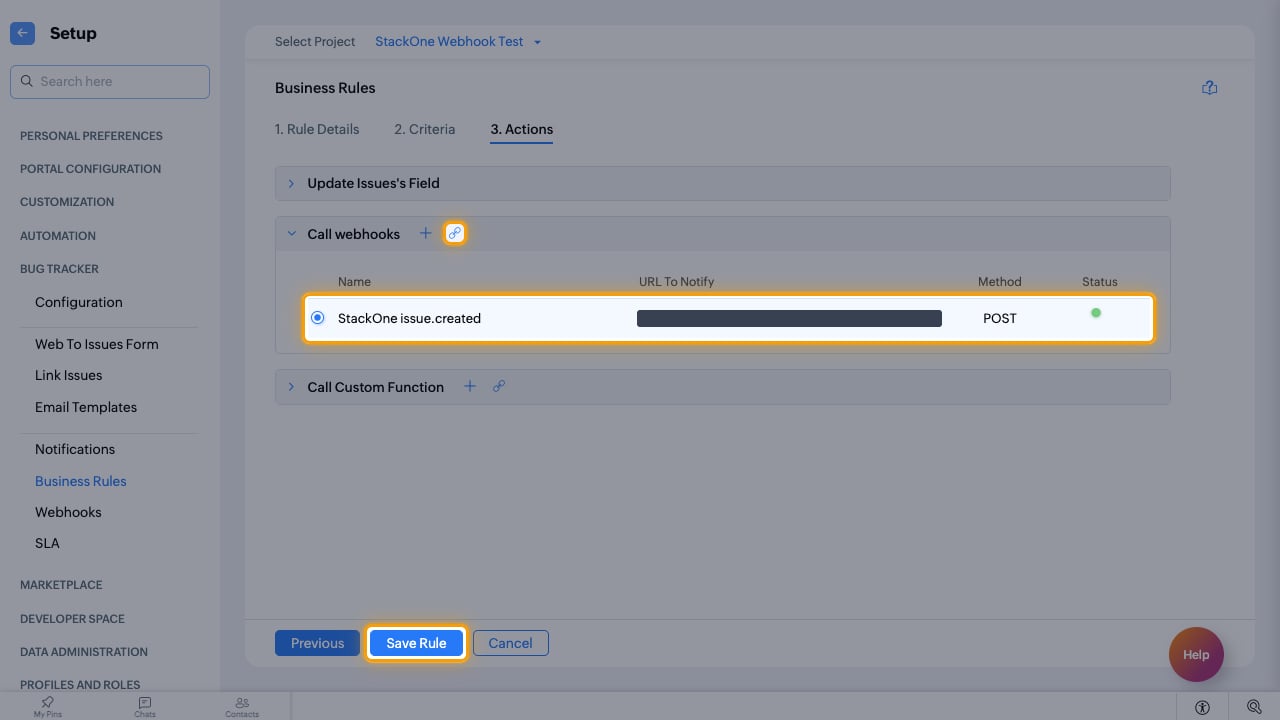
        <p>On <strong>3. Actions</strong>, expand <strong>Call webhooks</strong> and click the link icon to list existing webhooks.</p>

        <ul>
          <li>Select the webhook you created for this event.</li>
          <li>Click <strong>Save Rule</strong>.</li>
          <li>Repeat the webhook and rule for every issue event you want, changing the name, the `stackone_event` value and the trigger each time.</li>
        </ul>

        <img src="https://mintcdn.com/stackone-60/ddNqpQgQz0mnDP-R/connectors/zohobugtracker/images/events-issue-call-webhook.png?fit=max&auto=format&n=ddNqpQgQz0mnDP-R&q=85&s=121551a8c4d0a02d6841672d6a85d74e" alt="The Call webhooks link icon, the selected webhook and the Save Rule button highlighted" width="1280" height="720" data-path="connectors/zohobugtracker/images/events-issue-call-webhook.png" />
      </div>
    </Step>
  </Steps>
</section>

<section data-guide-section data-guide-scopes="">
  <h2>Send project, phase and user events</h2>

  <p>Project, phase and user events come from portal-wide workflow rules. Create one webhook and one workflow rule per module (<strong>Projects</strong>, <strong>Phases</strong>, <strong>Users</strong>). Each rule lists every trigger for its module, and StackOne tells the events apart by the activity type Zoho sends.</p>

  <Steps>
    <Step title="Open the automation webhooks">
      <div data-guide-step data-guide-scopes="" data-guide-display-scopes-list="">
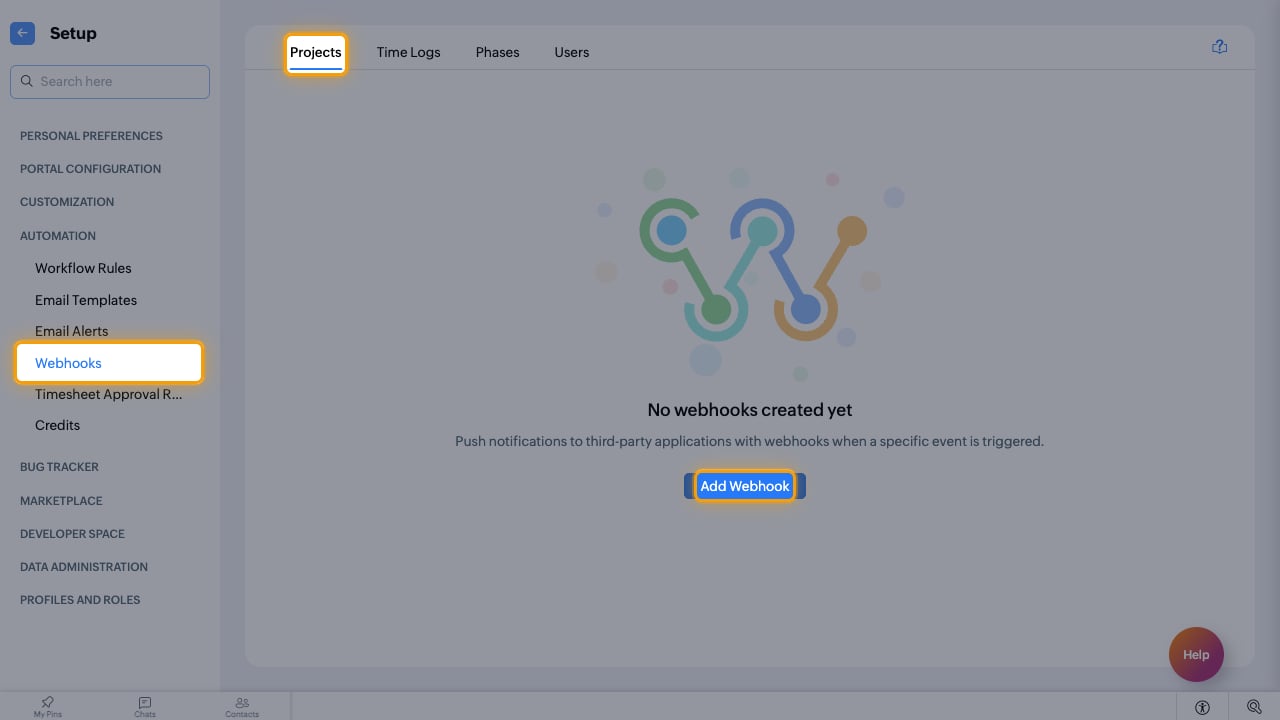
        <p>In <strong>Setup</strong>, go to <strong>AUTOMATION</strong> > <strong>Webhooks</strong>, open the module tab (<strong>Projects</strong>, <strong>Phases</strong> or <strong>Users</strong>) and click <strong>Add Webhook</strong>.</p>

        <img src="https://mintcdn.com/stackone-60/m0SJt4vT7dJMzdCI/connectors/zohobugtracker/images/events-portal-webhooks.png?fit=max&auto=format&n=m0SJt4vT7dJMzdCI&q=85&s=d296b9674e2e76471140207c6fe29500" alt="The Automation Webhooks page with the Projects tab and Add Webhook highlighted" width="1280" height="720" data-path="connectors/zohobugtracker/images/events-portal-webhooks.png" />
      </div>
    </Step>

    <Step title="Name the webhook and select POST">
      <div data-guide-step data-guide-scopes="" data-guide-display-scopes-list="">
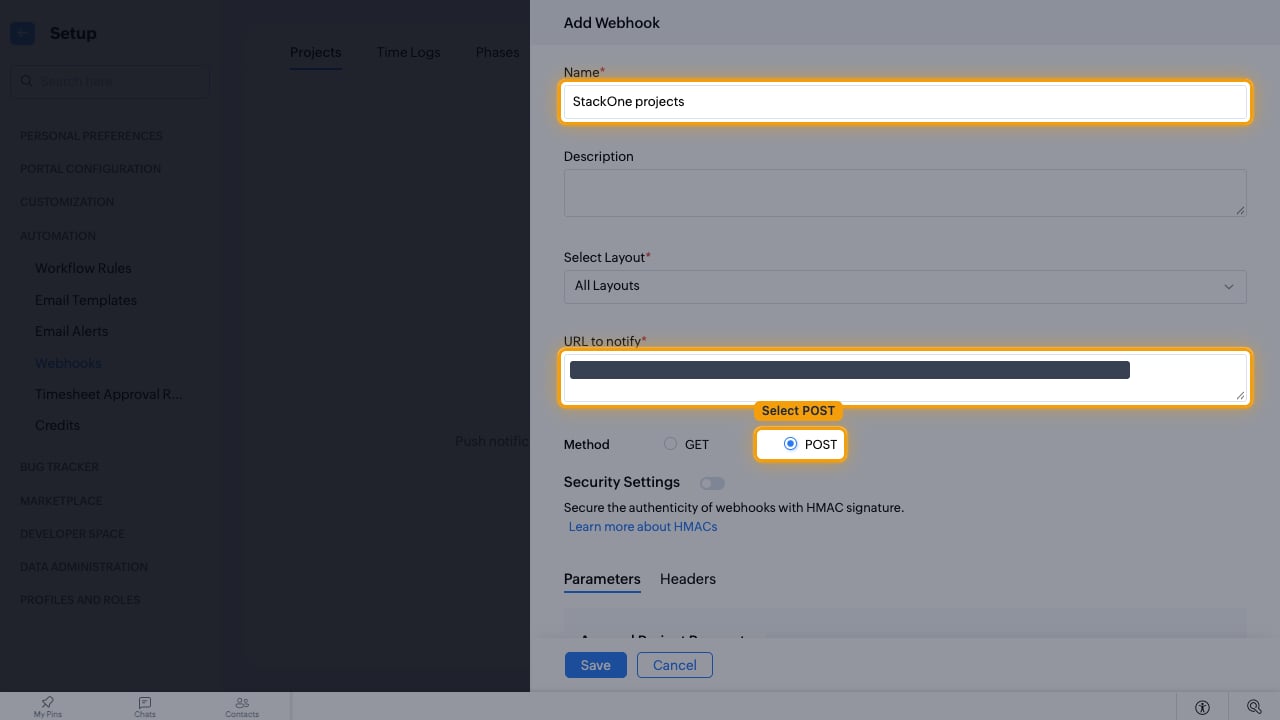
        <p>Fill in the webhook details.</p>

        <ul>
          <li><strong>Name</strong>: for example `StackOne projects`</li>
          <li>Paste the Native Webhook URL into <strong>URL to notify</strong>.</li>
          <li>Set <strong>Method</strong> to <strong>POST</strong>. This form defaults to <strong>GET</strong>, which StackOne cannot read.</li>
        </ul>

        <img src="https://mintcdn.com/stackone-60/m0SJt4vT7dJMzdCI/connectors/zohobugtracker/images/events-portal-webhook-details.png?fit=max&auto=format&n=m0SJt4vT7dJMzdCI&q=85&s=3ac87cd32f70c11d37e6c2a6e123ccb3" alt="The Add Webhook form with Name, URL to notify and the POST method highlighted" width="1280" height="720" data-path="connectors/zohobugtracker/images/events-portal-webhook-details.png" />
      </div>
    </Step>

    <Step title="Add the module parameters">
      <div data-guide-step data-guide-scopes="" data-guide-display-scopes-list="">
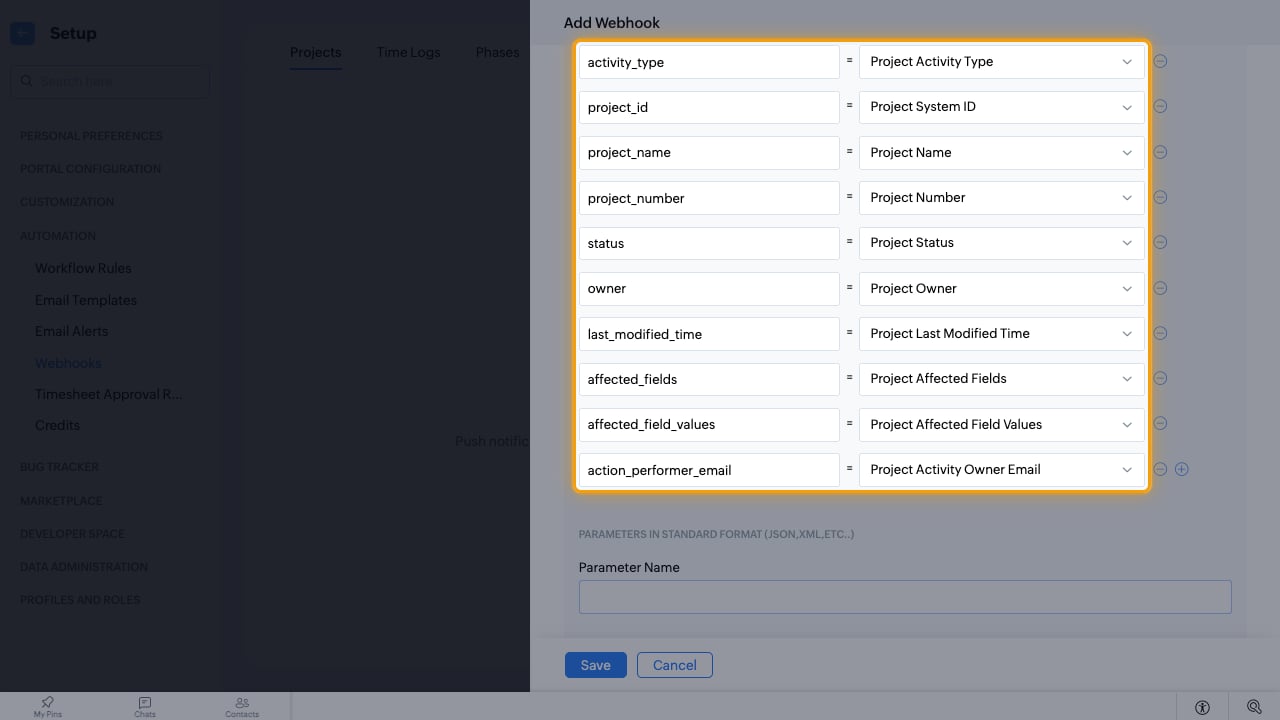
        <p>Add these rows under <strong>Parameters in standard format (Name = Value)</strong>, picking the value from the dropdown. Each module has its own list.</p>

        <ul>
          <li><strong>Projects</strong>: `activity_type` = <strong>Project Activity Type</strong>, `project_id` = <strong>Project System ID</strong>, `project_name` = <strong>Project Name</strong>, `project_number` = <strong>Project Number</strong>, `status` = <strong>Project Status</strong>, `owner` = <strong>Project Owner</strong>, `last_modified_time` = <strong>Project Last Modified Time</strong>, `affected_fields` = <strong>Project Affected Fields</strong>, `affected_field_values` = <strong>Project Affected Field Values</strong>, `action_performer_email` = <strong>Project Activity Owner Email</strong></li>
          <li><strong>Phases</strong>: `activity_type` = <strong>Phase Activity Type</strong>, `phase_id` = <strong>Phase System ID</strong>, `phase_name` = <strong>Phase Name</strong>, `project_id` = <strong>Project System ID</strong>, `status` = <strong>Phase Status</strong>, `owner` = <strong>Phase Owner</strong>, `start_date` = <strong>Phase Start Date</strong>, `end_date` = <strong>Phase End Date</strong>, `affected_field_values` = <strong>Phase Affected Field Values</strong>, `action_performer_email` = <strong>Phase Activity Owner Email</strong></li>
          <li><strong>Users</strong>: `activity_type` = <strong>Users Activity Type</strong>, `first_name` = <strong>Users First Name</strong>, `last_name` = <strong>Users Last Name</strong>, `role_id` = <strong>Users Role</strong>, `profile_id` = <strong>Users Portal Profile</strong>, `user_status` = <strong>Users User Status</strong>, `invitation_status` = <strong>Users Invitation Status</strong>, `employee_id` = <strong>Users Employee ID</strong>, `teams` = <strong>Users Teams</strong>, `action_performer_email` = <strong>Users Activity Owner Email</strong></li>
        </ul>

        <img src="https://mintcdn.com/stackone-60/m0SJt4vT7dJMzdCI/connectors/zohobugtracker/images/events-portal-parameters.png?fit=max&auto=format&n=m0SJt4vT7dJMzdCI&q=85&s=cfb2d6f792ab963bd402b666b8341097" alt="The ten Projects parameters mapped to their Zoho fields" width="1280" height="720" data-path="connectors/zohobugtracker/images/events-portal-parameters.png" />
      </div>
    </Step>

    <Step title="Add the module code and save">
      <div data-guide-step data-guide-scopes="" data-guide-display-scopes-list="">
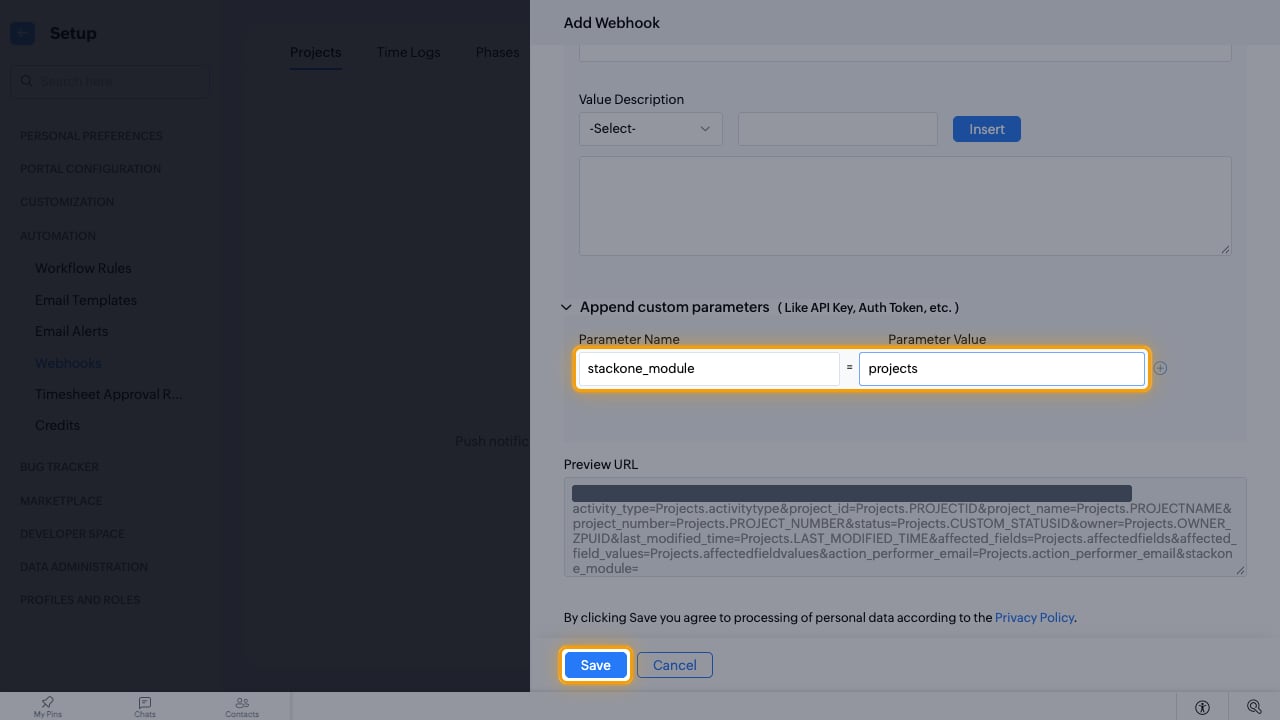
        <p>Under <strong>Append custom parameters</strong>, add one row that tells StackOne which module this webhook carries.</p>

        <ul>
          <li><strong>Parameter Name</strong>: `stackone_module`</li>
          <li><strong>Parameter Value</strong>: `projects`, `phases` or `users`</li>
          <li>Click <strong>Save</strong>.</li>
        </ul>

        <img src="https://mintcdn.com/stackone-60/m0SJt4vT7dJMzdCI/connectors/zohobugtracker/images/events-portal-module-code.png?fit=max&auto=format&n=m0SJt4vT7dJMzdCI&q=85&s=ca7622dd03605f6f1ef1b7c20dfeed07" alt="The stackone_module custom parameter and the Save button highlighted" width="1280" height="720" data-path="connectors/zohobugtracker/images/events-portal-module-code.png" />
      </div>
    </Step>

    <Step title="Create a workflow rule">
      <div data-guide-step data-guide-scopes="" data-guide-display-scopes-list="">
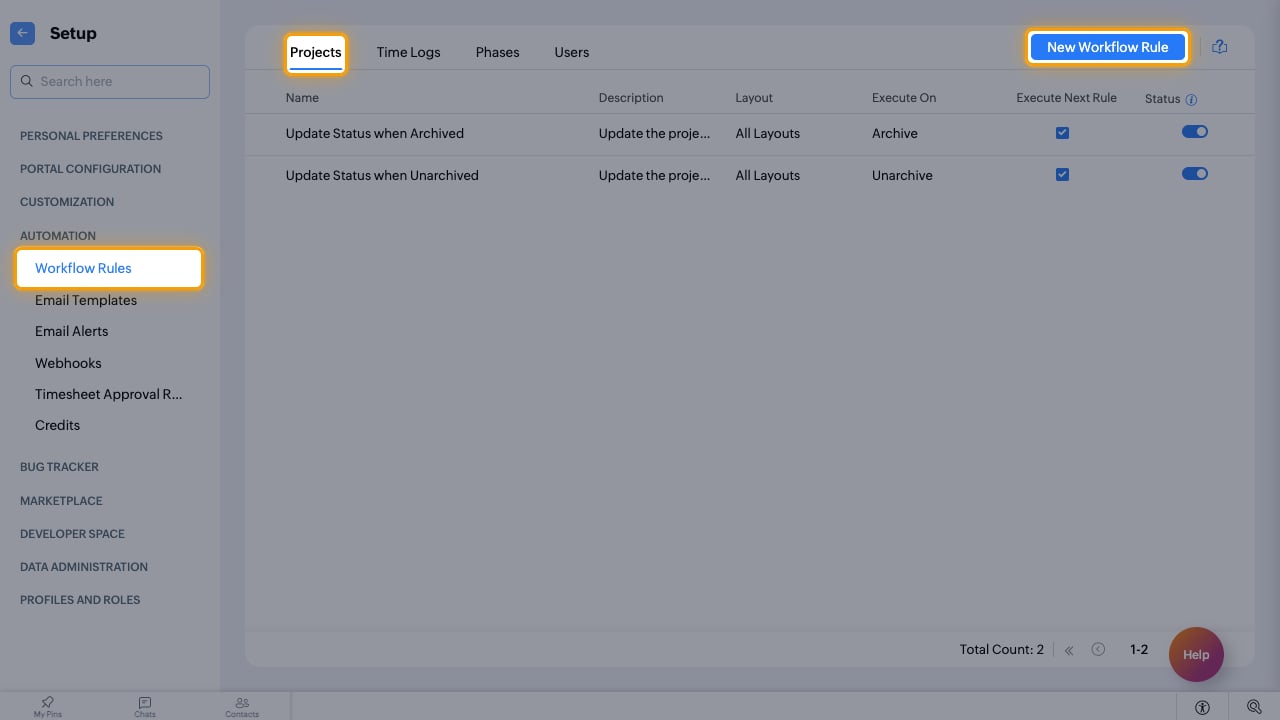
        <p>Go to <strong>AUTOMATION</strong> > <strong>Workflow Rules</strong>, open the same module tab and click <strong>New Workflow Rule</strong>.</p>

        <img src="https://mintcdn.com/stackone-60/m0SJt4vT7dJMzdCI/connectors/zohobugtracker/images/events-portal-workflow-rules.png?fit=max&auto=format&n=m0SJt4vT7dJMzdCI&q=85&s=3fe9a2a4d3b754f7d2d77a312e8a3d73" alt="The Workflow Rules page with the Projects tab and New Workflow Rule highlighted" width="1280" height="720" data-path="connectors/zohobugtracker/images/events-portal-workflow-rules.png" />
      </div>
    </Step>

    <Step title="Add a row for every trigger">
      <div data-guide-step data-guide-scopes="" data-guide-display-scopes-list="">
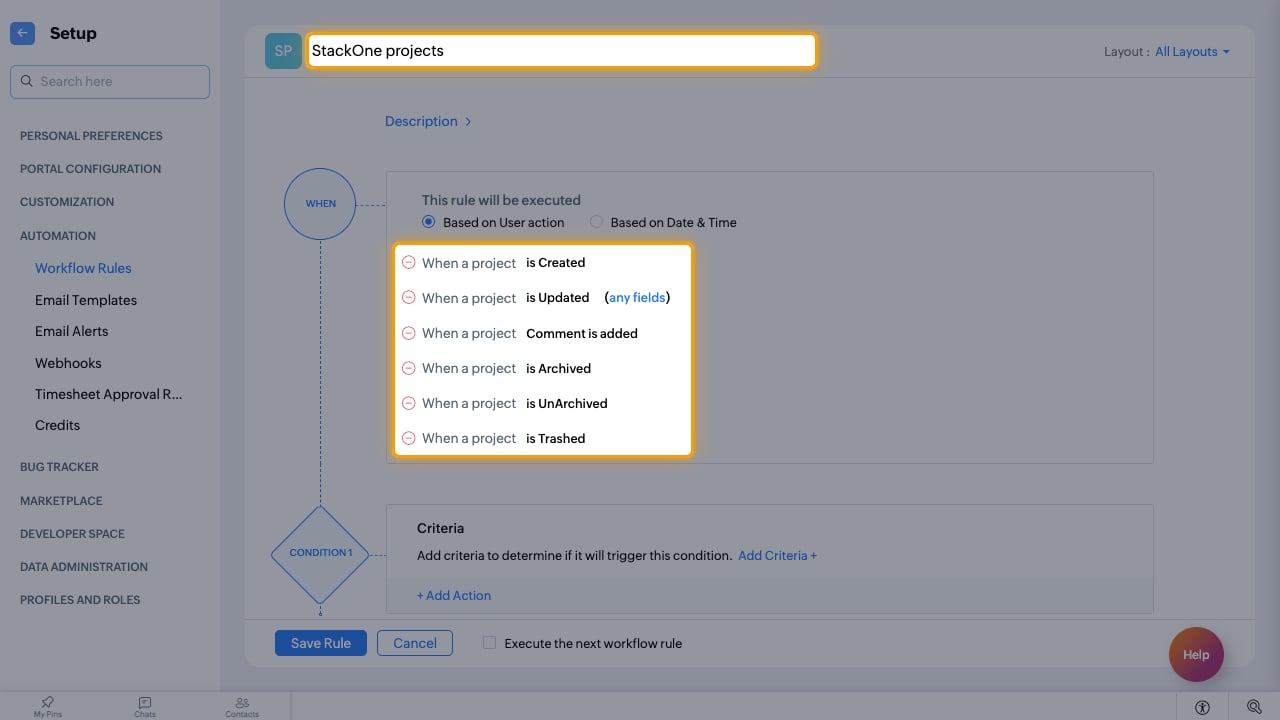
        <p>Enter the rule name, keep <strong>Based on User action</strong>, and click <strong>Add Row</strong> until every trigger for the module is listed.</p>

        <ul>
          <li><strong>Projects</strong>: <strong>is Created</strong>, <strong>is Updated</strong>, <strong>Comment is added</strong>, <strong>is Archived</strong>, <strong>is UnArchived</strong>, <strong>is Trashed</strong></li>
          <li><strong>Phases</strong>: <strong>is Created</strong>, <strong>is Updated</strong>, <strong>is Commented on</strong>, <strong>is Trashed</strong></li>
          <li><strong>Users</strong>: <strong>is Invited</strong>, <strong>is Updated</strong>, <strong>is Deactivated</strong>, <strong>is Deleted</strong></li>
          <li>Leave the criteria empty so the rule runs for every record.</li>
        </ul>

        <img src="https://mintcdn.com/stackone-60/m0SJt4vT7dJMzdCI/connectors/zohobugtracker/images/events-portal-triggers.png?fit=max&auto=format&n=m0SJt4vT7dJMzdCI&q=85&s=5f9f157a869e0bd3b2be623a8ee5167b" alt="A workflow rule named StackOne projects with one row per project trigger" width="1280" height="720" data-path="connectors/zohobugtracker/images/events-portal-triggers.png" />
      </div>
    </Step>

    <Step title="Add the Associate Webhook action">
      <div data-guide-step data-guide-scopes="" data-guide-display-scopes-list="">
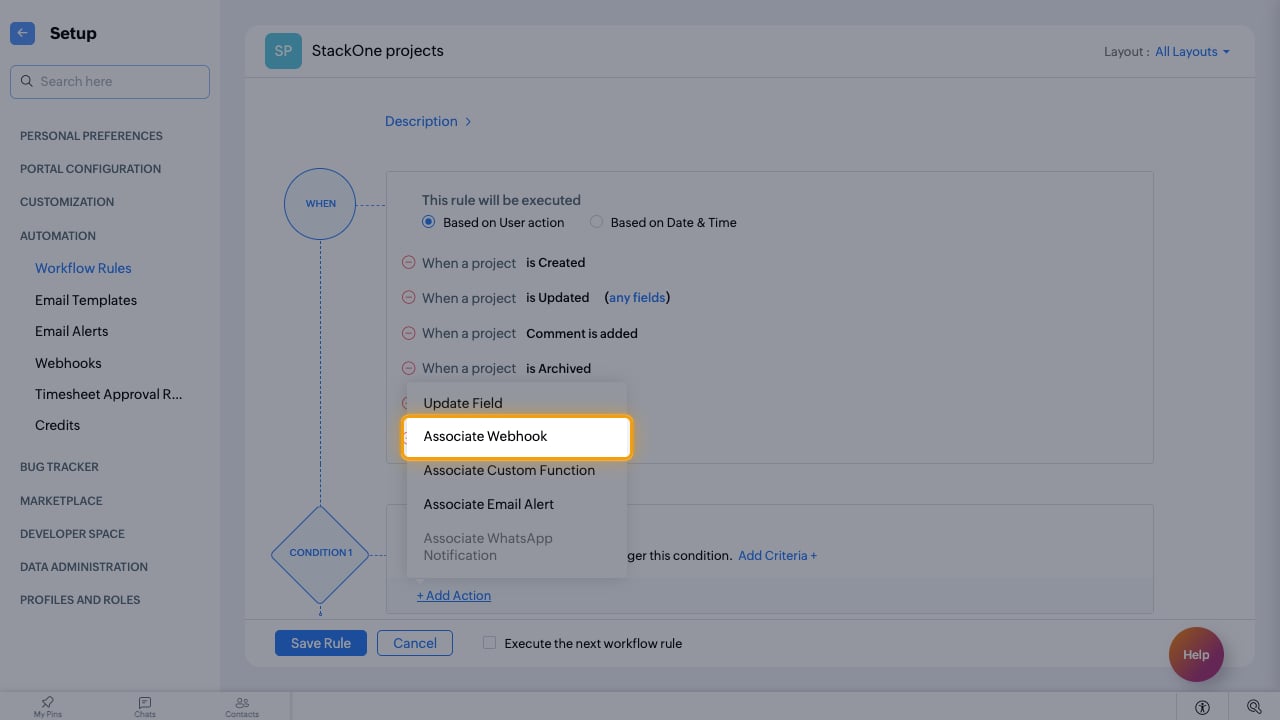
        <p>Click <strong>+ Add Action</strong> and choose <strong>Associate Webhook</strong>.</p>

        <img src="https://mintcdn.com/stackone-60/m0SJt4vT7dJMzdCI/connectors/zohobugtracker/images/events-portal-add-action.png?fit=max&auto=format&n=m0SJt4vT7dJMzdCI&q=85&s=68538ddac22f48d09672435db4cff45f" alt="The Add Action menu with Associate Webhook highlighted" width="1280" height="720" data-path="connectors/zohobugtracker/images/events-portal-add-action.png" />
      </div>
    </Step>

    <Step title="Select the module's webhook">
      <div data-guide-step data-guide-scopes="" data-guide-display-scopes-list="">
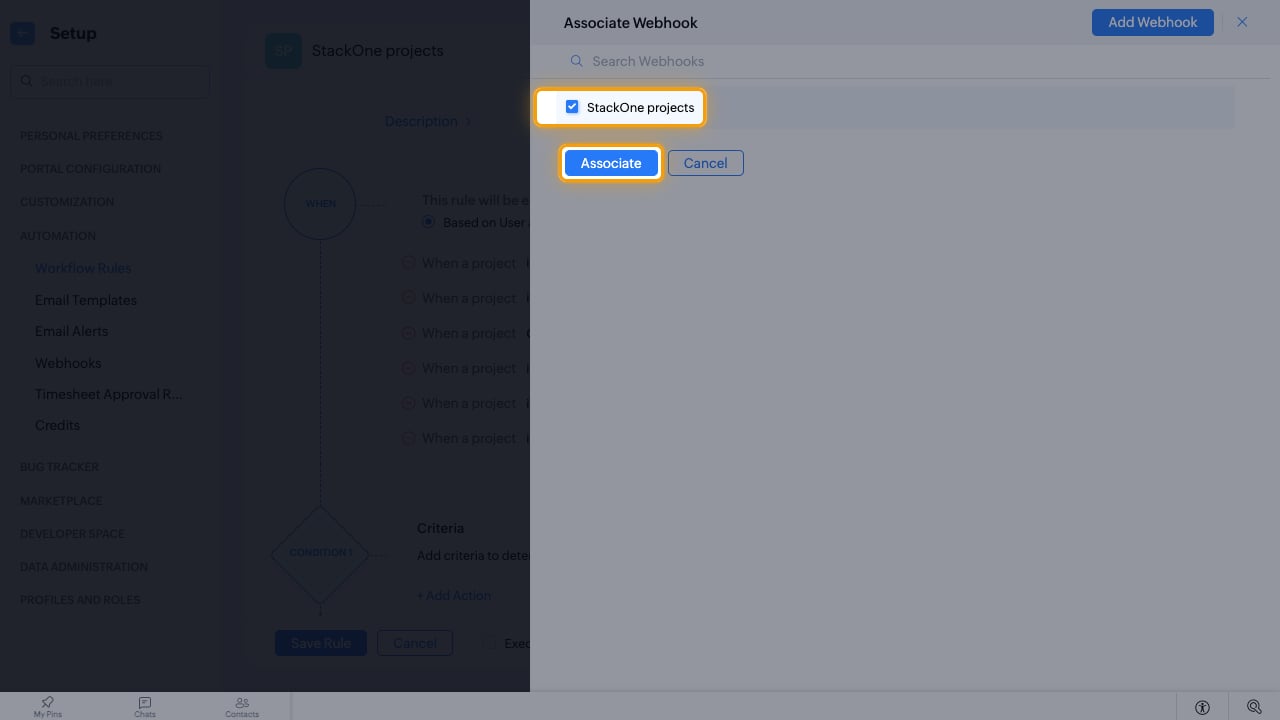
        <p>Tick the webhook you created for this module and click <strong>Associate</strong>.</p>

        <img src="https://mintcdn.com/stackone-60/m0SJt4vT7dJMzdCI/connectors/zohobugtracker/images/events-portal-associate.png?fit=max&auto=format&n=m0SJt4vT7dJMzdCI&q=85&s=1e5679993a5c70bcc45e2fcf06d5452b" alt="The Associate Webhook panel with the StackOne projects webhook ticked and Associate highlighted" width="1280" height="720" data-path="connectors/zohobugtracker/images/events-portal-associate.png" />
      </div>
    </Step>

    <Step title="Save the rule">
      <div data-guide-step data-guide-scopes="" data-guide-display-scopes-list="">
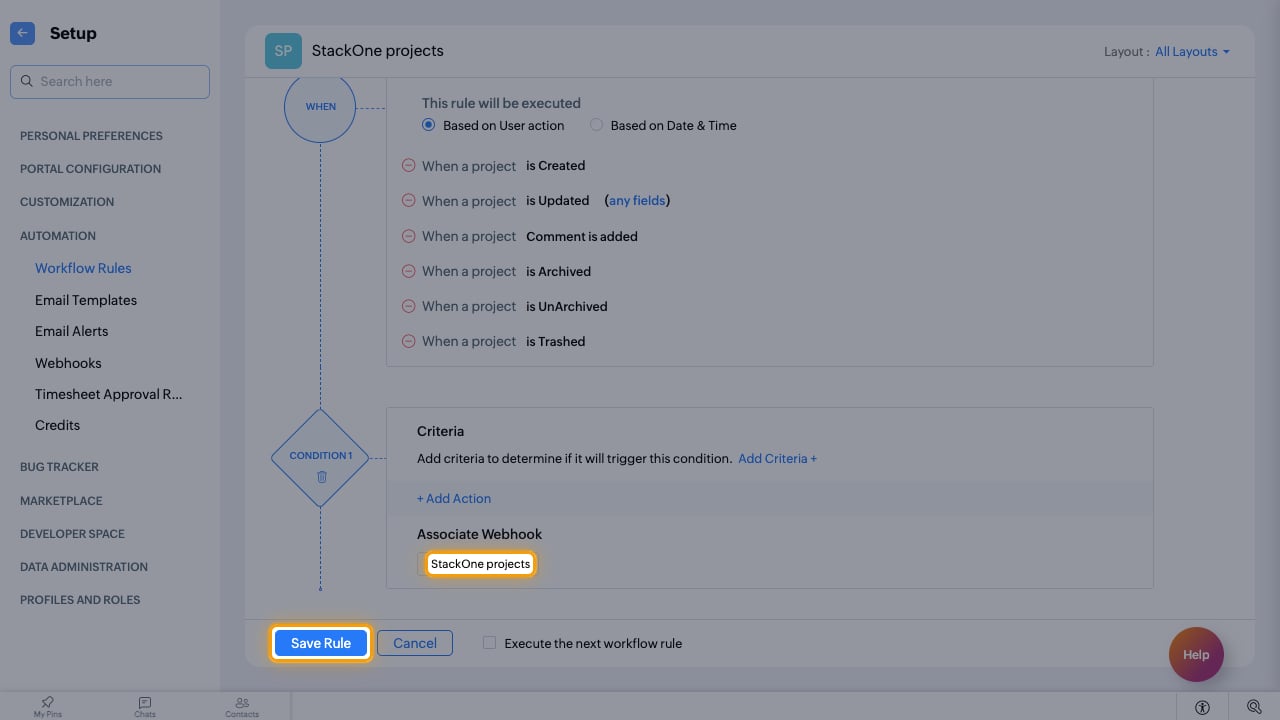
        <p>Click <strong>Save Rule</strong>, then click <strong>Save</strong> in the <strong>Attention!</strong> prompt that says the rule applies to all projects.</p>

        <ul>
          <li>Repeat the webhook and rule for each module you want events from.</li>
        </ul>

        <img src="https://mintcdn.com/stackone-60/m0SJt4vT7dJMzdCI/connectors/zohobugtracker/images/events-portal-save-rule.png?fit=max&auto=format&n=m0SJt4vT7dJMzdCI&q=85&s=cde00fc4f767f55cdfb89e27b8c92a57" alt="The associated webhook and the Save Rule button highlighted" width="1280" height="720" data-path="connectors/zohobugtracker/images/events-portal-save-rule.png" />
      </div>
    </Step>
  </Steps>
</section>

<section data-guide-section data-guide-scopes="">
  <h2>Available webhook events</h2>

  <p>Zoho BugTracker sends only the events you configured above. Each issue event needs its own webhook and business rule in every project; project, phase and user events need one webhook and workflow rule per module.</p>

  <Steps>
    <Step title="Issue events">
      <div data-guide-step data-guide-scopes="" data-guide-display-scopes-list="">
        <p>Events for issues (bugs) in a project. The webhook's `stackone_event` value is the code in backticks.</p>

        <ul>
          <li><strong>Issue Created</strong> (`issue.created`) — Fired when an issue is created in the project</li>
          <li><strong>Issue Updated</strong> (`issue.updated`) — Fired when an existing issue is edited</li>
          <li><strong>Issue Trashed</strong> (`issue.trashed`) — Fired when an issue is moved to the trash</li>
          <li><strong>Issue Comment Added</strong> (`issue.comment_added`) — Fired when a comment is added to an issue</li>
          <li><strong>Issue Status Changed</strong> (`issue.status_changed`) — Fired when an issue's status changes</li>
          <li><strong>Issue Assignee Changed</strong> (`issue.assignee_changed`) — Fired when an issue is reassigned</li>
          <li><strong>Issue Severity Changed</strong> (`issue.severity_changed`) — Fired when an issue's severity changes</li>
          <li><strong>Issue Due Date Changed</strong> (`issue.due_date_changed`) — Fired when an issue's due date changes</li>
        </ul>
      </div>
    </Step>

    <Step title="Project events">
      <div data-guide-step data-guide-scopes="" data-guide-display-scopes-list="">
        <p>Events for projects across the portal (`stackone_module` = `projects`).</p>

        <ul>
          <li><strong>Project Created</strong> (`project.created`) — Fired when a project is created</li>
          <li><strong>Project Updated</strong> (`project.updated`) — Fired when a project is edited, including status changes made through the API</li>
          <li><strong>Project Comment Added</strong> (`project.comment_added`) — Fired when a comment is added to a project</li>
          <li><strong>Project Archived</strong> (`project.archived`) — Fired when a project is archived in the Zoho UI</li>
          <li><strong>Project Unarchived</strong> (`project.unarchived`) — Fired when an archived project is restored in the Zoho UI</li>
          <li><strong>Project Trashed</strong> (`project.trashed`) — Fired when a project is moved to the trash</li>
        </ul>
      </div>
    </Step>

    <Step title="Phase events">
      <div data-guide-step data-guide-scopes="" data-guide-display-scopes-list="">
        <p>Events for phases (milestones) across the portal (`stackone_module` = `phases`).</p>

        <ul>
          <li><strong>Phase Created</strong> (`phase.created`) — Fired when a phase is created</li>
          <li><strong>Phase Updated</strong> (`phase.updated`) — Fired when a phase is edited</li>
          <li><strong>Phase Comment Added</strong> (`phase.comment_added`) — Fired when a comment is added to a phase</li>
          <li><strong>Phase Trashed</strong> (`phase.trashed`) — Fired when a phase is moved to the trash</li>
        </ul>
      </div>
    </Step>

    <Step title="User events">
      <div data-guide-step data-guide-scopes="" data-guide-display-scopes-list="">
        <p>Events for portal users (`stackone_module` = `users`). Zoho sends no user ID or email for these events.</p>

        <ul>
          <li><strong>User Invited</strong> (`user.invited`) — Fired when a user is invited to the portal</li>
          <li><strong>User Updated</strong> (`user.updated`) — Fired when a portal user is updated</li>
          <li><strong>User Deactivated</strong> (`user.deactivated`) — Fired when a portal user is deactivated</li>
          <li><strong>User Deleted</strong> (`user.deleted`) — Fired when a user is deleted from the portal</li>
        </ul>
      </div>
    </Step>
  </Steps>
</section>

<section data-guide-section data-guide-scopes="">
  <h2>Delivery format</h2>

  <p>Details of how Zoho BugTracker delivers events to StackOne.</p>

  <Steps>
    <Step title="Form-encoded payloads">
      <div data-guide-step data-guide-scopes="" data-guide-display-scopes-list="">
        <p>Zoho sends one event per request as `application/x-www-form-urlencoded` fields named after the parameters above. Values Zoho cannot fill arrive as `None`, `-` or `Unassigned`, and dates use the portal's date format rather than ISO 8601.</p>
      </div>
    </Step>

    <Step title="Event IDs">
      <div data-guide-step data-guide-scopes="" data-guide-display-scopes-list="">
        <p>Issue events use the issue ID taken from `issue_url`, project and phase events use `project_id` and `phase_id`, and user events use `employee_id` when set and the first name otherwise.</p>
      </div>
    </Step>
  </Steps>
</section>

## Verify

Your Connector should now be able to receive and process events. Try triggering an event and you should see an Event appear in the Connector logs.


This documentation is built and hosted on [Mintlify](https://mintlify.com), a developer documentation platform.