> ## Documentation Index
> Fetch the complete documentation index at: https://docs.stackone.com/llms.txt
> Use this file to discover all available pages before exploring further.

# Wrangle Webhook Setup Guide

> Configure Wrangle to deliver events to StackOne.

## Prerequisites

The connector should already be set up, with a Connector Profile and a Linked Account. See [Getting Started](/connectors/wrangle#getting-started) on the Wrangle connector page.

<section data-guide-section data-guide-scopes="">
  <h2>StackOne webhook URL</h2>

  <p>Wrangle sends ticket activity to the StackOne <strong>Native Webhook URL</strong> of the linked account. Copy it before you configure Wrangle.</p>

  <Steps>
    <Step title="Retrieve StackOne Native Webhook URL">
      <div data-guide-step data-guide-scopes="" data-guide-display-scopes-list="">
        <p>The <strong>Native Webhook URL</strong> is generated once an account has been linked.</p>

        <ul>
          <li>Open the linked account in StackOne.</li>
          <li>Copy the value from <strong>Native Webhook URL</strong>.</li>
          <li>The URL already identifies the linked account, so there is nothing else to enter in StackOne.</li>
          <li>The URL ends in a `token` that authenticates deliveries for this account. Treat it like a password and only paste it into Wrangle.</li>
        </ul>
      </div>
    </Step>

    <Step title="Enable the events in StackOne">
      <div data-guide-step data-guide-scopes="" data-guide-display-scopes-list="">
        <p>On the same linked account, open the <strong>Events</strong> tab.</p>

        <ul>
          <li>Enable <strong>Ticket Created</strong> and <strong>Ticket Updated</strong>, and link each one to the StackOne webhook that should receive it.</li>
          <li>Only events enabled here are delivered to your integration.</li>
        </ul>
      </div>
    </Step>
  </Steps>
</section>

<section data-guide-section data-guide-scopes="">
  <h2>Webhook setup in Wrangle</h2>

  <p>Create one webhook in the Wrangle web app that points at the Native Webhook URL. Wrangle has no API for webhook subscriptions, so this is done by hand.</p>

  <Steps>
    <Step title="Sign in to Wrangle">
      <div data-guide-step data-guide-scopes="" data-guide-display-scopes-list="">
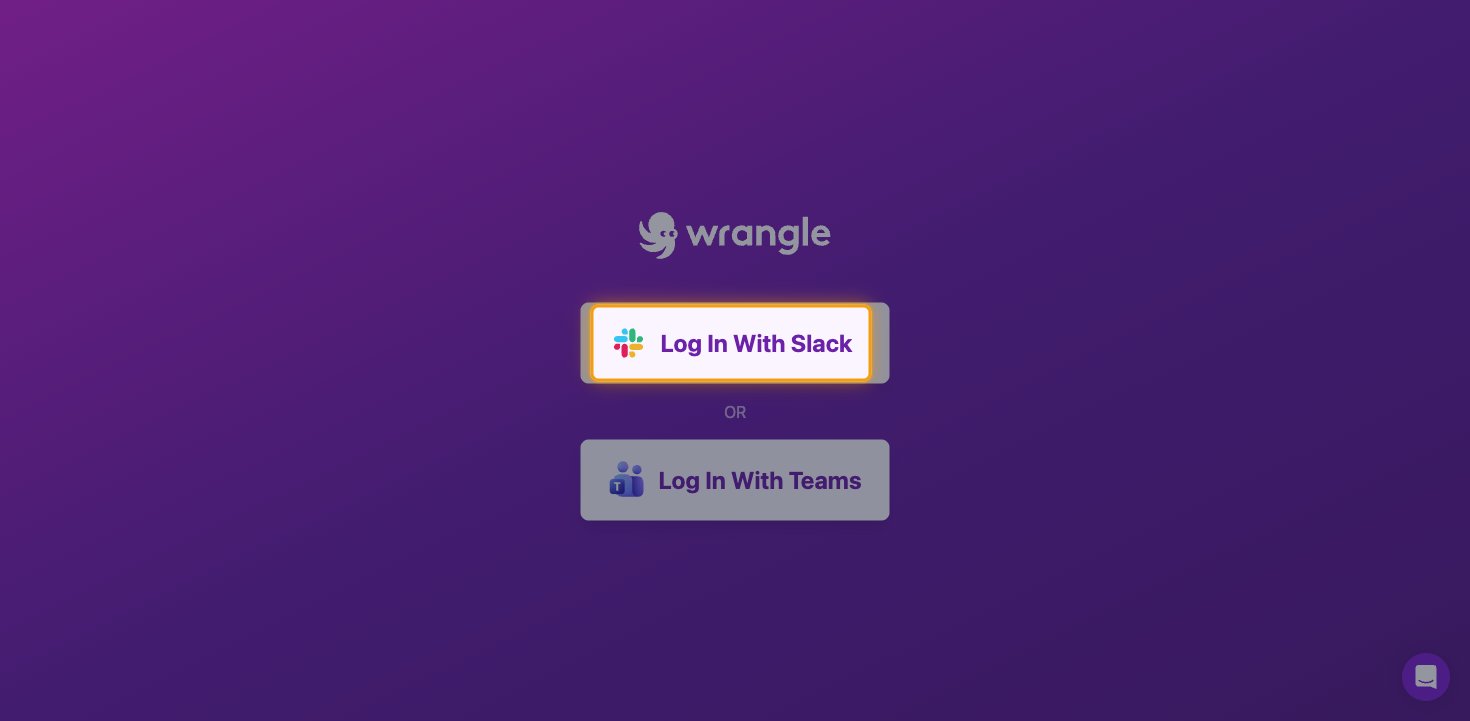
        <p>Sign in to your <a href="https://slack.wrangle.io/auth/login" target="_blank" rel="noopener noreferrer">Wrangle account</a>.</p>

        <ul>
          <li>Click <strong>Log In With Slack</strong>, or <strong>Log In With Teams</strong> if your organization uses Microsoft Teams.</li>
        </ul>

        <img src="https://mintcdn.com/stackone-60/jHYgDga5atDLuN5_/connectors/wrangle/images/events-wrangle-sign-in.png?fit=max&auto=format&n=jHYgDga5atDLuN5_&q=85&s=f285c8b90a0d3ee43f811365e0771702" alt="The Wrangle login page with the Log In With Slack button highlighted" width="1470" height="721" data-path="connectors/wrangle/images/events-wrangle-sign-in.png" />
      </div>
    </Step>

    <Step title="Approve the Wrangle app in Slack">
      <div data-guide-step data-guide-scopes="" data-guide-display-scopes-list="">
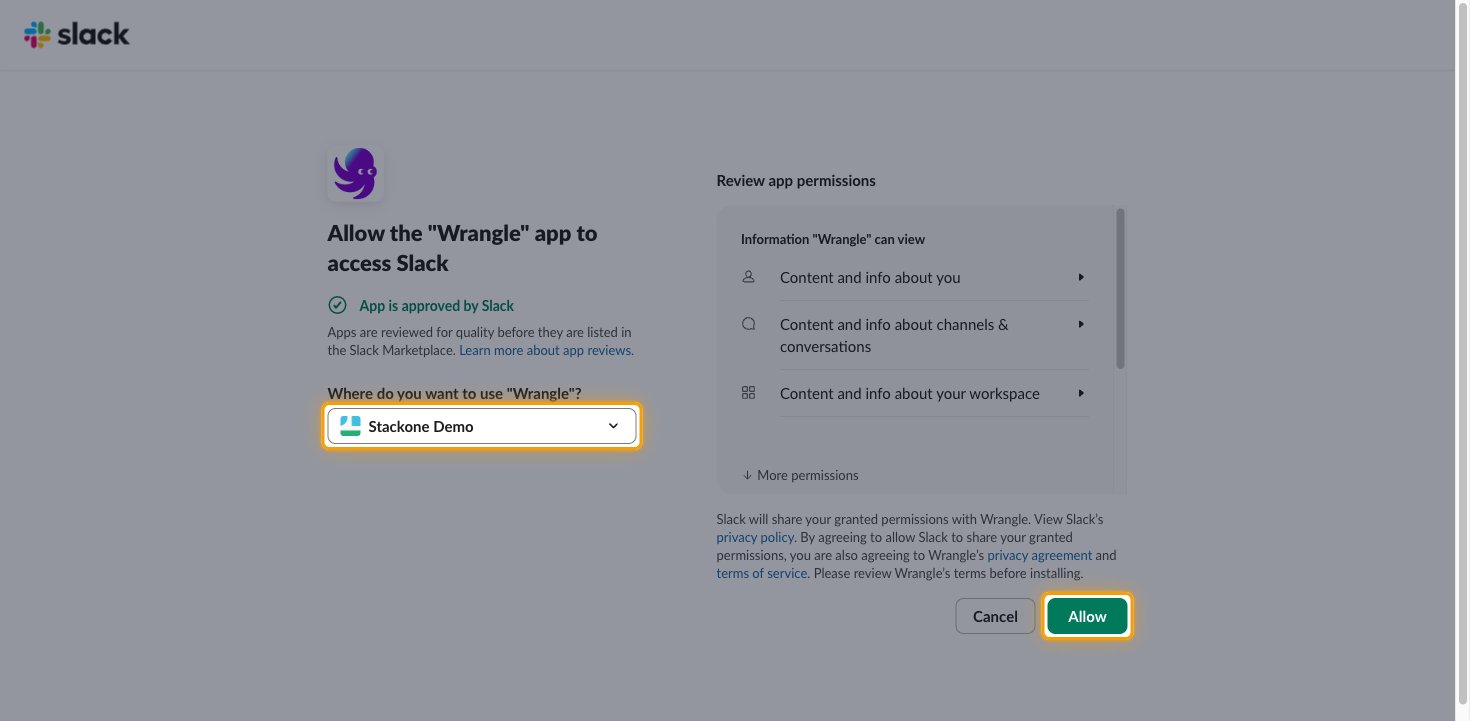
        <p>If Slack shows <strong>Allow the "Wrangle" app to access Slack</strong>, confirm the workspace and allow access.</p>

        <ul>
          <li>Under <strong>Where do you want to use "Wrangle"?</strong>, choose the workspace you use with Wrangle.</li>
          <li>Click <strong>Allow</strong>.</li>
        </ul>

        <img src="https://mintcdn.com/stackone-60/jHYgDga5atDLuN5_/connectors/wrangle/images/events-slack-allow-wrangle.png?fit=max&auto=format&n=jHYgDga5atDLuN5_&q=85&s=e10fdf12f7d1e27081f31c1e9548fd3d" alt="The Slack consent screen for the Wrangle app with the workspace picker and the Allow button highlighted" width="1470" height="721" data-path="connectors/wrangle/images/events-slack-allow-wrangle.png" />
      </div>
    </Step>

    <Step title="Open the Webhooks page">
      <div data-guide-step data-guide-scopes="" data-guide-display-scopes-list="">
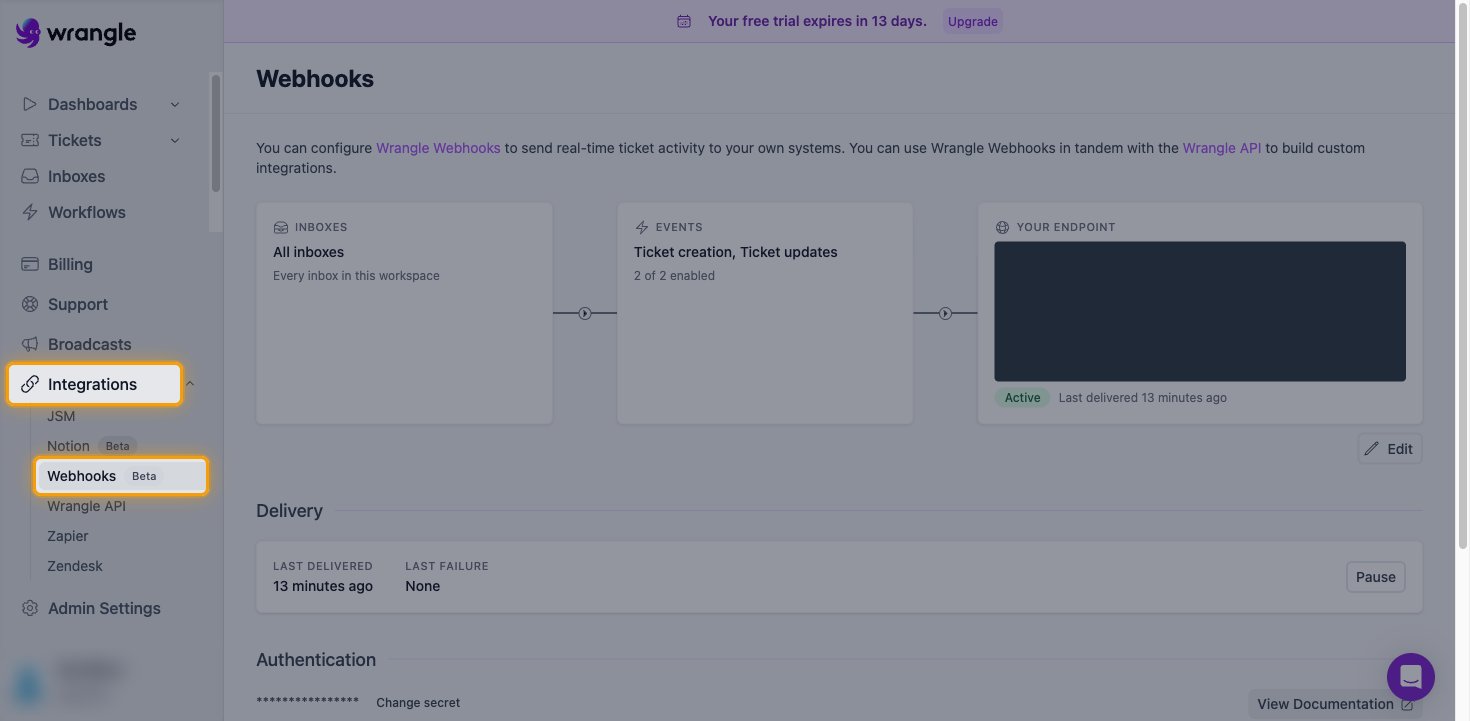
        <p>In the sidebar, expand <strong>Integrations</strong> and click <strong>Webhooks</strong>.</p>

        <ul>
          <li>Wrangle shows a single webhook. If <strong>Your endpoint</strong> already shows a URL, click <strong>Edit</strong> and replace the <strong>Webhook URL</strong> instead of creating a new webhook.</li>
        </ul>

        <img src="https://mintcdn.com/stackone-60/jHYgDga5atDLuN5_/connectors/wrangle/images/events-webhooks-page.png?fit=max&auto=format&n=jHYgDga5atDLuN5_&q=85&s=336306697d340345d4c79a2735c032dd" alt="The Wrangle Webhooks page with Integrations and Webhooks highlighted in the sidebar" width="1470" height="721" data-path="connectors/wrangle/images/events-webhooks-page.png" />
      </div>
    </Step>

    <Step title="Start a new webhook">
      <div data-guide-step data-guide-scopes="" data-guide-display-scopes-list="">
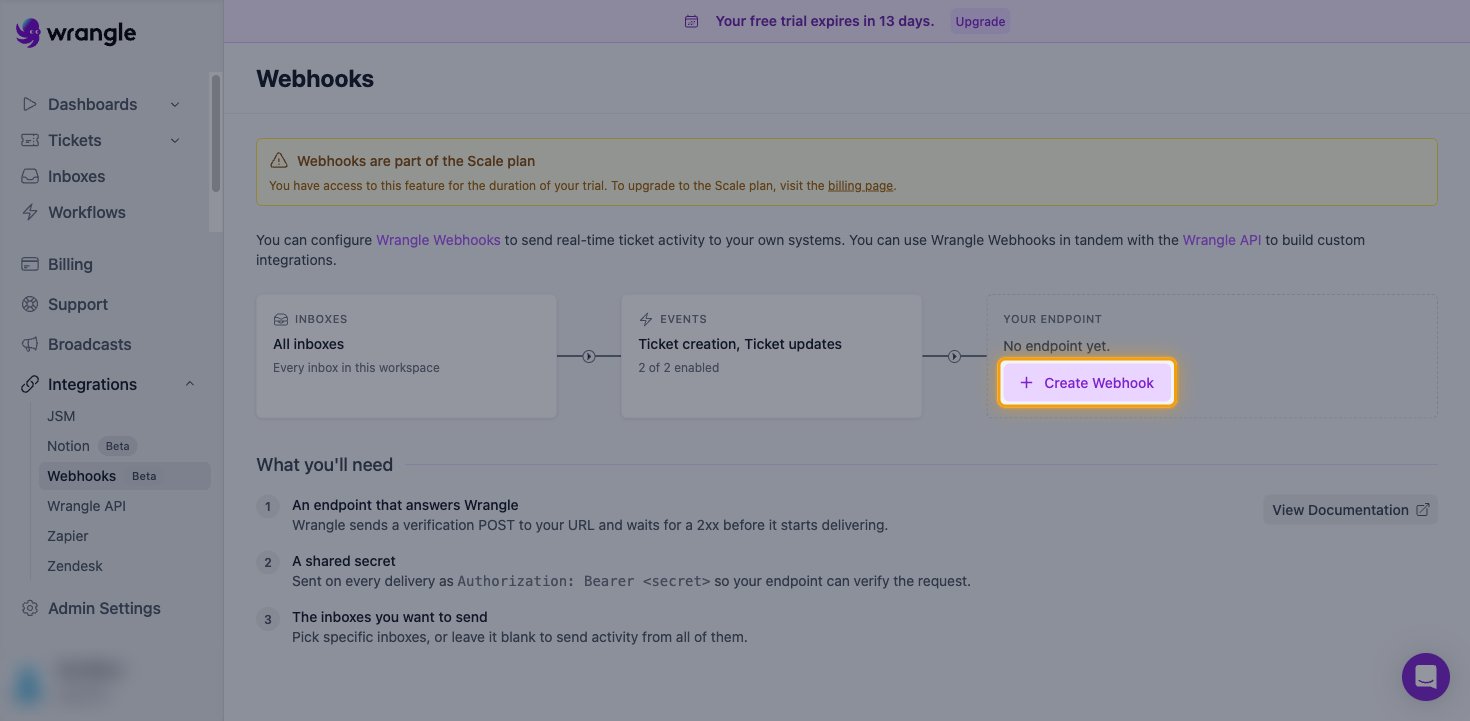
        <p>Under <strong>Your endpoint</strong>, Wrangle shows <strong>No endpoint yet.</strong> until a webhook exists. Click <strong>Create Webhook</strong>.</p>

        <ul>
          <li>The <strong>Webhooks are part of the Scale plan</strong> banner appears during the free trial. You have access to webhooks for the duration of the trial.</li>
        </ul>

        <img src="https://mintcdn.com/stackone-60/jHYgDga5atDLuN5_/connectors/wrangle/images/events-create-webhook.png?fit=max&auto=format&n=jHYgDga5atDLuN5_&q=85&s=596179f2b163429850a58f99a40552e8" alt="The empty Wrangle Webhooks page with the Create Webhook button highlighted" width="1470" height="721" data-path="connectors/wrangle/images/events-create-webhook.png" />
      </div>
    </Step>

    <Step title="Enter the webhook URL and secret">
      <div data-guide-step data-guide-scopes="" data-guide-display-scopes-list="">
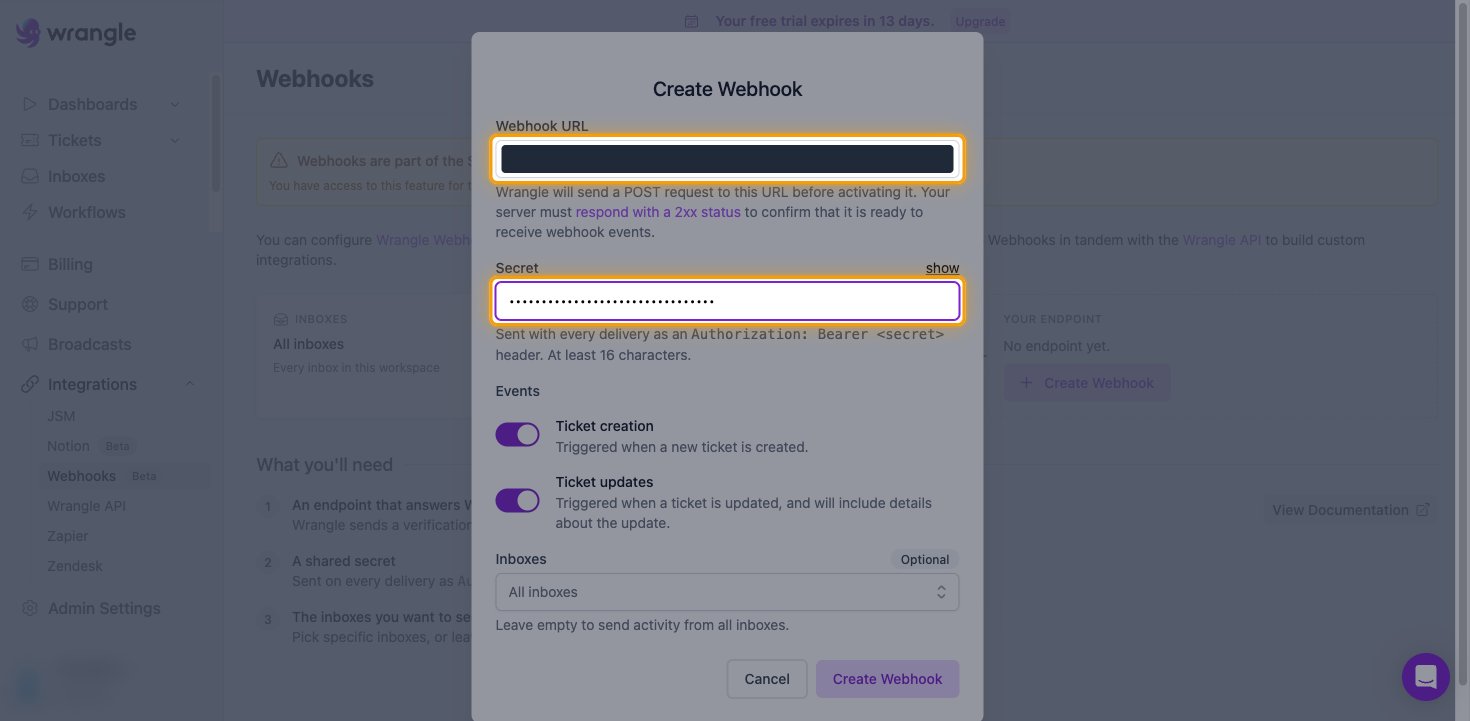
        <p>In the <strong>Create Webhook</strong> dialog, paste the StackOne Native Webhook URL into <strong>Webhook URL</strong>.</p>

        <ul>
          <li>Wrangle sends a verification POST to the URL before activating it. StackOne answers it automatically.</li>
          <li>In <strong>Secret</strong>, enter a random value of at least 16 characters. Wrangle sends it on every delivery as `Authorization: Bearer <secret>`.</li>
          <li>StackOne identifies the account from the Native Webhook URL, so the secret is not entered in StackOne. Store it securely in case you need to change it later.</li>
        </ul>

        <img src="https://mintcdn.com/stackone-60/jHYgDga5atDLuN5_/connectors/wrangle/images/events-webhook-url-and-secret.png?fit=max&auto=format&n=jHYgDga5atDLuN5_&q=85&s=8748664d897eab7cd301dd9453774d36" alt="The Create Webhook dialog with the Webhook URL and Secret fields highlighted and the URL value hidden" width="1470" height="721" data-path="connectors/wrangle/images/events-webhook-url-and-secret.png" />
      </div>
    </Step>

    <Step title="Choose events and inboxes">
      <div data-guide-step data-guide-scopes="" data-guide-display-scopes-list="">
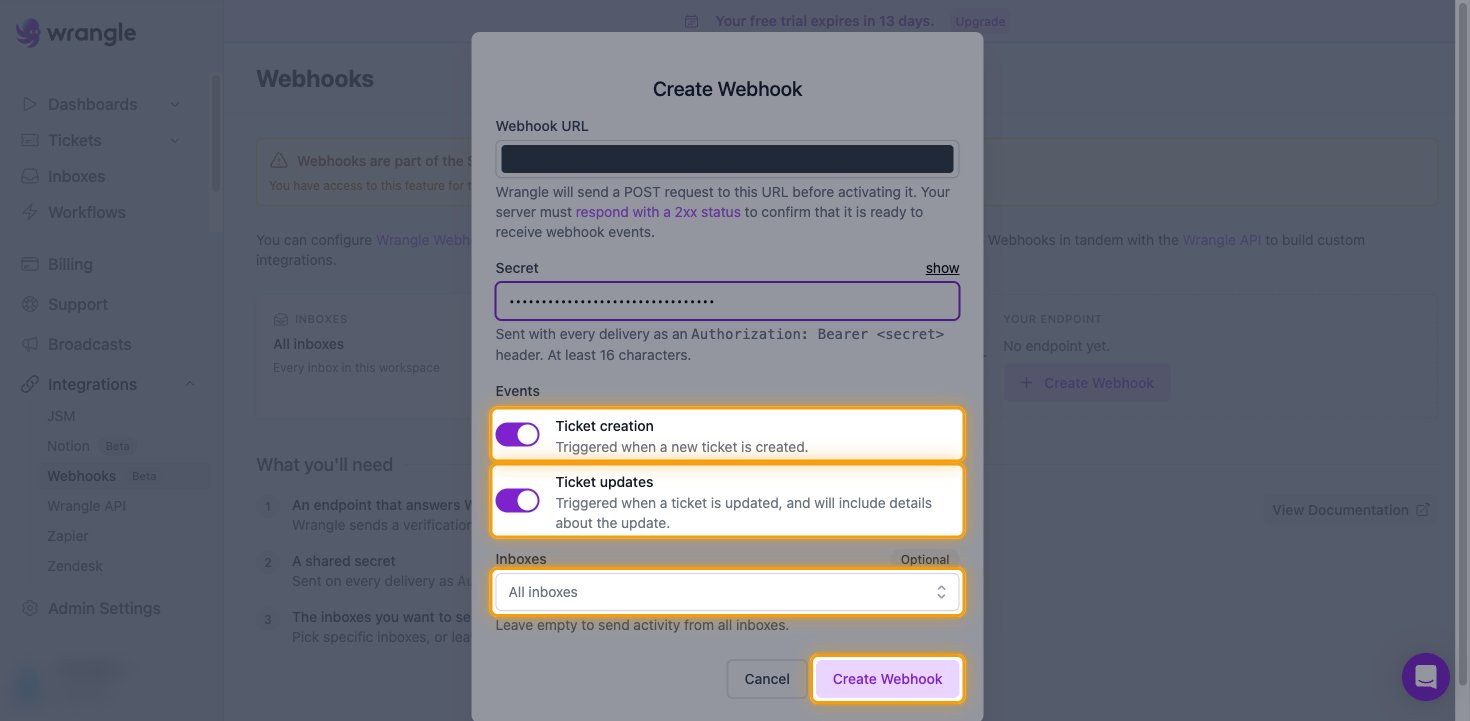
        <p>Under <strong>Events</strong>, leave <strong>Ticket creation</strong> and <strong>Ticket updates</strong> switched on.</p>

        <ul>
          <li>Leave <strong>Inboxes</strong> set to <strong>All inboxes</strong> to send activity from every inbox, or pick specific inboxes. Inboxes marked as confidential are only included when you select them explicitly.</li>
          <li>Click <strong>Create Webhook</strong>.</li>
        </ul>

        <img src="https://mintcdn.com/stackone-60/jHYgDga5atDLuN5_/connectors/wrangle/images/events-choose-events.png?fit=max&auto=format&n=jHYgDga5atDLuN5_&q=85&s=2e966975dc808dcf17968049740f98ae" alt="The Create Webhook dialog with the Ticket creation and Ticket updates switches, the Inboxes picker, and the Create Webhook button highlighted" width="1470" height="721" data-path="connectors/wrangle/images/events-choose-events.png" />
      </div>
    </Step>

    <Step title="Confirm the webhook is active">
      <div data-guide-step data-guide-scopes="" data-guide-display-scopes-list="">
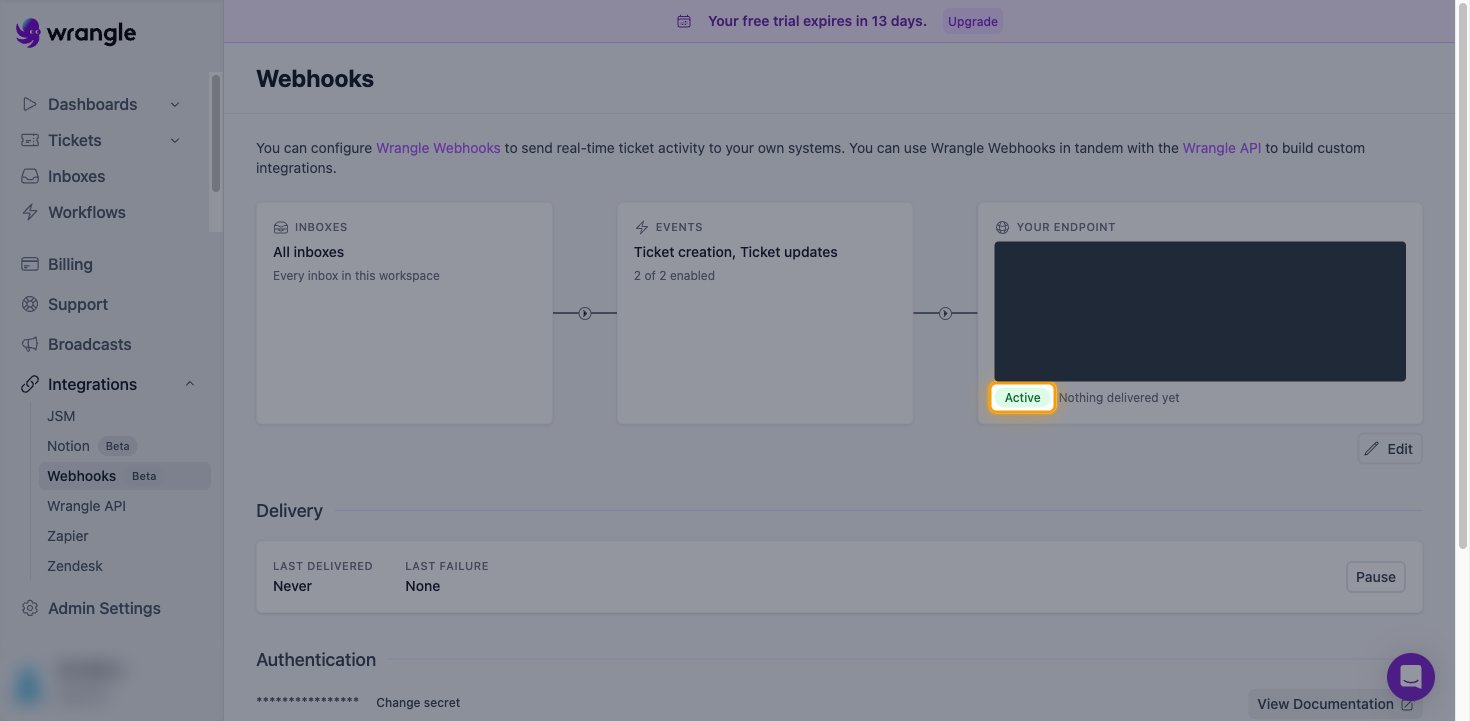
        <p>After Wrangle verifies the URL, <strong>Your endpoint</strong> shows <strong>Active</strong>.</p>

        <ul>
          <li>The status reads <strong>Nothing delivered yet</strong> until the first ticket is created or updated.</li>
          <li>The <strong>Delivery</strong> section shows <strong>Last delivered</strong> and <strong>Last failure</strong> for troubleshooting.</li>
        </ul>

        <img src="https://mintcdn.com/stackone-60/jHYgDga5atDLuN5_/connectors/wrangle/images/events-webhook-active.png?fit=max&auto=format&n=jHYgDga5atDLuN5_&q=85&s=1d341adcfd12989e4f451b96ea48613f" alt="The Wrangle Webhooks page showing the endpoint with the Active status highlighted and the URL value hidden" width="1470" height="721" data-path="connectors/wrangle/images/events-webhook-active.png" />
      </div>
    </Step>
  </Steps>
</section>

<section data-guide-section data-guide-scopes="">
  <h2>Available webhook events</h2>

  <p>The following Wrangle events can be enabled. Only events selected in StackOne are delivered to your integration, and Wrangle only sends the event types switched on in its webhook.</p>

  <Steps>
    <Step title="Ticket events">
      <div data-guide-step data-guide-scopes="" data-guide-display-scopes-list="">
        <p>Events related to tickets in your Wrangle inboxes.</p>

        <ul>
          <li><strong>Ticket Created</strong> (`ticket.created`) — Fired when a new ticket is created in Wrangle, including tickets created through the Wrangle API</li>
          <li><strong>Ticket Updated</strong> (`ticket.updated`) — Fired when a ticket changes. The `eventTypes` field lists every change in the delivery</li>
        </ul>
      </div>
    </Step>

    <Step title="Verification">
      <div data-guide-step data-guide-scopes="" data-guide-display-scopes-list="">
        <p>Handles requests from Wrangle that are not ticket activity.</p>

        <ul>
          <li><strong>Webhook Active Check</strong> — Acknowledges the verification request Wrangle sends when a webhook is created or edited (its `activityType` is `webhookValidation`), and any other request that is not ticket activity. It does not deliver an event</li>
        </ul>
      </div>
    </Step>
  </Steps>
</section>

<section data-guide-section data-guide-scopes="">
  <h2>Delivery format</h2>

  <p>Wrangle sends one request per ticket activity. Each request carries `occurredAt`, `activityType` and the full ticket under `ticket`, in the same shape the get\_ticket action returns. The event's record ID is the Wrangle ticket ID.</p>

  <ul>
    <li>A single Ticket Updated delivery can carry more than one change, listed in `eventTypes`. The ticket reflects its state after the change; previous values are not included.</li>
    <li>Possible `eventTypes` values: `ASSIGNMENT_CHANGE`, `CSAT_SUBMISSION`, `DESCRIPTION_CHANGE`, `FOLLOWER_ADDED_VIA_MENTION`, `FOLLOWER_CHANGE`, `INBOX_CHANGE`, `NAME_CHANGE`, `PRIORITY_CHANGE`, `STATUS_CHANGE`, `TAGS_CHANGE`, `TICKET_CLAIM`, `WORKFLOW_SUGGEST`</li>
    <li>Deleting a ticket does not send an event.</li>
  </ul>
</section>

## Verify

Your Connector should now be able to receive and process events. Try triggering an event and you should see an Event appear in the Connector logs.


This documentation is built and hosted on [Mintlify](https://mintlify.com), a developer documentation platform.