> ## Documentation Index
> Fetch the complete documentation index at: https://docs.stackone.com/llms.txt
> Use this file to discover all available pages before exploring further.

# Connect Whois with API Key – StackOne Hub

> Link a Whois account in the StackOne Hub using API Key. End-user guide to authorize the integration and start using Whois actions.

<section data-guide-section data-guide-scopes="">
  <h2>Get your WhoisXML API key</h2>

  <p>WhoisXML API uses a single account API key that works across every subscribed product (WHOIS, DNS Lookup, IP Geolocation, Email Verification, and more). Copy it from your account dashboard and paste it into StackOne Hub.</p>

  <Steps>
    <Step title="Sign in to your WhoisXML API account">
      <div data-guide-step data-guide-scopes="" data-guide-display-scopes-list="">
        <p>Sign in to the <a href="https://user.whoisxmlapi.com/products" target="_blank" rel="noopener noreferrer">WhoisXML API account dashboard</a> using the email and password for your WhoisXML API account.</p>
      </div>
    </Step>

    <Step title="Open the My products page">
      <div data-guide-step data-guide-scopes="" data-guide-display-scopes-list="">
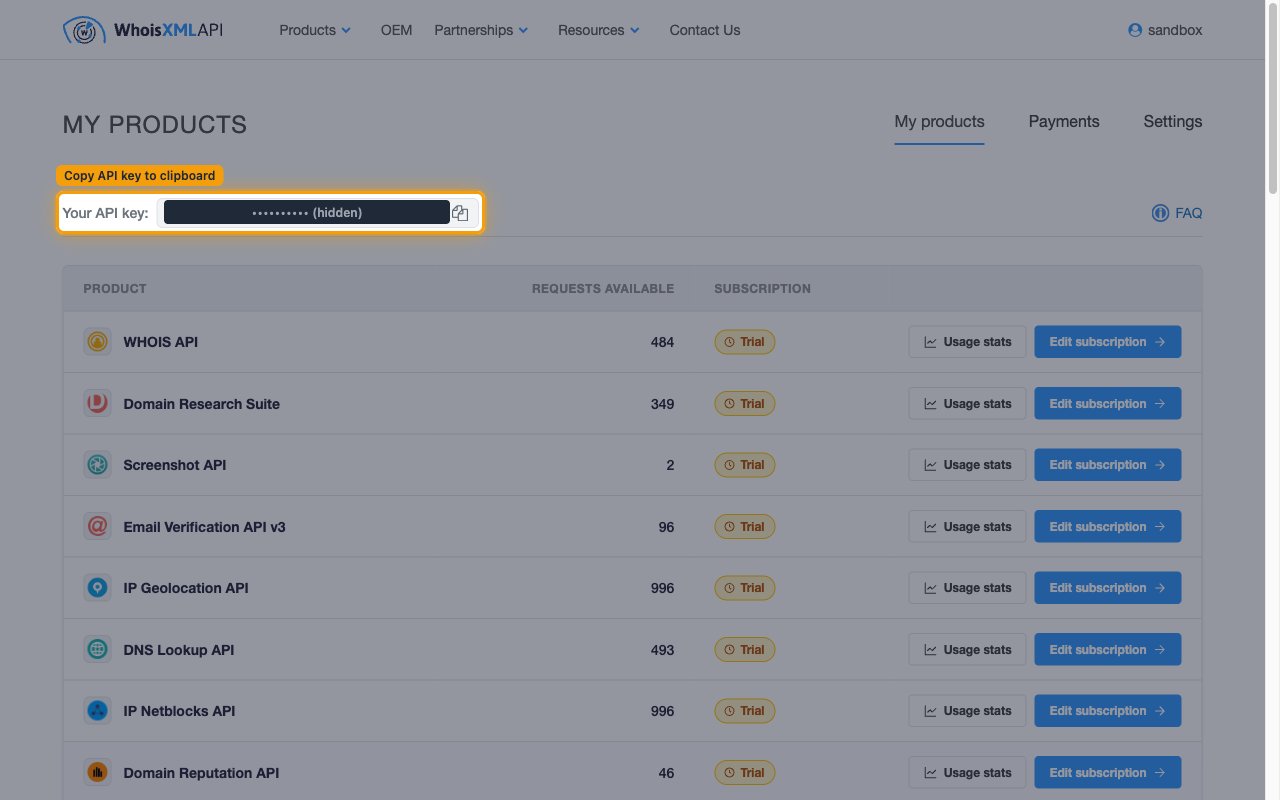
        <p>In the account dashboard, open the <strong>My products</strong> tab (next to <strong>Payments</strong> and <strong>Settings</strong>). Your key is displayed at the top of the page beside the <strong>Your API key:</strong> label.</p>

        <img src="https://mintcdn.com/stackone-60/FWIKNhwS2CFrDe_6/connectors/whois/images/apikey-config-my-products.png?fit=max&auto=format&n=FWIKNhwS2CFrDe_6&q=85&s=fa3393dbc842a7549ebcf7bc69fb13fd" alt="The My products page with the Your API key box and the Copy API key to clipboard button highlighted" width="1280" height="800" data-path="connectors/whois/images/apikey-config-my-products.png" />
      </div>
    </Step>

    <Step title="Copy your API key">
      <div data-guide-step data-guide-scopes="" data-guide-display-scopes-list="">
        <p>Click the <strong>Copy API key to clipboard</strong> button next to <strong>Your API key:</strong> to copy the key, then paste it into the <strong>API Key</strong> field in StackOne Hub.</p>

        <ul>
          <li>Format: `at_` followed by a long alphanumeric string (for example `at_xxxxxxxxxxxxxxxxxxxxxxxxxxxxx`).</li>
          <li>The key is always available on the <strong>My products</strong> page, so you can return here to copy it again at any time.</li>
          <li>The same key authenticates every WhoisXML product on your account, and each request draws credits from that product's subscription.</li>
        </ul>
      </div>
    </Step>
  </Steps>
</section>

<div data-whitelabel-hide>
  <h2>Linking the Account from the Hub</h2>

  <Steps>
    <Step title="Navigate to the Hub">
      Use one of the three <a href="/connect/managing-connectors/linking-accounts">Linking Account Methods</a> to access the Hub.
    </Step>

    <Step title="Fill out the fields">
      Fill out the following fields using details from your provider:

      <ul>
        <li><strong>API Key</strong></li>
      </ul>
    </Step>

    <Step title="Connect">
      <ul>
        <li>Click <strong>Connect</strong></li>
        <li>If applicable, the provider will redirect you to a sign-in or authorization page. Complete the provider's authorization flow.</li>
        <li>Once authorization is successful, you will see a confirmation popup</li>
      </ul>
    </Step>
  </Steps>

  <p>If the account linking is successful, you will see the newly linked account in your <a href="/gateway/concepts/linked-accounts">Accounts</a> page.</p>
</div>