> ## Documentation Index
> Fetch the complete documentation index at: https://docs.stackone.com/llms.txt
> Use this file to discover all available pages before exploring further.
# WhatsApp Business Webhook Setup Guide
> Configure WhatsApp Business to deliver events to StackOne.
## Prerequisites
The connector should already be set up, with a Connector Profile and a Linked Account. See [Getting Started](/connectors/whatsapp-business#getting-started) on the WhatsApp Business connector page.
Prepare StackOne
Enable the WhatsApp Business events you want on the connector in StackOne, including Webhook Verification, which answers Meta's verification request when you save the callback URL.
Connect the account
Connect the WhatsApp Business account in StackOne with its WhatsApp Business Account ID. When events are enabled, StackOne subscribes your Meta app to that WhatsApp Business Account automatically and unsubscribes it when the account is disconnected.
Copy the Native Webhook URL shown on the WhatsApp Business Linked Account in StackOne. It identifies that account, so every webhook Meta sends to it is routed to the account.
Configure the webhook in WhatsApp
Set the callback URL and webhook fields in your Meta app after you connect the account in StackOne. The Cloud API has no endpoint for this step, so it is done in the App Dashboard.
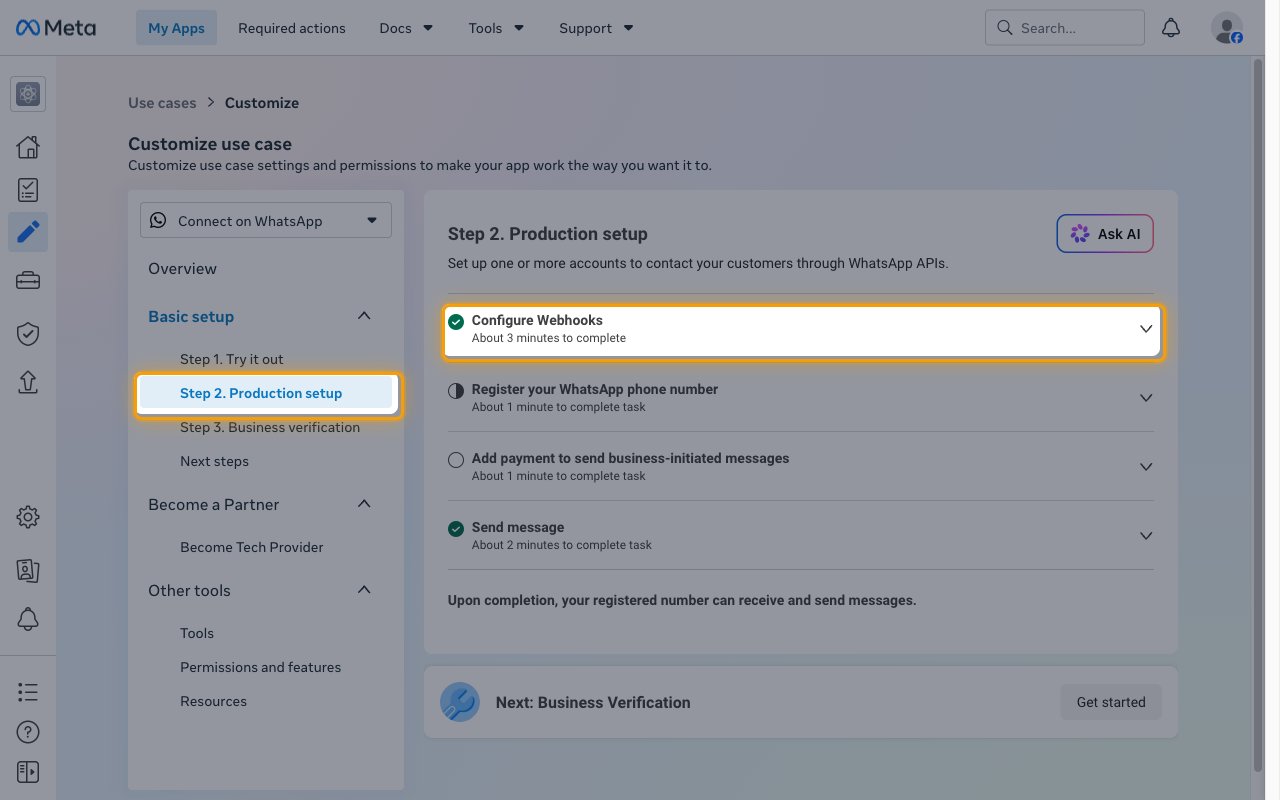
In your app on Meta for Developers, open Use cases, customize Connect on WhatsApp, and select Step 2. Production setup. Expand Configure Webhooks.
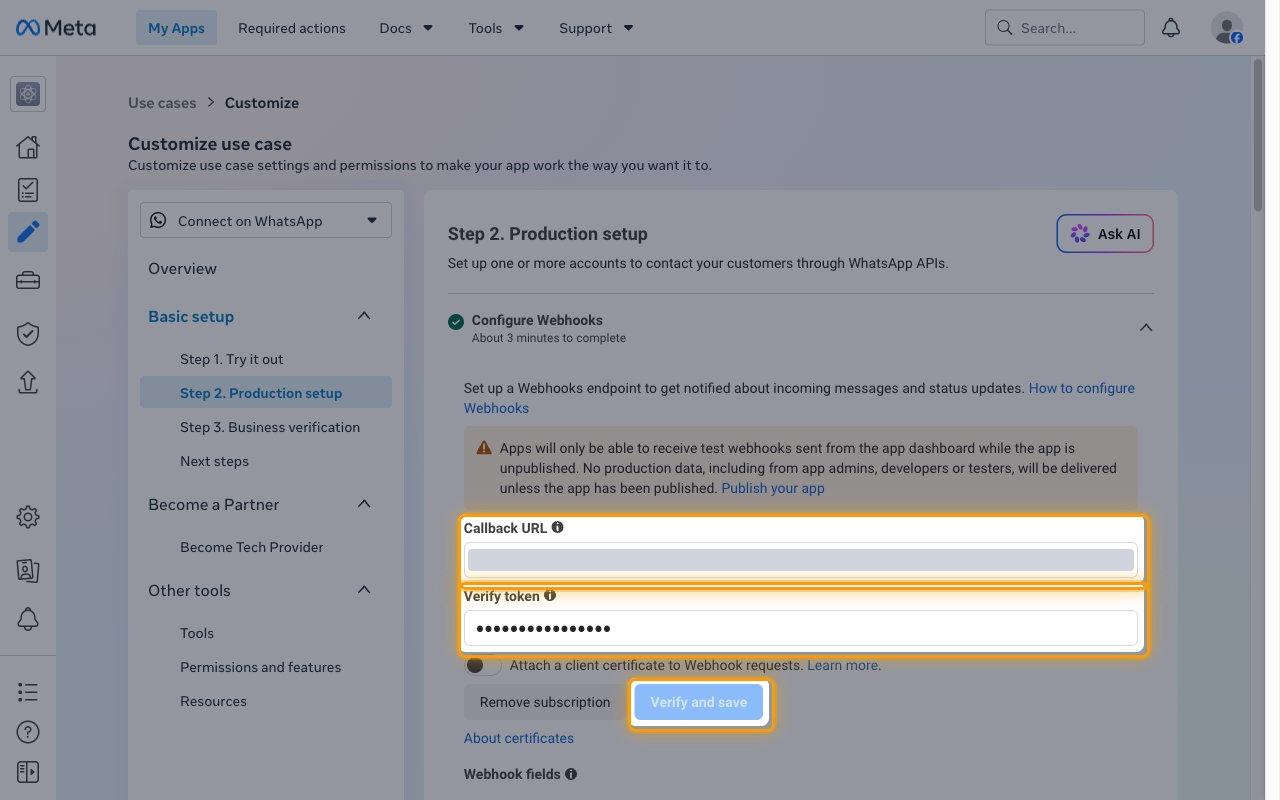
Paste the Native Webhook URL into Callback URL, enter any value in Verify token, and click Verify and save. Meta sends a verification request to the URL and StackOne answers it.
- If verification fails, check that the Webhook Verification event is enabled in StackOne and the URL was copied in full.
- While the app is unpublished, Meta only delivers test webhooks sent from the App Dashboard. To receive real messages and status updates for numbers other than the test number, publish the app with Publish your app.
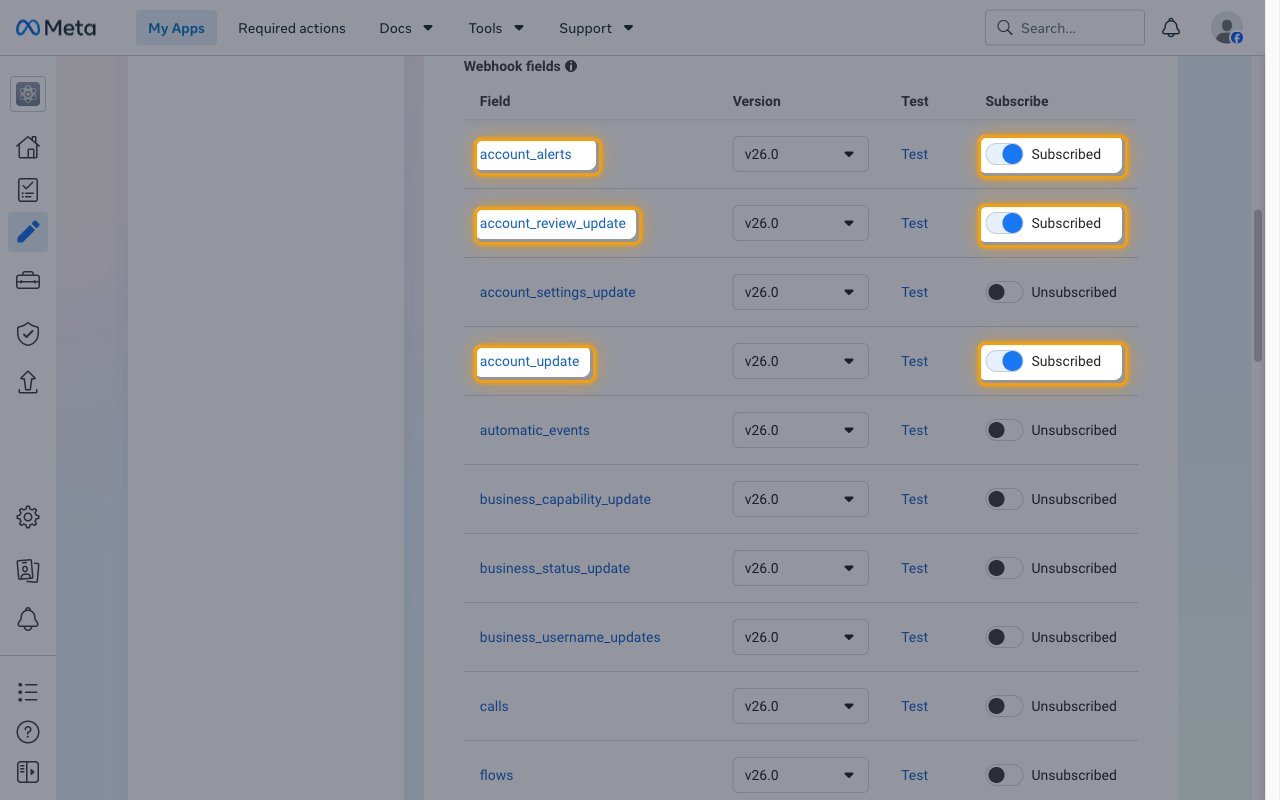
Under Webhook fields, turn on Subscribe for every field whose events you enabled in StackOne, so the toggle shows Subscribed.
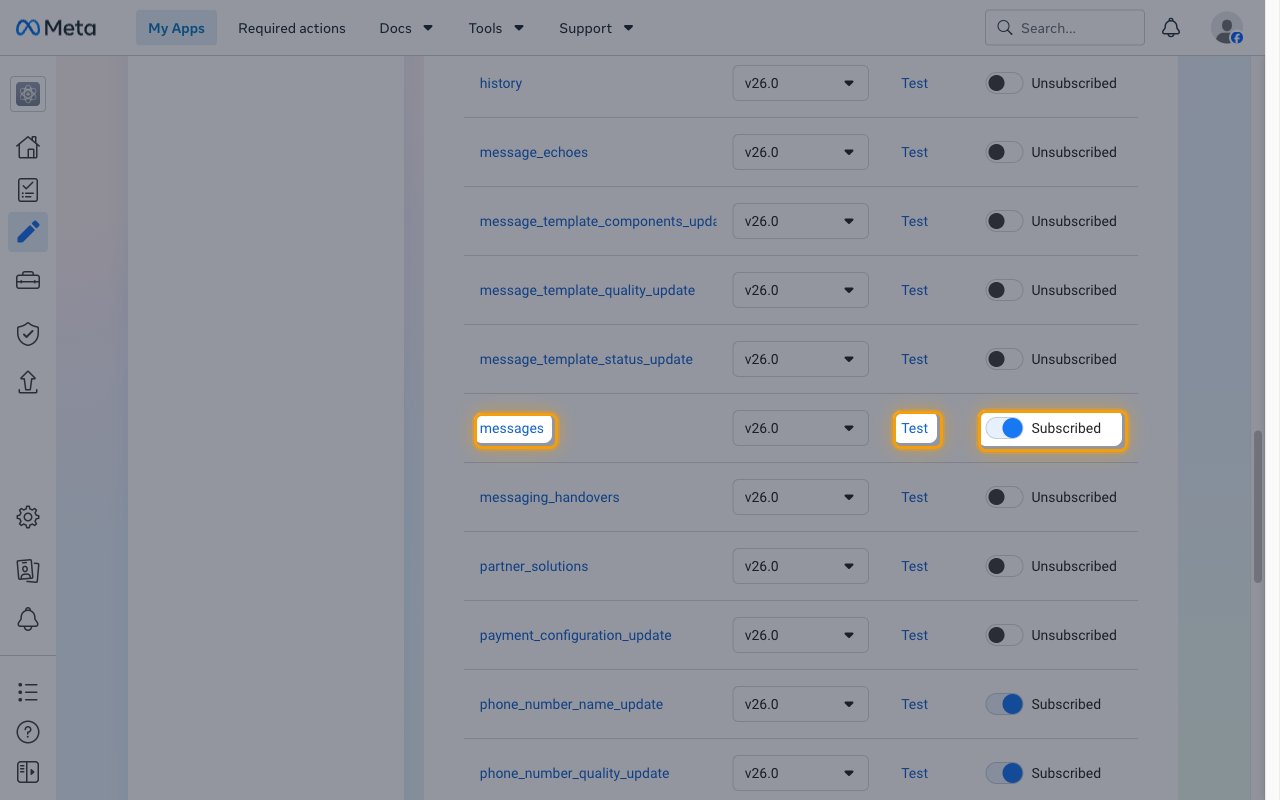
Make sure messages shows Subscribed. This field delivers both incoming messages and the status updates of messages you send.
- Click Test next to a subscribed field under Webhook fields to send a sample webhook. It should arrive as an event on the account in StackOne. The sample uses placeholder IDs and content, so send a real WhatsApp message to the business number to check real data.
Available webhook events
The following WhatsApp Business events can be enabled. Only events enabled in StackOne are delivered, and Meta only sends events for webhook fields subscribed in the App Dashboard.
Enable these whenever any other event is enabled.
- Webhook Verification (`webhook_verification`) — Answers Meta's verification request with the challenge value when the callback URL is saved. Without it, Meta rejects the callback URL
- Active Check (`active_check`) — Acknowledges deliveries that carry no WhatsApp Business Account entries, so Meta does not retry them
Events from the `messages` webhook field.
- Message Received (`message.received`) — Fired when a WhatsApp user sends a message to a business phone number, including text, media, location, contacts, reactions, and interactive replies
- Message Status Updated (`message.status_updated`) — Fired when a message sent from a business phone number is sent, delivered, read, or fails
Events from the `message_template_status_update` and `message_template_quality_update` webhook fields.
- Template Status Updated (`template.status_updated`) — Fired when a message template is approved, rejected, paused, disabled, or otherwise changes review status
- Template Quality Updated (`template.quality_updated`) — Fired when a message template's quality rating changes
Events from the `phone_number_quality_update` webhook field.
- Phone Number Quality Updated (`phone_number.quality_updated`) — Fired when a business phone number's messaging limit or throughput changes
Events from the `account_update`, `account_review_update`, and `account_alerts` webhook fields.
- Account Updated (`account.updated`) — Fired when a WhatsApp Business Account changes, such as a restriction, policy violation, verification change, or deletion
- Account Review Updated (`account.review_updated`) — Fired when the review of a WhatsApp Business Account is completed
- Account Alert (`account.alert`) — Fired when Meta raises an alert about a WhatsApp Business Account, business, or phone number, such as a messaging limit or capability change
Events from the `user_preferences` webhook field.
- User Preferences Updated (`user.preferences_updated`) — Fired when a WhatsApp user stops or resumes marketing messages from the business
Events from the `group_lifecycle_update`, `group_participants_update`, and `group_settings_update` webhook fields. Requires a business phone number that is eligible for groups.
- Group Lifecycle Updated (`group.lifecycle_updated`) — Fired when a group is created or deleted
- Group Participants Updated (`group.participants_updated`) — Fired when participants join or leave a group, or a join request is created or resolved
- Group Settings Updated (`group.settings_updated`) — Fired when a group's subject, description, or profile picture update completes
Delivery format
Details of how Meta delivers WhatsApp webhooks to StackOne.
Each request holds an `entry` array, one item per WhatsApp Business Account, and each entry holds a `changes` array with the webhook `field` and its `value`. StackOne emits one event per change.
- Incoming messages are in `value.messages` and status updates in `value.statuses`, both under the `messages` field.
- Timestamps are unix seconds; StackOne converts them to ISO 8601 for the event date.
Meta retries deliveries that do not receive a 200 response for up to 7 days and may deliver a webhook more than once. Deduplicate messages on the WhatsApp message ID.
Meta signs each delivery with the `X-Hub-Signature-256` header, an HMAC-SHA256 of the request body keyed with the App Secret.
## Verify
Your Connector should now be able to receive and process events. Try triggering an event and you should see an Event appear in the Connector logs.
This documentation is built and hosted on [Mintlify](https://mintlify.com), a developer documentation platform.