> ## Documentation Index
> Fetch the complete documentation index at: https://docs.stackone.com/llms.txt
> Use this file to discover all available pages before exploring further.

# Connect WhatsApp Business with System User Access Token – StackOne Hub

> Link a WhatsApp Business account in the StackOne Hub using System User Access Token. End-user guide to authorize the integration and start using WhatsApp Business actions.

<Warning>Admin access to the Meta business portfolio that owns your Meta app and WhatsApp Business Account is required to create a system user and generate its token. The WhatsApp Business Account ID and the Phone Number ID are both long numeric IDs, so make sure each one goes into the matching field.</Warning>

<Panel>
  <div className="not-prose guides-scope-selector" data-guides-scope-selector data-guide-actions-json="[{&#x22;id&#x22;:&#x22;whatsapp-business_get_whatsapp_business_account&#x22;,&#x22;label&#x22;:&#x22;Get WhatsApp Business Account&#x22;,&#x22;scopes&#x22;:[&#x22;whatsapp_business_management&#x22;]},{&#x22;id&#x22;:&#x22;whatsapp-business_update_whatsapp_business_account&#x22;,&#x22;label&#x22;:&#x22;Update WhatsApp Business Account&#x22;,&#x22;scopes&#x22;:[&#x22;whatsapp_business_management&#x22;]},{&#x22;id&#x22;:&#x22;whatsapp-business_get_subscribed_apps&#x22;,&#x22;label&#x22;:&#x22;Get Subscribed Apps&#x22;,&#x22;scopes&#x22;:[&#x22;whatsapp_business_management&#x22;]},{&#x22;id&#x22;:&#x22;whatsapp-business_get_schedules&#x22;,&#x22;label&#x22;:&#x22;Get Schedules&#x22;,&#x22;scopes&#x22;:[&#x22;whatsapp_business_management&#x22;]},{&#x22;id&#x22;:&#x22;whatsapp-business_create_schedule&#x22;,&#x22;label&#x22;:&#x22;Create Schedule&#x22;,&#x22;scopes&#x22;:[&#x22;whatsapp_business_management&#x22;]},{&#x22;id&#x22;:&#x22;whatsapp-business_get_owned_whatsapp_business_accounts&#x22;,&#x22;label&#x22;:&#x22;Get Owned WhatsApp Business Accounts&#x22;,&#x22;scopes&#x22;:[&#x22;business_management&#x22;,&#x22;whatsapp_business_management&#x22;]},{&#x22;id&#x22;:&#x22;whatsapp-business_get_client_whatsapp_business_accounts&#x22;,&#x22;label&#x22;:&#x22;Get Client WhatsApp Business Accounts&#x22;,&#x22;scopes&#x22;:[&#x22;business_management&#x22;,&#x22;whatsapp_business_management&#x22;]},{&#x22;id&#x22;:&#x22;whatsapp-business_list_flows&#x22;,&#x22;label&#x22;:&#x22;List Flows&#x22;,&#x22;scopes&#x22;:[&#x22;whatsapp_business_management&#x22;]},{&#x22;id&#x22;:&#x22;whatsapp-business_get_flow&#x22;,&#x22;label&#x22;:&#x22;Get Flow&#x22;,&#x22;scopes&#x22;:[&#x22;whatsapp_business_management&#x22;]},{&#x22;id&#x22;:&#x22;whatsapp-business_create_flow&#x22;,&#x22;label&#x22;:&#x22;Create Flow&#x22;,&#x22;scopes&#x22;:[&#x22;whatsapp_business_management&#x22;]},{&#x22;id&#x22;:&#x22;whatsapp-business_update_flow_metadata&#x22;,&#x22;label&#x22;:&#x22;Update Flow Metadata&#x22;,&#x22;scopes&#x22;:[&#x22;whatsapp_business_management&#x22;]},{&#x22;id&#x22;:&#x22;whatsapp-business_update_flow_json&#x22;,&#x22;label&#x22;:&#x22;Update Flow JSON&#x22;,&#x22;scopes&#x22;:[&#x22;whatsapp_business_management&#x22;]},{&#x22;id&#x22;:&#x22;whatsapp-business_list_flow_assets&#x22;,&#x22;label&#x22;:&#x22;List Flow Assets&#x22;,&#x22;scopes&#x22;:[&#x22;whatsapp_business_management&#x22;]},{&#x22;id&#x22;:&#x22;whatsapp-business_publish_flow&#x22;,&#x22;label&#x22;:&#x22;Publish Flow&#x22;,&#x22;scopes&#x22;:[&#x22;whatsapp_business_management&#x22;]},{&#x22;id&#x22;:&#x22;whatsapp-business_deprecate_flow&#x22;,&#x22;label&#x22;:&#x22;Deprecate Flow&#x22;,&#x22;scopes&#x22;:[&#x22;whatsapp_business_management&#x22;]},{&#x22;id&#x22;:&#x22;whatsapp-business_delete_flow&#x22;,&#x22;label&#x22;:&#x22;Delete Flow&#x22;,&#x22;scopes&#x22;:[&#x22;whatsapp_business_management&#x22;]},{&#x22;id&#x22;:&#x22;whatsapp-business_create_group&#x22;,&#x22;label&#x22;:&#x22;Create Group&#x22;,&#x22;scopes&#x22;:[&#x22;whatsapp_business_messaging&#x22;]},{&#x22;id&#x22;:&#x22;whatsapp-business_get_group_invite_link&#x22;,&#x22;label&#x22;:&#x22;Get Group Invite Link&#x22;,&#x22;scopes&#x22;:[&#x22;whatsapp_business_messaging&#x22;]},{&#x22;id&#x22;:&#x22;whatsapp-business_reset_group_invite_link&#x22;,&#x22;label&#x22;:&#x22;Reset Group Invite Link&#x22;,&#x22;scopes&#x22;:[&#x22;whatsapp_business_messaging&#x22;]},{&#x22;id&#x22;:&#x22;whatsapp-business_delete_group_invite_link&#x22;,&#x22;label&#x22;:&#x22;Delete Group Invite Link&#x22;,&#x22;scopes&#x22;:[&#x22;whatsapp_business_messaging&#x22;]},{&#x22;id&#x22;:&#x22;whatsapp-business_get_join_requests&#x22;,&#x22;label&#x22;:&#x22;Get Join Requests&#x22;,&#x22;scopes&#x22;:[&#x22;whatsapp_business_messaging&#x22;]},{&#x22;id&#x22;:&#x22;whatsapp-business_approve_join_requests&#x22;,&#x22;label&#x22;:&#x22;Approve Join Requests&#x22;,&#x22;scopes&#x22;:[&#x22;whatsapp_business_messaging&#x22;]},{&#x22;id&#x22;:&#x22;whatsapp-business_reject_join_requests&#x22;,&#x22;label&#x22;:&#x22;Reject Join Requests&#x22;,&#x22;scopes&#x22;:[&#x22;whatsapp_business_messaging&#x22;]},{&#x22;id&#x22;:&#x22;whatsapp-business_send_group_invite_template&#x22;,&#x22;label&#x22;:&#x22;Send Group Invite Template&#x22;,&#x22;scopes&#x22;:[&#x22;whatsapp_business_messaging&#x22;]},{&#x22;id&#x22;:&#x22;whatsapp-business_remove_group_participants&#x22;,&#x22;label&#x22;:&#x22;Remove Group Participants&#x22;,&#x22;scopes&#x22;:[&#x22;whatsapp_business_messaging&#x22;]},{&#x22;id&#x22;:&#x22;whatsapp-business_get_group&#x22;,&#x22;label&#x22;:&#x22;Get Group&#x22;,&#x22;scopes&#x22;:[&#x22;whatsapp_business_messaging&#x22;]},{&#x22;id&#x22;:&#x22;whatsapp-business_get_active_groups&#x22;,&#x22;label&#x22;:&#x22;Get Active Groups&#x22;,&#x22;scopes&#x22;:[&#x22;whatsapp_business_messaging&#x22;]},{&#x22;id&#x22;:&#x22;whatsapp-business_update_group&#x22;,&#x22;label&#x22;:&#x22;Update Group&#x22;,&#x22;scopes&#x22;:[&#x22;whatsapp_business_messaging&#x22;]},{&#x22;id&#x22;:&#x22;whatsapp-business_delete_group&#x22;,&#x22;label&#x22;:&#x22;Delete Group&#x22;,&#x22;scopes&#x22;:[&#x22;whatsapp_business_messaging&#x22;]},{&#x22;id&#x22;:&#x22;whatsapp-business_send_group_message&#x22;,&#x22;label&#x22;:&#x22;Send Group Message&#x22;,&#x22;scopes&#x22;:[&#x22;whatsapp_business_messaging&#x22;]},{&#x22;id&#x22;:&#x22;whatsapp-business_unified_list_organizations&#x22;,&#x22;label&#x22;:&#x22;List Unified Organizations&#x22;,&#x22;scopes&#x22;:[&#x22;whatsapp_business_management&#x22;]},{&#x22;id&#x22;:&#x22;whatsapp-business_unified_get_organization&#x22;,&#x22;label&#x22;:&#x22;Get Unified Organization&#x22;,&#x22;scopes&#x22;:[&#x22;whatsapp_business_management&#x22;]},{&#x22;id&#x22;:&#x22;whatsapp-business_unified_list_resource_types&#x22;,&#x22;label&#x22;:&#x22;List Unified Resource Types&#x22;,&#x22;scopes&#x22;:[&#x22;whatsapp_business_management&#x22;]},{&#x22;id&#x22;:&#x22;whatsapp-business_unified_list_resource_users&#x22;,&#x22;label&#x22;:&#x22;List Unified Resource Users&#x22;,&#x22;scopes&#x22;:[&#x22;whatsapp_business_management&#x22;]},{&#x22;id&#x22;:&#x22;whatsapp-business_unified_list_roles&#x22;,&#x22;label&#x22;:&#x22;List Unified Roles&#x22;,&#x22;scopes&#x22;:[&#x22;whatsapp_business_management&#x22;]},{&#x22;id&#x22;:&#x22;whatsapp-business_unified_get_role&#x22;,&#x22;label&#x22;:&#x22;Get Unified Role&#x22;,&#x22;scopes&#x22;:[&#x22;whatsapp_business_management&#x22;]},{&#x22;id&#x22;:&#x22;whatsapp-business_upload_media&#x22;,&#x22;label&#x22;:&#x22;Upload Media&#x22;,&#x22;scopes&#x22;:[&#x22;whatsapp_business_messaging&#x22;]},{&#x22;id&#x22;:&#x22;whatsapp-business_retrieve_media_url&#x22;,&#x22;label&#x22;:&#x22;Retrieve Media URL&#x22;,&#x22;scopes&#x22;:[&#x22;whatsapp_business_messaging&#x22;]},{&#x22;id&#x22;:&#x22;whatsapp-business_download_media&#x22;,&#x22;label&#x22;:&#x22;Download Media&#x22;,&#x22;scopes&#x22;:[&#x22;whatsapp_business_messaging&#x22;]},{&#x22;id&#x22;:&#x22;whatsapp-business_delete_media&#x22;,&#x22;label&#x22;:&#x22;Delete Media&#x22;,&#x22;scopes&#x22;:[&#x22;whatsapp_business_messaging&#x22;]},{&#x22;id&#x22;:&#x22;whatsapp-business_send_text_message&#x22;,&#x22;label&#x22;:&#x22;Send Text Message&#x22;,&#x22;scopes&#x22;:[&#x22;whatsapp_business_messaging&#x22;]},{&#x22;id&#x22;:&#x22;whatsapp-business_send_template_message&#x22;,&#x22;label&#x22;:&#x22;Send Template Message&#x22;,&#x22;scopes&#x22;:[&#x22;whatsapp_business_messaging&#x22;]},{&#x22;id&#x22;:&#x22;whatsapp-business_send_image_message&#x22;,&#x22;label&#x22;:&#x22;Send Image Message&#x22;,&#x22;scopes&#x22;:[&#x22;whatsapp_business_messaging&#x22;]},{&#x22;id&#x22;:&#x22;whatsapp-business_send_video_message&#x22;,&#x22;label&#x22;:&#x22;Send Video Message&#x22;,&#x22;scopes&#x22;:[&#x22;whatsapp_business_messaging&#x22;]},{&#x22;id&#x22;:&#x22;whatsapp-business_send_audio_message&#x22;,&#x22;label&#x22;:&#x22;Send Audio Message&#x22;,&#x22;scopes&#x22;:[&#x22;whatsapp_business_messaging&#x22;]},{&#x22;id&#x22;:&#x22;whatsapp-business_send_document_message&#x22;,&#x22;label&#x22;:&#x22;Send Document Message&#x22;,&#x22;scopes&#x22;:[&#x22;whatsapp_business_messaging&#x22;]},{&#x22;id&#x22;:&#x22;whatsapp-business_send_location_message&#x22;,&#x22;label&#x22;:&#x22;Send Location Message&#x22;,&#x22;scopes&#x22;:[&#x22;whatsapp_business_messaging&#x22;]},{&#x22;id&#x22;:&#x22;whatsapp-business_send_contact_message&#x22;,&#x22;label&#x22;:&#x22;Send Contact Message&#x22;,&#x22;scopes&#x22;:[&#x22;whatsapp_business_messaging&#x22;]},{&#x22;id&#x22;:&#x22;whatsapp-business_send_interactive_message&#x22;,&#x22;label&#x22;:&#x22;Send Interactive Message&#x22;,&#x22;scopes&#x22;:[&#x22;whatsapp_business_messaging&#x22;]},{&#x22;id&#x22;:&#x22;whatsapp-business_send_reaction&#x22;,&#x22;label&#x22;:&#x22;Send Reaction&#x22;,&#x22;scopes&#x22;:[&#x22;whatsapp_business_messaging&#x22;]},{&#x22;id&#x22;:&#x22;whatsapp-business_send_sticker_message&#x22;,&#x22;label&#x22;:&#x22;Send Sticker Message&#x22;,&#x22;scopes&#x22;:[&#x22;whatsapp_business_messaging&#x22;]},{&#x22;id&#x22;:&#x22;whatsapp-business_mark_message_as_read&#x22;,&#x22;label&#x22;:&#x22;Mark Message As Read&#x22;,&#x22;scopes&#x22;:[&#x22;whatsapp_business_messaging&#x22;]},{&#x22;id&#x22;:&#x22;whatsapp-business_get_message_history&#x22;,&#x22;label&#x22;:&#x22;Get Message History&#x22;,&#x22;scopes&#x22;:[&#x22;whatsapp_business_messaging&#x22;]},{&#x22;id&#x22;:&#x22;whatsapp-business_get_whatsapp_business_account_phone_numbers&#x22;,&#x22;label&#x22;:&#x22;Get WhatsApp Business Account Phone Numbers&#x22;,&#x22;scopes&#x22;:[&#x22;whatsapp_business_management&#x22;]},{&#x22;id&#x22;:&#x22;whatsapp-business_get_phone_number&#x22;,&#x22;label&#x22;:&#x22;Get Phone Number&#x22;,&#x22;scopes&#x22;:[&#x22;whatsapp_business_management&#x22;]},{&#x22;id&#x22;:&#x22;whatsapp-business_create_whatsapp_business_account_phone_number&#x22;,&#x22;label&#x22;:&#x22;Create WhatsApp Business Account Phone Number&#x22;,&#x22;scopes&#x22;:[&#x22;whatsapp_business_management&#x22;]},{&#x22;id&#x22;:&#x22;whatsapp-business_register_phone_number&#x22;,&#x22;label&#x22;:&#x22;Register Phone Number&#x22;,&#x22;scopes&#x22;:[&#x22;whatsapp_business_management&#x22;]},{&#x22;id&#x22;:&#x22;whatsapp-business_deregister_phone_number&#x22;,&#x22;label&#x22;:&#x22;Deregister Phone Number&#x22;,&#x22;scopes&#x22;:[&#x22;whatsapp_business_management&#x22;]},{&#x22;id&#x22;:&#x22;whatsapp-business_request_verification_code&#x22;,&#x22;label&#x22;:&#x22;Request Verification Code&#x22;,&#x22;scopes&#x22;:[&#x22;whatsapp_business_management&#x22;]},{&#x22;id&#x22;:&#x22;whatsapp-business_verify_code&#x22;,&#x22;label&#x22;:&#x22;Verify Code&#x22;,&#x22;scopes&#x22;:[&#x22;whatsapp_business_management&#x22;]},{&#x22;id&#x22;:&#x22;whatsapp-business_set_two_step_pin&#x22;,&#x22;label&#x22;:&#x22;Set Two-Step Verification PIN&#x22;,&#x22;scopes&#x22;:[&#x22;whatsapp_business_management&#x22;]},{&#x22;id&#x22;:&#x22;whatsapp-business_block_users&#x22;,&#x22;label&#x22;:&#x22;Block Users&#x22;,&#x22;scopes&#x22;:[&#x22;whatsapp_business_messaging&#x22;]},{&#x22;id&#x22;:&#x22;whatsapp-business_unblock_users&#x22;,&#x22;label&#x22;:&#x22;Unblock Users&#x22;,&#x22;scopes&#x22;:[&#x22;whatsapp_business_messaging&#x22;]},{&#x22;id&#x22;:&#x22;whatsapp-business_get_blocked_users&#x22;,&#x22;label&#x22;:&#x22;Get Blocked Users&#x22;,&#x22;scopes&#x22;:[&#x22;whatsapp_business_messaging&#x22;]},{&#x22;id&#x22;:&#x22;whatsapp-business_configure_conversational_automation&#x22;,&#x22;label&#x22;:&#x22;Configure Conversational Automation&#x22;,&#x22;scopes&#x22;:[&#x22;whatsapp_business_management&#x22;]},{&#x22;id&#x22;:&#x22;whatsapp-business_manage_call&#x22;,&#x22;label&#x22;:&#x22;Manage Call&#x22;,&#x22;scopes&#x22;:[&#x22;whatsapp_business_messaging&#x22;]},{&#x22;id&#x22;:&#x22;whatsapp-business_check_call_permissions&#x22;,&#x22;label&#x22;:&#x22;Check Call Permissions&#x22;,&#x22;scopes&#x22;:[&#x22;whatsapp_business_messaging&#x22;]},{&#x22;id&#x22;:&#x22;whatsapp-business_get_business_profile&#x22;,&#x22;label&#x22;:&#x22;Get Business Profile&#x22;,&#x22;scopes&#x22;:[&#x22;whatsapp_business_management&#x22;]},{&#x22;id&#x22;:&#x22;whatsapp-business_update_business_profile&#x22;,&#x22;label&#x22;:&#x22;Update Business Profile&#x22;,&#x22;scopes&#x22;:[&#x22;whatsapp_business_management&#x22;]},{&#x22;id&#x22;:&#x22;whatsapp-business_get_message_templates&#x22;,&#x22;label&#x22;:&#x22;Get Message Templates&#x22;,&#x22;scopes&#x22;:[&#x22;whatsapp_business_management&#x22;]},{&#x22;id&#x22;:&#x22;whatsapp-business_get_template&#x22;,&#x22;label&#x22;:&#x22;Get Message Template&#x22;,&#x22;scopes&#x22;:[&#x22;whatsapp_business_management&#x22;]},{&#x22;id&#x22;:&#x22;whatsapp-business_create_template&#x22;,&#x22;label&#x22;:&#x22;Create Message Template&#x22;,&#x22;scopes&#x22;:[&#x22;whatsapp_business_management&#x22;]},{&#x22;id&#x22;:&#x22;whatsapp-business_delete_template&#x22;,&#x22;label&#x22;:&#x22;Delete Message Template&#x22;,&#x22;scopes&#x22;:[&#x22;whatsapp_business_management&#x22;]},{&#x22;id&#x22;:&#x22;whatsapp-business_edit_template&#x22;,&#x22;label&#x22;:&#x22;Edit Message Template&#x22;,&#x22;scopes&#x22;:[&#x22;whatsapp_business_management&#x22;]},{&#x22;id&#x22;:&#x22;whatsapp-business_get_assigned_users&#x22;,&#x22;label&#x22;:&#x22;Get Assigned Users&#x22;,&#x22;scopes&#x22;:[&#x22;whatsapp_business_management&#x22;]},{&#x22;id&#x22;:&#x22;whatsapp-business_add_assigned_user&#x22;,&#x22;label&#x22;:&#x22;Add Assigned User&#x22;,&#x22;scopes&#x22;:[&#x22;whatsapp_business_management&#x22;]},{&#x22;id&#x22;:&#x22;whatsapp-business_remove_assigned_user&#x22;,&#x22;label&#x22;:&#x22;Remove Assigned User&#x22;,&#x22;scopes&#x22;:[&#x22;whatsapp_business_management&#x22;]},{&#x22;id&#x22;:&#x22;whatsapp-business_list_business_users&#x22;,&#x22;label&#x22;:&#x22;List Business Users&#x22;,&#x22;scopes&#x22;:[&#x22;business_management&#x22;]},{&#x22;id&#x22;:&#x22;whatsapp-business_list_system_users&#x22;,&#x22;label&#x22;:&#x22;List System Users&#x22;,&#x22;scopes&#x22;:[&#x22;business_management&#x22;]},{&#x22;id&#x22;:&#x22;whatsapp-business_create_business_user&#x22;,&#x22;label&#x22;:&#x22;Create Business User&#x22;,&#x22;scopes&#x22;:[&#x22;business_management&#x22;]}]">
    <div className="guides-scope-selector__title">Select Actions to adjust the guide</div>
    <div className="guides-scope-selector__muted guides-scope-selector__subtitle">Some actions may require additional configuration in the provider to be accessible. Choose the actions you need and the guide will be updated.</div>

    <div className="guides-scope-selector__toolbar">
      <input type="text" placeholder="Search actions..." className="guides-scope-selector__input guides-scope-selector__search" data-guide-action-search />

      <button type="button" className="guides-scope-selector__quick-btn" data-guide-select-all>Select all</button>
      <button type="button" className="guides-scope-selector__quick-btn" data-guide-clear>Clear</button>
    </div>

    <div className="guides-scope-selector__list">
      <div className="guides-scope-selector__list-header">
        <div className="guides-scope-selector__list-header-spacer" />

        <div className="guides-scope-selector__list-header-action">Action</div>
        <div className="guides-scope-selector__list-header-scopes">Scope(s)</div>
      </div>

      <div className="guides-scope-selector__muted guides-scope-selector__status" data-guide-loading>Loading actions...</div>
      <div className="guides-scope-selector__muted guides-scope-selector__status" data-guide-no-results hidden>No actions match your search.</div>
    </div>

    <div className="guides-scope-selector__url-section">
      <div className="guides-scope-selector__muted guides-scope-selector__label">Dynamic Guide URL</div>

      <div className="guides-scope-selector__url-row">
        <input type="text" readOnly className="guides-scope-selector__input guides-scope-selector__url-input" data-guide-url />

        <button type="button" className="guides-scope-selector__copy-btn guides-scope-selector__copy-btn--end" data-guide-copy-url>Copy URL</button>
      </div>

      <div className="guides-scope-selector__scopes-section">
        <div className="guides-scope-selector__muted guides-scope-selector__label">Scopes Selected</div>

        <div className="guides-scope-selector__scopes-row">
          <pre className="guides-scope-selector__input guides-scope-selector__scopes-output" role="textbox" aria-readonly="true" tabIndex={0} data-guide-scopes-output />

          <div className="guides-scope-selector__muted guides-scope-selector__side-controls">
            <div className="guides-scope-selector__side-label">Separator</div>

            <select className="guides-scope-selector__input guides-scope-selector__delimiter" data-guide-scope-delimiter>
              <option value="space">Space</option>
              <option value="comma">Comma</option>
              <option value="semicolon">Semicolon</option>
              <option value="pipe">Pipe</option>
              <option value="newline">Newline</option>
            </select>

            <button type="button" className="guides-scope-selector__copy-btn" data-guide-copy-scopes>Copy scopes</button>
          </div>
        </div>
      </div>
    </div>
  </div>
</Panel>

<section data-guide-section data-guide-scopes="">
  <h2>Create a system user</h2>

  <p>A system user represents your business rather than a person, so its token keeps working without anyone signing in again.</p>

  <Steps>
    <Step title="Open System users">
      <div data-guide-step data-guide-scopes="" data-guide-display-scopes-list="">
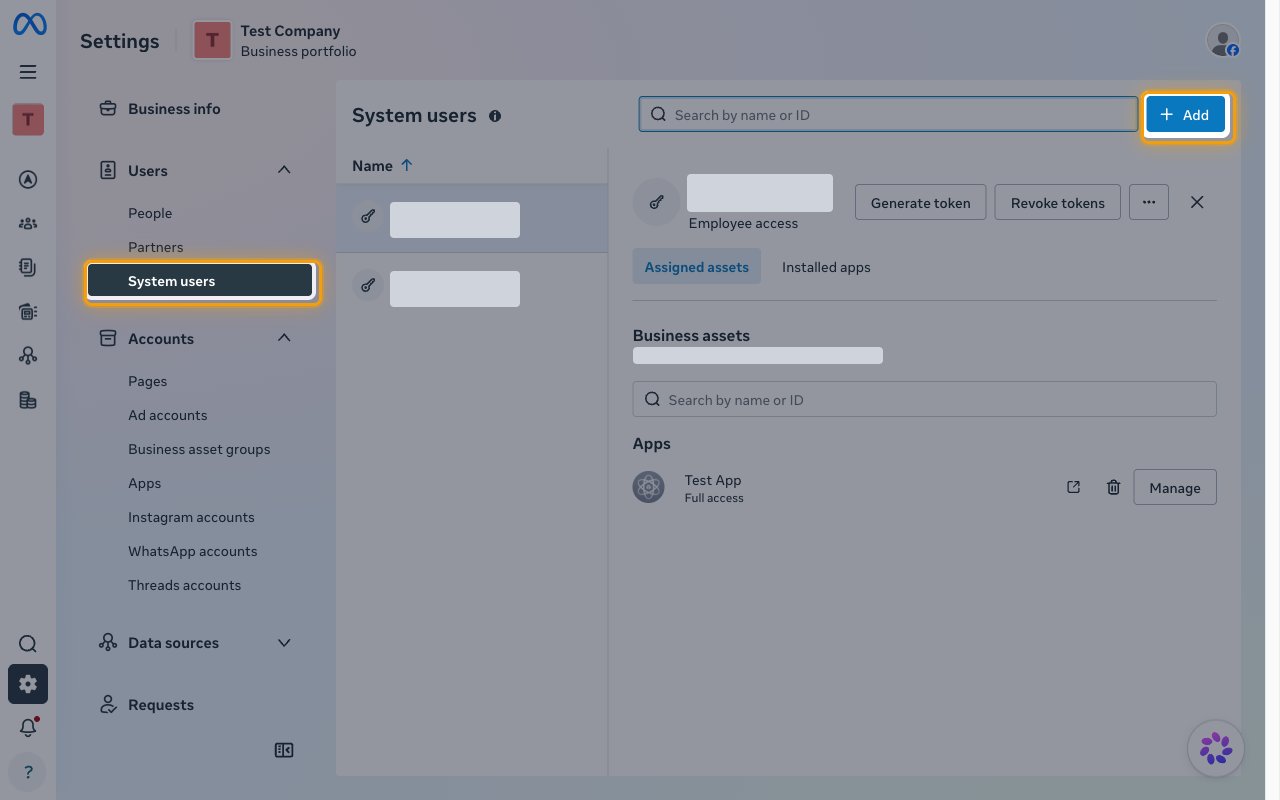
        <p>Sign in to <a href="https://business.facebook.com/settings" target="_blank" rel="noopener noreferrer">Meta Business Settings</a> and open <strong>Users</strong> > <strong>System users</strong>.</p>

        <ul>
          <li>Click <strong>Add</strong>.</li>
        </ul>

        <img src="https://mintcdn.com/stackone-60/4OonqPZsXrAh6dgg/connectors/whatsapp-business/images/custom-config-system-users.png?fit=max&auto=format&n=4OonqPZsXrAh6dgg&q=85&s=fc63cda958e9df45865092000bc56514" alt="The System users page in Business Settings with System users and the Add button highlighted" width="1280" height="800" data-path="connectors/whatsapp-business/images/custom-config-system-users.png" />
      </div>
    </Step>

    <Step title="Accept the policy if prompted">
      <div data-guide-step data-guide-scopes="" data-guide-display-scopes-list="">
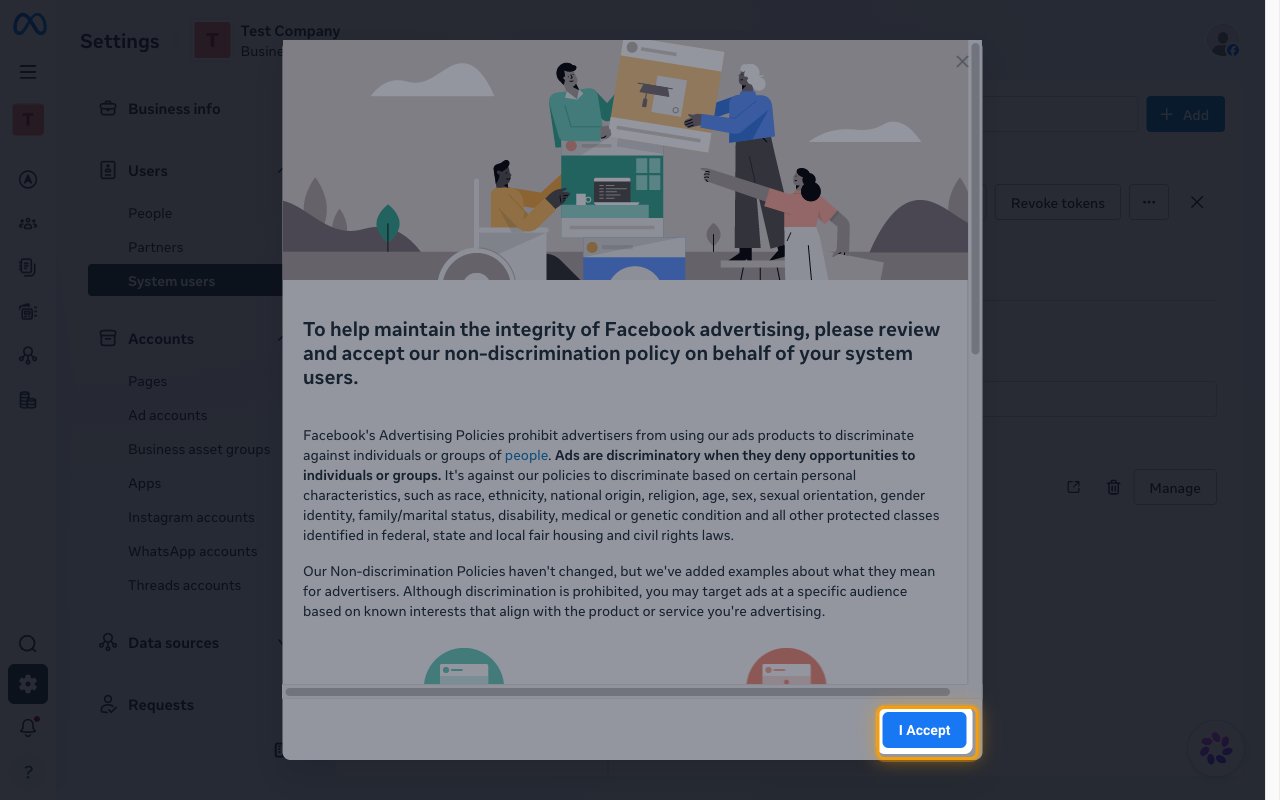
        <p>The first time you add a system user, Meta asks you to accept its non-discrimination policy on behalf of your system users. Read it and click <strong>I Accept</strong>.</p>

        <img src="https://mintcdn.com/stackone-60/4OonqPZsXrAh6dgg/connectors/whatsapp-business/images/custom-config-accept-policy.png?fit=max&auto=format&n=4OonqPZsXrAh6dgg&q=85&s=8050a507b73447fe26770ceb8a121090" alt="The non-discrimination policy dialog with the I Accept button highlighted" width="1280" height="800" data-path="connectors/whatsapp-business/images/custom-config-accept-policy.png" />
      </div>
    </Step>

    <Step title="Name the system user and choose its role">
      <div data-guide-step data-guide-scopes="" data-guide-display-scopes-list="">
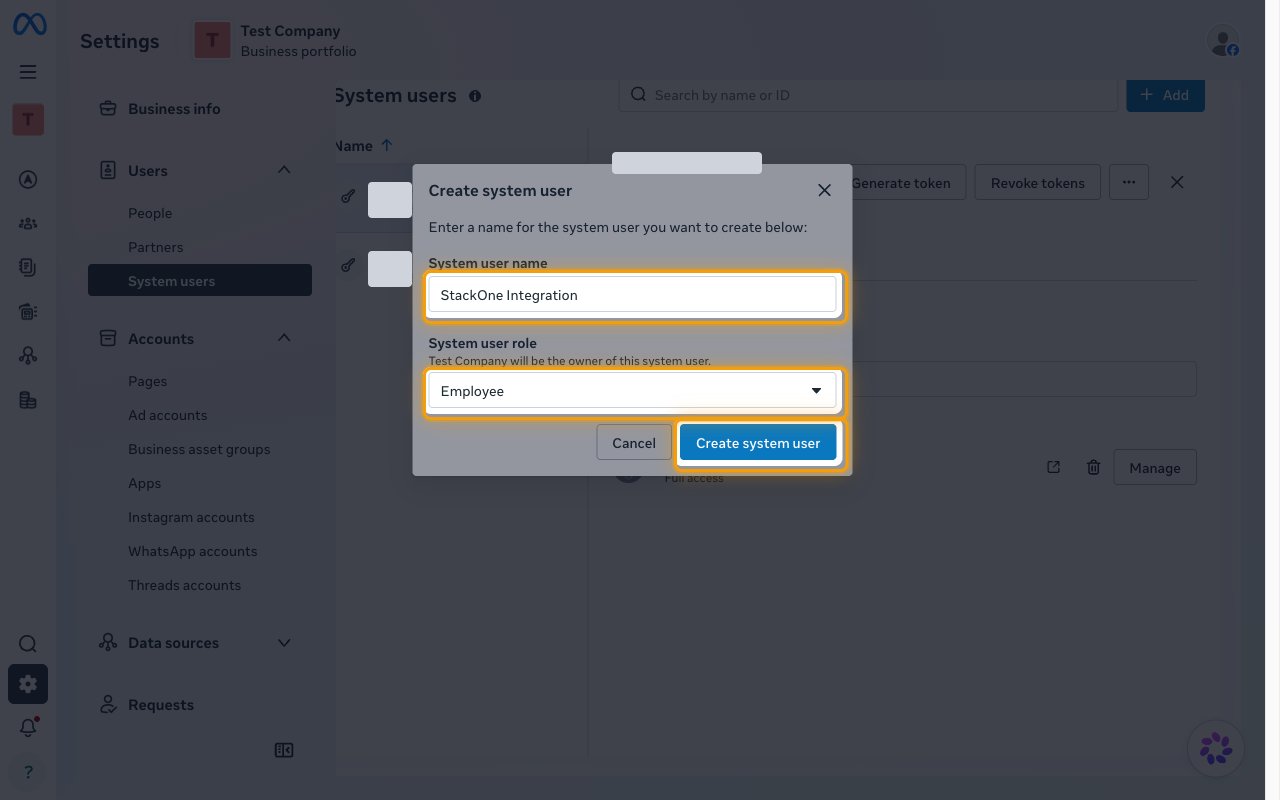
        <p>In <strong>Create system user</strong>, enter a name and choose the role, then click <strong>Create system user</strong>.</p>

        <ul>
          <li>System user name: `StackOne Integration`</li>
          <li>Choose <strong>Admin</strong> under <strong>System user role</strong> to give the system user access to every WhatsApp Business Account the business portfolio owns. Adding users to a WhatsApp Business Account also requires an Admin system user.</li>
          <li>Keep <strong>Employee</strong> to limit the system user to the WhatsApp Business Accounts you assign to it in the next section.</li>
        </ul>

        <img src="https://mintcdn.com/stackone-60/4OonqPZsXrAh6dgg/connectors/whatsapp-business/images/custom-config-create-system-user.png?fit=max&auto=format&n=4OonqPZsXrAh6dgg&q=85&s=a0344aee70d22ba678bfcbb05146cc20" alt="The Create system user dialog with the System user name, System user role, and Create system user controls highlighted" width="1280" height="800" data-path="connectors/whatsapp-business/images/custom-config-create-system-user.png" />
      </div>
    </Step>
  </Steps>
</section>

<section data-guide-section data-guide-scopes="">
  <h2>Give the system user access to your WhatsApp account</h2>

  <p>The system user can only act on the WhatsApp Business Account and Meta app assigned to it.</p>

  <Steps>
    <Step title="Open the WhatsApp account">
      <div data-guide-step data-guide-scopes="" data-guide-display-scopes-list="">
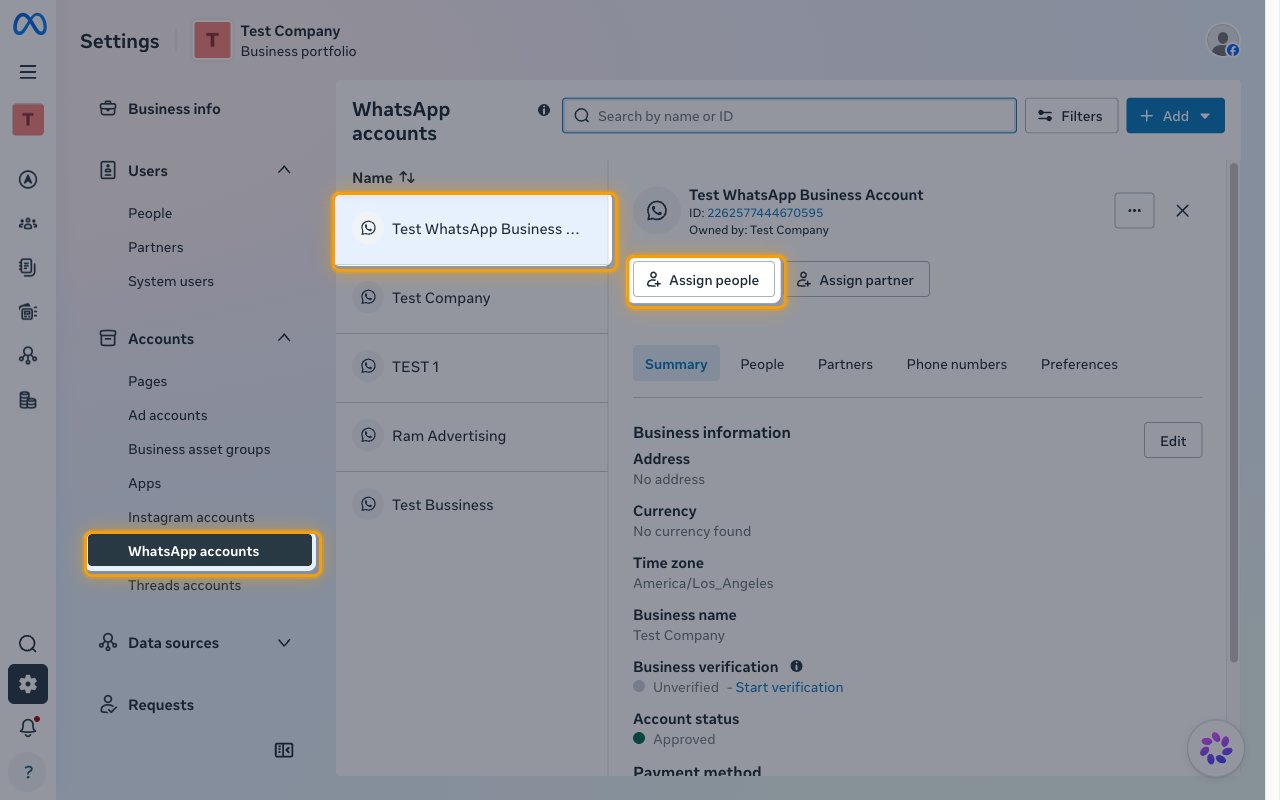
        <p>In Business Settings, open <strong>Accounts</strong> > <strong>WhatsApp accounts</strong>, select your WhatsApp account, and click <strong>Assign people</strong>.</p>

        <img src="https://mintcdn.com/stackone-60/4OonqPZsXrAh6dgg/connectors/whatsapp-business/images/custom-config-assign-people.png?fit=max&auto=format&n=4OonqPZsXrAh6dgg&q=85&s=267bead20e6fe5446a8bb497d1c4110c" alt="The WhatsApp accounts page with the menu item, the selected account, and the Assign people button highlighted" width="1280" height="800" data-path="connectors/whatsapp-business/images/custom-config-assign-people.png" />
      </div>
    </Step>

    <Step title="Grant full access">
      <div data-guide-step data-guide-scopes="" data-guide-display-scopes-list="">
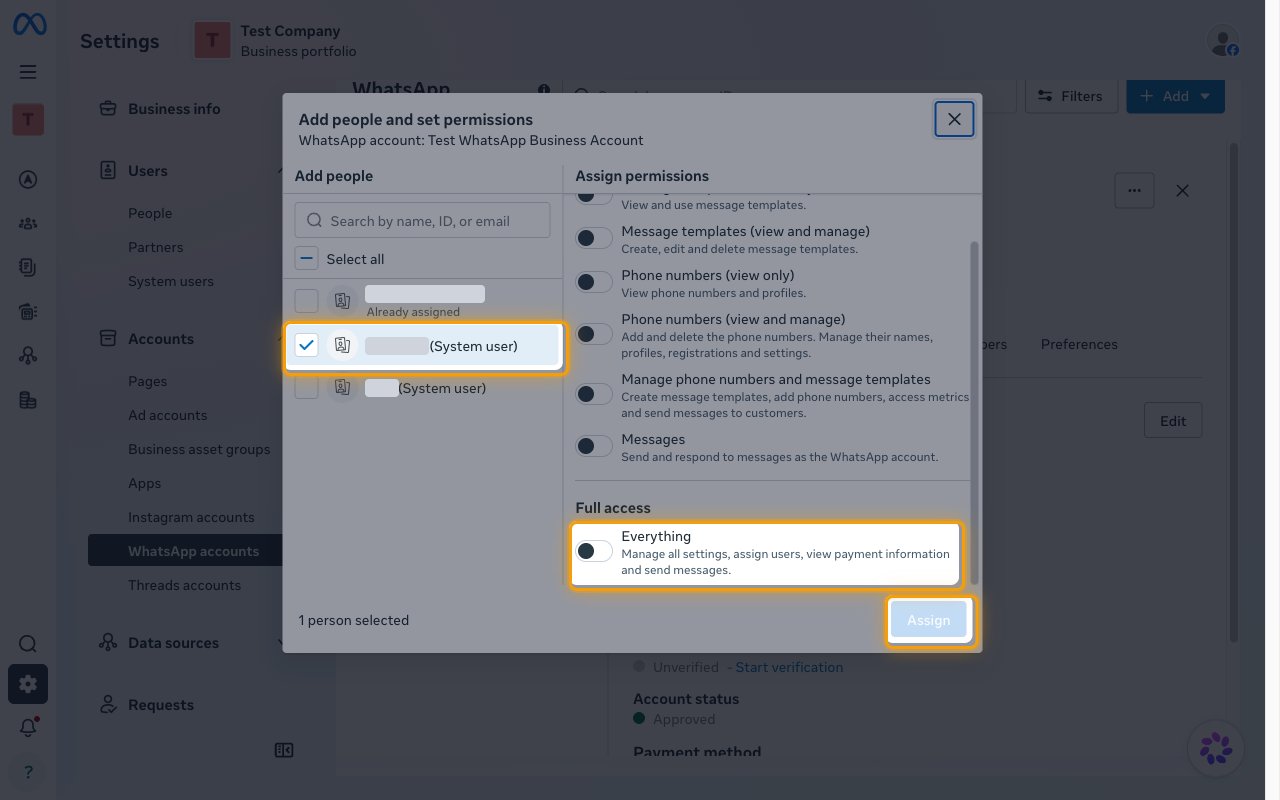
        <p>In <strong>Add people and set permissions</strong>, select your system user (it is labeled <strong>(System user)</strong>).</p>

        <ul>
          <li>Under <strong>Full access</strong>, turn on <strong>Everything</strong>.</li>
          <li>Click <strong>Assign</strong>.</li>
        </ul>

        <img src="https://mintcdn.com/stackone-60/4OonqPZsXrAh6dgg/connectors/whatsapp-business/images/custom-config-grant-access.png?fit=max&auto=format&n=4OonqPZsXrAh6dgg&q=85&s=46cb42f2984bf6d0919bb30162c95d0f" alt="The Add people and set permissions dialog with a system user selected, the Everything toggle, and the Assign button highlighted" width="1280" height="800" data-path="connectors/whatsapp-business/images/custom-config-grant-access.png" />
      </div>
    </Step>

    <Step title="Open your Meta app">
      <div data-guide-step data-guide-scopes="" data-guide-display-scopes-list="">
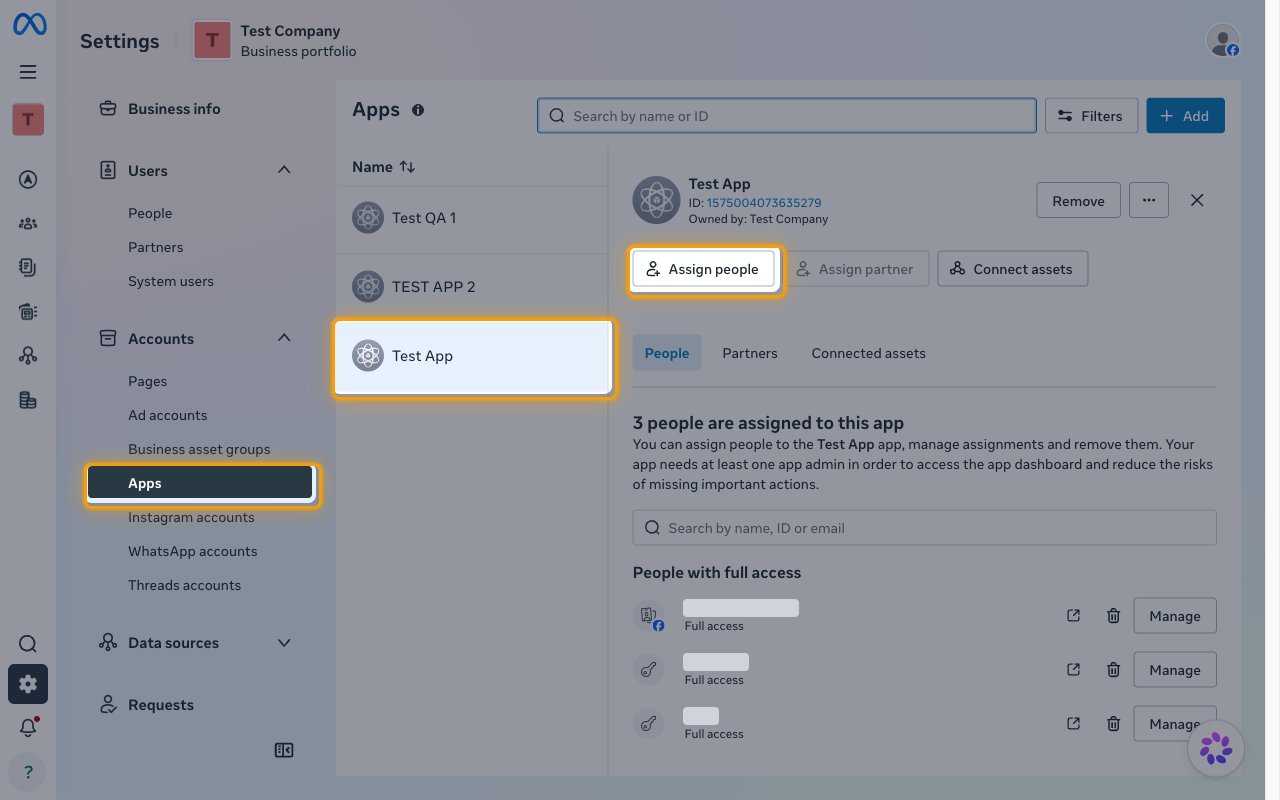
        <p>A new system user has no app assigned, and <strong>Generate token</strong> stays unavailable for it until it has access to your Meta app. In Business Settings, open <strong>Accounts</strong> > <strong>Apps</strong>, select your Meta app, and click <strong>Assign people</strong>.</p>

        <img src="https://mintcdn.com/stackone-60/4OonqPZsXrAh6dgg/connectors/whatsapp-business/images/custom-config-assign-app.png?fit=max&auto=format&n=4OonqPZsXrAh6dgg&q=85&s=8ac55e08705ae7b0b36fa871ce59f5fb" alt="The Apps page in Business Settings with the Apps menu item, the selected app, and the Assign people button highlighted" width="1280" height="800" data-path="connectors/whatsapp-business/images/custom-config-assign-app.png" />
      </div>
    </Step>

    <Step title="Assign the app to the system user">
      <div data-guide-step data-guide-scopes="" data-guide-display-scopes-list="">
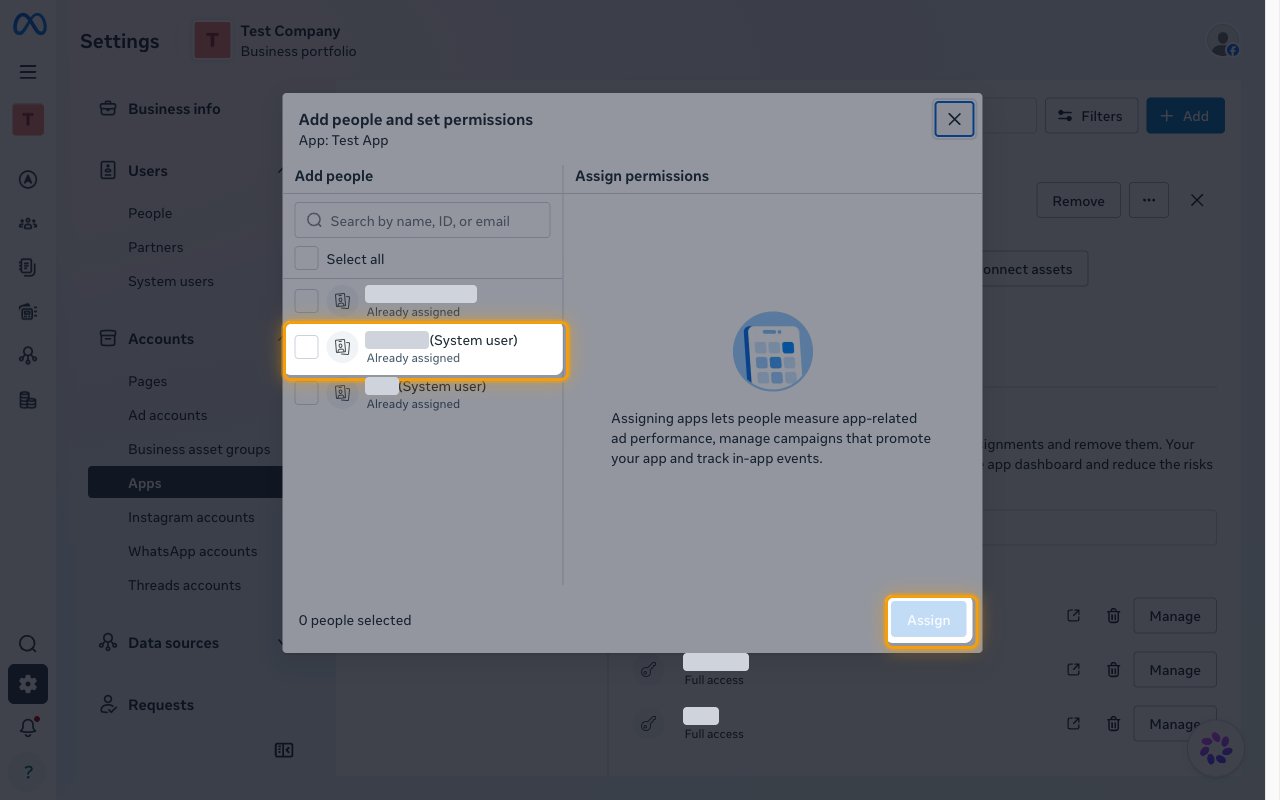
        <p>In <strong>Add people and set permissions</strong>, select your system user (it is labeled <strong>(System user)</strong>), give it full access to the app, and click <strong>Assign</strong>.</p>

        <ul>
          <li>The system user then appears under <strong>People with full access</strong> with <strong>Full access</strong>, and <strong>Generate token</strong> becomes available for it in <strong>Users</strong> > <strong>System users</strong>.</li>
          <li>A system user that is already assigned shows <strong>Already assigned</strong> in this list.</li>
        </ul>

        <img src="https://mintcdn.com/stackone-60/4OonqPZsXrAh6dgg/connectors/whatsapp-business/images/custom-config-assign-app-dialog.png?fit=max&auto=format&n=4OonqPZsXrAh6dgg&q=85&s=909d716941991913eedc15fd197f58cc" alt="The Add people and set permissions dialog for the app with a system user row and the Assign button highlighted" width="1280" height="800" data-path="connectors/whatsapp-business/images/custom-config-assign-app-dialog.png" />
      </div>
    </Step>
  </Steps>
</section>

<section data-guide-section data-guide-scopes="">
  <h2>Add the app permissions</h2>

  <p>The token can only include permissions that are added to your Meta app. Permissions that are not added do not appear when you generate the token.</p>

  <Steps>
    <Step title="Check the permissions">
      <div data-guide-step data-guide-scopes="" data-guide-display-scopes-list="">
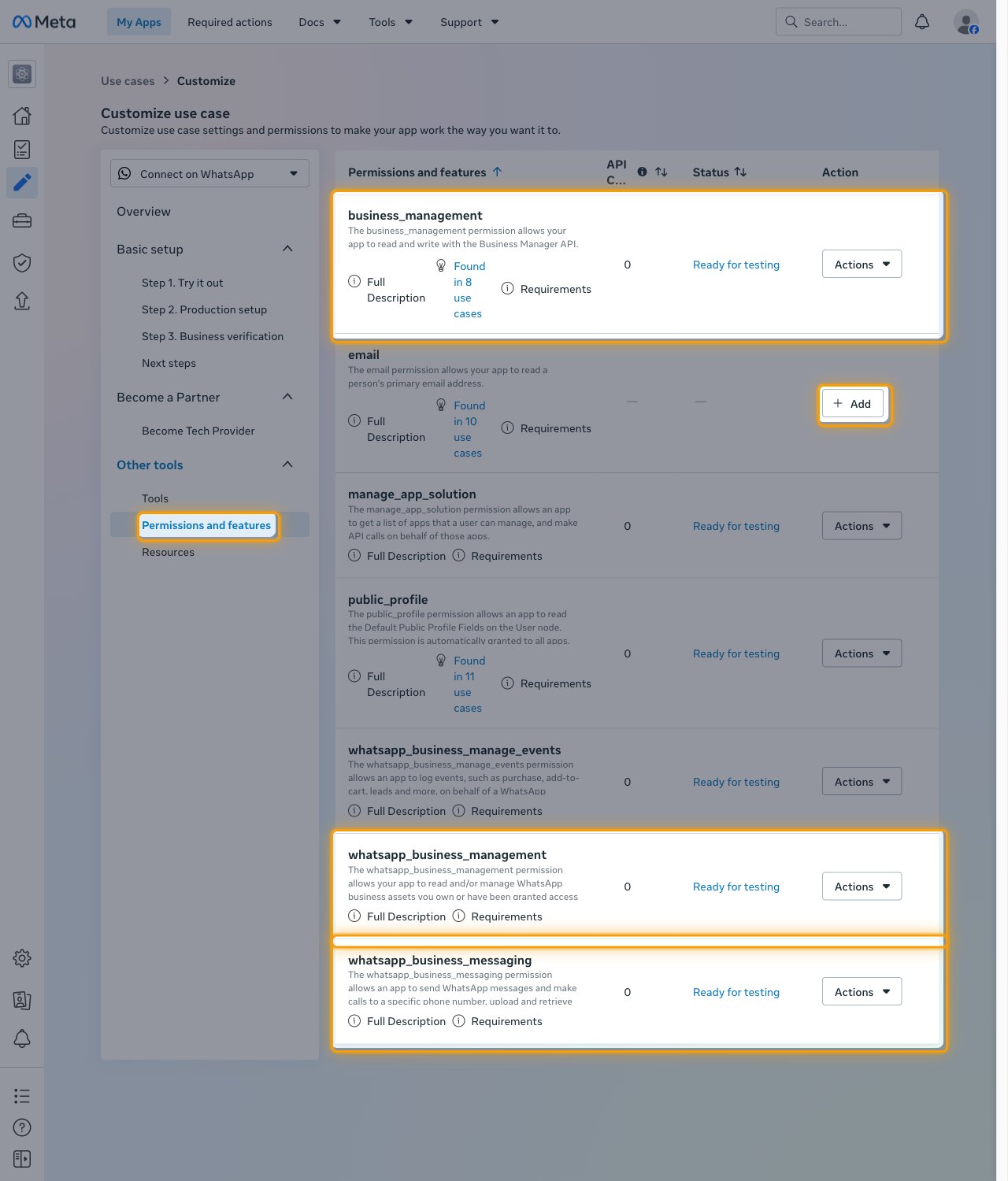
        <p>In your app on <a href="https://developers.facebook.com/apps" target="_blank" rel="noopener noreferrer">Meta for Developers</a>, open <strong>Use cases</strong>, customize <strong>Connect on WhatsApp</strong>, and under <strong>Other tools</strong> select <strong>Permissions and features</strong>.</p>

        <ul>
          <li>Check that `business_management`, `whatsapp_business_management`, and `whatsapp_business_messaging` show <strong>Ready for testing</strong>.</li>
          <li>For any of them that shows <strong>Add</strong> instead, click <strong>Add</strong>.</li>
        </ul>

        <img src="https://mintcdn.com/stackone-60/4OonqPZsXrAh6dgg/connectors/whatsapp-business/images/custom-config-permissions.png?fit=max&auto=format&n=4OonqPZsXrAh6dgg&q=85&s=565a99114e40e0d7b5c1c8e5f11e11ef" alt="The Permissions and features page with the three required permissions, an Add button, and the menu item highlighted" width="1280" height="1500" data-path="connectors/whatsapp-business/images/custom-config-permissions.png" />
      </div>
    </Step>
  </Steps>
</section>

<section data-guide-section data-guide-scopes="">
  <h2>Generate the access token</h2>

  <p>The access token authenticates StackOne requests to the WhatsApp Cloud API on behalf of the system user.</p>

  <Steps>
    <Step title="Select the app">
      <div data-guide-step data-guide-scopes="" data-guide-display-scopes-list="">
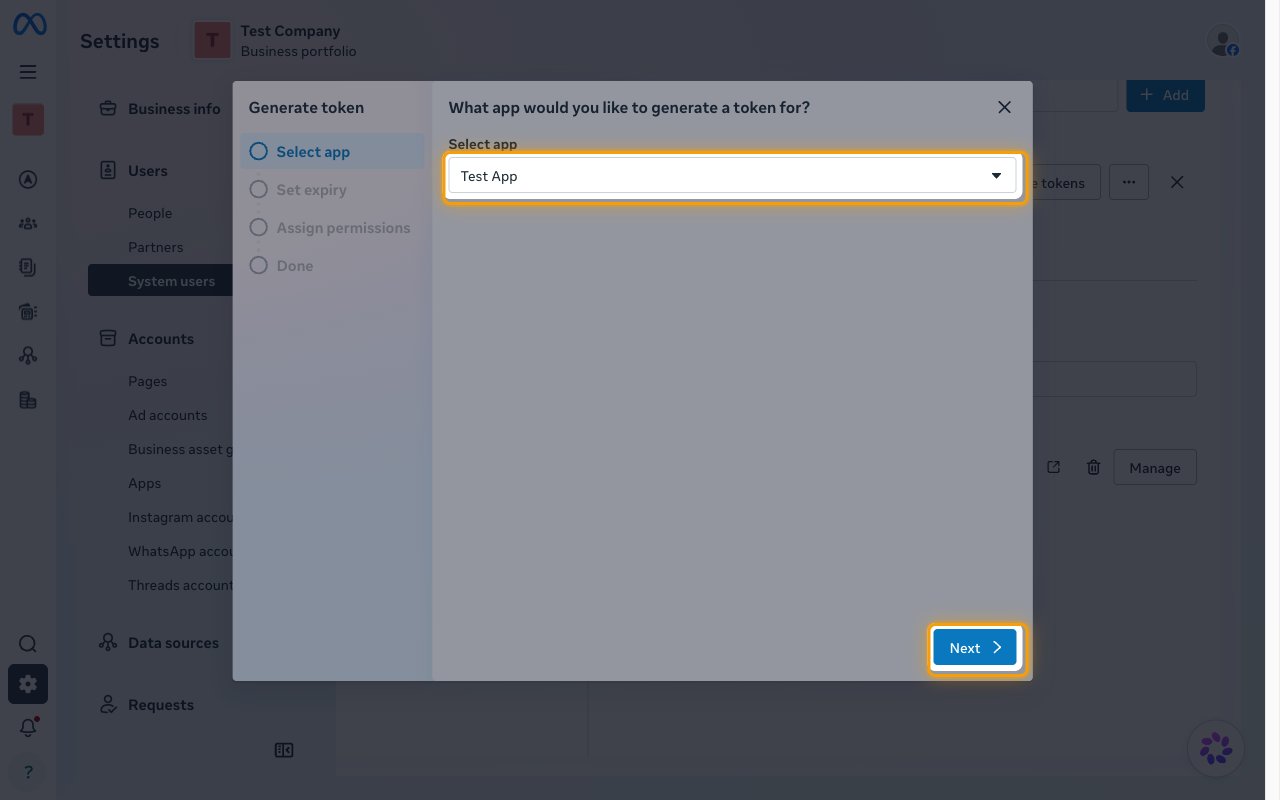
        <p>In <strong>Users</strong> > <strong>System users</strong>, select your system user and click <strong>Generate token</strong>. In <strong>Select app</strong>, choose your Meta app and click <strong>Next</strong>.</p>

        <img src="https://mintcdn.com/stackone-60/4OonqPZsXrAh6dgg/connectors/whatsapp-business/images/custom-config-select-app.png?fit=max&auto=format&n=4OonqPZsXrAh6dgg&q=85&s=3870a4943e5f586e93327d60e1af4d2f" alt="The Generate token dialog on the Select app step with the app selector and the Next button highlighted" width="1280" height="800" data-path="connectors/whatsapp-business/images/custom-config-select-app.png" />
      </div>
    </Step>

    <Step title="Set the token expiry">
      <div data-guide-step data-guide-scopes="" data-guide-display-scopes-list="">
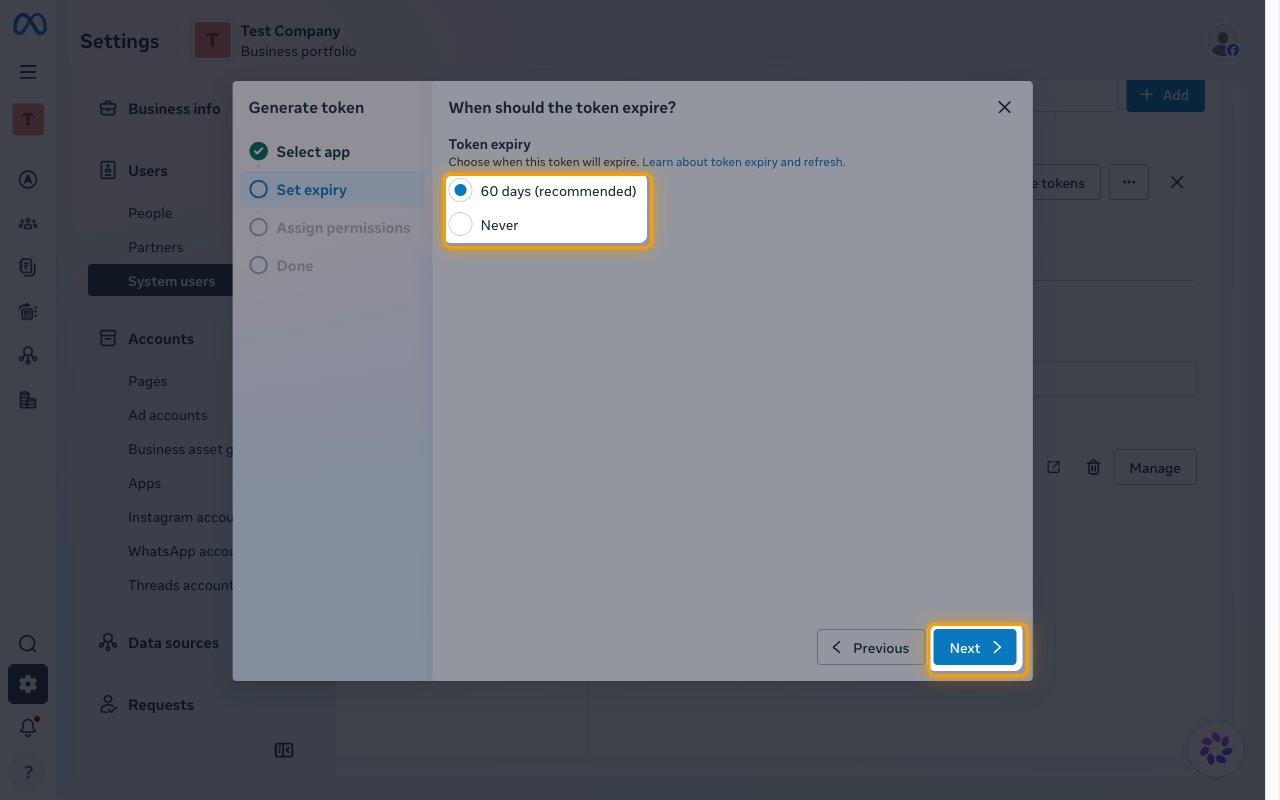
        <p>Under <strong>Token expiry</strong>, choose <strong>Never</strong> for a token that does not expire, or <strong>60 days (recommended)</strong> if you will rotate it, then click <strong>Next</strong>.</p>

        <ul>
          <li>A 60-day token stops working when it expires. Generate a new one and update the <strong>Access Token</strong> field in StackOne Hub before then.</li>
        </ul>

        <img src="https://mintcdn.com/stackone-60/4OonqPZsXrAh6dgg/connectors/whatsapp-business/images/custom-config-token-expiry.png?fit=max&auto=format&n=4OonqPZsXrAh6dgg&q=85&s=48fc89c4155f791176f17d8c8db8699d" alt="The Set expiry step with the 60 days and Never options and the Next button highlighted" width="1280" height="800" data-path="connectors/whatsapp-business/images/custom-config-token-expiry.png" />
      </div>
    </Step>

    <Step title="Assign the permissions">
      <div data-guide-step data-guide-scopes="business_management,whatsapp_business_management,whatsapp_business_messaging" data-guide-display-scopes-list="business_management,whatsapp_business_management,whatsapp_business_messaging">
        <div className="connector-guide-actions-badge" data-guide-actions-badge data-guide-actions-badge-scopes="business_management,whatsapp_business_management,whatsapp_business_messaging">
          <span>Enables actions: </span><span data-guide-actions-badge-labels>Add Assigned User, Approve Join Requests, Block Users, Check Call Permissions, Configure Conversational Automation, Create Business User, Create Flow, Create Group, Create Message Template, Create Schedule, Create WhatsApp Business Account Phone Number, Delete Flow, Delete Group, Delete Group Invite Link, Delete Media, Delete Message Template, Deprecate Flow, Deregister Phone Number, Download Media, Edit Message Template, Get Active Groups, Get Assigned Users, Get Blocked Users, Get Business Profile, Get Client WhatsApp Business Accounts, Get Flow, Get Group, Get Group Invite Link, Get Join Requests, Get Message History, Get Message Template, Get Message Templates, Get Owned WhatsApp Business Accounts, Get Phone Number, Get Schedules, Get Subscribed Apps, Get Unified Organization, Get Unified Role, Get WhatsApp Business Account, Get WhatsApp Business Account Phone Numbers, List Business Users, List Flow Assets, List Flows, List System Users, List Unified Organizations, List Unified Resource Types, List Unified Resource Users, List Unified Roles, Manage Call, Mark Message As Read, Publish Flow, Register Phone Number, Reject Join Requests, Remove Assigned User, Remove Group Participants, Request Verification Code, Reset Group Invite Link, Retrieve Media URL, Send Audio Message, Send Contact Message, Send Document Message, Send Group Invite Template, Send Group Message, Send Image Message, Send Interactive Message, Send Location Message, Send Reaction, Send Sticker Message, Send Template Message, Send Text Message, Send Video Message, Set Two-Step Verification PIN, Unblock Users, Update Business Profile, Update Flow JSON, Update Flow Metadata, Update Group, Update WhatsApp Business Account, Upload Media, Verify Code</span>
        </div>

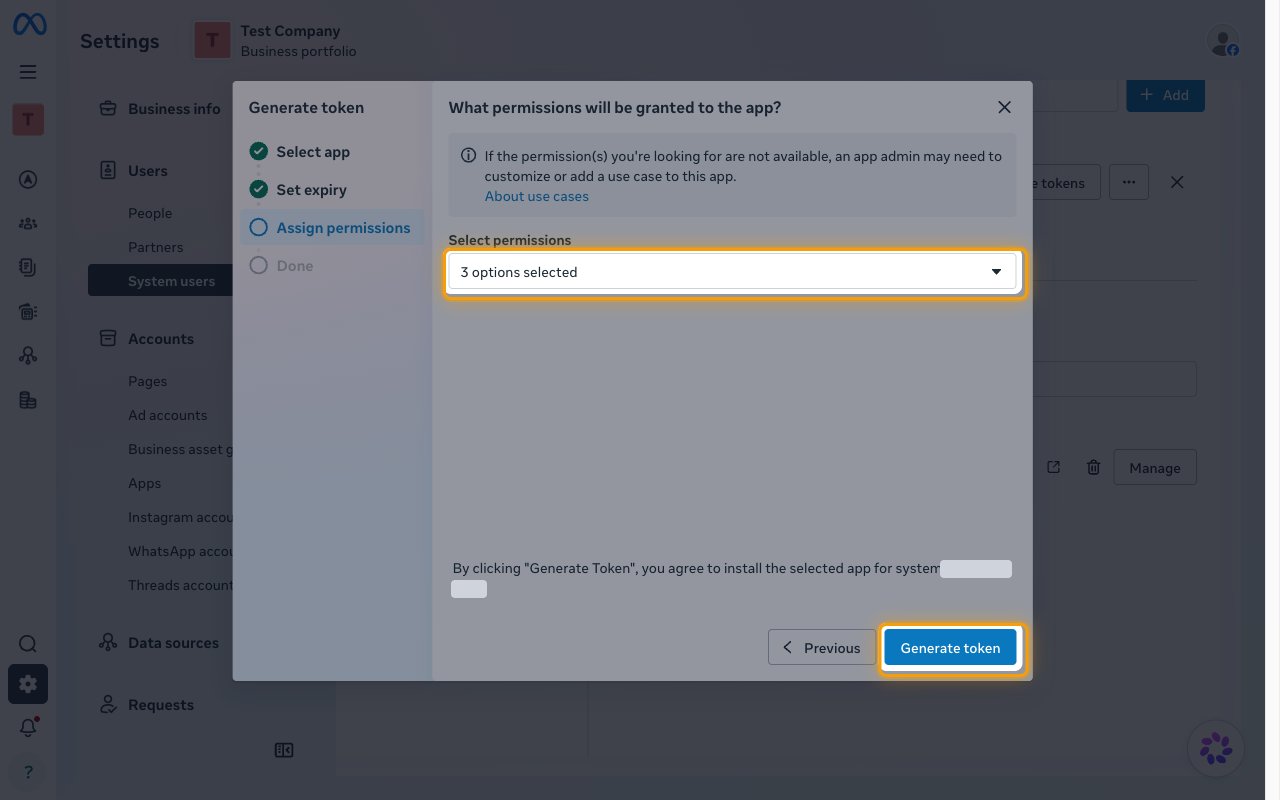
        <p>Under <strong>Select permissions</strong>, select the permissions below, then click <strong>Generate token</strong>. Copy the token and paste it into the <strong>Access Token</strong> field in StackOne Hub. Store it securely for use later.</p>

        <img src="https://mintcdn.com/stackone-60/4OonqPZsXrAh6dgg/connectors/whatsapp-business/images/custom-config-assign-permissions.png?fit=max&auto=format&n=4OonqPZsXrAh6dgg&q=85&s=befb3825e4c4a58a74acaa104481ea5f" alt="The Assign permissions step with three permissions selected and the Generate token button highlighted" width="1280" height="800" data-path="connectors/whatsapp-business/images/custom-config-assign-permissions.png" />

        <div className="connector-guide-display-scopes" data-guide-display-scopes>
          <div className="connector-guide-scopes-container">
            <ul className="not-prose connector-guide-scopes-list">
              <li data-guide-display-scope="business_management">
                <button type="button" className="connector-guide-scope-copy" aria-label="Copy business_management" title="Copy scope" data-copy="business_management">
                  <span className="connector-guide-scope-copy__label">business\_management</span>
                  <span className="connector-guide-scope-copy__icon" aria-hidden="true">⧉</span>
                </button>
              </li>

              <li data-guide-display-scope="whatsapp_business_management">
                <button type="button" className="connector-guide-scope-copy" aria-label="Copy whatsapp_business_management" title="Copy scope" data-copy="whatsapp_business_management">
                  <span className="connector-guide-scope-copy__label">whatsapp\_business\_management</span>
                  <span className="connector-guide-scope-copy__icon" aria-hidden="true">⧉</span>
                </button>
              </li>

              <li data-guide-display-scope="whatsapp_business_messaging">
                <button type="button" className="connector-guide-scope-copy" aria-label="Copy whatsapp_business_messaging" title="Copy scope" data-copy="whatsapp_business_messaging">
                  <span className="connector-guide-scope-copy__label">whatsapp\_business\_messaging</span>
                  <span className="connector-guide-scope-copy__icon" aria-hidden="true">⧉</span>
                </button>
              </li>
            </ul>
          </div>
        </div>
      </div>
    </Step>
  </Steps>
</section>

<section data-guide-section data-guide-scopes="">
  <h2>Find your WhatsApp Business Account ID</h2>

  <p>The WhatsApp Business Account ID (WABA ID) identifies the WhatsApp account whose phone numbers, templates, and webhooks the connection uses.</p>

  <Steps>
    <Step title="Copy the ID in Business Settings">
      <div data-guide-step data-guide-scopes="" data-guide-display-scopes-list="">
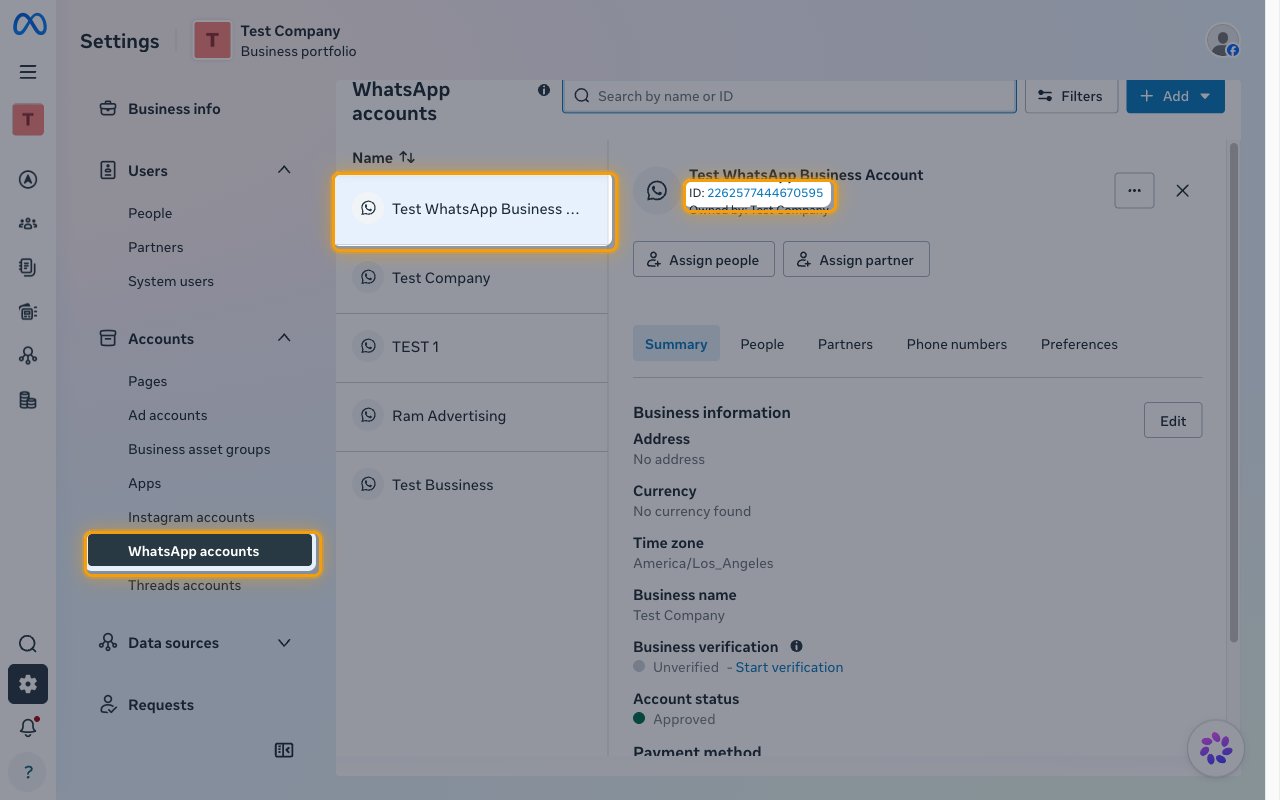
        <p>In Business Settings, open <strong>Accounts</strong> > <strong>WhatsApp accounts</strong> and select your WhatsApp account.</p>

        <ul>
          <li>Copy the number shown after <strong>ID:</strong> and paste it into the <strong>WhatsApp Business Account ID</strong> field in StackOne Hub.</li>
          <li>Format: a numeric ID such as `102290129340398`</li>
        </ul>

        <img src="https://mintcdn.com/stackone-60/4OonqPZsXrAh6dgg/connectors/whatsapp-business/images/custom-config-waba-id.png?fit=max&auto=format&n=4OonqPZsXrAh6dgg&q=85&s=b951fd0a0eb3c9ccaf625212a06c345d" alt="The WhatsApp accounts page with the menu item, the selected account, and its ID highlighted" width="1280" height="800" data-path="connectors/whatsapp-business/images/custom-config-waba-id.png" />
      </div>
    </Step>
  </Steps>
</section>

<section data-guide-section data-guide-scopes="">
  <h2>Find your Phone Number ID (optional)</h2>

  <p>The Phone Number ID is the ID Meta assigns to a business phone number, not the phone number itself. When it is set, actions that send messages, upload media, or manage a phone number use it by default. Leave it empty to pass `phone_number_id` on each action instead, or look it up later with the Get WhatsApp Business Account Phone Numbers action.</p>

  <Steps>
    <Step title="Open the Phone numbers tab">
      <div data-guide-step data-guide-scopes="" data-guide-display-scopes-list="">
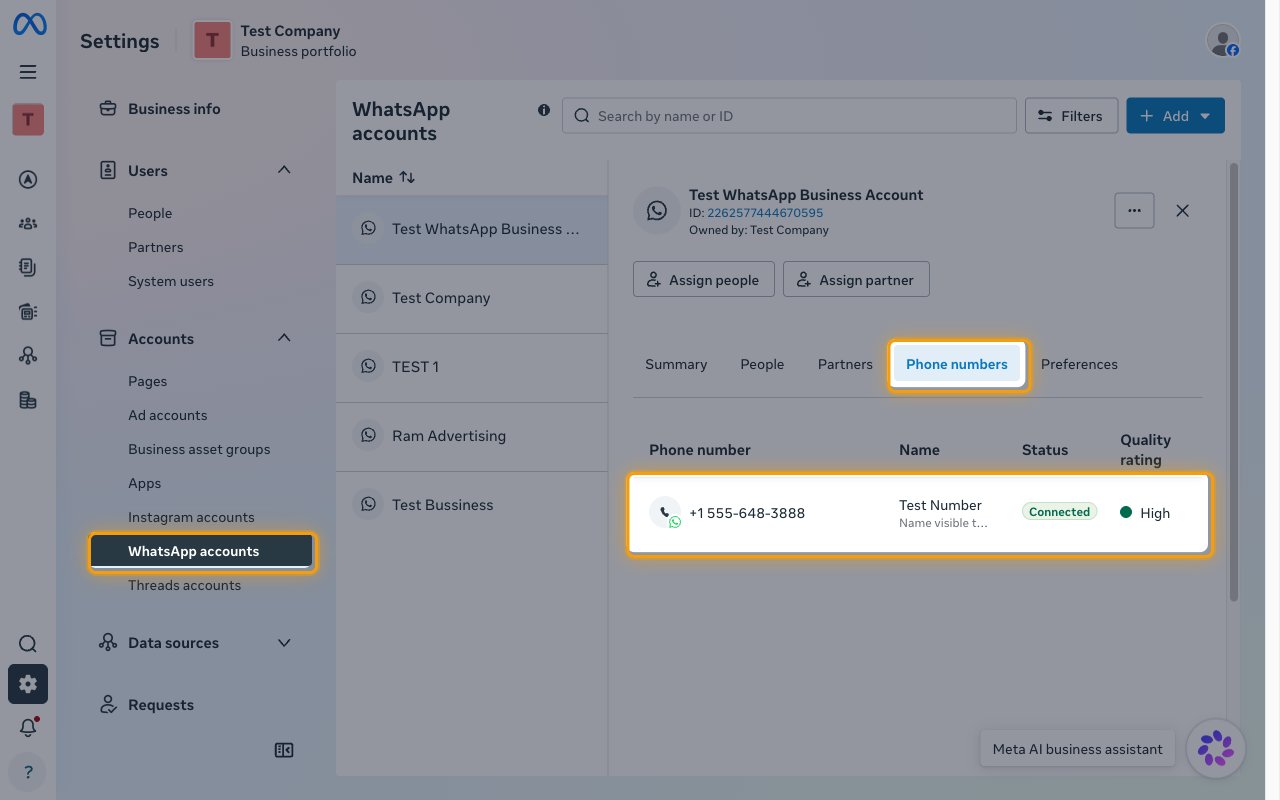
        <p>In Business Settings, open <strong>Accounts</strong> > <strong>WhatsApp accounts</strong>, select the same WhatsApp account you used for the WABA ID, and open the <strong>Phone numbers</strong> tab.</p>

        <ul>
          <li>Click the phone number you want to send from.</li>
        </ul>

        <img src="https://mintcdn.com/stackone-60/4OonqPZsXrAh6dgg/connectors/whatsapp-business/images/custom-config-phone-numbers-tab.png?fit=max&auto=format&n=4OonqPZsXrAh6dgg&q=85&s=1ff668c88104efea64411f8261af1015" alt="The WhatsApp accounts page with the menu item, the Phone numbers tab, and the phone number row highlighted" width="1280" height="800" data-path="connectors/whatsapp-business/images/custom-config-phone-numbers-tab.png" />
      </div>
    </Step>

    <Step title="Copy the Phone Number ID">
      <div data-guide-step data-guide-scopes="" data-guide-display-scopes-list="">
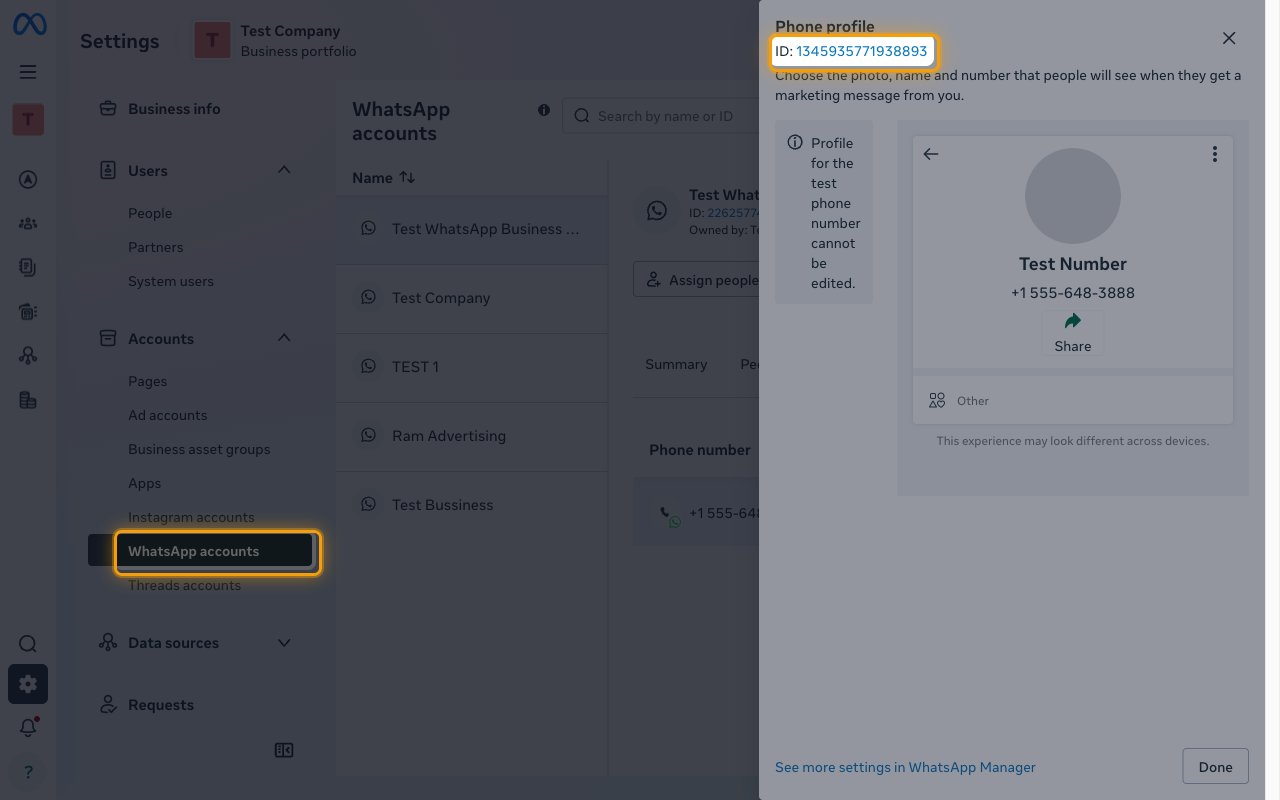
        <p>The <strong>Phone profile</strong> panel opens with the Phone Number ID shown after <strong>ID:</strong>.</p>

        <ul>
          <li>Copy the number shown after <strong>ID:</strong> and paste it into the <strong>Phone Number ID</strong> field in StackOne Hub.</li>
          <li>Click <strong>Done</strong> to close the panel.</li>
          <li>Format: a numeric ID such as `106540352242922`</li>
        </ul>

        <img src="https://mintcdn.com/stackone-60/4OonqPZsXrAh6dgg/connectors/whatsapp-business/images/custom-config-phone-number-id.png?fit=max&auto=format&n=4OonqPZsXrAh6dgg&q=85&s=04b141a0f0f5806e9d43b8c419881fe5" alt="The Phone profile panel with the Phone Number ID highlighted" width="1280" height="800" data-path="connectors/whatsapp-business/images/custom-config-phone-number-id.png" />
      </div>
    </Step>
  </Steps>
</section>

<section data-guide-section data-guide-scopes="">
  <h2>Use your Native Webhook URL</h2>

  <p><strong>Native Webhook URL</strong> is generated by StackOne for this account after it connects and identifies the account to StackOne. To receive WhatsApp events, set it as the callback URL in your Meta app's WhatsApp webhook configuration and subscribe to the webhook fields you need, as described in the WhatsApp Business events setup guide.</p>
</section>

<div data-whitelabel-hide>
  <h2>Linking the Account from the Hub</h2>

  <Steps>
    <Step title="Navigate to the Hub">
      Use one of the three <a href="/connect/managing-connectors/linking-accounts">Linking Account Methods</a> to access the Hub.
    </Step>

    <Step title="Fill out the fields">
      Fill out the following fields using details from your provider:

      <ul>
        <li><strong>Access Token</strong></li>
        <li><strong>WhatsApp Business Account ID</strong></li>
        <li><strong>Phone Number ID</strong> (Optional)</li>
      </ul>
    </Step>

    <Step title="Connect">
      <ul>
        <li>Click <strong>Connect</strong></li>
        <li>If applicable, the provider will redirect you to a sign-in or authorization page. Complete the provider's authorization flow.</li>
        <li>Once authorization is successful, you will see a confirmation popup</li>
      </ul>
    </Step>
  </Steps>

  <p>If the account linking is successful, you will see the newly linked account in your <a href="/gateway/concepts/linked-accounts">Accounts</a> page.</p>
</div>

## Next Steps

<Columns cols={2}>
  <Card title="Webhooks setup" href="/connectors/whatsapp-business/guides/webhook-setup">
    <p className="connector-page-auth-description connector-page-card-text">
      Configure receiving Events for WhatsApp Business into StackOne.
    </p>
  </Card>
</Columns>


This documentation is built and hosted on [Mintlify](https://mintlify.com), a developer documentation platform.