> ## Documentation Index
> Fetch the complete documentation index at: https://docs.stackone.com/llms.txt
> Use this file to discover all available pages before exploring further.

# Connect WeatherAPI.com with API Key – StackOne Hub

> Link a WeatherAPI.com account in the StackOne Hub using API Key. End-user guide to authorize the integration and start using WeatherAPI.com actions.

<Warning>Your API key is a live credential tied to your account and its call quota. Treat it as a secret, and regenerate it from the dashboard if it is ever exposed.</Warning>

<section data-guide-section data-guide-scopes="">
  <h2>Get your API key</h2>

  <p>WeatherAPI.com issues a single API key per account and shows it on the dashboard — there is no separate app or credential to create.</p>

  <Steps>
    <Step title="Sign in to your account">
      <div data-guide-step data-guide-scopes="" data-guide-display-scopes-list="">
        <p>Open the <a href="https://www.weatherapi.com/my/" target="_blank" rel="noopener noreferrer">WeatherAPI.com dashboard</a> and sign in. If you do not have an account yet, create one from the <a href="https://www.weatherapi.com/signup.aspx" target="_blank" rel="noopener noreferrer">WeatherAPI.com signup page</a> first — the key is generated automatically when the account is created.</p>
      </div>
    </Step>

    <Step title="Copy your API key">
      <div data-guide-step data-guide-scopes="" data-guide-display-scopes-list="">
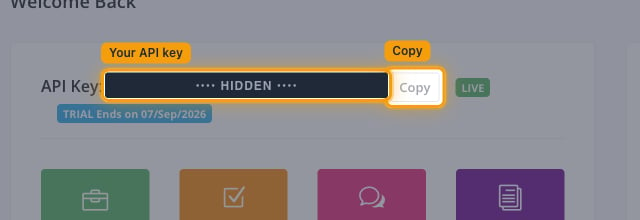
        <p>The dashboard opens on <strong>Welcome Back</strong>. Your key is shown on the same line as the <strong>API Key:</strong> label, with a plan badge (<strong>LIVE</strong>) beside it.</p>

        <ul>
          <li>Click <strong>Copy</strong> next to the key to copy it to your clipboard.</li>
          <li>Copy the full value with no leading or trailing spaces.</li>
          <li>The key stays visible on this dashboard, so it can be retrieved again at any time — it is not shown only once. That makes exposure, not loss, the risk to guard against.</li>
        </ul>

        <img src="https://mintcdn.com/stackone-60/ucXTRvyod-ZSUor7/connectors/weatherapi/images/custom-config-api-key.png?fit=max&auto=format&n=ucXTRvyod-ZSUor7&q=85&s=6786eefb86acd8c504d90c7c68ea4c39" alt="WeatherAPI.com dashboard showing the API Key row with the Copy button" width="640" height="220" data-path="connectors/weatherapi/images/custom-config-api-key.png" />
      </div>
    </Step>

    <Step title="Paste the key into StackOne Hub">
      <div data-guide-step data-guide-scopes="" data-guide-display-scopes-list="">
        <p>Paste the value into the <strong>API Key</strong> field in StackOne Hub to finish connecting the account.</p>

        <ul>
          <li><strong>API Key</strong> — the single key that authorises every request. WeatherAPI.com sends it as a query parameter, so it is the only credential this connection needs.</li>
        </ul>
      </div>
    </Step>
  </Steps>
</section>

<section data-guide-section data-guide-scopes="">
  <h2>Keep your key secure</h2>

  <p>The same dashboard lets you replace the key if it leaks.</p>

  <Steps>
    <Step title="Generate a replacement key">
      <div data-guide-step data-guide-scopes="" data-guide-display-scopes-list="">
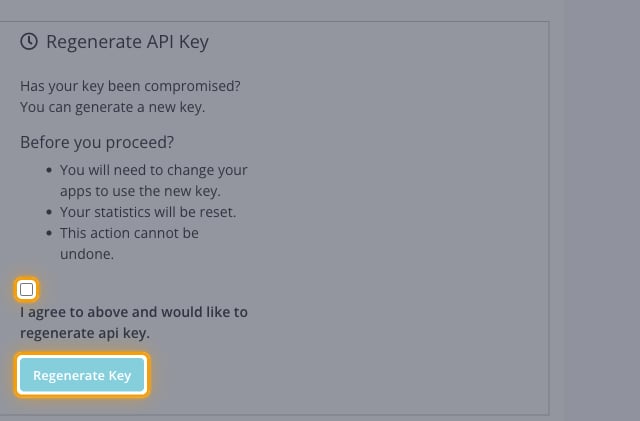
        <p>Scroll to <strong>Regenerate API Key</strong>, which asks <strong>Has your key been compromised?</strong> and offers to generate a new key. Read the <strong>Before you proceed?</strong> notes first, then tick <strong>I agree to above and would like to regenerate api key.</strong> and click <strong>Regenerate Key</strong>.</p>

        <ul>
          <li><strong>You will need to change your apps to use the new key.</strong> — update the key in StackOne Hub immediately afterwards, or the connection will start failing.</li>
          <li><strong>Your statistics will be reset.</strong></li>
          <li><strong>This action cannot be undone.</strong></li>
        </ul>

        <img src="https://mintcdn.com/stackone-60/ucXTRvyod-ZSUor7/connectors/weatherapi/images/custom-config-regenerate-key.png?fit=max&auto=format&n=ucXTRvyod-ZSUor7&q=85&s=a6f5c05071a8e0c655cd7910473032db" alt="Regenerate API Key panel with the agreement checkbox and Regenerate Key button" width="640" height="421" data-path="connectors/weatherapi/images/custom-config-regenerate-key.png" />
      </div>
    </Step>
  </Steps>
</section>

<div data-whitelabel-hide>
  <h2>Linking the Account from the Hub</h2>

  <Steps>
    <Step title="Navigate to the Hub">
      Use one of the three <a href="/connect/managing-connectors/linking-accounts">Linking Account Methods</a> to access the Hub.
    </Step>

    <Step title="Fill out the fields">
      Fill out the following fields using details from your provider:

      <ul>
        <li><strong>API Key</strong></li>
      </ul>
    </Step>

    <Step title="Connect">
      <ul>
        <li>Click <strong>Connect</strong></li>
        <li>If applicable, the provider will redirect you to a sign-in or authorization page. Complete the provider's authorization flow.</li>
        <li>Once authorization is successful, you will see a confirmation popup</li>
      </ul>
    </Step>
  </Steps>

  <p>If the account linking is successful, you will see the newly linked account in your <a href="/gateway/concepts/linked-accounts">Accounts</a> page.</p>
</div>