> ## Documentation Index
> Fetch the complete documentation index at: https://docs.stackone.com/llms.txt
> Use this file to discover all available pages before exploring further.

# Vtiger Webhook Setup Guide

> Configure Vtiger to deliver events to StackOne.

## Prerequisites

The connector should already be set up, with a Connector Profile and a Linked Account. See [Getting Started](/connectors/vtiger#getting-started) on the Vtiger connector page.

<section data-guide-section data-guide-scopes="">
  <h2>Copy your Native Webhook URL</h2>

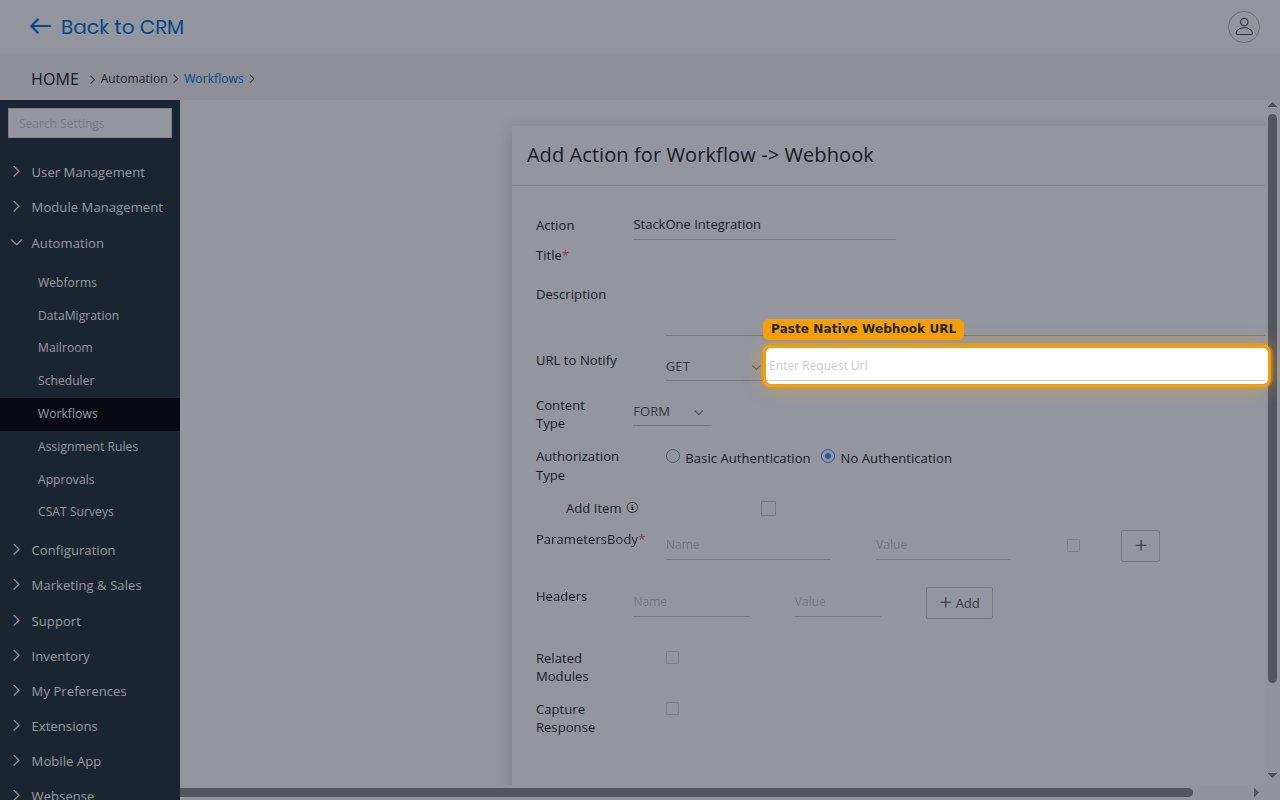
  <p>Before configuring Vtiger, copy the <strong>Native Webhook URL</strong> from this connection in StackOne Hub. This is the address Vtiger will POST events to. You will paste it into the <strong>URL to Notify</strong> field when you add the Webhook action in the steps below.</p>
</section>

<section data-guide-section data-guide-scopes="">
  <h2>Open Workflows in Vtiger</h2>

  <p>Sign in to Vtiger and open the Workflows area under CRM Settings.</p>

  <Steps>
    <Step title="Sign in to Vtiger">
      <div data-guide-step data-guide-scopes="" data-guide-display-scopes-list="">
        <p>Sign in to your <a href="https://www.vtiger.com/" target="_blank" rel="noopener noreferrer">Vtiger CRM</a> account with an admin user who can manage CRM Settings.</p>
      </div>
    </Step>

    <Step title="Open Settings, Automation and Workflows">
      <div data-guide-step data-guide-scopes="" data-guide-display-scopes-list="">
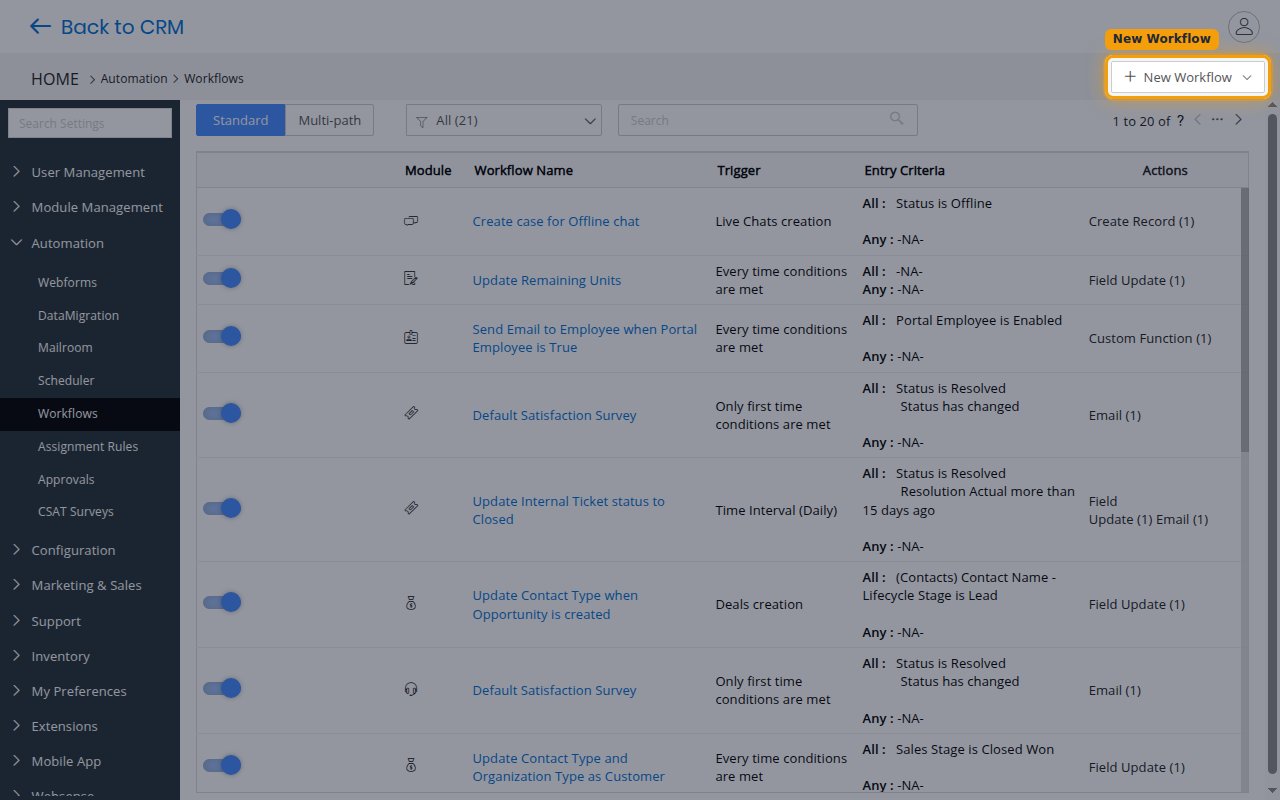
        <p>Open <strong>CRM Settings</strong>, expand <strong>Automation</strong>, and click <strong>Workflows</strong>. Then click <strong>New Workflow</strong> and choose <strong>Standard</strong> to create a single-path workflow.</p>

        <img src="https://mintcdn.com/stackone-60/YBnpj5NvpMH8PRGp/connectors/vtiger/images/events-workflows-list.png?fit=max&auto=format&n=YBnpj5NvpMH8PRGp&q=85&s=9b5be751cc1867397d4228968ef62faa" alt="The Workflows list under Settings Automation with the New Workflow button." width="1280" height="800" data-path="connectors/vtiger/images/events-workflows-list.png" />
      </div>
    </Step>
  </Steps>
</section>

<section data-guide-section data-guide-scopes="">
  <h2>Create the workflow</h2>

  <p>Configure which records and changes should trigger the webhook.</p>

  <Steps>
    <Step title="Set the workflow details">
      <div data-guide-step data-guide-scopes="" data-guide-display-scopes-list="">
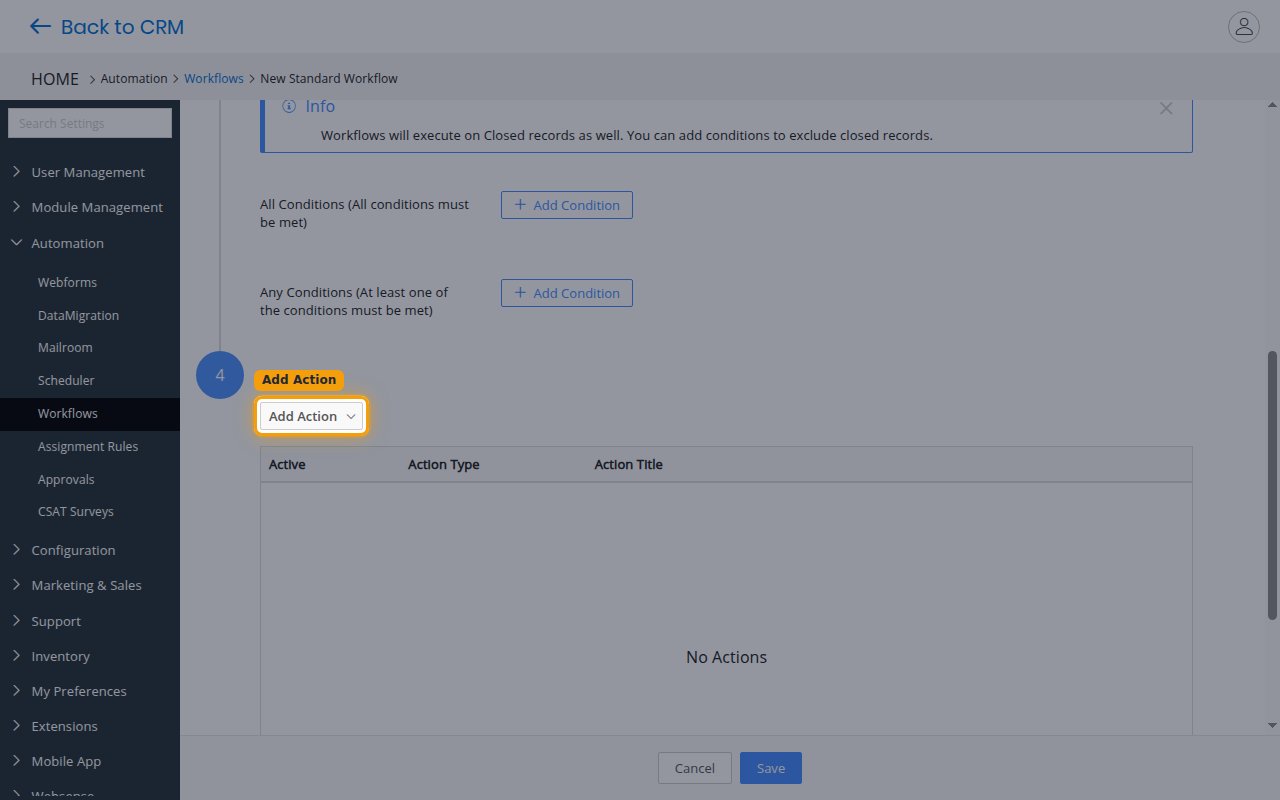
        <p>At the top of the form, enter a <strong>Workflow Name</strong> (for example, StackOne Integration), choose the <strong>Target Module</strong> whose records you want to send (for example, Contacts, Leads, or Organizations), and select when it runs under <strong>Trigger Workflow On</strong> (for example, on record creation or update). Then scroll down to optionally narrow which records match under <strong>All Conditions</strong> or <strong>Any Conditions</strong>, and click <strong>Add Action</strong>.</p>

        <img src="https://mintcdn.com/stackone-60/YBnpj5NvpMH8PRGp/connectors/vtiger/images/events-new-workflow.png?fit=max&auto=format&n=YBnpj5NvpMH8PRGp&q=85&s=3477bb2a5d7d2a62591d73eaf0abb939" alt="The lower part of the new workflow form showing the All Conditions and Any Conditions sections and the highlighted Add Action button." width="1280" height="800" data-path="connectors/vtiger/images/events-new-workflow.png" />
      </div>
    </Step>

    <Step title="Add a Webhook action">
      <div data-guide-step data-guide-scopes="" data-guide-display-scopes-list="">
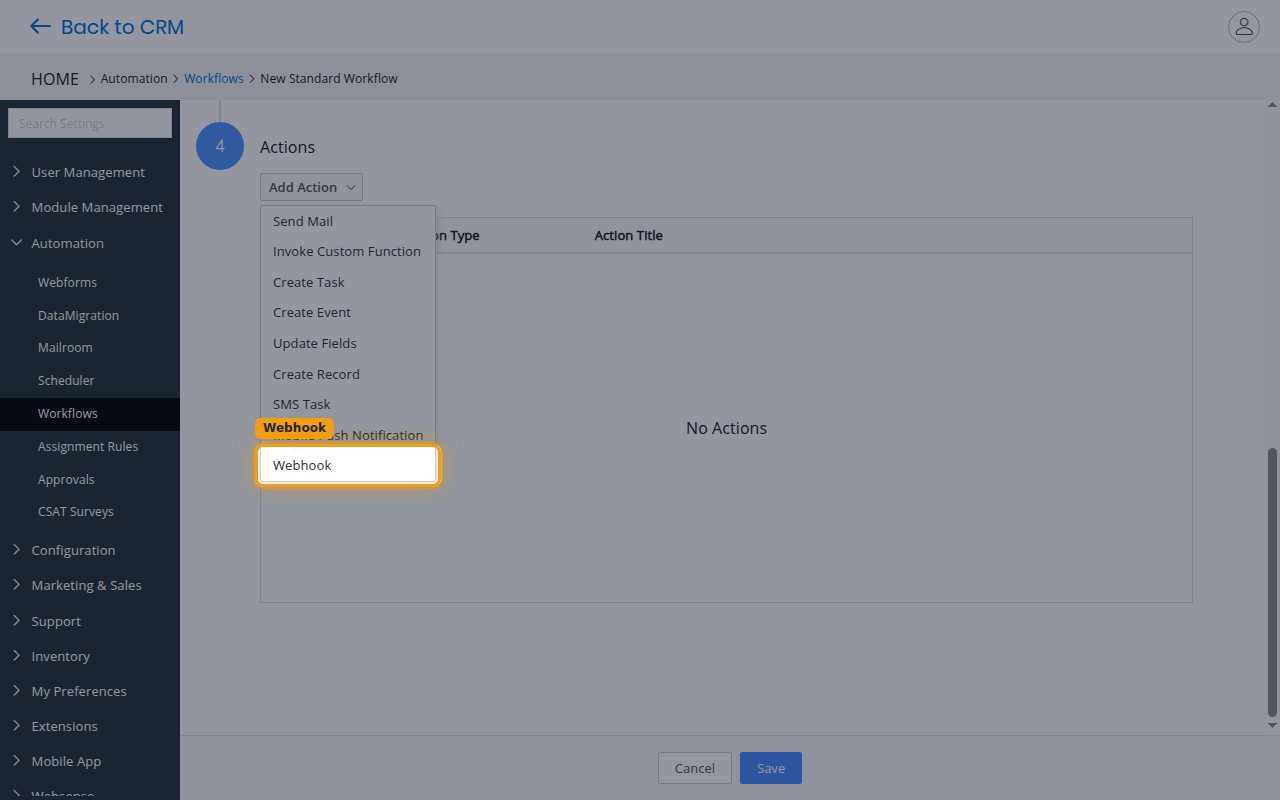
        <p>From the <strong>Add Action</strong> menu, choose <strong>Webhook</strong>.</p>

        <img src="https://mintcdn.com/stackone-60/YBnpj5NvpMH8PRGp/connectors/vtiger/images/events-add-action-webhook.png?fit=max&auto=format&n=YBnpj5NvpMH8PRGp&q=85&s=e405160d6c3bb4724a5b402fdcf40fc1" alt="The Add Action menu with the Webhook option." width="1280" height="800" data-path="connectors/vtiger/images/events-add-action-webhook.png" />
      </div>
    </Step>
  </Steps>
</section>

<section data-guide-section data-guide-scopes="">
  <h2>Configure the Webhook action</h2>

  <p>Point the webhook at StackOne and choose which fields to send.</p>

  <Steps>
    <Step title="Paste the Native Webhook URL">
      <div data-guide-step data-guide-scopes="" data-guide-display-scopes-list="">
        <p>In the <strong>URL to Notify</strong> field, paste the <strong>Native Webhook URL</strong> you copied from StackOne Hub, and set the method to <strong>POST</strong>.</p>

        <img src="https://mintcdn.com/stackone-60/YBnpj5NvpMH8PRGp/connectors/vtiger/images/events-webhook-config.png?fit=max&auto=format&n=YBnpj5NvpMH8PRGp&q=85&s=44388b420552b5a964fd026f73508432" alt="The Webhook action form with the URL to Notify field where the Native Webhook URL is pasted." width="1280" height="800" data-path="connectors/vtiger/images/events-webhook-config.png" />
      </div>
    </Step>

    <Step title="Set the content type and fields">
      <div data-guide-step data-guide-scopes="" data-guide-display-scopes-list="">
        <p>Set <strong>Content Type</strong> to <strong>JSON</strong>. Under <strong>Authorization Type</strong>, leave <strong>No Authentication</strong> selected — the unguessable Native Webhook URL is the security boundary. Under <strong>Parameters</strong>, add the record fields you want to send in the <strong>Body</strong>, including an id field such as <strong>crmid</strong> so StackOne can identify the record, plus <strong>modifiedtime</strong> for the event timestamp.</p>
      </div>
    </Step>

    <Step title="Save the action and the workflow">
      <div data-guide-step data-guide-scopes="" data-guide-display-scopes-list="">
        <p>Save the Webhook action, then save the workflow. Vtiger will POST the selected fields to the Native Webhook URL whenever the workflow's trigger and conditions are met.</p>
      </div>
    </Step>
  </Steps>
</section>

<section data-guide-section data-guide-scopes="">
  <h2>Available webhook events</h2>

  <p>Vtiger delivers webhooks through Workflow actions rather than a fixed set of named events, so the connector exposes a single generic event. Which records and changes it fires on is determined entirely by the workflow you configure above.</p>

  <Steps>
    <Step title="Record events">
      <div data-guide-step data-guide-scopes="" data-guide-display-scopes-list="">
        <p>Fired by any Vtiger Workflow that has a Webhook action.</p>

        <ul>
          <li><strong>Record Event</strong> (`record_event`) — Fired when a Vtiger Workflow with a Webhook action runs against a record (for example a Lead, Contact, Organization, or Opportunity create or update matching the workflow's conditions).</li>
        </ul>
      </div>
    </Step>
  </Steps>
</section>

<section data-guide-section data-guide-scopes="">
  <h2>Delivery format</h2>

  <p>Details of how Vtiger delivers events to StackOne.</p>

  <Steps>
    <Step title="Review the admin-selected payload">
      <div data-guide-step data-guide-scopes="" data-guide-display-scopes-list="">
        <p>Vtiger sends only the fields you select in the Webhook action, as a single JSON object per triggered record (not a batched array). There is no fixed module or event-type field, so StackOne reports every delivery as a generic <strong>Record Event</strong> and forwards the full payload. Include <strong>crmid</strong> so the event carries a record identifier.</p>
      </div>
    </Step>
  </Steps>
</section>

## Verify

Your Connector should now be able to receive and process events. Try triggering an event and you should see an Event appear in the Connector logs.


This documentation is built and hosted on [Mintlify](https://mintlify.com), a developer documentation platform.