> ## Documentation Index
> Fetch the complete documentation index at: https://docs.stackone.com/llms.txt
> Use this file to discover all available pages before exploring further.

# Unbounce Webhook Setup Guide

> Configure Unbounce to deliver events to StackOne.

## Prerequisites

The connector should already be set up, with a Connector Profile and a Linked Account. See [Getting Started](/connectors/unbounce#getting-started) on the Unbounce connector page.

<section data-guide-section data-guide-scopes="">
  <h2>Retrieve the StackOne Native Webhook URL</h2>

  <p>Unbounce posts every form submission to a single URL that identifies your StackOne connection, so copy it before you configure any pages.</p>

  <Steps>
    <Step title="Copy the Native Webhook URL">
      <div data-guide-step data-guide-scopes="" data-guide-display-scopes-list="">
        <p>Open the Unbounce connection in <strong>StackOne Hub</strong> (or the StackOne Connector profile if you are connecting with OAuth 2.0) and copy the read-only <strong>Native Webhook URL</strong> value.</p>

        <ul>
          <li>The same URL is used for every landing page and every sub-account on the connection.</li>
          <li>The URL carries a secure key that identifies your StackOne connection, so treat it like a password.</li>
        </ul>
      </div>
    </Step>
  </Steps>
</section>

<section data-guide-section data-guide-scopes="">
  <h2>Add a webhook to each landing page</h2>

  <p>Unbounce webhooks are scoped to one landing page. Repeat this section on every page you want lead submissions from.</p>

  <Steps>
    <Step title="Open the landing page">
      <div data-guide-step data-guide-scopes="" data-guide-display-scopes-list="">
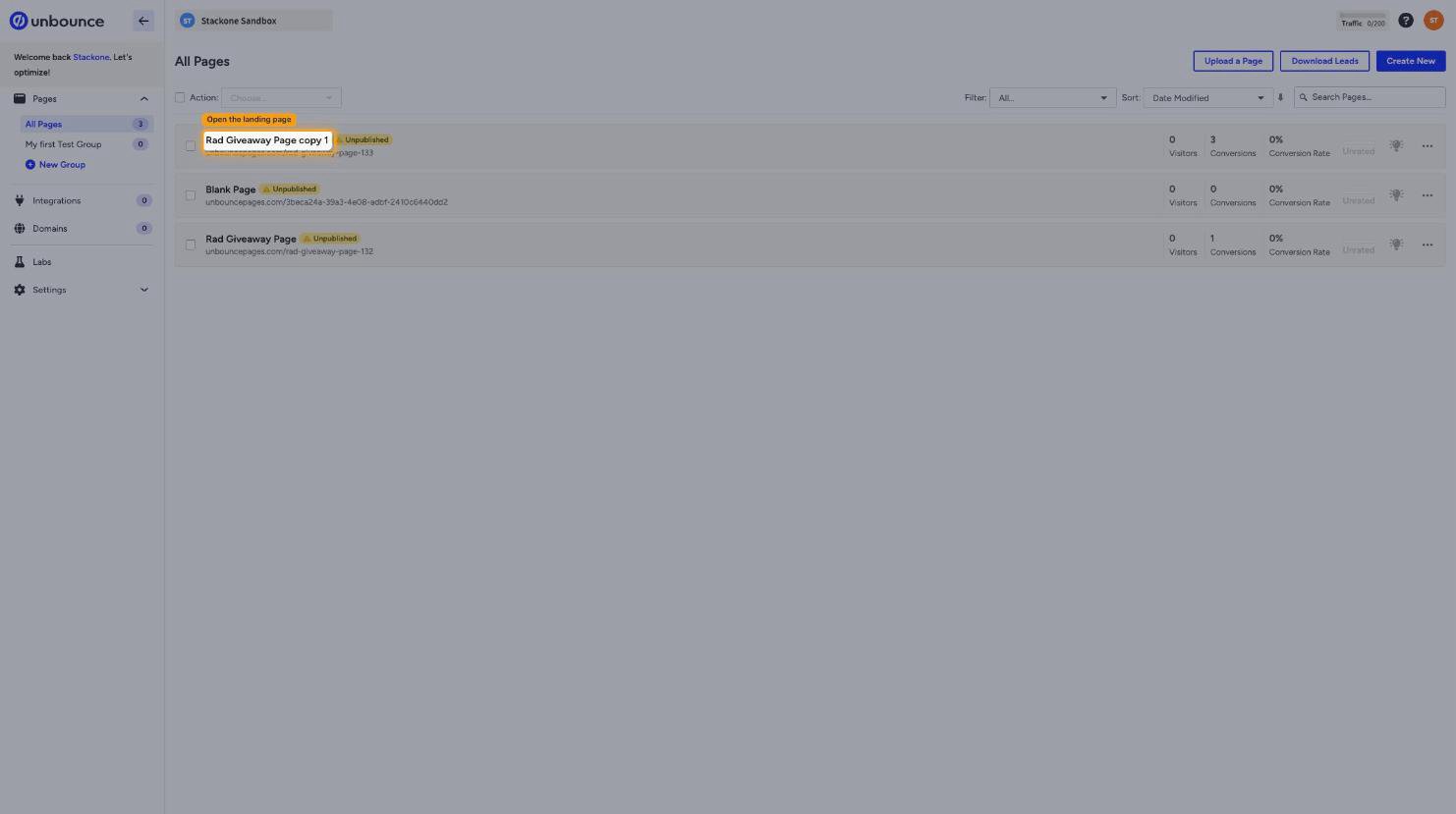
        <p>Sign in to the <a href="https://app.unbounce.com" target="_blank" rel="noopener noreferrer">Unbounce dashboard</a>, click <strong>Pages</strong> in the left menu, click <strong>All Pages</strong>, then click the name of the landing page.</p>

        <img src="https://mintcdn.com/stackone-60/UdvqeznlrmaZL__x/connectors/unbounce/images/events-open-page.png?fit=max&auto=format&n=UdvqeznlrmaZL__x&q=85&s=8be67e24ce98dce6b12130e40bae7f97" alt="The All Pages list with a landing page name highlighted" width="1482" height="829" data-path="connectors/unbounce/images/events-open-page.png" />
      </div>
    </Step>

    <Step title="Open the Integrations tab">
      <div data-guide-step data-guide-scopes="" data-guide-display-scopes-list="">
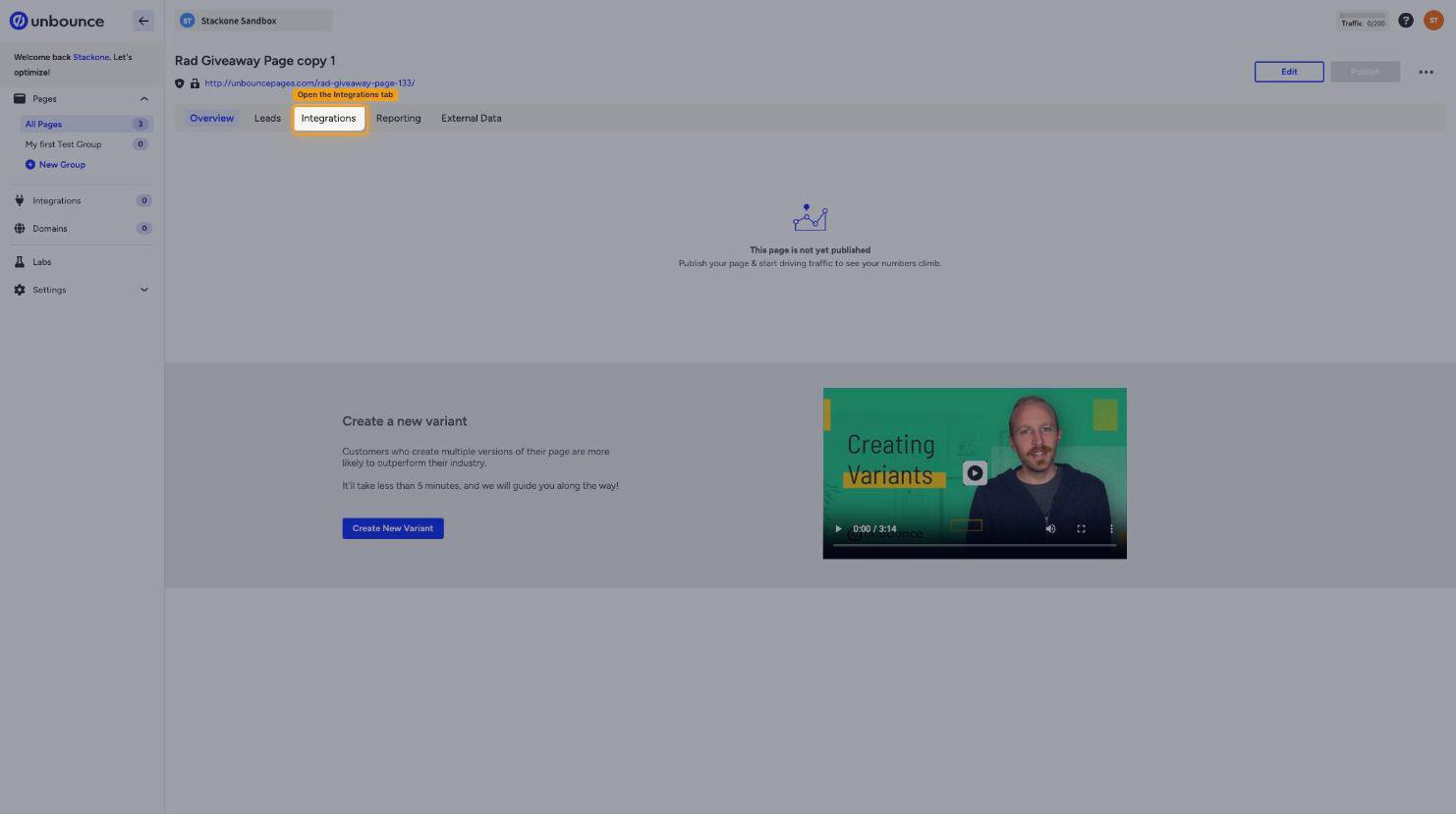
        <p>On the page's overview screen, click the <strong>Integrations</strong> tab, alongside <strong>Overview</strong>, <strong>Leads</strong>, <strong>Reporting</strong>, and <strong>External Data</strong>.</p>

        <ul>
          <li>This is the page-level <strong>Integrations</strong> tab. The <strong>Integrations</strong> entry in the left menu lists third-party services such as <strong>Salesforce</strong> and <strong>Marketo</strong> and does not contain webhooks.</li>
        </ul>

        <img src="https://mintcdn.com/stackone-60/UdvqeznlrmaZL__x/connectors/unbounce/images/events-integrations-tab.png?fit=max&auto=format&n=UdvqeznlrmaZL__x&q=85&s=a9f324caa925b867d20efe7dc22bbc6d" alt="The landing page overview with the Integrations tab highlighted" width="1482" height="829" data-path="connectors/unbounce/images/events-integrations-tab.png" />
      </div>
    </Step>

    <Step title="Open the Webhooks sub-tab">
      <div data-guide-step data-guide-scopes="" data-guide-display-scopes-list="">
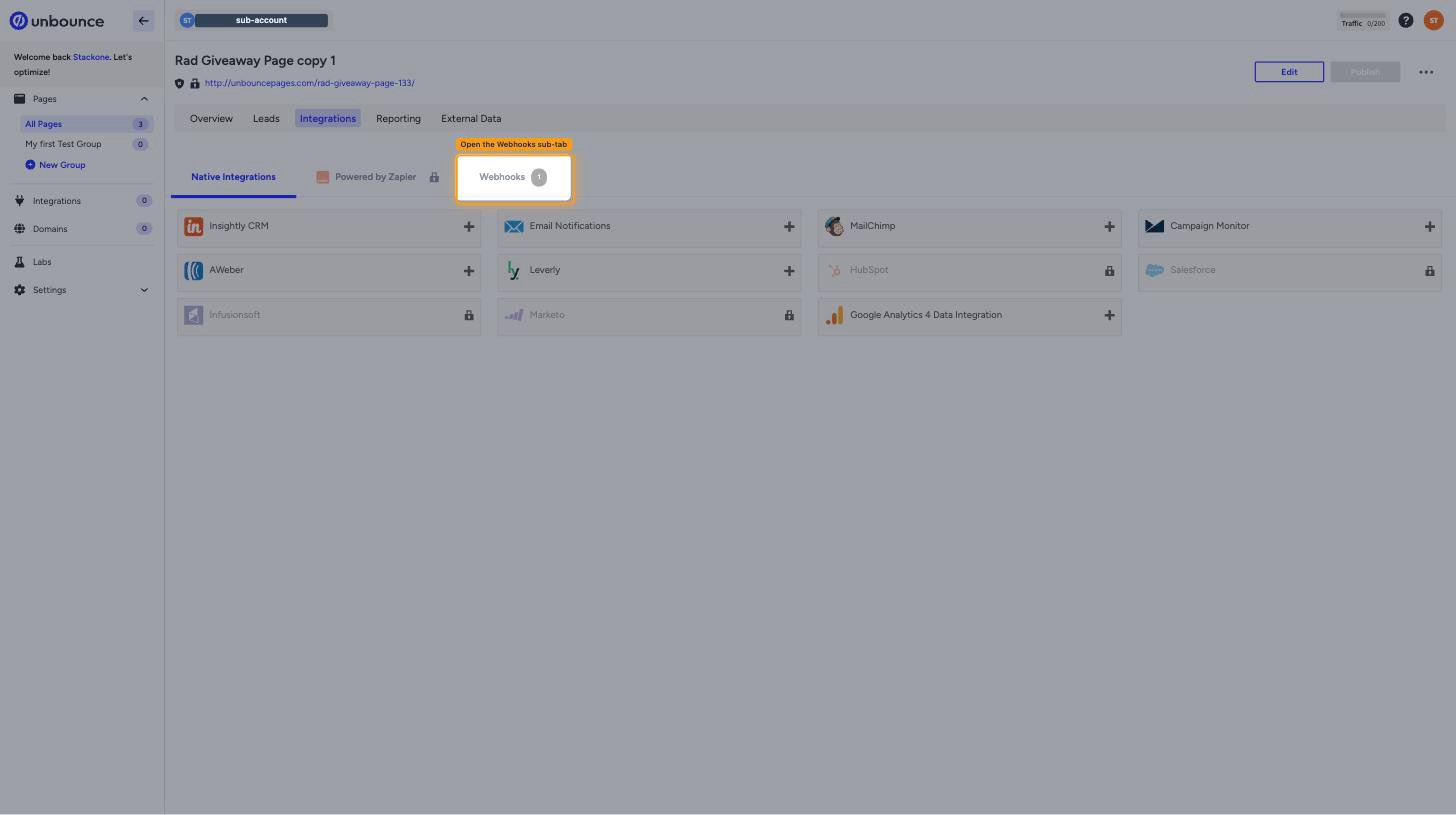
        <p>Click <strong>Webhooks</strong>, next to <strong>Native Integrations</strong> and <strong>Powered by Zapier</strong>. The panel is titled "Webhook: Post to URL".</p>

        <img src="https://mintcdn.com/stackone-60/UdvqeznlrmaZL__x/connectors/unbounce/images/events-webhooks-subtab.png?fit=max&auto=format&n=UdvqeznlrmaZL__x&q=85&s=e963cc88d6660357e5b65e79b429f154" alt="The page Integrations tab with the Webhooks sub-tab highlighted" width="1456" height="815" data-path="connectors/unbounce/images/events-webhooks-subtab.png" />
      </div>
    </Step>

    <Step title="Add the webhook">
      <div data-guide-step data-guide-scopes="" data-guide-display-scopes-list="">
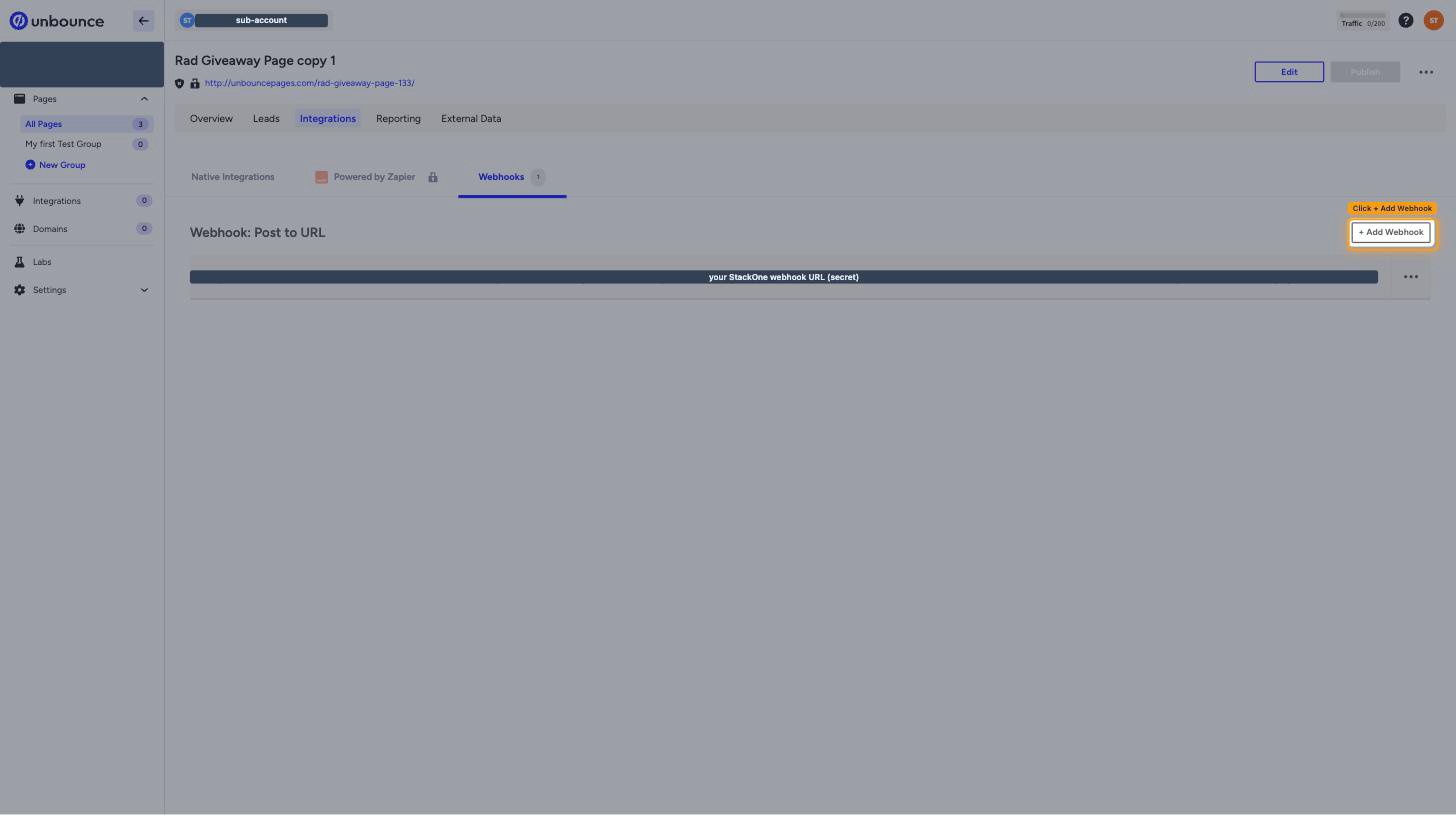
        <p>Click <strong>+ Add Webhook</strong> to open the <strong>Add a Webhook</strong> dialog.</p>

        <img src="https://mintcdn.com/stackone-60/UdvqeznlrmaZL__x/connectors/unbounce/images/events-add-webhook.png?fit=max&auto=format&n=UdvqeznlrmaZL__x&q=85&s=270452f95336a3f1b5fd84050a842db0" alt="The Webhook Post to URL panel with the + Add Webhook button highlighted" width="1456" height="815" data-path="connectors/unbounce/images/events-add-webhook.png" />
      </div>
    </Step>

    <Step title="Enter the URL and select JSON">
      <div data-guide-step data-guide-scopes="" data-guide-display-scopes-list="">
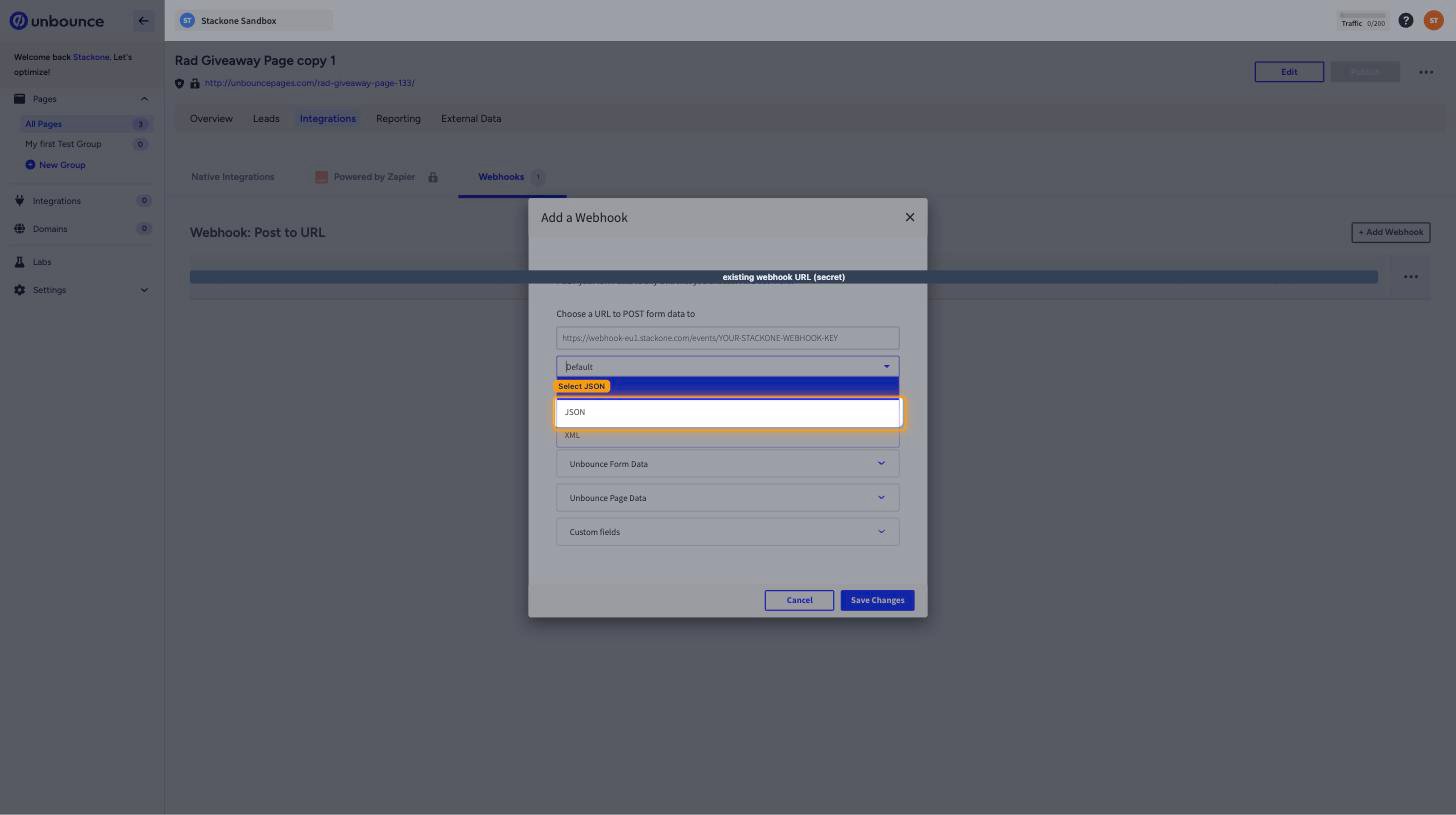
        <p>Paste the <strong>Native Webhook URL</strong> into <strong>Choose a URL to POST form data to</strong>, then change the encoding dropdown from <strong>Default</strong> to <strong>JSON</strong>.</p>

        <ul>
          <li>The encoding dropdown offers <strong>Default</strong>, <strong>JSON</strong>, and <strong>XML</strong>.</li>
          <li><strong>Default</strong> sends form-encoded data. Select <strong>JSON</strong> so the payload arrives as a JSON object.</li>
          <li><strong>Custom Headers</strong> is not required — StackOne authenticates the delivery using the key inside the URL.</li>
        </ul>

        <img src="https://mintcdn.com/stackone-60/UdvqeznlrmaZL__x/connectors/unbounce/images/events-encoding-json.png?fit=max&auto=format&n=UdvqeznlrmaZL__x&q=85&s=f2e98cfa76957ec8118d86fce0921db5" alt="The Add a Webhook dialog with the encoding dropdown open and JSON highlighted" width="1456" height="815" data-path="connectors/unbounce/images/events-encoding-json.png" />
      </div>
    </Step>

    <Step title="Leave the field mapping unchanged">
      <div data-guide-step data-guide-scopes="" data-guide-display-scopes-list="">
        <p>Under <strong>Map Fields</strong>, leave <strong>Unbounce Form Data</strong>, <strong>Unbounce Page Data</strong>, and <strong>Custom fields</strong> exactly as they are.</p>

        <ul>
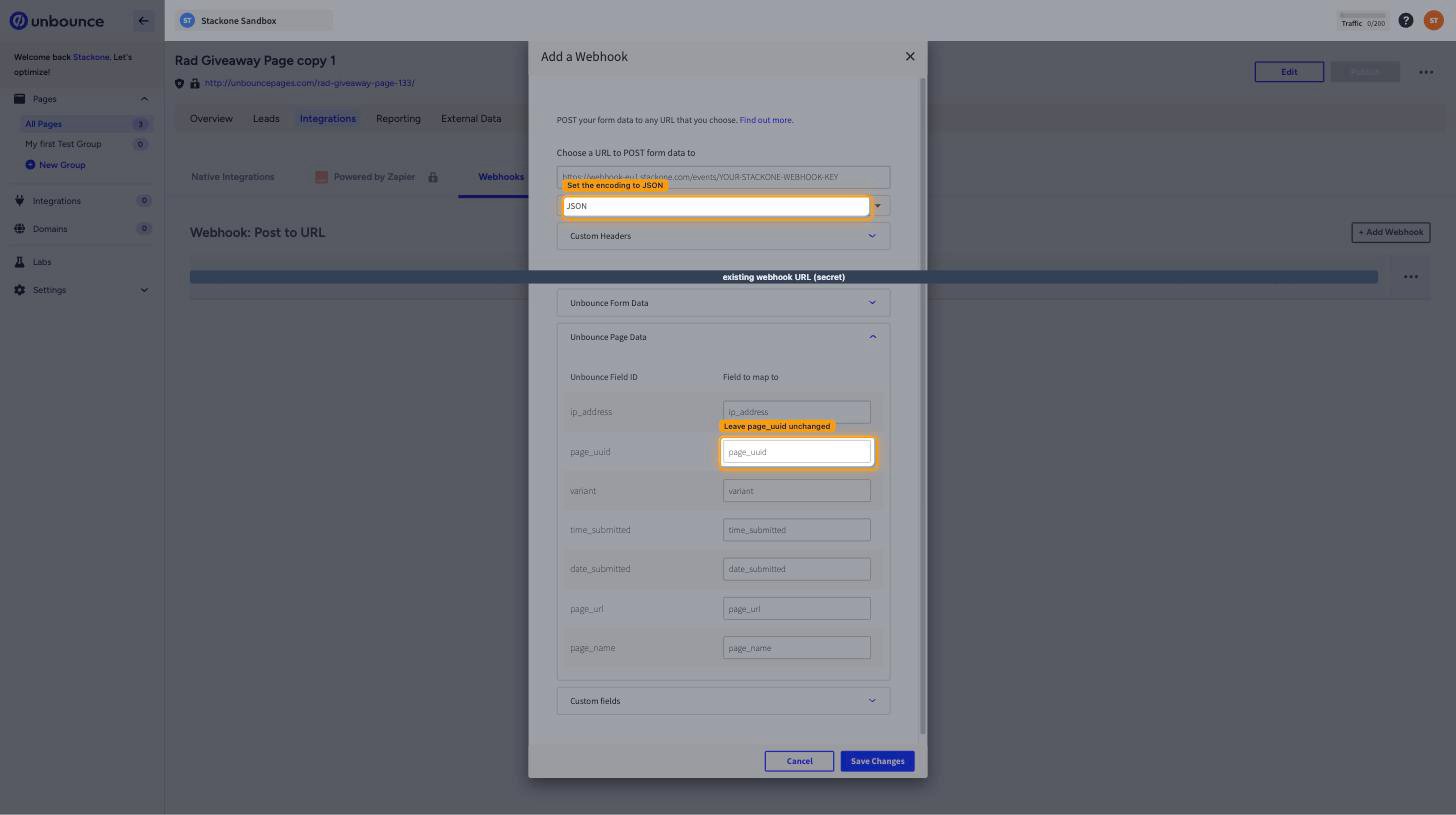
          <li>Expanding <strong>Unbounce Page Data</strong> shows an <strong>Unbounce Field ID</strong> column and a <strong>Field to map to</strong> column holding `ip_address`, `page_uuid`, `variant`, `time_submitted`, `date_submitted`, `page_url`, and `page_name`.</li>
          <li>Do not rename or clear `page_uuid`. StackOne identifies the landing page from it, and changing it stops events being recognised.</li>
          <li><strong>Unbounce Form Data</strong> holds the fields defined on the page's form. Leave them mapped so the submitted values arrive on the event.</li>
        </ul>

        <img src="https://mintcdn.com/stackone-60/UdvqeznlrmaZL__x/connectors/unbounce/images/events-map-fields.png?fit=max&auto=format&n=UdvqeznlrmaZL__x&q=85&s=0548a058bbc7e1d7a7147452f5c5d82a" alt="The Map Fields section with Unbounce Page Data expanded and the page_uuid mapping highlighted" width="1456" height="815" data-path="connectors/unbounce/images/events-map-fields.png" />
      </div>
    </Step>

    <Step title="Save the webhook">
      <div data-guide-step data-guide-scopes="" data-guide-display-scopes-list="">
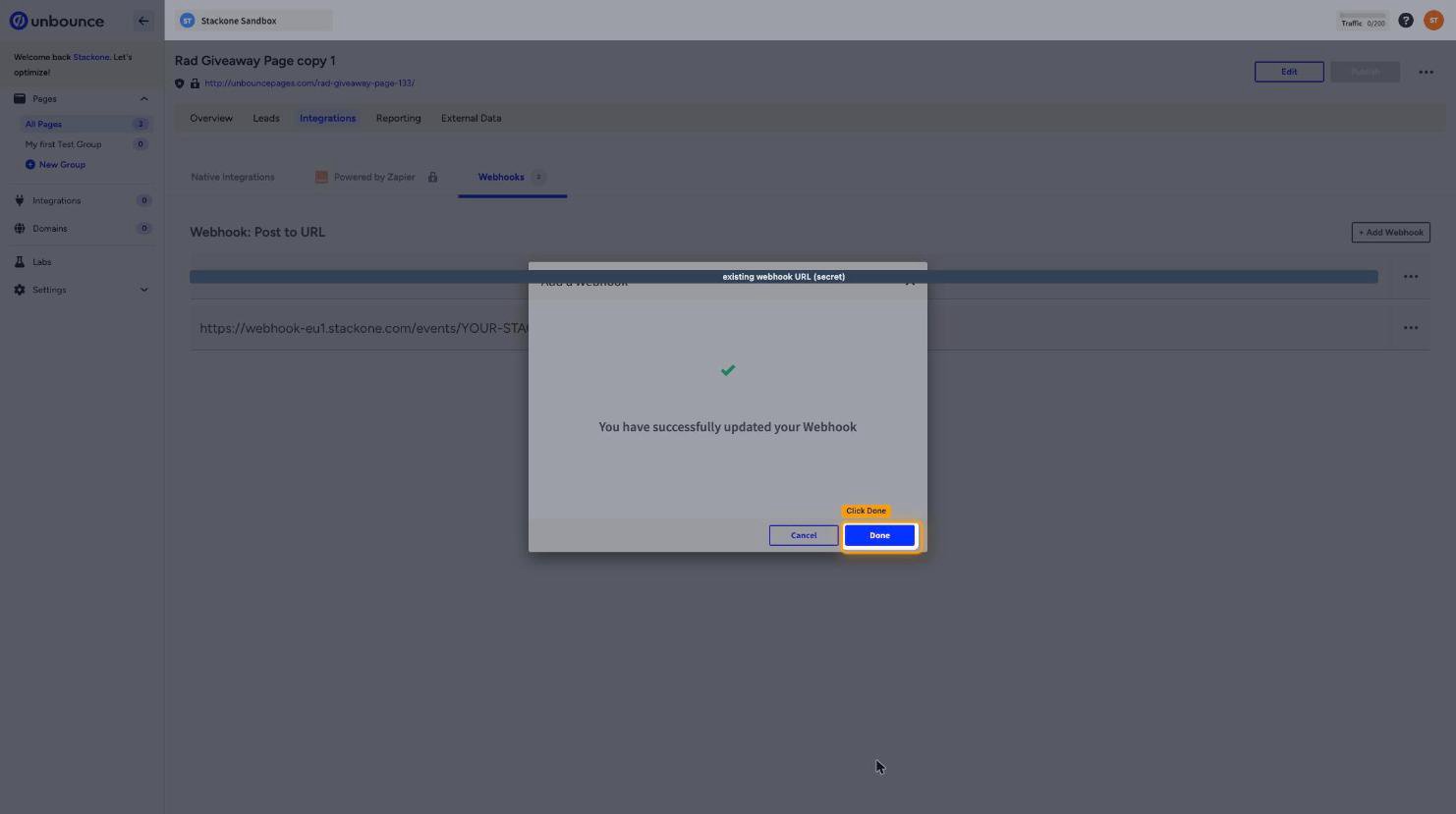
        <p>Click <strong>Save Changes</strong>. Unbounce confirms with "You have successfully updated your Webhook" — click <strong>Done</strong>.</p>

        <ul>
          <li>Unbounce sends no test request when you save, so the first delivery happens on the next form submission.</li>
          <li>To change or remove a webhook later, use the <strong>...</strong> menu on its row and choose <strong>Edit Webhook</strong> or <strong>Delete Webhook</strong>.</li>
        </ul>

        <img src="https://mintcdn.com/stackone-60/UdvqeznlrmaZL__x/connectors/unbounce/images/events-saved.png?fit=max&auto=format&n=UdvqeznlrmaZL__x&q=85&s=da15b5b53005192dabbe5c50a5c8a454" alt="The confirmation that the webhook was saved, with the Done button highlighted" width="1482" height="829" data-path="connectors/unbounce/images/events-saved.png" />
      </div>
    </Step>
  </Steps>
</section>

<section data-guide-section data-guide-scopes="">
  <h2>Confirm a delivery</h2>

  <p>Unbounce records the outcome of every webhook delivery against the lead that triggered it.</p>

  <Steps>
    <Step title="Check Integration Details on a lead">
      <div data-guide-step data-guide-scopes="" data-guide-display-scopes-list="">
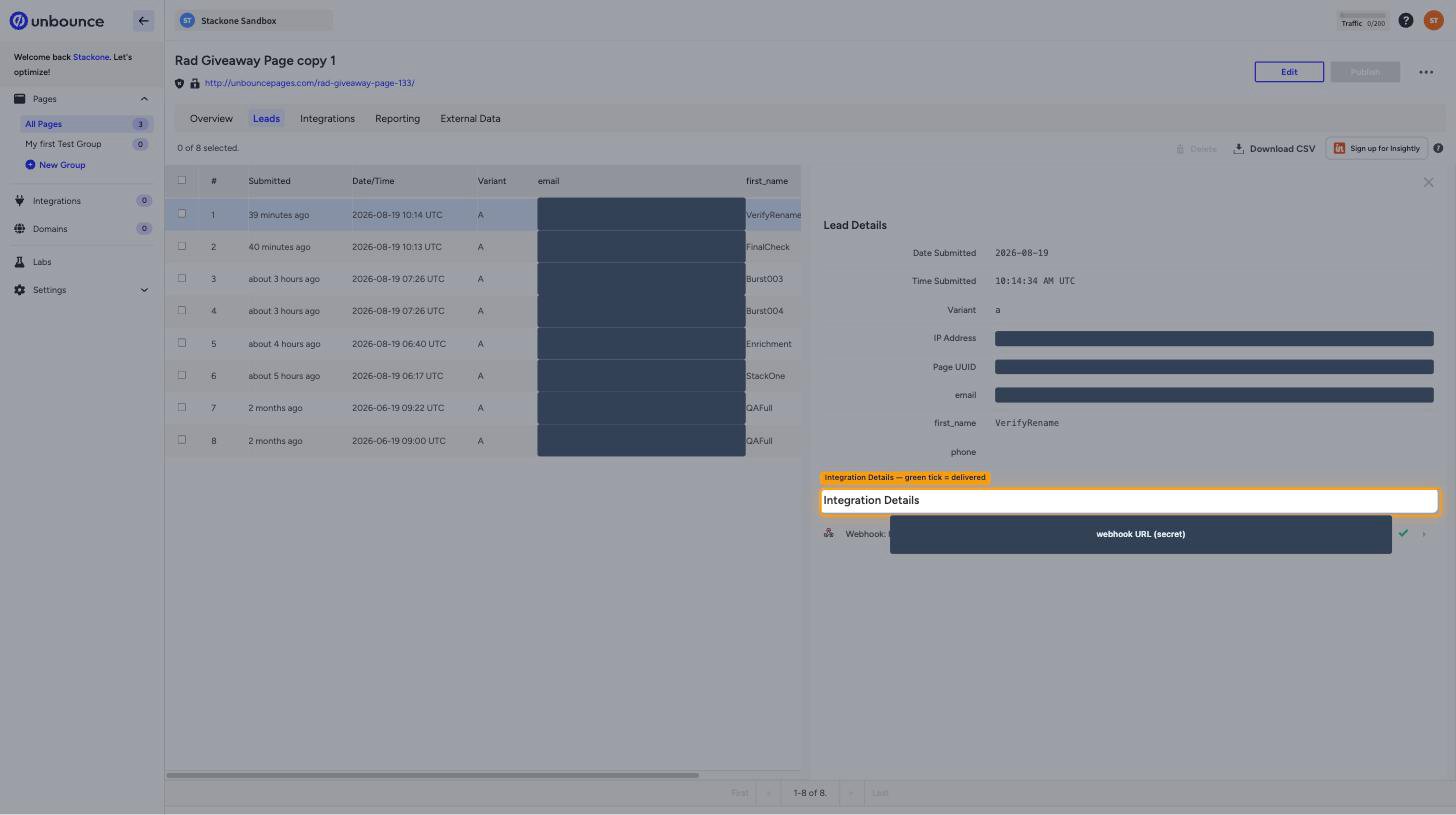
        <p>Open the page's <strong>Leads</strong> tab, click a lead row, and look at <strong>Integration Details</strong> in the <strong>Lead Details</strong> panel. A green tick beside the webhook means Unbounce delivered it.</p>

        <ul>
          <li>The <strong>Lead Details</strong> panel also shows <strong>Date Submitted</strong>, <strong>Time Submitted</strong>, <strong>Variant</strong>, <strong>IP Address</strong>, and <strong>Page UUID</strong> for that submission.</li>
          <li>Use this to tell a delivery failure apart from a routing problem — if the tick is green, Unbounce sent the event.</li>
        </ul>

        <img src="https://mintcdn.com/stackone-60/UdvqeznlrmaZL__x/connectors/unbounce/images/events-verify-delivery.png?fit=max&auto=format&n=UdvqeznlrmaZL__x&q=85&s=cd6dd9ba0547d630f5e6793fe06e79d8" alt="A lead's Integration Details showing a green tick against the webhook" width="1456" height="815" data-path="connectors/unbounce/images/events-verify-delivery.png" />
      </div>
    </Step>
  </Steps>
</section>

<section data-guide-section data-guide-scopes="">
  <h2>Available webhook events</h2>

  <p>Unbounce has exactly one native webhook, the page-level Form Submit Webhook. There is no page, domain, or account event.</p>

  <Steps>
    <Step title="Lead events">
      <div data-guide-step data-guide-scopes="" data-guide-display-scopes-list="">
        <p>Events related to leads captured by a landing page form.</p>

        <ul>
          <li><strong>Page Lead Created</strong> (`page_lead_created`) — Fired when a visitor submits a form on the landing page, which is how Unbounce records a lead.</li>
        </ul>
      </div>
    </Step>
  </Steps>
</section>

<section data-guide-section data-guide-scopes="">
  <h2>Delivery format</h2>

  <p>Details of how Unbounce delivers events to StackOne.</p>

  <Steps>
    <Step title="One event per submission">
      <div data-guide-step data-guide-scopes="" data-guide-display-scopes-list="">
        <p>Unbounce sends one `POST` per form submission, carrying `ip_address`, `page_uuid`, `variant`, `time_submitted`, `date_submitted`, `page_url`, and `page_name`, plus the values of the form fields defined on the page.</p>

        <ul>
          <li>Unbounce sends no signature header and performs no verification handshake — the secure key inside the Native Webhook URL is what identifies the connection.</li>
          <li>The payload carries no lead id. Use the List Page Leads action, filtered on the `ip_address`, `variant`, and submission minute from the event, to resolve the lead record.</li>
          <li>`time_submitted` reports minutes only, so the event is timestamped with StackOne's receipt time. The values Unbounce reported stay available on the event.</li>
        </ul>
      </div>
    </Step>

    <Step title="Source IPs">
      <div data-guide-step data-guide-scopes="" data-guide-display-scopes-list="">
        <p>If your endpoint is behind an IP allowlist, Unbounce sends webhook requests from `54.241.34.25` and `50.19.99.184`.</p>
      </div>
    </Step>
  </Steps>
</section>

## Verify

Your Connector should now be able to receive and process events. Try triggering an event and you should see an Event appear in the Connector logs.