> ## Documentation Index
> Fetch the complete documentation index at: https://docs.stackone.com/llms.txt
> Use this file to discover all available pages before exploring further.

# UKG Ready Webhook Setup Guide

> Configure UKG Ready to deliver events to StackOne.

## Prerequisites

The connector should already be set up, with a Connector Profile and a Linked Account. See [Getting Started](/connectors/ukg-ready#getting-started) on the UKG Ready connector page.

<section data-guide-section data-guide-scopes="">
  <h2>Get your Native Webhook URL and Auth Token</h2>

  <p>StackOne generates a per-connection webhook URL and a matching auth token. You will paste the URL as the UKG Ready Endpoint URL and the token as the Bearer authentication token.</p>

  <ul>
    <li>In StackOne, open the <strong>Linked account</strong> for this connection and copy the <strong>Native Webhook URL</strong>.</li>
    <li>From the same <strong>Linked account</strong>, copy the <strong>Webhook Auth Token</strong> — this is the value you will use as the Bearer token.</li>
  </ul>
</section>

<section data-guide-section data-guide-scopes="">
  <h2>Open Webhook Subscriptions in UKG Ready</h2>

  <p>Webhook subscriptions are configured under Global Setup. Sign in to UKG Ready as an administrator.</p>

  <Steps>
    <Step title="Open the main menu and go to Global Setup">
      <div data-guide-step data-guide-scopes="" data-guide-display-scopes-list="">
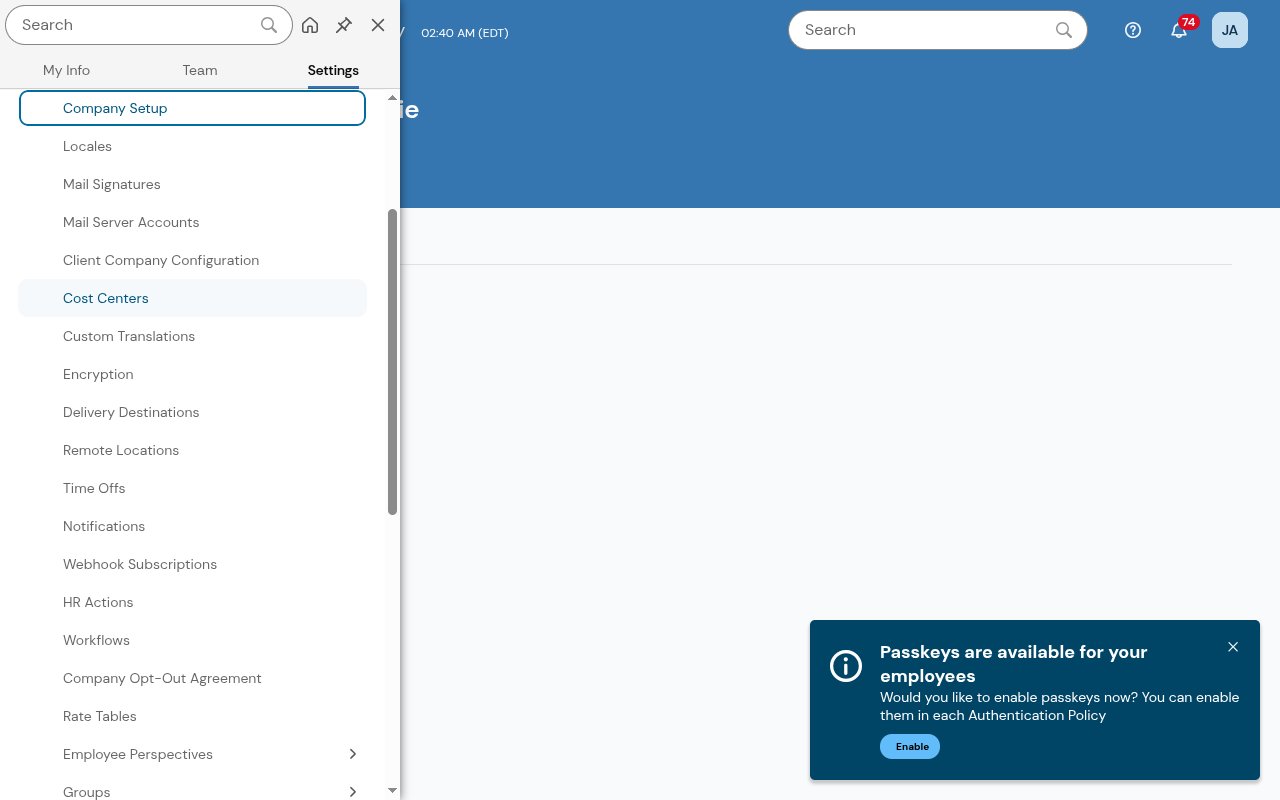
        <p>Click the <strong>≡</strong> (main menu) at the top-left, select the <strong>Settings</strong> category, then click <strong>Global Setup</strong>. Its submenu opens with <strong>Webhook Subscriptions</strong> listed.</p>

        <img src="https://mintcdn.com/stackone-60/YBnpj5NvpMH8PRGp/connectors/ukg-ready/images/events-global-setup-menu.png?fit=max&auto=format&n=YBnpj5NvpMH8PRGp&q=85&s=d247ee3df52d4a71f9dd8c21b2daed3a" alt="UKG Ready main menu with Settings > Global Setup expanded showing Webhook Subscriptions" data-og-width="1280" width="1280" data-og-height="800" height="800" data-path="connectors/ukg-ready/images/events-global-setup-menu.png" data-optimize="true" data-opv="3" srcset="https://mintcdn.com/stackone-60/YBnpj5NvpMH8PRGp/connectors/ukg-ready/images/events-global-setup-menu.png?w=280&fit=max&auto=format&n=YBnpj5NvpMH8PRGp&q=85&s=b387f427f6b1b9b1a43329eb6a6d1b7f 280w, https://mintcdn.com/stackone-60/YBnpj5NvpMH8PRGp/connectors/ukg-ready/images/events-global-setup-menu.png?w=560&fit=max&auto=format&n=YBnpj5NvpMH8PRGp&q=85&s=330ef7d67dbb599a9194a64da409ddaf 560w, https://mintcdn.com/stackone-60/YBnpj5NvpMH8PRGp/connectors/ukg-ready/images/events-global-setup-menu.png?w=840&fit=max&auto=format&n=YBnpj5NvpMH8PRGp&q=85&s=8eba9c0dfa3452ea0f3232a8c3e189db 840w, https://mintcdn.com/stackone-60/YBnpj5NvpMH8PRGp/connectors/ukg-ready/images/events-global-setup-menu.png?w=1100&fit=max&auto=format&n=YBnpj5NvpMH8PRGp&q=85&s=d0e37fcc826bfb717163e3a48101ec13 1100w, https://mintcdn.com/stackone-60/YBnpj5NvpMH8PRGp/connectors/ukg-ready/images/events-global-setup-menu.png?w=1650&fit=max&auto=format&n=YBnpj5NvpMH8PRGp&q=85&s=078c8c79104fdb8788e6790e11daef8a 1650w, https://mintcdn.com/stackone-60/YBnpj5NvpMH8PRGp/connectors/ukg-ready/images/events-global-setup-menu.png?w=2500&fit=max&auto=format&n=YBnpj5NvpMH8PRGp&q=85&s=69152a4273662347a6a0f60c9974311f 2500w" />
      </div>
    </Step>

    <Step title="Open Webhook Subscriptions">
      <div data-guide-step data-guide-scopes="" data-guide-display-scopes-list="">
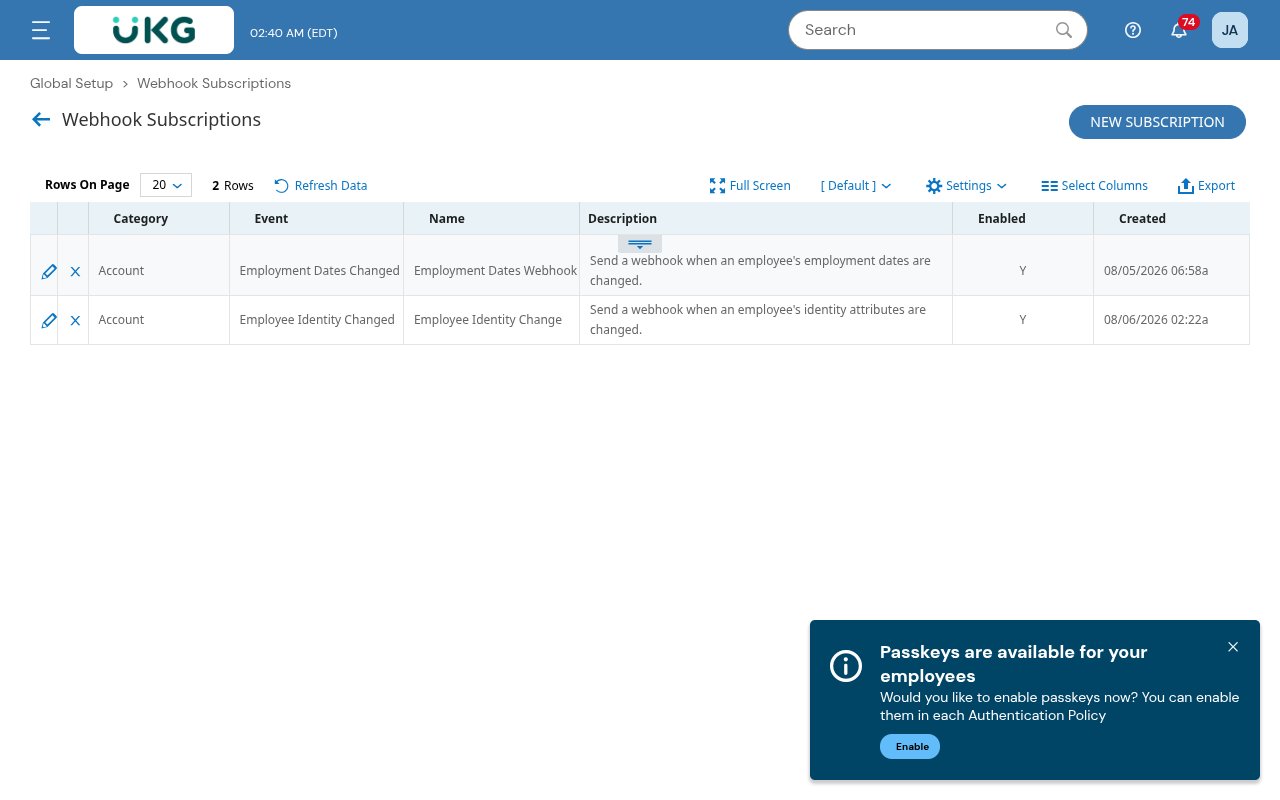
        <p>Click <strong>Webhook Subscriptions</strong>. The list of existing subscriptions opens. Click <strong>New Subscription</strong> to add one.</p>

        <img src="https://mintcdn.com/stackone-60/YBnpj5NvpMH8PRGp/connectors/ukg-ready/images/events-subscriptions-list.png?fit=max&auto=format&n=YBnpj5NvpMH8PRGp&q=85&s=bdf148cdad722d3f375622dacbcbb657" alt="UKG Ready Webhook Subscriptions list with the New Subscription button" width="1280" height="800" data-path="connectors/ukg-ready/images/events-subscriptions-list.png" />
      </div>
    </Step>
  </Steps>
</section>

<section data-guide-section data-guide-scopes="">
  <h2>Choose the event and configure the subscription</h2>

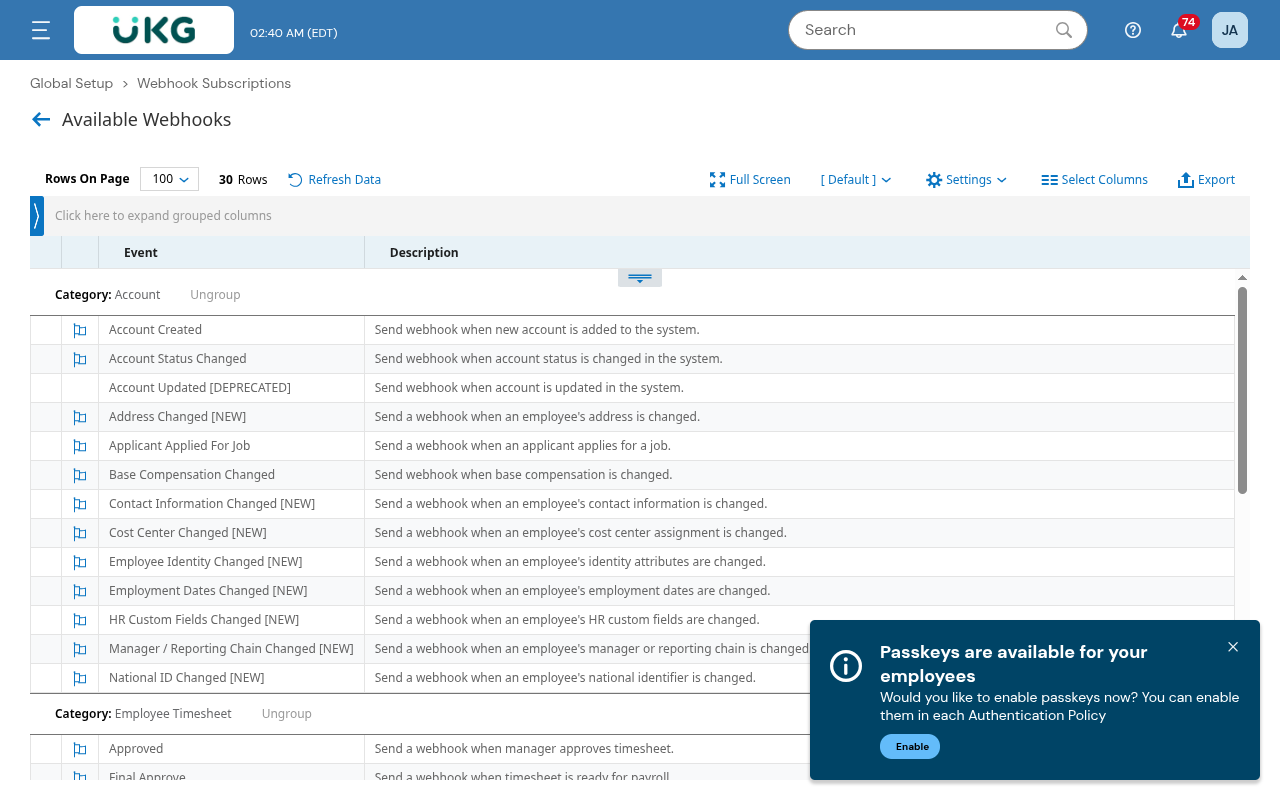
  <p>New Subscription opens the Available Webhooks catalog. Pick the event you want, then fill in the subscription form.</p>

  <Steps>
    <Step title="Pick an event from Available Webhooks">
      <div data-guide-step data-guide-scopes="" data-guide-display-scopes-list="">
        <p>In <strong>Available Webhooks</strong>, click the event to subscribe to. Events are grouped by category, and the events StackOne supports are listed under <strong>Available webhook events</strong> below.</p>

        <img src="https://mintcdn.com/stackone-60/YBnpj5NvpMH8PRGp/connectors/ukg-ready/images/events-available-webhooks.png?fit=max&auto=format&n=YBnpj5NvpMH8PRGp&q=85&s=1505cbd3a666acd29a0c27c6c2aec93e" alt="UKG Ready Available Webhooks catalog grouped by category" width="1280" height="800" data-path="connectors/ukg-ready/images/events-available-webhooks.png" />
      </div>
    </Step>

    <Step title="Fill in the subscription details and endpoint">
      <div data-guide-step data-guide-scopes="" data-guide-display-scopes-list="">
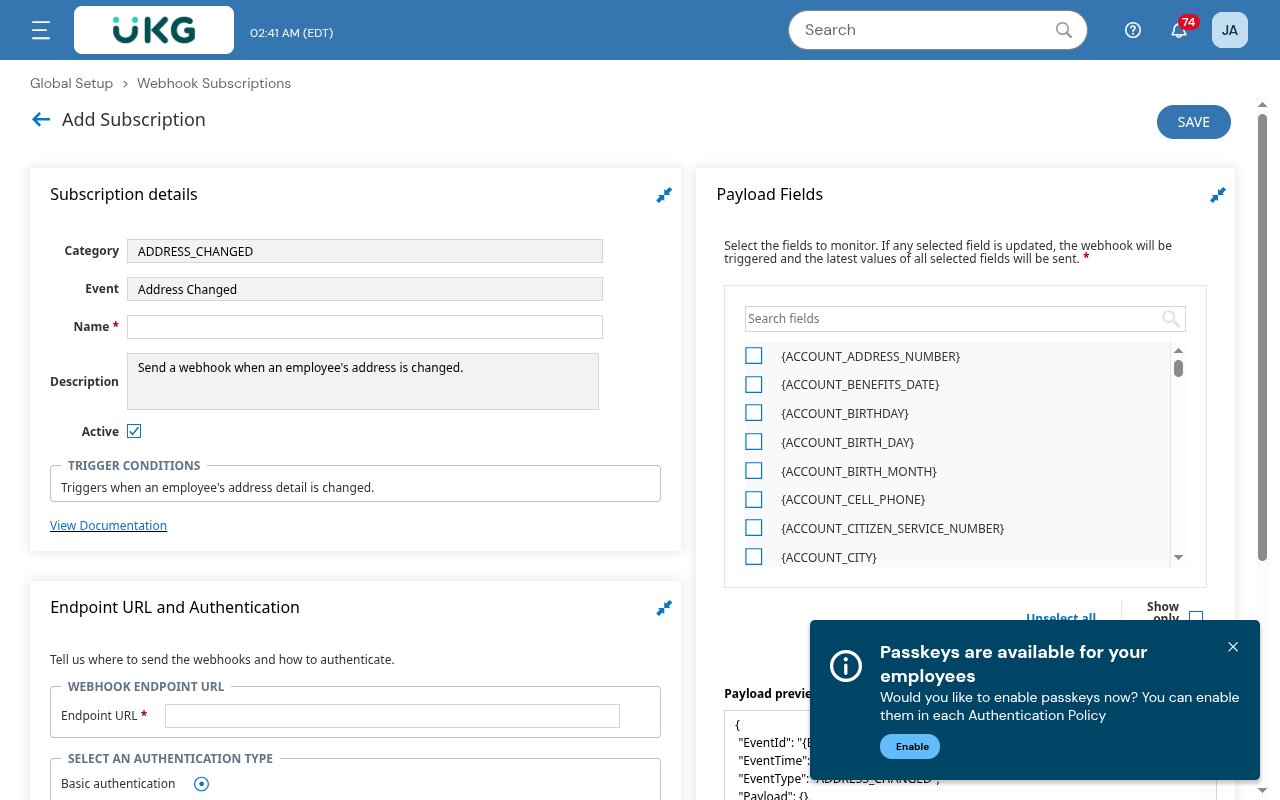
        <p>Under <strong>Subscription details</strong>, enter a <strong>Name</strong> and check <strong>Active</strong>. Under <strong>Endpoint URL and Authentication</strong>, paste the StackOne Native Webhook URL into <strong>Endpoint URL</strong>.</p>

        <img src="https://mintcdn.com/stackone-60/YBnpj5NvpMH8PRGp/connectors/ukg-ready/images/events-config-form.png?fit=max&auto=format&n=YBnpj5NvpMH8PRGp&q=85&s=22c7b5992610716f3a8a81d18b864a7f" alt="UKG Ready webhook subscription form showing Endpoint URL and authentication options" width="1280" height="800" data-path="connectors/ukg-ready/images/events-config-form.png" />
      </div>
    </Step>

    <Step title="Set Authentication to Bearer token">
      <div data-guide-step data-guide-scopes="" data-guide-display-scopes-list="">
        <p>Under <strong>Select an authentication type</strong>, choose <strong>Bearer token</strong> and paste the <strong>Webhook Auth Token</strong> into the <strong>Token</strong> field. Do NOT select <strong>No authentication</strong> — UKG Ready strips the URL query string, so the token must travel in the Authorization header or the account cannot be identified.</p>

        <ul>
          <li>Authentication type: <strong>Bearer token</strong></li>
          <li>Token: the StackOne <strong>Webhook Auth Token</strong></li>
        </ul>
      </div>
    </Step>

    <Step title="Select the payload fields (include the employee identifier)">
      <div data-guide-step data-guide-scopes="" data-guide-display-scopes-list="">
        <p>Under <strong>Payload Fields</strong>, tick the fields to send. Only selected fields are included, and a change to any selected field triggers the webhook. Where the event offers it, include <strong>\{EMPLOYEE\_IDENTIFIER}</strong> so the delivered event carries the employee id. Without it (and for events that don't offer it, such as timesheet events) the event is identified by its UKG event id instead.</p>
      </div>
    </Step>

    <Step title="Save">
      <div data-guide-step data-guide-scopes="" data-guide-display-scopes-list="">
        <p>Click <strong>Save</strong>. The subscription becomes active and UKG Ready will POST matching events to the endpoint. (The <strong>Test Connection</strong> button only checks connectivity — it does not send a sample event.)</p>
      </div>
    </Step>
  </Steps>
</section>

<section data-guide-section data-guide-scopes="">
  <h2>Available webhook events</h2>

  <p>Only the events you subscribe to are delivered. UKG Ready's webhook catalog, grouped by category as in Available Webhooks. The code in backticks is the event type StackOne delivers.</p>

  <Steps>
    <Step title="Account">
      <div data-guide-step data-guide-scopes="" data-guide-display-scopes-list="">
        <p>Employee record and account-level changes.</p>

        <ul>
          <li><strong>Account Created</strong> (`ACCOUNT_CREATED`) — fired when a new account is added to the system</li>
          <li><strong>Account Status Changed</strong> (`ACCOUNT_STATUS_CHANGED`) — fired when an account's status changes</li>
          <li><strong>Address Changed</strong> (`ADDRESS_CHANGED`) — fired when an employee's address is changed</li>
          <li><strong>Applicant Applied For Job</strong> (`APPLICANT_APPLIED_FOR_JOB`) — fired when an applicant applies for a job</li>
          <li><strong>Base Compensation Changed</strong> (`ACCOUNT_BASE_COMPENSATION_CHANGED`) — fired when base compensation changes</li>
          <li><strong>Contact Information Changed</strong> (`CONTACT_INFORMATION_CHANGED`) — fired when an employee's contact information changes</li>
          <li><strong>Cost Center Changed</strong> (`COST_CENTER_CHANGED`) — fired when an employee's cost center assignment changes</li>
          <li><strong>Employee Identity Changed</strong> (`EMPLOYEE_IDENTITY_CHANGED`) — fired when an employee's identity attributes change</li>
          <li><strong>Employment Dates Changed</strong> (`EMPLOYMENT_DATES_CHANGED`) — fired when an employee's employment dates change</li>
          <li><strong>HR Custom Fields Changed</strong> (`HR_CUSTOM_FIELDS_CHANGED`) — fired when an employee's HR custom fields change</li>
          <li><strong>Manager / Reporting Chain Changed</strong> (`MANAGER_REPORTING_CHAIN_CHANGED`) — fired when an employee's manager or reporting chain changes</li>
          <li><strong>National ID Changed</strong> (`NATIONAL_ID_CHANGED`) — fired when an employee's national identifier changes</li>
          <li><strong>Account Updated</strong> (`ACCOUNT_UPDATED`) — deprecated in UKG Ready; still delivered for existing subscriptions, but use the specific events above</li>
        </ul>
      </div>
    </Step>

    <Step title="Employee Timesheet">
      <div data-guide-step data-guide-scopes="" data-guide-display-scopes-list="">
        <p>Timesheet lifecycle.</p>

        <ul>
          <li><strong>Submitted</strong> (`TIMESHEET_SUBMITTED`) — fired when an employee submits a timesheet</li>
          <li><strong>Approved</strong> (`TIMESHEET_APPROVED`) — fired when a manager approves a timesheet</li>
          <li><strong>Final Approve</strong> (`TIMESHEET_FINAL_APPROVED`) — fired when a timesheet is ready for payroll</li>
          <li><strong>Rejected</strong> (`TIMESHEET_REJECTED`) — fired when a manager rejects a timesheet</li>
        </ul>
      </div>
    </Step>

    <Step title="Time Off Request">
      <div data-guide-step data-guide-scopes="" data-guide-display-scopes-list="">
        <p>Time off request lifecycle.</p>

        <ul>
          <li><strong>Requested</strong> (`TIME_OFF_REQUEST_REQUESTED`) — fired when a time off request is created or its status changes</li>
          <li><strong>Approved</strong> (`TIME_OFF_REQUEST_APPROVED`) — fired when a time off request is approved by a manager</li>
          <li><strong>Changed</strong> (`TIME_OFF_REQUEST_CHANGED`) — fired when a time off request is modified</li>
          <li><strong>Rejected</strong> (`TIME_OFF_REQUEST_REJECTED`) — fired when a manager rejects a time off request</li>
          <li><strong>Canceled (Employee Deleted)</strong> (`TIME_OFF_REQUEST_CANCELED`) — fired when an employee cancels (deletes) a time off request</li>
        </ul>
      </div>
    </Step>

    <Step title="Timesheet Change Request">
      <div data-guide-step data-guide-scopes="" data-guide-display-scopes-list="">
        <p>Timesheet change request lifecycle.</p>

        <ul>
          <li><strong>Requested</strong> (`TIMESHEET_CHANGE_REQUEST_REQUESTED`) — fired when an employee requests a timesheet change</li>
          <li><strong>Approved</strong> (`TIMESHEET_CHANGE_REQUEST_APPROVED`) — fired when a manager approves a timesheet change request</li>
          <li><strong>Rejected</strong> (`TIMESHEET_CHANGE_REQUEST_REJECTED`) — fired when a manager rejects a timesheet change request</li>
        </ul>
      </div>
    </Step>

    <Step title="HR">
      <div data-guide-step data-guide-scopes="" data-guide-display-scopes-list="">
        <p>HR announcements and events.</p>

        <ul>
          <li><strong>Announcement Created</strong> (`HR_ANNOUNCEMENT_CREATED`) — fired when an announcement is created</li>
          <li><strong>Event Created</strong> (`HR_EVENT_CREATED`) — fired when an HR event is created</li>
        </ul>
      </div>
    </Step>

    <Step title="Schedule">
      <div data-guide-step data-guide-scopes="" data-guide-display-scopes-list="">
        <p>Employee schedules.</p>

        <ul>
          <li><strong>Schedule Changed</strong> (`EMPLOYEE_SCHEDULE_UPDATE`) — fired when an employee's schedule is changed or added</li>
        </ul>
      </div>
    </Step>

    <Step title="Scheduler">
      <div data-guide-step data-guide-scopes="" data-guide-display-scopes-list="">
        <p>Open shifts and shift swaps.</p>

        <ul>
          <li><strong>Open Shifts Posted</strong> (`OPEN_SHIFTS_POSTED`) — fired when open shifts are posted</li>
          <li><strong>Schedule Request Peer Action</strong> (`SHIFT_SWAP_ACCEPTED`) — fired when a shift swap request is accepted</li>
        </ul>
      </div>
    </Step>
  </Steps>
</section>

<section data-guide-section data-guide-scopes="">
  <h2>Delivery format</h2>

  <p>Every UKG Ready webhook is delivered as a consistent JSON envelope. The event type is carried in `EventType`, the selected payload fields under `Payload`, plus `EventId`, `EventTime`, and `CompanyName`. StackOne emits `EventType` as the event's record type. The record id is the Employee Identifier when it is in the payload, otherwise the Employee ID, otherwise the UKG `EventId`.</p>
</section>

## Verify

Your Connector should now be able to receive and process events. Try triggering an event and you should see an Event appear in the Connector logs.


This documentation is built and hosted on [Mintlify](https://mintlify.com), a developer documentation platform.