> ## Documentation Index
> Fetch the complete documentation index at: https://docs.stackone.com/llms.txt
> Use this file to discover all available pages before exploring further.

# Connect Twelve Data with API Key – StackOne Hub

> Link a Twelve Data account in the StackOne Hub using API Key. End-user guide to authorize the integration and start using Twelve Data actions.

<section data-guide-section data-guide-scopes="">
  <h2>Getting Your API Key</h2>

  <p>Twelve Data issues an API key automatically when you create an account. The free Basic plan includes 800 API credits per day (8 per minute) with no payment details required.</p>

  <Steps>
    <Step title="Create a Twelve Data account">
      <div data-guide-step data-guide-scopes="" data-guide-display-scopes-list="">
        <p>Sign up at the <a href="https://twelvedata.com/register" target="_blank" rel="noopener noreferrer">Twelve Data registration page</a> using email or Google sign-in.</p>
      </div>
    </Step>

    <Step title="Open the API keys page">
      <div data-guide-step data-guide-scopes="" data-guide-display-scopes-list="">
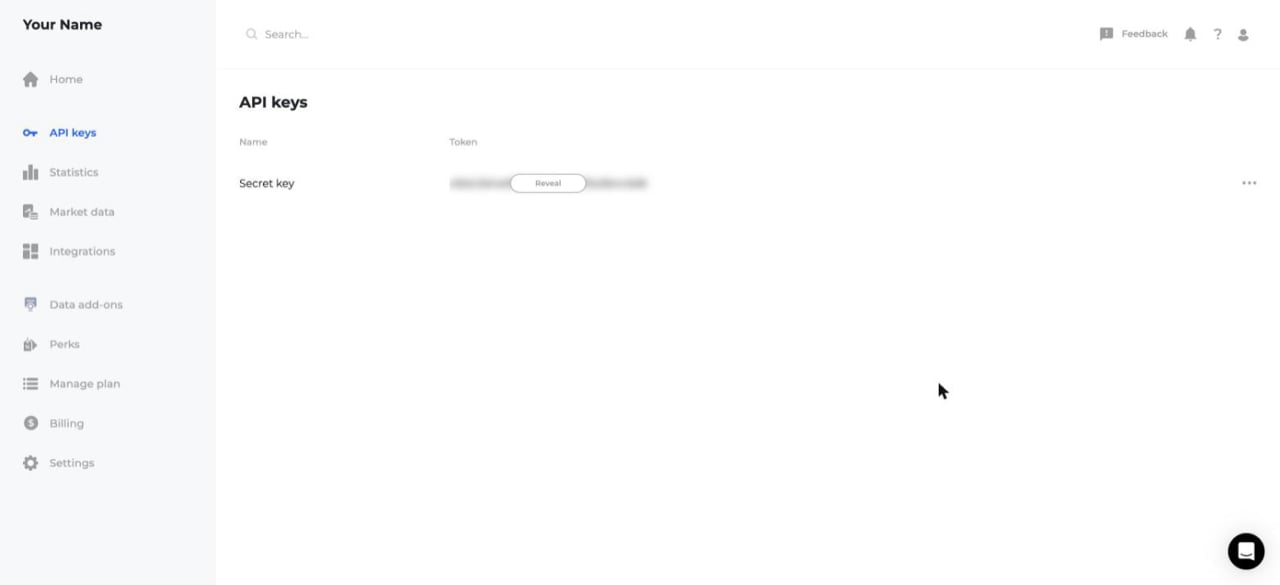
        <p>After signing in, go to the <a href="https://twelvedata.com/account/api-keys" target="_blank" rel="noopener noreferrer">API keys page</a> (also reachable from the dashboard left menu under <strong>API Keys</strong>). Click <strong>Reveal</strong> on the <strong>Secret key</strong> row to show the token.</p>

        <img src="https://mintcdn.com/stackone-60/LoYw8ScEausx6_qU/connectors/twelvedata/images/custom-config-api-keys-page.png?fit=max&auto=format&n=LoYw8ScEausx6_qU&q=85&s=5657d3eab2099c88eea8c8a808448052" alt="The Twelve Data dashboard with the API keys page open, showing API keys selected in the left sidebar and the Secret key row with its masked token and a Reveal button" width="1280" height="585" data-path="connectors/twelvedata/images/custom-config-api-keys-page.png" />
      </div>
    </Step>

    <Step title="Copy your API key">
      <div data-guide-step data-guide-scopes="" data-guide-display-scopes-list="">
        <p>Copy the API key shown for your plan and store it securely — you will paste it into StackOne when you link your account.</p>
      </div>
    </Step>
  </Steps>
</section>

<div data-whitelabel-hide>
  <h2>Linking the Account from the Hub</h2>

  <Steps>
    <Step title="Navigate to the Hub">
      Use one of the three <a href="/guides/accounts-section#linking-accounts">Linking Account Methods</a> to access the Hub.
    </Step>

    <Step title="Fill out the fields">
      Fill out the following fields using details from your provider:

      <ul>
        <li><strong>API Key</strong></li>
      </ul>
    </Step>

    <Step title="Connect">
      <ul>
        <li>Click <strong>Connect</strong></li>
        <li>If applicable, the provider will redirect you to a sign-in or authorization page. Complete the provider's authorization flow.</li>
        <li>Once authorization is successful, you will see a confirmation popup</li>
      </ul>
    </Step>
  </Steps>

  <p>If the account linking is successful, you will see the newly linked account in your <a href="/guides/accounts-section">Accounts</a> page.</p>
</div>