> ## Documentation Index
> Fetch the complete documentation index at: https://docs.stackone.com/llms.txt
> Use this file to discover all available pages before exploring further.

# Connect Timesheet Portal with Email & Password (API Token) – StackOne Hub

> Link a Timesheet Portal account in the StackOne Hub using Email & Password (API Token). End-user guide to authorize the integration and start using Timesheet Portal actions.

<Warning>Account Name is your login subdomain (the part before .timesheetportal.com), NOT your email domain. The Email and Password must belong to a user with the System Administrator role that is authorised for API access.</Warning>

<section data-guide-section data-guide-scopes="">
  <h2>Gather your Timesheet Portal API credentials</h2>

  <p>You need three values: your <strong>Account Name</strong> (login subdomain) and the <strong>Email</strong> and<br /><strong>Password</strong> of an API-authorised System Administrator user. StackOne uses these to obtain a<br />session API token automatically.</p>

  <Steps>
    <Step title="Find your account name">
      <div data-guide-step data-guide-scopes="" data-guide-display-scopes-list="">
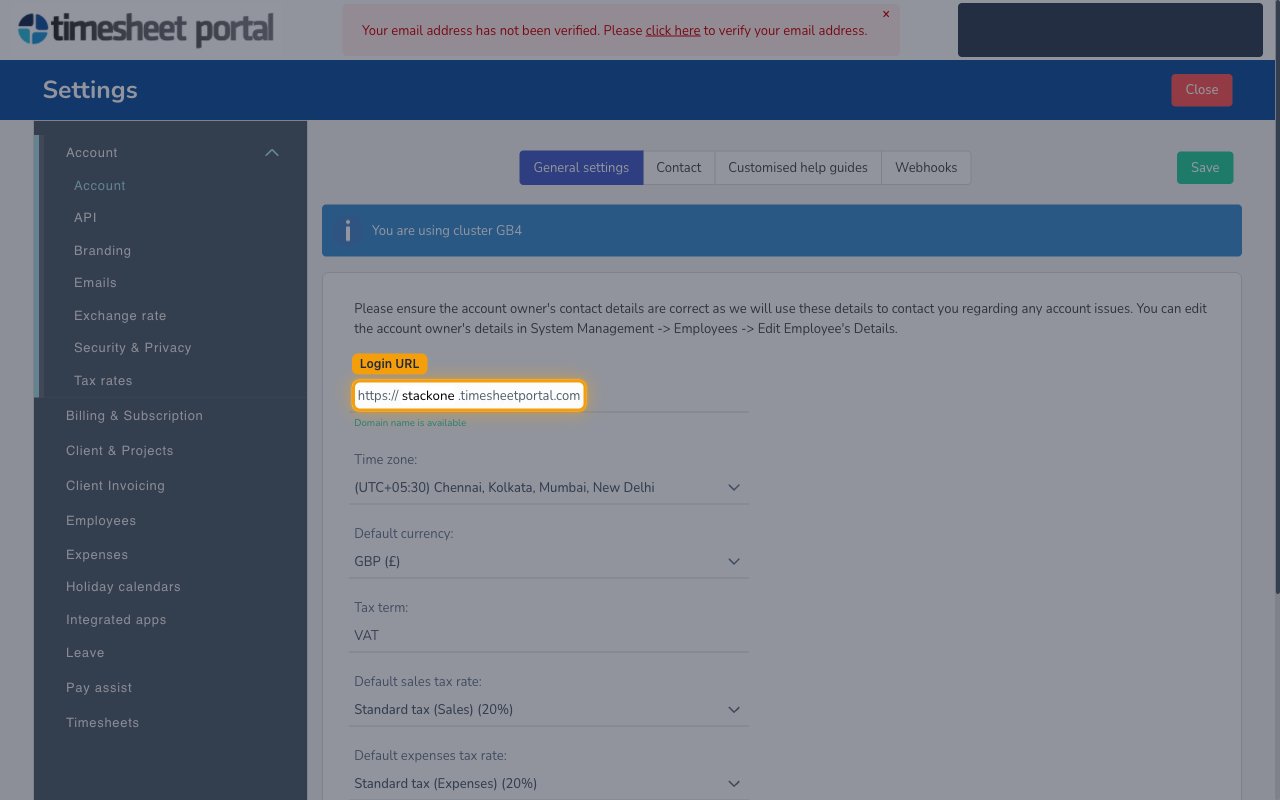
        <p>Click the <strong>Settings</strong> menu, then under the <strong>Account</strong> section open <strong>Account</strong>. On the<br /><strong>General settings</strong> tab, read the <strong>Login URL</strong> field. Your <strong>Account Name</strong> is the<br />subdomain shown before `.timesheetportal.com`.</p>

        <ul>
          <li>Format: `https://{account-name}.timesheetportal.com`</li>
          <li>Example: for `https://acme.timesheetportal.com` the Account Name is `acme`.</li>
          <li>Enter the subdomain only (e.g. `acme`) into the <strong>Account Name</strong> field in StackOne Hub — not the full URL.</li>
        </ul>

        <img src="https://mintcdn.com/stackone-60/FbKaoa1QOGXf0VB2/connectors/timesheetportal/images/custom-config-account-name.png?fit=max&auto=format&n=FbKaoa1QOGXf0VB2&q=85&s=0d41486130f0a0adee5494a8cae1d158" alt="Account General settings tab showing the Login URL field with the account subdomain between https:// and .timesheetportal.com." width="1280" height="800" data-path="connectors/timesheetportal/images/custom-config-account-name.png" />
      </div>
    </Step>

    <Step title="Enter an API-authorised user's email and password">
      <div data-guide-step data-guide-scopes="" data-guide-display-scopes-list="">
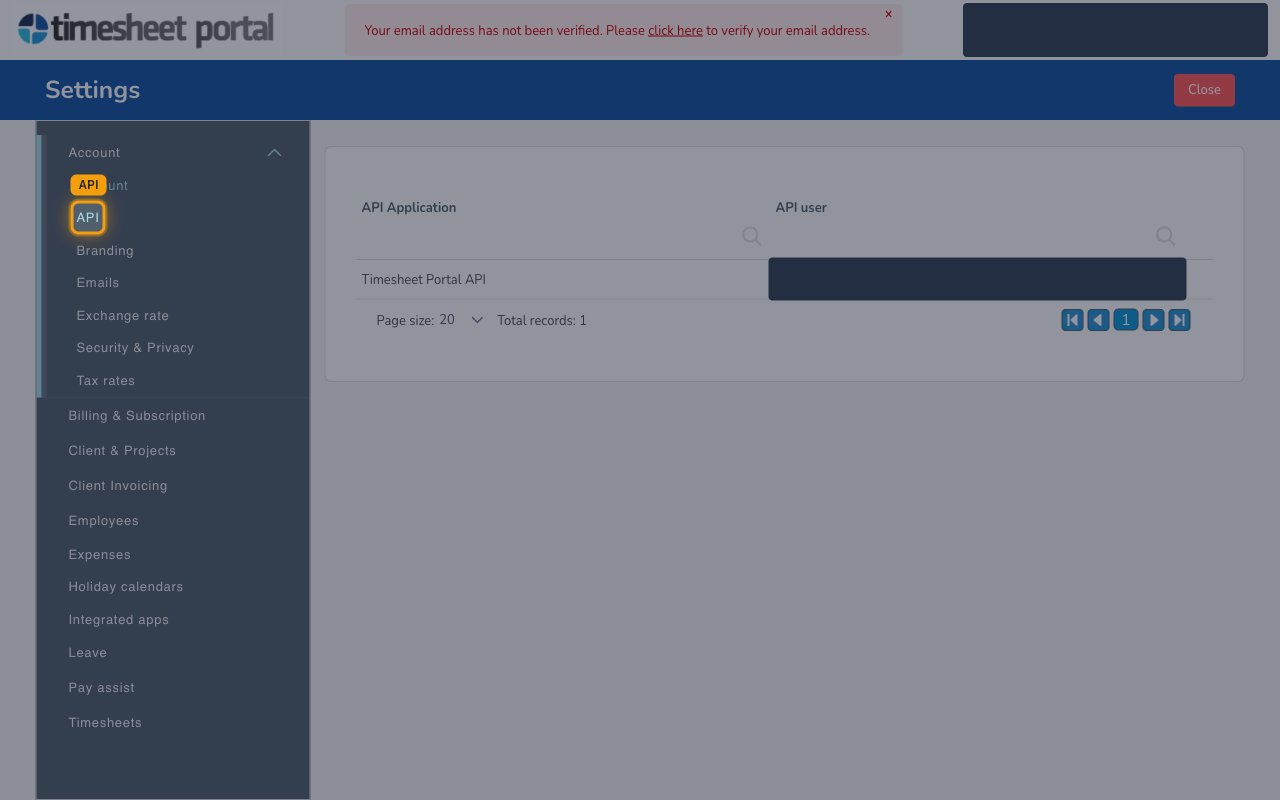
        <p>The <strong>Email</strong> and <strong>Password</strong> must belong to a Timesheet Portal user with the<br />System Administrator role that is authorised for API access. Under <strong>Settings</strong> →<br /><strong>Account</strong> → <strong>API</strong>, the <strong>Timesheet Portal API</strong> application lists its assigned<br /><strong>API user</strong> — that is the user whose credentials to enter.</p>

        <ul>
          <li>Enter that user's login email into the <strong>Email</strong> field in StackOne Hub.</li>
          <li>Enter that user's password into the <strong>Password</strong> field in StackOne Hub. It is used only to obtain a session API token.</li>
        </ul>

        <img src="https://mintcdn.com/stackone-60/FbKaoa1QOGXf0VB2/connectors/timesheetportal/images/custom-config-api-access.png?fit=max&auto=format&n=FbKaoa1QOGXf0VB2&q=85&s=1e3b2fa73ad8937e2037a51eed710e89" alt="Settings panel with the Account section expanded and API selected, showing the Timesheet Portal API application and its assigned API user." width="1280" height="800" data-path="connectors/timesheetportal/images/custom-config-api-access.png" />
      </div>
    </Step>
  </Steps>
</section>

<div data-whitelabel-hide>
  <h2>Linking the Account from the Hub</h2>

  <Steps>
    <Step title="Navigate to the Hub">
      Use one of the three <a href="/guides/accounts-section#linking-accounts">Linking Account Methods</a> to access the Hub.
    </Step>

    <Step title="Fill out the fields">
      Fill out the following fields using details from your provider:

      <ul>
        <li><strong>Account Name</strong></li>
        <li><strong>Email</strong></li>
        <li><strong>Password</strong></li>
      </ul>
    </Step>

    <Step title="Connect">
      <ul>
        <li>Click <strong>Connect</strong></li>
        <li>If applicable, the provider will redirect you to a sign-in or authorization page. Complete the provider's authorization flow.</li>
        <li>Once authorization is successful, you will see a confirmation popup</li>
      </ul>
    </Step>
  </Steps>

  <p>If the account linking is successful, you will see the newly linked account in your <a href="/guides/accounts-section">Accounts</a> page.</p>
</div>