> ## Documentation Index
> Fetch the complete documentation index at: https://docs.stackone.com/llms.txt
> Use this file to discover all available pages before exploring further.

# Telegram Webhook Setup Guide

> Configure Telegram to deliver events to StackOne.

## Prerequisites

The connector should already be set up, with a Connector Profile and a Linked Account. See [Getting Started](/connectors/telegram#getting-started) on the Telegram connector page.

<section data-guide-section data-guide-scopes="">
  <h2>How StackOne manages the webhook</h2>

  <p>StackOne creates and manages the Telegram webhook automatically using the bot's token. When events are enabled on the linked account, StackOne calls setWebhook with the events you selected, and it removes the webhook when the account is disconnected. No webhook setup is needed in Telegram.</p>

  <ul>
    <li>Only the events selected in StackOne are delivered. Changing the selection re-registers the webhook with the new event list.</li>
    <li>The webhook covers every chat the bot is a member of.</li>
    <li>The linked account's <strong>Native Webhook URL</strong> field shows the URL StackOne registers with Telegram. You don't need to copy it anywhere.</li>
    <li>Some events are only sent when the bot has certain features or permissions turned on. The sections below show how to turn them on.</li>
  </ul>
</section>

<section data-guide-section data-guide-scopes="">
  <h2>Turn on bot features for optional events</h2>

  <p>Inline queries, guest messages and managed bots are off by default. Turn them on in the BotFather Mini App only if you want those events.</p>

  <Steps>
    <Step title="Open the BotFather Mini App">
      <div data-guide-step data-guide-scopes="" data-guide-display-scopes-list="">
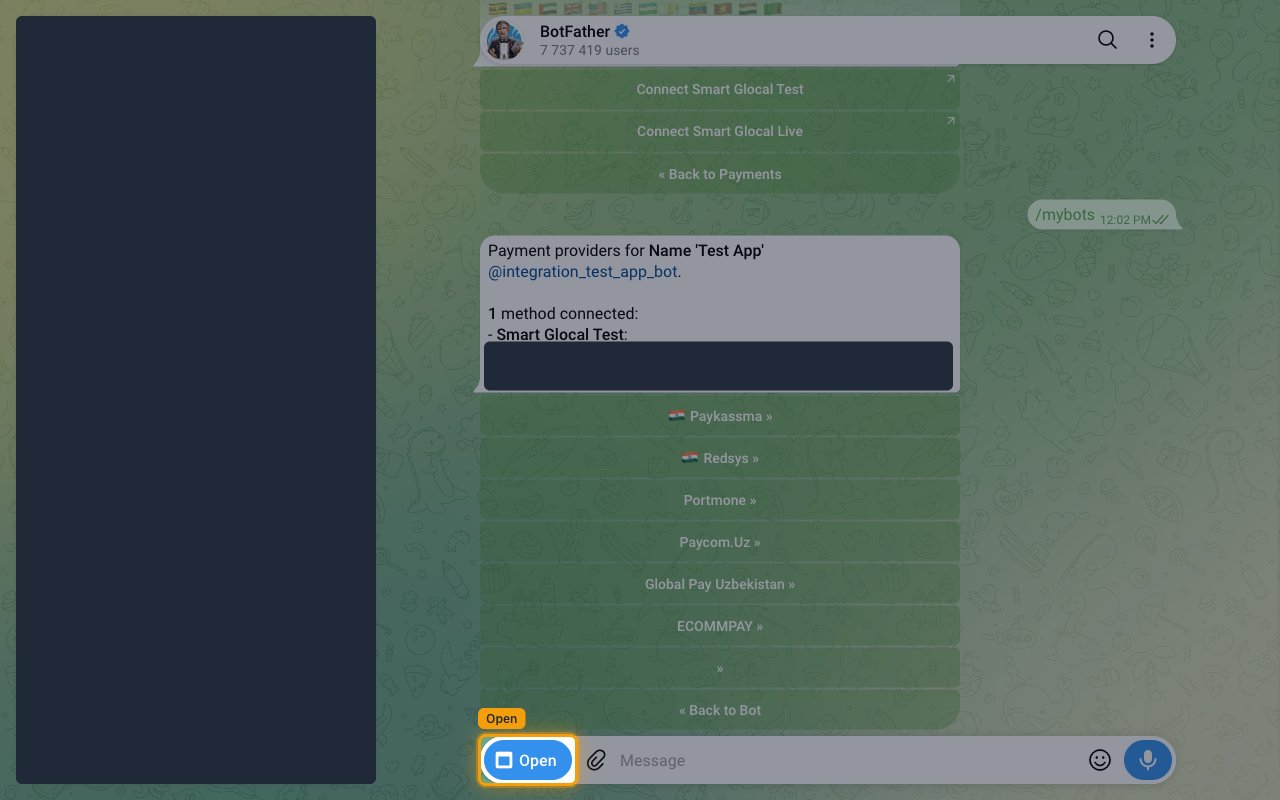
        <p>In Telegram, open the chat with <a href="https://t.me/botfather" target="_blank" rel="noopener noreferrer">BotFather</a> and click <strong>Open</strong> next to the message field.</p>

        <ul>
          <li>If Telegram asks to launch the web app, confirm it.</li>
        </ul>

        <img src="https://mintcdn.com/stackone-60/YBnpj5NvpMH8PRGp/connectors/telegram/images/events-open-botfather-mini-app.png?fit=max&auto=format&n=YBnpj5NvpMH8PRGp&q=85&s=eeb62a1b00d280b172baa9d2b46f2156" alt="BotFather chat in Telegram Web with the Open button highlighted." width="1280" height="800" data-path="connectors/telegram/images/events-open-botfather-mini-app.png" />
      </div>
    </Step>

    <Step title="Select your bot">
      <div data-guide-step data-guide-scopes="" data-guide-display-scopes-list="">
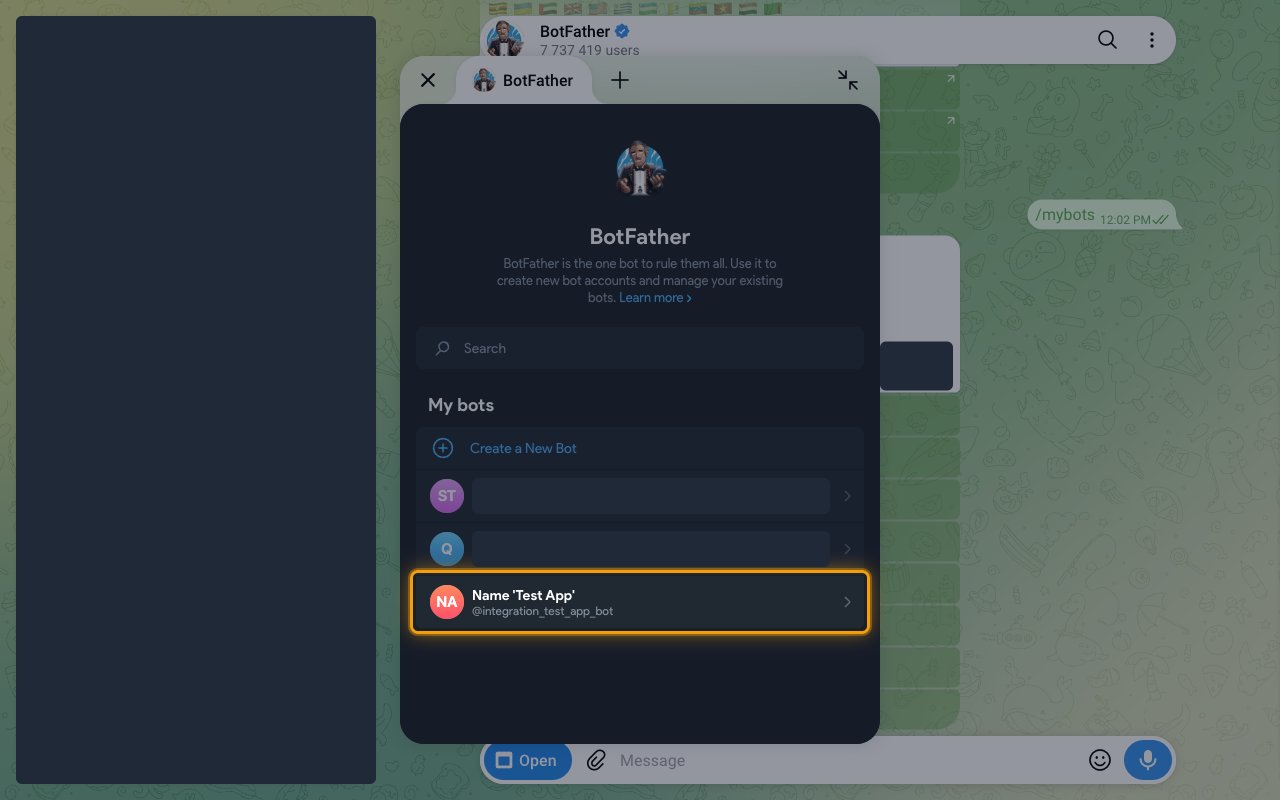
        <p>Under <strong>My bots</strong>, click the bot connected to StackOne.</p>

        <img src="https://mintcdn.com/stackone-60/YBnpj5NvpMH8PRGp/connectors/telegram/images/events-select-bot.png?fit=max&auto=format&n=YBnpj5NvpMH8PRGp&q=85&s=b965585c2bff4d3af38fc0ab26a437fc" alt="BotFather Mini App bot list with the connected bot highlighted under My bots." width="1280" height="800" data-path="connectors/telegram/images/events-select-bot.png" />
      </div>
    </Step>

    <Step title="Open Bot Settings">
      <div data-guide-step data-guide-scopes="" data-guide-display-scopes-list="">
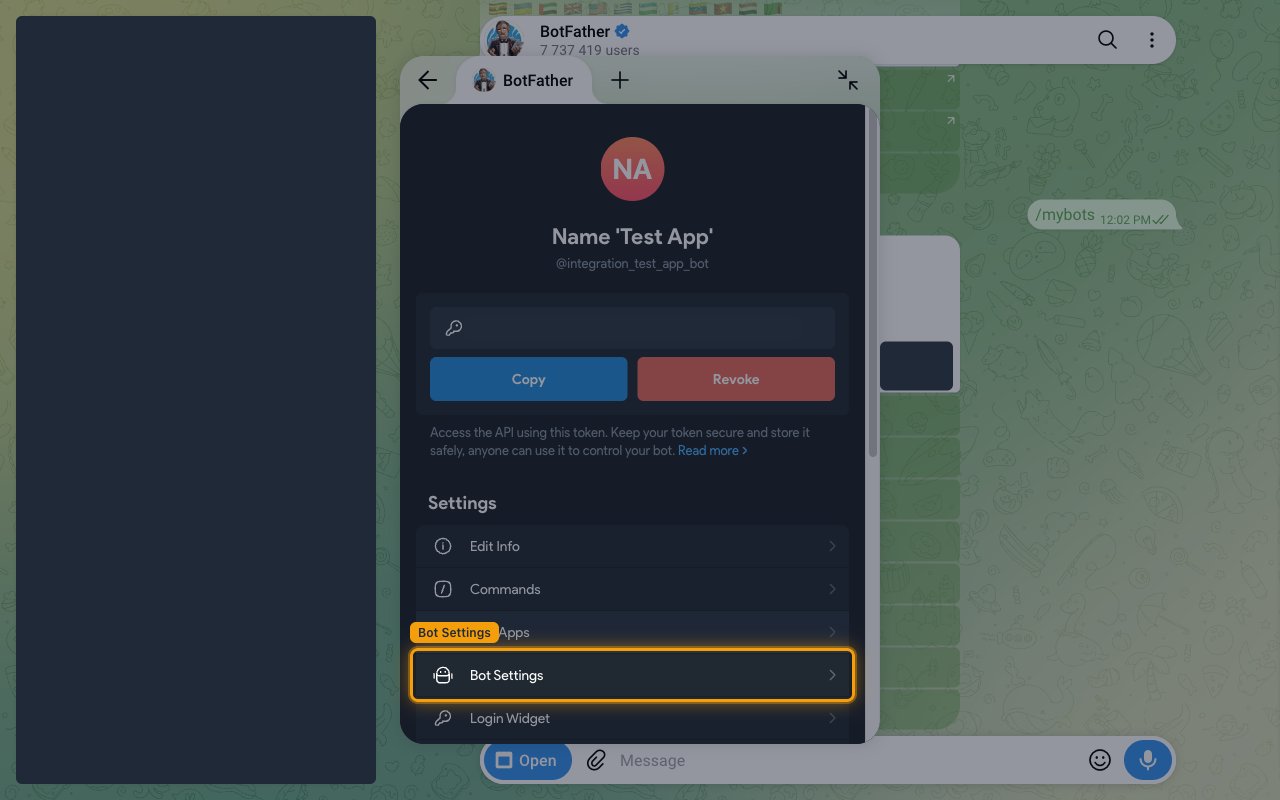
        <p>On the bot's page, click <strong>Bot Settings</strong> in the <strong>Settings</strong> list.</p>

        <ul>
          <li>The bot token shown at the top of this page grants full control of the bot. Don't share it.</li>
        </ul>

        <img src="https://mintcdn.com/stackone-60/YBnpj5NvpMH8PRGp/connectors/telegram/images/events-open-bot-settings.png?fit=max&auto=format&n=YBnpj5NvpMH8PRGp&q=85&s=6ea5ea3a7875b5a83af1c2b3207b15fa" alt="Bot page in the BotFather Mini App with the Bot Settings row highlighted and the token hidden." width="1280" height="800" data-path="connectors/telegram/images/events-open-bot-settings.png" />
      </div>
    </Step>

    <Step title="Turn on the modes the events need">
      <div data-guide-step data-guide-scopes="" data-guide-display-scopes-list="">
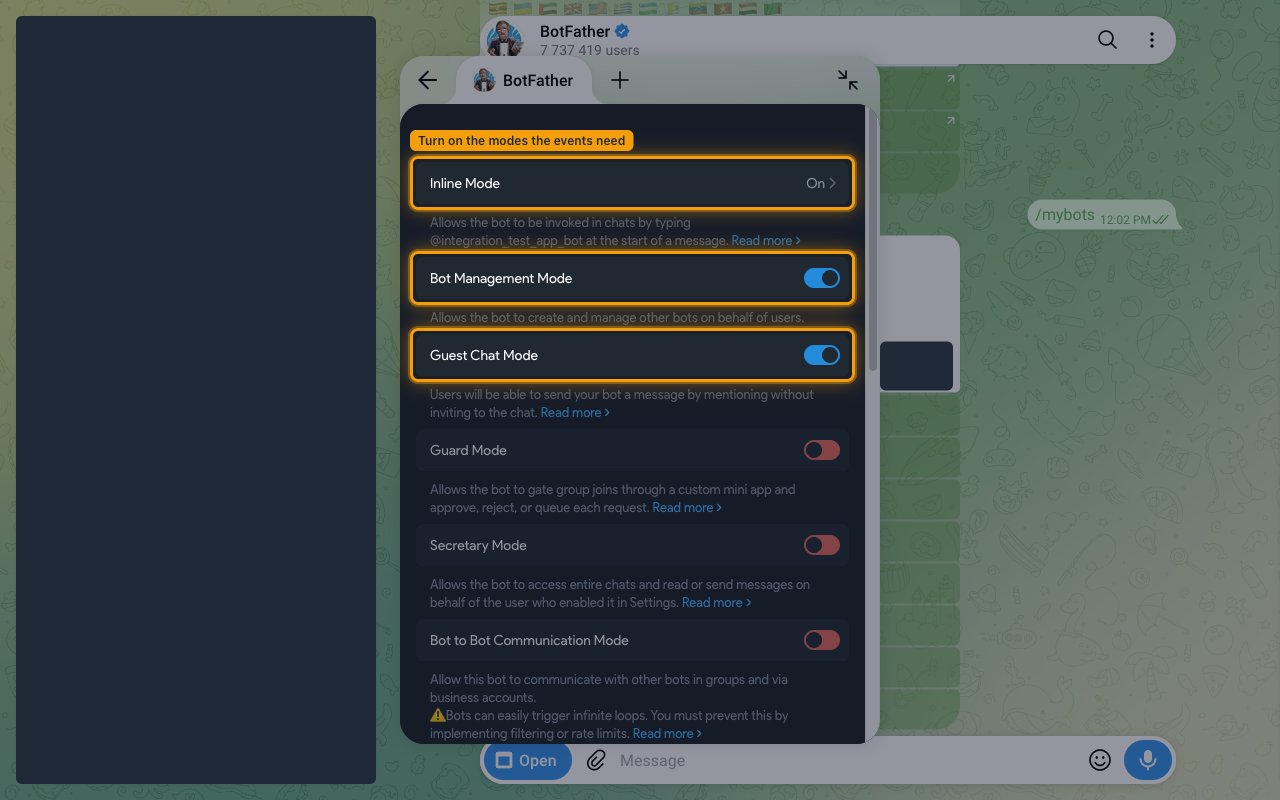
        <p>Under <strong>Mode Settings</strong>, turn on only the modes for the events you plan to use.</p>

        <ul>
          <li><strong>Inline Mode</strong> — required for `inline_query` and `chosen_inline_result`. Open it and turn inline mode on.</li>
          <li><strong>Bot Management Mode</strong> — required for `managed_bot`.</li>
          <li><strong>Guest Chat Mode</strong> — required for `guest_message`.</li>
        </ul>

        <img src="https://mintcdn.com/stackone-60/YBnpj5NvpMH8PRGp/connectors/telegram/images/events-enable-bot-modes.png?fit=max&auto=format&n=YBnpj5NvpMH8PRGp&q=85&s=63e110e746a56853eea6718993f32db0" alt="Mode Settings with the Inline Mode, Bot Management Mode and Guest Chat Mode rows highlighted." width="1280" height="800" data-path="connectors/telegram/images/events-enable-bot-modes.png" />
      </div>
    </Step>

    <Step title="Check the group settings">
      <div data-guide-step data-guide-scopes="" data-guide-display-scopes-list="">
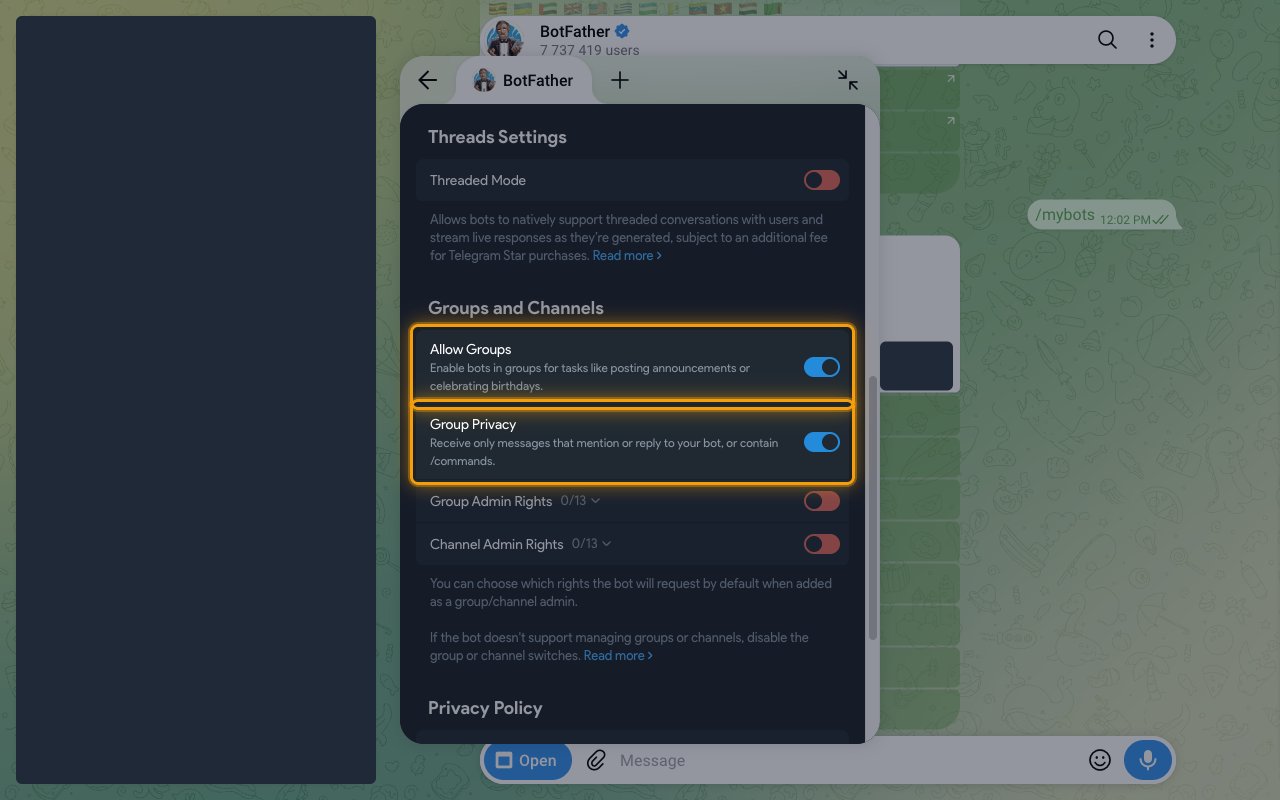
        <p>Scroll to <strong>Groups and Channels</strong>. Keep <strong>Allow Groups</strong> on so the bot can be added to groups.</p>

        <ul>
          <li>With <strong>Group Privacy</strong> on, the bot only receives group messages that mention it, reply to it or contain a command. Turn it off to receive every group message as a `message` event.</li>
        </ul>

        <img src="https://mintcdn.com/stackone-60/YBnpj5NvpMH8PRGp/connectors/telegram/images/events-group-privacy.png?fit=max&auto=format&n=YBnpj5NvpMH8PRGp&q=85&s=07e081524d08005e0193df04aed5e4d6" alt="Groups and Channels settings with the Allow Groups and Group Privacy rows highlighted." width="1280" height="800" data-path="connectors/telegram/images/events-group-privacy.png" />
      </div>
    </Step>
  </Steps>
</section>

<section data-guide-section data-guide-scopes="">
  <h2>Make the bot a chat administrator</h2>

  <p>Telegram only sends reaction, member, boost and channel events for chats where the bot is an administrator.</p>

  <ul>
    <li>Needs admin in the chat: `message_reaction`, `message_reaction_count`, `chat_member`, `chat_boost`, `removed_chat_boost`, `channel_post` and `edited_channel_post`</li>
    <li>Needs the invite users right: `chat_join_request`</li>
  </ul>

  <Steps>
    <Step title="Open the group's administrators">
      <div data-guide-step data-guide-scopes="" data-guide-display-scopes-list="">
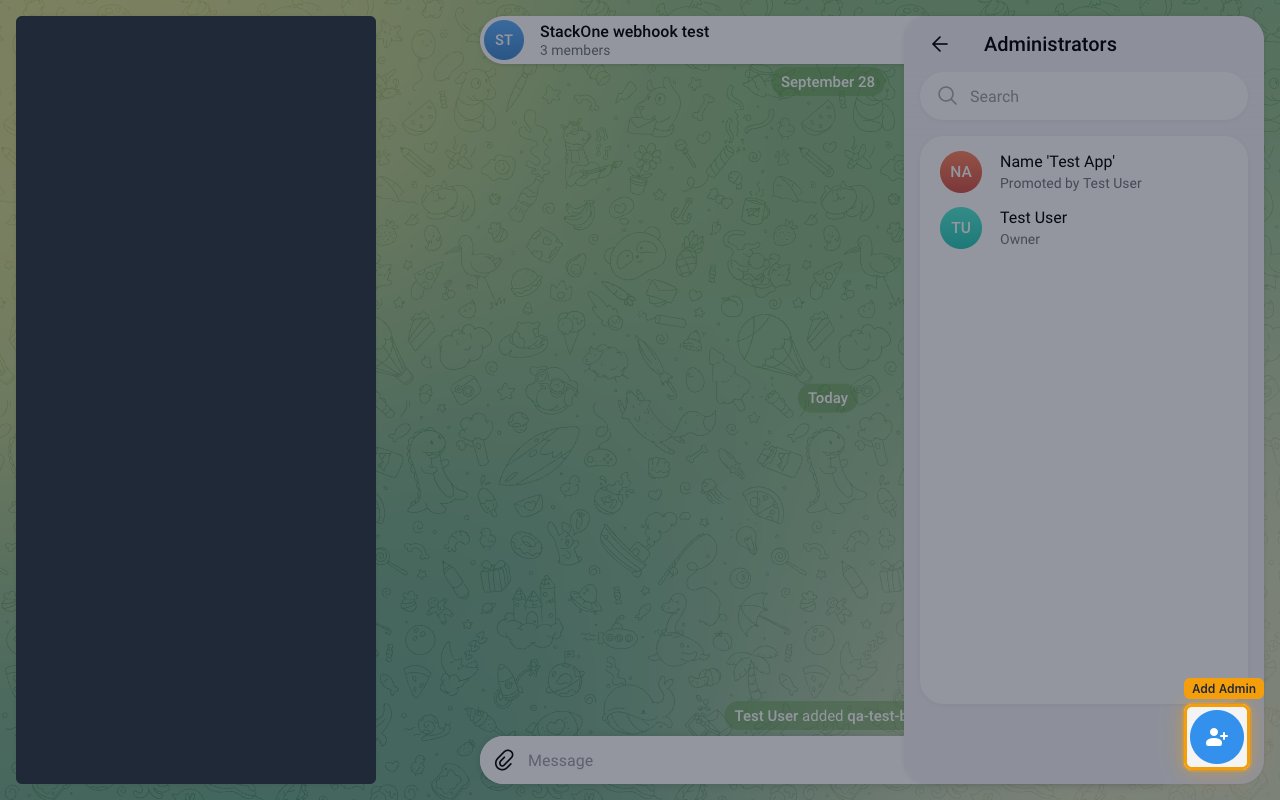
        <p>Open the group, click its name at the top, then click the pencil icon to edit the group.</p>

        <ul>
          <li>Click <strong>Administrators</strong>.</li>
          <li>Click the add-admin button in the bottom corner and select your bot.</li>
        </ul>

        <img src="https://mintcdn.com/stackone-60/YBnpj5NvpMH8PRGp/connectors/telegram/images/events-add-group-admin.png?fit=max&auto=format&n=YBnpj5NvpMH8PRGp&q=85&s=a2b8e0a77666edd124dc08a7ffb99d8d" alt="Group Administrators panel in Telegram Web with the add-admin button highlighted." width="1280" height="800" data-path="connectors/telegram/images/events-add-group-admin.png" />
      </div>
    </Step>

    <Step title="Grant the admin rights">
      <div data-guide-step data-guide-scopes="" data-guide-display-scopes-list="">
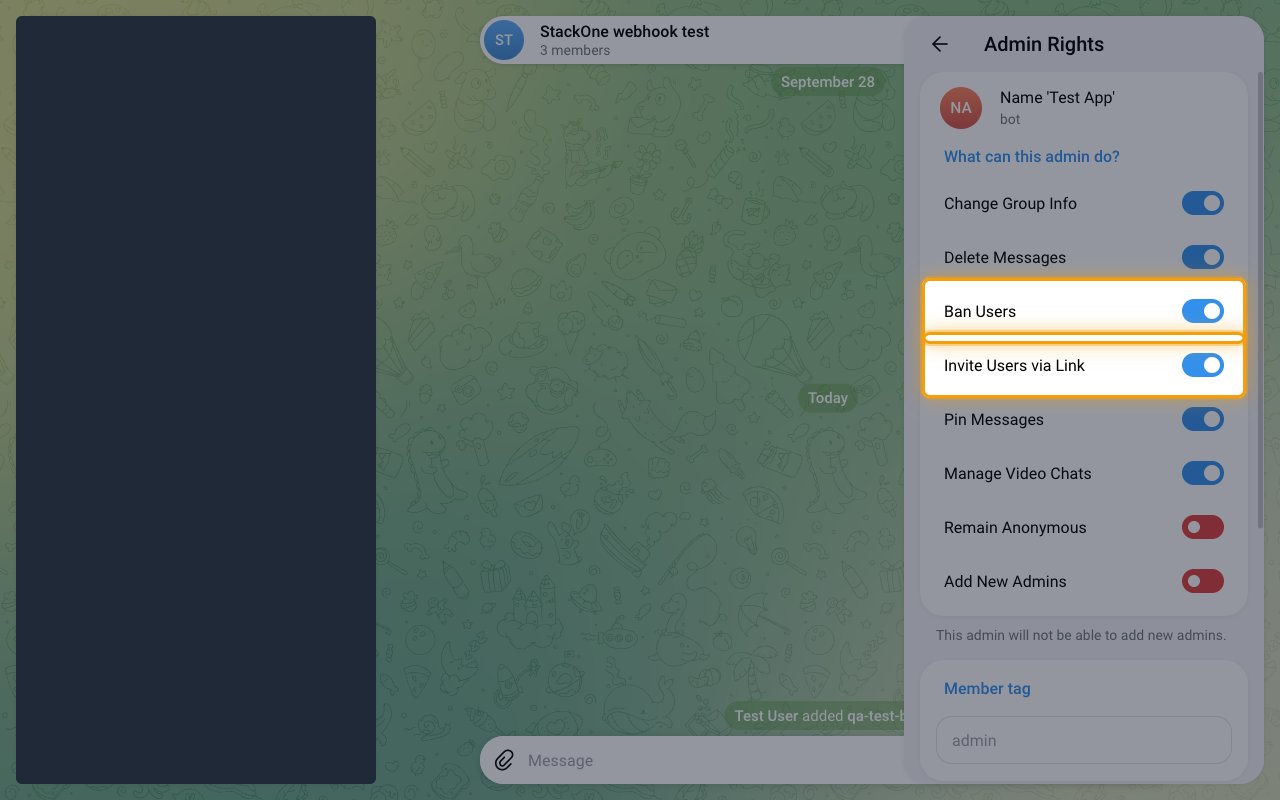
        <p>Under <strong>What can this admin do?</strong>, keep the default rights on and confirm with the check mark at the top.</p>

        <ul>
          <li>Keep <strong>Ban Users</strong> on to receive `chat_member` updates when members are restricted or removed.</li>
          <li>Keep <strong>Invite Users via Link</strong> on to receive `chat_join_request` events.</li>
        </ul>

        <img src="https://mintcdn.com/stackone-60/YBnpj5NvpMH8PRGp/connectors/telegram/images/events-group-admin-rights.png?fit=max&auto=format&n=YBnpj5NvpMH8PRGp&q=85&s=61fc270157e8f5d058737c12f8033676" alt="Admin Rights for the bot with the Ban Users and Invite Users via Link rows highlighted." width="1280" height="800" data-path="connectors/telegram/images/events-group-admin-rights.png" />
      </div>
    </Step>

    <Step title="Add the bot to a channel">
      <div data-guide-step data-guide-scopes="" data-guide-display-scopes-list="">
        <p>Telegram Web can't add a bot to a channel. Use the Telegram mobile or desktop app instead.</p>

        <ul>
          <li>Open the channel, tap its name, then tap Edit.</li>
          <li>Tap <strong>Administrators</strong>, then Add Admin, and select your bot.</li>
        </ul>
      </div>
    </Step>
  </Steps>
</section>

<section data-guide-section data-guide-scopes="">
  <h2>Available webhook events</h2>

  <p>The following Telegram updates can be enabled as events. Only events selected in StackOne are included in the webhook, so Telegram won't deliver the others.</p>

  <Steps>
    <Step title="Message events">
      <div data-guide-step data-guide-scopes="" data-guide-display-scopes-list="">
        <p>Events for messages sent to the bot in private chats and groups.</p>

        <ul>
          <li><strong>Message</strong> (`message`) — Fired when the bot receives a new message of any kind, such as text, a photo or a document</li>
          <li><strong>Edited Message</strong> (`edited_message`) — Fired when a message known to the bot is edited</li>
          <li><strong>Guest Message</strong> (`guest_message`) — Fired when someone mentions the bot in a chat it isn't a member of (Guest Chat Mode)</li>
          <li><strong>Stopped Message Generation</strong> (`stopped_message_generation`) — Fired when a user taps Stop on a draft the bot is streaming</li>
        </ul>
      </div>
    </Step>

    <Step title="Channel events">
      <div data-guide-step data-guide-scopes="" data-guide-display-scopes-list="">
        <p>Events for channels where the bot is an administrator.</p>

        <ul>
          <li><strong>Channel Post</strong> (`channel_post`) — Fired when a new post is published in the channel</li>
          <li><strong>Edited Channel Post</strong> (`edited_channel_post`) — Fired when a channel post is edited</li>
        </ul>
      </div>
    </Step>

    <Step title="Interaction events">
      <div data-guide-step data-guide-scopes="" data-guide-display-scopes-list="">
        <p>Events from buttons and inline mode.</p>

        <ul>
          <li><strong>Callback Query</strong> (`callback_query`) — Fired when a user presses an inline keyboard button on one of the bot's messages</li>
          <li><strong>Inline Query</strong> (`inline_query`) — Fired when a user types @botname followed by a query in any chat (Inline Mode)</li>
          <li><strong>Chosen Inline Result</strong> (`chosen_inline_result`) — Fired when a user picks one of the bot's inline results and sends it</li>
        </ul>
      </div>
    </Step>

    <Step title="Reaction events">
      <div data-guide-step data-guide-scopes="" data-guide-display-scopes-list="">
        <p>Events for reactions in chats where the bot is an administrator.</p>

        <ul>
          <li><strong>Message Reaction</strong> (`message_reaction`) — Fired when a user changes their reaction to a message</li>
          <li><strong>Message Reaction Count</strong> (`message_reaction_count`) — Fired when anonymous reaction counts on a message change</li>
        </ul>
      </div>
    </Step>

    <Step title="Poll events">
      <div data-guide-step data-guide-scopes="" data-guide-display-scopes-list="">
        <p>Events for polls.</p>

        <ul>
          <li><strong>Poll</strong> (`poll`) — Fired when a poll sent by the bot, or a poll that is manually stopped, changes state</li>
          <li><strong>Poll Answer</strong> (`poll_answer`) — Fired when a user votes or changes their vote in a non-anonymous poll sent by the bot</li>
        </ul>
      </div>
    </Step>

    <Step title="Member events">
      <div data-guide-step data-guide-scopes="" data-guide-display-scopes-list="">
        <p>Events for chat membership.</p>

        <ul>
          <li><strong>My Chat Member</strong> (`my_chat_member`) — Fired when the bot's own status changes, for example when it is added to a group, promoted, or blocked by a user</li>
          <li><strong>Chat Member</strong> (`chat_member`) — Fired when another member joins, leaves or is promoted, restricted or banned in a chat where the bot is an administrator</li>
          <li><strong>Chat Join Request</strong> (`chat_join_request`) — Fired when a user asks to join a chat through a join-request invite link</li>
        </ul>
      </div>
    </Step>

    <Step title="Boost events">
      <div data-guide-step data-guide-scopes="" data-guide-display-scopes-list="">
        <p>Events for chat boosts in chats where the bot is an administrator.</p>

        <ul>
          <li><strong>Chat Boost</strong> (`chat_boost`) — Fired when a boost is added or changed</li>
          <li><strong>Removed Chat Boost</strong> (`removed_chat_boost`) — Fired when a boost is removed</li>
        </ul>
      </div>
    </Step>

    <Step title="Payment events">
      <div data-guide-step data-guide-scopes="" data-guide-display-scopes-list="">
        <p>Events for invoices, paid media and subscriptions sent by the bot.</p>

        <ul>
          <li><strong>Shipping Query</strong> (`shipping_query`) — Fired when a user enters a shipping address for a flexible-price invoice</li>
          <li><strong>Pre-Checkout Query</strong> (`pre_checkout_query`) — Fired when a user confirms a payment. The bot must approve it within 10 seconds or Telegram cancels the payment</li>
          <li><strong>Purchased Paid Media</strong> (`purchased_paid_media`) — Fired when a user buys paid media the bot sent</li>
          <li><strong>Subscription</strong> (`subscription`) — Fired when a user's paid subscription to the bot changes</li>
        </ul>
      </div>
    </Step>

    <Step title="Telegram Business events">
      <div data-guide-step data-guide-scopes="" data-guide-display-scopes-list="">
        <p>Events for Telegram Business accounts connected to the bot.</p>

        <ul>
          <li><strong>Business Connection</strong> (`business_connection`) — Fired when the bot is connected to or disconnected from a business account</li>
          <li><strong>Business Message</strong> (`business_message`) — Fired when a connected business account receives a new message</li>
          <li><strong>Edited Business Message</strong> (`edited_business_message`) — Fired when a message in a connected business account is edited</li>
          <li><strong>Deleted Business Messages</strong> (`deleted_business_messages`) — Fired when messages are deleted from a connected business account</li>
        </ul>
      </div>
    </Step>

    <Step title="Managed bot events">
      <div data-guide-step data-guide-scopes="" data-guide-display-scopes-list="">
        <p>Events for bots created and managed by this bot.</p>

        <ul>
          <li><strong>Managed Bot</strong> (`managed_bot`) — Fired when a new bot is created to be managed by this bot, or a managed bot's token or owner changes (Bot Management Mode)</li>
        </ul>
      </div>
    </Step>
  </Steps>
</section>

<section data-guide-section data-guide-scopes="">
  <h2>Delivery format</h2>

  <p>Details of how Telegram delivers events to StackOne.</p>

  <Steps>
    <Step title="Check the payload format">
      <div data-guide-step data-guide-scopes="" data-guide-display-scopes-list="">
        <p>Each delivery is an HTTP POST with one Telegram Update. It contains `update_id` and exactly one update-type field, such as `message` or `callback_query`. StackOne identifies the event by which field is present and uses `update_id` as the event ID.</p>
      </div>
    </Step>

    <Step title="Verify the secret token">
      <div data-guide-step data-guide-scopes="" data-guide-display-scopes-list="">
        <p>StackOne registers a secret token with the webhook. Telegram sends it on every delivery in the `X-Telegram-Bot-Api-Secret-Token` header.</p>
      </div>
    </Step>

    <Step title="Handle retries and delays">
      <div data-guide-step data-guide-scopes="" data-guide-display-scopes-list="">
        <p>Telegram retries deliveries that don't receive a 2xx response.</p>

        <ul>
          <li>Message Reaction Count updates are grouped by Telegram and can arrive a few minutes late.</li>
        </ul>
      </div>
    </Step>
  </Steps>
</section>

## Verify

Your Connector should now be able to receive and process events. Try triggering an event and you should see an Event appear in the Connector logs.


This documentation is built and hosted on [Mintlify](https://mintlify.com), a developer documentation platform.