> ## Documentation Index
> Fetch the complete documentation index at: https://docs.stackone.com/llms.txt
> Use this file to discover all available pages before exploring further.

# Swagger Webhook Setup Guide

> Configure Swagger to deliver events to StackOne.

## Prerequisites

The connector should already be set up, with a Connector Profile and a Linked Account. See [Getting Started](/connectors/swagger#getting-started) on the Swagger connector page.

<section data-guide-section data-guide-scopes="">
  <h2>Copy your Native Webhook URL</h2>

  <p>The Native Webhook URL is the endpoint SwaggerHub posts events to. It is generated per connection and shown on the connected account.</p>

  <Steps>
    <Step title="Copy the Native Webhook URL from StackOne">
      <div data-guide-step data-guide-scopes="" data-guide-display-scopes-list="">
        <p>Open the connected Swagger account in StackOne Hub and copy the read-only <strong>Native Webhook URL</strong> value. It is only available after the account has been connected.</p>
      </div>
    </Step>
  </Steps>
</section>

<section data-guide-section data-guide-scopes="">
  <h2>Add the webhook to an API in SwaggerHub</h2>

  <p>Webhooks are configured per API version from the API's Integrations tab.</p>

  <Steps>
    <Step title="Sign in to Swagger">
      <div data-guide-step data-guide-scopes="" data-guide-display-scopes-list="">
        <p>Sign in to your <a href="https://app.swaggerhub.com" target="_blank" rel="noopener noreferrer">Swagger account</a> with your SmartBear ID.</p>
      </div>
    </Step>

    <Step title="Open the API Integrations tab">
      <div data-guide-step data-guide-scopes="" data-guide-display-scopes-list="">
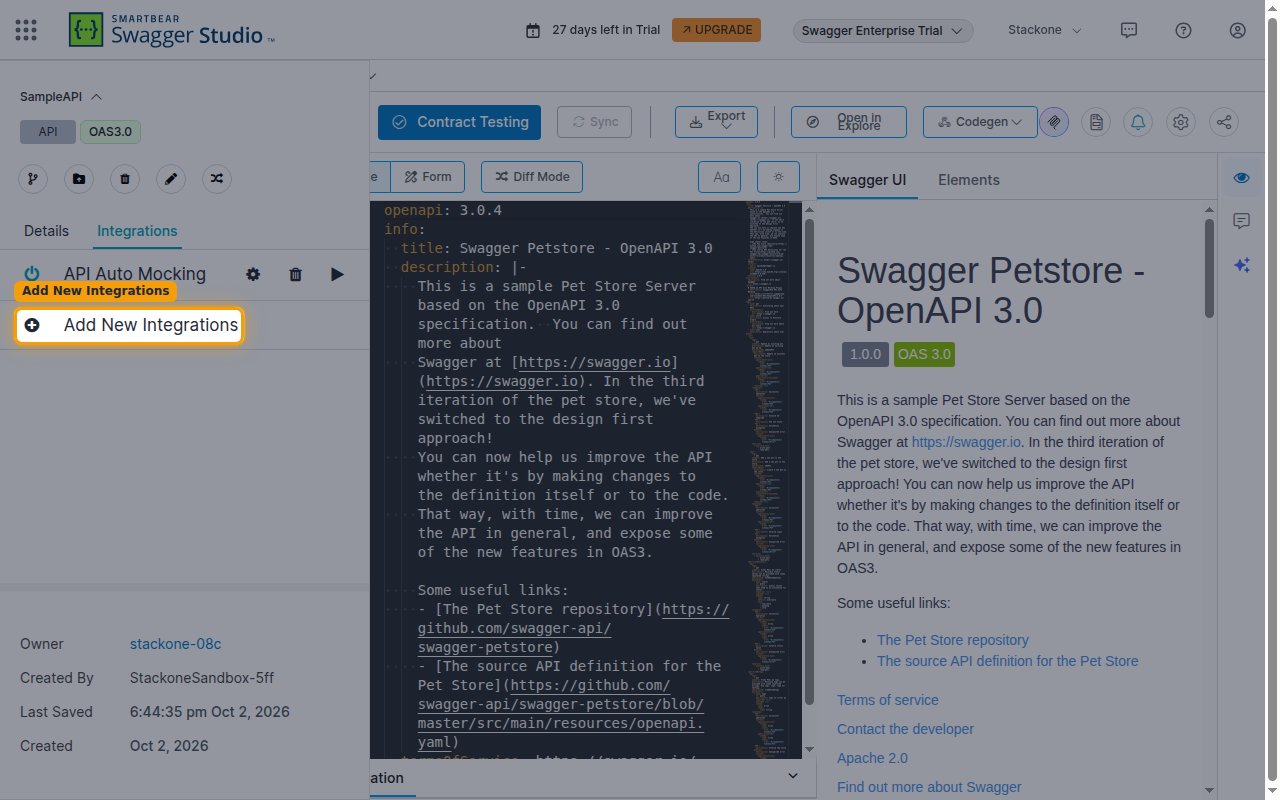
        <p>Open the API (and version) you want to monitor in Swagger Studio. Click the <strong>API name</strong> at the top-left to open the API panel, then select the <strong>Integrations</strong> tab and click <strong>Add New Integrations</strong>.</p>

        <img src="https://mintcdn.com/stackone-60/vsVM8R8x5WJyfF9u/connectors/swagger/images/events-integrations-tab.png?fit=max&auto=format&n=vsVM8R8x5WJyfF9u&q=85&s=cd6594a600e0e72b8aca609998206483" alt="The API panel Integrations tab with the Add New Integrations button highlighted" width="1280" height="800" data-path="connectors/swagger/images/events-integrations-tab.png" />
      </div>
    </Step>

    <Step title="Choose Webhook">
      <div data-guide-step data-guide-scopes="" data-guide-display-scopes-list="">
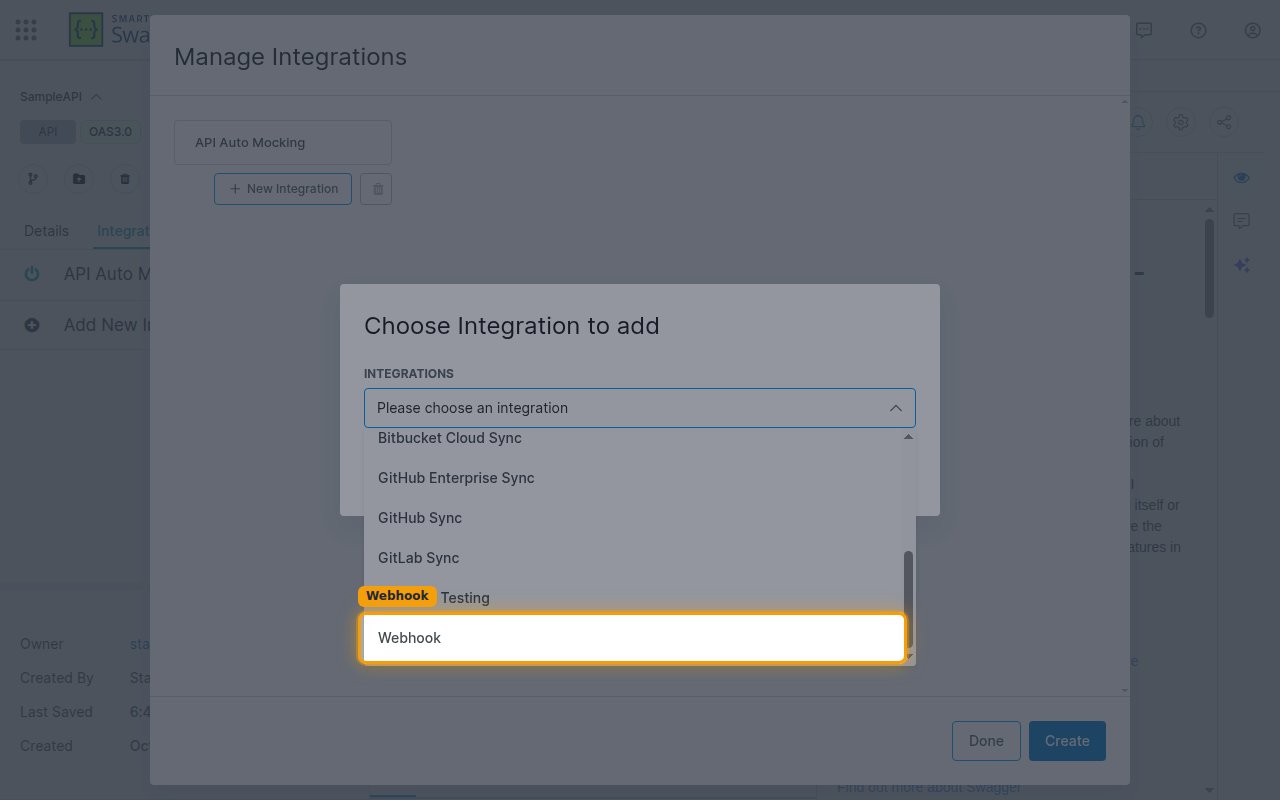
        <p>In the <strong>Choose Integration to add</strong> dialog, open the <strong>Choose integration</strong> dropdown, select <strong>Webhook</strong>, and click <strong>Add</strong>.</p>

        <img src="https://mintcdn.com/stackone-60/vsVM8R8x5WJyfF9u/connectors/swagger/images/events-choose-webhook.png?fit=max&auto=format&n=vsVM8R8x5WJyfF9u&q=85&s=ee7585c79b485f2cc2876aef4d5fba2e" alt="The Choose Integration to add dialog with Webhook selected in the integration dropdown" width="1280" height="800" data-path="connectors/swagger/images/events-choose-webhook.png" />
      </div>
    </Step>

    <Step title="Fill in the webhook form">
      <div data-guide-step data-guide-scopes="" data-guide-display-scopes-list="">
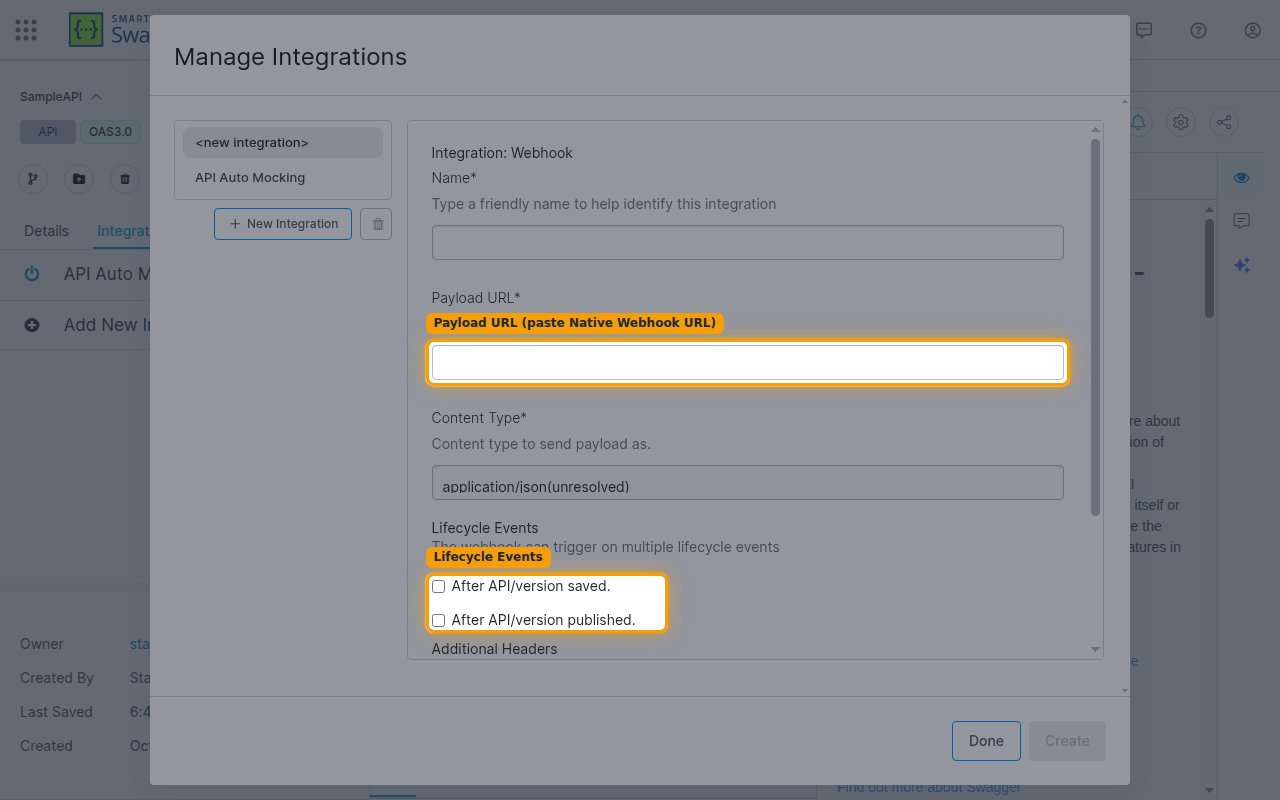
        <p>In the <strong>Integration: Webhook</strong> form, enter a <strong>Name</strong>, then in the <strong>Payload URL</strong> field paste the <strong>Native Webhook URL</strong> you copied from StackOne. Set <strong>Content Type</strong> to <strong>application/json(unresolved)</strong> (or <strong>application/json(resolved)</strong> to resolve `$ref`s in the delivered definition).</p>

        <ul>
          <li>Under <strong>Lifecycle Events</strong>, tick <strong>After API/version saved.</strong> and <strong>After API/version published.</strong> to receive both events.</li>
          <li>Leave <strong>Enabled</strong> checked.</li>
        </ul>

        <img src="https://mintcdn.com/stackone-60/vsVM8R8x5WJyfF9u/connectors/swagger/images/events-webhook-form.png?fit=max&auto=format&n=vsVM8R8x5WJyfF9u&q=85&s=822f4087dd1130320a88b2461eb6d075" alt="The Integration Webhook form showing the Payload URL field and the Lifecycle Events checkboxes" width="1280" height="800" data-path="connectors/swagger/images/events-webhook-form.png" />
      </div>
    </Step>

    <Step title="Create the webhook">
      <div data-guide-step data-guide-scopes="" data-guide-display-scopes-list="">
        <p>Click <strong>Create</strong>, then <strong>Done</strong>. SwaggerHub will POST to the Payload URL after the API version is saved and after it is published.</p>
      </div>
    </Step>
  </Steps>
</section>

<section data-guide-section data-guide-scopes="">
  <h2>Available webhook events</h2>

  <p>Under <strong>Lifecycle Events</strong> on the webhook form you choose which API-version events to receive (tick both to get everything).</p>

  <Steps>
    <Step title="API lifecycle events">
      <div data-guide-step data-guide-scopes="" data-guide-display-scopes-list="">
        <p>Events fired for the API version the webhook is attached to.</p>

        <ul>
          <li><strong>API Version Saved</strong> (`after_api_version_saved`) — Fired after an API version is created or saved (the definition changed).</li>
          <li><strong>API Version Published</strong> (`after_api_version_published`) — Fired after an API version is published.</li>
        </ul>
      </div>
    </Step>
  </Steps>
</section>

<section data-guide-section data-guide-scopes="">
  <h2>Delivery format</h2>

  <p>Details of how SwaggerHub delivers events to StackOne.</p>

  <Steps>
    <Step title="Single JSON object">
      <div data-guide-step data-guide-scopes="" data-guide-display-scopes-list="">
        <p>Each delivery is a single JSON object (not batched) containing `path` (the API resource path, e.g. `/apis/{owner}/{api}/{version}`), `action` (the lifecycle event), and `definition` (the full API definition). There is no signature header and no timestamp in the payload.</p>
      </div>
    </Step>
  </Steps>
</section>

## Verify

Your Connector should now be able to receive and process events. Try triggering an event and you should see an Event appear in the Connector logs.


This documentation is built and hosted on [Mintlify](https://mintlify.com), a developer documentation platform.