> ## Documentation Index
> Fetch the complete documentation index at: https://docs.stackone.com/llms.txt
> Use this file to discover all available pages before exploring further.

# Squarespace OAuth 2.0 connector profile – StackOne setup guide

> Set up the OAuth 2.0 connector profile for Squarespace in StackOne. One-time admin setup required before your users can link Squarespace accounts via Hub.

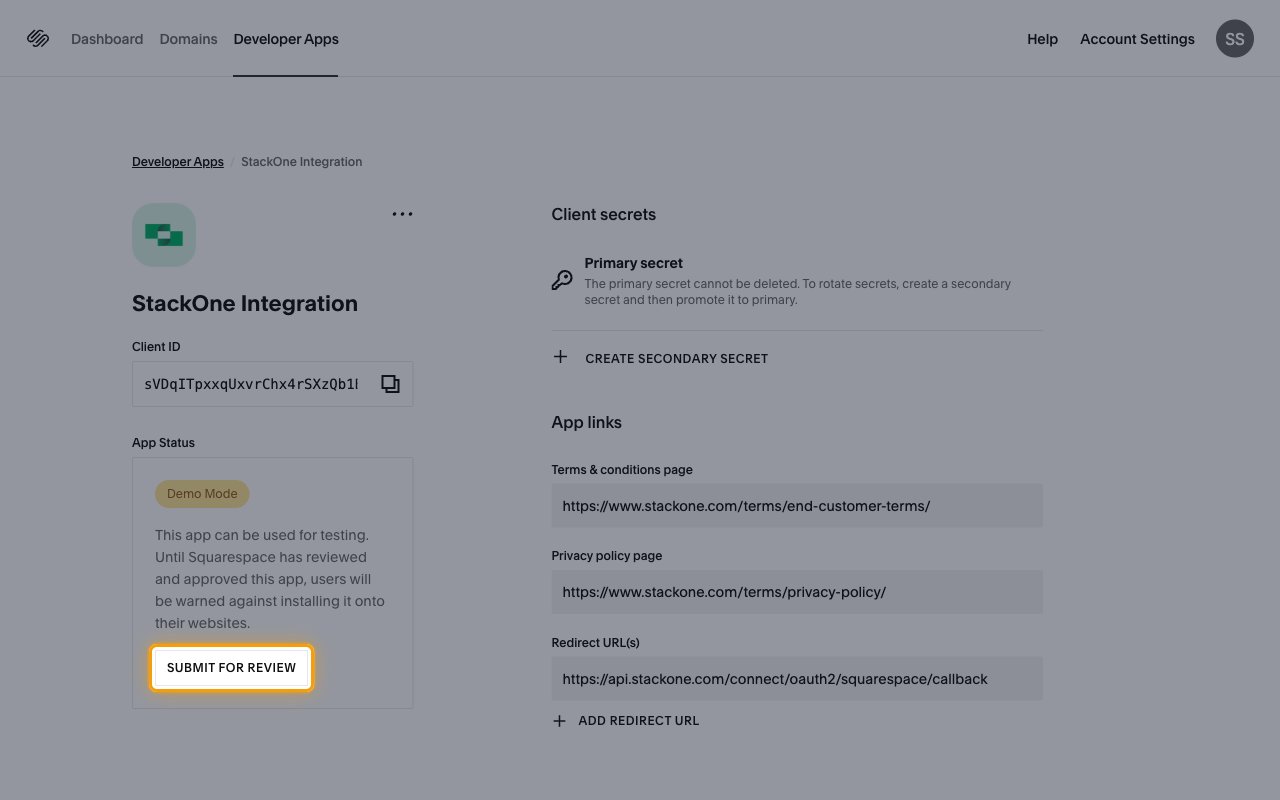
<Warning>New Squarespace developer apps start in Demo Mode. They work for testing right away, but Squarespace warns users against installing them until you submit the app for review and Squarespace approves it.</Warning>

<Panel>
  <div className="not-prose guides-scope-selector" data-guides-scope-selector data-guide-actions-json="[{&#x22;id&#x22;:&#x22;squarespace_list_inventory&#x22;,&#x22;label&#x22;:&#x22;List Inventory&#x22;,&#x22;scopes&#x22;:[&#x22;inventory.read&#x22;,&#x22;website.inventory.read&#x22;]},{&#x22;id&#x22;:&#x22;squarespace_get_inventory&#x22;,&#x22;label&#x22;:&#x22;Get Inventory&#x22;,&#x22;scopes&#x22;:[&#x22;inventory.read&#x22;,&#x22;website.inventory.read&#x22;]},{&#x22;id&#x22;:&#x22;squarespace_adjust_inventory&#x22;,&#x22;label&#x22;:&#x22;Adjust Stock Quantities&#x22;,&#x22;scopes&#x22;:[&#x22;inventory&#x22;,&#x22;website.inventory&#x22;]},{&#x22;id&#x22;:&#x22;squarespace_list_orders&#x22;,&#x22;label&#x22;:&#x22;List Orders&#x22;,&#x22;scopes&#x22;:[&#x22;orders.read&#x22;,&#x22;website.orders.read&#x22;]},{&#x22;id&#x22;:&#x22;squarespace_get_order&#x22;,&#x22;label&#x22;:&#x22;Get Order&#x22;,&#x22;scopes&#x22;:[&#x22;orders.read&#x22;,&#x22;website.orders.read&#x22;]},{&#x22;id&#x22;:&#x22;squarespace_create_order&#x22;,&#x22;label&#x22;:&#x22;Create Order&#x22;,&#x22;scopes&#x22;:[&#x22;orders&#x22;,&#x22;website.orders&#x22;]},{&#x22;id&#x22;:&#x22;squarespace_fulfill_order&#x22;,&#x22;label&#x22;:&#x22;Fulfill Order&#x22;,&#x22;scopes&#x22;:[&#x22;orders&#x22;,&#x22;website.orders&#x22;]},{&#x22;id&#x22;:&#x22;squarespace_list_products&#x22;,&#x22;label&#x22;:&#x22;List Products&#x22;,&#x22;scopes&#x22;:[&#x22;products.read&#x22;,&#x22;website.products.read&#x22;]},{&#x22;id&#x22;:&#x22;squarespace_get_product&#x22;,&#x22;label&#x22;:&#x22;Get Product&#x22;,&#x22;scopes&#x22;:[&#x22;products.read&#x22;,&#x22;website.products.read&#x22;]},{&#x22;id&#x22;:&#x22;squarespace_create_product&#x22;,&#x22;label&#x22;:&#x22;Create Product&#x22;,&#x22;scopes&#x22;:[&#x22;products&#x22;,&#x22;website.products&#x22;]},{&#x22;id&#x22;:&#x22;squarespace_update_product&#x22;,&#x22;label&#x22;:&#x22;Update Product&#x22;,&#x22;scopes&#x22;:[&#x22;products&#x22;,&#x22;website.products&#x22;]},{&#x22;id&#x22;:&#x22;squarespace_delete_product&#x22;,&#x22;label&#x22;:&#x22;Delete Product&#x22;,&#x22;scopes&#x22;:[&#x22;products&#x22;,&#x22;website.products&#x22;]},{&#x22;id&#x22;:&#x22;squarespace_create_product_variant&#x22;,&#x22;label&#x22;:&#x22;Create Product Variant&#x22;,&#x22;scopes&#x22;:[&#x22;products&#x22;,&#x22;website.products&#x22;]},{&#x22;id&#x22;:&#x22;squarespace_update_product_variant&#x22;,&#x22;label&#x22;:&#x22;Update Product Variant&#x22;,&#x22;scopes&#x22;:[&#x22;products&#x22;,&#x22;website.products&#x22;]},{&#x22;id&#x22;:&#x22;squarespace_delete_product_variant&#x22;,&#x22;label&#x22;:&#x22;Delete Product Variant&#x22;,&#x22;scopes&#x22;:[&#x22;products&#x22;,&#x22;website.products&#x22;]},{&#x22;id&#x22;:&#x22;squarespace_upload_product_image&#x22;,&#x22;label&#x22;:&#x22;Upload Product Image&#x22;,&#x22;scopes&#x22;:[&#x22;products&#x22;,&#x22;website.products&#x22;]},{&#x22;id&#x22;:&#x22;squarespace_get_product_image_status&#x22;,&#x22;label&#x22;:&#x22;Get Product Image Upload Status&#x22;,&#x22;scopes&#x22;:[&#x22;products.read&#x22;,&#x22;website.products.read&#x22;]},{&#x22;id&#x22;:&#x22;squarespace_update_product_image&#x22;,&#x22;label&#x22;:&#x22;Update Product Image&#x22;,&#x22;scopes&#x22;:[&#x22;products&#x22;,&#x22;website.products&#x22;]},{&#x22;id&#x22;:&#x22;squarespace_reorder_product_image&#x22;,&#x22;label&#x22;:&#x22;Reorder Product Image&#x22;,&#x22;scopes&#x22;:[&#x22;products&#x22;,&#x22;website.products&#x22;]},{&#x22;id&#x22;:&#x22;squarespace_assign_product_image_to_variant&#x22;,&#x22;label&#x22;:&#x22;Assign Product Image To Variant&#x22;,&#x22;scopes&#x22;:[&#x22;products&#x22;,&#x22;website.products&#x22;]},{&#x22;id&#x22;:&#x22;squarespace_delete_product_image&#x22;,&#x22;label&#x22;:&#x22;Delete Product Image&#x22;,&#x22;scopes&#x22;:[&#x22;products&#x22;,&#x22;website.products&#x22;]},{&#x22;id&#x22;:&#x22;squarespace_list_profiles&#x22;,&#x22;label&#x22;:&#x22;List Profiles&#x22;,&#x22;scopes&#x22;:[&#x22;profiles.read&#x22;,&#x22;website.contacts.read&#x22;]},{&#x22;id&#x22;:&#x22;squarespace_get_profile&#x22;,&#x22;label&#x22;:&#x22;Get Profile&#x22;,&#x22;scopes&#x22;:[&#x22;profiles.read&#x22;,&#x22;website.contacts.read&#x22;]},{&#x22;id&#x22;:&#x22;squarespace_list_store_pages&#x22;,&#x22;label&#x22;:&#x22;List Store Pages&#x22;,&#x22;scopes&#x22;:[&#x22;products.read&#x22;,&#x22;website.products.read&#x22;]},{&#x22;id&#x22;:&#x22;squarespace_list_transactions&#x22;,&#x22;label&#x22;:&#x22;List Transactions&#x22;,&#x22;scopes&#x22;:[&#x22;transactions.read&#x22;,&#x22;website.transactions.read&#x22;]},{&#x22;id&#x22;:&#x22;squarespace_get_transaction&#x22;,&#x22;label&#x22;:&#x22;Get Transaction&#x22;,&#x22;scopes&#x22;:[&#x22;transactions.read&#x22;,&#x22;website.transactions.read&#x22;]}]">
    <div className="guides-scope-selector__title">Select Actions to adjust the guide</div>
    <div className="guides-scope-selector__muted guides-scope-selector__subtitle">Some actions may require additional configuration in the provider to be accessible. Choose the actions you need and the guide will be updated.</div>

    <div className="guides-scope-selector__toolbar">
      <input type="text" placeholder="Search actions..." className="guides-scope-selector__input guides-scope-selector__search" data-guide-action-search />

      <button type="button" className="guides-scope-selector__quick-btn" data-guide-select-all>Select all</button>
      <button type="button" className="guides-scope-selector__quick-btn" data-guide-clear>Clear</button>
    </div>

    <div className="guides-scope-selector__list">
      <div className="guides-scope-selector__list-header">
        <div className="guides-scope-selector__list-header-spacer" />

        <div className="guides-scope-selector__list-header-action">Action</div>
        <div className="guides-scope-selector__list-header-scopes">Scope(s)</div>
      </div>

      <div className="guides-scope-selector__muted guides-scope-selector__status" data-guide-loading>Loading actions...</div>
      <div className="guides-scope-selector__muted guides-scope-selector__status" data-guide-no-results hidden>No actions match your search.</div>
    </div>

    <div className="guides-scope-selector__url-section">
      <div className="guides-scope-selector__muted guides-scope-selector__label">Dynamic Guide URL</div>

      <div className="guides-scope-selector__url-row">
        <input type="text" readOnly className="guides-scope-selector__input guides-scope-selector__url-input" data-guide-url />

        <button type="button" className="guides-scope-selector__copy-btn guides-scope-selector__copy-btn--end" data-guide-copy-url>Copy URL</button>
      </div>

      <div className="guides-scope-selector__scopes-section">
        <div className="guides-scope-selector__muted guides-scope-selector__label">Scopes Selected</div>

        <div className="guides-scope-selector__scopes-row">
          <pre className="guides-scope-selector__input guides-scope-selector__scopes-output" role="textbox" aria-readonly="true" tabIndex={0} data-guide-scopes-output />

          <div className="guides-scope-selector__muted guides-scope-selector__side-controls">
            <div className="guides-scope-selector__side-label">Separator</div>

            <select className="guides-scope-selector__input guides-scope-selector__delimiter" data-guide-scope-delimiter>
              <option value="space">Space</option>
              <option value="comma">Comma</option>
              <option value="semicolon">Semicolon</option>
              <option value="pipe">Pipe</option>
              <option value="newline">Newline</option>
            </select>

            <button type="button" className="guides-scope-selector__copy-btn" data-guide-copy-scopes>Copy scopes</button>
          </div>
        </div>
      </div>
    </div>
  </div>
</Panel>

<section data-guide-section data-guide-scopes="">
  <h2>Create a Squarespace developer app</h2>

  <p>Register an OAuth app in the Squarespace Account Dashboard to get the Client ID and Client secret StackOne uses.</p>

  <Steps>
    <Step title="Sign in to Squarespace">
      <div data-guide-step data-guide-scopes="" data-guide-display-scopes-list="">
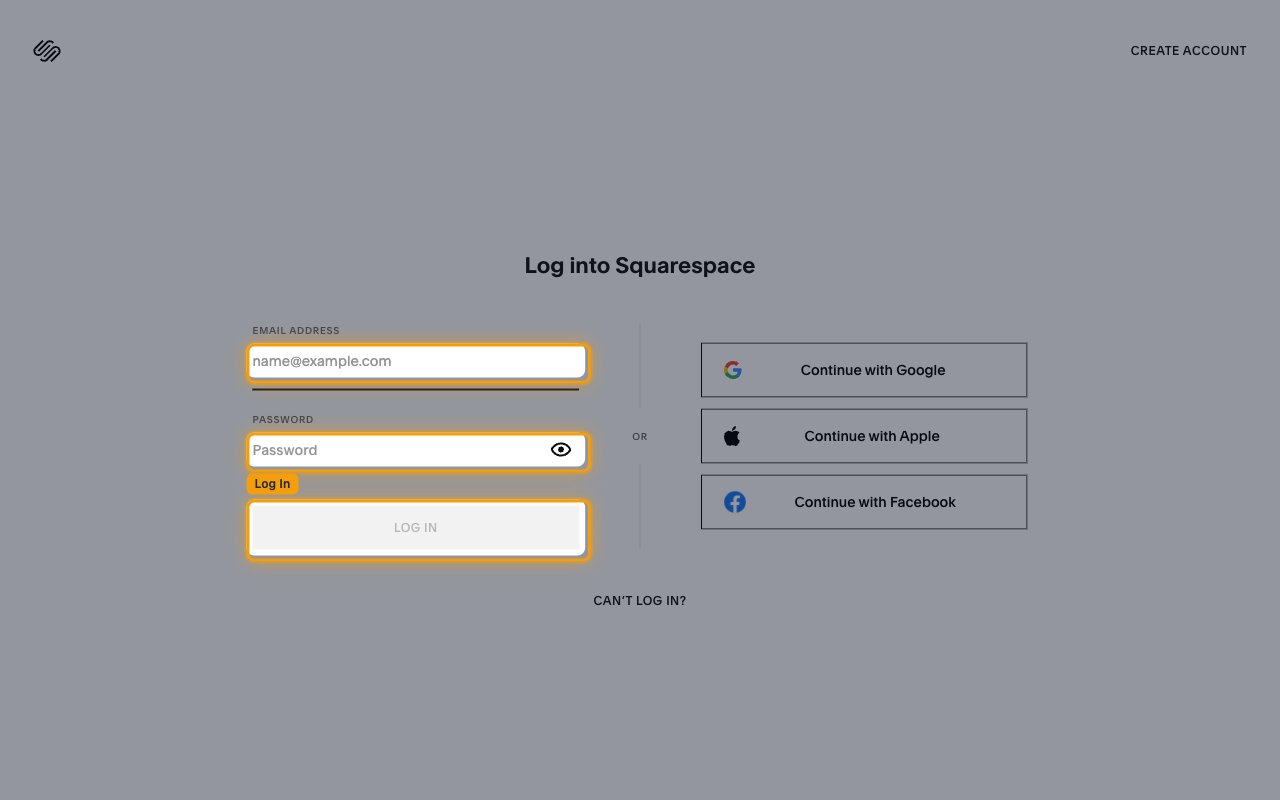
        <p>Sign in to your <a href="https://login.squarespace.com/" target="_blank" rel="noopener noreferrer">Squarespace account</a> with your <strong>Email address</strong> and <strong>Password</strong>, then click <strong>Log In</strong>.</p>

        <img src="https://mintcdn.com/stackone-60/CW8d6BhPIrCSsHSx/connectors/squarespace/images/oauth2-setup-sign-in.png?fit=max&auto=format&n=CW8d6BhPIrCSsHSx&q=85&s=c693ad67b29e4417b86439e1952e9ccc" alt="Squarespace login page with the Email address and Password fields and the Log In button highlighted" width="1280" height="800" data-path="connectors/squarespace/images/oauth2-setup-sign-in.png" />
      </div>
    </Step>

    <Step title="Open Developer Apps">
      <div data-guide-step data-guide-scopes="" data-guide-display-scopes-list="">
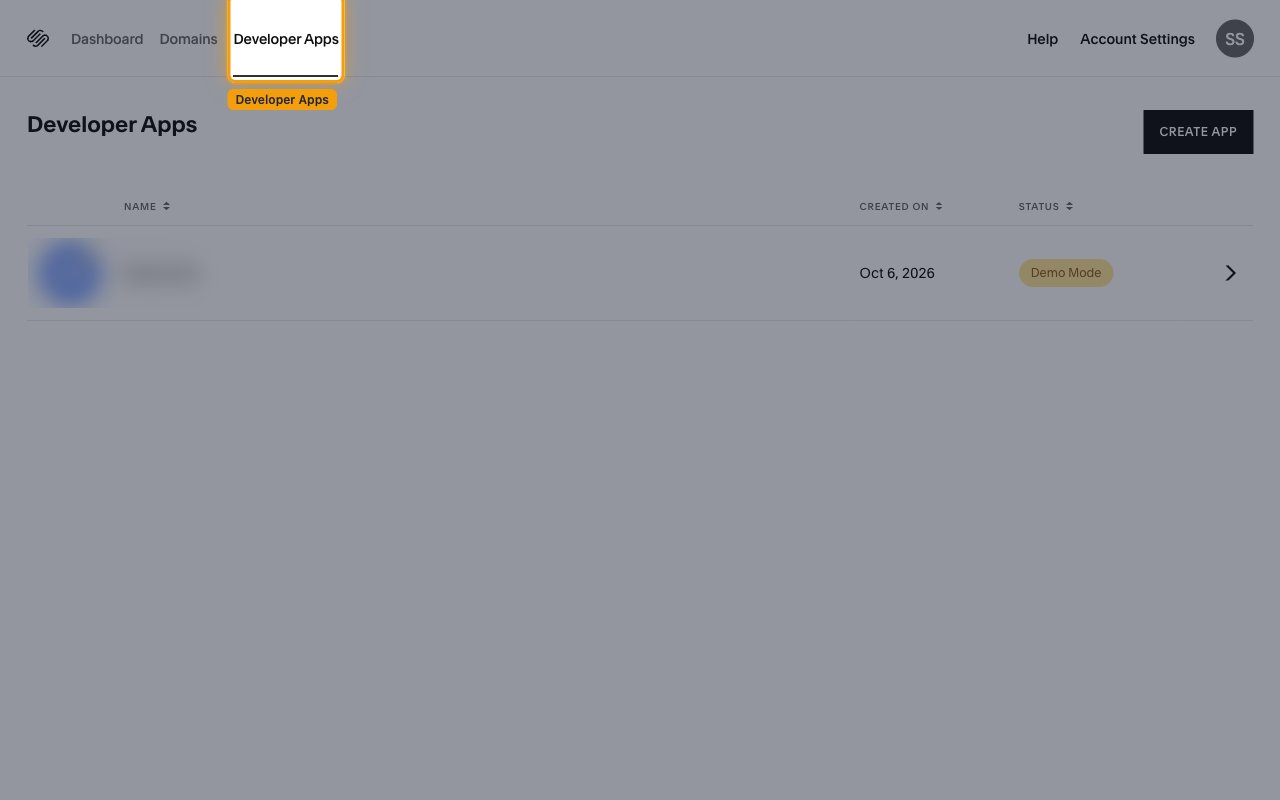
        <p>In the Account Dashboard, click the <strong>Developer Apps</strong> tab.</p>

        <img src="https://mintcdn.com/stackone-60/CW8d6BhPIrCSsHSx/connectors/squarespace/images/oauth2-setup-developer-apps.png?fit=max&auto=format&n=CW8d6BhPIrCSsHSx&q=85&s=b4ffb5eb7d5eb6bc4248eed503e34607" alt="Squarespace Account Dashboard with the Developer Apps tab highlighted" width="1280" height="800" data-path="connectors/squarespace/images/oauth2-setup-developer-apps.png" />
      </div>
    </Step>

    <Step title="Start a new app">
      <div data-guide-step data-guide-scopes="" data-guide-display-scopes-list="">
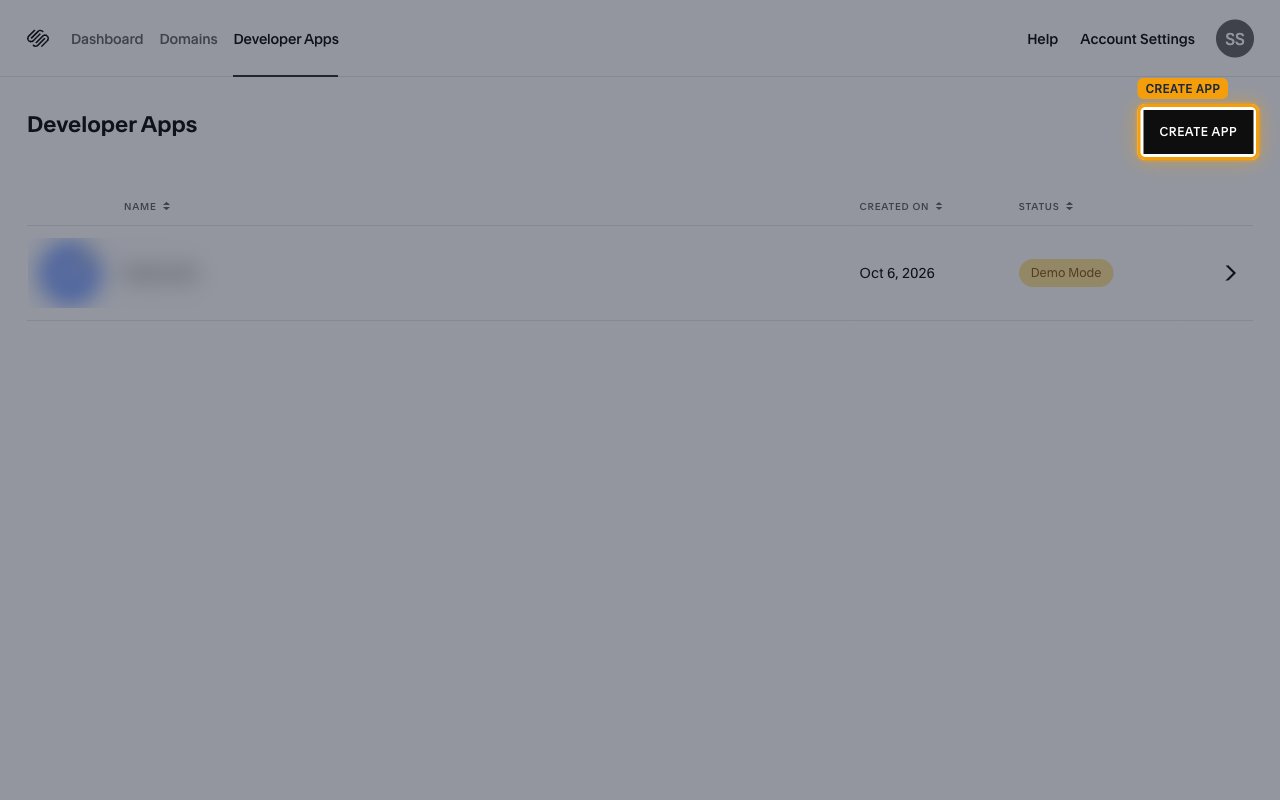
        <p>On the <strong>Developer Apps</strong> page, click <strong>CREATE APP</strong>.</p>

        <img src="https://mintcdn.com/stackone-60/CW8d6BhPIrCSsHSx/connectors/squarespace/images/oauth2-setup-create-app.png?fit=max&auto=format&n=CW8d6BhPIrCSsHSx&q=85&s=e89bc6ff40881b9c3dd0c7ed287d5b62" alt="Developer Apps page with the CREATE APP button highlighted" width="1280" height="800" data-path="connectors/squarespace/images/oauth2-setup-create-app.png" />
      </div>
    </Step>

    <Step title="Enter app details">
      <div data-guide-step data-guide-scopes="" data-guide-display-scopes-list="">
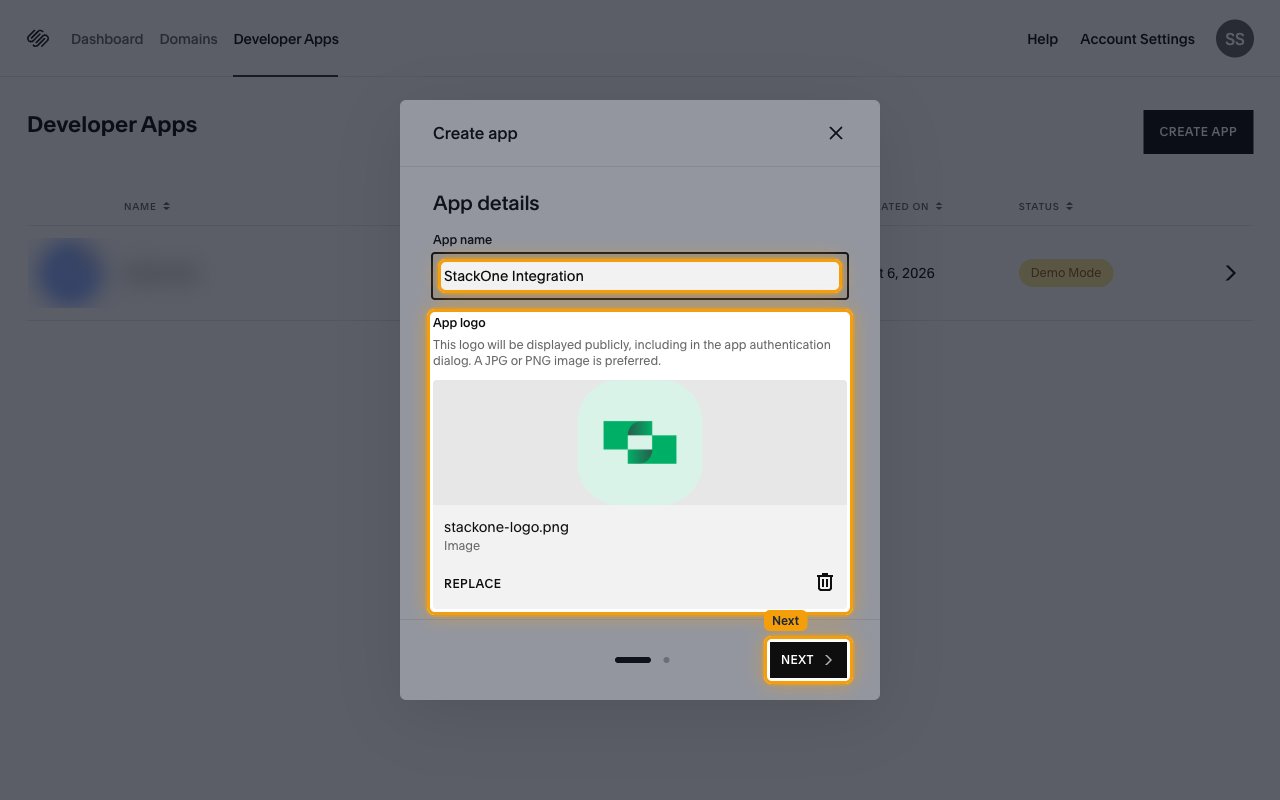
        <p>In the <strong>Create app</strong> dialog, fill in the <strong>App details</strong>, then click <strong>Next</strong>.</p>

        <ul>
          <li>App name: `StackOne Integration`</li>
          <li>Under <strong>App logo</strong>, click <strong>Add image</strong> and upload your organization's logo. Squarespace shows it on the app authorization screen.</li>
        </ul>

        <img src="https://mintcdn.com/stackone-60/CW8d6BhPIrCSsHSx/connectors/squarespace/images/oauth2-setup-app-details.png?fit=max&auto=format&n=CW8d6BhPIrCSsHSx&q=85&s=007623340abeb5eb10d8ad5274fb1c27" alt="Create app dialog with the App name field, App logo upload, and Next button highlighted" width="1280" height="800" data-path="connectors/squarespace/images/oauth2-setup-app-details.png" />
      </div>
    </Step>

    <Step title="Add app links and the redirect URL">
      <div data-guide-step data-guide-scopes="" data-guide-display-scopes-list="">
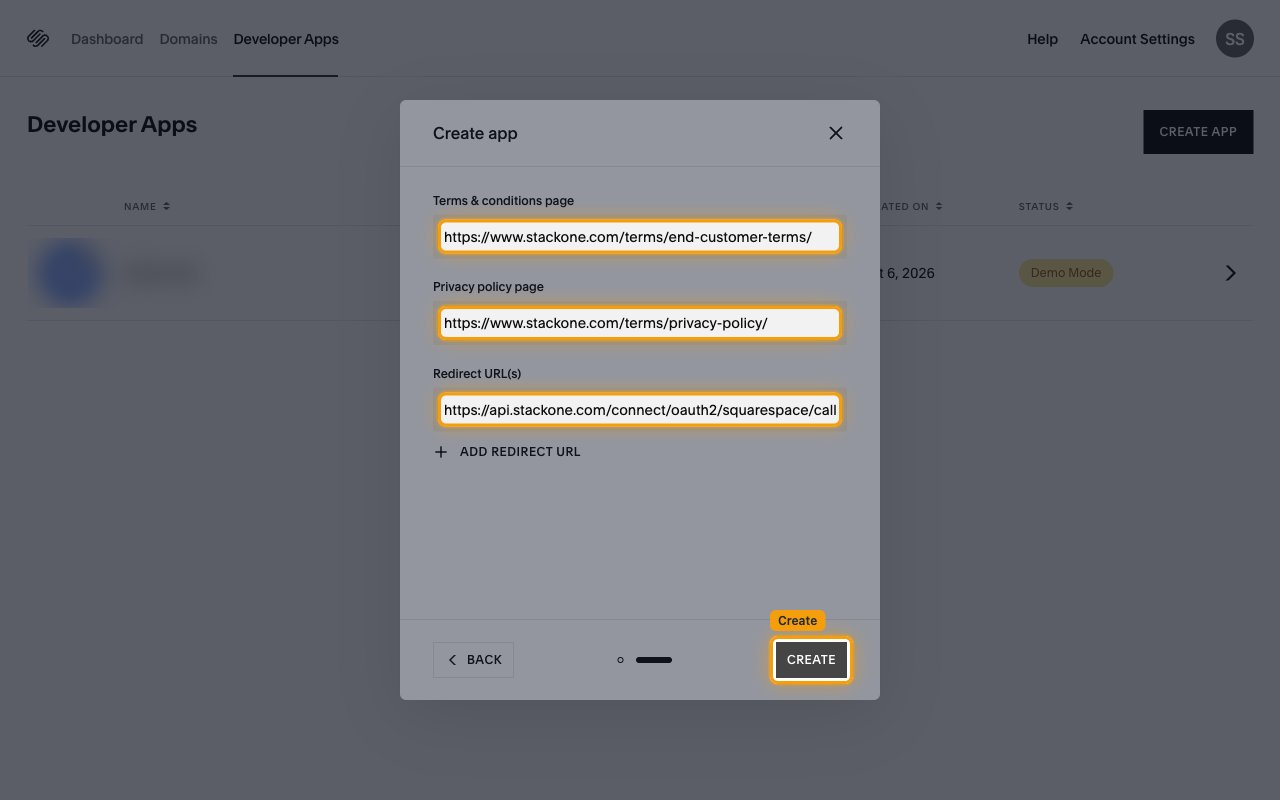
        <p>Enter each value as a full URL that starts with https, then click <strong>Create</strong>.</p>

        <ul>
          <li><strong>Terms & conditions page</strong> — your organization's terms of service URL</li>
          <li><strong>Privacy policy page</strong> — your organization's privacy policy URL</li>
          <li><strong>Redirect URL(s)</strong>: `https://api.stackone.com/connect/oauth2/squarespace/callback`</li>
        </ul>

        <img src="https://mintcdn.com/stackone-60/CW8d6BhPIrCSsHSx/connectors/squarespace/images/oauth2-setup-app-links.png?fit=max&auto=format&n=CW8d6BhPIrCSsHSx&q=85&s=0f0fb786b725bb7ee11db1d21c36cce4" alt="Create app dialog with the Terms and conditions page, Privacy policy page, and Redirect URL fields and the Create button highlighted" width="1280" height="800" data-path="connectors/squarespace/images/oauth2-setup-app-links.png" />
      </div>
    </Step>
  </Steps>
</section>

<section data-guide-section data-guide-scopes="">
  <h2>Copy the client credentials</h2>

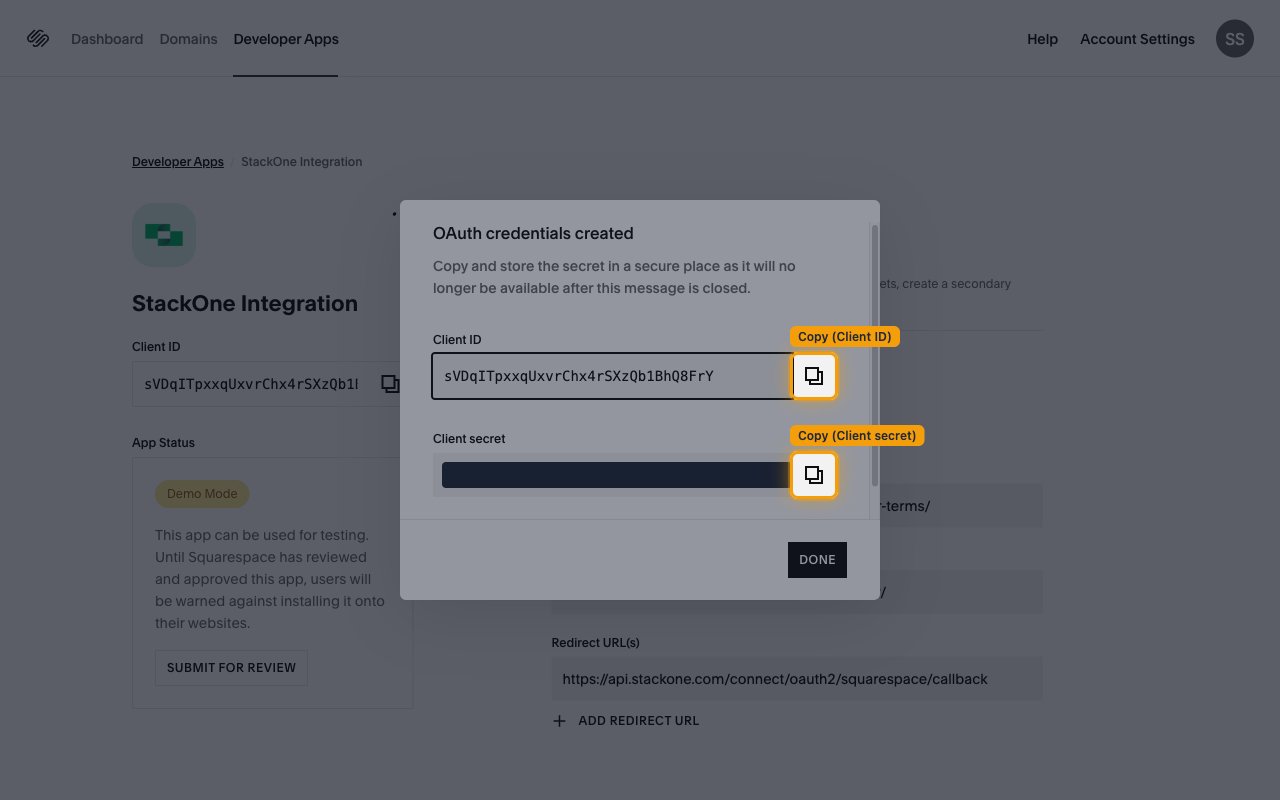
  <p>Squarespace shows the credentials once, right after the app is created.</p>

  <Steps>
    <Step title="Copy the Client ID and Client secret">
      <div data-guide-step data-guide-scopes="" data-guide-display-scopes-list="">
        <p>In the <strong>OAuth credentials created</strong> dialog, click <strong>Copy</strong> next to each value, then click <strong>Done</strong>.</p>

        <ul>
          <li><strong>Client ID</strong> — the public identifier of your app. Paste it into the <strong>Client ID</strong> field in the StackOne Connector profile.</li>
          <li><strong>Client secret</strong> — the private key of your app. Paste it into the <strong>Client Secret</strong> field in the StackOne Connector profile.</li>
          <li>The Client secret is only displayed once and cannot be retrieved later. If you lose it, open the app and click <strong>CREATE SECONDARY SECRET</strong>.</li>
        </ul>

        <img src="https://mintcdn.com/stackone-60/CW8d6BhPIrCSsHSx/connectors/squarespace/images/oauth2-setup-copy-credentials.png?fit=max&auto=format&n=CW8d6BhPIrCSsHSx&q=85&s=bf266ac0ebeb8de84f0bdd552ae34b28" alt="OAuth credentials created dialog with the Client secret masked and both Copy buttons highlighted" width="1280" height="800" data-path="connectors/squarespace/images/oauth2-setup-copy-credentials.png" />
      </div>
    </Step>

    <Step title="Submit the app for review">
      <div data-guide-step data-guide-scopes="" data-guide-display-scopes-list="">
        <p>The app opens in <strong>Demo Mode</strong>, which is enough for testing. Before customers connect, click <strong>SUBMIT FOR REVIEW</strong> under <strong>App Status</strong> so Squarespace can approve the app for production.</p>

        <img src="https://mintcdn.com/stackone-60/CW8d6BhPIrCSsHSx/connectors/squarespace/images/oauth2-setup-app-status.png?fit=max&auto=format&n=CW8d6BhPIrCSsHSx&q=85&s=9c64984238db0b7346dbdace3fcd44ce" alt="StackOne Integration app page showing Demo Mode under App Status with the SUBMIT FOR REVIEW button highlighted" width="1280" height="800" data-path="connectors/squarespace/images/oauth2-setup-app-status.png" />
      </div>
    </Step>
  </Steps>
</section>

<section data-guide-section data-guide-scopes="">
  <h2>Choose scopes</h2>

  <p>Squarespace asks for scopes when a user connects their site, not when you create the app. Set them in the <strong>Scopes</strong> field in the StackOne Connector profile.</p>

  <Steps>
    <Step title="Enter the scopes to request">
      <div data-guide-step data-guide-scopes="website.orders.read,website.orders,website.products.read,website.products,website.inventory.read,website.inventory,website.contacts.read,website.contacts,website.transactions.read" data-guide-display-scopes-list="website.orders.read,website.orders,website.products.read,website.products,website.inventory.read,website.inventory,website.contacts.read,website.contacts,website.transactions.read">
        <div className="connector-guide-actions-badge" data-guide-actions-badge data-guide-actions-badge-scopes="website.orders.read,website.orders,website.products.read,website.products,website.inventory.read,website.inventory,website.contacts.read,website.contacts,website.transactions.read">
          <span>Enables actions: </span><span data-guide-actions-badge-labels>Adjust Stock Quantities, Assign Product Image To Variant, Create Order, Create Product, Create Product Variant, Delete Product, Delete Product Image, Delete Product Variant, Fulfill Order, Get Inventory, Get Order, Get Product, Get Product Image Upload Status, Get Profile, Get Transaction, List Inventory, List Orders, List Products, List Profiles, List Store Pages, List Transactions, Reorder Product Image, Update Product, Update Product Image, Update Product Variant, Upload Product Image</span>
        </div>

        <p>Enter the scopes below in the <strong>Scopes</strong> field, separated by commas. Leave the field blank to request every scope this connector uses.</p>

        <div className="connector-guide-display-scopes" data-guide-display-scopes>
          <div className="connector-guide-scopes-container">
            <ul className="not-prose connector-guide-scopes-list">
              <li data-guide-display-scope="website.orders.read">
                <button type="button" className="connector-guide-scope-copy" aria-label="Copy website.orders.read" title="Copy scope" data-copy="website.orders.read">
                  <span className="connector-guide-scope-copy__label">website.orders.read</span>
                  <span className="connector-guide-scope-copy__icon" aria-hidden="true">⧉</span>
                </button>
              </li>

              <li data-guide-display-scope="website.orders">
                <button type="button" className="connector-guide-scope-copy" aria-label="Copy website.orders" title="Copy scope" data-copy="website.orders">
                  <span className="connector-guide-scope-copy__label">website.orders</span>
                  <span className="connector-guide-scope-copy__icon" aria-hidden="true">⧉</span>
                </button>
              </li>

              <li data-guide-display-scope="website.products.read">
                <button type="button" className="connector-guide-scope-copy" aria-label="Copy website.products.read" title="Copy scope" data-copy="website.products.read">
                  <span className="connector-guide-scope-copy__label">website.products.read</span>
                  <span className="connector-guide-scope-copy__icon" aria-hidden="true">⧉</span>
                </button>
              </li>

              <li data-guide-display-scope="website.products">
                <button type="button" className="connector-guide-scope-copy" aria-label="Copy website.products" title="Copy scope" data-copy="website.products">
                  <span className="connector-guide-scope-copy__label">website.products</span>
                  <span className="connector-guide-scope-copy__icon" aria-hidden="true">⧉</span>
                </button>
              </li>

              <li data-guide-display-scope="website.inventory.read">
                <button type="button" className="connector-guide-scope-copy" aria-label="Copy website.inventory.read" title="Copy scope" data-copy="website.inventory.read">
                  <span className="connector-guide-scope-copy__label">website.inventory.read</span>
                  <span className="connector-guide-scope-copy__icon" aria-hidden="true">⧉</span>
                </button>
              </li>

              <li data-guide-display-scope="website.inventory">
                <button type="button" className="connector-guide-scope-copy" aria-label="Copy website.inventory" title="Copy scope" data-copy="website.inventory">
                  <span className="connector-guide-scope-copy__label">website.inventory</span>
                  <span className="connector-guide-scope-copy__icon" aria-hidden="true">⧉</span>
                </button>
              </li>

              <li data-guide-display-scope="website.contacts.read">
                <button type="button" className="connector-guide-scope-copy" aria-label="Copy website.contacts.read" title="Copy scope" data-copy="website.contacts.read">
                  <span className="connector-guide-scope-copy__label">website.contacts.read</span>
                  <span className="connector-guide-scope-copy__icon" aria-hidden="true">⧉</span>
                </button>
              </li>

              <li data-guide-display-scope="website.contacts">
                <button type="button" className="connector-guide-scope-copy" aria-label="Copy website.contacts" title="Copy scope" data-copy="website.contacts">
                  <span className="connector-guide-scope-copy__label">website.contacts</span>
                  <span className="connector-guide-scope-copy__icon" aria-hidden="true">⧉</span>
                </button>
              </li>

              <li data-guide-display-scope="website.transactions.read">
                <button type="button" className="connector-guide-scope-copy" aria-label="Copy website.transactions.read" title="Copy scope" data-copy="website.transactions.read">
                  <span className="connector-guide-scope-copy__label">website.transactions.read</span>
                  <span className="connector-guide-scope-copy__icon" aria-hidden="true">⧉</span>
                </button>
              </li>
            </ul>
          </div>
        </div>
      </div>
    </Step>
  </Steps>
</section>

## Creating the StackOne Connector Profile

To create the Connector Profile in StackOne for <strong>Squarespace</strong>:

<Steps>
  <Step title="Navigate to Connector Profiles">
    Login to StackOne and navigate to [Connector Profiles](https://app.stackone.com/connector_profiles)
  </Step>

  <Step title="Create New Connector Profile">
    <ul>
      <li>Click <strong>+ Connector Profile</strong></li>
      <li>Search for and select <strong>Squarespace</strong></li>
      <li>Select <strong>Type</strong> as <strong>OAuth 2.0</strong></li>

      <li>
        Fill out the fields using details retrieved from your provider:

        <ul className="connector-guide-field-list">
          <li><strong>Client ID</strong></li>
          <li><strong>Client Secret</strong></li>
          <li><strong>Scopes</strong> (Optional)</li>
        </ul>
      </li>

      <li>(Optional) Select <strong>Actions</strong> to be enabled for this Connector Profile</li>
      <li>Click <strong>Create profile</strong></li>
    </ul>
  </Step>
</Steps>

Congratulations! The new Connector Profile will now show up in your project ready to be used. You can now continue to <a href="/connect/managing-connectors/linking-accounts">Link Accounts</a> for <strong>Squarespace</strong>.


This documentation is built and hosted on [Mintlify](https://mintlify.com), a developer documentation platform.