> ## Documentation Index
> Fetch the complete documentation index at: https://docs.stackone.com/llms.txt
> Use this file to discover all available pages before exploring further.

# Saba Webhook Setup Guide

> Configure Saba to deliver events to StackOne.

## Prerequisites

The connector should already be set up, with a Connector Profile and a Linked Account. See [Getting Started](/connectors/saba#getting-started) on the Saba connector page.

<section data-guide-section data-guide-scopes="">
  <h2>Retrieve StackOne Native Webhook URL</h2>

  <p>The <strong>Native Webhook URL</strong> is generated once an account has been linked.</p>

  <ul>
    <li>Open the linked account in StackOne.</li>
    <li>Copy the value from <strong>Native Webhook URL</strong>.</li>
  </ul>
</section>

<section data-guide-section data-guide-scopes="">
  <h2>Create a webhook template</h2>

  <p>Saba limits the request URL of a Webhook Action to 255 characters, and the Native Webhook URL is longer. Saba joins a template URL and the action URL into one address, so split the Native Webhook URL across the two.</p>

  <Steps>
    <Step title="Add the template">
      <div data-guide-step data-guide-scopes="" data-guide-display-scopes-list="">
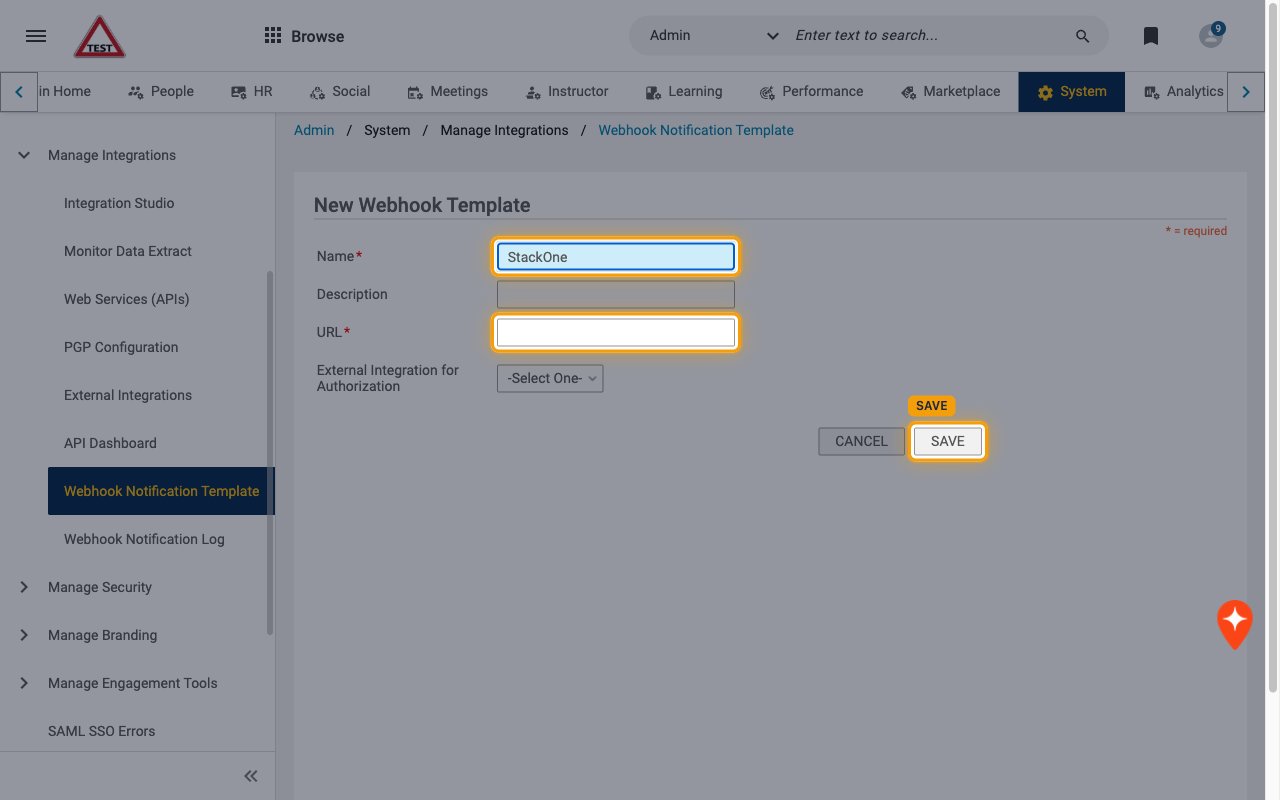
        <p>Go to <strong>Admin</strong> > <strong>System</strong> > <strong>Manage Integrations</strong> > <strong>Webhook Notification Template</strong> and click <strong>Add Template</strong>.</p>

        <ul>
          <li>Enter a <strong>Name</strong>, for example `StackOne`.</li>
          <li>In <strong>URL</strong>, paste the Native Webhook URL up to, but not including, the `?` (the part that ends with the long code after `/events/`).</li>
          <li>Leave <strong>External Integration for Authorization</strong> set to <strong>-Select One-</strong> and click <strong>SAVE</strong>.</li>
        </ul>

        <img src="https://mintcdn.com/stackone-60/qV7DcHhJCvnLarf2/connectors/saba/images/events-create-template.png?fit=max&auto=format&n=qV7DcHhJCvnLarf2&q=85&s=17e93452df80c507aee8b226f2b187cf" alt="New Webhook Template form with the Name and URL fields and the SAVE button highlighted" width="1280" height="800" data-path="connectors/saba/images/events-create-template.png" />
      </div>
    </Step>
  </Steps>
</section>

<section data-guide-section data-guide-scopes="">
  <h2>Add a webhook action to a Saba notification</h2>

  <p>Saba sends a webhook when a Webhook Action is attached to a triggered notification event. Repeat these steps for every notification you want StackOne to receive.</p>

  <Steps>
    <Step title="Open the notification event">
      <div data-guide-step data-guide-scopes="" data-guide-display-scopes-list="">
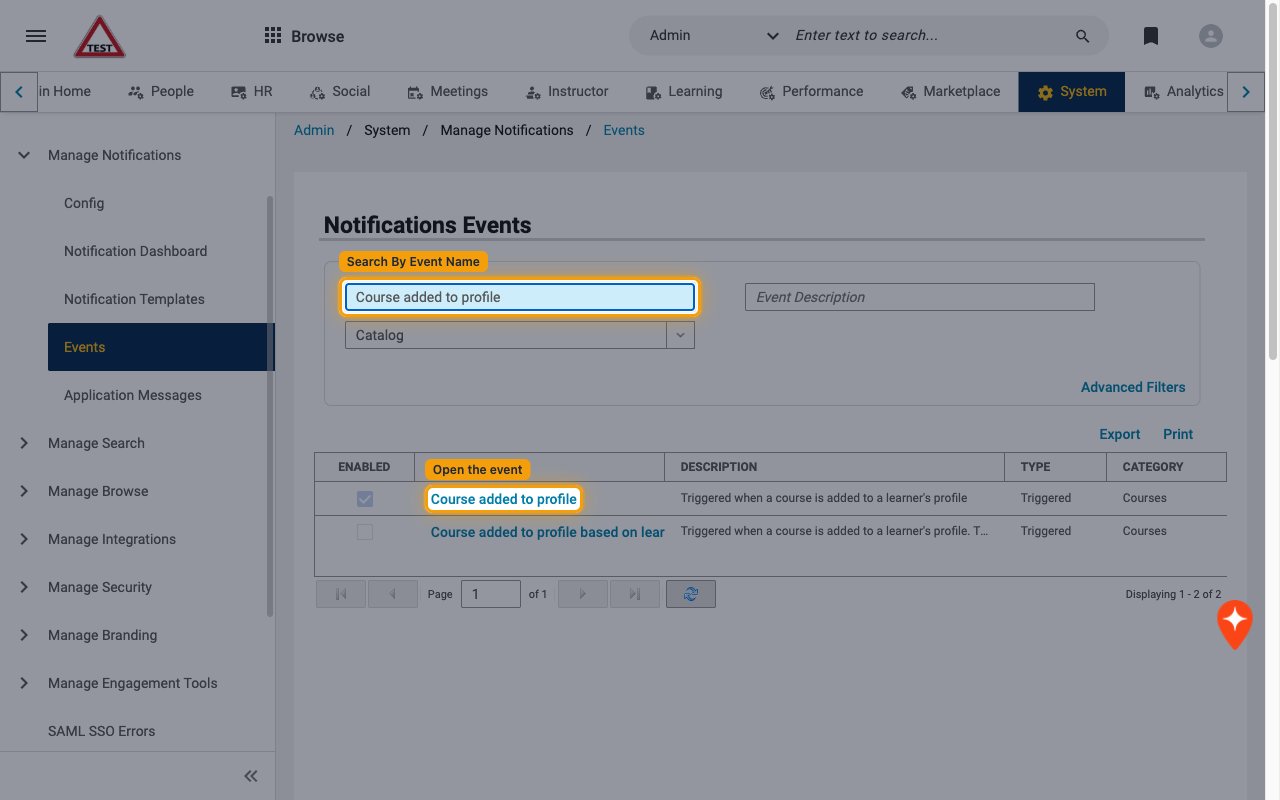
        <p>Go to <strong>Admin</strong> > <strong>System</strong> > <strong>Manage Notifications</strong> > <strong>Events</strong>.</p>

        <ul>
          <li>Type the notification name in <strong>Search By Event Name</strong> and press Enter.</li>
          <li>Click the event name, for example <strong>Course added to profile</strong>.</li>
        </ul>

        <img src="https://mintcdn.com/stackone-60/qV7DcHhJCvnLarf2/connectors/saba/images/events-open-notification-event.png?fit=max&auto=format&n=qV7DcHhJCvnLarf2&q=85&s=af50445bdd603729fd9d6a64896e4905" alt="Notifications Events list filtered to the Course added to profile event" width="1280" height="800" data-path="connectors/saba/images/events-open-notification-event.png" />
      </div>
    </Step>

    <Step title="Create a new event action">
      <div data-guide-step data-guide-scopes="" data-guide-display-scopes-list="">
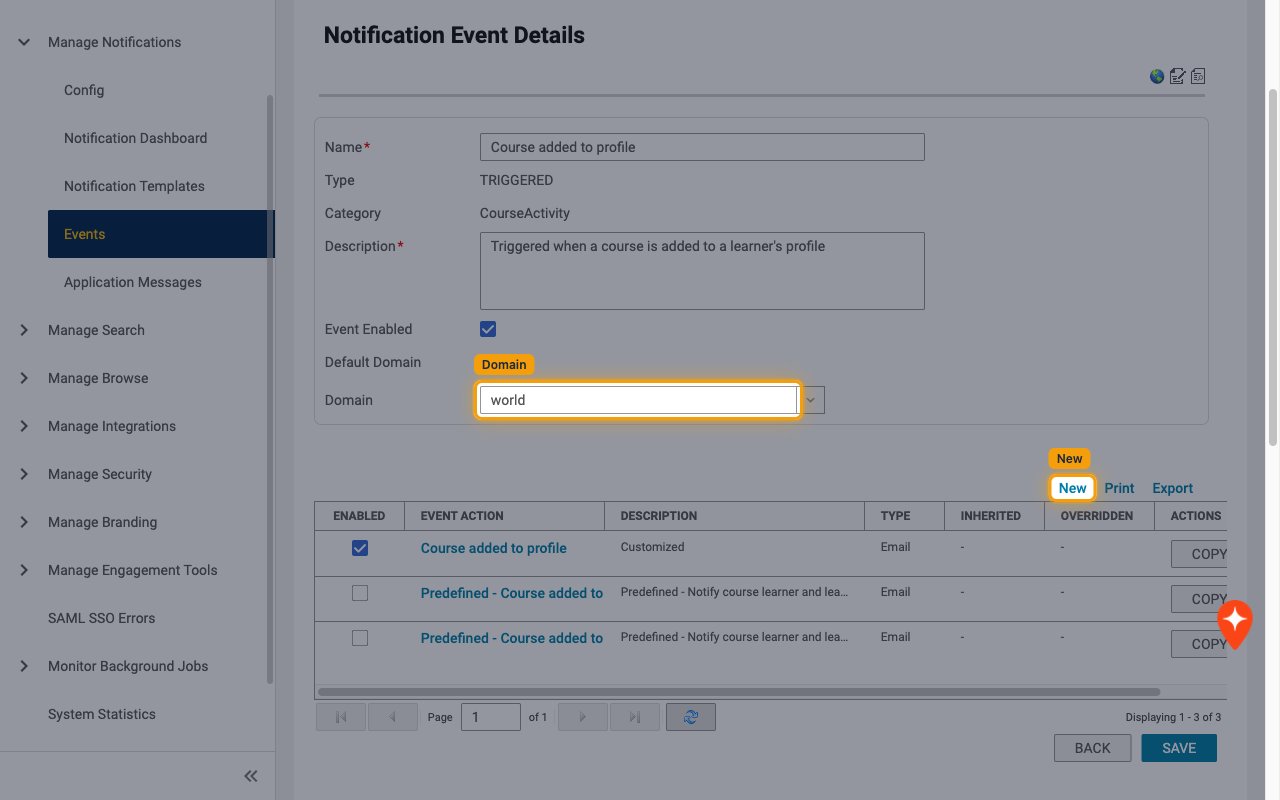
        <p>On <strong>Notification Event Details</strong>, set <strong>Domain</strong> to your top-level domain (usually <strong>world</strong>), then click <strong>New</strong>.</p>

        <ul>
          <li>While the Saba Webhook Action feature is in preview, each notification event allows only one Webhook Action across all domains, so add it at the top-level domain.</li>
        </ul>

        <img src="https://mintcdn.com/stackone-60/qV7DcHhJCvnLarf2/connectors/saba/images/events-new-event-action.png?fit=max&auto=format&n=qV7DcHhJCvnLarf2&q=85&s=b964b83c4817abc726c3226efb53c730" alt="Notification Event Details with the Domain set to world and the New link highlighted" width="1280" height="800" data-path="connectors/saba/images/events-new-event-action.png" />
      </div>
    </Step>

    <Step title="Choose the webhook type">
      <div data-guide-step data-guide-scopes="" data-guide-display-scopes-list="">
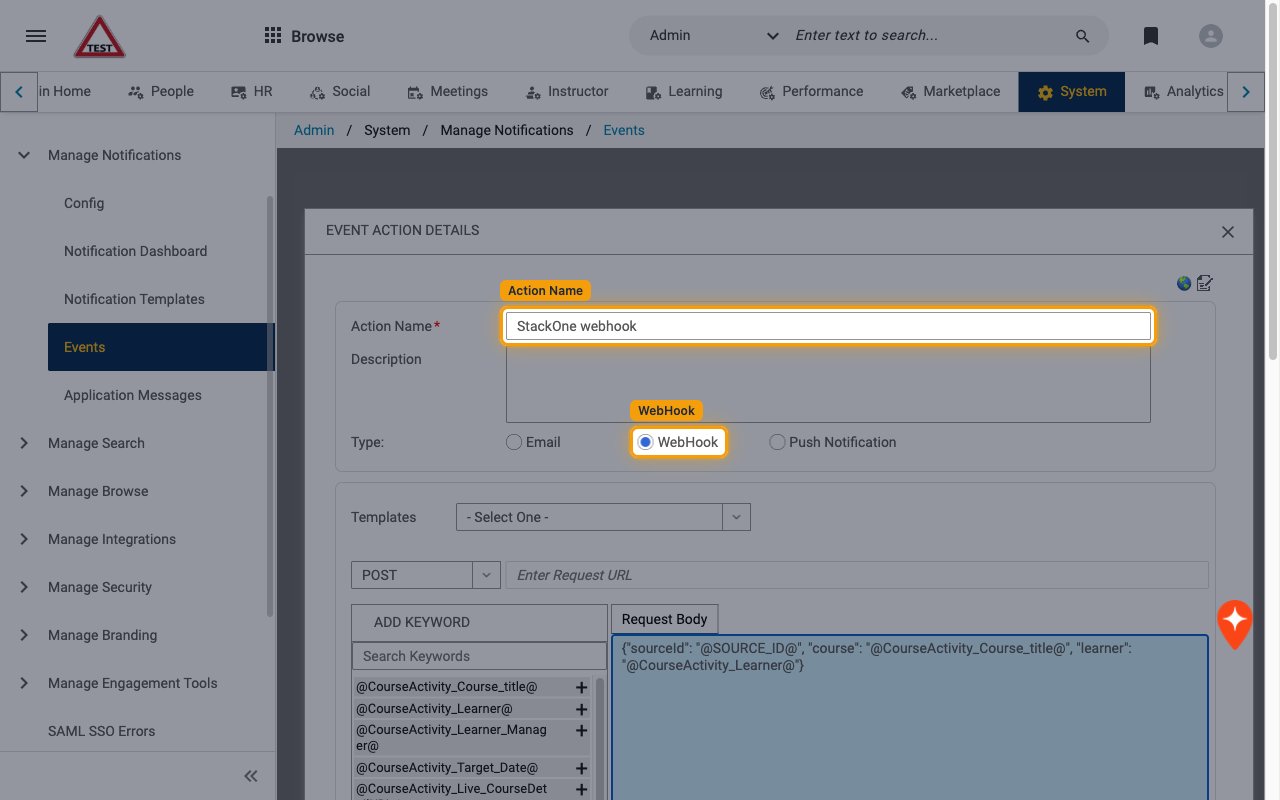
        <p>In <strong>EVENT ACTION DETAILS</strong>, enter an <strong>Action Name</strong> (for example `StackOne webhook`) and select <strong>WebHook</strong> for <strong>Type:</strong>.</p>

        <img src="https://mintcdn.com/stackone-60/qV7DcHhJCvnLarf2/connectors/saba/images/events-webhook-type.png?fit=max&auto=format&n=qV7DcHhJCvnLarf2&q=85&s=36db423d4ce675587e18473c1ad57204" alt="Event Action Details dialog with the Action Name filled in and WebHook selected" width="1280" height="800" data-path="connectors/saba/images/events-webhook-type.png" />
      </div>
    </Step>

    <Step title="Configure the request">
      <div data-guide-step data-guide-scopes="" data-guide-display-scopes-list="">
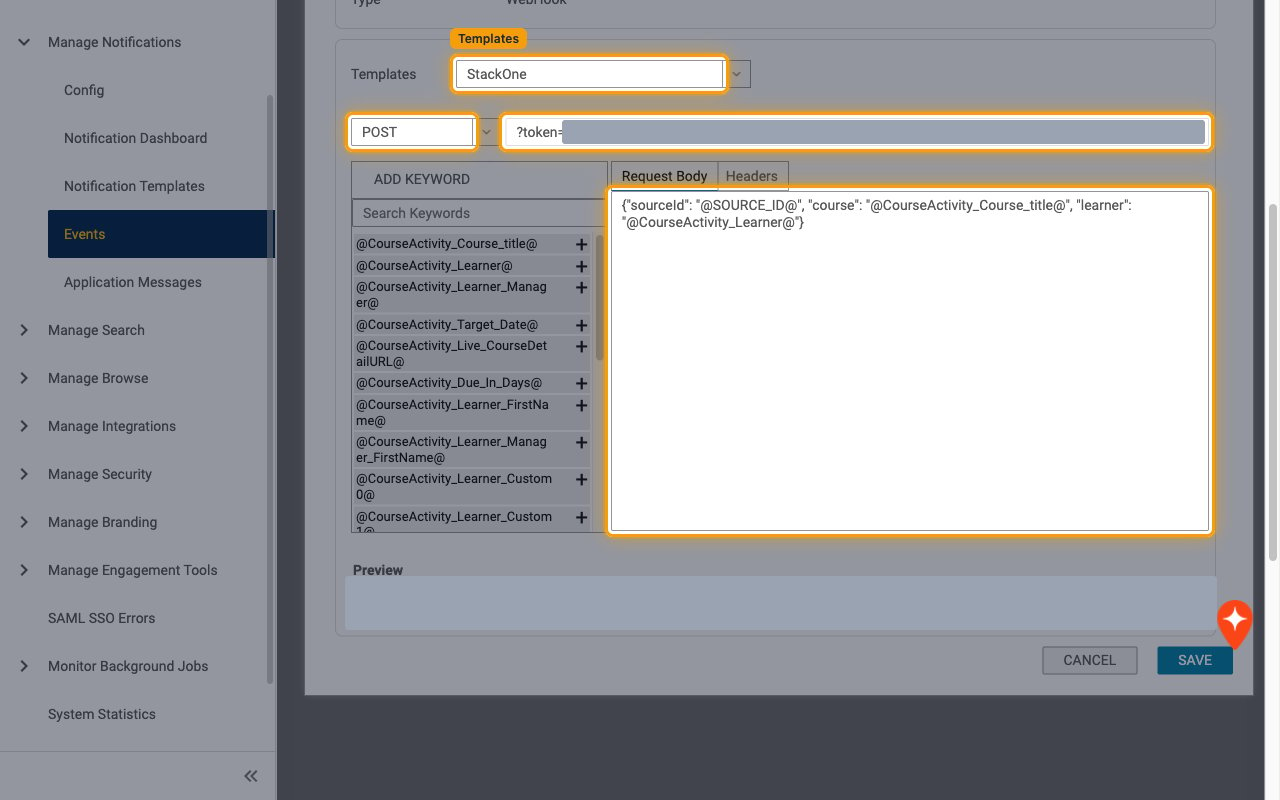
        <p>Point the action at StackOne and send a JSON body.</p>

        <ul>
          <li>In <strong>Templates</strong>, select the template you created.</li>
          <li>Select <strong>POST</strong> in the method dropdown.</li>
          <li>In <strong>Enter Request URL</strong>, paste the rest of the Native Webhook URL, starting with `?token=`. <strong>Preview</strong> shows the full joined URL, which must match the Native Webhook URL exactly.</li>
          <li>In <strong>Request Body</strong>, write a JSON body. Include `"sourceId": "@SOURCE_ID@"` so StackOne receives the ID of the record that triggered the notification, then add any keywords from <strong>ADD KEYWORD</strong> you need, for example `{"sourceId": "@SOURCE_ID@", "course": "@CourseActivity_Course_title@", "learner": "@CourseActivity_Learner@"}`. `@SOURCE_ID@` is not listed under <strong>ADD KEYWORD</strong>; type it in.</li>
        </ul>

        <img src="https://mintcdn.com/stackone-60/qV7DcHhJCvnLarf2/connectors/saba/images/events-configure-request.png?fit=max&auto=format&n=qV7DcHhJCvnLarf2&q=85&s=77a2369766f99c93b0a353dc0ef3a1d3" alt="Webhook request settings with the StackOne template, POST, the ?token= request URL and the Request Body highlighted" width="1280" height="800" data-path="connectors/saba/images/events-configure-request.png" />
      </div>
    </Step>

    <Step title="Save the event action">
      <div data-guide-step data-guide-scopes="" data-guide-display-scopes-list="">
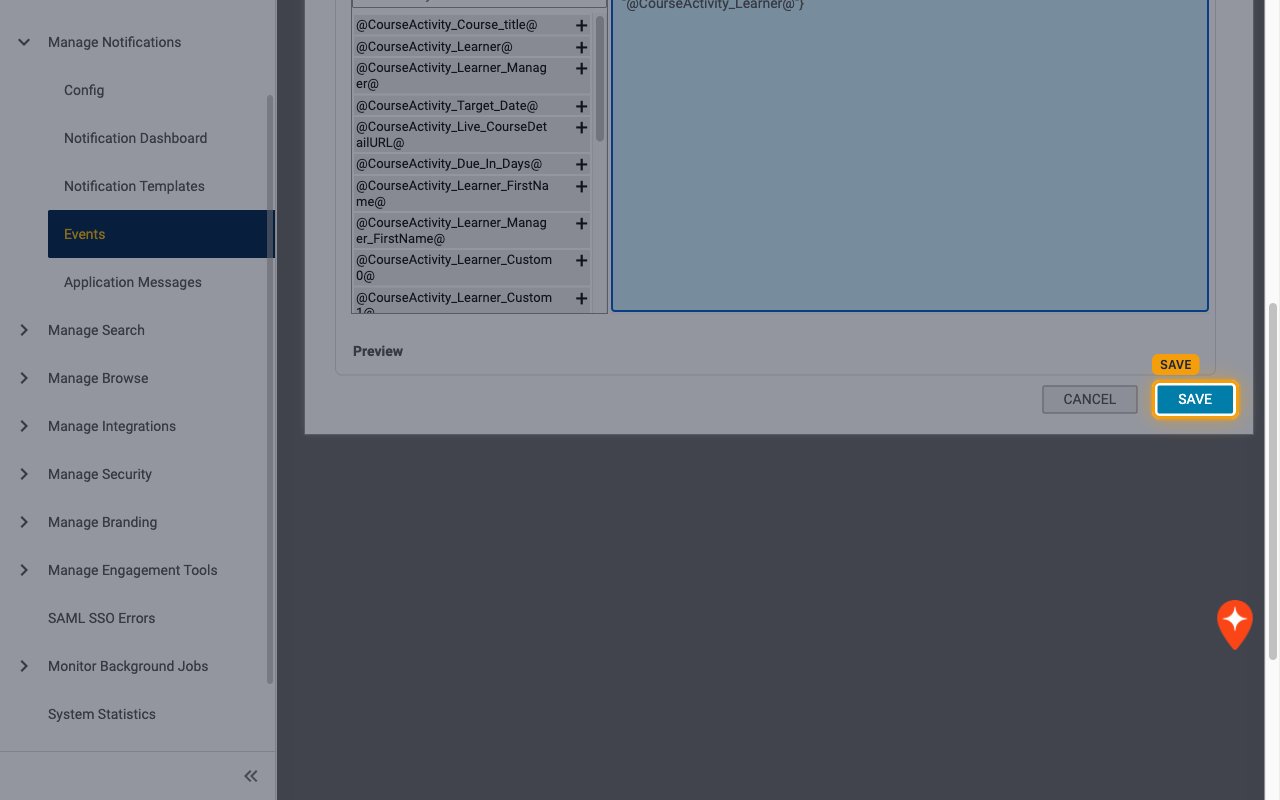
        <p>Click <strong>SAVE</strong>. The <strong>Headers</strong> tab only appears after the action has been saved once.</p>

        <img src="https://mintcdn.com/stackone-60/qV7DcHhJCvnLarf2/connectors/saba/images/events-save-event-action.png?fit=max&auto=format&n=qV7DcHhJCvnLarf2&q=85&s=6ba20254d8545934a78e6a1f81be29c2" alt="Event Action Details dialog with the SAVE button highlighted" width="1280" height="800" data-path="connectors/saba/images/events-save-event-action.png" />
      </div>
    </Step>

    <Step title="Add the JSON content type header">
      <div data-guide-step data-guide-scopes="" data-guide-display-scopes-list="">
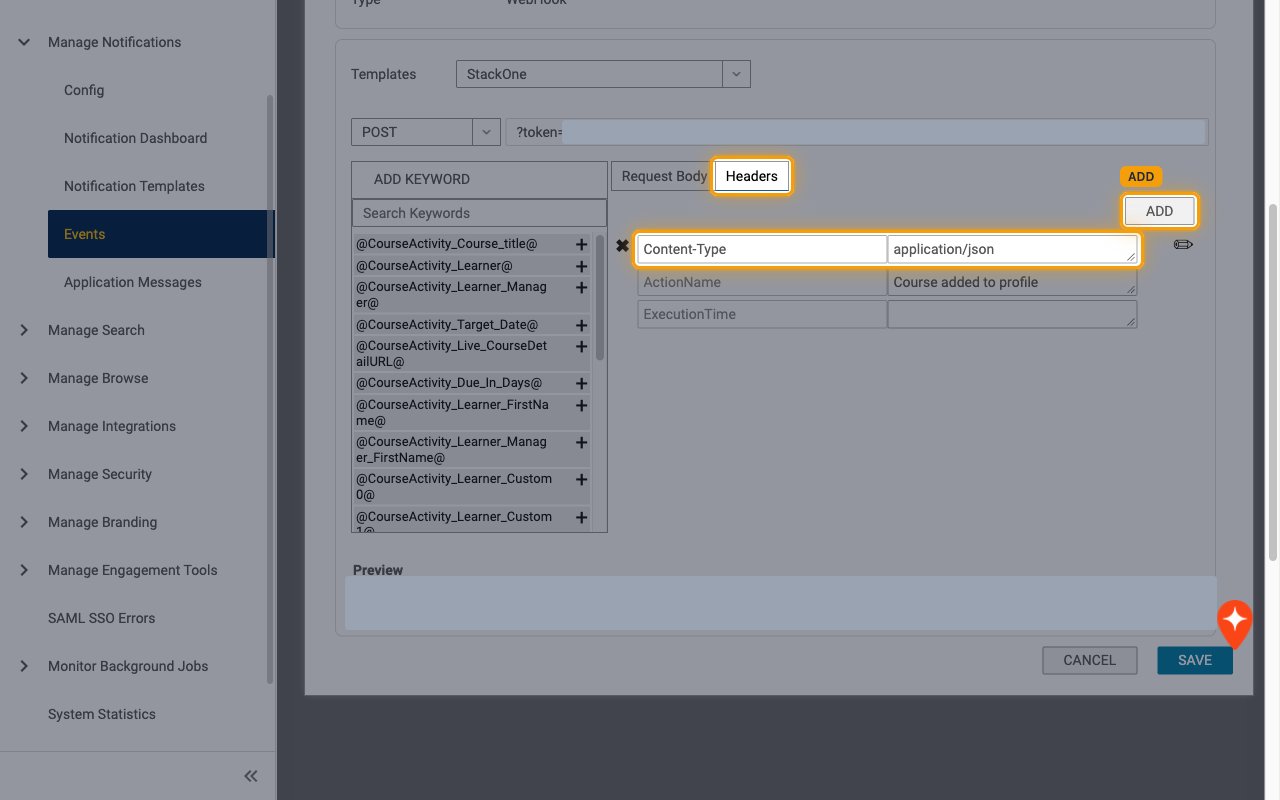
        <p>If <strong>EVENT ACTION DETAILS</strong> closed, click the action name in the event action list to reopen it. Open the <strong>Headers</strong> tab, click <strong>ADD</strong>, enter <strong>Name</strong> `Content-Type` and <strong>Value</strong> `application/json`, click <strong>SAVE</strong> in <strong>ADD HEADER</strong>, then click <strong>SAVE</strong> on the action.</p>

        <ul>
          <li>Without this header Saba sends the body as plain text and StackOne receives the event with no data.</li>
          <li>Saba always adds the ActionName (notification name) and ExecutionTime headers itself. StackOne routes the event on ActionName.</li>
        </ul>

        <img src="https://mintcdn.com/stackone-60/qV7DcHhJCvnLarf2/connectors/saba/images/events-add-header.png?fit=max&auto=format&n=qV7DcHhJCvnLarf2&q=85&s=f1de08ed68c5cbb993365c994010137e" alt="Headers tab with the ADD button and the Content-Type application/json header highlighted" width="1280" height="800" data-path="connectors/saba/images/events-add-header.png" />
      </div>
    </Step>

    <Step title="Enable the event action">
      <div data-guide-step data-guide-scopes="" data-guide-display-scopes-list="">
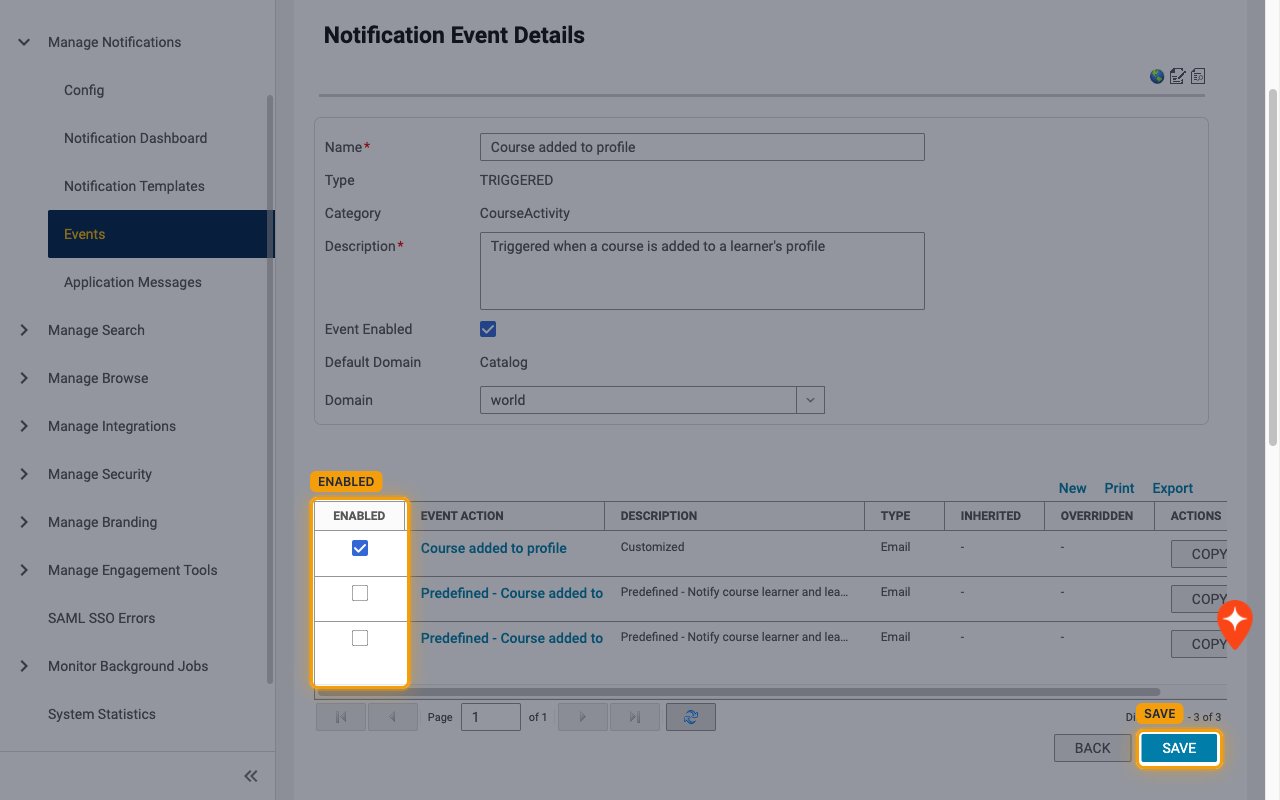
        <p>In the event action list, make sure the new action is ticked in the <strong>ENABLED</strong> column, then click <strong>SAVE</strong>.</p>

        <img src="https://mintcdn.com/stackone-60/qV7DcHhJCvnLarf2/connectors/saba/images/events-enable-event-action.png?fit=max&auto=format&n=qV7DcHhJCvnLarf2&q=85&s=03ec811df6f523126a6076f019beebcb" alt="Notification Event Details with the ENABLED column and the SAVE button highlighted" width="1280" height="800" data-path="connectors/saba/images/events-enable-event-action.png" />
      </div>
    </Step>
  </Steps>
</section>

<section data-guide-section data-guide-scopes="">
  <h2>Available webhook events</h2>

  <p>The following Saba events can be enabled. Saba only sends events for notifications that have an enabled Webhook Action, and only events selected in StackOne are delivered.</p>

  <Steps>
    <Step title="Learning events">
      <div data-guide-step data-guide-scopes="" data-guide-display-scopes-list="">
        <p>Events related to courses on learner profiles.</p>

        <ul>
          <li><strong>Course Added to Profile</strong> (`course.added_to_profile`) — Fired when a course is added to a learner's profile, for example when an admin assigns it from <strong>Assign Course</strong>. A learner registering for a course fires the Web-Based Class Registration notifications instead</li>
        </ul>
      </div>
    </Step>

    <Step title="Compensation events">
      <div data-guide-step data-guide-scopes="" data-guide-display-scopes-list="">
        <p>Events related to compensation plans, cycles and worksheets.</p>

        <ul>
          <li><strong>Compensation Allocation Approval Required</strong> (`compensation_plan.approval_required`) — Fired when approval is required for a compensation allocation</li>
          <li><strong>Compensation Plan Assigned</strong> (`compensation_plan.assigned`) — Fired when a compensation worksheet is available for budget allocation</li>
          <li><strong>Compensation Worksheet Approved by All Approvers</strong> (`compensation_worksheet.approved_by_all`) — Fired when every approver in the approval chain has approved a compensation worksheet</li>
          <li><strong>Compensation Worksheet Approved by an Approver</strong> (`compensation_worksheet.approved_by_any`) — Fired when any approver in the approval chain approves a compensation worksheet</li>
          <li><strong>Compensation Worksheet Returned to Manager</strong> (`compensation_worksheet.returned_to_manager`) — Fired when a compensation worksheet is returned to the manager</li>
          <li><strong>Compensation Worksheet Reopened</strong> (`compensation_worksheet.reopened`) — Fired when a compensation administrator reopens a compensation worksheet</li>
          <li><strong>Compensation Plan Cycle Completed</strong> (`compensation_plan_cycle.completed`) — Fired when a compensation plan cycle is marked complete</li>
        </ul>
      </div>
    </Step>

    <Step title="Other notification events">
      <div data-guide-step data-guide-scopes="" data-guide-display-scopes-list="">
        <p>Any other triggered notification with a Webhook Action.</p>

        <ul>
          <li><strong>Notification</strong> (the notification name, for example `Ad hoc transcript in pending approval state`) — Fired when any other Saba triggered notification with a Webhook Action runs. The event type is the ActionName header value</li>
        </ul>
      </div>
    </Step>
  </Steps>
</section>

<section data-guide-section data-guide-scopes="">
  <h2>Delivery format</h2>

  <p>Details of how Saba delivers events to StackOne.</p>

  <Steps>
    <Step title="One request per notification">
      <div data-guide-step data-guide-scopes="" data-guide-display-scopes-list="">
        <p>Saba sends one HTTP request each time a notification with a Webhook Action fires, always in the site's default locale. The body is the <strong>Request Body</strong> you configured, so StackOne passes it through unchanged as the event data. The record ID is the `sourceId` body field (from `@SOURCE_ID@`, for example a registration ID beginning with `regdw`). The ExecutionTime header uses Saba's own format (for example `2026.10.05 06:24:03 AM EDT`), so the event date is the time StackOne received the request. Saba does not sign requests and does not retry automatically.</p>
      </div>
    </Step>
  </Steps>
</section>

## Verify

Your Connector should now be able to receive and process events. Try triggering an event and you should see an Event appear in the Connector logs.


This documentation is built and hosted on [Mintlify](https://mintlify.com), a developer documentation platform.