> ## Documentation Index
> Fetch the complete documentation index at: https://docs.stackone.com/llms.txt
> Use this file to discover all available pages before exploring further.
# Connect RECRU with API Credentials – StackOne Hub
> Link a RECRU account in the StackOne Hub using API Credentials. End-user guide to authorize the integration and start using RECRU actions.
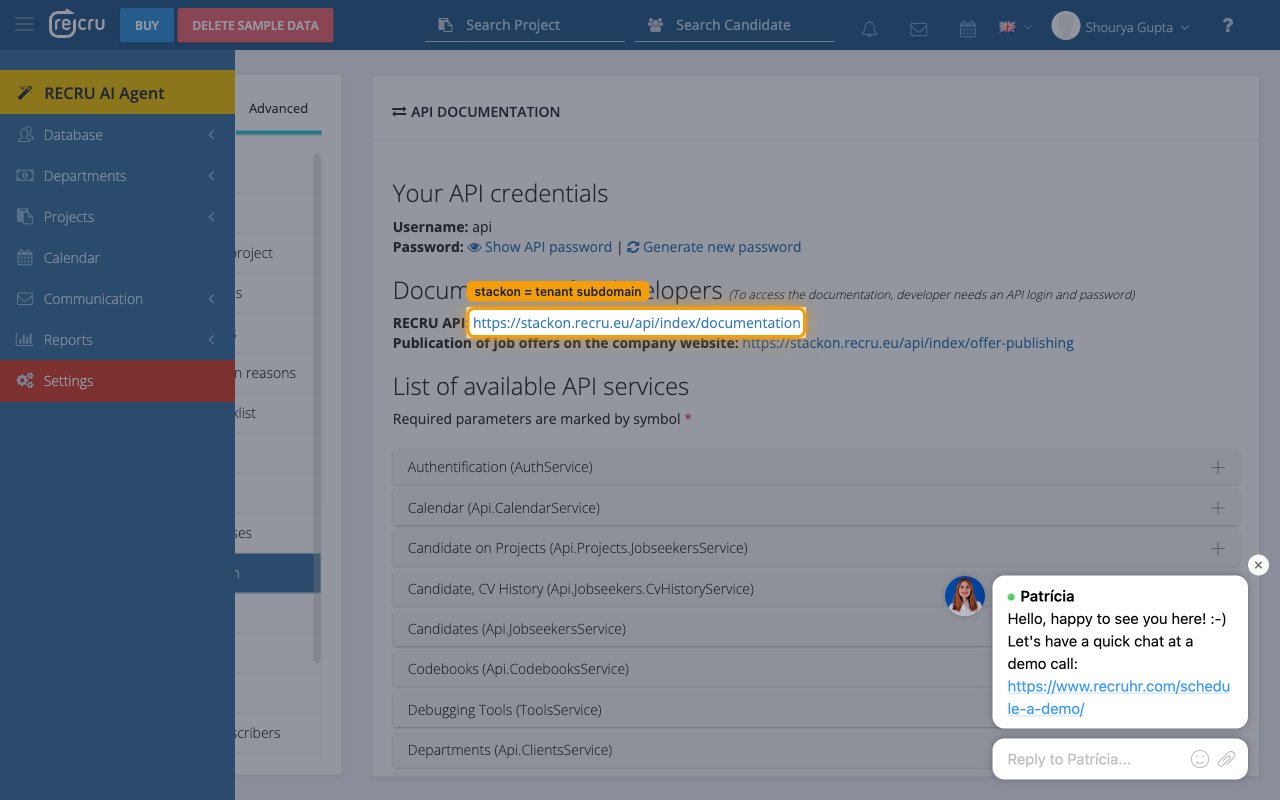
Find your tenant subdomain
Your Tenant is the subdomain of `recru.eu` that identifies your RECRU instance. StackOne Hub builds every API request against `https://{tenant}.recru.eu`, so this value must match the host you sign in to.
- Sign in to RECRU and check the URL in your browser address bar — the format is `https://{tenant}.recru.eu`.
- If your URL is `https://mytenant.recru.eu`, your tenant is `mytenant`.
- Enter the tenant lowercase, with no dots and no `.recru.eu` suffix, in the Tenant field in StackOne Hub.
Linking the Account from the Hub
Use one of the three Linking Account Methods to access the Hub.
Fill out the following fields using details from your provider:
- Click Connect
- If applicable, the provider will redirect you to a sign-in or authorization page. Complete the provider's authorization flow.
- Once authorization is successful, you will see a confirmation popup
If the account linking is successful, you will see the newly linked account in your Accounts page.