> ## Documentation Index
> Fetch the complete documentation index at: https://docs.stackone.com/llms.txt
> Use this file to discover all available pages before exploring further.

# RECRU API Credentials connector profile – StackOne setup guide

> Set up the API Credentials connector profile for RECRU in StackOne. One-time admin setup required before your users can link RECRU accounts via Hub.

<Warning>Regenerating the API password in the <strong>Your API credentials</strong> panel invalidates the previous password immediately — any integration still using the old password will start returning 403. RECRU exposes a single tenant-wide API user (`api`), so rotating the password affects every integration sharing it.</Warning>

<section data-guide-section data-guide-scopes="">
  <h2>Get the API credentials from RECRU</h2>

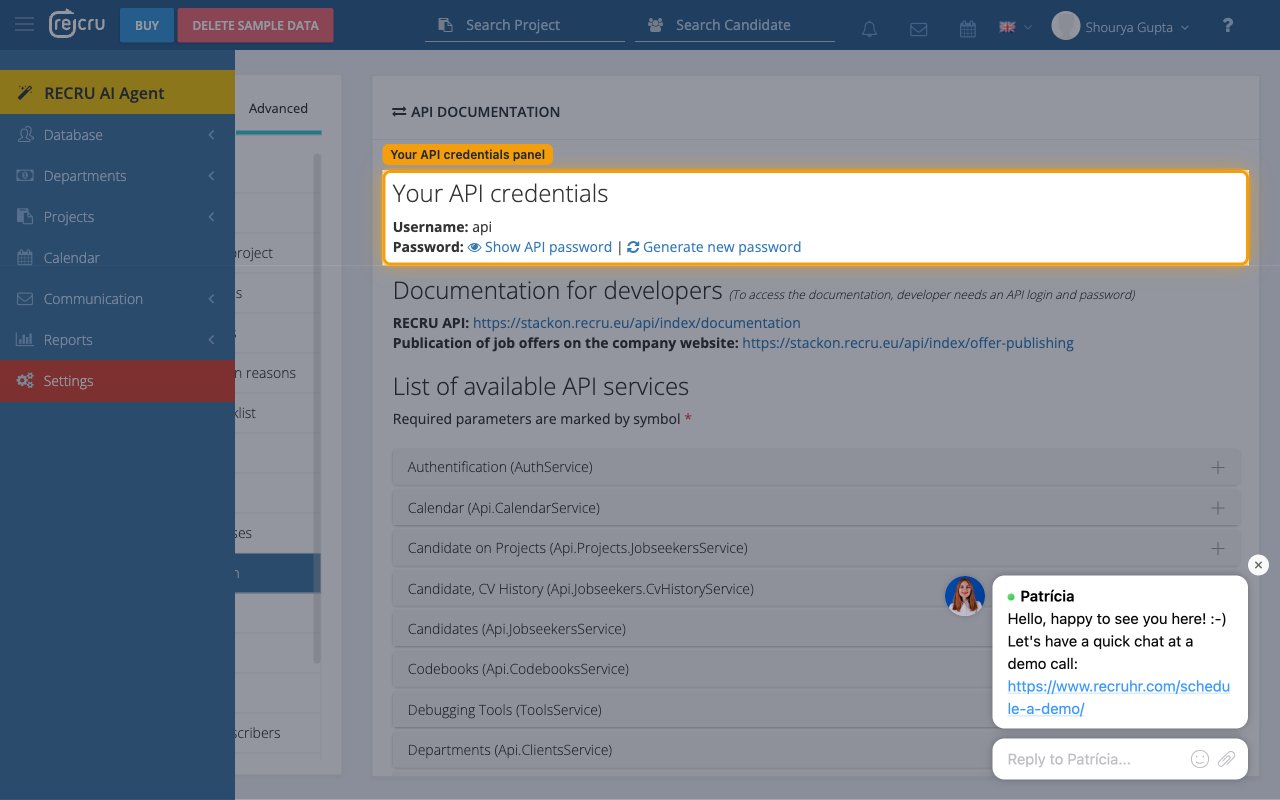
  <p>RECRU exposes a single tenant-wide API user. The username and password both live on the <strong>Your API credentials</strong> panel in your backoffice — you copy them from there into the StackOne Connector profile.</p>

  <Steps>
    <Step title="Sign in to RECRU">
      <div data-guide-step data-guide-scopes="" data-guide-display-scopes-list="">
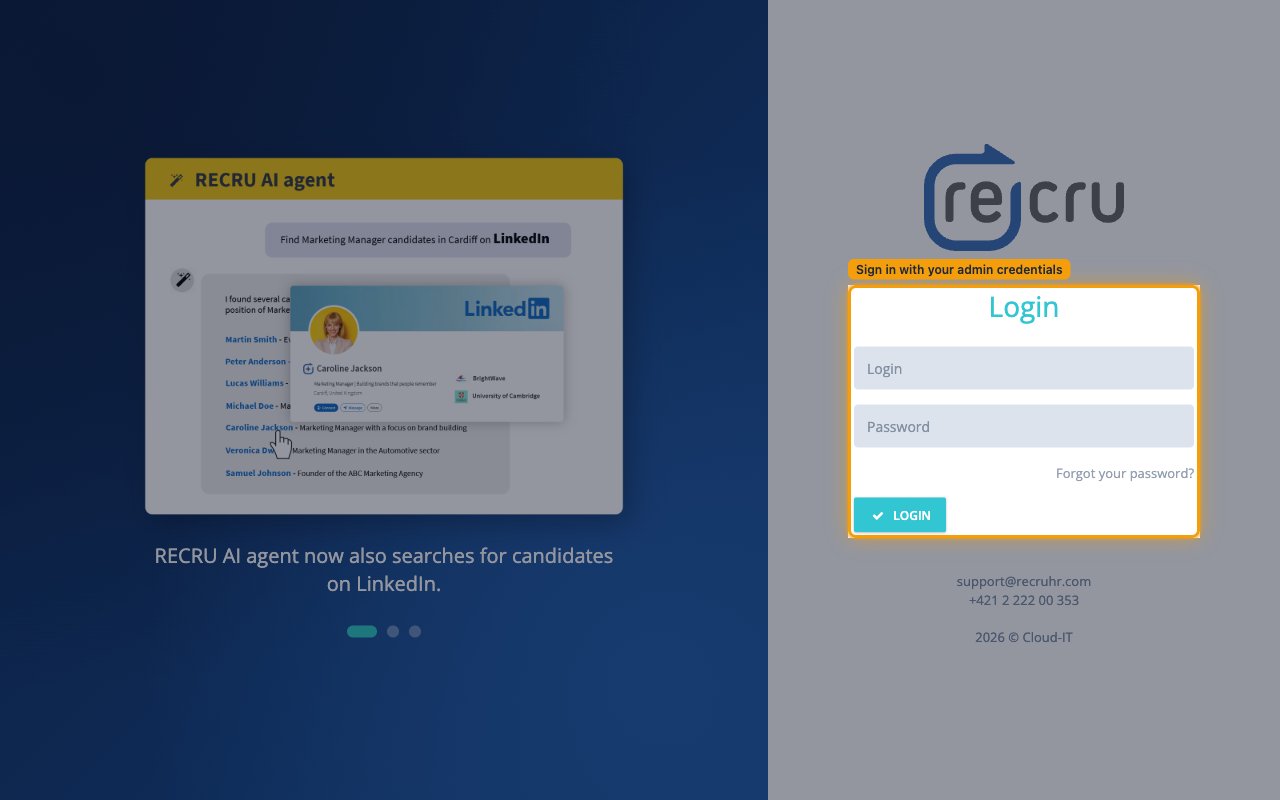
        <p>Open `https://<tenant>.recru.eu` in a browser (replace `<tenant>` with your RECRU subdomain — for example `https://mytenant.recru.eu`) and complete the <strong>Login</strong> form with your admin <strong>Login</strong> and <strong>Password</strong>.</p>

        <img src="https://mintcdn.com/stackone-60/U5T3Ph2claG4fCiL/connectors/recru/images/oauth2-setup-sign-in.png?fit=max&auto=format&n=U5T3Ph2claG4fCiL&q=85&s=2eb24defa3e7cd1d6e23f396cc46d95f" alt="RECRU BackOffice login screen with the Login and Password fields." width="1280" height="800" data-path="connectors/recru/images/oauth2-setup-sign-in.png" />
      </div>
    </Step>

    <Step title="Open API documentation in Settings">
      <div data-guide-step data-guide-scopes="" data-guide-display-scopes-list="">
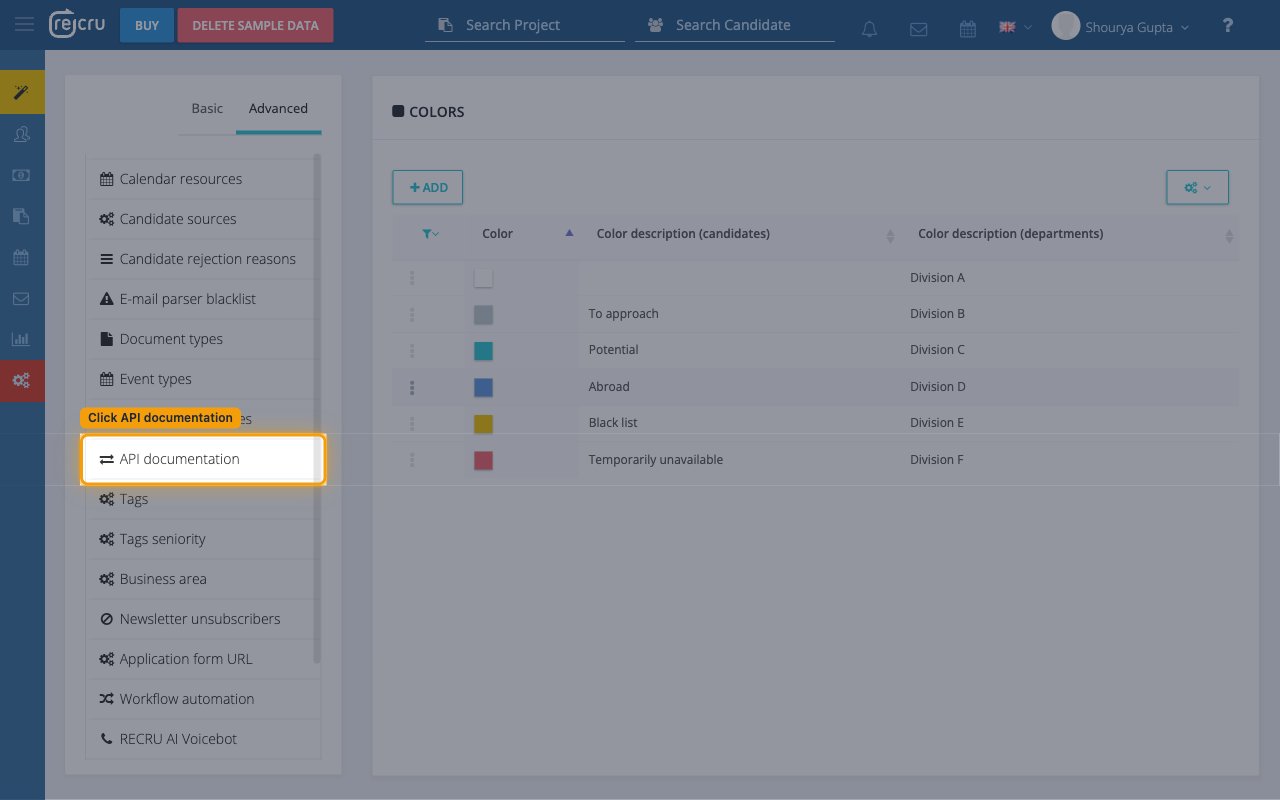
        <p>After signing in, open the API documentation screen from the backoffice sidebar.</p>

        <ul>
          <li>In the left navigation, click <strong>Settings</strong>.</li>
          <li>At the top of the Settings screen, switch from <strong>Basic</strong> to the <strong>Advanced</strong> tab.</li>
          <li>In the list on the left, click <strong>API documentation</strong>.</li>
        </ul>

        <img src="https://mintcdn.com/stackone-60/U5T3Ph2claG4fCiL/connectors/recru/images/oauth2-setup-api-documentation.png?fit=max&auto=format&n=U5T3Ph2claG4fCiL&q=85&s=2bd2ae68796a72ee0713283b63a92005" alt="Settings screen on the Advanced tab with the API documentation item highlighted." width="1280" height="800" data-path="connectors/recru/images/oauth2-setup-api-documentation.png" />
      </div>
    </Step>

    <Step title="Copy the API username and password">
      <div data-guide-step data-guide-scopes="" data-guide-display-scopes-list="">
        <p>The <strong>Your API credentials</strong> panel at the top of the <strong>API DOCUMENTATION</strong> screen holds the two values StackOne needs. Copy the <strong>Username</strong> exactly as shown and reveal the password with <strong>Show API password</strong>, then paste both into the StackOne Connector profile.</p>

        <ul>
          <li>Copy the value next to <strong>Username:</strong> (RECRU pre-fills this as `api`) and paste it into the <strong>Username</strong> field in the StackOne Connector profile.</li>
          <li>Click <strong>Show API password</strong> to reveal the current password, then copy it into the <strong>API password</strong> field in the StackOne Connector profile.</li>
          <li>If no password has been set yet — or you need to rotate it — click <strong>Generate new password</strong> instead. The new value replaces the previous password immediately and is shown only once.</li>
        </ul>

        <img src="https://mintcdn.com/stackone-60/U5T3Ph2claG4fCiL/connectors/recru/images/oauth2-setup-api-credentials.png?fit=max&auto=format&n=U5T3Ph2claG4fCiL&q=85&s=b68810b5528b7ed51da6d2cc7213544d" alt="The Your API credentials panel showing Username api and the Show API password and Generate new password links." width="1280" height="800" data-path="connectors/recru/images/oauth2-setup-api-credentials.png" />
      </div>
    </Step>
  </Steps>
</section>

## Creating the StackOne Connector Profile

To create the Connector Profile in StackOne for <strong>RECRU</strong>:

<Steps>
  <Step title="Navigate to Connector Profiles">
    Login to StackOne and navigate to [Connector Profiles](https://app.stackone.com/connector_profiles)
  </Step>

  <Step title="Create New Connector Profile">
    <ul>
      <li>Click <strong>+ Connector Profile</strong></li>
      <li>Search for and select <strong>RECRU</strong></li>
      <li>Select <strong>Type</strong> as <strong>API Credentials</strong></li>

      <li>
        Fill out the fields using details retrieved from your provider:

        <ul style={{ marginLeft: '20px' }}>
          <li><strong>Username</strong></li>
          <li><strong>API password</strong></li>
        </ul>
      </li>

      <li>(Optional) Select <strong>Actions</strong> to be enabled for this Connector Profile</li>
      <li>Click <strong>Create profile</strong></li>
    </ul>
  </Step>
</Steps>

Congratulations! The new Connector Profile will now show up in your project ready to be used. You can now continue to <a href="/guides/accounts-section#linking-accounts">Link Accounts</a> for <strong>RECRU</strong>.