> ## Documentation Index
> Fetch the complete documentation index at: https://docs.stackone.com/llms.txt
> Use this file to discover all available pages before exploring further.

# PubMed No Authentication connector profile – StackOne setup guide

> Set up the No Authentication connector profile for PubMed in StackOne. One-time admin setup required before your users can link PubMed accounts via Hub.

<section data-guide-section data-guide-scopes="">
  <h2>Connect without authentication</h2>

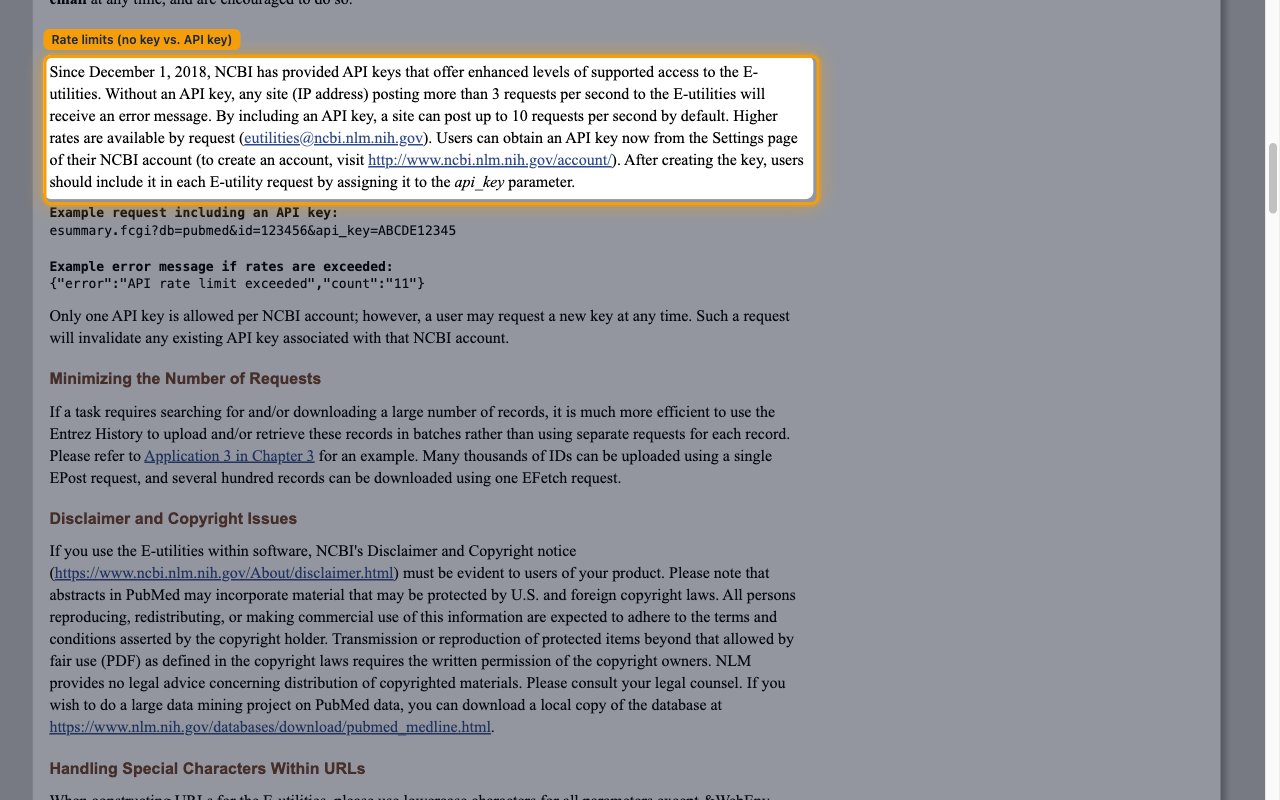
  <p>This connector calls the public NCBI E-utilities API, which requires <strong>no credentials</strong>. Anonymous access is limited to <strong>3 requests/second</strong> per IP address — enough for most integrations. There is nothing to obtain from NCBI to connect.</p>

  <Steps>
    <Step title="Create the connection">
      <div data-guide-step data-guide-scopes="" data-guide-display-scopes-list="">
        <p>Choose the <strong>No Authentication</strong> option and create the connection in the StackOne Connector profile. There are no fields to fill in — no API key, username, or password is required. StackOne begins calling the E-utilities API immediately.</p>
      </div>
    </Step>

    <Step title="Enable higher throughput (optional)">
      <div data-guide-step data-guide-scopes="" data-guide-display-scopes-list="">
        <p>If you need higher throughput, NCBI offers a free API key that raises the limit to <strong>10 requests/second</strong>. To use it, create the connection with the <strong>API Key</strong> authentication option instead of <strong>No Authentication</strong>, and follow that option's guide to generate a key.</p>

        <ul>
          <li>NCBI's usage guidelines state: *Without an API key, any site (IP address) posting more than 3 requests per second to the E-utilities will receive an error message. By including an API key, a site can post up to 10 requests per second by default.*</li>
          <li>You can review the full rules on the <a href="https://www.ncbi.nlm.nih.gov/books/NBK25497/" target="_blank" rel="noopener noreferrer">NCBI E-utilities usage guidelines page</a>.</li>
          <li>An API key is created from your NCBI account settings — sign up or sign in at the <a href="https://www.ncbi.nlm.nih.gov/account/" target="_blank" rel="noopener noreferrer">NCBI account page</a>.</li>
        </ul>

        <img src="https://mintcdn.com/stackone-60/dF1Ul392l6rlD_Mh/connectors/pubmed/images/no-auth-setup-rate-limits.png?fit=max&auto=format&n=dF1Ul392l6rlD_Mh&q=85&s=9f799d828a4d611009e50d7e8df49e28" alt="NCBI E-utilities usage guidelines page highlighting the 3 vs 10 requests-per-second rate limits" width="1280" height="800" data-path="connectors/pubmed/images/no-auth-setup-rate-limits.png" />
      </div>
    </Step>
  </Steps>
</section>

## Creating the StackOne Connector Profile

To create the Connector Profile in StackOne for <strong>PubMed</strong>:

<Steps>
  <Step title="Navigate to Connector Profiles">
    Login to StackOne and navigate to [Connector Profiles](https://app.stackone.com/connector_profiles)
  </Step>

  <Step title="Create New Connector Profile">
    <ul>
      <li>Click <strong>+ Connector Profile</strong></li>
      <li>Search for and select <strong>PubMed</strong></li>
      <li>Select <strong>Type</strong> as <strong>No Authentication</strong></li>
      <li>(Optional) Select <strong>Actions</strong> to be enabled for this Connector Profile</li>
      <li>Click <strong>Create profile</strong></li>
    </ul>
  </Step>
</Steps>

Congratulations! The new Connector Profile will now show up in your project ready to be used. You can now continue to <a href="/guides/accounts-section#linking-accounts">Link Accounts</a> for <strong>PubMed</strong>.