> ## Documentation Index
> Fetch the complete documentation index at: https://docs.stackone.com/llms.txt
> Use this file to discover all available pages before exploring further.

# Prismic Webhook Setup Guide

> Configure Prismic to deliver events to StackOne.

## Prerequisites

The connector should already be set up, with a Connector Profile and a Linked Account. See [Getting Started](/connectors/prismic#getting-started) on the Prismic connector page.

<section data-guide-section data-guide-scopes="">
  <h2>Webhook setup</h2>

  <p>This connector uses Manual Webhooks. Prismic has no public API for managing webhooks, so you add one webhook per repository in the Prismic dashboard, pointing at the StackOne Native Webhook URL for the linked account.</p>

  <Steps>
    <Step title="Retrieve StackOne Native Webhook URL">
      <div data-guide-step data-guide-scopes="" data-guide-display-scopes-list="">
        <p>The <strong>Native Webhook URL</strong> is generated once an account has been linked. Each linked Prismic repository has its own URL.</p>

        <ul>
          <li>Open the linked account in StackOne.</li>
          <li>Copy the value from <strong>Native Webhook URL</strong>.</li>
        </ul>
      </div>
    </Step>

    <Step title="Open webhook settings">
      <div data-guide-step data-guide-scopes="" data-guide-display-scopes-list="">
        <p>Sign in to the <a href="https://prismic.io/dashboard" target="_blank" rel="noopener noreferrer">Prismic dashboard</a> and open the repository you linked to StackOne.</p>

        <ul>
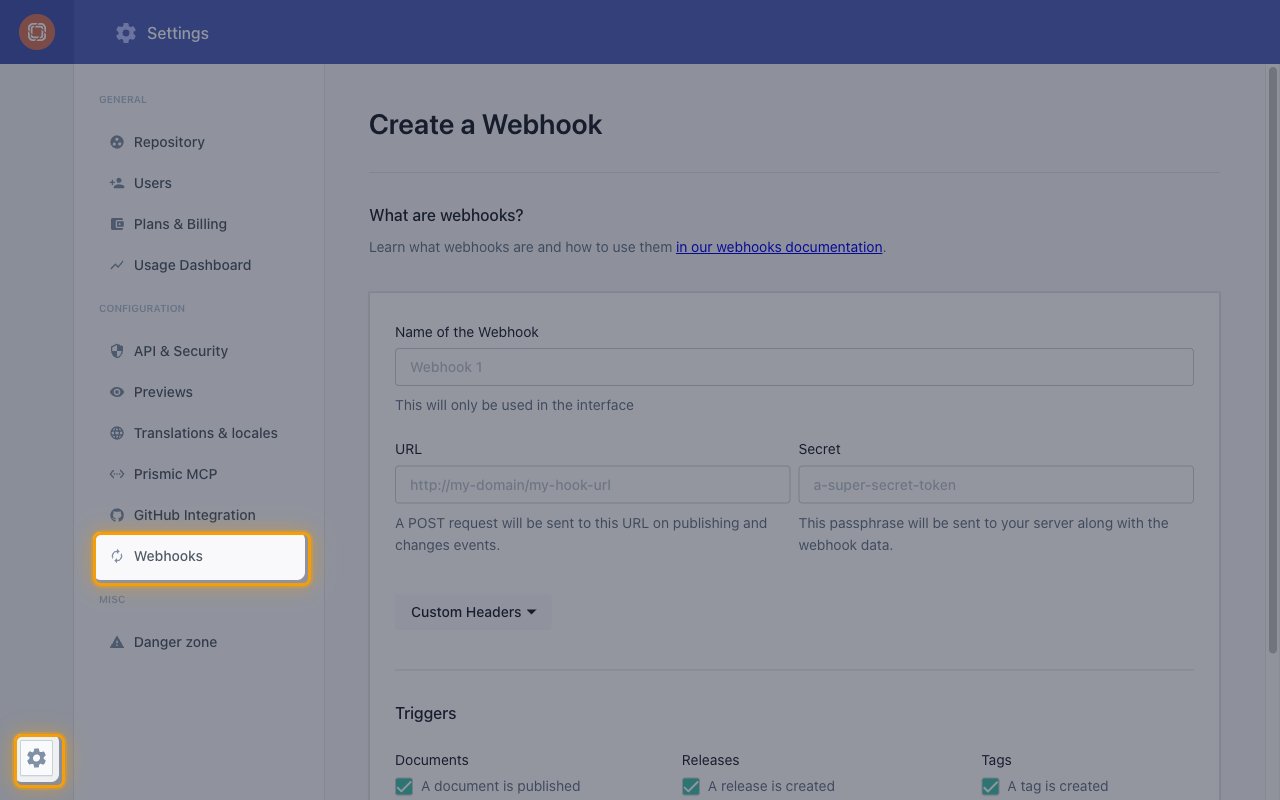
          <li>Click the <strong>Settings</strong> gear icon at the bottom of the left sidebar.</li>
          <li>Under <strong>Configuration</strong>, select <strong>Webhooks</strong>.</li>
          <li>If the repository already has webhooks, click <strong>Create a webhook</strong> below the list.</li>
        </ul>

        <img src="https://mintcdn.com/stackone-60/MMyHSkhRt3PUtUi0/connectors/prismic/images/events-open-webhooks.png?fit=max&auto=format&n=MMyHSkhRt3PUtUi0&q=85&s=793d569c119773ec28c5baa2b058ec78" alt="Prismic repository settings with the Settings gear and the Webhooks menu item highlighted" width="1280" height="800" data-path="connectors/prismic/images/events-open-webhooks.png" />
      </div>
    </Step>

    <Step title="Enter the webhook details">
      <div data-guide-step data-guide-scopes="" data-guide-display-scopes-list="">
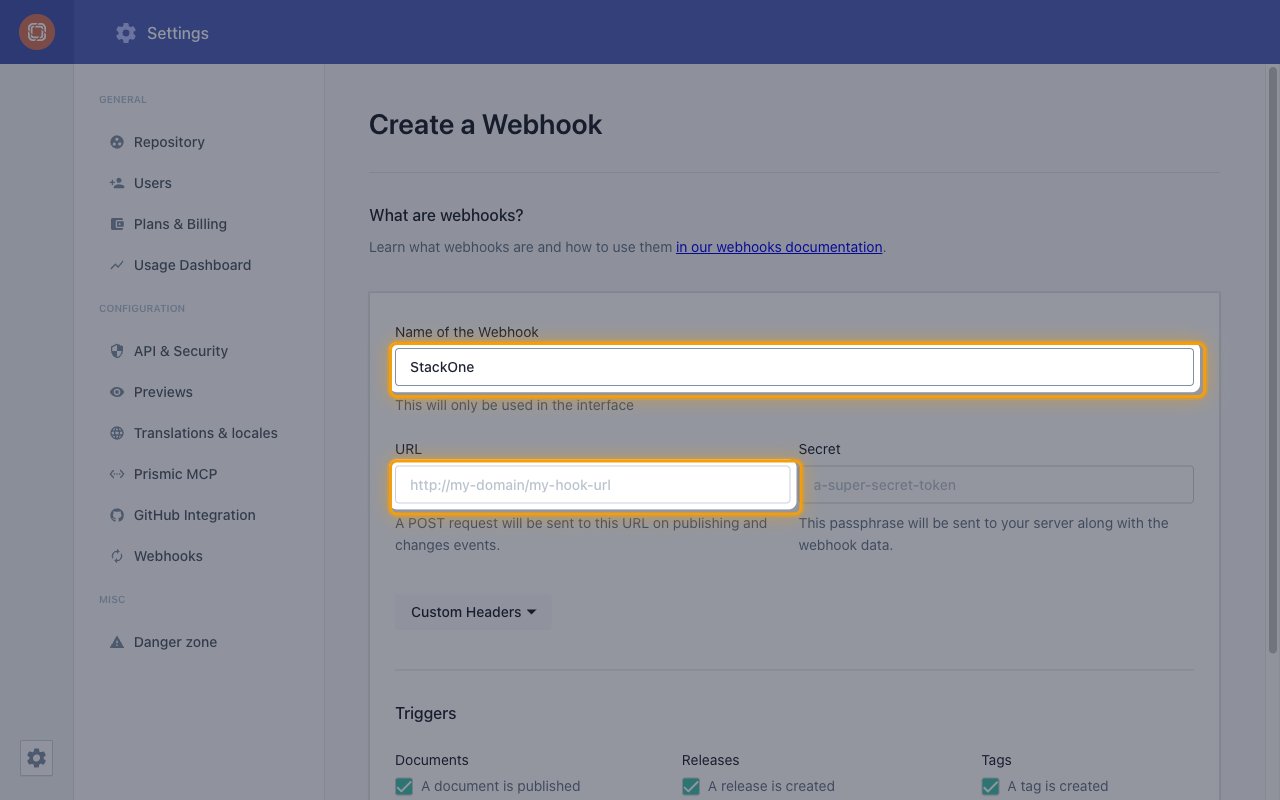
        <p>Fill in the <strong>Create a Webhook</strong> form.</p>

        <ul>
          <li><strong>Name of the Webhook</strong>: enter a name such as `StackOne`. It is only shown in the Prismic interface.</li>
          <li><strong>URL</strong>: paste the StackOne <strong>Native Webhook URL</strong>.</li>
          <li><strong>Secret</strong>: leave empty. StackOne identifies the account from the Native Webhook URL.</li>
          <li>Leave <strong>Custom Headers</strong> empty.</li>
        </ul>

        <img src="https://mintcdn.com/stackone-60/MMyHSkhRt3PUtUi0/connectors/prismic/images/events-webhook-details.png?fit=max&auto=format&n=MMyHSkhRt3PUtUi0&q=85&s=2cc95a942fe3d7cc3991cbf21fa80b86" alt="Create a Webhook form with the Name of the Webhook and URL fields highlighted" width="1280" height="800" data-path="connectors/prismic/images/events-webhook-details.png" />
      </div>
    </Step>

    <Step title="Select the triggers and save">
      <div data-guide-step data-guide-scopes="" data-guide-display-scopes-list="">
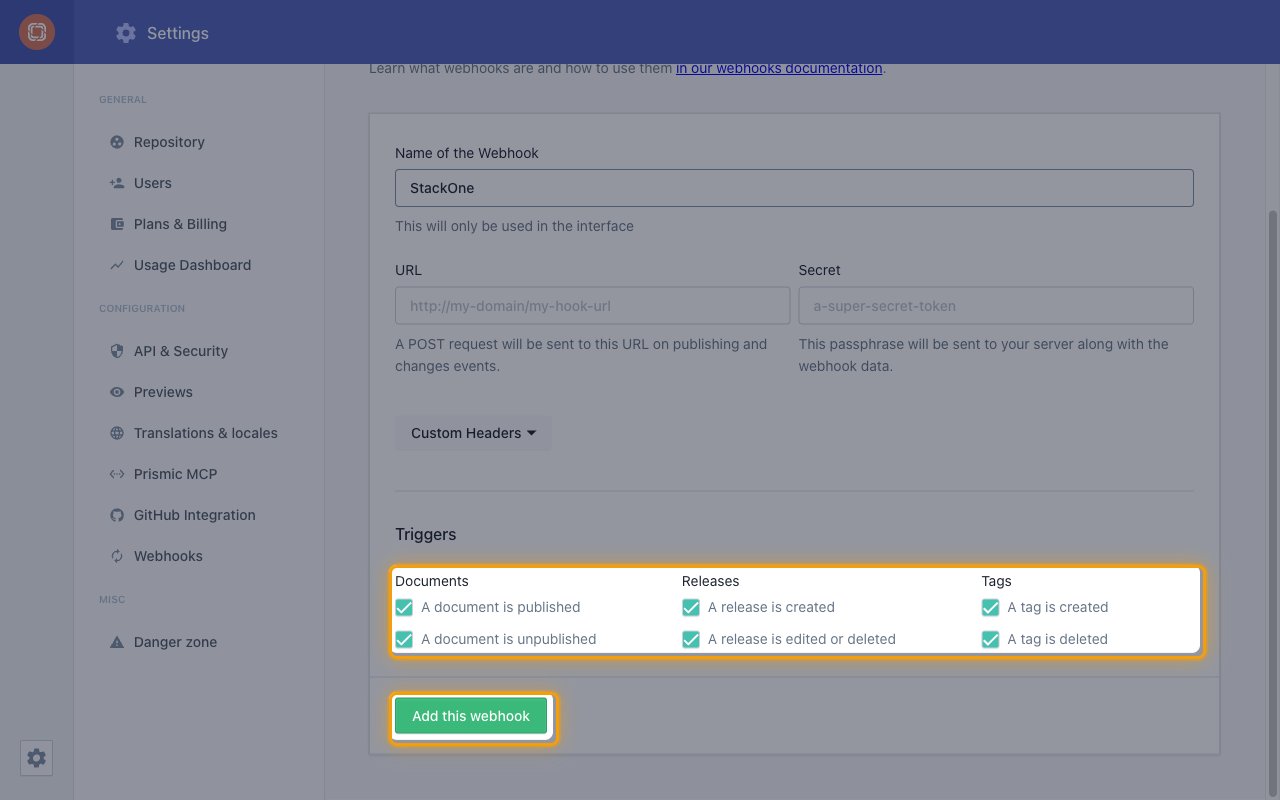
        <p>Under <strong>Triggers</strong>, keep every checkbox selected so StackOne receives all supported events, then click <strong>Add this webhook</strong>.</p>

        <ul>
          <li><strong>Documents</strong>: <strong>A document is published</strong> and <strong>A document is unpublished</strong>.</li>
          <li><strong>Releases</strong>: <strong>A release is created</strong> and <strong>A release is edited or deleted</strong>.</li>
          <li><strong>Tags</strong>: <strong>A tag is created</strong> and <strong>A tag is deleted</strong>.</li>
        </ul>

        <img src="https://mintcdn.com/stackone-60/MMyHSkhRt3PUtUi0/connectors/prismic/images/events-webhook-triggers.png?fit=max&auto=format&n=MMyHSkhRt3PUtUi0&q=85&s=c36f29781d13e82b43140a0f33c6904b" alt="Triggers section with all six trigger checkboxes selected and the Add this webhook button highlighted" width="1280" height="800" data-path="connectors/prismic/images/events-webhook-triggers.png" />
      </div>
    </Step>
  </Steps>
</section>

<section data-guide-section data-guide-scopes="">
  <h2>Available webhook events</h2>

  <p>The following Prismic events are supported. Only triggers selected on the Prismic webhook are delivered, and only events enabled in StackOne are forwarded to your application.</p>

  <Steps>
    <Step title="Document events">
      <div data-guide-step data-guide-scopes="" data-guide-display-scopes-list="">
        <p>Events related to publishing documents.</p>

        <ul>
          <li><strong>Document Published or Unpublished</strong> (`document.changed`) — Fired when one or more documents are published or unpublished. Prismic sends the same payload for both, so check the documents listed in the event to see their current state.</li>
        </ul>
      </div>
    </Step>

    <Step title="Release events">
      <div data-guide-step data-guide-scopes="" data-guide-display-scopes-list="">
        <p>Events related to releases (groups of document changes scheduled or published together).</p>

        <ul>
          <li><strong>Release Created</strong> (`release.created`) — Fired when a release is created.</li>
          <li><strong>Release Updated</strong> (`release.updated`) — Fired when a release is edited, such as its name, schedule or documents.</li>
          <li><strong>Release Deleted</strong> (`release.deleted`) — Fired when a release is deleted or published.</li>
        </ul>
      </div>
    </Step>

    <Step title="Tag events">
      <div data-guide-step data-guide-scopes="" data-guide-display-scopes-list="">
        <p>Events related to document tags.</p>

        <ul>
          <li><strong>Tag Created</strong> (`tag.created`) — Fired when a new tag is added to the repository.</li>
          <li><strong>Tag Deleted</strong> (`tag.deleted`) — Fired when a tag is no longer used by any published document.</li>
        </ul>
      </div>
    </Step>
  </Steps>
</section>

<section data-guide-section data-guide-scopes="">
  <h2>Delivery format</h2>

  <p>Details of how Prismic delivers events to StackOne.</p>

  <Steps>
    <Step title="One change type per delivery">
      <div data-guide-step data-guide-scopes="" data-guide-display-scopes-list="">
        <p>Every Prismic delivery has the type `api-update`, and StackOne works out the event from the payload. When one delivery covers several kinds of change, StackOne emits a single event, choosing in this order: release, then tag, then document. For example, publishing a document with a new tag produces `tag.created`, and publishing a release produces `release.deleted`. The full Prismic payload, including every changed document ID, is always included in the event data.</p>
      </div>
    </Step>

    <Step title="Test deliveries and retries">
      <div data-guide-step data-guide-scopes="" data-guide-display-scopes-list="">
        <p>The Prismic test delivery (type `test-trigger`) is acknowledged but not forwarded as an event. If a delivery does not get a `200` response, Prismic retries every 10 minutes up to 5 times and disables the webhook after 5 consecutive failures. Prismic payloads carry no timestamp, so the event date is the time StackOne received the delivery.</p>
      </div>
    </Step>
  </Steps>
</section>

## Verify

Your Connector should now be able to receive and process events. Try triggering an event and you should see an Event appear in the Connector logs.


This documentation is built and hosted on [Mintlify](https://mintlify.com), a developer documentation platform.