> ## Documentation Index
> Fetch the complete documentation index at: https://docs.stackone.com/llms.txt
> Use this file to discover all available pages before exploring further.

# Connect Polymer with API Key – StackOne Hub

> Link a Polymer account in the StackOne Hub using API Key. End-user guide to authorize the integration and start using Polymer actions.

<Warning>Viewing or generating your Polymer API key requires an admin role. If you are not an admin, ask your organization's administrator to generate a key for you.</Warning>

<section data-guide-section data-guide-scopes="">
  <h2>Generate your Polymer API key</h2>

  <p>Polymer Hire authenticates the Customer API with a single Bearer API key managed in your account settings. You will sign in, open your API key settings, generate a key, and copy it into the StackOne connection form.</p>

  <Steps>
    <Step title="Sign in to Polymer">
      <div data-guide-step data-guide-scopes="" data-guide-display-scopes-list="">
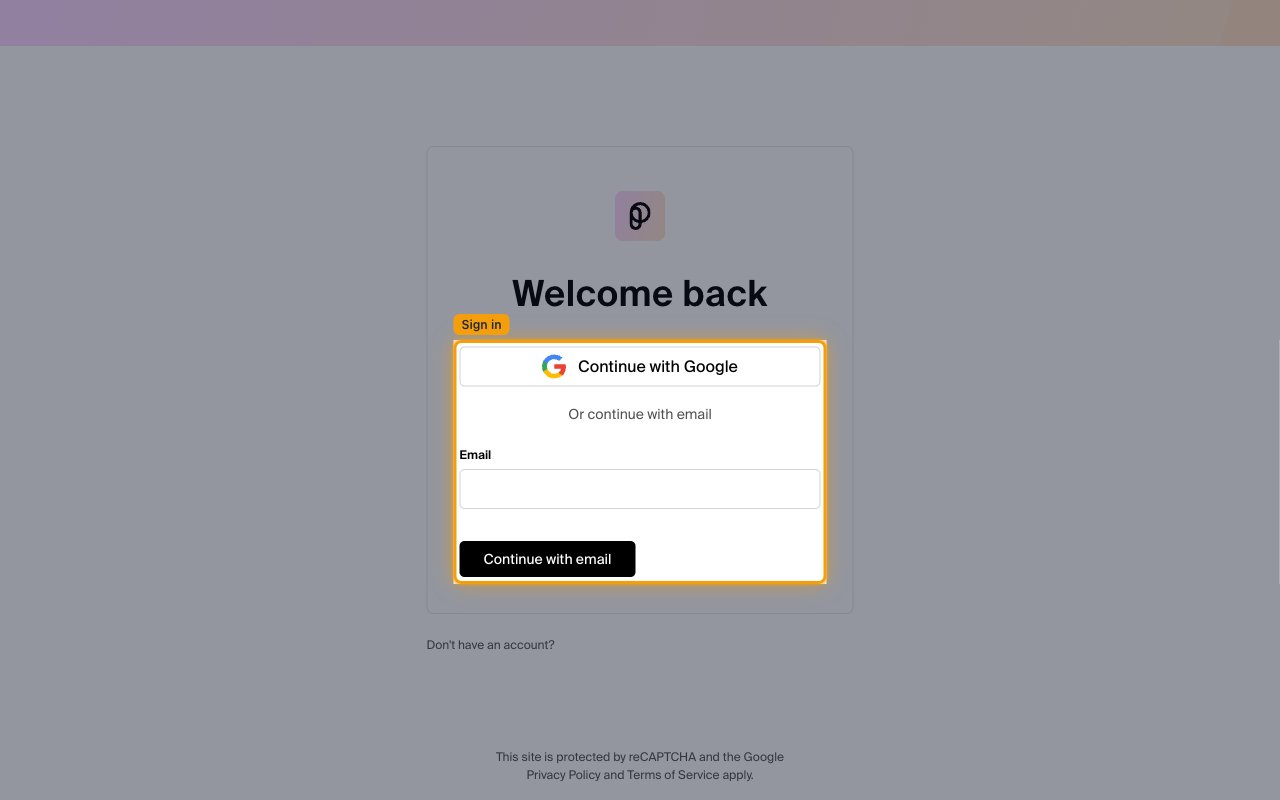
        <p>Go to the <a href="https://app.polymer.co" target="_blank" rel="noopener noreferrer">Polymer Hire dashboard</a> and sign in to your account. Click <strong>Continue with Google</strong>, or enter your work email under <strong>Email</strong> and click <strong>Continue with email</strong>.</p>

        <img src="https://mintcdn.com/stackone-60/23jn-8pTfk5NJyh3/connectors/polymer/images/custom-config-sign-in.png?fit=max&auto=format&n=23jn-8pTfk5NJyh3&q=85&s=169a74989d3a2c04d3e657c8c48174f9" alt="Polymer &#x22;Welcome back&#x22; sign-in screen with a Continue with Google button and an Email field with a Continue with email button." width="1280" height="800" data-path="connectors/polymer/images/custom-config-sign-in.png" />
      </div>
    </Step>

    <Step title="Open your API key settings">
      <div data-guide-step data-guide-scopes="" data-guide-display-scopes-list="">
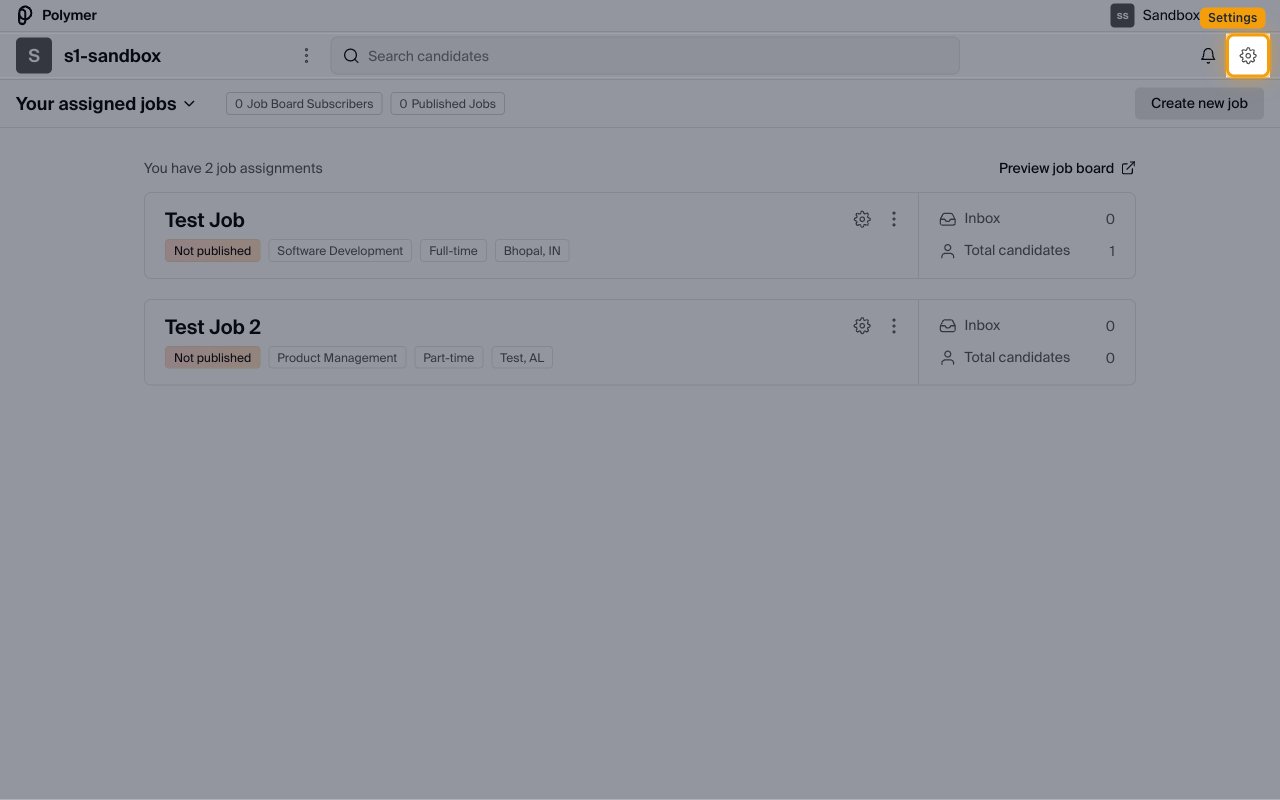
        <p>Click the settings (gear) icon in the top-right of the navigation bar to open <strong>App settings</strong>, then select <strong>Your API key</strong> from the left menu. You can also go directly to the <a href="https://app.polymer.co/hire/settings/api_keys" target="_blank" rel="noopener noreferrer">Your API key settings page</a>.</p>

        <img src="https://mintcdn.com/stackone-60/23jn-8pTfk5NJyh3/connectors/polymer/images/custom-config-settings.png?fit=max&auto=format&n=23jn-8pTfk5NJyh3&q=85&s=53fc1dcd2fb1c87a035131ee96bf1b50" alt="Polymer dashboard with the settings gear icon highlighted in the top-right of the navigation bar." width="1280" height="800" data-path="connectors/polymer/images/custom-config-settings.png" />
      </div>
    </Step>

    <Step title="Generate an API key">
      <div data-guide-step data-guide-scopes="" data-guide-display-scopes-list="">
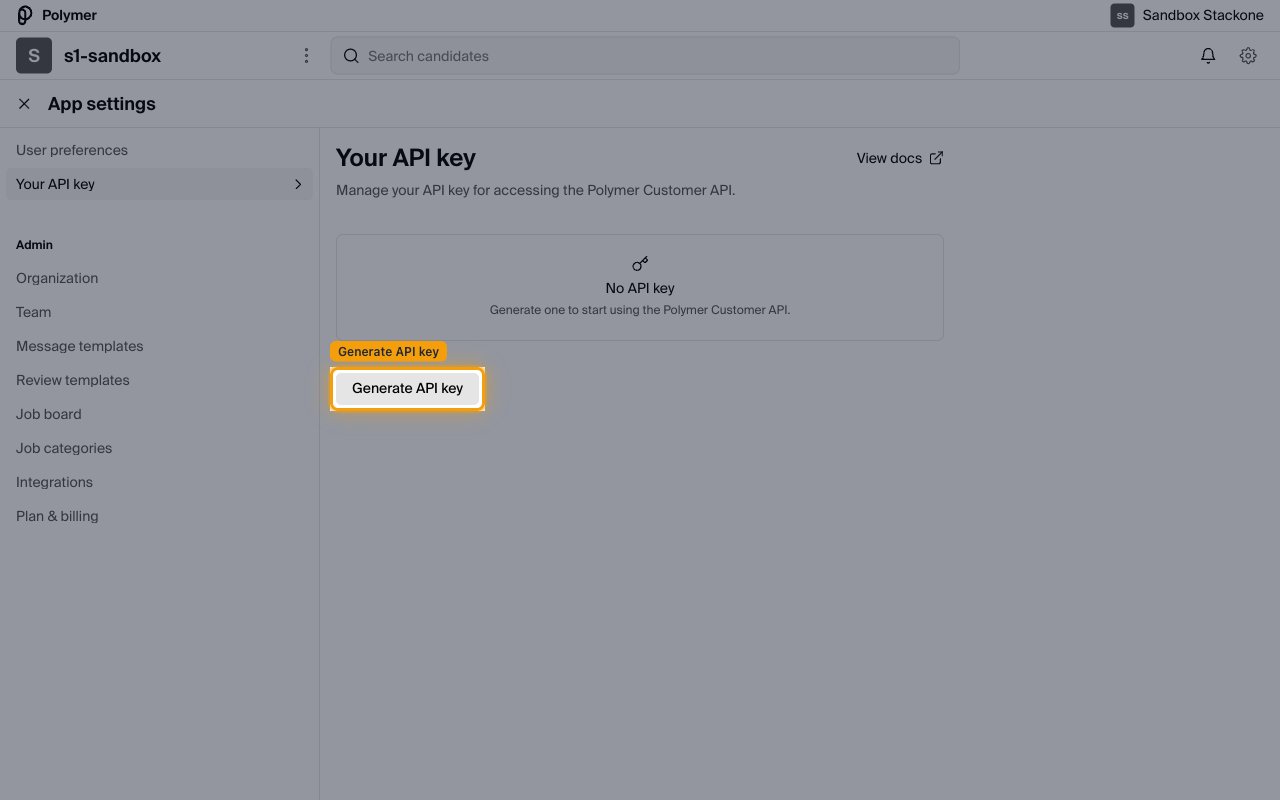
        <p>On the <strong>Your API key</strong> page, if you do not have a key yet it shows <strong>No API key</strong>. Click <strong>Generate API key</strong> to create one.</p>

        <img src="https://mintcdn.com/stackone-60/23jn-8pTfk5NJyh3/connectors/polymer/images/custom-config-generate-key.png?fit=max&auto=format&n=23jn-8pTfk5NJyh3&q=85&s=ce78a860c81a19932988bd05ae3baa60" alt="Your API key settings page in the No API key state with a Generate API key button." width="1280" height="800" data-path="connectors/polymer/images/custom-config-generate-key.png" />
      </div>
    </Step>

    <Step title="Copy your API key">
      <div data-guide-step data-guide-scopes="" data-guide-display-scopes-list="">
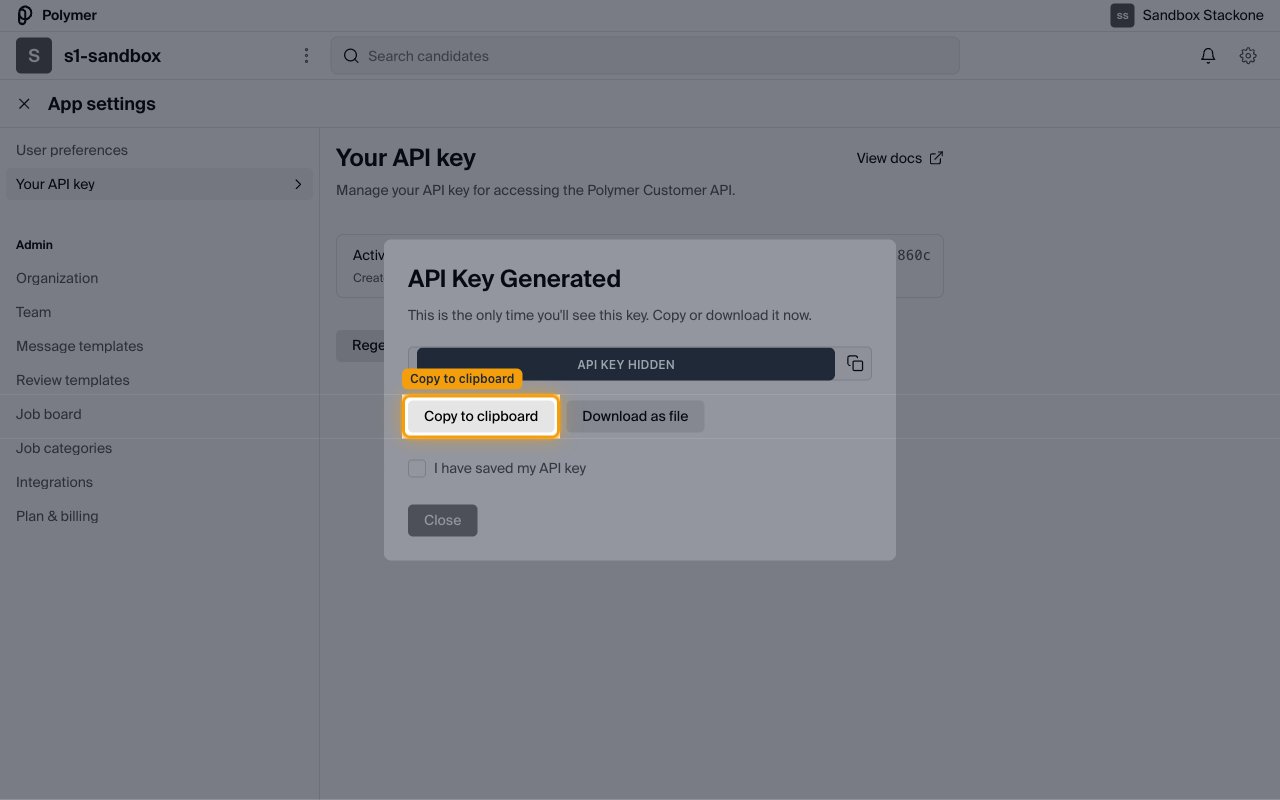
        <p>The <strong>API Key Generated</strong> dialog appears. Click <strong>Copy to clipboard</strong> (or <strong>Download as file</strong>) and paste the key into the <strong>API Key</strong> field on the StackOne connection form. Then tick <strong>I have saved my API key</strong> and click <strong>Close</strong>.</p>

        <ul>
          <li>As the dialog warns, "This is the only time you'll see this key. Copy or download it now." The full key cannot be retrieved later — afterwards the page shows only the last characters (for example ••••860c).</li>
        </ul>

        <img src="https://mintcdn.com/stackone-60/23jn-8pTfk5NJyh3/connectors/polymer/images/custom-config-key-generated.png?fit=max&auto=format&n=23jn-8pTfk5NJyh3&q=85&s=7951e97875ddd9c395fb2f0003925b34" alt="API Key Generated dialog with the key value (redacted), Copy to clipboard and Download as file buttons, and an I have saved my API key checkbox." width="1280" height="800" data-path="connectors/polymer/images/custom-config-key-generated.png" />
      </div>
    </Step>

    <Step title="Review your active key">
      <div data-guide-step data-guide-scopes="" data-guide-display-scopes-list="">
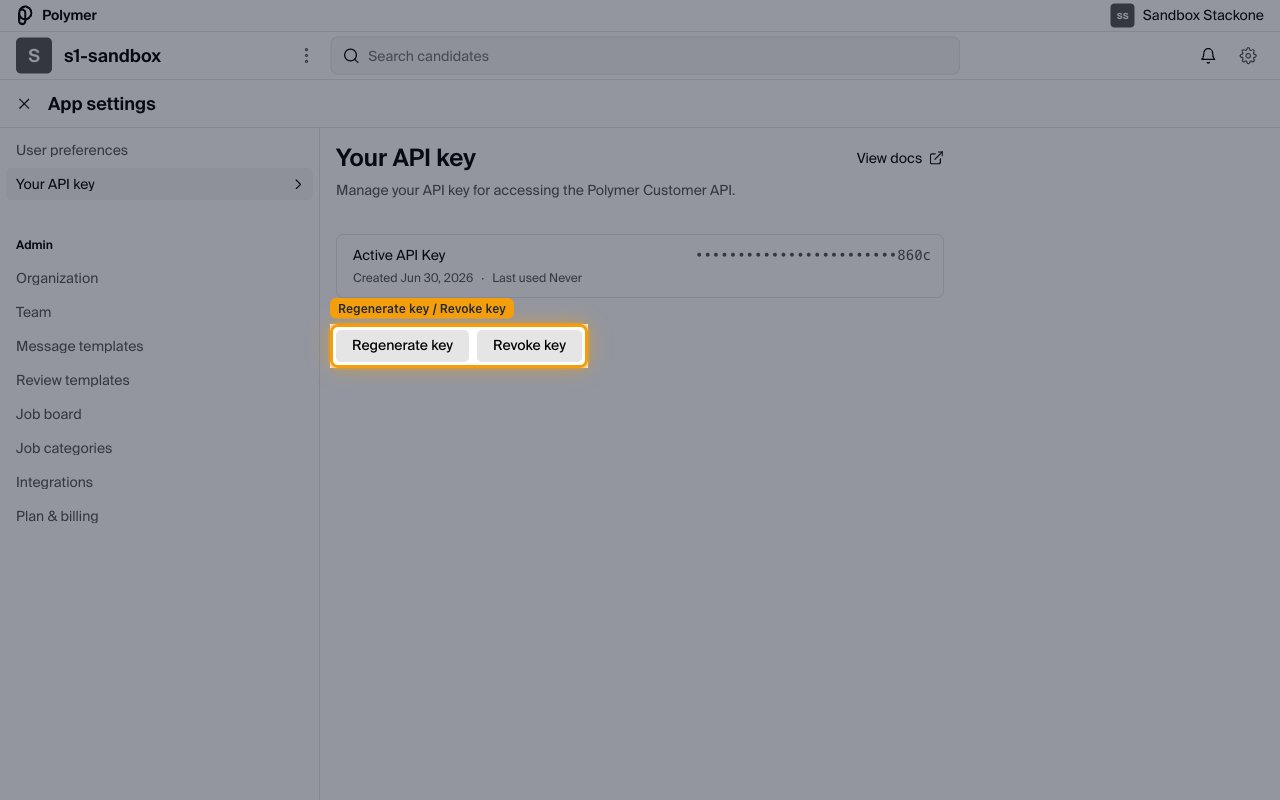
        <p>Once a key exists, the page shows it as <strong>Active API Key</strong> with its creation date. Use <strong>Regenerate key</strong> to replace it (this immediately invalidates the previous key, so update any existing integrations) or <strong>Revoke key</strong> to disable a key you no longer need.</p>

        <img src="https://mintcdn.com/stackone-60/23jn-8pTfk5NJyh3/connectors/polymer/images/custom-config-manage-key.png?fit=max&auto=format&n=23jn-8pTfk5NJyh3&q=85&s=c12dcc4b42b0a4c5b0557e356034f408" alt="Active API Key card showing the masked key with Regenerate key and Revoke key buttons." width="1280" height="800" data-path="connectors/polymer/images/custom-config-manage-key.png" />
      </div>
    </Step>
  </Steps>
</section>

## Linking the Account from the Hub

<Steps>
  <Step title="Navigate to the Hub">
    Use one of the three <a href="/guides/accounts-section#linking-accounts">Linking Account Methods</a> to access the Hub.
  </Step>

  <Step title="Fill out the fields">
    Fill out the following fields using details from your provider:

    <ul>
      <li><strong>API Key</strong></li>
    </ul>
  </Step>

  <Step title="Connect">
    <ul>
      <li>Click <strong>Connect</strong></li>
      <li>If applicable, the provider will redirect you to a sign-in or authorization page. Complete the provider's authorization flow.</li>
      <li>Once authorization is successful, you will see a confirmation popup</li>
    </ul>
  </Step>
</Steps>

If the account linking is successful, you will see the newly linked account in your <a href="/guides/accounts-section">Accounts</a> page.