> ## Documentation Index
> Fetch the complete documentation index at: https://docs.stackone.com/llms.txt
> Use this file to discover all available pages before exploring further.

# PingOne OAuth 2.0 connector profile – StackOne setup guide

> Set up the OAuth 2.0 connector profile for PingOne in StackOne. One-time admin setup required before your users can link PingOne accounts via Hub.

<Warning>PingOne authorises Management API calls based on the admin roles assigned to the signing-in user, not on OAuth scopes. If the user who signs in during the StackOne connection does not hold a suitable role (Environment Admin, Identity Data Admin, or Organization Admin), the API returns HTTP 403 even when the application is configured correctly.</Warning>

<section data-guide-section data-guide-scopes="">
  <h2>Create a Worker Application</h2>

  <p>Register a new <strong>Worker</strong> application in the PingOne Admin Console. Worker is the only application type that can call the PingOne Management API on StackOne's behalf.</p>

  <Steps>
    <Step title="Sign in to PingOne">
      <div data-guide-step data-guide-scopes="" data-guide-display-scopes-list="">
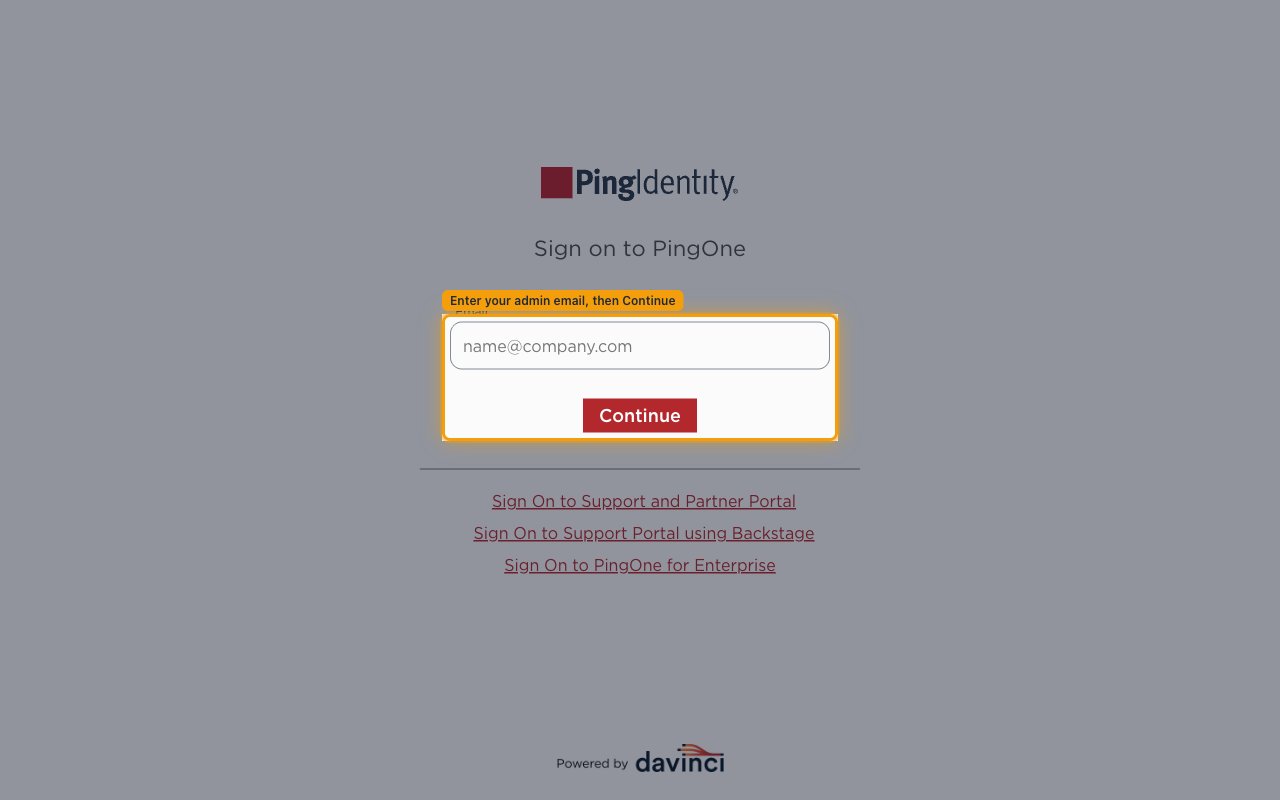
        <p>Open the PingOne sign-on page at <a href="https://signon.pingidentity.com/" target="_blank" rel="noopener noreferrer">[https://signon.pingidentity.com/](https://signon.pingidentity.com/)</a>. On the <strong>Sign on to PingOne</strong> page, enter your admin <strong>Email</strong>, click <strong>Continue</strong>, and complete your password and any MFA prompt to reach the Admin Console.</p>

        <img src="https://mintcdn.com/stackone-60/p0ZopJZyU1EN9bvp/connectors/pingone/images/oauth2-setup-signon.png?fit=max&auto=format&n=p0ZopJZyU1EN9bvp&q=85&s=0fa60554035b0fb43097ae8d73a4ef37" alt="The PingOne Sign On page with the Email field and the Continue button." width="1280" height="800" data-path="connectors/pingone/images/oauth2-setup-signon.png" />
      </div>
    </Step>

    <Step title="Open the Applications page">
      <div data-guide-step data-guide-scopes="" data-guide-display-scopes-list="">
        <p>With the Admin Console open, confirm the environment shown in the breadcrumb at the top of the page is the one you want to connect.</p>

        <ul>
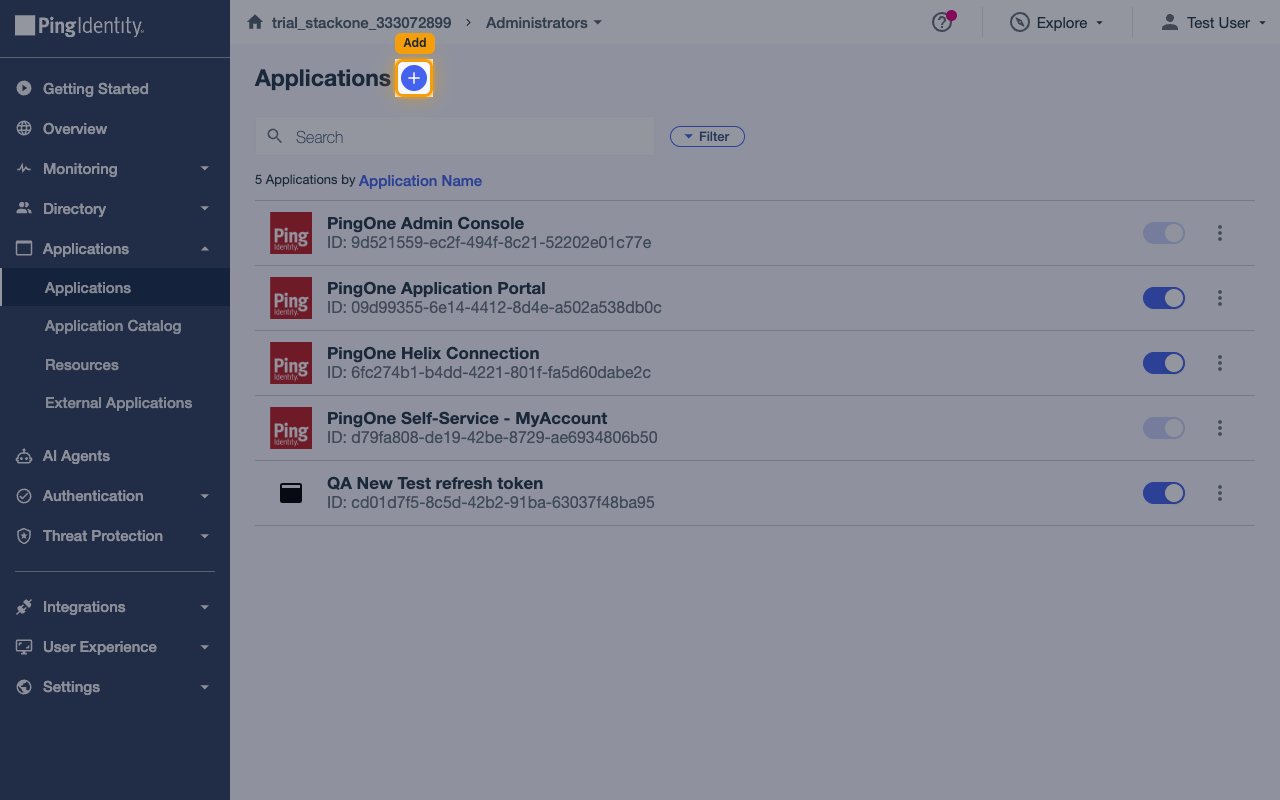
          <li>In the left navigation, expand <strong>Applications</strong> and click <strong>Applications</strong>.</li>
          <li>Click the <strong>Add</strong> (<strong>+</strong>) button in the top-right corner of the <strong>Applications</strong> page.</li>
        </ul>

        <img src="https://mintcdn.com/stackone-60/p0ZopJZyU1EN9bvp/connectors/pingone/images/oauth2-setup-apps.png?fit=max&auto=format&n=p0ZopJZyU1EN9bvp&q=85&s=10957d9b865c62daf896011d4ae8a55a" alt="The PingOne Applications page with the Add (+) button highlighted in the top-right." width="1280" height="800" data-path="connectors/pingone/images/oauth2-setup-apps.png" />
      </div>
    </Step>

    <Step title="Create the Worker application">
      <div data-guide-step data-guide-scopes="" data-guide-display-scopes-list="">
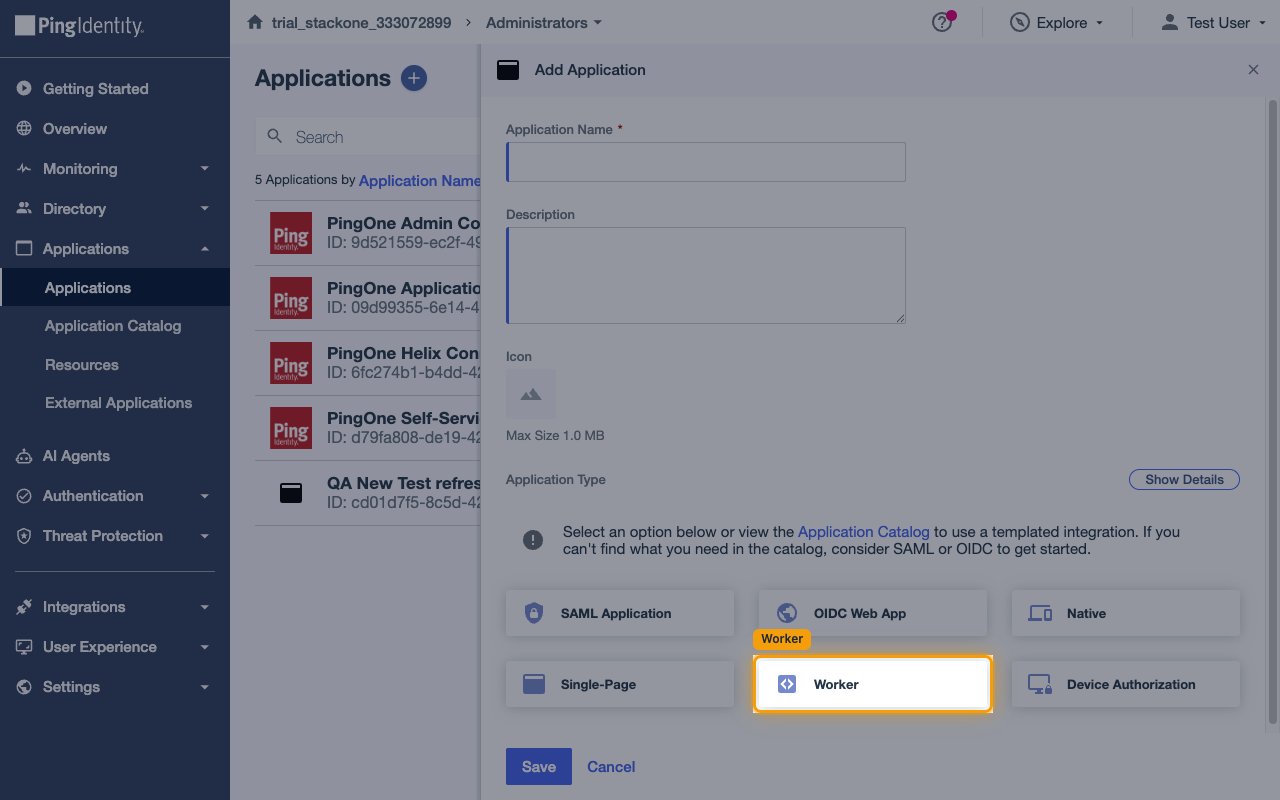
        <p>In the <strong>Add Application</strong> panel:</p>

        <ul>
          <li><strong>Application Name</strong> (required) — enter a descriptive name, for example `StackOne Integration`.</li>
          <li><strong>Description</strong> (optional) — add a short note, such as `StackOne delegated admin integration`.</li>
          <li><strong>Icon</strong> (optional) — upload an image up to the size shown (1 MB).</li>
          <li>Under <strong>Application Type</strong>, select the <strong>Worker</strong> tile.</li>
          <li>Click <strong>Save</strong>.</li>
        </ul>

        <img src="https://mintcdn.com/stackone-60/p0ZopJZyU1EN9bvp/connectors/pingone/images/oauth2-setup-worker.png?fit=max&auto=format&n=p0ZopJZyU1EN9bvp&q=85&s=9d84e75903dddb8b61e9f11ba92b7d3c" alt="The Add Application panel showing the Application Type tiles with the Worker tile highlighted." width="1280" height="800" data-path="connectors/pingone/images/oauth2-setup-worker.png" />
      </div>
    </Step>

    <Step title="Enable the application">
      <div data-guide-step data-guide-scopes="" data-guide-display-scopes-list="">
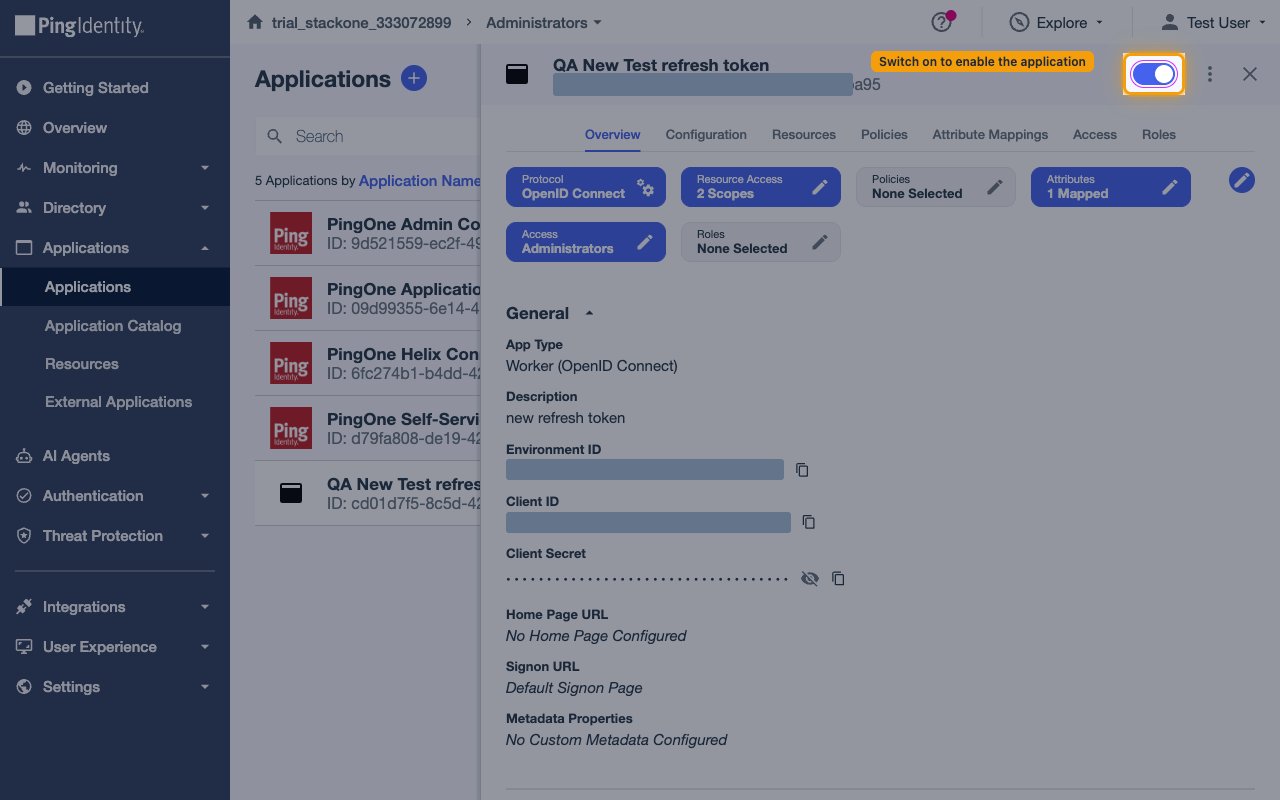
        <p>At the top of the application panel, next to the application name, switch the enablement toggle on. It turns blue when the application is enabled. A newly created Worker application is disabled by default, and a disabled application fails during the OAuth flow.</p>

        <img src="https://mintcdn.com/stackone-60/p0ZopJZyU1EN9bvp/connectors/pingone/images/oauth2-setup-enable.png?fit=max&auto=format&n=p0ZopJZyU1EN9bvp&q=85&s=494ac93acabaf6089345743c27265bff" alt="The application panel header with the enablement toggle switched on next to the application name." width="1280" height="800" data-path="connectors/pingone/images/oauth2-setup-enable.png" />
      </div>
    </Step>

    <Step title="Copy the Client ID, Client Secret, and Environment ID">
      <div data-guide-step data-guide-scopes="" data-guide-display-scopes-list="">
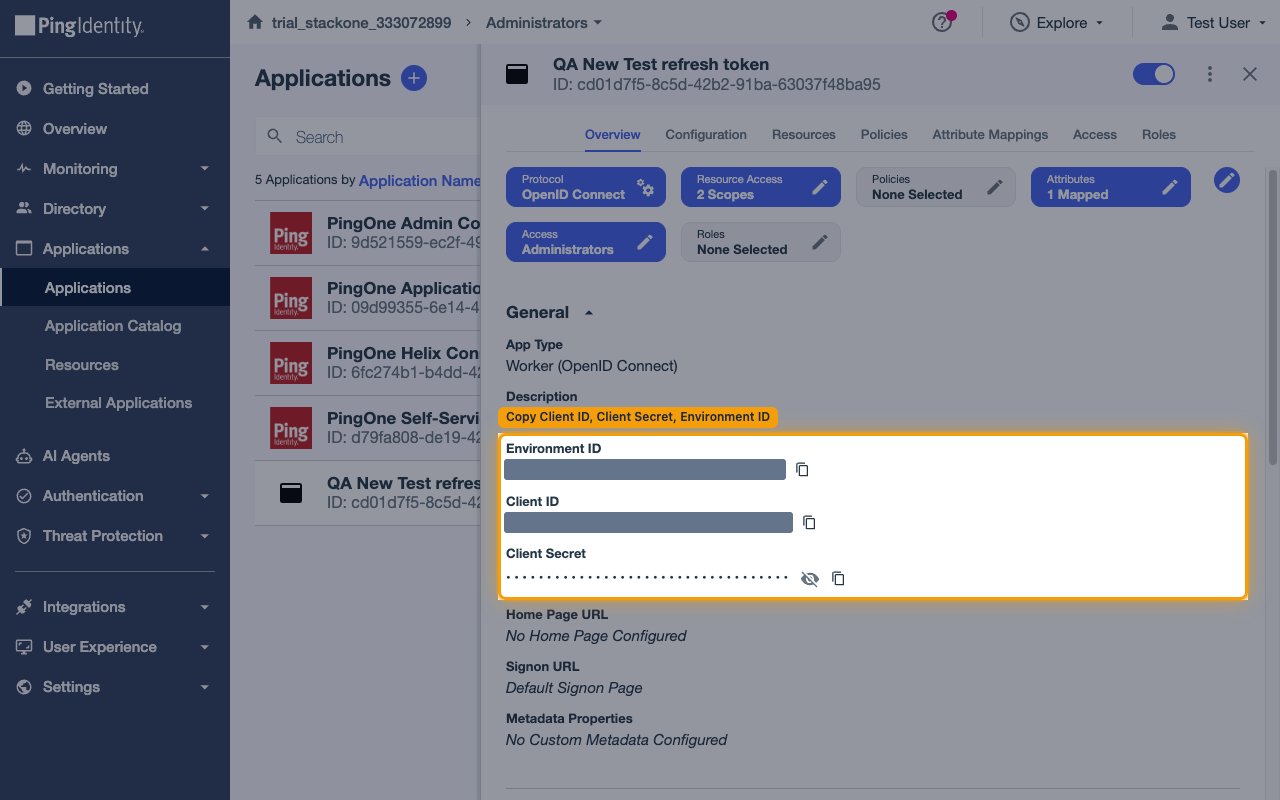
        <p>Open the <strong>Overview</strong> tab. Under <strong>General</strong> (App Type <strong>Worker (OpenID Connect)</strong>) you will find the three values StackOne needs:</p>

        <ul>
          <li>Copy the <strong>Environment ID</strong> and paste it into the <strong>Environment ID</strong> field in StackOne.</li>
          <li>Copy the <strong>Client ID</strong> and paste it into the <strong>Client ID</strong> field in StackOne.</li>
          <li>For the <strong>Client Secret</strong>, click the eye icon to reveal the value, then the copy icon, and paste it into the <strong>Client Secret</strong> field in StackOne. Store the secret securely. You can reveal it again later from this screen, or rotate it with <strong>Generate New Secret</strong>.</li>
        </ul>

        <img src="https://mintcdn.com/stackone-60/p0ZopJZyU1EN9bvp/connectors/pingone/images/oauth2-setup-creds.png?fit=max&auto=format&n=p0ZopJZyU1EN9bvp&q=85&s=4f87850e5fb29f3e2ae6fd9cfff8c2bc" alt="The application Overview tab General section showing Environment ID, Client ID, and Client Secret (values redacted)." width="1280" height="800" data-path="connectors/pingone/images/oauth2-setup-creds.png" />
      </div>
    </Step>
  </Steps>
</section>

<section data-guide-section data-guide-scopes="">
  <h2>Configure OIDC Settings</h2>

  <p>Open the <strong>Configuration</strong> tab and click the pencil (edit) icon in the top-right to edit the <strong>OIDC Settings</strong>.</p>

  <Steps>
    <Step title="Set the Response Type and Grant Type">
      <div data-guide-step data-guide-scopes="" data-guide-display-scopes-list="">
        <p>Under <strong>OIDC Settings</strong>:</p>

        <ul>
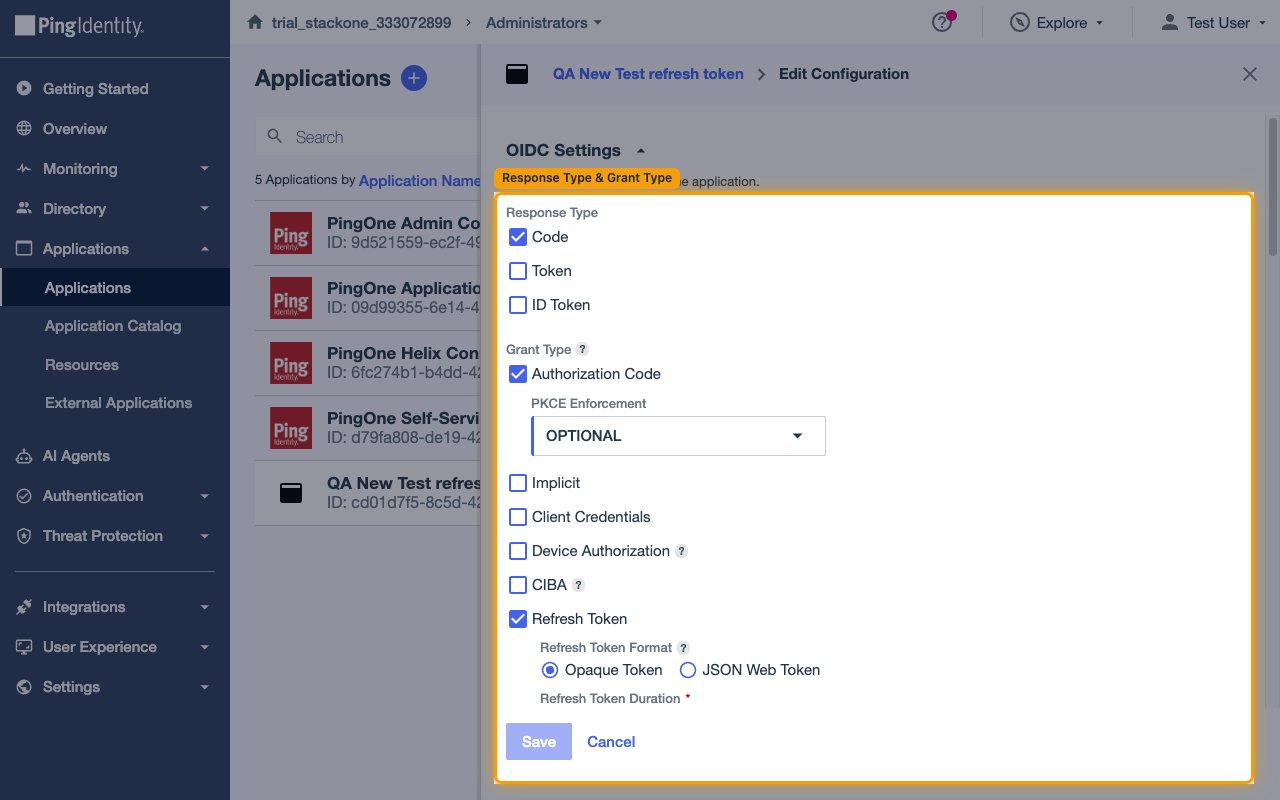
          <li><strong>Response Type</strong> — check <strong>Code</strong>. Leave <strong>Token</strong> and <strong>ID Token</strong> unchecked.</li>
          <li><strong>Grant Type</strong> — check both <strong>Authorization Code</strong> and <strong>Refresh Token</strong>. The <strong>Refresh Token</strong> grant lets the connector renew access tokens automatically.</li>
          <li><strong>PKCE Enforcement</strong> — leave as <strong>OPTIONAL</strong>.</li>
          <li>Leave <strong>Implicit</strong>, <strong>Client Credentials</strong>, <strong>Device Authorization</strong>, and <strong>CIBA</strong> unchecked.</li>
        </ul>

        <img src="https://mintcdn.com/stackone-60/p0ZopJZyU1EN9bvp/connectors/pingone/images/oauth2-setup-grants.png?fit=max&auto=format&n=p0ZopJZyU1EN9bvp&q=85&s=d03aeefed16c7d5f9f805c001d037a18" alt="The OIDC Settings edit panel showing Response Type set to Code and Grant Type with Authorization Code and Refresh Token checked." width="1280" height="800" data-path="connectors/pingone/images/oauth2-setup-grants.png" />
      </div>
    </Step>

    <Step title="Configure the refresh token settings">
      <div data-guide-step data-guide-scopes="" data-guide-display-scopes-list="">
        <p>The refresh token options appear once the <strong>Refresh Token</strong> grant is enabled:</p>

        <ul>
          <li><strong>Refresh Token Format</strong> — select <strong>JSON Web Token</strong> (recommended).</li>
          <li><strong>Refresh Token Duration</strong> — for example `30` Days.</li>
          <li><strong>Refresh Token Rolling Duration</strong> — for example `180` Days.</li>
          <li><strong>Refresh Token Rolling Grace Period</strong> — leave at the default unless you need a longer overlap window.</li>
        </ul>
      </div>
    </Step>

    <Step title="Set the redirect URI and token authentication method">
      <div data-guide-step data-guide-scopes="" data-guide-display-scopes-list="">
        <p>Still in the <strong>OIDC Settings</strong> edit panel:</p>

        <ul>
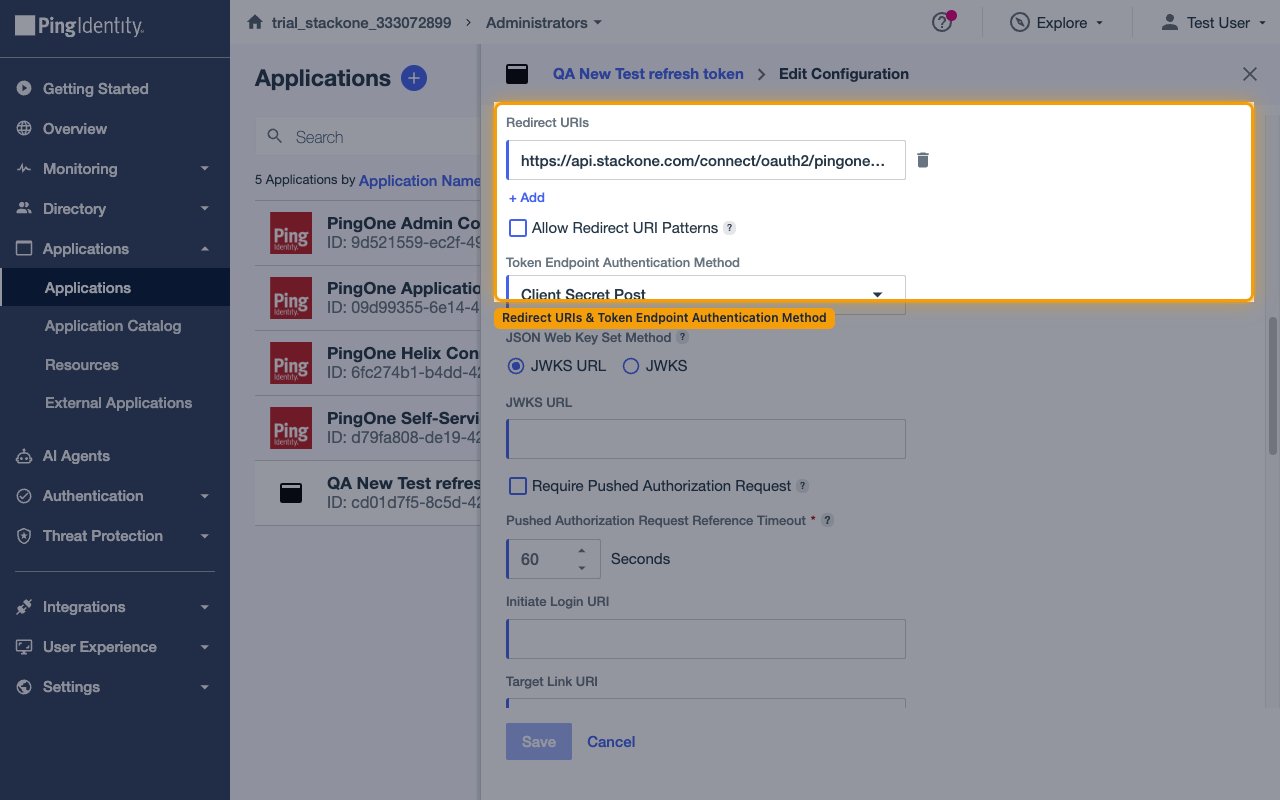
          <li>Under <strong>Redirect URIs</strong>, click <strong>+ Add</strong> and enter the exact StackOne callback URL with no trailing slash: `https://api.stackone.com/connect/oauth2/pingone/callback`.</li>
          <li>Leave <strong>Allow Redirect URI Patterns</strong> unchecked unless you specifically need wildcard matching.</li>
          <li><strong>Token Endpoint Authentication Method</strong> — select <strong>Client Secret Post</strong>. StackOne sends the client credentials in the request body.</li>
          <li>Click <strong>Save</strong>.</li>
        </ul>

        <img src="https://mintcdn.com/stackone-60/p0ZopJZyU1EN9bvp/connectors/pingone/images/oauth2-setup-redirect.png?fit=max&auto=format&n=p0ZopJZyU1EN9bvp&q=85&s=8a322daab7d5e29e6e288b63ec74dba4" alt="The OIDC Settings edit panel showing the Redirect URIs field with the StackOne callback URL and Token Endpoint Authentication Method set to Client Secret Post." width="1280" height="800" data-path="connectors/pingone/images/oauth2-setup-redirect.png" />
      </div>
    </Step>
  </Steps>
</section>

<section data-guide-section data-guide-scopes="">
  <h2>Restrict Application Access</h2>

  <p>The <strong>Access</strong> and <strong>Resources</strong> tabs control who can sign in and which OIDC scopes the application requests.</p>

  <Steps>
    <Step title="Enable Admin Only Access">
      <div data-guide-step data-guide-scopes="" data-guide-display-scopes-list="">
        <p>Open the <strong>Access</strong> tab and click the pencil (edit) icon:</p>

        <ul>
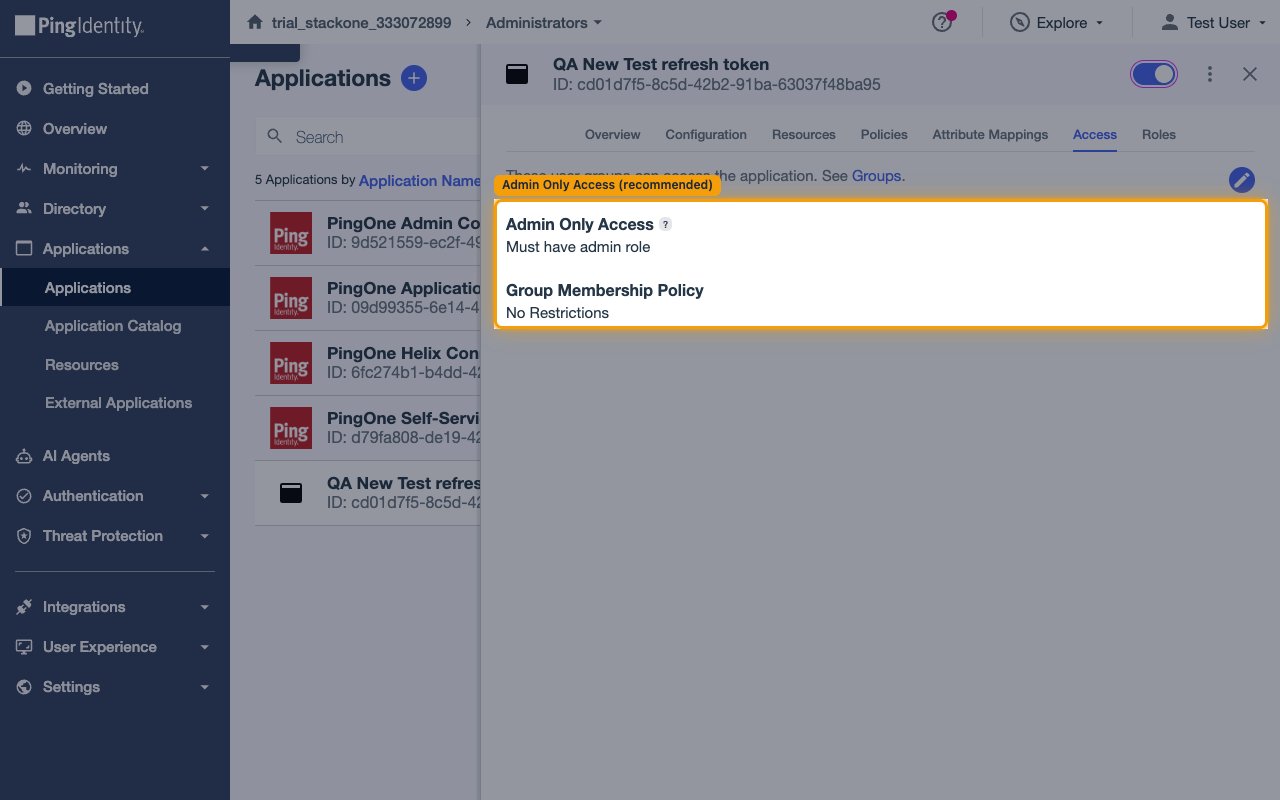
          <li>Enable <strong>Admin Only Access</strong> so only PingOne admin users can sign in (Must have admin role). This is recommended for Management API integrations.</li>
          <li>Leave <strong>Group Membership Policy</strong> as <strong>No Restrictions</strong> unless you want to limit sign-in to a specific group.</li>
        </ul>

        <img src="https://mintcdn.com/stackone-60/p0ZopJZyU1EN9bvp/connectors/pingone/images/oauth2-setup-access.png?fit=max&auto=format&n=p0ZopJZyU1EN9bvp&q=85&s=c2996e68bf4d715e6fff695e640332c9" alt="The application Access tab showing Admin Only Access and Group Membership Policy." width="1280" height="800" data-path="connectors/pingone/images/oauth2-setup-access.png" />
      </div>
    </Step>

    <Step title="Review the OIDC scopes">
      <div data-guide-step data-guide-scopes="" data-guide-display-scopes-list="">
        <p>Open the <strong>Resources</strong> tab. The connector requests only the standard OIDC scopes `openid` and `offline_access`, which are available by default — no changes are needed here.</p>
      </div>
    </Step>
  </Steps>
</section>

<section data-guide-section data-guide-scopes="">
  <h2>Assign an Admin Role to the Signing-In User</h2>

  <p>This is the step most often missed. With the Authorization Code grant, PingOne authorises Management API calls based on the signing-in user's roles, not the application's roles. Without a suitable role on that user, every API call returns HTTP 403.</p>

  <Steps>
    <Step title="Open the user's Roles tab">
      <div data-guide-step data-guide-scopes="" data-guide-display-scopes-list="">
        <p>Identify the PingOne user who will sign in during the StackOne connection flow:</p>

        <ul>
          <li>In the left navigation, go to <strong>Directory</strong> and click <strong>Users</strong>.</li>
          <li>Select the account you plan to use, then open the <strong>Roles</strong> tab on the user panel.</li>
        </ul>
      </div>
    </Step>

    <Step title="Grant an admin role">
      <div data-guide-step data-guide-scopes="" data-guide-display-scopes-list="">
        <p>On the <strong>Roles</strong> tab, locate the role you want and assign it at the appropriate scope:</p>

        <ul>
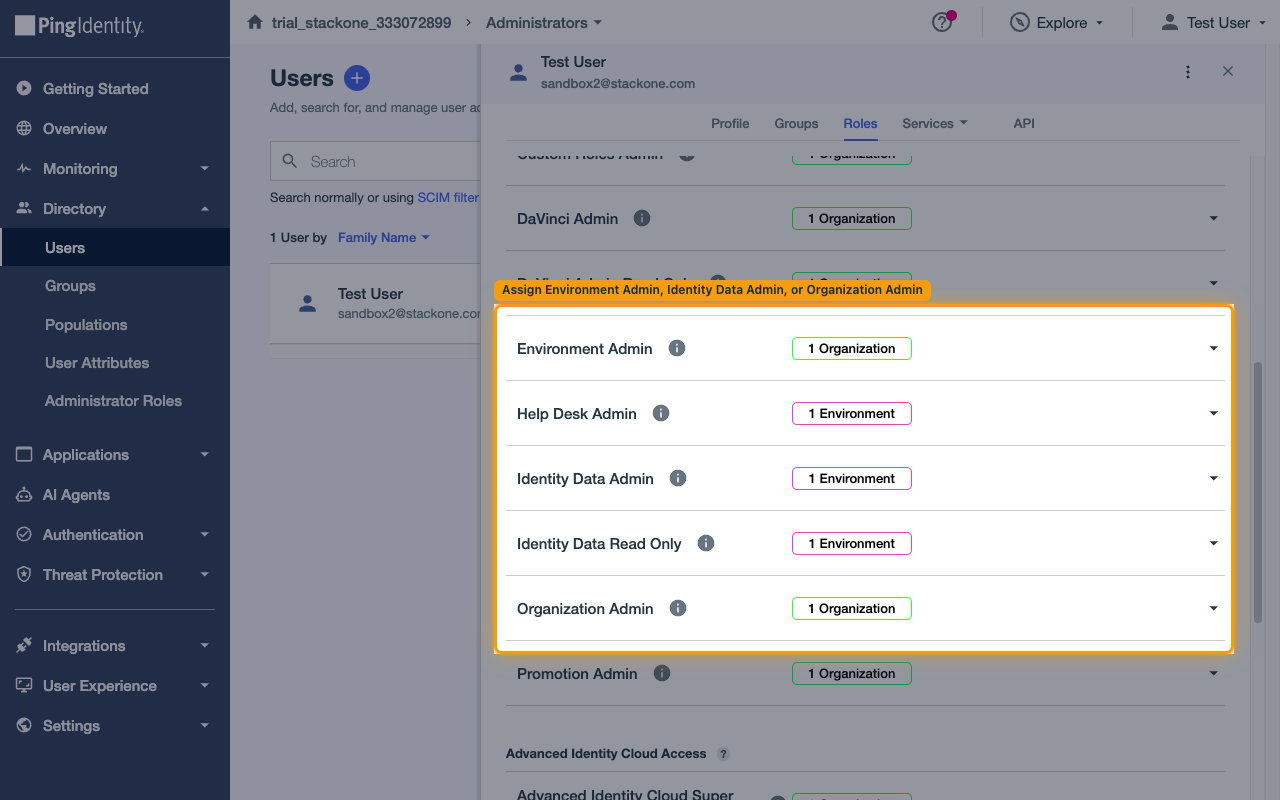
          <li>For full Management API coverage — assign <strong>Organization Admin</strong> at the organization scope, or <strong>Environment Admin</strong> at the environment scope. Either covers all actions.</li>
          <li>For identity-only access — assign <strong>Identity Data Admin</strong> at the environment scope. This covers users, groups, populations, applications, and MFA devices, but not sign-on policies, password policies, identity providers, or certificates.</li>
        </ul>

        <img src="https://mintcdn.com/stackone-60/p0ZopJZyU1EN9bvp/connectors/pingone/images/oauth2-setup-roles.png?fit=max&auto=format&n=p0ZopJZyU1EN9bvp&q=85&s=a00e94c06354cefa8f17600b2c258d6b" alt="The user Roles tab showing the Environment Admin, Identity Data Admin, and Organization Admin roles." width="1280" height="800" data-path="connectors/pingone/images/oauth2-setup-roles.png" />
      </div>
    </Step>
  </Steps>
</section>

## Creating the StackOne Connector Profile

To create the Connector Profile in StackOne for <strong>PingOne</strong>:

<Steps>
  <Step title="Navigate to Connector Profiles">
    Login to StackOne and navigate to [Connector Profiles](https://app.stackone.com/connector_profiles)
  </Step>

  <Step title="Create New Connector Profile">
    <ul>
      <li>Click <strong>+ Connector Profile</strong></li>
      <li>Search for and select <strong>PingOne</strong></li>
      <li>Select <strong>Type</strong> as <strong>OAuth 2.0</strong></li>

      <li>
        Fill out the fields using details retrieved from your provider:

        <ul style={{ marginLeft: '20px' }}>
          <li><strong>Client ID</strong></li>
          <li><strong>Client Secret</strong></li>
          <li><strong>Environment ID</strong></li>
        </ul>
      </li>

      <li>(Optional) Select <strong>Actions</strong> to be enabled for this Connector Profile</li>
      <li>Click <strong>Create profile</strong></li>
    </ul>
  </Step>
</Steps>

Congratulations! The new Connector Profile will now show up in your project ready to be used. You can now continue to <a href="/guides/accounts-section#linking-accounts">Link Accounts</a> for <strong>PingOne</strong>.