> ## Documentation Index
> Fetch the complete documentation index at: https://docs.stackone.com/llms.txt
> Use this file to discover all available pages before exploring further.

# Connect Perplexity with API Key – StackOne Hub

> Link a Perplexity account in the StackOne Hub using API Key. End-user guide to authorize the integration and start using Perplexity actions.

<Warning>The Perplexity API is prepaid and billed separately from any Perplexity subscription, so you must add API credits before your key can make billed calls. Your key is shown only once when you create it, so copy it right away — you cannot view it again later.</Warning>

<section data-guide-section data-guide-scopes="">
  <h2>Add API credits</h2>

  <p>The Perplexity API draws from a prepaid API credit balance that is separate from any Perplexity subscription. Add a payment method and load credits before creating a key.</p>

  <Steps>
    <Step title="Sign in to the Perplexity API Console">
      <div data-guide-step data-guide-scopes="" data-guide-display-scopes-list="">
        <p>Sign in to the <a href="https://console.perplexity.ai/" target="_blank" rel="noopener noreferrer">Perplexity API Console</a>.</p>

        <ul>
          <li>In the left sidebar under <strong>Group</strong>, click <strong>Billing</strong>.</li>
        </ul>
      </div>
    </Step>

    <Step title="Add a payment method and buy credits">
      <div data-guide-step data-guide-scopes="" data-guide-display-scopes-list="">
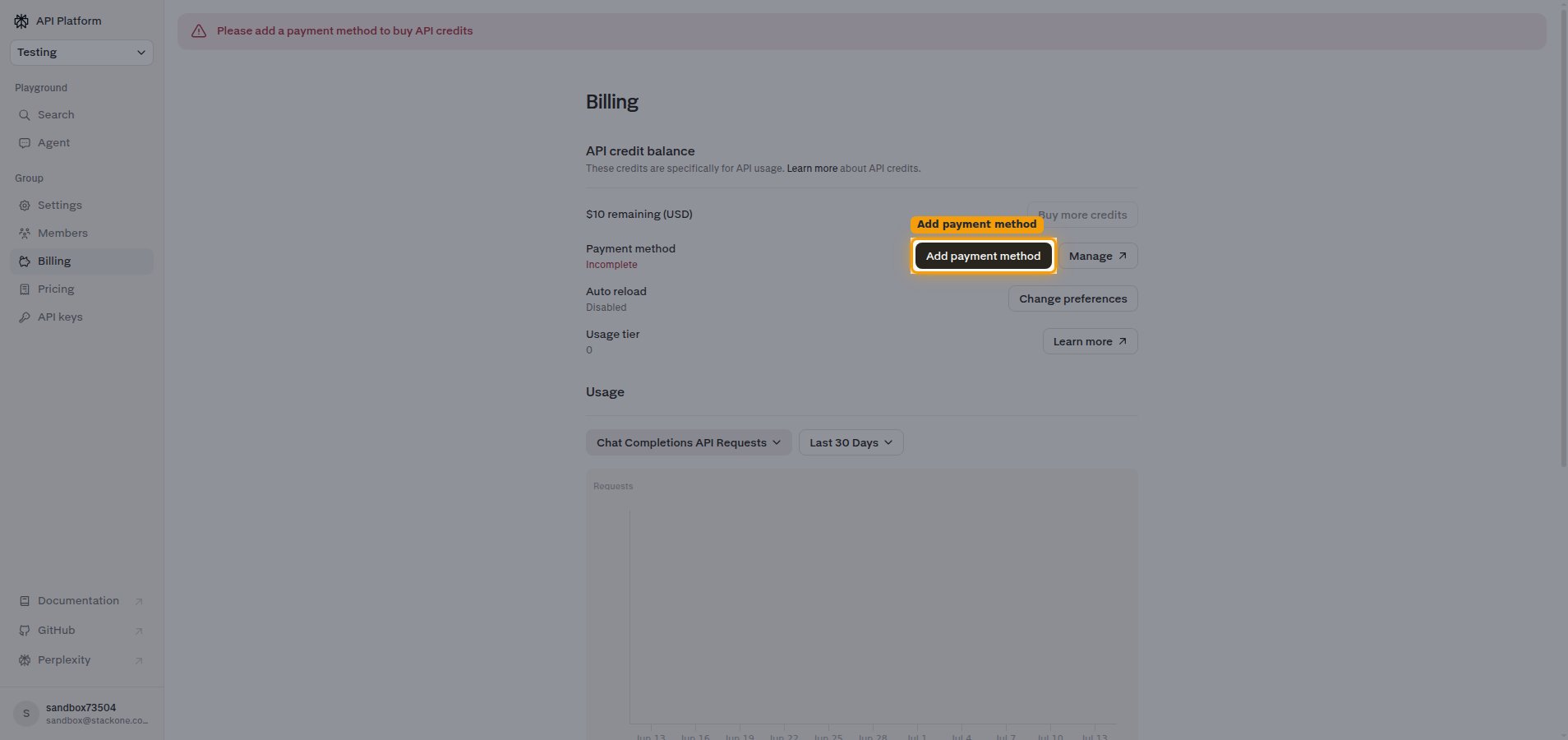
        <p>On the <strong>Billing</strong> page, the <strong>API credit balance</strong> shows your remaining balance. Add a payment method, then load credits.</p>

        <ul>
          <li>Click <strong>Add payment method</strong> and enter your card details.</li>
          <li>Click <strong>Buy more credits</strong> and choose an amount to load (there is no minimum; a small amount is enough to start).</li>
        </ul>

        <img src="https://mintcdn.com/stackone-60/oXD8J_xXKSoX8cuR/connectors/perplexity/images/custom-config-billing-credits.png?fit=max&auto=format&n=oXD8J_xXKSoX8cuR&q=85&s=1dddd75f4543706046e76795ffbff405" alt="Perplexity API Console Billing page showing the API credit balance and the Add payment method button" width="1908" height="900" data-path="connectors/perplexity/images/custom-config-billing-credits.png" />
      </div>
    </Step>
  </Steps>
</section>

<section data-guide-section data-guide-scopes="">
  <h2>Create your API key</h2>

  <p>Generate an API key in the API Console and copy its value.</p>

  <Steps>
    <Step title="Open the API keys tab">
      <div data-guide-step data-guide-scopes="" data-guide-display-scopes-list="">
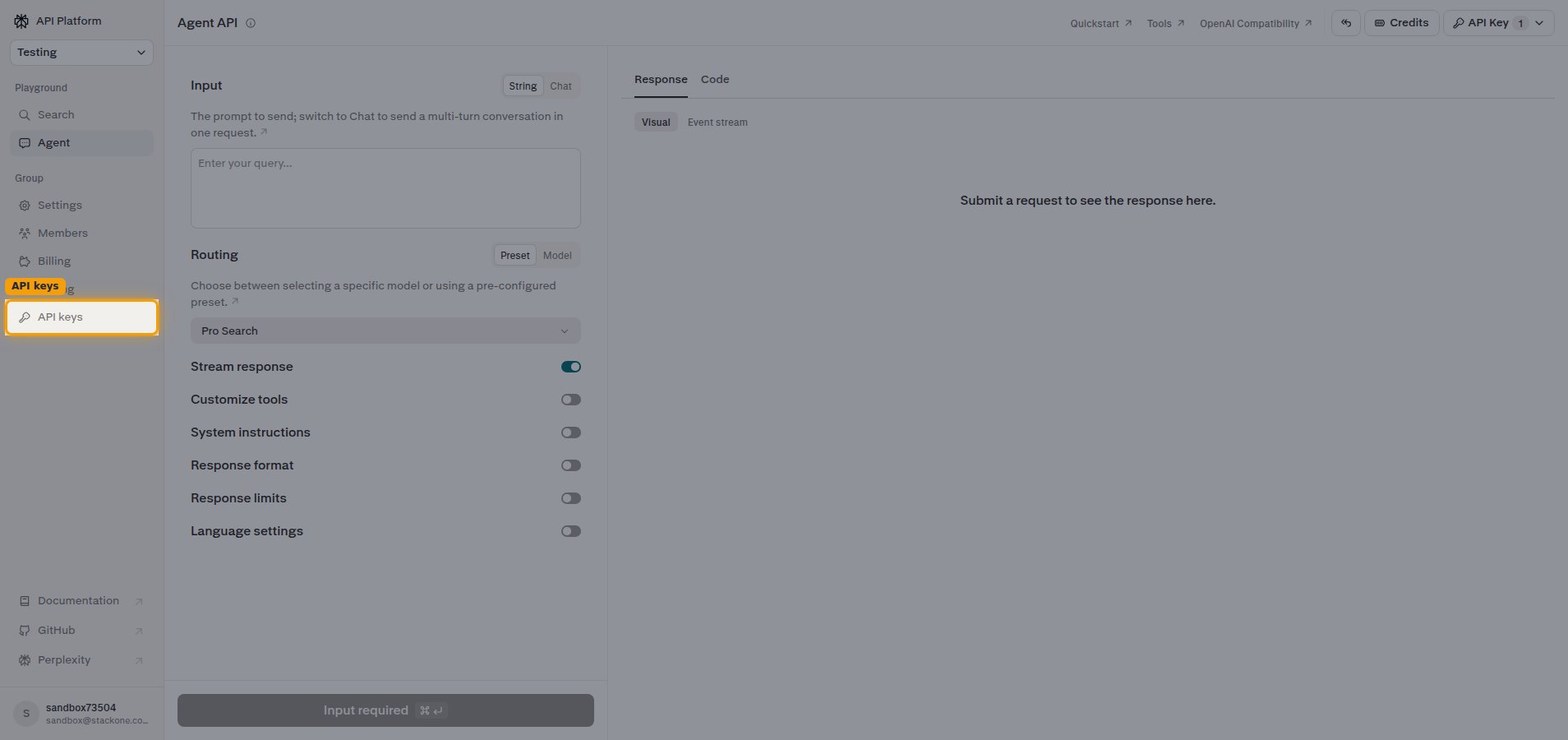
        <p>In the left sidebar under <strong>Group</strong>, click <strong>API keys</strong>.</p>

        <img src="https://mintcdn.com/stackone-60/oXD8J_xXKSoX8cuR/connectors/perplexity/images/custom-config-api-keys-nav.png?fit=max&auto=format&n=oXD8J_xXKSoX8cuR&q=85&s=ac722abd57b65a5a857247b96503185f" alt="Left sidebar of the Perplexity API Console with the API keys tab highlighted" width="1908" height="900" data-path="connectors/perplexity/images/custom-config-api-keys-nav.png" />
      </div>
    </Step>

    <Step title="Generate a new key">
      <div data-guide-step data-guide-scopes="" data-guide-display-scopes-list="">
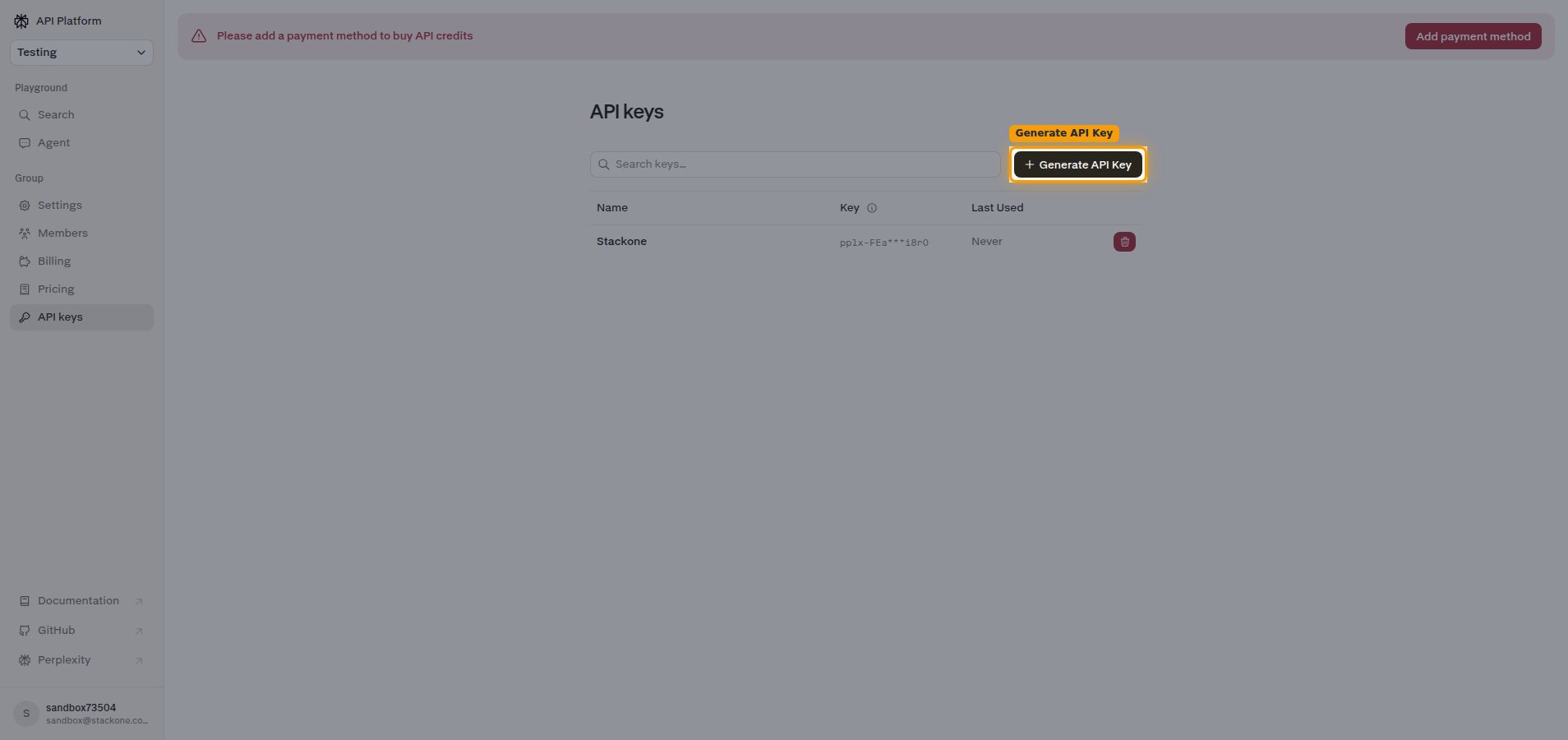
        <p>On the <strong>API keys</strong> page, click <strong>+ Generate API Key</strong>.</p>

        <img src="https://mintcdn.com/stackone-60/oXD8J_xXKSoX8cuR/connectors/perplexity/images/custom-config-generate-key.png?fit=max&auto=format&n=oXD8J_xXKSoX8cuR&q=85&s=fbd327ef4eb80e2f10f7ba564748185d" alt="Perplexity API keys page with the Generate API Key button highlighted" width="1908" height="900" data-path="connectors/perplexity/images/custom-config-generate-key.png" />
      </div>
    </Step>

    <Step title="Create the API key">
      <div data-guide-step data-guide-scopes="" data-guide-display-scopes-list="">
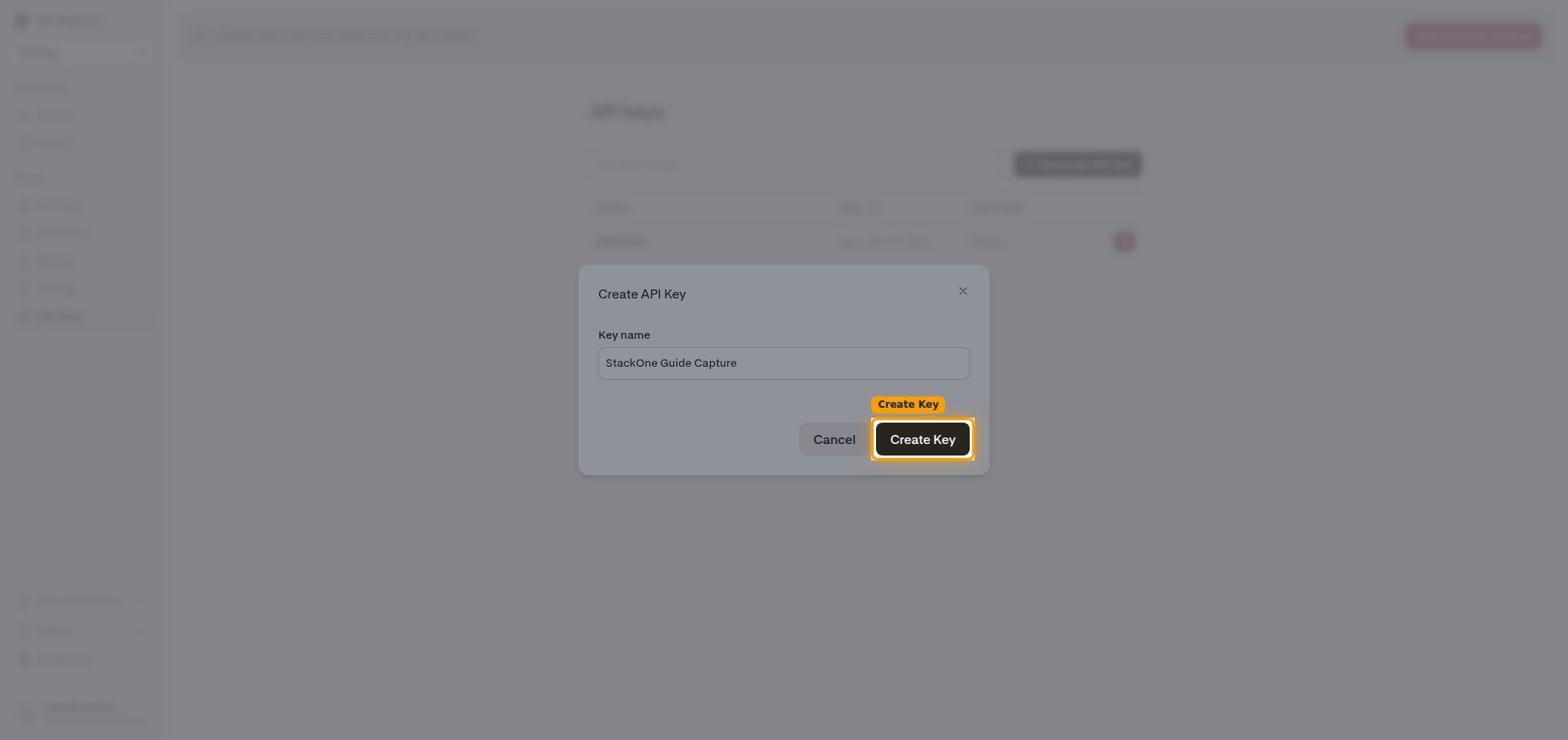
        <p>In the <strong>Create API Key</strong> dialog, type a name in the <strong>Key name</strong> field, then click <strong>Create Key</strong>.</p>

        <img src="https://mintcdn.com/stackone-60/oXD8J_xXKSoX8cuR/connectors/perplexity/images/custom-config-create-key-dialog.png?fit=max&auto=format&n=oXD8J_xXKSoX8cuR&q=85&s=ecaf41384e161e66a39ee8b403626fa4" alt="Create API Key dialog with a key name entered and the Create Key button highlighted" width="1908" height="900" data-path="connectors/perplexity/images/custom-config-create-key-dialog.png" />
      </div>
    </Step>

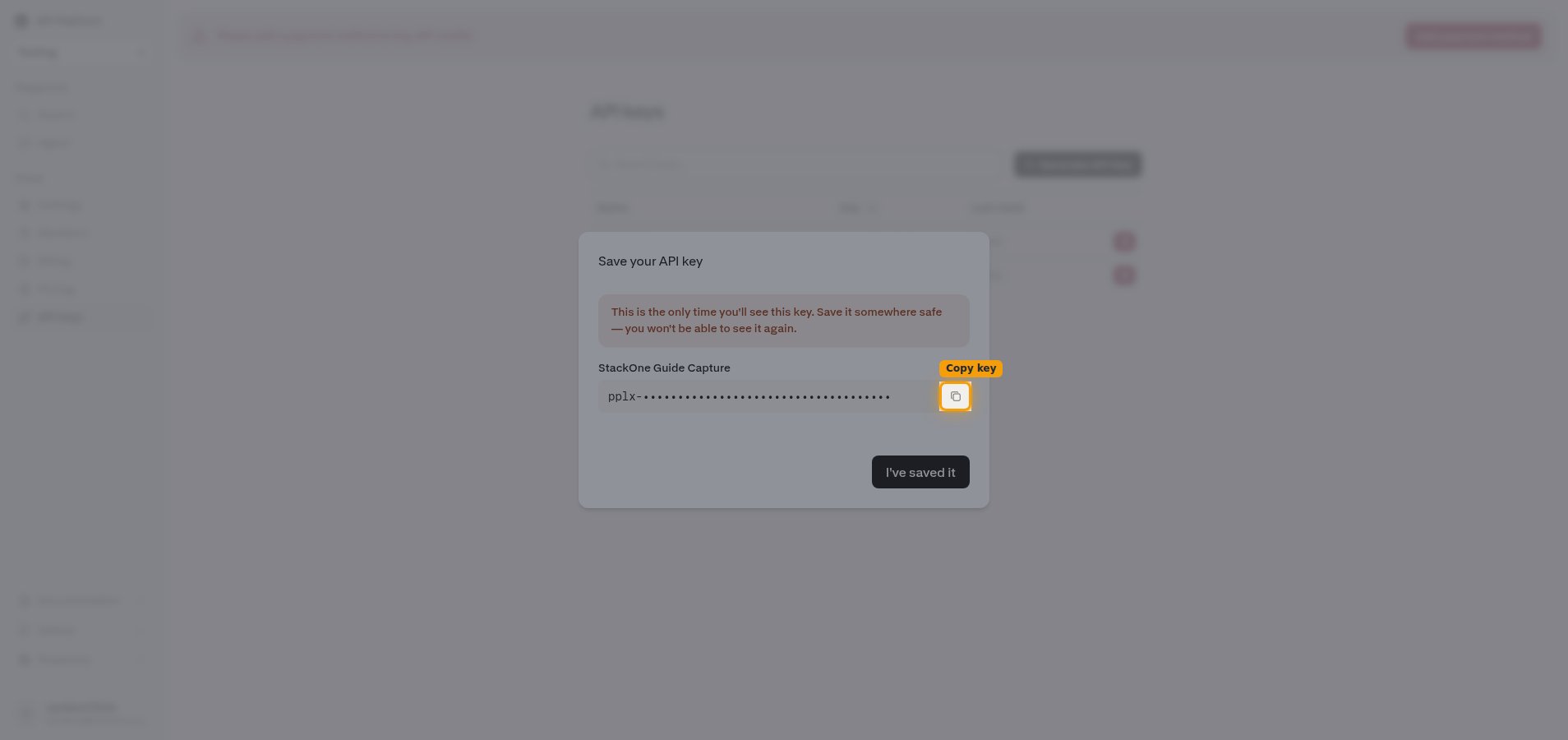
    <Step title="Copy your API key">
      <div data-guide-step data-guide-scopes="" data-guide-display-scopes-list="">
        <p>On the <strong>Save your API key</strong> screen, click <strong>Copy key</strong> to copy the value (it starts with `pplx-`), then click <strong>I've saved it</strong>. Paste the key into the <strong>API Key</strong> field in StackOne Hub.</p>

        <ul>
          <li>The full key is shown only once and cannot be retrieved later — copy it now.</li>
        </ul>

        <img src="https://mintcdn.com/stackone-60/oXD8J_xXKSoX8cuR/connectors/perplexity/images/custom-config-copy-key.png?fit=max&auto=format&n=oXD8J_xXKSoX8cuR&q=85&s=ac75217c92ef782400edf463deea5f39" alt="Save your API key screen with the one-time warning, the masked key, and the Copy key button highlighted" width="1908" height="900" data-path="connectors/perplexity/images/custom-config-copy-key.png" />
      </div>
    </Step>
  </Steps>
</section>

<div data-whitelabel-hide>
  <h2>Linking the Account from the Hub</h2>

  <Steps>
    <Step title="Navigate to the Hub">
      Use one of the three <a href="/guides/accounts-section#linking-accounts">Linking Account Methods</a> to access the Hub.
    </Step>

    <Step title="Fill out the fields">
      Fill out the following fields using details from your provider:

      <ul>
        <li><strong>API Key</strong></li>
      </ul>
    </Step>

    <Step title="Connect">
      <ul>
        <li>Click <strong>Connect</strong></li>
        <li>If applicable, the provider will redirect you to a sign-in or authorization page. Complete the provider's authorization flow.</li>
        <li>Once authorization is successful, you will see a confirmation popup</li>
      </ul>
    </Step>
  </Steps>

  <p>If the account linking is successful, you will see the newly linked account in your <a href="/guides/accounts-section">Accounts</a> page.</p>
</div>