> ## Documentation Index
> Fetch the complete documentation index at: https://docs.stackone.com/llms.txt
> Use this file to discover all available pages before exploring further.
# Parallel Webhook Setup Guide
> Configure Parallel to deliver events to StackOne.
## Prerequisites
The connector should already be set up, with a Connector Profile and a Linked Account. See [Getting Started](/connectors/parallel#getting-started) on the Parallel connector page.
Webhook setup
This connector uses Manual Webhooks. Parallel has no webhook subscription screen or API — instead, every task run, FindAll run and monitor carries its own webhook URL and event list. Pass the StackOne Native Webhook URL in the `webhook` object of each request whose events you want delivered to StackOne.
The Native Webhook URL is generated once an account has been linked.
- Open the linked account in StackOne.
- Copy the value from Native Webhook URL.
Set `webhook.url` to the Native Webhook URL and list the events you want in `webhook.event_types` when calling any of these actions. Parallel only delivers the event types listed in the request.
- Create Task Run and Add Runs to Task Group accept `task_run.status`.
- Create FindAll Run accepts any of the `findall.candidate.*` and `findall.run.*` events.
- Create Monitor and Update Monitor accept any of `monitor.event.detected`, `monitor.execution.completed` and `monitor.execution.failed`.
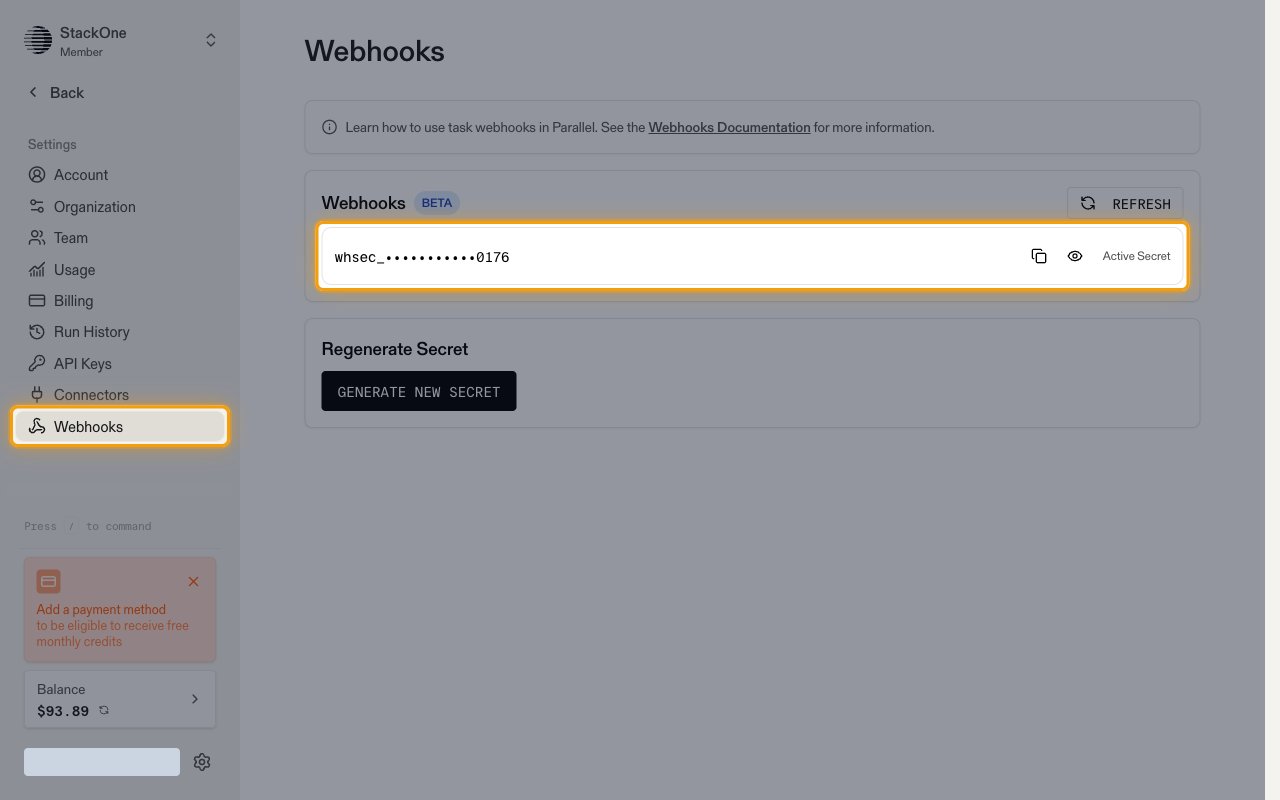
Sign in to the Parallel Platform and open Webhooks under Settings. The Active Secret signs every webhook Parallel sends. StackOne does not need this secret — copy it only if you also verify webhook signatures in your own systems.
- Clicking Generate new secret rotates the secret for every webhook on the account.
Available webhook events
The following Parallel events can be delivered to StackOne. Only events listed in a request's `webhook.event_types` are sent for that task run, FindAll run or monitor.
Events related to task runs, including runs added to a task group.
- Task Run Status (`task_run.status`) — Fired when a task run finishes, whether it completed or failed
Events related to FindAll runs and the candidates they evaluate.
- FindAll Candidate Generated (`findall.candidate.generated`) — Fired when a new candidate is generated and queued for evaluation
- FindAll Candidate Matched (`findall.candidate.matched`) — Fired when a candidate matches all of the run's match conditions
- FindAll Candidate Enriched (`findall.candidate.enriched`) — Fired when enrichment data has been extracted for a matched candidate
- FindAll Run Completed (`findall.run.completed`) — Fired when a FindAll run reaches the completed status
- FindAll Run Canceled (`findall.run.cancelled`) — Fired when a FindAll run is canceled
- FindAll Run Failed (`findall.run.failed`) — Fired when a FindAll run fails due to an error
Events related to scheduled monitor runs.
- Monitor Event Detected (`monitor.event.detected`) — Fired when a monitor run detects one or more material changes
- Monitor Execution Completed (`monitor.execution.completed`) — Fired when a monitor run completes without detecting changes
- Monitor Execution Failed (`monitor.execution.failed`) — Fired when a monitor run fails due to an error
Delivery format
Details of how Parallel delivers events to StackOne.
- Each request carries a single event as a JSON object with `type`, `timestamp` and `data`.
- The event ID is the ID of the affected resource, so it can be fetched with the matching action — the task run (`run_id`), FindAll candidate (`candidate_id`), FindAll run (`findall_id`) or monitor event group (`event_group_id`), or the monitor itself (`monitor_id`) for completed and failed runs.
- Failed deliveries are retried with exponential backoff for up to 48 hours.
## Verify
Your Connector should now be able to receive and process events. Try triggering an event and you should see an Event appear in the Connector logs.
This documentation is built and hosted on [Mintlify](https://mintlify.com), a developer documentation platform.