> ## Documentation Index
> Fetch the complete documentation index at: https://docs.stackone.com/llms.txt
> Use this file to discover all available pages before exploring further.

# Connect Open Library with S3 API Keys – StackOne Hub

> Link a Open Library account in the StackOne Hub using S3 API Keys. End-user guide to authorize the integration and start using Open Library actions.

<section data-guide-section data-guide-scopes="">
  <h2>Getting Your S3 API Keys</h2>

  <p>Open Library is a project of the Internet Archive, and you sign in to Open Library with an Internet Archive account. The list write actions (create, update, and delete) authenticate with that account's S3-like API keys; the read actions do not need them. Because the keys grant access to the entire Internet Archive account, use an account dedicated to this integration rather than a personal one where possible.</p>

  <Steps>
    <Step title="Sign in to your Internet Archive account">
      <div data-guide-step data-guide-scopes="" data-guide-display-scopes-list="">
        <p>Go to <a href="https://archive.org/account/login" target="_blank" rel="noopener noreferrer">archive.org</a> and sign in with the account you want StackOne to act as. If you do not have one yet, create a free account first — the same credentials sign you in to Open Library.</p>
      </div>
    </Step>

    <Step title="Open your API keys page">
      <div data-guide-step data-guide-scopes="" data-guide-display-scopes-list="">
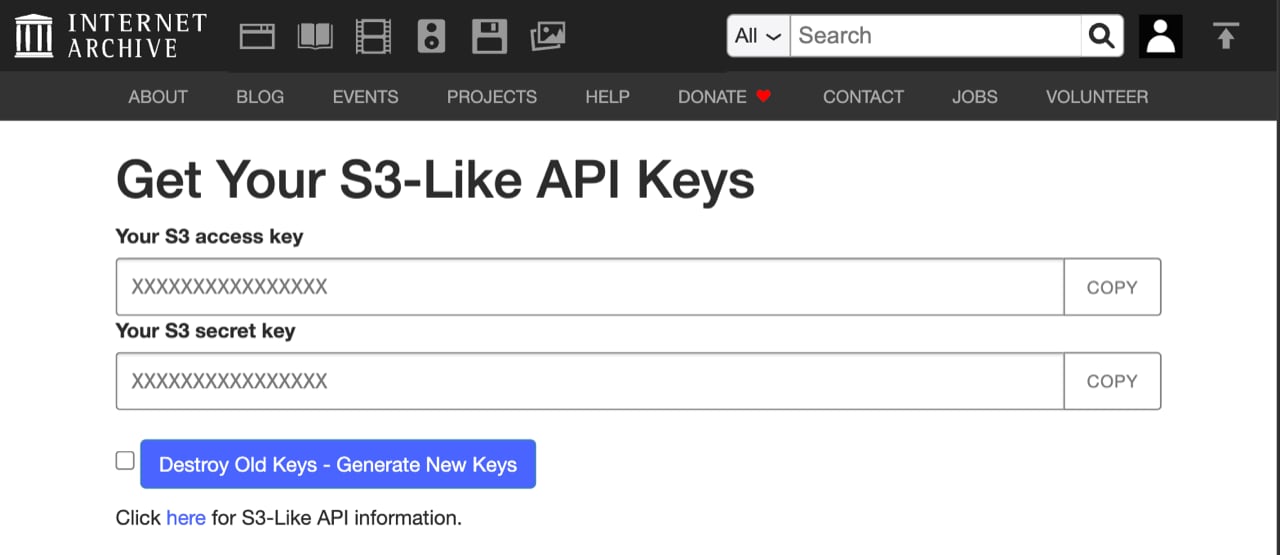
        <p>While signed in, go to the <a href="https://archive.org/account/s3.php" target="_blank" rel="noopener noreferrer">Internet Archive API keys page</a>. It displays two values for your account: an <strong>access key</strong> and a <strong>secret key</strong>. (If the page says you must be logged in, complete the sign-in step above and reload it.)</p>

        <img src="https://mintcdn.com/stackone-60/LA__OTVUBQfCQ7ax/connectors/openlibrary/images/session-config-s3-keys-page.png?fit=max&auto=format&n=LA__OTVUBQfCQ7ax&q=85&s=b8a5821d8b0a2747f4f7e73601a5e7df" alt="The Internet Archive S3-Like API Keys page showing the access key and secret key fields, each with a Copy button" width="1280" height="555" data-path="connectors/openlibrary/images/session-config-s3-keys-page.png" />
      </div>
    </Step>

    <Step title="Copy both keys">
      <div data-guide-step data-guide-scopes="" data-guide-display-scopes-list="">
        <p>Copy the <strong>access key</strong> and the <strong>secret key</strong>, then paste them into the matching fields when you link your account in StackOne.</p>

        <ul>
          <li>These keys grant full access to your Internet Archive account, including archive.org uploads and Open Library catalog edits — treat them like a password and store them securely.</li>
          <li>Regenerating the keys on this page invalidates the previous pair everywhere it is used.</li>
        </ul>
      </div>
    </Step>

    <Step title="Set a User-Agent">
      <div data-guide-step data-guide-scopes="" data-guide-display-scopes-list="">
        <p>Also provide a <strong>User-Agent</strong> that identifies your application and a contact email, formatted as `AppName (contact@example.com)`. Open Library requires this on every request and gives identified clients higher rate limits than anonymous ones.</p>
      </div>
    </Step>
  </Steps>
</section>

<div data-whitelabel-hide>
  <h2>Linking the Account from the Hub</h2>

  <Steps>
    <Step title="Navigate to the Hub">
      Use one of the three <a href="/guides/accounts-section#linking-accounts">Linking Account Methods</a> to access the Hub.
    </Step>

    <Step title="Fill out the fields">
      Fill out the following fields using details from your provider:

      <ul>
        <li><strong>Access Key</strong></li>
        <li><strong>Secret Key</strong></li>
        <li><strong>User-Agent</strong></li>
      </ul>
    </Step>

    <Step title="Connect">
      <ul>
        <li>Click <strong>Connect</strong></li>
        <li>If applicable, the provider will redirect you to a sign-in or authorization page. Complete the provider's authorization flow.</li>
        <li>Once authorization is successful, you will see a confirmation popup</li>
      </ul>
    </Step>
  </Steps>

  <p>If the account linking is successful, you will see the newly linked account in your <a href="/guides/accounts-section">Accounts</a> page.</p>
</div>