> ## Documentation Index
> Fetch the complete documentation index at: https://docs.stackone.com/llms.txt
> Use this file to discover all available pages before exploring further.

# Connect OneSignal with API Key – StackOne Hub

> Link a OneSignal account in the StackOne Hub using API Key. End-user guide to authorize the integration and start using OneSignal actions.

<Warning>Treat your API key like a password. Anyone who has your REST API key will be able to send notifications from your app.</Warning>

<section data-guide-section data-guide-scopes="">
  <h2>Collect your app credentials</h2>

  <p>OneSignal keeps credentials in two places. The <strong>App API Key</strong> and <strong>App ID</strong> live on the app's <strong>Keys & IDs</strong> page and cover messaging, users, subscriptions, segments, templates and journeys. Start there.</p>

  <Steps>
    <Step title="Sign in to OneSignal">
      <div data-guide-step data-guide-scopes="" data-guide-display-scopes-list="">
        <p>Open the <a href="https://dashboard.onesignal.com/login" target="_blank" rel="noopener noreferrer">OneSignal dashboard login page</a> and sign in with the account that has access to the app you want to connect.</p>
      </div>
    </Step>

    <Step title="Select your app">
      <div data-guide-step data-guide-scopes="" data-guide-display-scopes-list="">
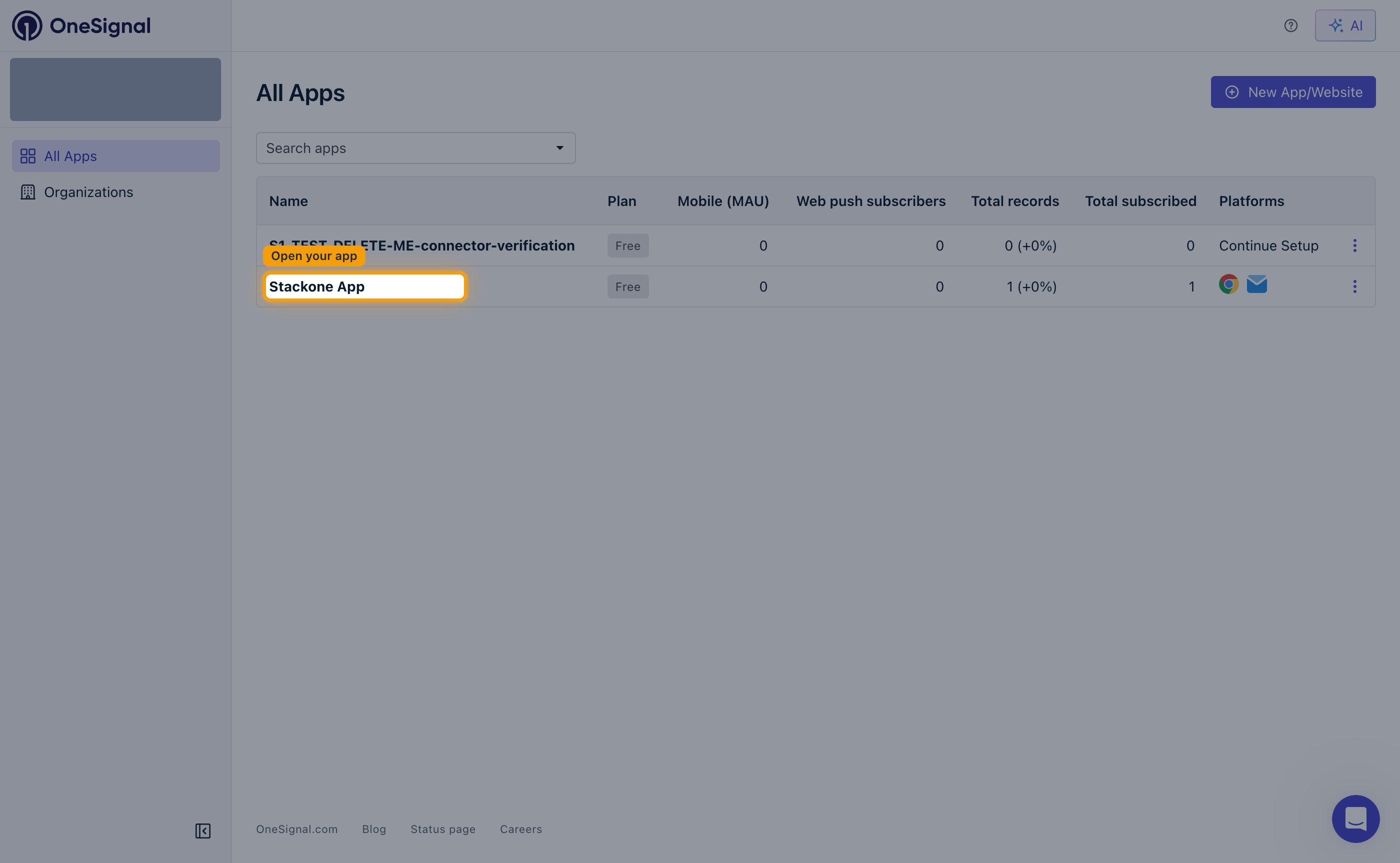
        <p>On the <strong>All Apps</strong> page, click the name of the app you want to connect in the <strong>Name</strong> column.</p>

        <ul>
          <li>Every credential on this page is scoped to the app you pick, so choose the app whose messages, users and segments StackOne should manage.</li>
        </ul>

        <img src="https://mintcdn.com/stackone-60/KChnzGLd6CbgiJ6C/connectors/onesignal/images/apikey-config-select-app.png?fit=max&auto=format&n=KChnzGLd6CbgiJ6C&q=85&s=08b9e86c6643521a5a2bbca6546a4668" alt="The OneSignal All Apps page with an app name highlighted in the Name column" width="2800" height="1726" data-path="connectors/onesignal/images/apikey-config-select-app.png" />
      </div>
    </Step>

    <Step title="Open the Keys & IDs page">
      <div data-guide-step data-guide-scopes="" data-guide-display-scopes-list="">
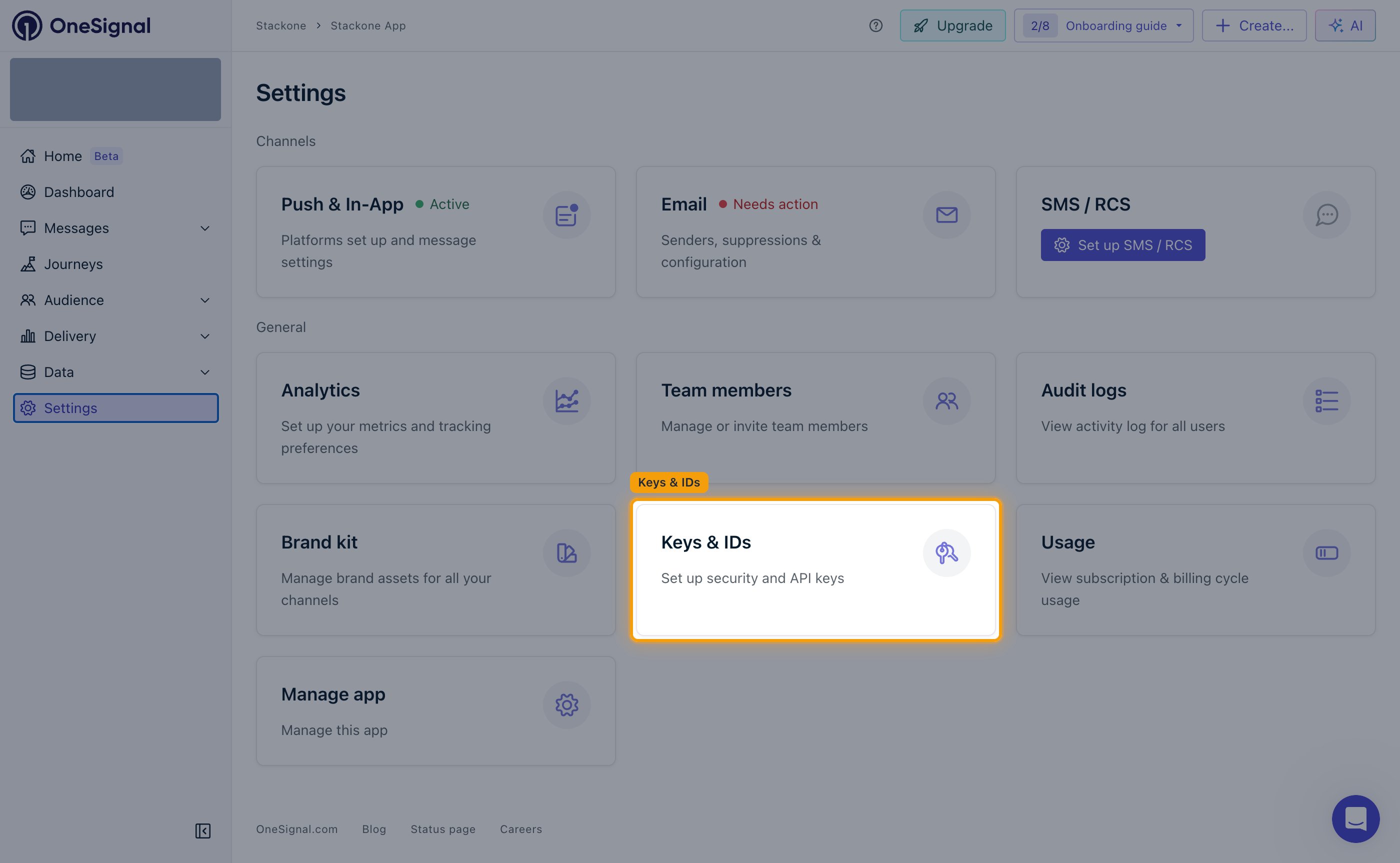
        <p>In the app's left navigation, click <strong>Settings</strong>, then click the <strong>Keys & IDs</strong> card (<strong>Set up security and API keys</strong>) under <strong>General</strong>.</p>

        <img src="https://mintcdn.com/stackone-60/KChnzGLd6CbgiJ6C/connectors/onesignal/images/apikey-config-keys-and-ids.png?fit=max&auto=format&n=KChnzGLd6CbgiJ6C&q=85&s=ff6a14c8f965a7685c7356ee9f6910a8" alt="The OneSignal app Settings page with the Keys & IDs card highlighted" width="2800" height="1726" data-path="connectors/onesignal/images/apikey-config-keys-and-ids.png" />
      </div>
    </Step>

    <Step title="Copy the App ID">
      <div data-guide-step data-guide-scopes="" data-guide-display-scopes-list="">
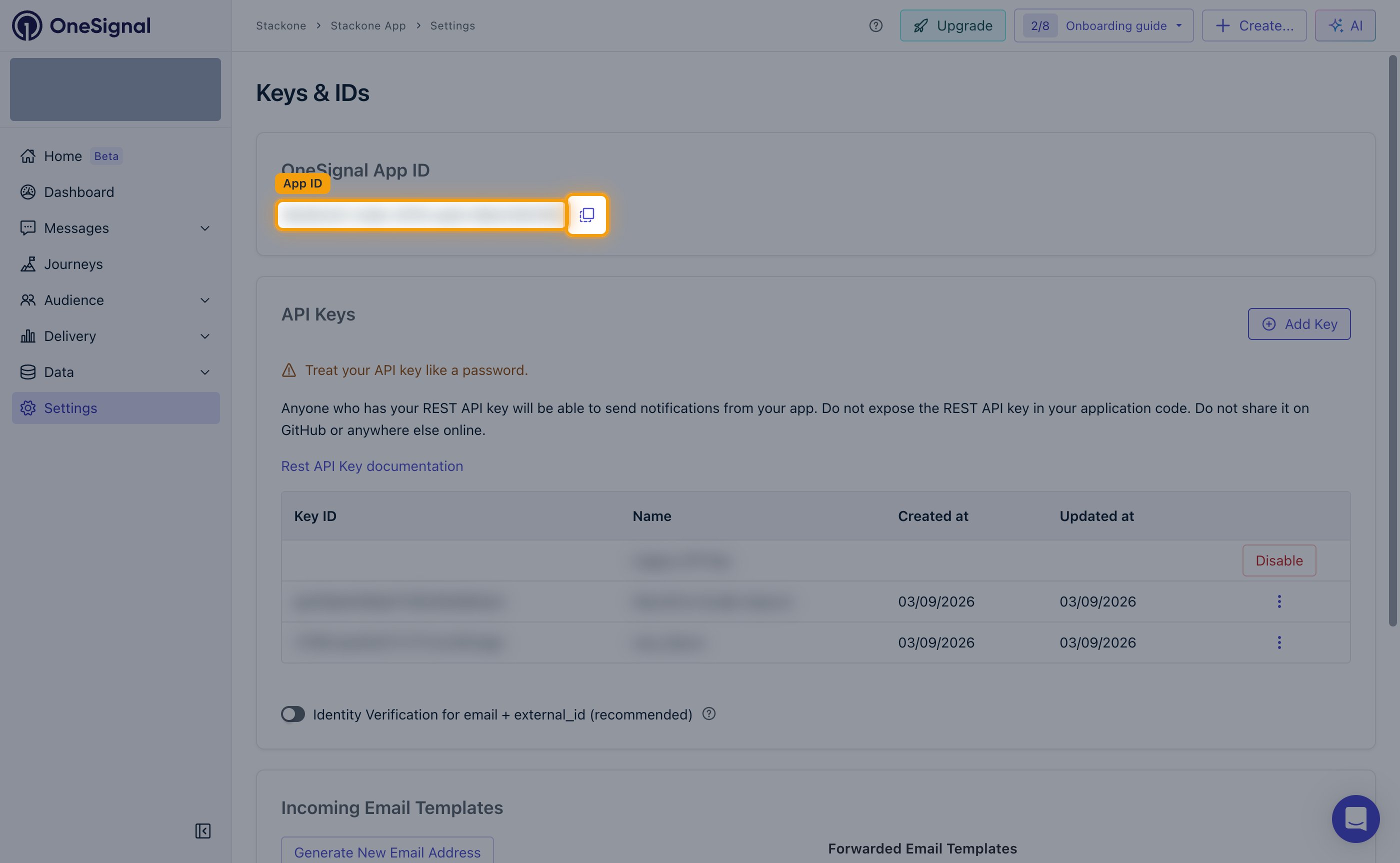
        <p>In the <strong>OneSignal App ID</strong> panel, click the copy icon next to the value to copy it. This is the value for the <strong>App ID</strong> field in StackOne Hub.</p>

        <ul>
          <li>Format: a UUID</li>
          <li>Example: `202d4f61-1ca9-42df-9d36-bb17d8123abc`</li>
        </ul>

        <img src="https://mintcdn.com/stackone-60/KChnzGLd6CbgiJ6C/connectors/onesignal/images/apikey-config-app-id.png?fit=max&auto=format&n=KChnzGLd6CbgiJ6C&q=85&s=16d62f61495aee817370f7d2dee9b78f" alt="The OneSignal App ID panel with the App ID value and its copy button highlighted" width="2800" height="1726" data-path="connectors/onesignal/images/apikey-config-app-id.png" />
      </div>
    </Step>
  </Steps>
</section>

<section data-guide-section data-guide-scopes="">
  <h2>Create an App API Key</h2>

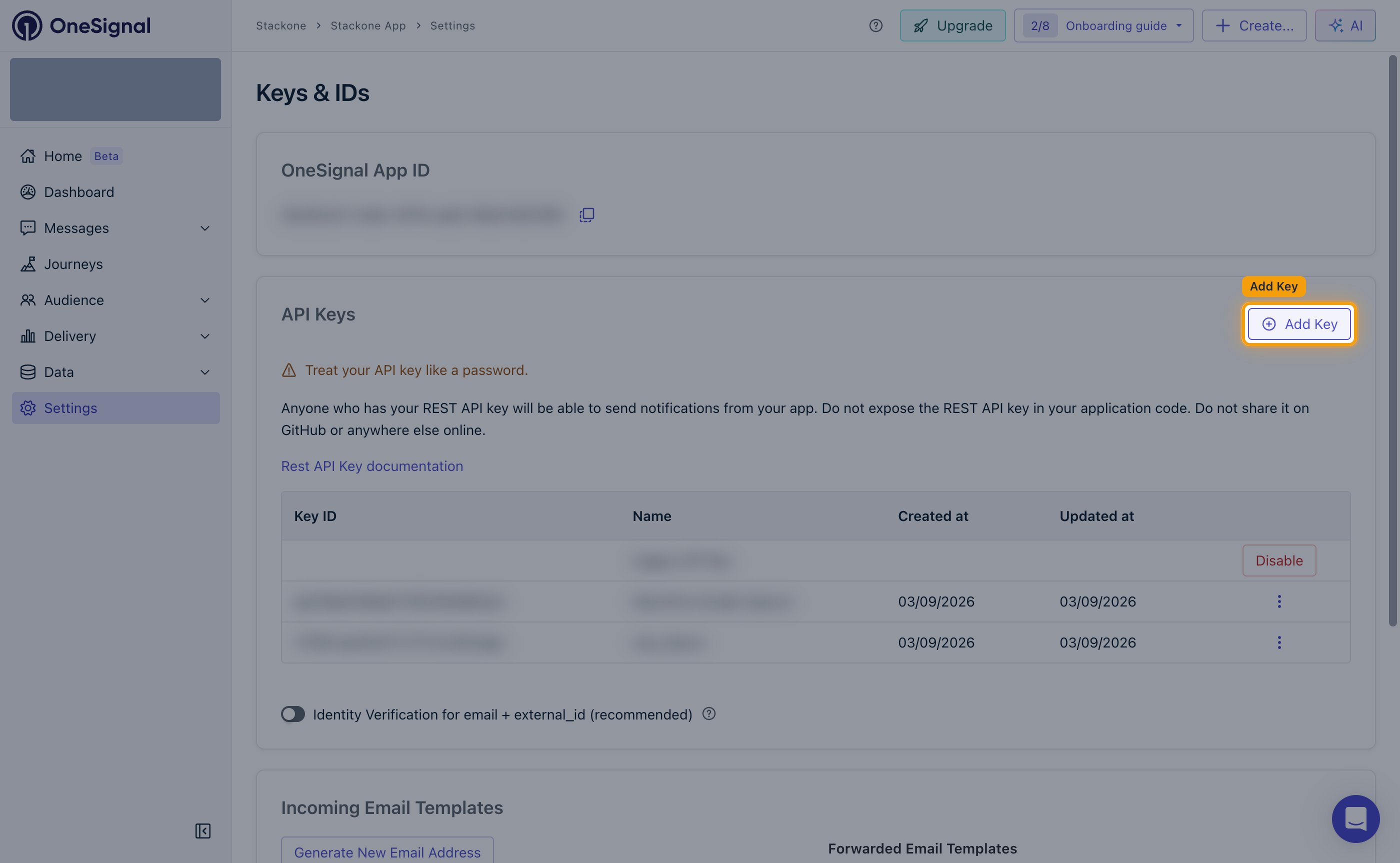
  <p>The <strong>API Keys</strong> table on the same page lists the app's keys. Create a dedicated key for StackOne so you can rotate or disable it independently.</p>

  <Steps>
    <Step title="Add a new key">
      <div data-guide-step data-guide-scopes="" data-guide-display-scopes-list="">
        <p>In the <strong>API Keys</strong> section, click <strong>Add Key</strong>.</p>

        <img src="https://mintcdn.com/stackone-60/KChnzGLd6CbgiJ6C/connectors/onesignal/images/apikey-config-add-key.png?fit=max&auto=format&n=KChnzGLd6CbgiJ6C&q=85&s=a5da6eb810811c9820bfd745dc44ad8a" alt="The API Keys section of the OneSignal Keys and IDs page with the Add Key button highlighted" width="2800" height="1726" data-path="connectors/onesignal/images/apikey-config-add-key.png" />
      </div>
    </Step>

    <Step title="Create the key">
      <div data-guide-step data-guide-scopes="" data-guide-display-scopes-list="">
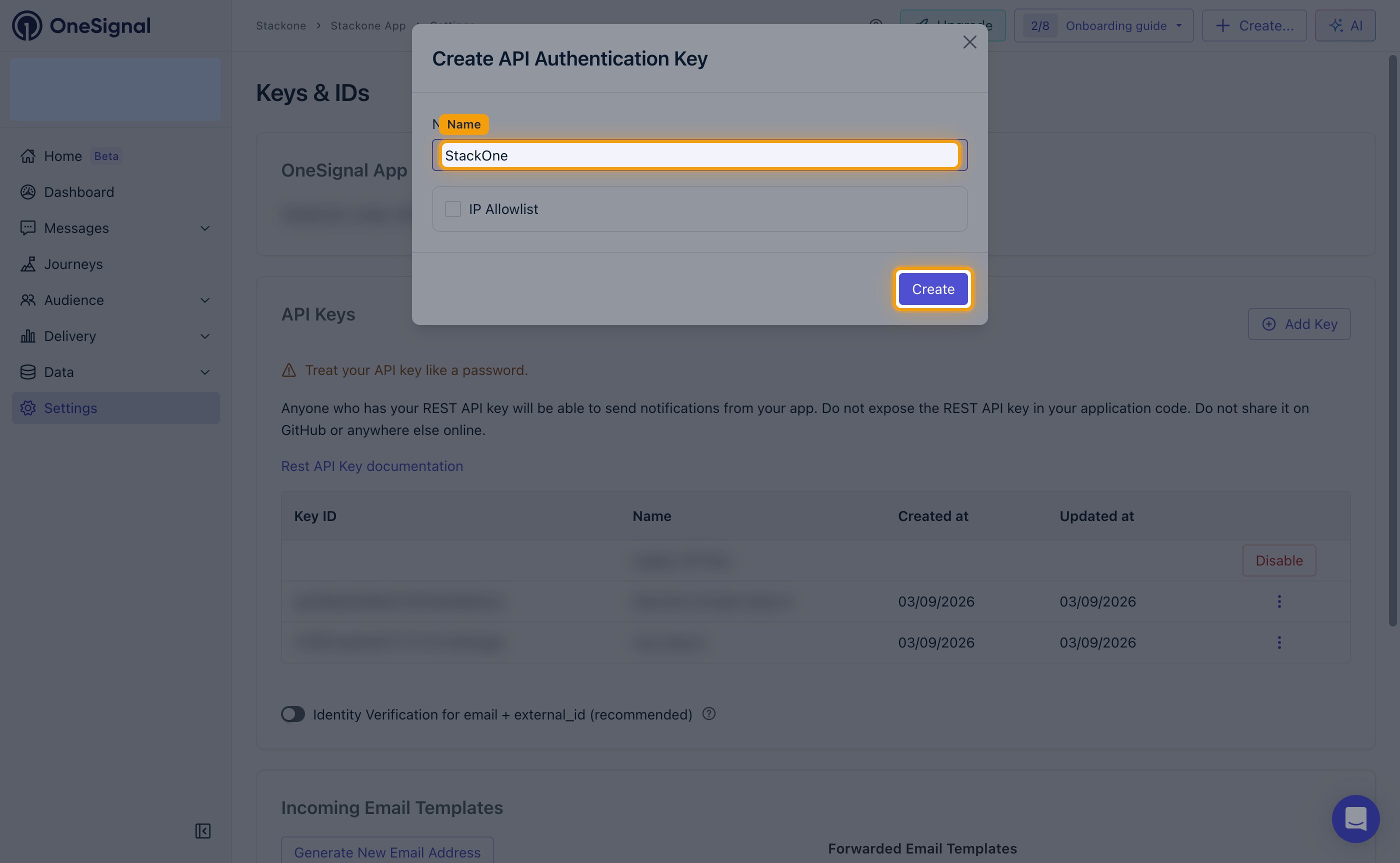
        <p>In the <strong>Create API Authentication Key</strong> dialog, type a name you will recognise, such as `StackOne`, into the <strong>Name</strong> field, then click <strong>Create</strong>.</p>

        <ul>
          <li>Tick <strong>IP Allowlist</strong> only if you want to restrict the key to specific IP addresses, and add the addresses StackOne calls from.</li>
        </ul>

        <img src="https://mintcdn.com/stackone-60/KChnzGLd6CbgiJ6C/connectors/onesignal/images/apikey-config-create-key.png?fit=max&auto=format&n=KChnzGLd6CbgiJ6C&q=85&s=f2bf8bddb565295365df1c1c1b7b02b8" alt="The Create API Authentication Key dialog with the Name field and Create button highlighted" width="2800" height="1726" data-path="connectors/onesignal/images/apikey-config-create-key.png" />
      </div>
    </Step>

    <Step title="Copy the key before closing">
      <div data-guide-step data-guide-scopes="" data-guide-display-scopes-list="">
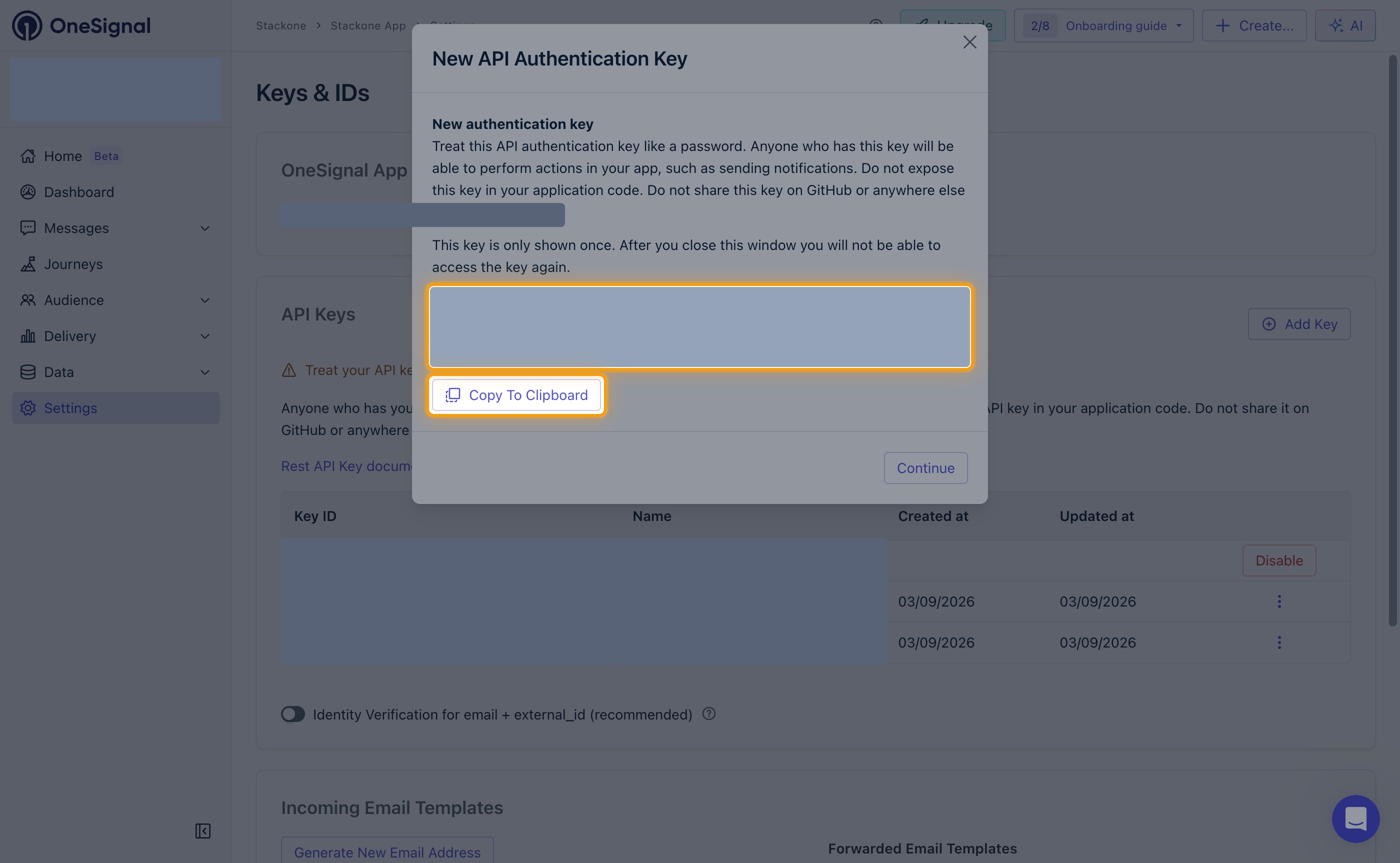
        <p>The <strong>New API Authentication Key</strong> window shows the key value once. Click <strong>Copy To Clipboard</strong>, paste the value somewhere safe, then click <strong>Continue</strong>. This is the value for the <strong>App API Key</strong> field in StackOne Hub.</p>

        <ul>
          <li>This key is only shown once. After you close this window you will not be able to access the key again.</li>
          <li>To replace a key you no longer have, create a new one with <strong>Add Key</strong> and use its value.</li>
          <li>Format: starts with `os_v2_app_`</li>
        </ul>

        <img src="https://mintcdn.com/stackone-60/KChnzGLd6CbgiJ6C/connectors/onesignal/images/apikey-config-copy-key.png?fit=max&auto=format&n=KChnzGLd6CbgiJ6C&q=85&s=4cdf31d8417dc48eb72d5dbbc01764e6" alt="The New API Authentication Key window with the masked key value and the Copy To Clipboard button highlighted" width="2800" height="1726" data-path="connectors/onesignal/images/apikey-config-copy-key.png" />
      </div>
    </Step>
  </Steps>
</section>

<section data-guide-section data-guide-scopes="">
  <h2>Add organization credentials</h2>

  <p>These two values are optional. Add them only if you need the actions that manage apps, app API keys or audit logs — everything else works with the app credentials alone.</p>

  <Steps>
    <Step title="Open the organization Keys & IDs page">
      <div data-guide-step data-guide-scopes="" data-guide-display-scopes-list="">
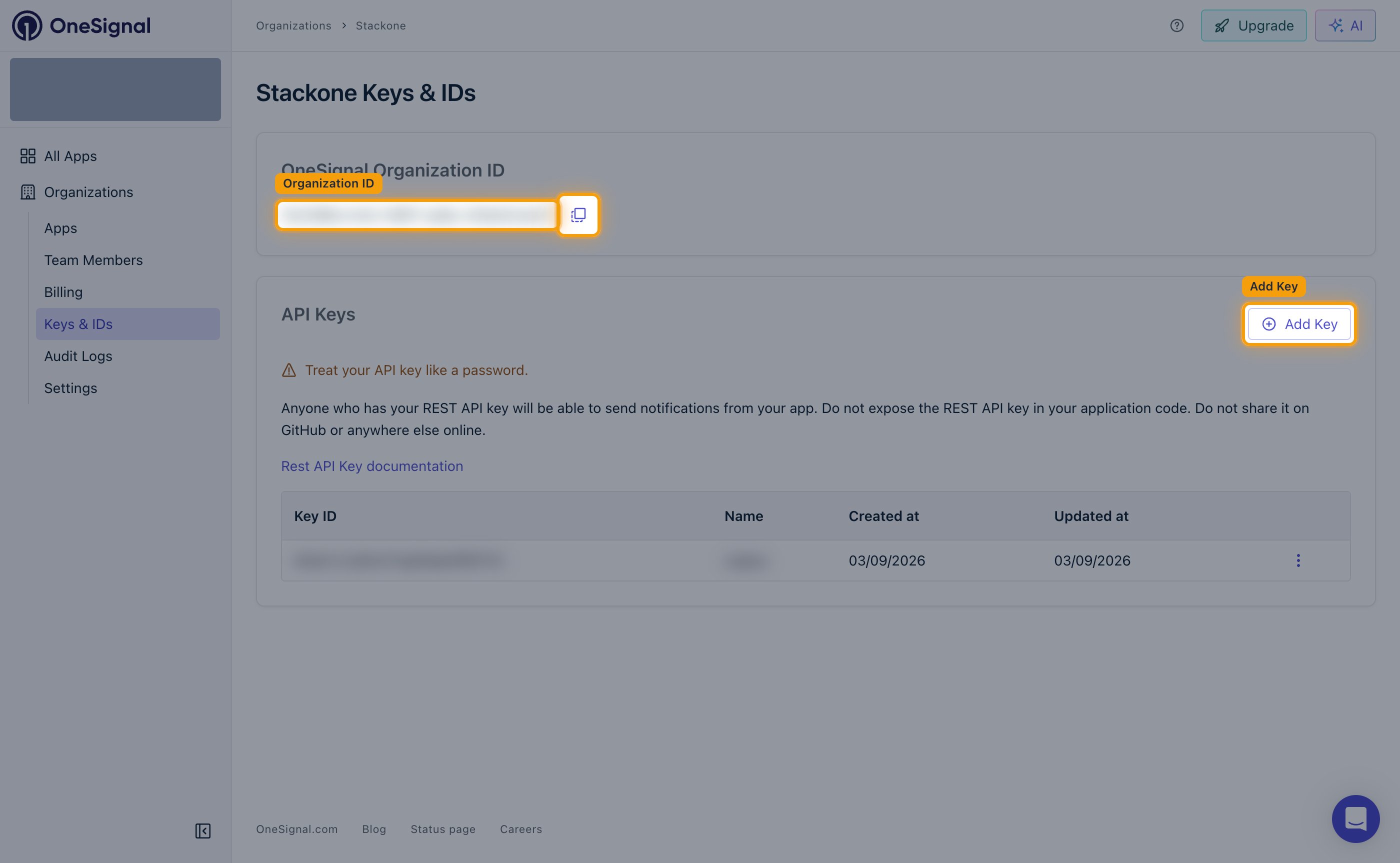
        <p>In the left navigation, click <strong>Organizations</strong>, select your organization, and click <strong>Keys & IDs</strong>. Copy the value in the <strong>OneSignal Organization ID</strong> panel for the <strong>Organization ID</strong> field, then click <strong>Add Key</strong> in the <strong>API Keys</strong> section to create an organization-level key for the <strong>Organization API Key</strong> field.</p>

        <ul>
          <li>The organization-level key is created and revealed exactly like the app key — name it, click <strong>Create</strong>, then click <strong>Copy To Clipboard</strong> before closing the window.</li>
          <li>Format of the <strong>Organization ID</strong>: a UUID</li>
          <li>Format of the <strong>Organization API Key</strong>: starts with `os_v2_org_`</li>
          <li>Listing audit logs also requires an organization plan that includes audit logs — OneSignal rejects the request otherwise, even with a valid <strong>Organization API Key</strong>.</li>
        </ul>

        <img src="https://mintcdn.com/stackone-60/KChnzGLd6CbgiJ6C/connectors/onesignal/images/apikey-config-organization-keys.png?fit=max&auto=format&n=KChnzGLd6CbgiJ6C&q=85&s=34fce3f24dc52336c3843ad7bd8236eb" alt="The OneSignal organization Keys and IDs page with the Organization ID value, its copy button and the Add Key button highlighted" width="2800" height="1726" data-path="connectors/onesignal/images/apikey-config-organization-keys.png" />
      </div>
    </Step>
  </Steps>
</section>

<section data-guide-section data-guide-scopes="">
  <h2>Enter the credentials in StackOne</h2>

  <p>Fill the connection fields in StackOne Hub with the values you just collected.</p>

  <Steps>
    <Step title="Fill the connection fields">
      <div data-guide-step data-guide-scopes="" data-guide-display-scopes-list="">
        <p>Paste each value into its matching field in StackOne Hub.</p>

        <ul>
          <li><strong>App API Key</strong> — the key value you copied from the <strong>New API Authentication Key</strong> window, starting with `os_v2_app_`.</li>
          <li><strong>App ID</strong> — the UUID from the <strong>OneSignal App ID</strong> panel on the app's <strong>Keys & IDs</strong> page.</li>
          <li><strong>Organization API Key</strong> — optional. The key value you copied after clicking <strong>Add Key</strong> on the organization <strong>Keys & IDs</strong> page, starting with `os_v2_org_`. Needed only for managing apps, app API keys and audit logs.</li>
          <li><strong>Organization ID</strong> — optional. The UUID from the <strong>OneSignal Organization ID</strong> panel. Needed only for listing audit logs.</li>
        </ul>
      </div>
    </Step>
  </Steps>
</section>

<div data-whitelabel-hide>
  <h2>Linking the Account from the Hub</h2>

  <Steps>
    <Step title="Navigate to the Hub">
      Use one of the three <a href="/connect/managing-connectors/linking-accounts">Linking Account Methods</a> to access the Hub.
    </Step>

    <Step title="Fill out the fields">
      Fill out the following fields using details from your provider:

      <ul>
        <li><strong>App API Key</strong></li>
        <li><strong>App ID</strong></li>
        <li><strong>Organization API Key</strong> (Optional)</li>
        <li><strong>Organization ID</strong> (Optional)</li>
      </ul>
    </Step>

    <Step title="Connect">
      <ul>
        <li>Click <strong>Connect</strong></li>
        <li>If applicable, the provider will redirect you to a sign-in or authorization page. Complete the provider's authorization flow.</li>
        <li>Once authorization is successful, you will see a confirmation popup</li>
      </ul>
    </Step>
  </Steps>

  <p>If the account linking is successful, you will see the newly linked account in your <a href="/gateway/concepts/linked-accounts">Accounts</a> page.</p>
</div>