> ## Documentation Index
> Fetch the complete documentation index at: https://docs.stackone.com/llms.txt
> Use this file to discover all available pages before exploring further.
# Mixpanel Webhook Setup Guide
> Configure Mixpanel to deliver events to StackOne.
## Prerequisites
The connector should already be set up, with a Connector Profile and a Linked Account. See [Getting Started](/connectors/mixpanel#getting-started) on the Mixpanel connector page.
Retrieve the Native Webhook URL from StackOne
The Native Webhook URL is a computed field on the linked account. It is generated once the account has been linked, and you paste it into Mixpanel in the sections below.
Open the linked account in StackOne Hub and copy the Native Webhook URL value. Keep it private — the URL includes a delivery token.
- Open the linked account in StackOne Hub.
- Copy the value from Native Webhook URL.
Open the Destination Library
Both Mixpanel webhook types are added from the Destination Library. Open it once, then follow the Cohort Sync or Custom Alert section below (or both).
Sign in to Mixpanel, then open the destinations catalog and filter it to webhooks.
- Click the Settings (gear) icon at the bottom of the left sidebar, then click Destinations.
- Click Add Destination to open the Destination Library.
- Under Category, click Webhooks to show only Custom Webhook and Notification Webhook.
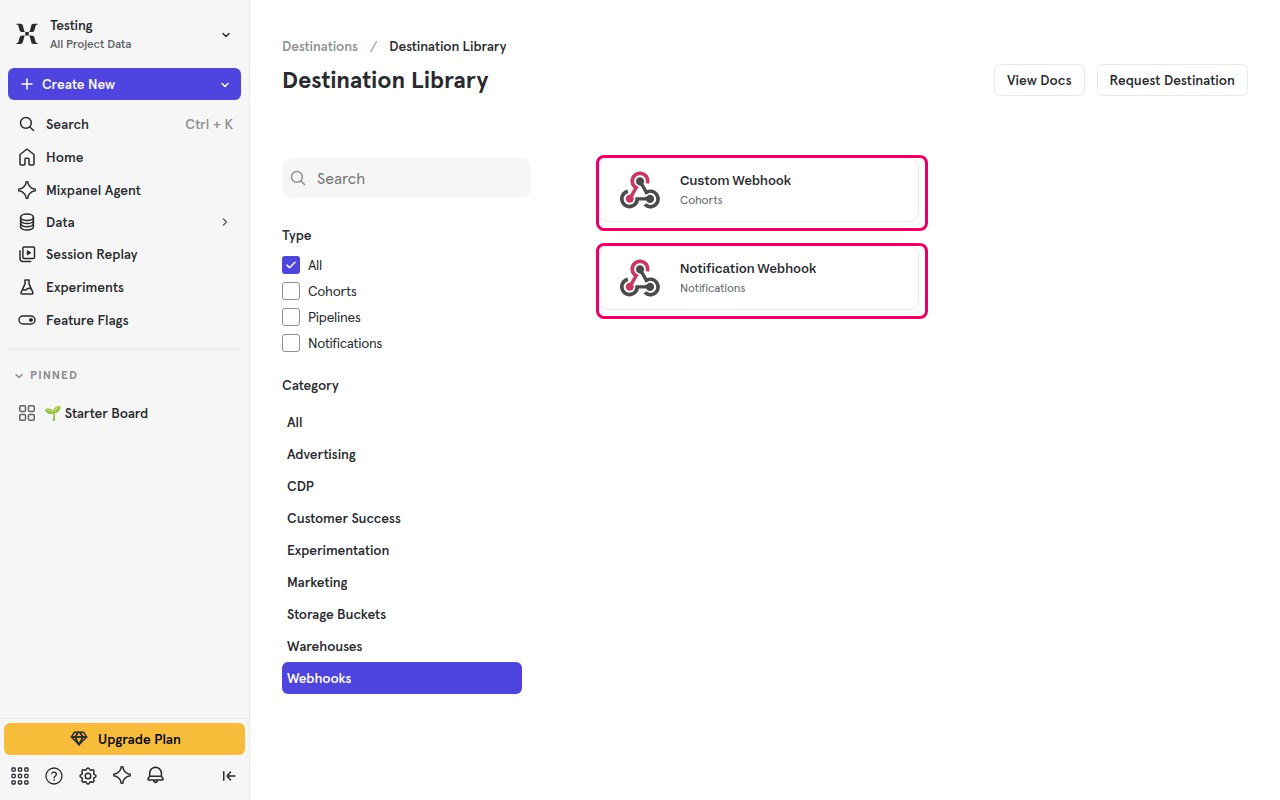
Set up Cohort Sync webhooks
A Custom Webhook destination sends a cohort's membership to StackOne — the full membership on the first sync, then incremental diffs of users who enter (`add_members`) or exit (`remove_members`) the cohort. Cohorts sync roughly every 30 minutes, and members are paginated at 1000 users per call.
Click the Custom Webhook card to open the Connect to Custom Webhook dialog, then fill in the connection.
- Enter a Connector Name for the connection.
- Paste the Native Webhook URL into the URL field.
- Optionally add fields under Properties To Export to include extra user properties.
- Leave HTTP BasicAuth (Optional) blank, or set a Username and Password if you want Mixpanel to authenticate to the URL.
- Click Continue.
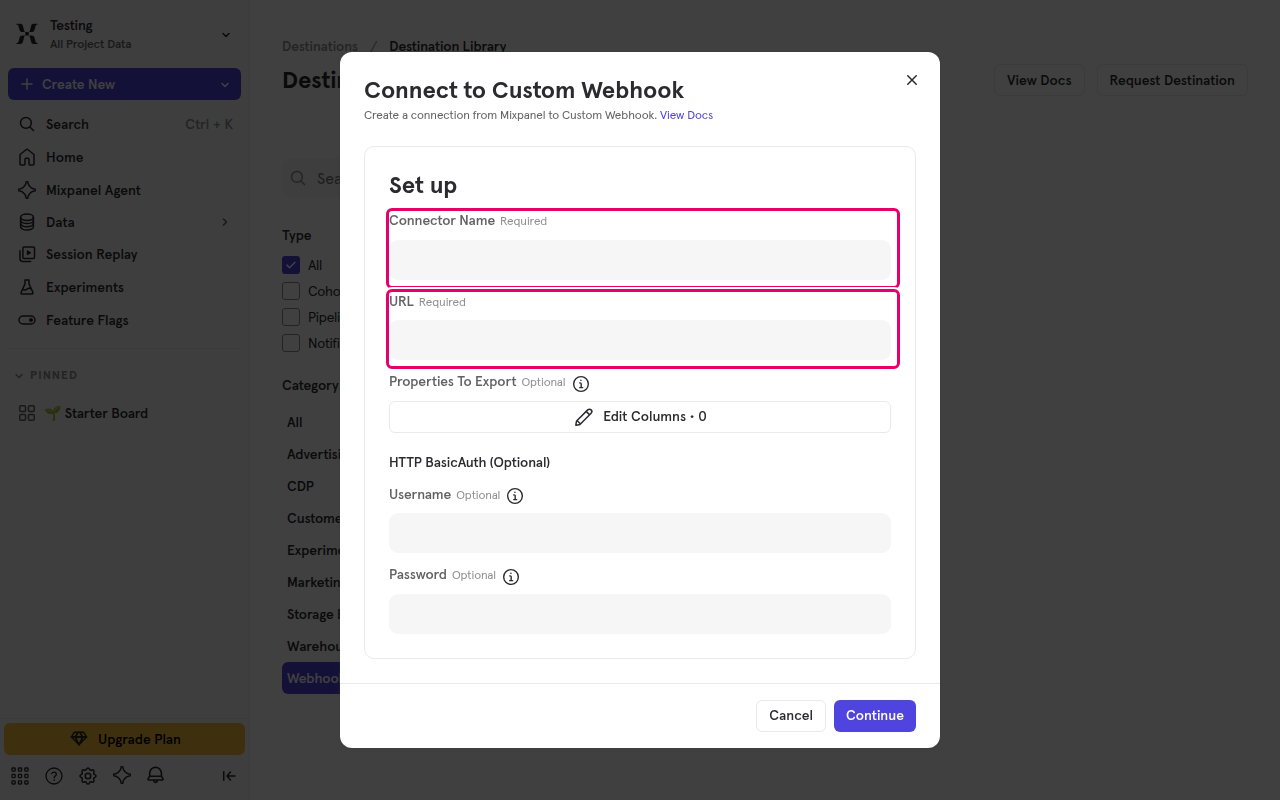
Open the cohort you want to sync and select the Custom Webhook connection as its destination.
- Open a saved cohort and sync it to the Custom Webhook connection you created.
- Mixpanel sends the full membership first, then incremental diffs on each sync.
Set up Custom Alert webhooks
A Notification Webhook destination lets a Custom Alert notify StackOne (`custom_alert_triggered`) when the alert's threshold or anomaly condition is met. Register the webhook once, then select it on each alert that should notify StackOne.
Click the Notification Webhook card to open the Create Webhook dialog, then fill in the webhook.
- Enter a Name for the webhook.
- Paste the Native Webhook URL into the URL field.
- Optionally set a Username and Password for Basic Authentication.
- Click Submit to save the webhook. Test connection may report a failure — StackOne only accepts recognized alert payloads, and the test ping is not one, so it is expected. Real alert deliveries are still received.
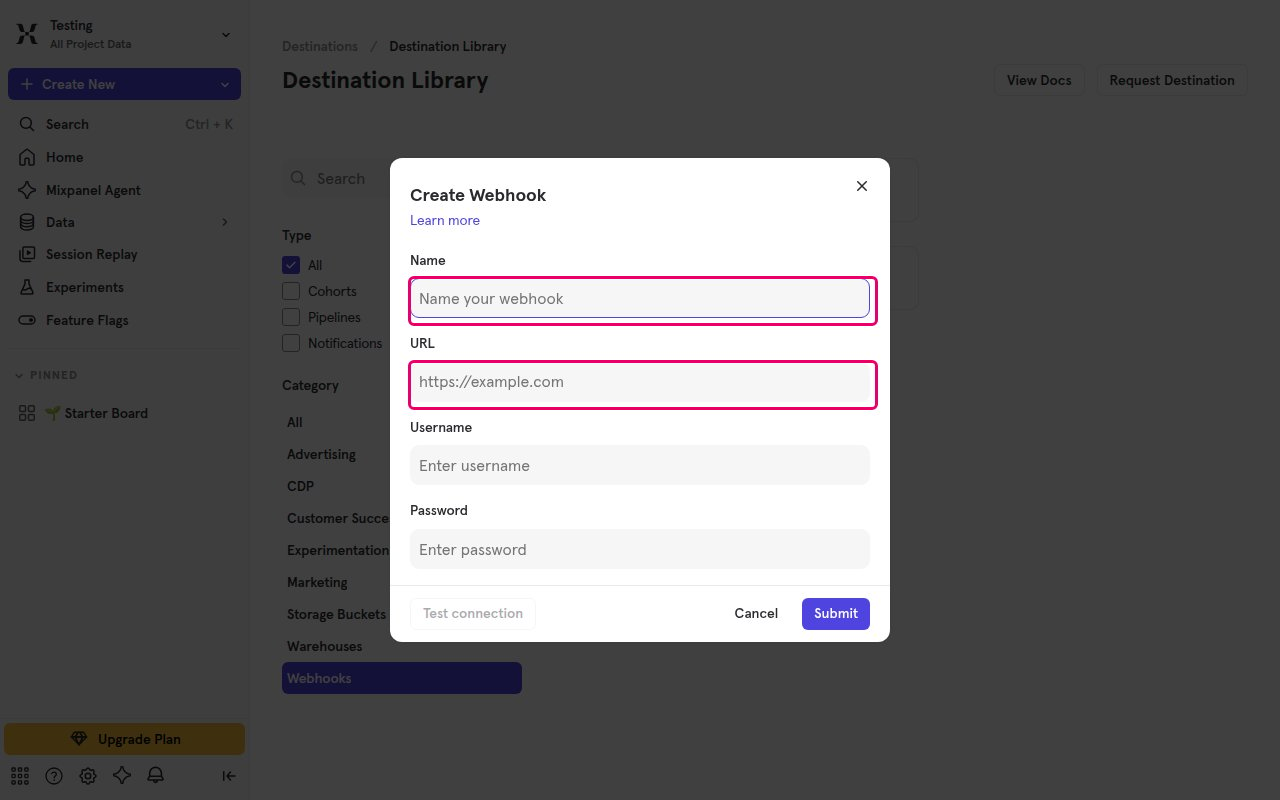
Open or create a Custom Alert on an Insights or Funnels report, then route its notifications to the webhook you created. The alert fires only when its threshold or anomaly condition is met.
Available webhook events
Mixpanel delivers four webhook events across the two mechanisms. StackOne forwards the raw payload for each and routes it to the connected account by Project ID.
Sent when a cohort is synced to a Custom Webhook destination.
- Cohort Full Sync (`members`) — The full cohort membership, sent on the first sync or as a full refresh after prolonged downtime.
- Cohort Members Added (`add_members`) — Users who entered the cohort since the last sync.
- Cohort Members Removed (`remove_members`) — Users who exited the cohort since the last sync.
Sent when a Custom Alert's condition is met.
- Custom Alert Triggered (`custom_alert_triggered`) — Fired when a Custom Alert's threshold is breached or an anomaly is detected.
Delivery format
Details of how Mixpanel delivers webhooks to StackOne.
Cohort Sync payloads carry the Project ID at `parameters.mixpanel_project_id`, with cohort metadata and a paginated `members` array. Custom Alert payloads carry it at `alert.project_id`.
- Cohort deliveries are paginated at 1000 users per call — use `parameters.page_info` to reassemble the full set.
Both mechanisms optionally support Basic Authentication on the webhook URL, set in Mixpanel when you create the destination.
- Mixpanel does not send a verification challenge or a signature header.
## Verify
Your Connector should now be able to receive and process events. Try triggering an event and you should see an Event appear in the Connector logs.
This documentation is built and hosted on [Mintlify](https://mintlify.com), a developer documentation platform.