> ## Documentation Index
> Fetch the complete documentation index at: https://docs.stackone.com/llms.txt
> Use this file to discover all available pages before exploring further.

# Microsoft Teams OAuth 2.0 (with Bot Framework) connector profile – StackOne setup guide

> Set up the OAuth 2.0 (with Bot Framework) connector profile for Microsoft Teams in StackOne. One-time admin setup required before your users can link Microsoft Teams accounts via Hub.

<Warning>Requires an Azure Bot resource linked to the same App Registration. The bot must be published to the Teams App Catalog (org or Store) before users can connect.</Warning>

<Panel>
  <div className="not-prose guides-scope-selector" data-guides-scope-selector data-guide-actions-json="[{&#x22;id&#x22;:&#x22;microsoftteams_list_users&#x22;,&#x22;label&#x22;:&#x22;List Users&#x22;,&#x22;scopes&#x22;:[&#x22;User.ReadBasic.All&#x22;]},{&#x22;id&#x22;:&#x22;microsoftteams_get_user&#x22;,&#x22;label&#x22;:&#x22;Get User&#x22;,&#x22;scopes&#x22;:[&#x22;User.Read&#x22;]},{&#x22;id&#x22;:&#x22;microsoftteams_create_user&#x22;,&#x22;label&#x22;:&#x22;Create User&#x22;,&#x22;scopes&#x22;:[&#x22;User.ReadWrite.All&#x22;]},{&#x22;id&#x22;:&#x22;microsoftteams_delete_user&#x22;,&#x22;label&#x22;:&#x22;Delete User&#x22;,&#x22;scopes&#x22;:[&#x22;User.ReadWrite.All&#x22;]},{&#x22;id&#x22;:&#x22;microsoftteams_change_password&#x22;,&#x22;label&#x22;:&#x22;Change Password&#x22;,&#x22;scopes&#x22;:[&#x22;User-PasswordProfile.ReadWrite.All&#x22;]},{&#x22;id&#x22;:&#x22;microsoftteams_get_current_user&#x22;,&#x22;label&#x22;:&#x22;Get Current User&#x22;,&#x22;scopes&#x22;:[&#x22;User.Read&#x22;]},{&#x22;id&#x22;:&#x22;microsoftteams_list_teams&#x22;,&#x22;label&#x22;:&#x22;List Teams&#x22;,&#x22;scopes&#x22;:[&#x22;Team.ReadBasic.All&#x22;]},{&#x22;id&#x22;:&#x22;microsoftteams_create_team&#x22;,&#x22;label&#x22;:&#x22;Create Team&#x22;,&#x22;scopes&#x22;:[&#x22;Team.Create&#x22;]},{&#x22;id&#x22;:&#x22;microsoftteams_get_team&#x22;,&#x22;label&#x22;:&#x22;Get Team&#x22;,&#x22;scopes&#x22;:[&#x22;Team.ReadBasic.All&#x22;]},{&#x22;id&#x22;:&#x22;microsoftteams_update_team&#x22;,&#x22;label&#x22;:&#x22;Update Team&#x22;,&#x22;scopes&#x22;:[&#x22;TeamSettings.ReadWrite.All&#x22;]},{&#x22;id&#x22;:&#x22;microsoftteams_delete_team&#x22;,&#x22;label&#x22;:&#x22;Delete Team&#x22;,&#x22;scopes&#x22;:[&#x22;Group.ReadWrite.All&#x22;]},{&#x22;id&#x22;:&#x22;microsoftteams_archive_team&#x22;,&#x22;label&#x22;:&#x22;Archive Team&#x22;,&#x22;scopes&#x22;:[&#x22;TeamSettings.ReadWrite.All&#x22;]},{&#x22;id&#x22;:&#x22;microsoftteams_unarchive_team&#x22;,&#x22;label&#x22;:&#x22;Unarchive Team&#x22;,&#x22;scopes&#x22;:[&#x22;TeamSettings.ReadWrite.All&#x22;]},{&#x22;id&#x22;:&#x22;microsoftteams_add_team_member&#x22;,&#x22;label&#x22;:&#x22;Add Team Member&#x22;,&#x22;scopes&#x22;:[&#x22;TeamMember.ReadWrite.All&#x22;]},{&#x22;id&#x22;:&#x22;microsoftteams_add_team_members_bulk&#x22;,&#x22;label&#x22;:&#x22;Add Team Members In Bulk&#x22;,&#x22;scopes&#x22;:[&#x22;TeamMember.ReadWriteNonOwnerRole.All&#x22;]},{&#x22;id&#x22;:&#x22;microsoftteams_remove_team_member&#x22;,&#x22;label&#x22;:&#x22;Remove Team Member&#x22;,&#x22;scopes&#x22;:[&#x22;TeamMember.ReadWriteNonOwnerRole.All&#x22;]},{&#x22;id&#x22;:&#x22;microsoftteams_remove_team_members_bulk&#x22;,&#x22;label&#x22;:&#x22;Remove Team Members In Bulk&#x22;,&#x22;scopes&#x22;:[&#x22;TeamMember.ReadWrite.All&#x22;]},{&#x22;id&#x22;:&#x22;microsoftteams_list_team_members&#x22;,&#x22;label&#x22;:&#x22;List Team Members&#x22;,&#x22;scopes&#x22;:[&#x22;TeamMember.Read.All&#x22;]},{&#x22;id&#x22;:&#x22;microsoftteams_get_team_member&#x22;,&#x22;label&#x22;:&#x22;Get Team Member&#x22;,&#x22;scopes&#x22;:[&#x22;TeamMember.Read.All&#x22;]},{&#x22;id&#x22;:&#x22;microsoftteams_clone_team&#x22;,&#x22;label&#x22;:&#x22;Clone Team&#x22;,&#x22;scopes&#x22;:[&#x22;Team.Create&#x22;]},{&#x22;id&#x22;:&#x22;microsoftteams_list_channels&#x22;,&#x22;label&#x22;:&#x22;List Channels&#x22;,&#x22;scopes&#x22;:[&#x22;Channel.ReadBasic.All&#x22;]},{&#x22;id&#x22;:&#x22;microsoftteams_get_channel&#x22;,&#x22;label&#x22;:&#x22;Get Channel&#x22;,&#x22;scopes&#x22;:[&#x22;Channel.ReadBasic.All&#x22;]},{&#x22;id&#x22;:&#x22;microsoftteams_list_all_channels&#x22;,&#x22;label&#x22;:&#x22;List All Channels&#x22;,&#x22;scopes&#x22;:[&#x22;Channel.ReadBasic.All&#x22;]},{&#x22;id&#x22;:&#x22;microsoftteams_list_incoming_channels&#x22;,&#x22;label&#x22;:&#x22;List Incoming Channels&#x22;,&#x22;scopes&#x22;:[&#x22;Channel.ReadBasic.All&#x22;]},{&#x22;id&#x22;:&#x22;microsoftteams_get_primary_channel&#x22;,&#x22;label&#x22;:&#x22;Get Primary Channel&#x22;,&#x22;scopes&#x22;:[&#x22;Channel.ReadBasic.All&#x22;]},{&#x22;id&#x22;:&#x22;microsoftteams_create_channel&#x22;,&#x22;label&#x22;:&#x22;Create Channel&#x22;,&#x22;scopes&#x22;:[&#x22;Channel.Create&#x22;]},{&#x22;id&#x22;:&#x22;microsoftteams_update_channel&#x22;,&#x22;label&#x22;:&#x22;Update Channel&#x22;,&#x22;scopes&#x22;:[&#x22;ChannelSettings.ReadWrite.All&#x22;]},{&#x22;id&#x22;:&#x22;microsoftteams_delete_channel&#x22;,&#x22;label&#x22;:&#x22;Delete Channel&#x22;,&#x22;scopes&#x22;:[&#x22;Channel.Delete.All&#x22;]},{&#x22;id&#x22;:&#x22;microsoftteams_list_channel_tabs&#x22;,&#x22;label&#x22;:&#x22;List Channel Tabs&#x22;,&#x22;scopes&#x22;:[&#x22;TeamsTab.Read.All&#x22;]},{&#x22;id&#x22;:&#x22;microsoftteams_get_channel_files_folder&#x22;,&#x22;label&#x22;:&#x22;Get Channel Files Folder&#x22;,&#x22;scopes&#x22;:[&#x22;Files.Read.All&#x22;]},{&#x22;id&#x22;:&#x22;microsoftteams_list_channel_members&#x22;,&#x22;label&#x22;:&#x22;List Channel Members&#x22;,&#x22;scopes&#x22;:[&#x22;ChannelMember.Read.All&#x22;]},{&#x22;id&#x22;:&#x22;microsoftteams_list_all_channel_members&#x22;,&#x22;label&#x22;:&#x22;List All Channel Members&#x22;,&#x22;scopes&#x22;:[&#x22;ChannelMember.Read.All&#x22;]},{&#x22;id&#x22;:&#x22;microsoftteams_get_channel_member&#x22;,&#x22;label&#x22;:&#x22;Get Channel Member&#x22;,&#x22;scopes&#x22;:[&#x22;ChannelMember.Read.All&#x22;]},{&#x22;id&#x22;:&#x22;microsoftteams_archive_channel&#x22;,&#x22;label&#x22;:&#x22;Archive Channel&#x22;,&#x22;scopes&#x22;:[&#x22;ChannelSettings.ReadWrite.All&#x22;]},{&#x22;id&#x22;:&#x22;microsoftteams_unarchive_channel&#x22;,&#x22;label&#x22;:&#x22;Unarchive Channel&#x22;,&#x22;scopes&#x22;:[&#x22;ChannelSettings.ReadWrite.All&#x22;]},{&#x22;id&#x22;:&#x22;microsoftteams_add_channel_member&#x22;,&#x22;label&#x22;:&#x22;Add Channel Member&#x22;,&#x22;scopes&#x22;:[&#x22;ChannelMember.ReadWrite.All&#x22;]},{&#x22;id&#x22;:&#x22;microsoftteams_remove_channel_member&#x22;,&#x22;label&#x22;:&#x22;Remove Channel Member&#x22;,&#x22;scopes&#x22;:[&#x22;ChannelMember.ReadWrite.All&#x22;]},{&#x22;id&#x22;:&#x22;microsoftteams_get_channel_tab&#x22;,&#x22;label&#x22;:&#x22;Get Channel Tab&#x22;,&#x22;scopes&#x22;:[&#x22;TeamsTab.Read.All&#x22;]},{&#x22;id&#x22;:&#x22;microsoftteams_delete_channel_tab&#x22;,&#x22;label&#x22;:&#x22;Delete Channel Tab&#x22;,&#x22;scopes&#x22;:[&#x22;TeamsTab.ReadWriteSelfForTeam&#x22;]},{&#x22;id&#x22;:&#x22;microsoftteams_list_channel_messages&#x22;,&#x22;label&#x22;:&#x22;List Channel Messages&#x22;,&#x22;scopes&#x22;:[&#x22;ChannelMessage.Read.All&#x22;]},{&#x22;id&#x22;:&#x22;microsoftteams_list_all_channel_messages&#x22;,&#x22;label&#x22;:&#x22;List All Channel Messages&#x22;,&#x22;scopes&#x22;:[&#x22;ChannelMessage.Read.All&#x22;]},{&#x22;id&#x22;:&#x22;microsoftteams_get_channel_message&#x22;,&#x22;label&#x22;:&#x22;Get Channel Message&#x22;,&#x22;scopes&#x22;:[&#x22;Chat.Read&#x22;]},{&#x22;id&#x22;:&#x22;microsoftteams_send_channel_message&#x22;,&#x22;label&#x22;:&#x22;Send Channel Message&#x22;,&#x22;scopes&#x22;:[&#x22;ChannelMessage.Send&#x22;]},{&#x22;id&#x22;:&#x22;microsoftteams_update_channel_message&#x22;,&#x22;label&#x22;:&#x22;Update Channel Message&#x22;,&#x22;scopes&#x22;:[&#x22;ChannelMessage.ReadWrite&#x22;]},{&#x22;id&#x22;:&#x22;microsoftteams_soft_delete_channel_message&#x22;,&#x22;label&#x22;:&#x22;Delete Channel Message&#x22;,&#x22;scopes&#x22;:[&#x22;ChannelMessage.ReadWrite&#x22;]},{&#x22;id&#x22;:&#x22;microsoftteams_list_channel_message_replies&#x22;,&#x22;label&#x22;:&#x22;List Message Replies&#x22;,&#x22;scopes&#x22;:[&#x22;ChannelMessage.Read.All&#x22;]},{&#x22;id&#x22;:&#x22;microsoftteams_send_message_reply&#x22;,&#x22;label&#x22;:&#x22;Send Message Reply&#x22;,&#x22;scopes&#x22;:[&#x22;ChannelMessage.Send&#x22;]},{&#x22;id&#x22;:&#x22;microsoftteams_get_channel_message_reply&#x22;,&#x22;label&#x22;:&#x22;Get Message Reply&#x22;,&#x22;scopes&#x22;:[&#x22;ChannelMessage.Read.All&#x22;]},{&#x22;id&#x22;:&#x22;microsoftteams_list_chat_messages&#x22;,&#x22;label&#x22;:&#x22;List Chat Messages&#x22;,&#x22;scopes&#x22;:[&#x22;Chat.Read&#x22;]},{&#x22;id&#x22;:&#x22;microsoftteams_get_chat_message&#x22;,&#x22;label&#x22;:&#x22;Get Chat Message&#x22;,&#x22;scopes&#x22;:[&#x22;Chat.Read&#x22;]},{&#x22;id&#x22;:&#x22;microsoftteams_send_chat_message&#x22;,&#x22;label&#x22;:&#x22;Send Chat Message&#x22;,&#x22;scopes&#x22;:[&#x22;ChatMessage.Send&#x22;]},{&#x22;id&#x22;:&#x22;microsoftteams_soft_delete_chat_message&#x22;,&#x22;label&#x22;:&#x22;Delete Chat Message&#x22;,&#x22;scopes&#x22;:[&#x22;Chat.ReadWrite&#x22;]},{&#x22;id&#x22;:&#x22;microsoftteams_undo_soft_delete_chat_message&#x22;,&#x22;label&#x22;:&#x22;Undo Soft Delete Chat Message&#x22;,&#x22;scopes&#x22;:[&#x22;Chat.ReadWrite&#x22;]},{&#x22;id&#x22;:&#x22;microsoftteams_list_chats&#x22;,&#x22;label&#x22;:&#x22;List Chats&#x22;,&#x22;scopes&#x22;:[&#x22;Chat.ReadBasic&#x22;]},{&#x22;id&#x22;:&#x22;microsoftteams_get_chat&#x22;,&#x22;label&#x22;:&#x22;Get Chat&#x22;,&#x22;scopes&#x22;:[&#x22;Chat.ReadBasic&#x22;]},{&#x22;id&#x22;:&#x22;microsoftteams_create_chat&#x22;,&#x22;label&#x22;:&#x22;Create Chat&#x22;,&#x22;scopes&#x22;:[&#x22;Chat.Create&#x22;]},{&#x22;id&#x22;:&#x22;microsoftteams_update_chat&#x22;,&#x22;label&#x22;:&#x22;Update Chat&#x22;,&#x22;scopes&#x22;:[&#x22;Chat.ReadWrite&#x22;]},{&#x22;id&#x22;:&#x22;microsoftteams_delete_chat&#x22;,&#x22;label&#x22;:&#x22;Delete Chat&#x22;,&#x22;scopes&#x22;:[&#x22;Chat.ManageDeletion.All&#x22;]},{&#x22;id&#x22;:&#x22;microsoftteams_list_chat_members&#x22;,&#x22;label&#x22;:&#x22;List Chat Members&#x22;,&#x22;scopes&#x22;:[&#x22;Chat.ReadBasic&#x22;]},{&#x22;id&#x22;:&#x22;microsoftteams_add_chat_member&#x22;,&#x22;label&#x22;:&#x22;Add Chat Member&#x22;,&#x22;scopes&#x22;:[&#x22;ChatMember.ReadWrite&#x22;]},{&#x22;id&#x22;:&#x22;microsoftteams_remove_chat_member&#x22;,&#x22;label&#x22;:&#x22;Remove Chat Member&#x22;,&#x22;scopes&#x22;:[&#x22;ChatMember.ReadWrite&#x22;]},{&#x22;id&#x22;:&#x22;microsoftteams_get_chat_member&#x22;,&#x22;label&#x22;:&#x22;Get Chat Member&#x22;,&#x22;scopes&#x22;:[&#x22;Chat.ReadBasic&#x22;]},{&#x22;id&#x22;:&#x22;microsoftteams_bot_create_conversation&#x22;,&#x22;label&#x22;:&#x22;Bot Create Conversation&#x22;,&#x22;scopes&#x22;:[&#x22;TeamsAppInstallation.ReadWriteSelfForUser&#x22;]},{&#x22;id&#x22;:&#x22;microsoftteams_bot_send_to_conversation&#x22;,&#x22;label&#x22;:&#x22;Bot Send To Conversation&#x22;,&#x22;scopes&#x22;:[&#x22;TeamsAppInstallation.ReadWriteSelfForUser&#x22;]},{&#x22;id&#x22;:&#x22;microsoftteams_bot_reply_to_activity&#x22;,&#x22;label&#x22;:&#x22;Bot Reply To Activity&#x22;,&#x22;scopes&#x22;:[&#x22;TeamsAppInstallation.ReadWriteSelfForUser&#x22;]},{&#x22;id&#x22;:&#x22;microsoftteams_bot_update_activity&#x22;,&#x22;label&#x22;:&#x22;Bot Update Activity&#x22;,&#x22;scopes&#x22;:[&#x22;TeamsAppInstallation.ReadWriteSelfForUser&#x22;]},{&#x22;id&#x22;:&#x22;microsoftteams_bot_delete_activity&#x22;,&#x22;label&#x22;:&#x22;Bot Delete Activity&#x22;,&#x22;scopes&#x22;:[&#x22;TeamsAppInstallation.ReadWriteSelfForUser&#x22;]},{&#x22;id&#x22;:&#x22;microsoftteams_bot_get_conversation_members&#x22;,&#x22;label&#x22;:&#x22;Bot Get Conversation Members&#x22;,&#x22;scopes&#x22;:[&#x22;TeamsAppInstallation.ReadWriteSelfForUser&#x22;]},{&#x22;id&#x22;:&#x22;microsoftteams_bot_get_conversation_paged_members&#x22;,&#x22;label&#x22;:&#x22;Bot Get Conversation Paged Members&#x22;,&#x22;scopes&#x22;:[&#x22;TeamsAppInstallation.ReadWriteSelfForUser&#x22;]},{&#x22;id&#x22;:&#x22;microsoftteams_bot_get_conversation_member&#x22;,&#x22;label&#x22;:&#x22;Bot Get Conversation Member&#x22;,&#x22;scopes&#x22;:[&#x22;TeamsAppInstallation.ReadWriteSelfForUser&#x22;]}]" style={{ borderRadius: '8px', padding: '16px', marginBottom: '24px' }}>
    <div className="guides-scope-selector__title" style={{ fontSize: '16px', fontWeight: '600', marginBottom: '12px' }}>Select Actions to adjust the guide</div>
    <div className="guides-scope-selector__muted" style={{ fontSize: '13px', marginBottom: '12px' }}>Some actions may require additional configuration in the provider to be accessible. Choose the actions you need and the guide will be updated.</div>

    <div style={{ display: 'flex', gap: '8px', marginBottom: '12px', flexWrap: 'wrap' }}>
      <input type="text" placeholder="Search actions..." className="guides-scope-selector__input" data-guide-action-search style={{ padding: '8px 12px', borderRadius: '6px', fontSize: '13px', flex: 1, minWidth: '160px' }} />

      <button type="button" className="guides-scope-selector__quick-btn" data-guide-select-all style={{ padding: '6px 10px', borderRadius: '6px', fontSize: '12px', cursor: 'pointer' }}>Select all</button>
      <button type="button" className="guides-scope-selector__quick-btn" data-guide-clear style={{ padding: '6px 10px', borderRadius: '6px', fontSize: '12px', cursor: 'pointer' }}>Clear</button>
    </div>

    <div className="guides-scope-selector__list" style={{ maxHeight: '240px', overflowY: 'auto', borderRadius: '6px', marginBottom: '12px' }}>
      <div className="guides-scope-selector__list-header" style={{ display: 'flex', alignItems: 'center', gap: '10px', padding: '8px 12px', fontSize: '12px', fontWeight: '600', position: 'sticky', top: 0, zIndex: 1 }}>
        <div style={{ width: '16px', flexShrink: 0 }} />

        <div style={{ flex: 1, textAlign: 'left' }}>Action</div>
        <div style={{ minWidth: '120px', marginLeft: 'auto', textAlign: 'right' }}>Scope(s)</div>
      </div>

      <div className="guides-scope-selector__muted" data-guide-loading style={{ padding: '16px', textAlign: 'center', fontSize: '13px' }}>Loading actions...</div>
      <div className="guides-scope-selector__muted" data-guide-no-results hidden style={{ padding: '16px', textAlign: 'center', fontSize: '13px' }}>No actions match your search.</div>
    </div>

    <div className="guides-scope-selector__url-section" style={{ marginTop: '12px', paddingTop: '12px' }}>
      <div className="guides-scope-selector__muted" style={{ fontSize: '12px', fontWeight: '500', marginBottom: '6px' }}>Dynamic Guide URL</div>

      <div style={{ display: 'flex', alignItems: 'center', gap: '8px', flexWrap: 'wrap' }}>
        <input type="text" readOnly className="guides-scope-selector__input" data-guide-url style={{ flex: 1, minWidth: '200px', padding: '8px 10px', borderRadius: '6px', fontSize: '12px', fontFamily: 'monospace' }} />

        <button type="button" className="guides-scope-selector__copy-btn" data-guide-copy-url style={{ width: '120px', padding: '8px 14px', borderRadius: '6px', fontSize: '13px', fontWeight: '500', cursor: 'pointer', whiteSpace: 'nowrap', marginLeft: 'auto' }}>Copy URL</button>
      </div>

      <div style={{ marginTop: '12px' }}>
        <div className="guides-scope-selector__muted" style={{ fontSize: '12px', fontWeight: '500', marginBottom: '6px' }}>Scopes Selected</div>

        <div style={{ display: 'flex', alignItems: 'stretch', gap: '8px', flexWrap: 'wrap' }}>
          <pre className="guides-scope-selector__input" role="textbox" aria-readonly="true" tabIndex={0} data-guide-scopes-output style={{ flex: 1, minWidth: '200px', minHeight: '88px', maxHeight: '120px', overflowY: 'auto', margin: 0, padding: '8px 10px', borderRadius: '6px', fontSize: '12px', fontFamily: 'monospace', whiteSpace: 'pre-wrap' }} />

          <div className="guides-scope-selector__muted" style={{ display: 'flex', flexDirection: 'column', gap: '8px', fontSize: '12px', fontWeight: '500', flexShrink: 0, alignItems: 'flex-start' }}>
            <div style={{ whiteSpace: 'nowrap' }}>Separator</div>

            <select className="guides-scope-selector__input" data-guide-scope-delimiter style={{ width: '100%', padding: '6px 10px', borderRadius: '6px', fontSize: '12px' }}>
              <option value="space">Space</option>
              <option value="comma">Comma</option>
              <option value="semicolon">Semicolon</option>
              <option value="pipe">Pipe</option>
              <option value="newline">Newline</option>
            </select>

            <button type="button" className="guides-scope-selector__copy-btn" data-guide-copy-scopes style={{ width: '120px', padding: '8px 14px', borderRadius: '6px', fontSize: '13px', fontWeight: '500', cursor: 'pointer', whiteSpace: 'nowrap' }}>Copy scopes</button>
          </div>
        </div>
      </div>
    </div>
  </div>
</Panel>

<section data-guide-section data-guide-scopes="">
  <h2>Register Your Application in Microsoft Entra ID</h2>

  <p>Register an application in Microsoft Entra ID to obtain OAuth 2.0 credentials. A single App ID and Secret is used for both Graph API and Bot Framework.</p>

  <Steps>
    <Step title="Sign in to Microsoft Entra Admin Center">
      <div data-guide-step data-guide-scopes="" data-guide-display-scopes-list="">
        <p>Sign in to the <a href="https://entra.microsoft.com" target="_blank" rel="noopener noreferrer">Microsoft Entra admin center</a> as at least an Application Developer. If you have access to multiple tenants, click the <strong>Settings</strong> (gear) icon in the top-right corner, then select the desired tenant from the list under <strong>Directory + subscription</strong>.</p>
      </div>
    </Step>

    <Step title="Create a New App Registration">
      <div data-guide-step data-guide-scopes="" data-guide-display-scopes-list="">
        <p>Navigate to <strong>App registrations</strong> by searching from the top search bar and click on <strong>New registration</strong>.</p>

        <ul>
          <li>Enter a meaningful <strong>Name</strong> for your app (e.g., StackOne Microsoft Teams Bot Integration).</li>
          <li>Under <strong>Supported account types</strong>, select <strong>Single tenant</strong> if only your organization will use this integration, or <strong>Multitenant</strong> if you need to support users from multiple Azure AD tenants.</li>
          <li>Leave the <strong>Redirect URI</strong> blank for now — you will configure it in the next section.</li>
          <li>Select <strong>Register</strong> to create the app registration.</li>
        </ul>
      </div>
    </Step>

    <Step title="Copy the Application (Client) ID">
      <div data-guide-step data-guide-scopes="" data-guide-display-scopes-list="">
        <p>After registration, you'll be directed to the application's <strong>Overview</strong> page. Copy the <strong>Application (client) ID</strong> value and store it securely. You will need this value for the <strong>Client ID</strong> field during the StackOne connector profile setup.</p>
      </div>
    </Step>

    <Step title="Copy the Directory (Tenant) ID">
      <div data-guide-step data-guide-scopes="" data-guide-display-scopes-list="">
        <p>From the same <strong>Overview</strong> page, copy the <strong>Directory (tenant) ID</strong> value and store it securely. You will need this value for the <strong>Tenant ID</strong> field during the StackOne connector profile setup.</p>
      </div>
    </Step>
  </Steps>
</section>

<section data-guide-section data-guide-scopes="">
  <h2>Configure Redirect URI</h2>

  <p>Set up the OAuth 2.0 callback URL to enable authentication flow between StackOne and Microsoft Teams.</p>

  <Steps>
    <Step title="Navigate to Authentication Settings">
      <div data-guide-step data-guide-scopes="" data-guide-display-scopes-list="">
        <p>From your app's Overview page, select <strong>Authentication (Preview)</strong> from the left menu under <strong>Manage</strong>.</p>
      </div>
    </Step>

    <Step title="Add Platform Configuration">
      <div data-guide-step data-guide-scopes="" data-guide-display-scopes-list="">
        <p>Click <strong>Add Redirect URI</strong>, then select <strong>Web</strong>.</p>
      </div>
    </Step>

    <Step title="Set the Redirect URI">
      <div data-guide-step data-guide-scopes="" data-guide-display-scopes-list="">
        <p>In the <strong>Redirect URIs</strong> field, enter the StackOne OAuth callback URL (`https://api.stackone.com/connect/oauth2/microsoftteams/callback`) and click <strong>Configure</strong>.</p>
      </div>
    </Step>
  </Steps>
</section>

<section data-guide-section data-guide-scopes="">
  <h2>Configure API Permissions</h2>

  <p>Grant your application the necessary Microsoft Graph API permissions including bot installation permissions.</p>

  <Steps>
    <Step title="Open API Permissions">
      <div data-guide-step data-guide-scopes="" data-guide-display-scopes-list="">
        <p>From the left menu under <strong>Manage</strong>, select <strong>API permissions</strong>.</p>
      </div>
    </Step>

    <Step title="Add Microsoft Graph Permissions">
      <div data-guide-step data-guide-scopes="Channel.ReadBasic.All,Channel.Create,Channel.Delete.All,ChannelSettings.ReadWrite.All,ChannelMember.Read.All,ChannelMember.ReadWrite.All,ChannelMessage.Read.All,ChannelMessage.Send,ChannelMessage.ReadWrite,Chat.ReadBasic,Chat.Read,Chat.ReadWrite,Chat.Create,Chat.ManageDeletion.All,ChatMember.ReadWrite,ChatMessage.Send,Team.ReadBasic.All,Team.Create,TeamSettings.ReadWrite.All,TeamMember.Read.All,TeamMember.ReadWriteNonOwnerRole.All,TeamMember.ReadWrite.All,Group.ReadWrite.All,TeamsTab.Read.All,TeamsTab.ReadWriteSelfForTeam,Files.Read.All,User.Read,User.ReadBasic.All,User.ReadWrite.All,User-PasswordProfile.ReadWrite.All,TeamsAppInstallation.ReadWriteSelfForUser" data-guide-display-scopes-list="Channel.ReadBasic.All,Channel.Create,Channel.Delete.All,ChannelSettings.ReadWrite.All,ChannelMember.Read.All,ChannelMember.ReadWrite.All,ChannelMessage.Read.All,ChannelMessage.Send,ChannelMessage.ReadWrite,Chat.ReadBasic,Chat.Read,Chat.ReadWrite,Chat.Create,Chat.ManageDeletion.All,ChatMember.ReadWrite,ChatMessage.Send,Team.ReadBasic.All,Team.Create,TeamSettings.ReadWrite.All,TeamMember.Read.All,TeamMember.ReadWriteNonOwnerRole.All,TeamMember.ReadWrite.All,Group.ReadWrite.All,TeamsTab.Read.All,TeamsTab.ReadWriteSelfForTeam,Files.Read.All,User.Read,User.ReadBasic.All,User.ReadWrite.All,User-PasswordProfile.ReadWrite.All,TeamsAppInstallation.ReadWriteSelfForUser">
        <div className="connector-guide-actions-badge" data-guide-actions-badge data-guide-actions-badge-scopes="Channel.ReadBasic.All,Channel.Create,Channel.Delete.All,ChannelSettings.ReadWrite.All,ChannelMember.Read.All,ChannelMember.ReadWrite.All,ChannelMessage.Read.All,ChannelMessage.Send,ChannelMessage.ReadWrite,Chat.ReadBasic,Chat.Read,Chat.ReadWrite,Chat.Create,Chat.ManageDeletion.All,ChatMember.ReadWrite,ChatMessage.Send,Team.ReadBasic.All,Team.Create,TeamSettings.ReadWrite.All,TeamMember.Read.All,TeamMember.ReadWriteNonOwnerRole.All,TeamMember.ReadWrite.All,Group.ReadWrite.All,TeamsTab.Read.All,TeamsTab.ReadWriteSelfForTeam,Files.Read.All,User.Read,User.ReadBasic.All,User.ReadWrite.All,User-PasswordProfile.ReadWrite.All,TeamsAppInstallation.ReadWriteSelfForUser" style={{ display: 'block', width: 'fit-content', maxWidth: '100%', padding: '2px 8px', borderRadius: '8px', fontSize: '12px', marginBottom: '8px', marginTop: '-10px', whiteSpace: 'nowrap', overflowX: 'auto', overflowY: 'hidden', msOverflowStyle: 'none', scrollbarWidth: 'none' }}>
          <span>Enables actions: </span><span data-guide-actions-badge-labels>Add Channel Member, Add Chat Member, Add Team Member, Add Team Members In Bulk, Archive Channel, Archive Team, Bot Create Conversation, Bot Delete Activity, Bot Get Conversation Member, Bot Get Conversation Members, Bot Get Conversation Paged Members, Bot Reply To Activity, Bot Send To Conversation, Bot Update Activity, Change Password, Clone Team, Create Channel, Create Chat, Create Team, Create User, Delete Channel, Delete Channel Message, Delete Channel Tab, Delete Chat, Delete Chat Message, Delete Team, Delete User, Get Channel, Get Channel Files Folder, Get Channel Member, Get Channel Message, Get Channel Tab, Get Chat, Get Chat Member, Get Chat Message, Get Current User, Get Message Reply, Get Primary Channel, Get Team, Get Team Member, Get User, List All Channel Members, List All Channel Messages, List All Channels, List Channel Members, List Channel Messages, List Channel Tabs, List Channels, List Chat Members, List Chat Messages, List Chats, List Incoming Channels, List Message Replies, List Team Members, List Teams, List Users, Remove Channel Member, Remove Chat Member, Remove Team Member, Remove Team Members In Bulk, Send Channel Message, Send Chat Message, Send Message Reply, Unarchive Channel, Unarchive Team, Undo Soft Delete Chat Message, Update Channel, Update Channel Message, Update Chat, Update Team</span>
        </div>

        <p>Click <strong>Add a permission</strong>, then select <strong>Microsoft Graph</strong>. Select <strong>Delegated permissions</strong> and add the scopes required for your use case, then click <strong>Add permissions</strong> to save.</p>

        <div style={{ marginTop: '8px' }} data-guide-display-scopes>
          <div className="connector-guide-scopes-container connector-guide-scopes-container--scrollable">
            <ul className="not-prose" style={{ listStyleType: "'- '", paddingLeft: '1em', margin: 0 }}>
              <li style={{ overflowWrap: 'anywhere', wordBreak: 'break-word' }} data-guide-display-scope="Channel.ReadBasic.All">
                <button type="button" className="connector-guide-scope-copy" aria-label="Copy Channel.ReadBasic.All" title="Copy scope" data-copy="Channel.ReadBasic.All">
                  <span className="connector-guide-scope-copy__label">Channel.ReadBasic.All</span>
                  <span className="connector-guide-scope-copy__icon" aria-hidden="true">⧉</span>
                </button>
              </li>

              <li style={{ overflowWrap: 'anywhere', wordBreak: 'break-word' }} data-guide-display-scope="Channel.Create">
                <button type="button" className="connector-guide-scope-copy" aria-label="Copy Channel.Create" title="Copy scope" data-copy="Channel.Create">
                  <span className="connector-guide-scope-copy__label">Channel.Create</span>
                  <span className="connector-guide-scope-copy__icon" aria-hidden="true">⧉</span>
                </button>
              </li>

              <li style={{ overflowWrap: 'anywhere', wordBreak: 'break-word' }} data-guide-display-scope="Channel.Delete.All">
                <button type="button" className="connector-guide-scope-copy" aria-label="Copy Channel.Delete.All" title="Copy scope" data-copy="Channel.Delete.All">
                  <span className="connector-guide-scope-copy__label">Channel.Delete.All</span>
                  <span className="connector-guide-scope-copy__icon" aria-hidden="true">⧉</span>
                </button>
              </li>

              <li style={{ overflowWrap: 'anywhere', wordBreak: 'break-word' }} data-guide-display-scope="ChannelSettings.ReadWrite.All">
                <button type="button" className="connector-guide-scope-copy" aria-label="Copy ChannelSettings.ReadWrite.All" title="Copy scope" data-copy="ChannelSettings.ReadWrite.All">
                  <span className="connector-guide-scope-copy__label">ChannelSettings.ReadWrite.All</span>
                  <span className="connector-guide-scope-copy__icon" aria-hidden="true">⧉</span>
                </button>
              </li>

              <li style={{ overflowWrap: 'anywhere', wordBreak: 'break-word' }} data-guide-display-scope="ChannelMember.Read.All">
                <button type="button" className="connector-guide-scope-copy" aria-label="Copy ChannelMember.Read.All" title="Copy scope" data-copy="ChannelMember.Read.All">
                  <span className="connector-guide-scope-copy__label">ChannelMember.Read.All</span>
                  <span className="connector-guide-scope-copy__icon" aria-hidden="true">⧉</span>
                </button>
              </li>

              <li style={{ overflowWrap: 'anywhere', wordBreak: 'break-word' }} data-guide-display-scope="ChannelMember.ReadWrite.All">
                <button type="button" className="connector-guide-scope-copy" aria-label="Copy ChannelMember.ReadWrite.All" title="Copy scope" data-copy="ChannelMember.ReadWrite.All">
                  <span className="connector-guide-scope-copy__label">ChannelMember.ReadWrite.All</span>
                  <span className="connector-guide-scope-copy__icon" aria-hidden="true">⧉</span>
                </button>
              </li>

              <li style={{ overflowWrap: 'anywhere', wordBreak: 'break-word' }} data-guide-display-scope="ChannelMessage.Read.All">
                <button type="button" className="connector-guide-scope-copy" aria-label="Copy ChannelMessage.Read.All" title="Copy scope" data-copy="ChannelMessage.Read.All">
                  <span className="connector-guide-scope-copy__label">ChannelMessage.Read.All</span>
                  <span className="connector-guide-scope-copy__icon" aria-hidden="true">⧉</span>
                </button>
              </li>

              <li style={{ overflowWrap: 'anywhere', wordBreak: 'break-word' }} data-guide-display-scope="ChannelMessage.Send">
                <button type="button" className="connector-guide-scope-copy" aria-label="Copy ChannelMessage.Send" title="Copy scope" data-copy="ChannelMessage.Send">
                  <span className="connector-guide-scope-copy__label">ChannelMessage.Send</span>
                  <span className="connector-guide-scope-copy__icon" aria-hidden="true">⧉</span>
                </button>
              </li>

              <li style={{ overflowWrap: 'anywhere', wordBreak: 'break-word' }} data-guide-display-scope="ChannelMessage.ReadWrite">
                <button type="button" className="connector-guide-scope-copy" aria-label="Copy ChannelMessage.ReadWrite" title="Copy scope" data-copy="ChannelMessage.ReadWrite">
                  <span className="connector-guide-scope-copy__label">ChannelMessage.ReadWrite</span>
                  <span className="connector-guide-scope-copy__icon" aria-hidden="true">⧉</span>
                </button>
              </li>

              <li style={{ overflowWrap: 'anywhere', wordBreak: 'break-word' }} data-guide-display-scope="Chat.ReadBasic">
                <button type="button" className="connector-guide-scope-copy" aria-label="Copy Chat.ReadBasic" title="Copy scope" data-copy="Chat.ReadBasic">
                  <span className="connector-guide-scope-copy__label">Chat.ReadBasic</span>
                  <span className="connector-guide-scope-copy__icon" aria-hidden="true">⧉</span>
                </button>
              </li>

              <li style={{ overflowWrap: 'anywhere', wordBreak: 'break-word' }} data-guide-display-scope="Chat.Read">
                <button type="button" className="connector-guide-scope-copy" aria-label="Copy Chat.Read" title="Copy scope" data-copy="Chat.Read">
                  <span className="connector-guide-scope-copy__label">Chat.Read</span>
                  <span className="connector-guide-scope-copy__icon" aria-hidden="true">⧉</span>
                </button>
              </li>

              <li style={{ overflowWrap: 'anywhere', wordBreak: 'break-word' }} data-guide-display-scope="Chat.ReadWrite">
                <button type="button" className="connector-guide-scope-copy" aria-label="Copy Chat.ReadWrite" title="Copy scope" data-copy="Chat.ReadWrite">
                  <span className="connector-guide-scope-copy__label">Chat.ReadWrite</span>
                  <span className="connector-guide-scope-copy__icon" aria-hidden="true">⧉</span>
                </button>
              </li>

              <li style={{ overflowWrap: 'anywhere', wordBreak: 'break-word' }} data-guide-display-scope="Chat.Create">
                <button type="button" className="connector-guide-scope-copy" aria-label="Copy Chat.Create" title="Copy scope" data-copy="Chat.Create">
                  <span className="connector-guide-scope-copy__label">Chat.Create</span>
                  <span className="connector-guide-scope-copy__icon" aria-hidden="true">⧉</span>
                </button>
              </li>

              <li style={{ overflowWrap: 'anywhere', wordBreak: 'break-word' }} data-guide-display-scope="Chat.ManageDeletion.All">
                <button type="button" className="connector-guide-scope-copy" aria-label="Copy Chat.ManageDeletion.All" title="Copy scope" data-copy="Chat.ManageDeletion.All">
                  <span className="connector-guide-scope-copy__label">Chat.ManageDeletion.All</span>
                  <span className="connector-guide-scope-copy__icon" aria-hidden="true">⧉</span>
                </button>
              </li>

              <li style={{ overflowWrap: 'anywhere', wordBreak: 'break-word' }} data-guide-display-scope="ChatMember.ReadWrite">
                <button type="button" className="connector-guide-scope-copy" aria-label="Copy ChatMember.ReadWrite" title="Copy scope" data-copy="ChatMember.ReadWrite">
                  <span className="connector-guide-scope-copy__label">ChatMember.ReadWrite</span>
                  <span className="connector-guide-scope-copy__icon" aria-hidden="true">⧉</span>
                </button>
              </li>

              <li style={{ overflowWrap: 'anywhere', wordBreak: 'break-word' }} data-guide-display-scope="ChatMessage.Send">
                <button type="button" className="connector-guide-scope-copy" aria-label="Copy ChatMessage.Send" title="Copy scope" data-copy="ChatMessage.Send">
                  <span className="connector-guide-scope-copy__label">ChatMessage.Send</span>
                  <span className="connector-guide-scope-copy__icon" aria-hidden="true">⧉</span>
                </button>
              </li>

              <li style={{ overflowWrap: 'anywhere', wordBreak: 'break-word' }} data-guide-display-scope="Team.ReadBasic.All">
                <button type="button" className="connector-guide-scope-copy" aria-label="Copy Team.ReadBasic.All" title="Copy scope" data-copy="Team.ReadBasic.All">
                  <span className="connector-guide-scope-copy__label">Team.ReadBasic.All</span>
                  <span className="connector-guide-scope-copy__icon" aria-hidden="true">⧉</span>
                </button>
              </li>

              <li style={{ overflowWrap: 'anywhere', wordBreak: 'break-word' }} data-guide-display-scope="Team.Create">
                <button type="button" className="connector-guide-scope-copy" aria-label="Copy Team.Create" title="Copy scope" data-copy="Team.Create">
                  <span className="connector-guide-scope-copy__label">Team.Create</span>
                  <span className="connector-guide-scope-copy__icon" aria-hidden="true">⧉</span>
                </button>
              </li>

              <li style={{ overflowWrap: 'anywhere', wordBreak: 'break-word' }} data-guide-display-scope="TeamSettings.ReadWrite.All">
                <button type="button" className="connector-guide-scope-copy" aria-label="Copy TeamSettings.ReadWrite.All" title="Copy scope" data-copy="TeamSettings.ReadWrite.All">
                  <span className="connector-guide-scope-copy__label">TeamSettings.ReadWrite.All</span>
                  <span className="connector-guide-scope-copy__icon" aria-hidden="true">⧉</span>
                </button>
              </li>

              <li style={{ overflowWrap: 'anywhere', wordBreak: 'break-word' }} data-guide-display-scope="TeamMember.Read.All">
                <button type="button" className="connector-guide-scope-copy" aria-label="Copy TeamMember.Read.All" title="Copy scope" data-copy="TeamMember.Read.All">
                  <span className="connector-guide-scope-copy__label">TeamMember.Read.All</span>
                  <span className="connector-guide-scope-copy__icon" aria-hidden="true">⧉</span>
                </button>
              </li>

              <li style={{ overflowWrap: 'anywhere', wordBreak: 'break-word' }} data-guide-display-scope="TeamMember.ReadWriteNonOwnerRole.All">
                <button type="button" className="connector-guide-scope-copy" aria-label="Copy TeamMember.ReadWriteNonOwnerRole.All" title="Copy scope" data-copy="TeamMember.ReadWriteNonOwnerRole.All">
                  <span className="connector-guide-scope-copy__label">TeamMember.ReadWriteNonOwnerRole.All</span>
                  <span className="connector-guide-scope-copy__icon" aria-hidden="true">⧉</span>
                </button>
              </li>

              <li style={{ overflowWrap: 'anywhere', wordBreak: 'break-word' }} data-guide-display-scope="TeamMember.ReadWrite.All">
                <button type="button" className="connector-guide-scope-copy" aria-label="Copy TeamMember.ReadWrite.All" title="Copy scope" data-copy="TeamMember.ReadWrite.All">
                  <span className="connector-guide-scope-copy__label">TeamMember.ReadWrite.All</span>
                  <span className="connector-guide-scope-copy__icon" aria-hidden="true">⧉</span>
                </button>
              </li>

              <li style={{ overflowWrap: 'anywhere', wordBreak: 'break-word' }} data-guide-display-scope="Group.ReadWrite.All">
                <button type="button" className="connector-guide-scope-copy" aria-label="Copy Group.ReadWrite.All" title="Copy scope" data-copy="Group.ReadWrite.All">
                  <span className="connector-guide-scope-copy__label">Group.ReadWrite.All</span>
                  <span className="connector-guide-scope-copy__icon" aria-hidden="true">⧉</span>
                </button>
              </li>

              <li style={{ overflowWrap: 'anywhere', wordBreak: 'break-word' }} data-guide-display-scope="TeamsTab.Read.All">
                <button type="button" className="connector-guide-scope-copy" aria-label="Copy TeamsTab.Read.All" title="Copy scope" data-copy="TeamsTab.Read.All">
                  <span className="connector-guide-scope-copy__label">TeamsTab.Read.All</span>
                  <span className="connector-guide-scope-copy__icon" aria-hidden="true">⧉</span>
                </button>
              </li>

              <li style={{ overflowWrap: 'anywhere', wordBreak: 'break-word' }} data-guide-display-scope="TeamsTab.ReadWriteSelfForTeam">
                <button type="button" className="connector-guide-scope-copy" aria-label="Copy TeamsTab.ReadWriteSelfForTeam" title="Copy scope" data-copy="TeamsTab.ReadWriteSelfForTeam">
                  <span className="connector-guide-scope-copy__label">TeamsTab.ReadWriteSelfForTeam</span>
                  <span className="connector-guide-scope-copy__icon" aria-hidden="true">⧉</span>
                </button>
              </li>

              <li style={{ overflowWrap: 'anywhere', wordBreak: 'break-word' }} data-guide-display-scope="Files.Read.All">
                <button type="button" className="connector-guide-scope-copy" aria-label="Copy Files.Read.All" title="Copy scope" data-copy="Files.Read.All">
                  <span className="connector-guide-scope-copy__label">Files.Read.All</span>
                  <span className="connector-guide-scope-copy__icon" aria-hidden="true">⧉</span>
                </button>
              </li>

              <li style={{ overflowWrap: 'anywhere', wordBreak: 'break-word' }} data-guide-display-scope="User.Read">
                <button type="button" className="connector-guide-scope-copy" aria-label="Copy User.Read" title="Copy scope" data-copy="User.Read">
                  <span className="connector-guide-scope-copy__label">User.Read</span>
                  <span className="connector-guide-scope-copy__icon" aria-hidden="true">⧉</span>
                </button>
              </li>

              <li style={{ overflowWrap: 'anywhere', wordBreak: 'break-word' }} data-guide-display-scope="User.ReadBasic.All">
                <button type="button" className="connector-guide-scope-copy" aria-label="Copy User.ReadBasic.All" title="Copy scope" data-copy="User.ReadBasic.All">
                  <span className="connector-guide-scope-copy__label">User.ReadBasic.All</span>
                  <span className="connector-guide-scope-copy__icon" aria-hidden="true">⧉</span>
                </button>
              </li>

              <li style={{ overflowWrap: 'anywhere', wordBreak: 'break-word' }} data-guide-display-scope="User.ReadWrite.All">
                <button type="button" className="connector-guide-scope-copy" aria-label="Copy User.ReadWrite.All" title="Copy scope" data-copy="User.ReadWrite.All">
                  <span className="connector-guide-scope-copy__label">User.ReadWrite.All</span>
                  <span className="connector-guide-scope-copy__icon" aria-hidden="true">⧉</span>
                </button>
              </li>

              <li style={{ overflowWrap: 'anywhere', wordBreak: 'break-word' }} data-guide-display-scope="User-PasswordProfile.ReadWrite.All">
                <button type="button" className="connector-guide-scope-copy" aria-label="Copy User-PasswordProfile.ReadWrite.All" title="Copy scope" data-copy="User-PasswordProfile.ReadWrite.All">
                  <span className="connector-guide-scope-copy__label">User-PasswordProfile.ReadWrite.All</span>
                  <span className="connector-guide-scope-copy__icon" aria-hidden="true">⧉</span>
                </button>
              </li>

              <li style={{ overflowWrap: 'anywhere', wordBreak: 'break-word' }} data-guide-display-scope="TeamsAppInstallation.ReadWriteSelfForUser">
                <button type="button" className="connector-guide-scope-copy" aria-label="Copy TeamsAppInstallation.ReadWriteSelfForUser" title="Copy scope" data-copy="TeamsAppInstallation.ReadWriteSelfForUser">
                  <span className="connector-guide-scope-copy__label">TeamsAppInstallation.ReadWriteSelfForUser</span>
                  <span className="connector-guide-scope-copy__icon" aria-hidden="true">⧉</span>
                </button>
              </li>
            </ul>
          </div>
        </div>
      </div>
    </Step>

    <Step title="Add Bot Installation Permission (Required)">
      <div data-guide-step data-guide-scopes="" data-guide-display-scopes-list="">
        <p>The <strong>TeamsAppInstallation.ReadWriteSelfForUser</strong> permission is mandatory. It allows the app to automatically install the bot for users during the OAuth connection flow.</p>
      </div>
    </Step>

    <Step title="Grant Admin Consent">
      <div data-guide-step data-guide-scopes="" data-guide-display-scopes-list="">
        <p>Click <strong>Grant admin consent for \[tenant name]</strong> and select <strong>Yes</strong> to consent on behalf of all users in your tenant. After granting, verify that <strong>Granted for \[tenant name]</strong> appears under the <strong>Status</strong> column.</p>
      </div>
    </Step>
  </Steps>
</section>

<section data-guide-section data-guide-scopes="">
  <h2>Generate Client Secret</h2>

  <p>Create a client secret that will be used to authenticate your application with Microsoft Teams.</p>

  <Steps>
    <Step title="Navigate to Certificates & Secrets">
      <div data-guide-step data-guide-scopes="" data-guide-display-scopes-list="">
        <p>From the left menu under <strong>Manage</strong>, select <strong>Certificates & secrets</strong>.</p>
      </div>
    </Step>

    <Step title="Create a New Client Secret">
      <div data-guide-step data-guide-scopes="" data-guide-display-scopes-list="">
        <p>Under the <strong>Client secrets</strong> tab, click <strong>New client secret</strong>.</p>

        <ul>
          <li>Add a <strong>Description</strong> (e.g., StackOne Bot Integration Secret).</li>
          <li>Select an expiration period.</li>
          <li>Click <strong>Add</strong>.</li>
        </ul>
      </div>
    </Step>

    <Step title="Copy the Client Secret Value">
      <div data-guide-step data-guide-scopes="" data-guide-display-scopes-list="">
        <p>Immediately copy the <strong>Value</strong> of the newly created client secret and store it securely. This value will only be shown once and cannot be retrieved again. You will need this value for the <strong>Client Secret</strong> field during the StackOne connector profile setup.</p>
      </div>
    </Step>
  </Steps>
</section>

<section data-guide-section data-guide-scopes="">
  <h2>Create Azure Bot Resource</h2>

  <p>Create an Azure Bot resource linked to the same App Registration. This registers your app as a bot in the Bot Framework.</p>

  <Steps>
    <Step title="Create Azure Bot">
      <div data-guide-step data-guide-scopes="" data-guide-display-scopes-list="">
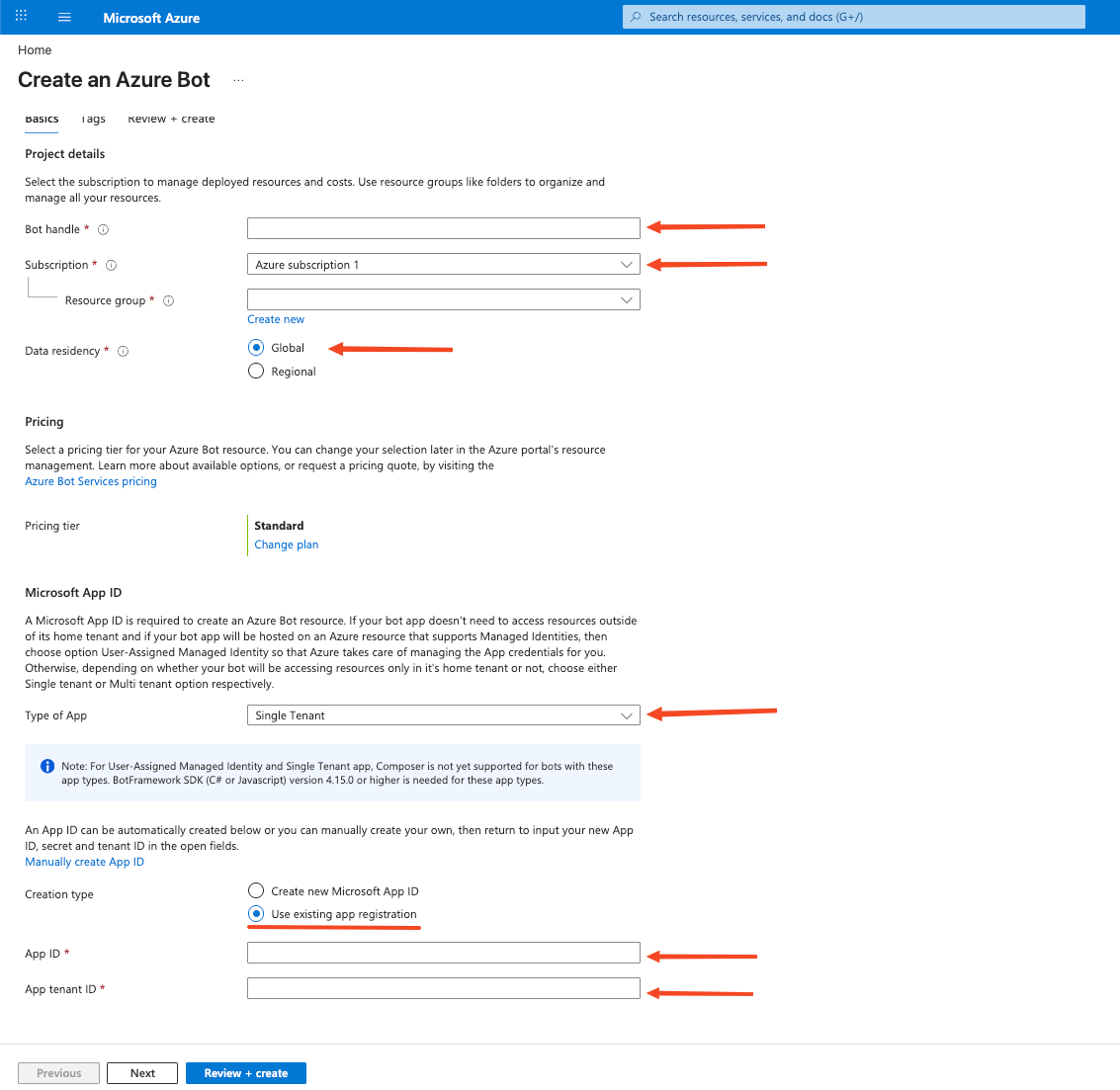
        <p>In <a href="https://portal.azure.com" target="_blank" rel="noopener noreferrer">Azure Portal</a>, search for <strong>Azure Bot</strong> in the top search bar and click <strong>Azure Bot</strong> under <strong>Marketplace</strong>. This opens the <strong>Create an Azure Bot</strong> page directly.</p>

        <ul>
          <li>Enter a <strong>Bot handle</strong> (e.g., stackone-teams-bot).</li>
          <li>Select a <strong>Resource group</strong> or create a new one.</li>
          <li>Under <strong>Data residency</strong>, select <strong>Global</strong> (or <strong>Regional</strong> based on your requirements).</li>
          <li>Click <strong>Change plan</strong> under Pricing and select <strong>Free (F0)</strong> for testing or <strong>Standard</strong> for production.</li>
          <li>Under <strong>Type of App</strong>, select <strong>Multi Tenant</strong> (or <strong>Single Tenant</strong> based on your requirements).</li>
          <li>Under <strong>Creation type</strong>, select <strong>Use existing app registration</strong> and paste your Application (client) ID (same as Client ID).</li>
          <li>Click <strong>Review + create</strong> > <strong>Create</strong>.</li>
        </ul>

        <img src="https://mintcdn.com/stackone-60/i0kcvb_VY8ptwUMB/connectors/microsoftteams/images/oauth2-setup-create-azure-bot.png?fit=max&auto=format&n=i0kcvb_VY8ptwUMB&q=85&s=8123de3c28df8299f44f4deb9964f504" alt="Create Azure Bot" width="1133" height="1103" data-path="connectors/microsoftteams/images/oauth2-setup-create-azure-bot.png" />
      </div>
    </Step>

    <Step title="Go to the Bot Resource">
      <div data-guide-step data-guide-scopes="" data-guide-display-scopes-list="">
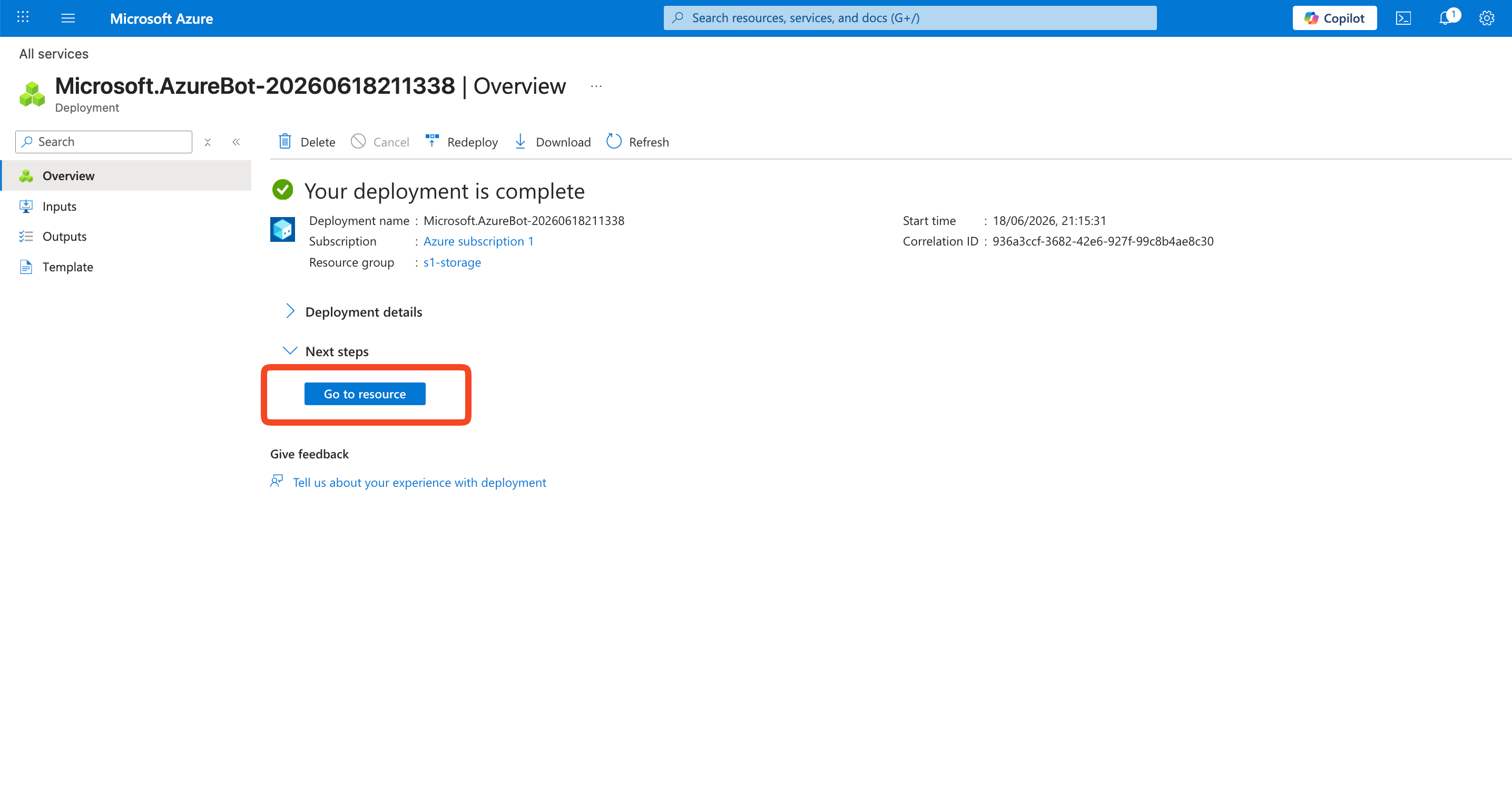
        <p>Once deployment completes, click <strong>Go to resource</strong> to open the Azure Bot resource.</p>

        <img src="https://mintcdn.com/stackone-60/i0kcvb_VY8ptwUMB/connectors/microsoftteams/images/oauth2-setup-go-to-resource.png?fit=max&auto=format&n=i0kcvb_VY8ptwUMB&q=85&s=ccebe5a7e8f1a441bb4f8b7f394768c5" alt="Go to Resource" width="2870" height="1490" data-path="connectors/microsoftteams/images/oauth2-setup-go-to-resource.png" />
      </div>
    </Step>

    <Step title="Enable Teams Channel">
      <div data-guide-step data-guide-scopes="" data-guide-display-scopes-list="">
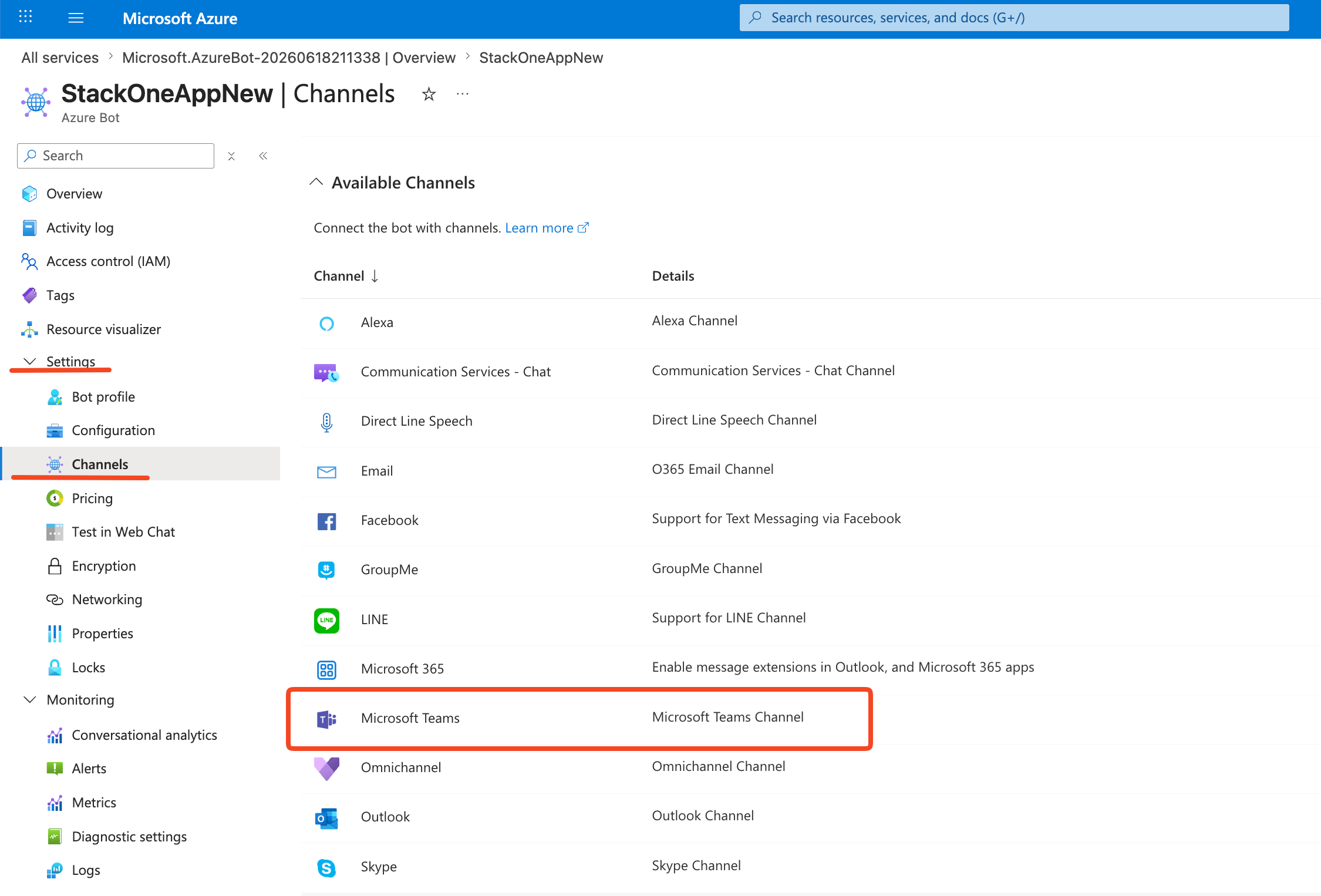
        <p>In the Azure Bot resource, expand <strong>Settings</strong> in the left sidebar, then click <strong>Channels</strong>.</p>

        <ul>
          <li>Click <strong>Microsoft Teams</strong> from the available channels list.</li>
        </ul>

        <img src="https://mintcdn.com/stackone-60/i0kcvb_VY8ptwUMB/connectors/microsoftteams/images/oauth2-setup-settings-channels.png?fit=max&auto=format&n=i0kcvb_VY8ptwUMB&q=85&s=4fa670fa16d4531289457b02a31a03ff" alt="Enable Teams Channel" width="2250" height="1526" data-path="connectors/microsoftteams/images/oauth2-setup-settings-channels.png" />
      </div>
    </Step>

    <Step title="Configure Teams Channel">
      <div data-guide-step data-guide-scopes="" data-guide-display-scopes-list="">
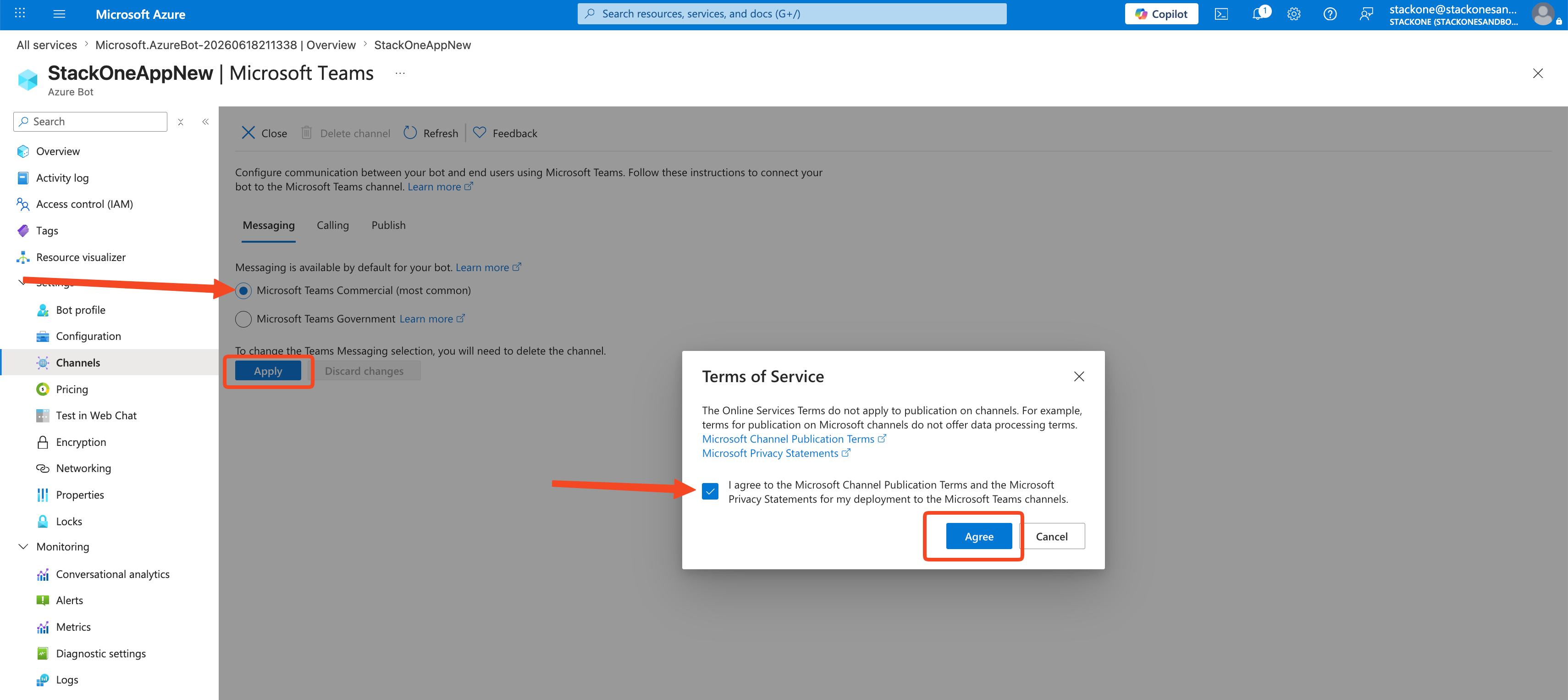
        <p>After adding the Teams channel, a configuration page appears with <strong>Messaging</strong>, <strong>Calling</strong>, and <strong>Publish</strong> tabs.</p>

        <ul>
          <li>Accept the Terms of Service if prompted.</li>
          <li>Select <strong>Microsoft Teams Commercial</strong> under <strong>Messaging</strong>.</li>
          <li>Click <strong>Apply</strong> to save the channel configuration.</li>
        </ul>

        <img src="https://mintcdn.com/stackone-60/i0kcvb_VY8ptwUMB/connectors/microsoftteams/images/oauth2-setup-terms-of-service.png?fit=max&auto=format&n=i0kcvb_VY8ptwUMB&q=85&s=da40da43603971f04ac71ce8efc3a98c" alt="Configure Teams Channel" width="3420" height="1526" data-path="connectors/microsoftteams/images/oauth2-setup-terms-of-service.png" />
      </div>
    </Step>
  </Steps>
</section>

<section data-guide-section data-guide-scopes="">
  <h2>Create Bot Manifest</h2>

  <p>Create a Teams app manifest that registers the bot for personal, team, and group chat scopes.</p>

  <Steps>
    <Step title="Create App in Teams Developer Portal">
      <div data-guide-step data-guide-scopes="" data-guide-display-scopes-list="">
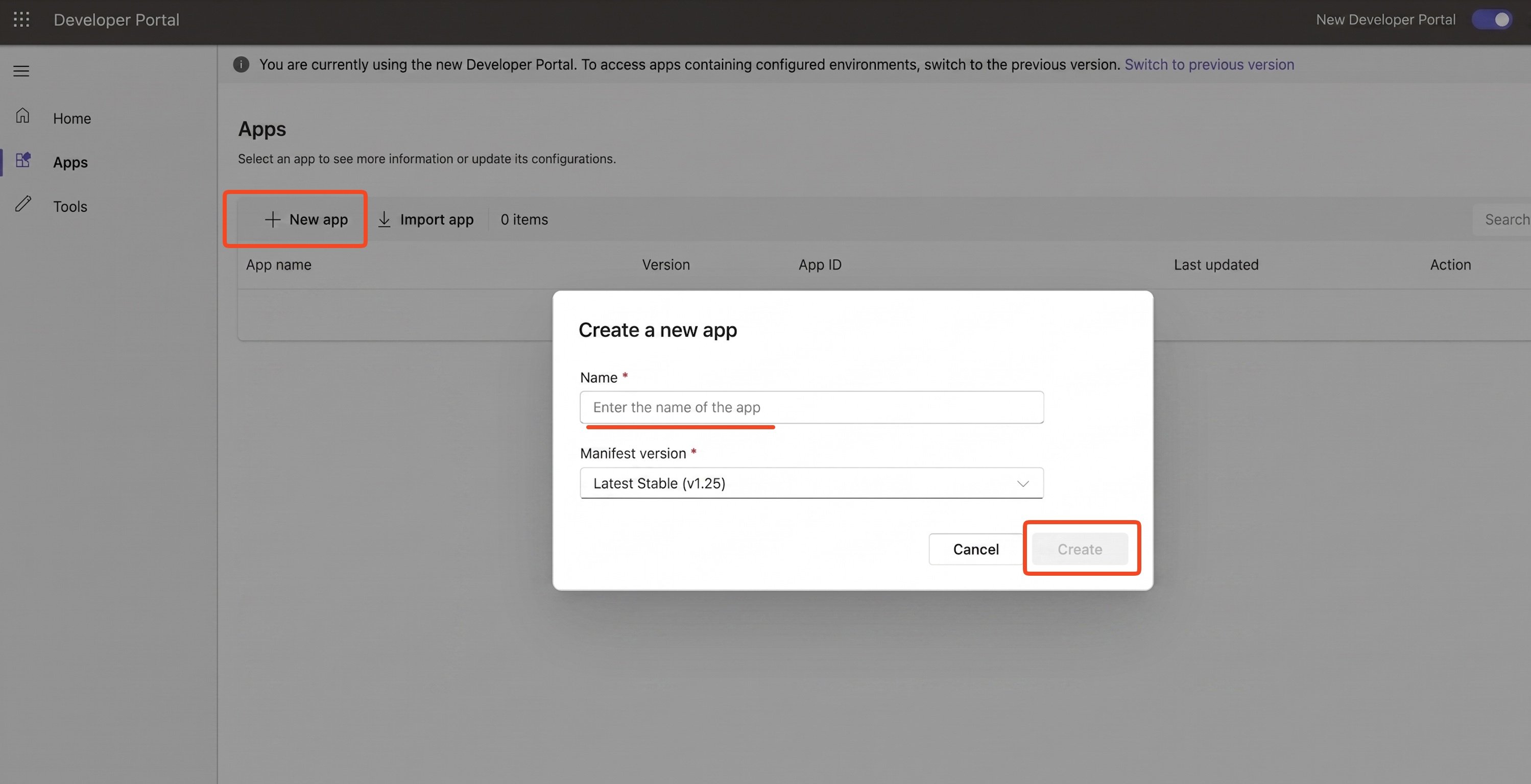
        <p>Go to <a href="https://dev.teams.microsoft.com/apps" target="_blank" rel="noopener noreferrer">Teams Developer Portal</a> and click <strong>New app</strong>. If you already have an app, select it from the <strong>Apps</strong> list instead of clicking New app.</p>

        <ul>
          <li>A <strong>Create a new app</strong> popup appears. Enter the app <strong>Name</strong> and select the <strong>Manifest version</strong> (e.g., Latest Stable v1.25), then click <strong>Create</strong>.</li>
        </ul>

        <img src="https://mintcdn.com/stackone-60/i0kcvb_VY8ptwUMB/connectors/microsoftteams/images/oauth2-setup-teams-dev-create-app.png?fit=max&auto=format&n=i0kcvb_VY8ptwUMB&q=85&s=c670ac4503c34e3b288bbe6b39966a50" alt="Create App" width="2998" height="1536" data-path="connectors/microsoftteams/images/oauth2-setup-teams-dev-create-app.png" />
      </div>
    </Step>

    <Step title="Fill in App Details">
      <div data-guide-step data-guide-scopes="" data-guide-display-scopes-list="">
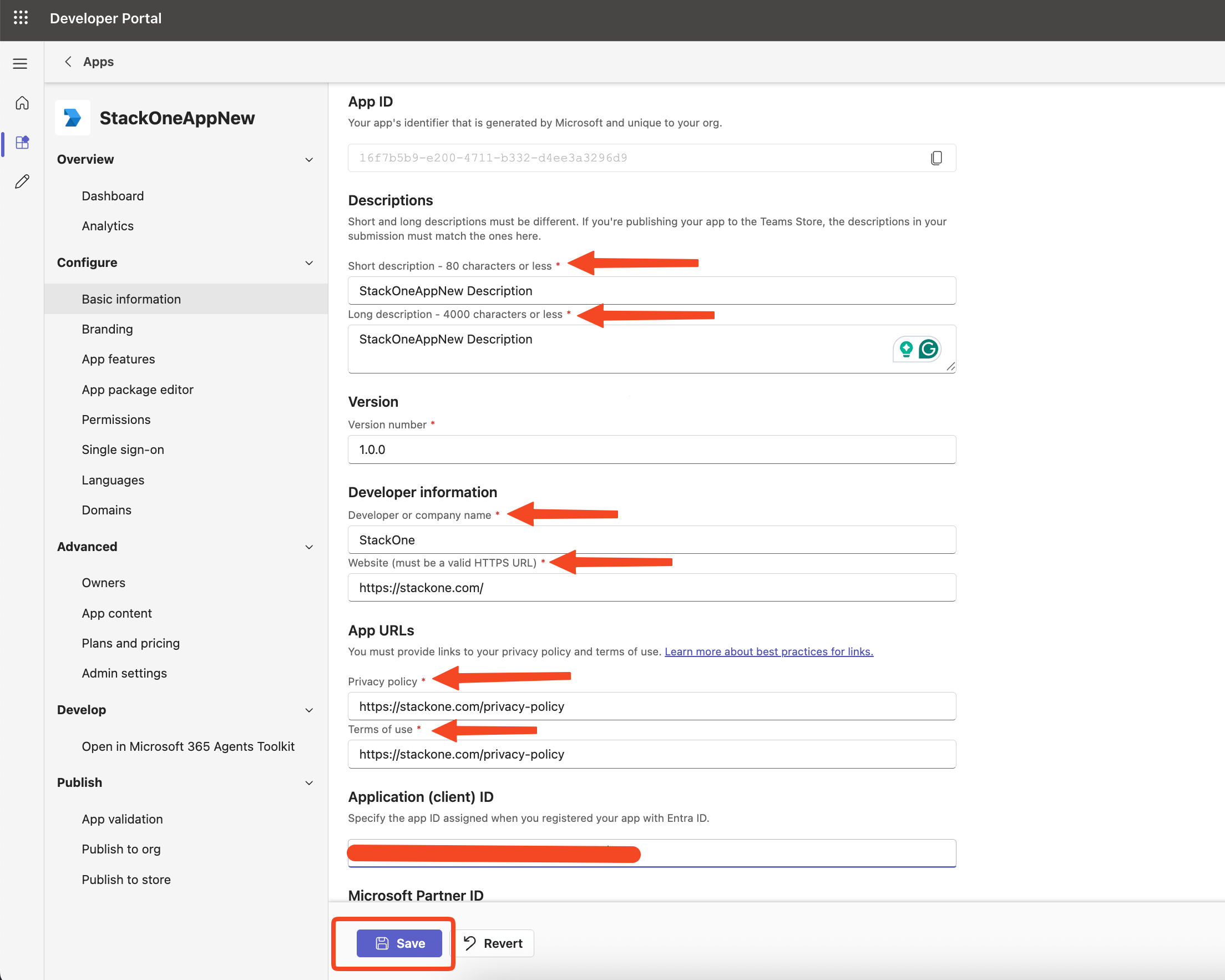
        <p>After clicking Create, you will be taken to the app <strong>Dashboard</strong>. Navigate to <strong>Basic information</strong> under <strong>Configure</strong> in the left sidebar. Fill in the following fields:</p>

        <ul>
          <li><strong>Short description</strong> — A brief summary of your app (80 characters or less, e.g., `StackOneAppNew Description`).</li>
          <li><strong>Long description</strong> — A detailed description of your app (4000 characters or less, e.g., `StackOneAppNew Description`).</li>
          <li><strong>Version</strong> — The version number of your app (e.g., `1.0.0`).</li>
          <li><strong>Developer Information</strong> — Enter the <strong>Developer or company name</strong> (e.g., `StackOne`) and <strong>Website</strong> (must be a valid HTTPS URL, e.g., `https://stackone.com/`).</li>
          <li><strong>App URLs</strong> — Enter the <strong>Privacy policy</strong> URL (e.g., `https://stackone.com/privacy-policy`) and <strong>Terms of use</strong> URL (e.g., `https://stackone.com/privacy-policy`).</li>
          <li><strong>Application (client) ID</strong> — Paste the <strong>Application (client) ID</strong> from your Azure app registration.</li>
          <li><strong>Microsoft Partner ID</strong> — (Optional) Leave blank unless you have a Microsoft Partner Network ID.</li>
          <li>Click <strong>Save</strong> to save your changes.</li>
        </ul>

        <img src="https://mintcdn.com/stackone-60/i0kcvb_VY8ptwUMB/connectors/microsoftteams/images/oauth2-setup-app-basic-info.png?fit=max&auto=format&n=i0kcvb_VY8ptwUMB&q=85&s=fb5c2b25b61b4dcee0b8df886a63aac2" alt="Fill App Details" width="2208" height="1766" data-path="connectors/microsoftteams/images/oauth2-setup-app-basic-info.png" />
      </div>
    </Step>

    <Step title="Configure Bot Feature">
      <div data-guide-step data-guide-scopes="" data-guide-display-scopes-list="">
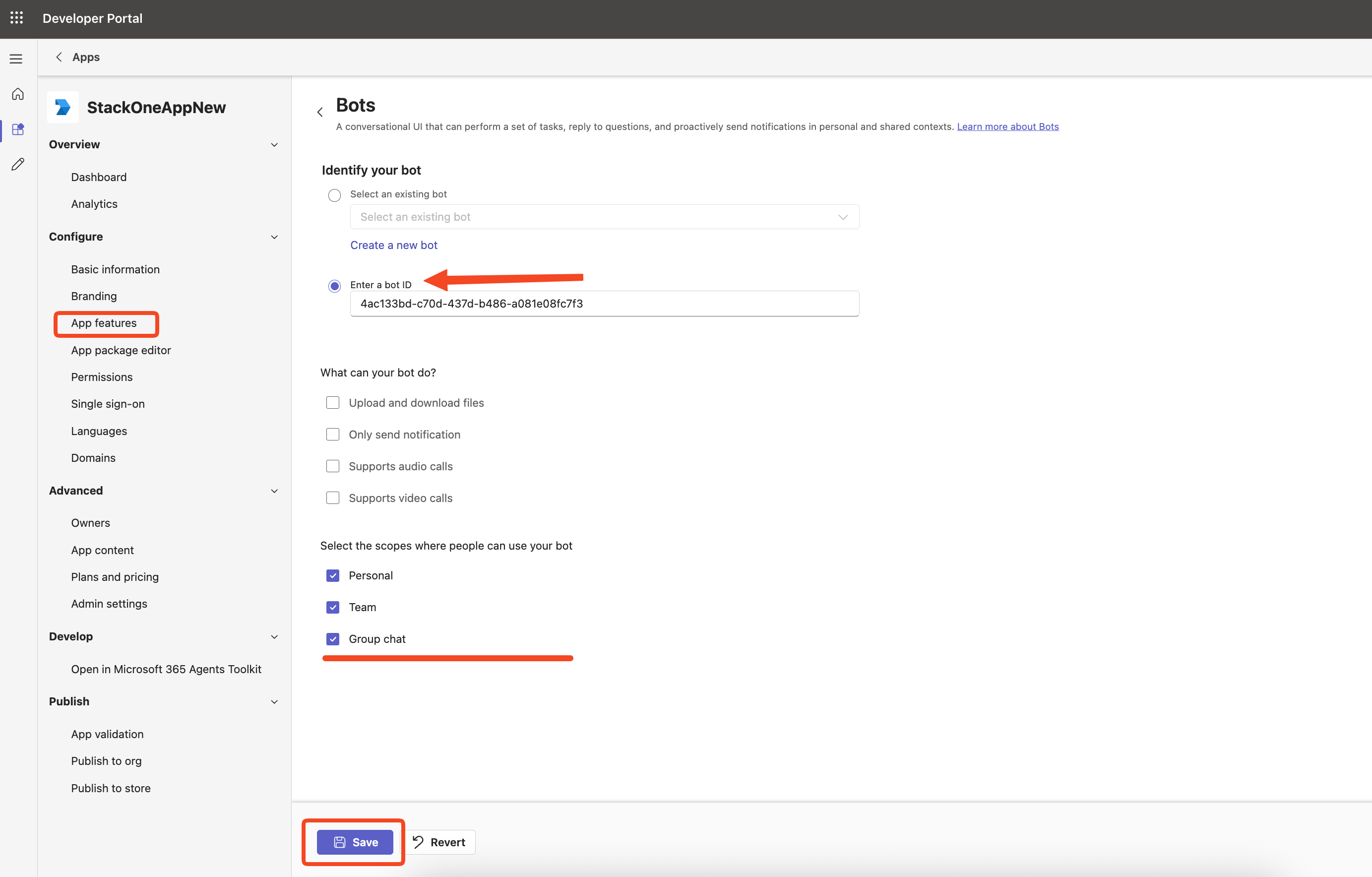
        <p>In the left sidebar, go to <strong>App features</strong> > <strong>Bot</strong>. Under <strong>Identify your bot</strong>, select <strong>Enter a bot ID</strong>.</p>

        <ul>
          <li>Paste your <strong>Application (client) ID</strong> in the bot ID field.</li>
          <li>Uncheck all other options (Upload files, Notification only, Calling, Video).</li>
          <li>Set scopes to <strong>Personal</strong>, <strong>Team</strong>, and <strong>Group Chat</strong>.</li>
        </ul>

        <img src="https://mintcdn.com/stackone-60/i0kcvb_VY8ptwUMB/connectors/microsoftteams/images/oauth2-setup-app-feature-bot.png?fit=max&auto=format&n=i0kcvb_VY8ptwUMB&q=85&s=9009855d213a49629728711bb9195fd3" alt="Configure App Feature Bot" width="2766" height="1768" data-path="connectors/microsoftteams/images/oauth2-setup-app-feature-bot.png" />
      </div>
    </Step>

    <Step title="Open the App Manifest">
      <div data-guide-step data-guide-scopes="" data-guide-display-scopes-list="">
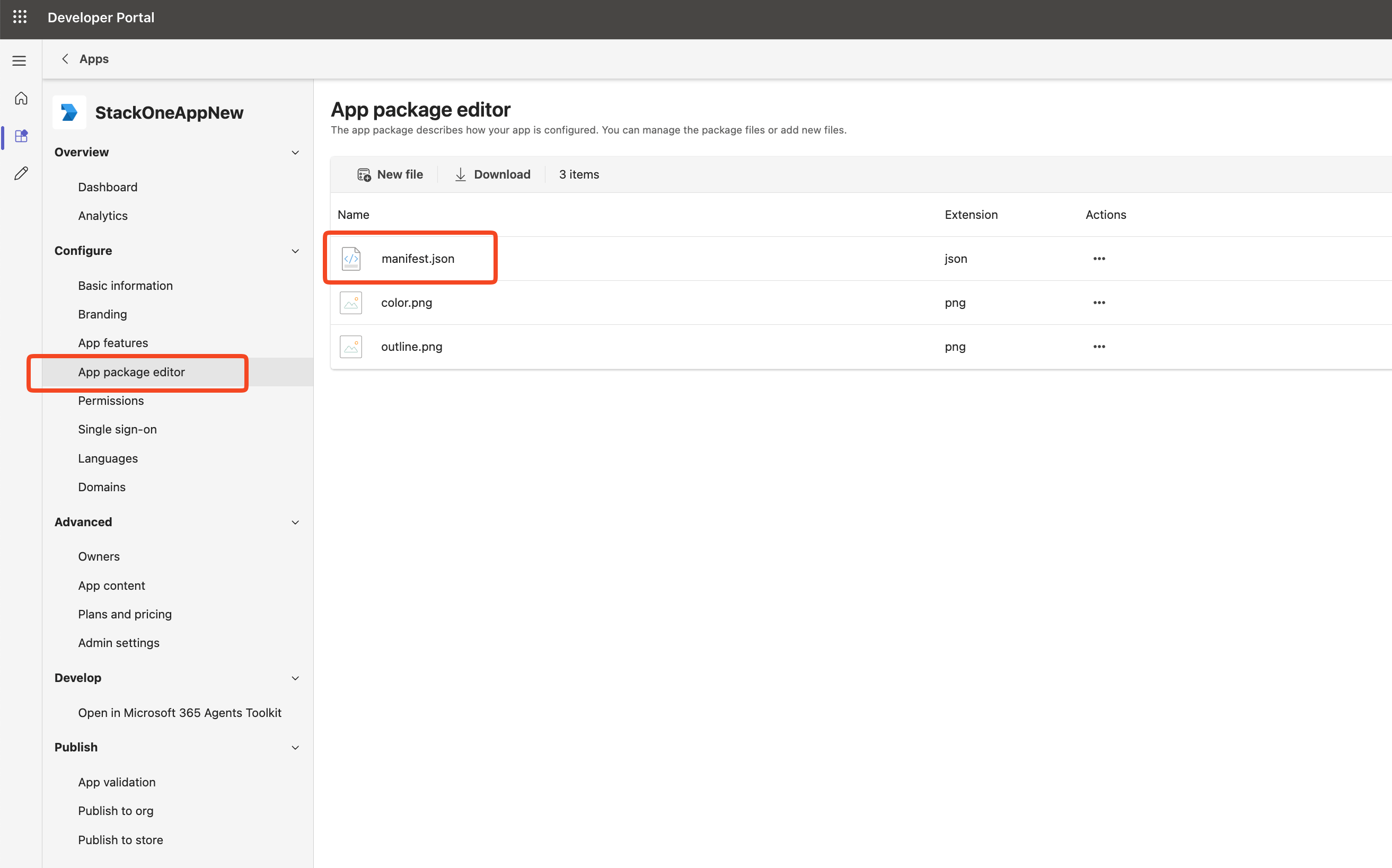
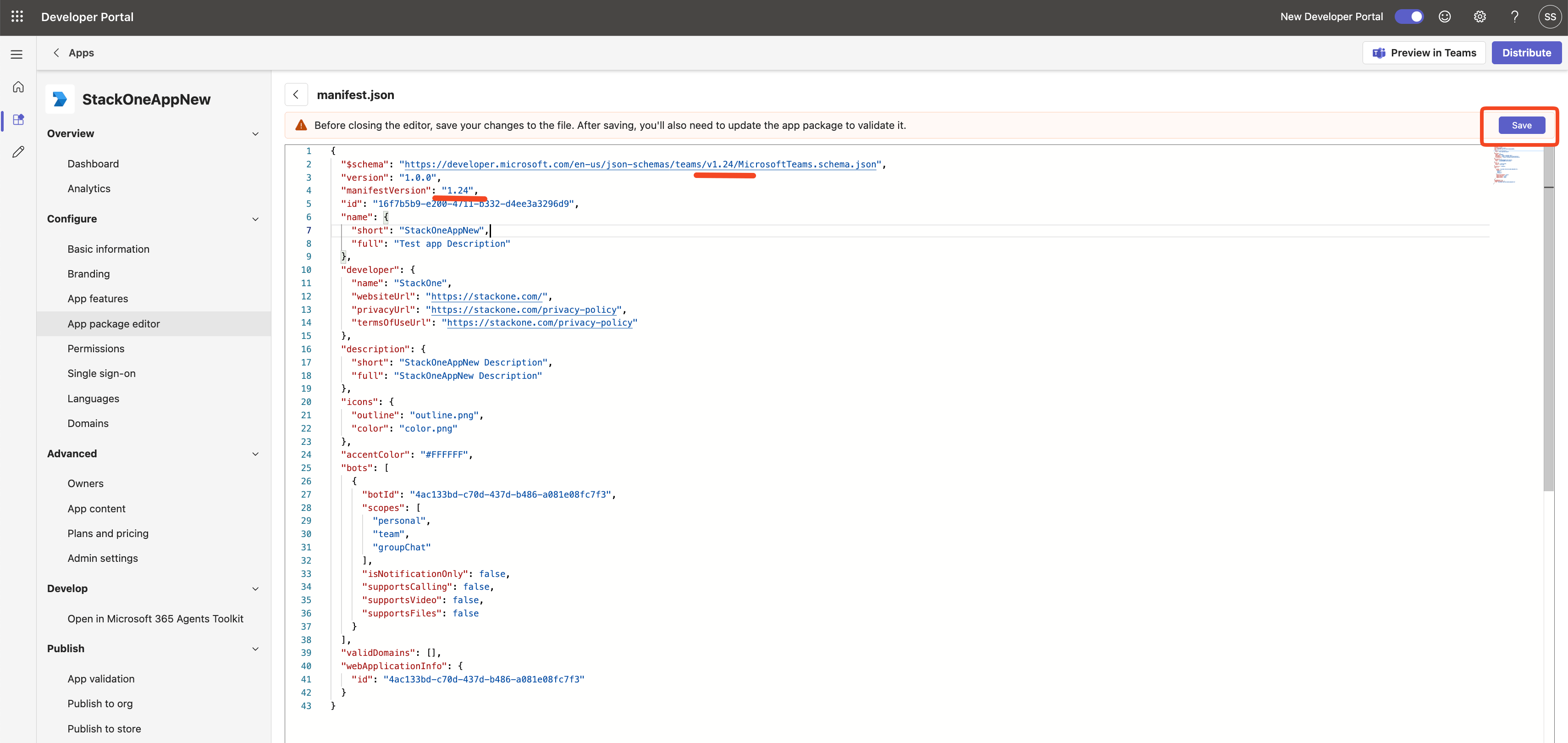
        <p>In the left sidebar, go to <strong>App package editor</strong> and click `manifest.json`. Manifest v1.25 requires the `supportsChannelFeatures` property for the <strong>Team</strong> scope, but the schema does not allow it. Downgrading to v1.24 avoids this issue while keeping the Team scope.</p>

        <img src="https://mintcdn.com/stackone-60/i0kcvb_VY8ptwUMB/connectors/microsoftteams/images/oauth2-setup-navigate-to-manifest.png?fit=max&auto=format&n=i0kcvb_VY8ptwUMB&q=85&s=cc133d72d4c39a4f0083c73ccae12c4d" alt="Navigate To Manifest" width="2626" height="1638" data-path="connectors/microsoftteams/images/oauth2-setup-navigate-to-manifest.png" />
      </div>
    </Step>

    <Step title="Edit and Save the Manifest">
      <div data-guide-step data-guide-scopes="" data-guide-display-scopes-list="">
        <p>Update the following fields in the manifest JSON and save:</p>

        <ul>
          <li>Change `manifestVersion` to `"1.24"`.</li>
          <li>Change `$schema` URL from `v1.25` to `v1.24`.</li>
          <li>Save the changes.</li>
        </ul>

        <img src="https://mintcdn.com/stackone-60/i0kcvb_VY8ptwUMB/connectors/microsoftteams/images/oauth2-setup-update-manifest-version.png?fit=max&auto=format&n=i0kcvb_VY8ptwUMB&q=85&s=3277ae2164a695259c257dc7f93b7f89" alt="Update Manifest Version" width="3420" height="1620" data-path="connectors/microsoftteams/images/oauth2-setup-update-manifest-version.png" />
      </div>
    </Step>

    <Step title="Update App Icons (Optional)">
      <div data-guide-step data-guide-scopes="" data-guide-display-scopes-list="">
        <p>The App package editor also contains <strong>color.png</strong> and <strong>outline.png</strong> icon files. These are default app icons used in the Teams app catalog and app bar.</p>

        <ul>
          <li><strong>color.png</strong> — (Optional) A 192x192 pixel full-color icon displayed in the Teams app catalog. Replace with your custom brand icon if desired.</li>
          <li><strong>outline.png</strong> — (Optional) A 32x32 pixel transparent outline icon displayed in the Teams app bar. Replace with your custom outline icon if desired.</li>
          <li>If you do not need custom branding, leave the default icons as-is.</li>
        </ul>
      </div>
    </Step>

    <Step title="Update App Package">
      <div data-guide-step data-guide-scopes="" data-guide-display-scopes-list="">
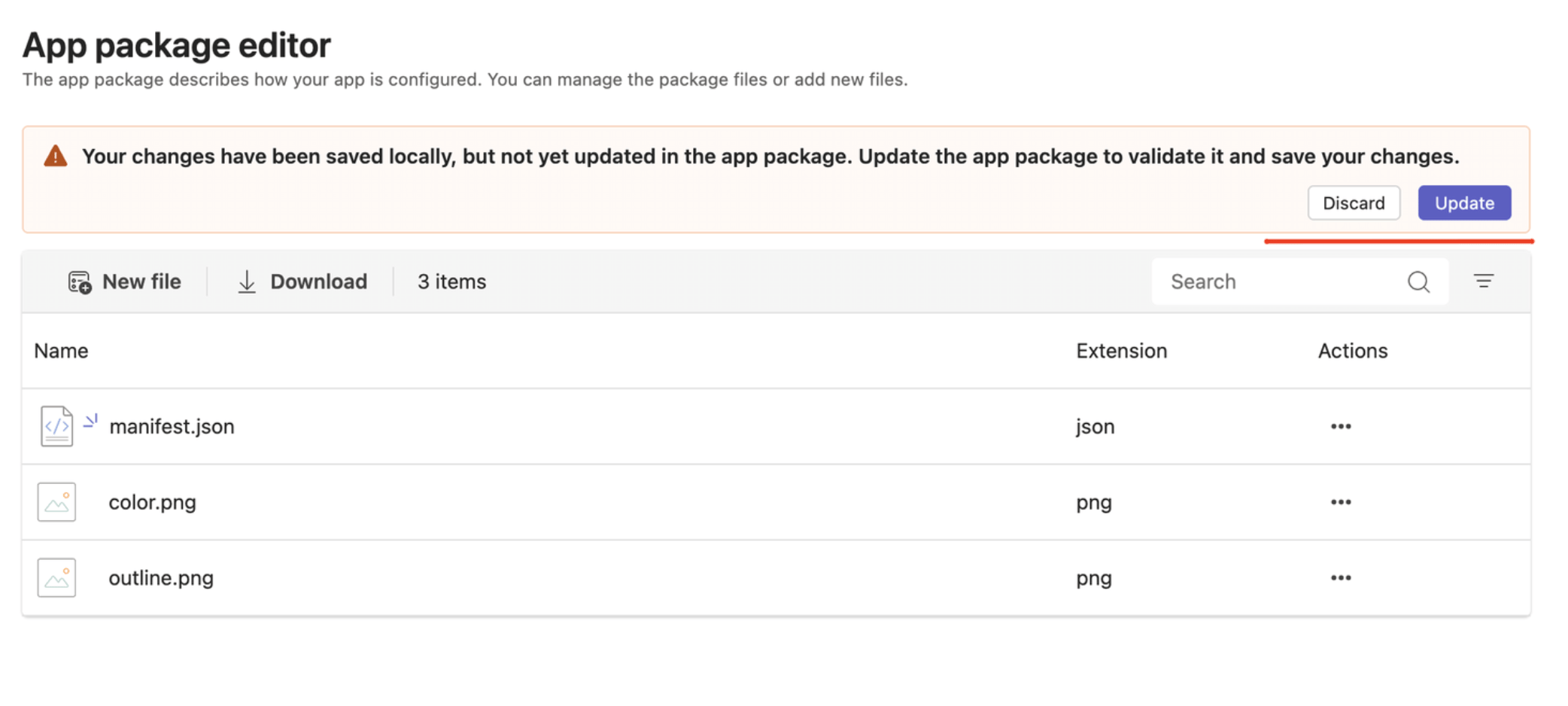
        <p>After saving all changes, an <strong>Update</strong> button appears in the App package editor with a warning that changes have been saved locally but not yet updated in the app package. Click <strong>Update</strong> to validate and apply your changes.</p>

        <img src="https://mintcdn.com/stackone-60/i0kcvb_VY8ptwUMB/connectors/microsoftteams/images/oauth2-setup-update-manifest-button.png?fit=max&auto=format&n=i0kcvb_VY8ptwUMB&q=85&s=7bb8f44f370aa215ad39232a509e7bf1" alt="Update Manifest Button" width="2084" height="938" data-path="connectors/microsoftteams/images/oauth2-setup-update-manifest-button.png" />
      </div>
    </Step>
  </Steps>
</section>

<section data-guide-section data-guide-scopes="">
  <h2>Publish Bot App</h2>

  <p>Choose a distribution method based on your use case. Option A for testing or single-tenant use, Option B for production multi-tenant deployment.</p>

  <Steps>
    <Step title="Option A - Publish to Your Org (Testing / Single Tenant)">
      <div data-guide-step data-guide-scopes="" data-guide-display-scopes-list="">
        <p>For testing or when bot users are in the same tenant as the app registration.</p>

        <ul>
          <li>In the Developer Portal, expand <strong>Publish</strong> in the left sidebar and click <strong>Publish to org</strong>.</li>
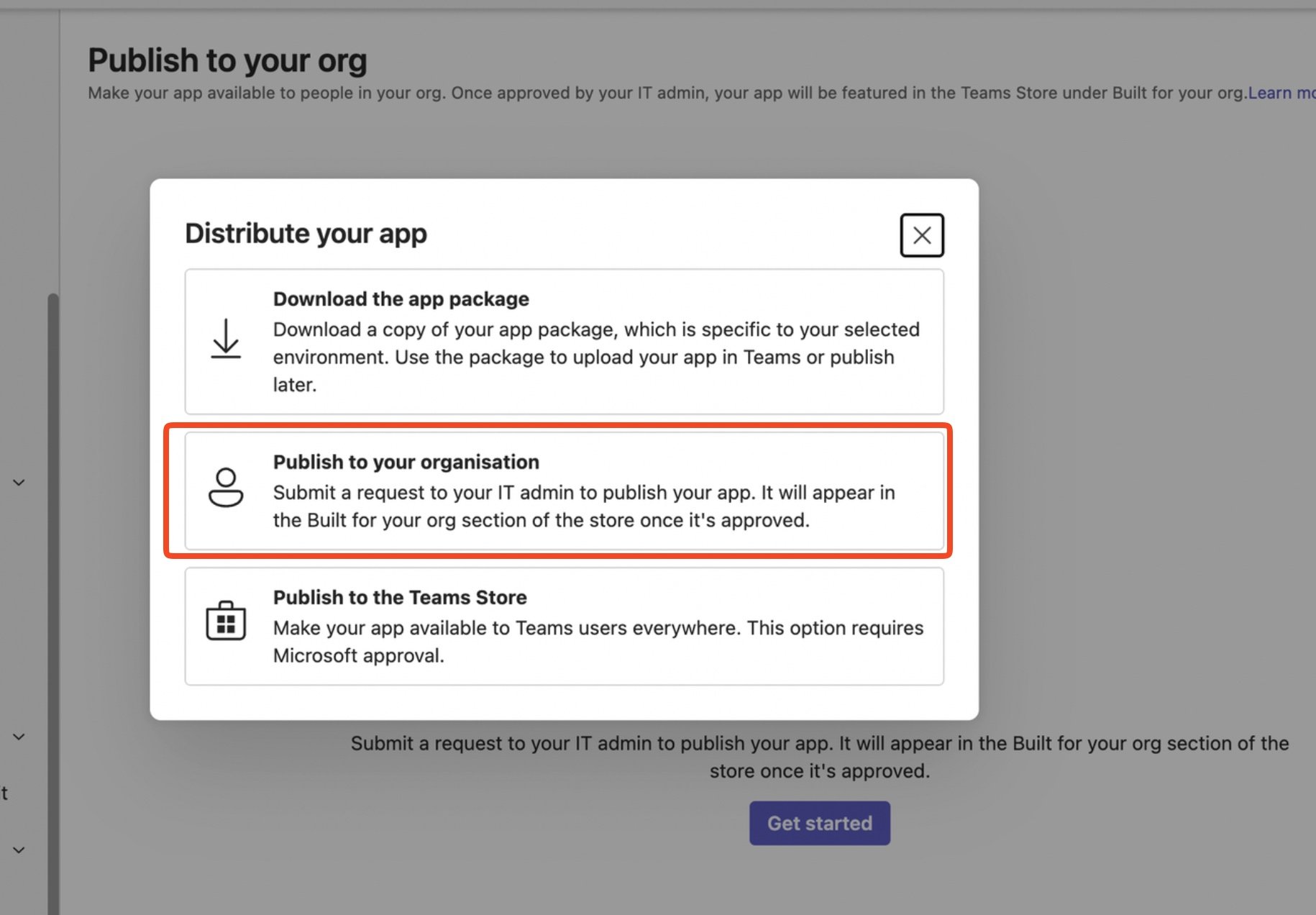
          <li>The <strong>Publish to your org</strong> page appears — click <strong>Get started</strong>.</li>
          <li>A <strong>Distribute your app</strong> popup appears with three options. Select <strong>Publish to your organisation</strong>.</li>
        </ul>

        <img src="https://mintcdn.com/stackone-60/i0kcvb_VY8ptwUMB/connectors/microsoftteams/images/oauth2-setup-publish-to-org.png?fit=max&auto=format&n=i0kcvb_VY8ptwUMB&q=85&s=b71b6c67151452823f4758ae76b5acba" alt="Publish to Your Org" width="1830" height="1272" data-path="connectors/microsoftteams/images/oauth2-setup-publish-to-org.png" />
      </div>
    </Step>

    <Step title="Option A - Approve and Copy App ID">
      <div data-guide-step data-guide-scopes="" data-guide-display-scopes-list="">
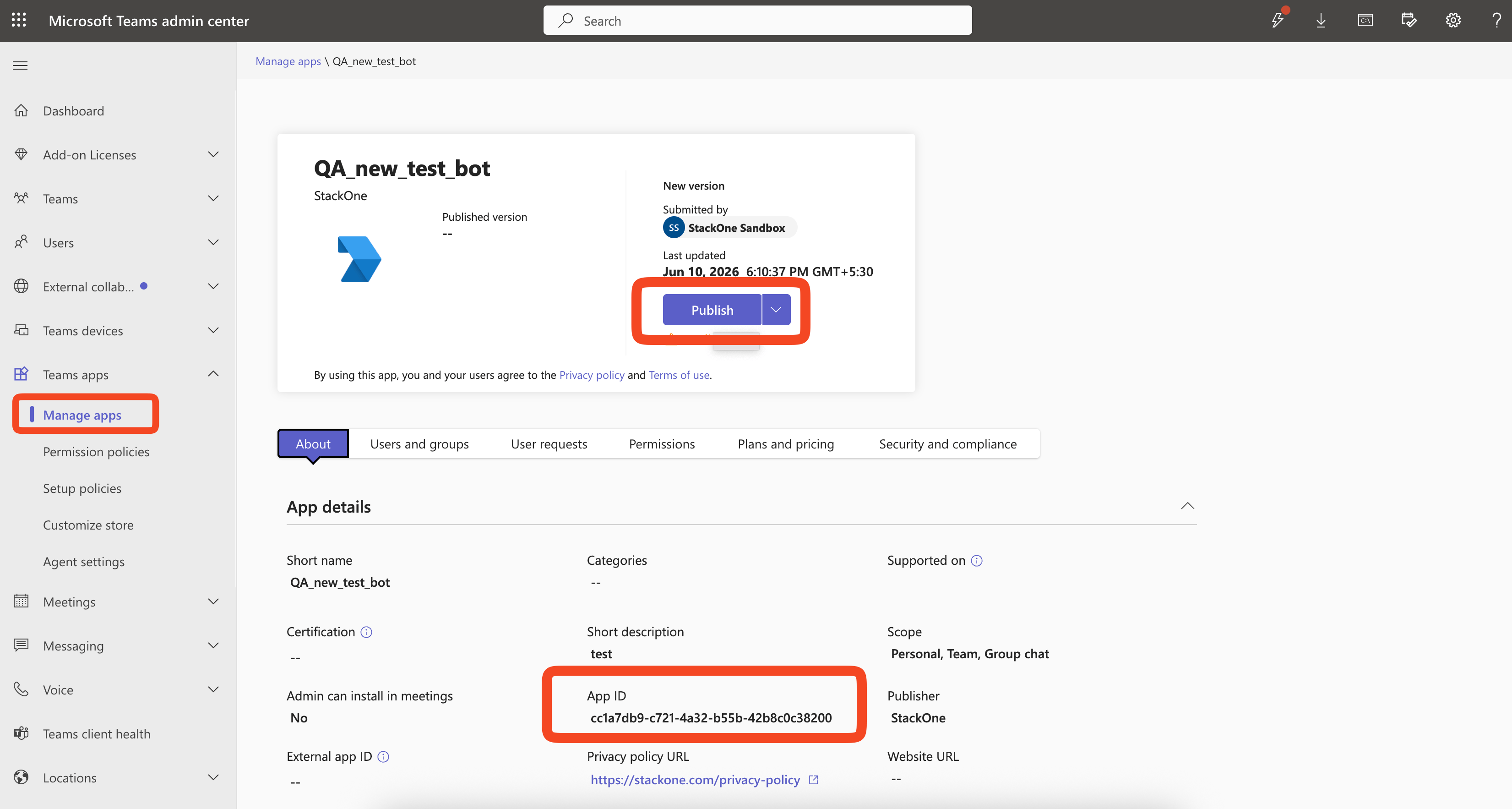
        <p>After publishing, approve the app in the Teams Admin Center and copy the App ID.</p>

        <ul>
          <li>Go to <a href="https://admin.teams.microsoft.com" target="_blank" rel="noopener noreferrer">Teams Admin Center</a>. In the left sidebar, expand <strong>Teams apps</strong> and click <strong>Manage apps</strong>.</li>
          <li>Find and approve the published app.</li>
          <li>Copy the <strong>App ID</strong> shown in the Admin Center — this is the <strong>Teams App Catalog ID</strong>. Save this value for later use in the <strong>Teams App Catalog ID</strong> field during the StackOne connector profile setup.</li>
        </ul>

        <img src="https://mintcdn.com/stackone-60/i0kcvb_VY8ptwUMB/connectors/microsoftteams/images/oauth2-setup-find-app-catalog-id.png?fit=max&auto=format&n=i0kcvb_VY8ptwUMB&q=85&s=fa341aa4e0bd0871274557ac085cae76" alt="Approve App" width="3302" height="1766" data-path="connectors/microsoftteams/images/oauth2-setup-find-app-catalog-id.png" />
      </div>
    </Step>

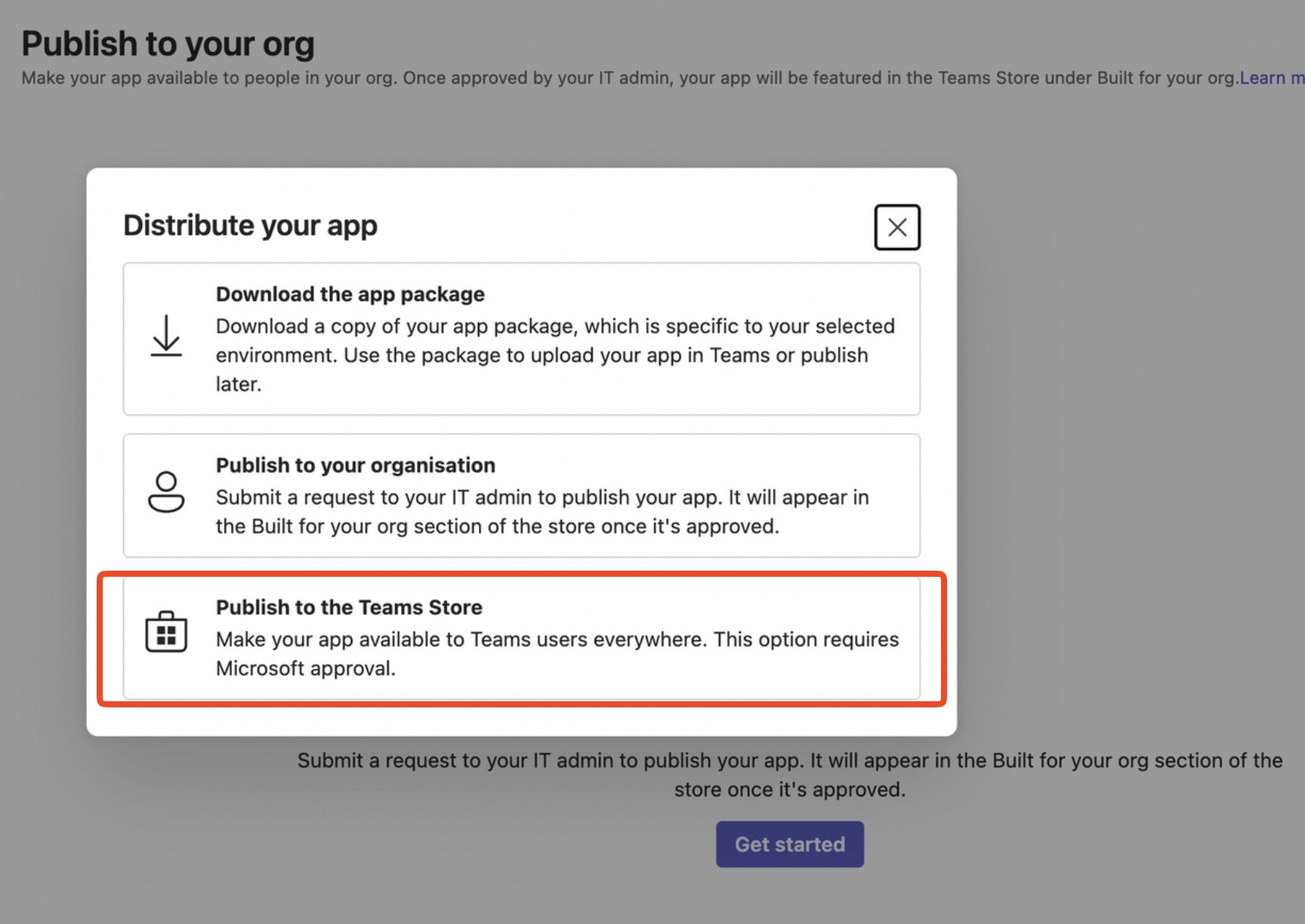
    <Step title="Option B - Publish to Teams Store (Production / Multi-Tenant)">
      <div data-guide-step data-guide-scopes="" data-guide-display-scopes-list="">
        <p>For production use when bot users are in different tenants. The bot becomes globally available without any manual setup by end customers.</p>

        <ul>
          <li>In the Developer Portal, click <strong>Publish</strong> > <strong>Publish to the Teams Store</strong>.</li>
          <li>Complete the App submission checklist and submit for Microsoft review.</li>
          <li>After approval, the app is available in every tenant's app catalog automatically.</li>
          <li>The <strong>App ID</strong> in <a href="https://admin.teams.microsoft.com" target="_blank" rel="noopener noreferrer">Teams Admin Center</a> (under <strong>Teams apps</strong> > <strong>Manage apps</strong>) becomes the <strong>global Teams App Catalog ID</strong> that works across all tenants. Save this value for later use in the <strong>Teams App Catalog ID</strong> field during the StackOne connector profile setup.</li>
        </ul>

        <img src="https://mintcdn.com/stackone-60/i0kcvb_VY8ptwUMB/connectors/microsoftteams/images/oauth2-setup-publish-to-store.png?fit=max&auto=format&n=i0kcvb_VY8ptwUMB&q=85&s=6c8376062bcdd5f213fe27dea6b324ae" alt="Publish to Teams Store" width="1728" height="1224" data-path="connectors/microsoftteams/images/oauth2-setup-publish-to-store.png" />
      </div>
    </Step>
  </Steps>
</section>

<section data-guide-section data-guide-scopes="">
  <h2>Find Your Bot Service URL</h2>

  <p>The Bot Service URL is the endpoint your bot uses to send messages to Teams. It varies by region.</p>

  <Steps>
    <Step title="Determine Your Service URL">
      <div data-guide-step data-guide-scopes="" data-guide-display-scopes-list="">
        <p>The Bot Service URL is typically the same for most regions but can differ for government or sovereign clouds.</p>

        <ul>
          <li><strong>Bot Service URL</strong> — Typically `https://smba.trafficmanager.net/teams` for most regions. See <a href="https://learn.microsoft.com/en-us/microsoftteams/platform/bots/how-to/conversations/send-proactive-messages?tabs=dotnet#create-the-conversation" target="_blank" rel="noopener noreferrer">Microsoft docs</a> for global URLs. You will need this value for the <strong>Bot Service URL</strong> field during the StackOne connector profile setup.</li>
          <li>If unsure, use `https://smba.trafficmanager.net/teams` — this works for most commercial tenants.</li>
        </ul>
      </div>
    </Step>
  </Steps>
</section>

## Creating the StackOne Connector Profile

To create the Connector Profile in StackOne for <strong>Microsoft Teams</strong>:

<Steps>
  <Step title="Navigate to Connector Profiles">
    Login to StackOne and navigate to [Connector Profiles](https://app.stackone.com/connector_profiles)
  </Step>

  <Step title="Create New Connector Profile">
    <ul>
      <li>Click <strong>+ Connector Profile</strong></li>
      <li>Search for and select <strong>Microsoft Teams</strong></li>
      <li>Select <strong>Type</strong> as <strong>OAuth 2.0 (with Bot Framework)</strong></li>

      <li>
        Fill out the fields using details retrieved from your provider:

        <ul style={{ marginLeft: '20px' }}>
          <li><strong>Client ID</strong></li>
          <li><strong>Client Secret</strong></li>
          <li><strong>Teams App Catalog ID</strong></li>
          <li><strong>Bot Service URL</strong></li>
          <li><strong>Scopes</strong> (Optional)</li>
        </ul>
      </li>

      <li>(Optional) Select <strong>Actions</strong> to be enabled for this Connector Profile</li>
      <li>Click <strong>Create profile</strong></li>
    </ul>
  </Step>
</Steps>

Congratulations! The new Connector Profile will now show up in your project ready to be used. You can now continue to <a href="/guides/accounts-section#linking-accounts">Link Accounts</a> for <strong>Microsoft Teams</strong>.